Use Cases for SD-WAN Capabilities in Cisco Secure Firewall

PDF

Configure a Static Route

Updated: February 5, 2026

Overview

Provides instructions to configure a static route in Firewall Management Center (FMC) to steer Threat Defense (FTD) device's DNS and web traffic through the Cisco Umbrella SIG tunnel.

You must configure a static route from the auto tunnel to the Umbrella DC.

Procedure

1.

From the Devices > Device Management page and edit the threat defense device (NGFWBR1).

2.

Click the Routing tab.

3.

Click Static Route.

4.

Click Add Route to add a new route.

5.

Select outside_static_vti_1 as the interface from the Interface drop-down list.

6.

Select any-ipv4 as the the destination network from the Available Networks box and click Add.

7.

Enter a gateway for the network. For this example, enter 169.254.2.2.

8.

Enter a metric value. It can be a number that ranges between 1 and 254. For this example, enter the value as 2.

9.

To save the settings, click Save.

The static route is created as seen in the figure below.
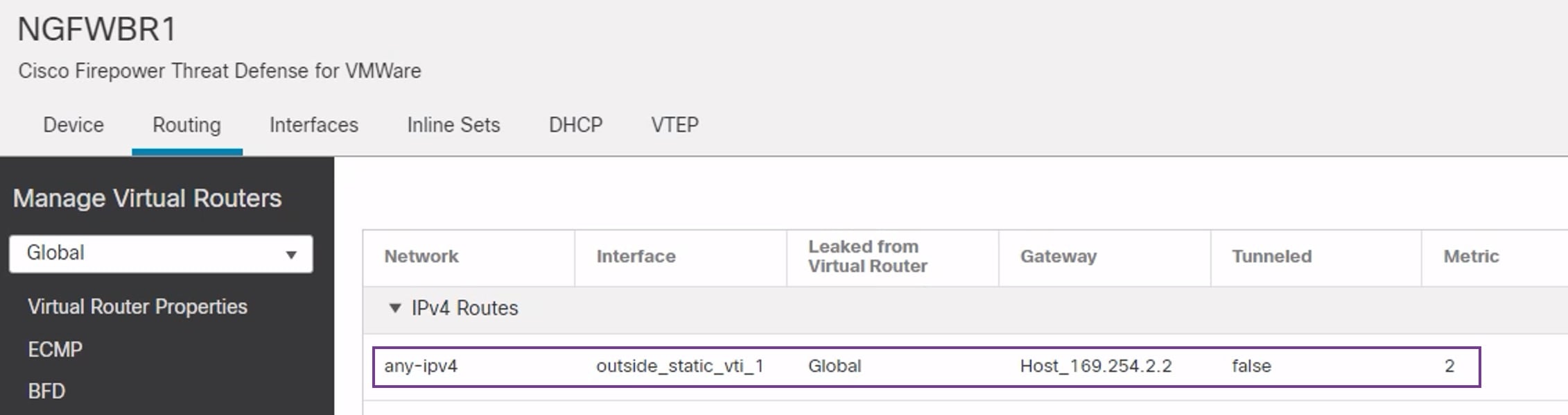
Details of static route configured in Firewall Management Center
Note

Since the metric is higher, this route will not appear in the routing table when using the show route command. However, it is required for next-hop resolution in policy-based routing, so make sure not to delete it.