Provides instructions for configuring access control policies to allow traffic across a route-based site-to-site VPN using Firewall Management Center (FMC).
Before proceeding, ensure that the VTI interfaces on NGFW1 and NGFWBR1 nodes are associated to a new zone labeled as Tunnel_Zone.
Navigate to Policies > Access Control to review the access control policies. The following access control policies must be updated for both the hub and spoke to allow the VPN traffic to and from the tunnel.
-
NGFW1—Access control policy for the hub node (NGFW1)
-
Branch Access Control —Access control policy for the spoke node (NGFWBR1)
Procedure
-
To edit the hub node (NGFW1) AC policy, click the Edit (
 ) icon.
 The existing rules that must be modified for this use case are:
-
Allow-To-Branch-Over-Tunnel
-
Allow-To-Corp-Over-Tunnel
-
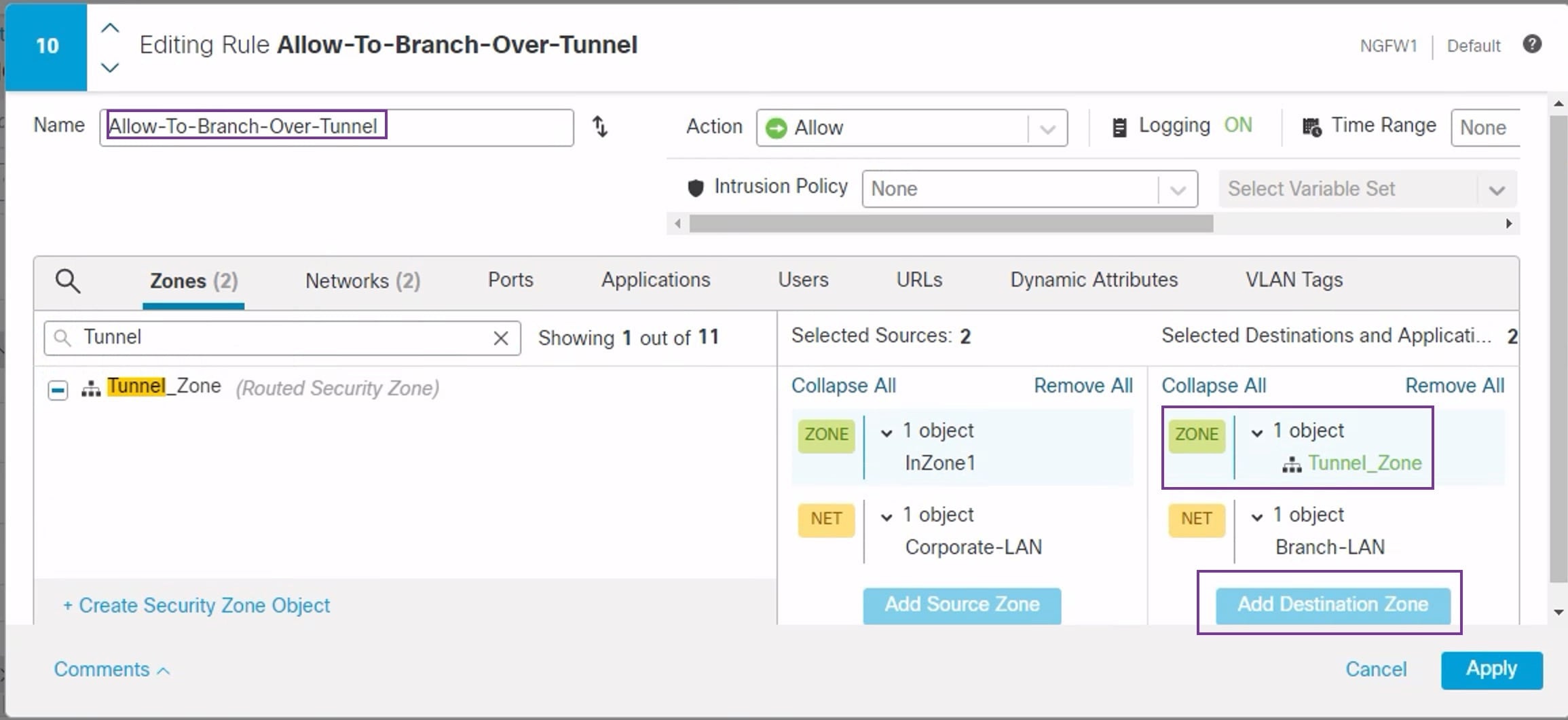
To edit the Allow-To-Branch-Over-Tunnel policy, click the Edit (
) icon. -
In the Zones tab, search for Tunnel_Zone, select it, and click Add Destination Zone.
-
Click Apply to save the rule.
-
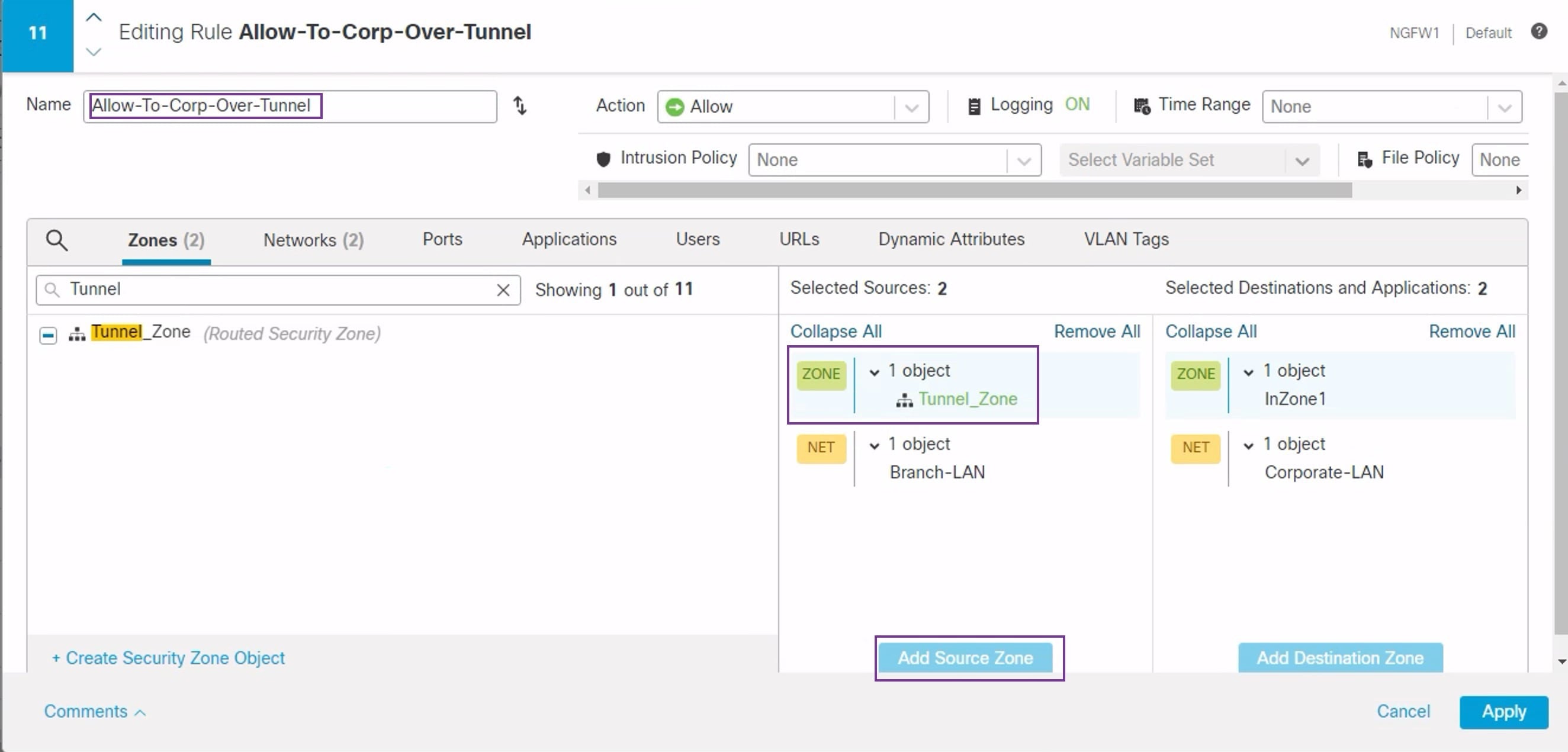
To edit the Allow-To-Corp-Over-Tunnel policy, click the Edit (
) icon. -
In the Zones tab, search for Tunnel_Zone, select it, and click Add Source Zone.
-
Click Apply to save the rule.
-
Verify the updated rules in NGFW1.
-
Click Save the AC policy.
-
Click Return to Access Conrol Policy Management to return the policy page.
-
-
To edit the spoke node (NGFWBR1) AC policy, click the Edit (
) icon. The rules that must be edited for this example are:
-
Allow-To-Branch-Over-Tunnel
-
Allow-To-Corp-Over-Tunnel
-
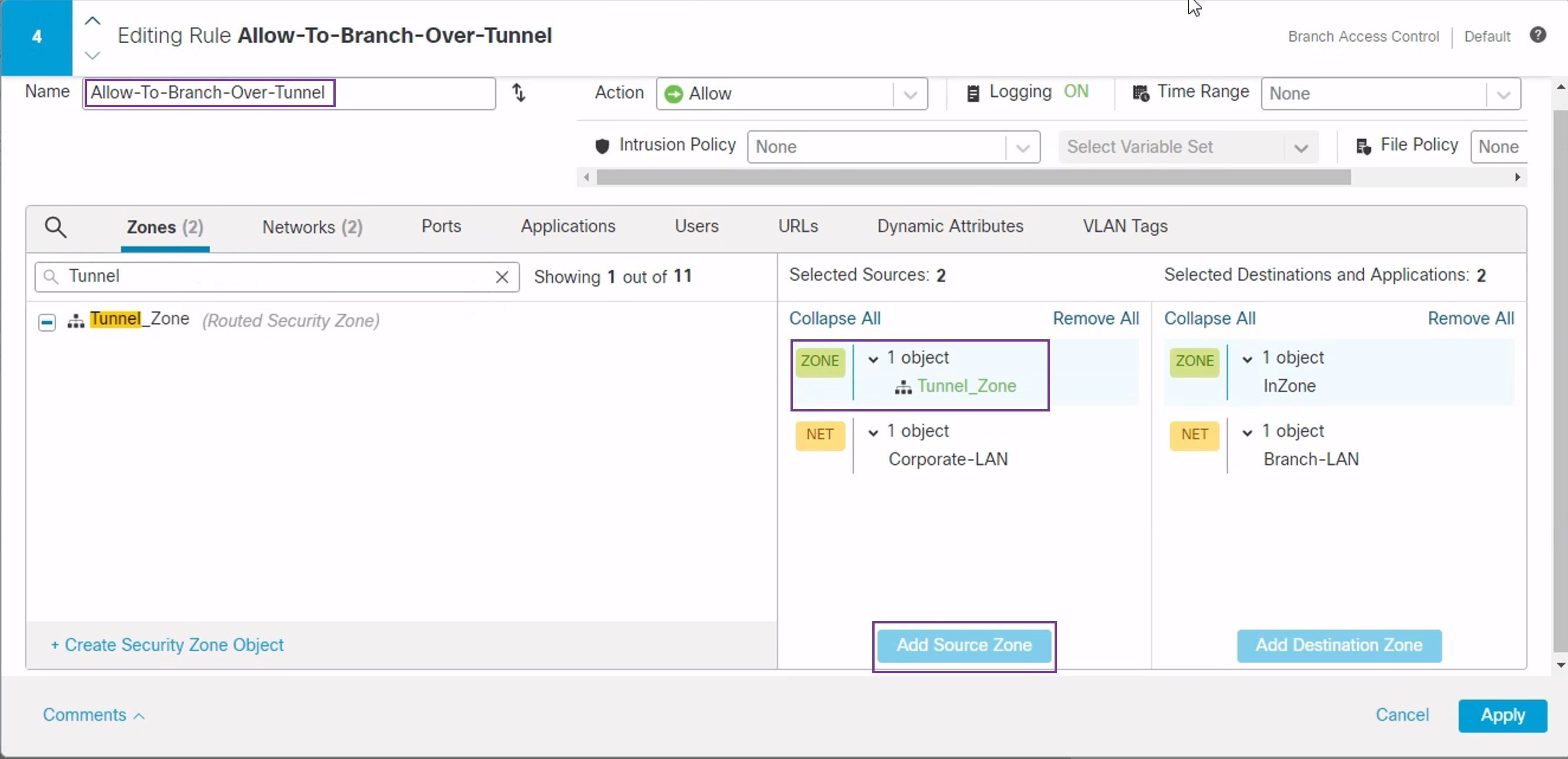
To edit the Allow-To-Branch-Over-Tunnel policy, click the Edit (
) icon. -
In the Zones tab, search for Tunnel_Zone, select it, and click Add Souce Zone.
-
Click Apply to save the rule.
-
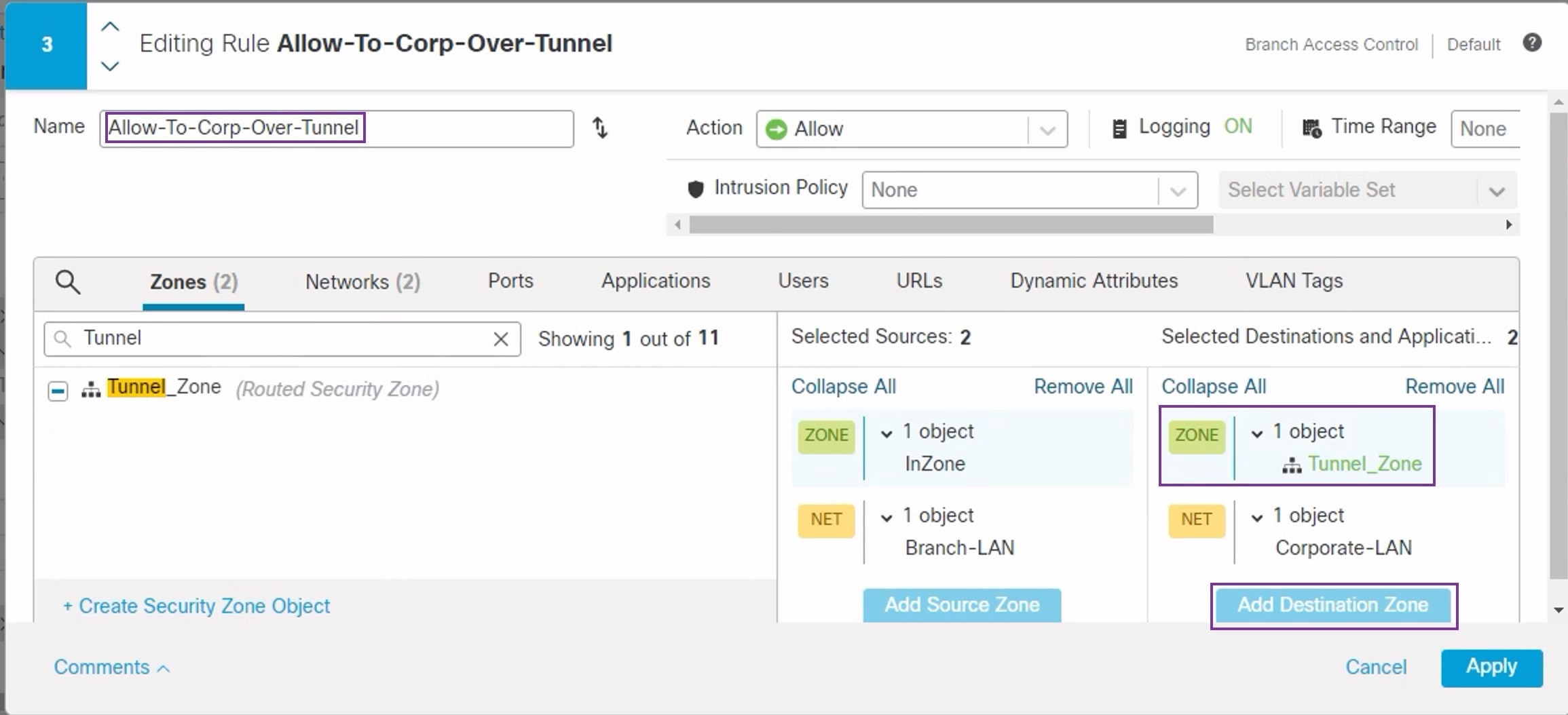
To edit the Allow-To-Corp-Over-Tunnel policy, click the Edit (
) icon. -
In the Zones tab, search for Tunnel_Zone, select it, and click Add Destination Zone.
-
Click Apply to save the rule.
-
Verify the updated rules in NGFWBR1.
-
Click Save the AC policy.
-