Use Cases for SD-WAN Capabilities in Cisco Secure Firewall

PDF

Configure a SASE Tunnel for Umbrella

Updated: February 5, 2026

Overview

Provides instructions to configure a Cisco Umbrella SASE auto tunnel in Firewall Management Center (FMC) to forward branch DNS and web traffic through a Secure Internet Gateway (SIG) tunnel for cloud security inspection.

Procedure

1.

In Management Center, choose Devices > VPN > Site To Site.

2.

Click + SASE Topology to open the SASE topology wizard.

3.

Enter a unique Topology Name For our example, enter VPN-MumbaiUmbrella.

4.

Pre-shared Key: This key is auto-generated according to the Umbrella PSK requirements.

The device and Umbrella share this secret key, and IKEv2 uses it for authentication. You can override the auto-generated key. If you want to configure this key, it must be between 16 and 64 characters in length, include at least one uppercase letter, one lowercase letter, one numeral, and have no special characters. Each topology must have a unique pre-shared key. If a topology has multiple tunnels, all the tunnels have the same pre-shared key.

5.

Choose a data center from the Umbrella Data center drop-down list. The Umbrella data centers are auto populated with the region and IP addresses.

6.

Click Add to add a threat defense node as an endpoint in the SASE topology.

  1. Choose a threat defense device (NGFWBR1 ) from the Device drop-down list.

  2. Choose a static VTI interface from the VPN Interface drop-down list.

    To create a new static VTI interface (for example, Outside_static_vti_1), click +. The Add Virtual Tunnel Interface dialog box appears with the following pre-populated default configurations.
    • Tunnel Type is set to Static by default.

    • Name is <tunnel_source interface logical name>+ static_vti +<tunnel ID>. For example, Outside_static_vti_1.

    • Tunnel is Enabled by default.

    • Security zone is configured as Outside by default.

    • Tunnel ID is auto-populated with an unique ID.

    • Tunnel Source Interface is auto-populated with an interface with an 'outside' prefix.

      Note

      Ensure the tunnel source is set to GigabitEthernet0/0

      Note

      You can also set the Tunnel Source Interface to a different interface.

    • IPsec tunnel mode is IPv4 by default.

    • Unused IP address is picked from the 169.254.x.x/30 private IP address range. In our example, 169.254.2.1/30 is selected.

      Note

      When the /30 subnet is used, only two IP addresses are available. The first IP address is the auto tunnel VTI IP and the second IP address is used as the next hop IP while configuring the static route to the Umbrella DC. In our example, 169.254.2.1 is the VTI IP and 169.254.2.2 is used for the static route. See Configure a Static Route.

    • Click OK.

    Choose outside_static_vti_1 from the VPN Interface drop-down list.

  3. Enter a prefix for the local tunnel ID in the Local Tunnel ID field.

    The prefix can have a minimum of eight characters and a maximum of 100 characters. Umbrella generates the complete tunnel ID (<prefix>@<umbrella-generated-ID>-umbrella.com) after the management center deploys the tunnel on Umbrella. The management center then retrieves and updates the complete tunnel ID and deploys it on the threat defense device. Each tunnel has a unique local tunnel ID.

  4. Click Save to add the endpoint device to the topology.

7.

Click Next to view the summary of the Umbrella SASE tunnel configuration.

  • Endpoints pane: Displays the summary of the configured threat defense endpoints.

  • Encryption Settings pane: Displays the encryption settings for the SASE tunnel.

8.

Check the Deploy configuration on threat defense nodes check box to trigger deployment of the network tunnels to the threat defense. This deployment only occurs after the tunnels are deployed on Umbrella. Local tunnel ID is required for the threat defense deployment.

9.

Click Save.

This action:
  1. Saves the SASE topology in the management center.

  2. Triggers deployment of the network tunnels for each threat defense endpoint to Umbrella.

  3. Triggers deployment of the network tunnels to the threat defense devices, if the option is enabled. This action commits and deploys all the updated configurations and policies, including non-VPN policies, since the last deployment on the device.

  4. Opens the Cisco Umbrella Configuration window and displays the status of the tunnel deployment on Umbrella.
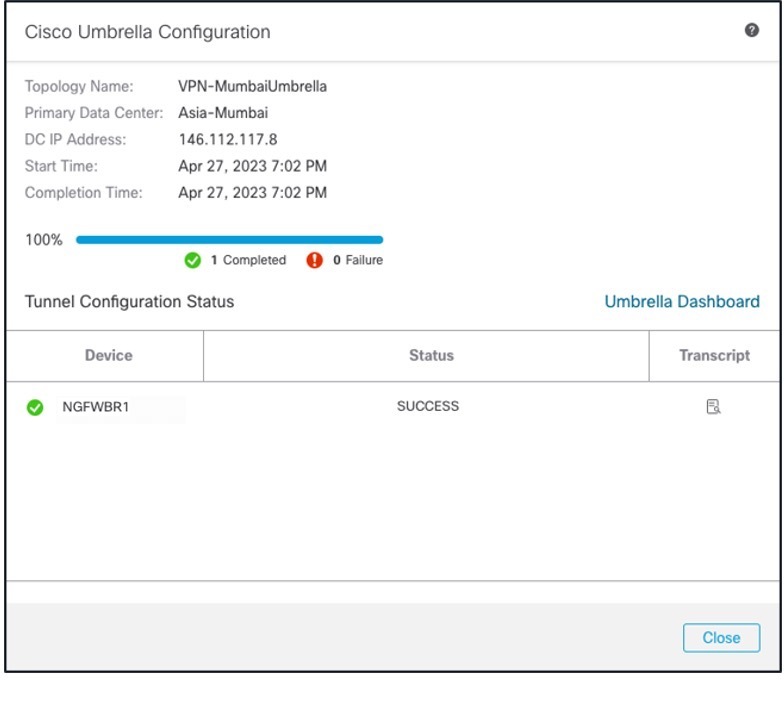
    Screenshot of Cisco Umbrella Configuration dialog box in Firewall Management Center

    To view the details of the deployment, click the Transcript button to view the transcript details such as the APIs, request payload, and the response received from Umbrella.
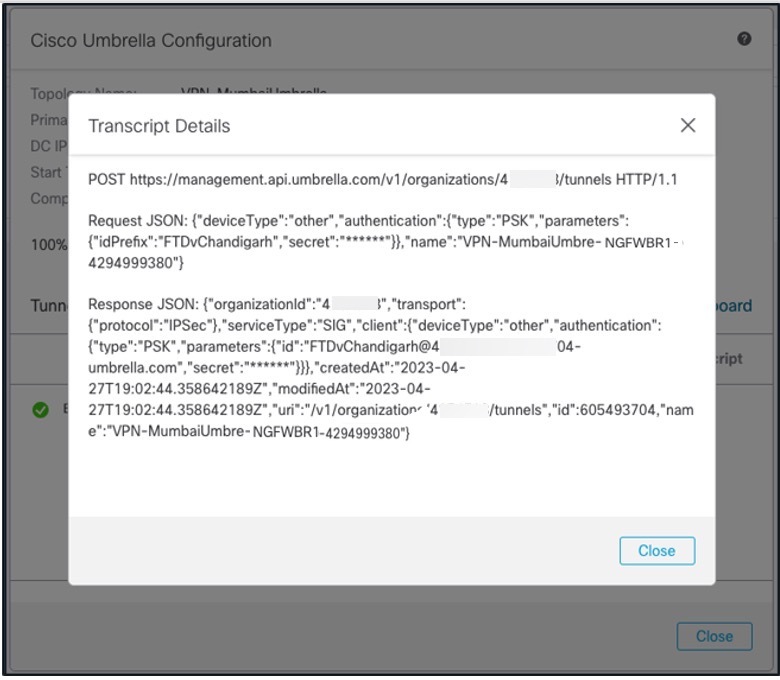
    Details of transcript

    Click the Umbrella Dashboard link to view the Network Tunnels page in Umbrella.
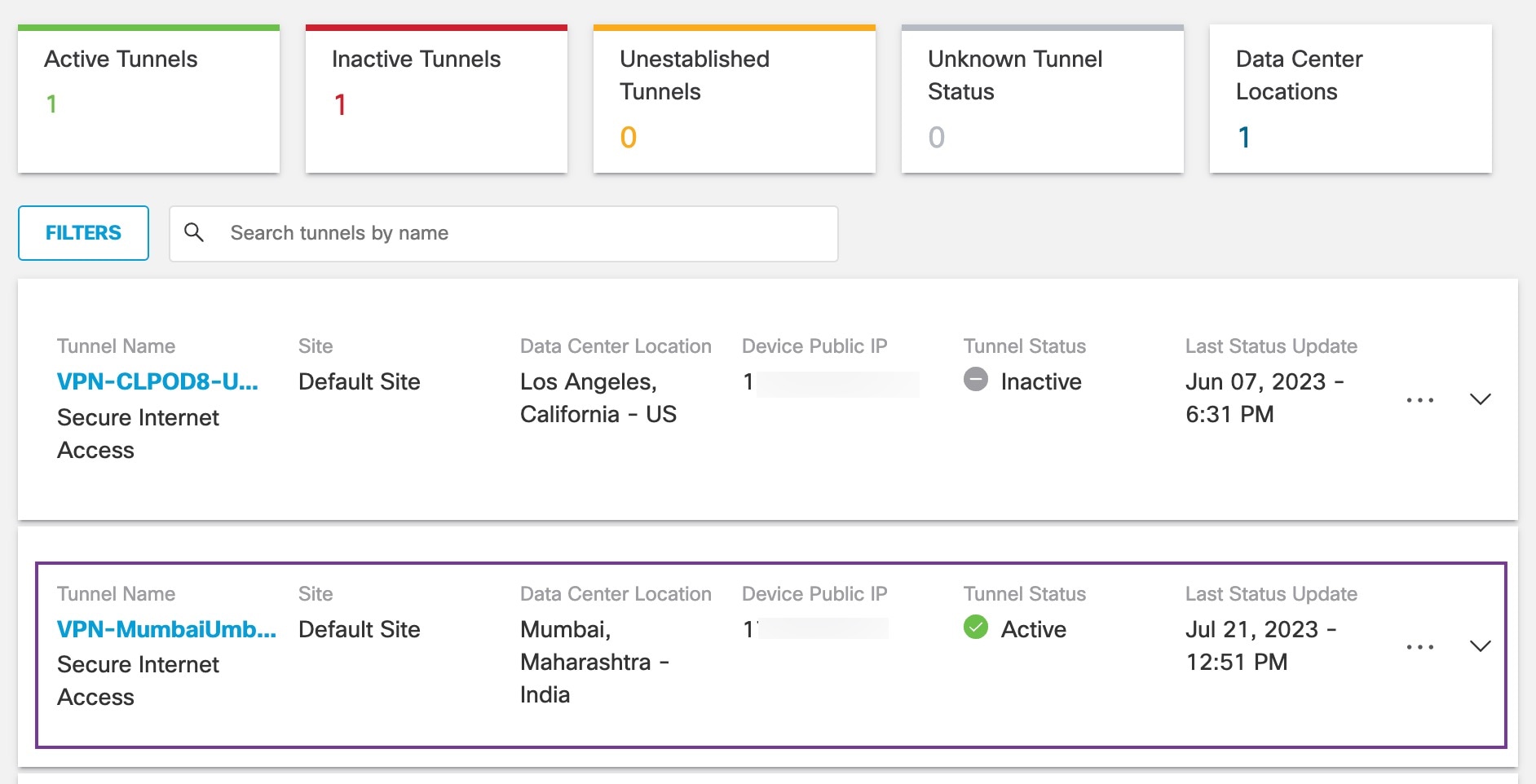
    Umbrella Dashboard

What to do next

For the traffic intended to flow through the SASE tunnel, configure a PBR policy with a specific match criteria to send the traffic through the VTI.