Universal Zero Trust Network Access

Universal Zero Trust Network Access (ZTNA) secures internal resources by validating user identity and device posture instead of granting full network access. The solution integrates Security Cloud Control, Secure Access, and Firewall Threat Defense devices to enforce granular, context-aware security policies. Administrators configure these components within the Security Cloud Control platform to protect applications and prevent lateral movement across hybrid environments.

Universal Zero Trust Network Access

Universal Zero Trust Network Access (universal ZTNA) is a client-based ZTNA solution that enables users to securely access internal resources and applications regardless of their location, whether remote or on-premises. It enables administrators to specifically allow access to internal network resources according to user identity including user trust and posture, without granting access to the entire network as with Remote Access VPN.

Because universal ZTNA does not assume that access granted to one application implicitly authorizes access to other applications, the network attack surface is reduced.

Universal ZTNA ensures least-privileged, per-application, per-user access with strong authentication, posture validation, and comprehensive traffic inspection. It secures applications effectively across hybrid environments.

Components of Universal ZTNA

A new configuration of universal ZTNA consists of Security Cloud Control Firewall Management (formerly called Cisco Defense Orchestrator), and Secure Access, both provisioned on the Security Cloud Control platform. Security Cloud Control Firewall Management manages the Firewall Threat Defense devices through the Secure Firewall Management Center.
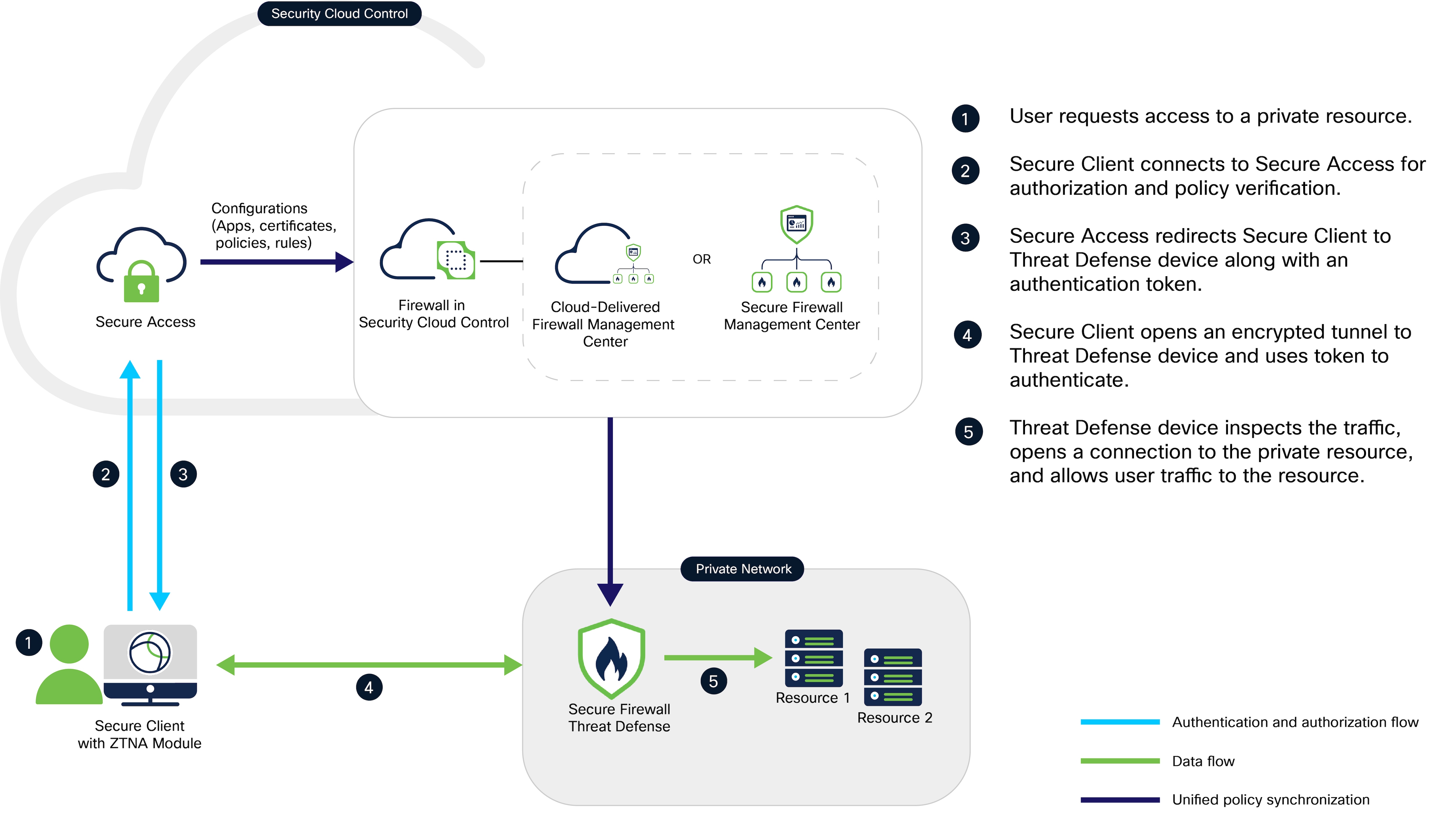
Figure 1. Components of universal ZTNA
Universal ZTNA comprises Secure Access and Firewall in Security Cloud Control. Firewall in Security Cloud Control connects to FIrewall Management Center that manages the Threat Defense device.
  • Security Cloud Control Firewall Management: Manages the configuration and deployment of universal ZTNA policies to the Firewall Threat Defense devices. The Threat Defense devices protect on-premises resources by enforcing universal ZTNA policies. Threat Defense inspects traffic and enforces intrusion prevention system (IPS), file, and malware policies on the traffic.

  • Secure Access: Secure Access defines the access policies, posture, and security profiles for the user. It enforces the policies for user traffic through the cloud.

  • Security Cloud Control platform: Security Cloud Control provides a unified secure management plane for both Secure Access and Firewall, simplifying the administration of universal ZTNA policies across them.

  • Secure Client: The Secure Client is installed on the end user's device. It acts as the enforcement point that intercepts connection requests to protected internal resources, enabling secure, identity-based access.

The following sections describe how to enable universal ZTNA on a Threat Defense device. For the complete configuration of universal ZTNA, refer to the Universal Zero Trust Network Access Configuration Guide.

Threat Defense with Universal ZTNA

A universal ZTNA-enabled Firewall Threat Defense device is a critical enforcement point that protects private resources by integrating zero trust principles with firewall capabilities. Here’s how it operates to secure private resources:

  • Enforces access and validates policy: A Threat Defense device intercepts all access requests to private resources. It enforces granular, context-aware access policies that verify user identity, device posture, and contextual factors before granting access. Only requests that meet the least-privilege criteria are allowed, blocking the unauthorized attempts to access resources.

  • Establishes a secure tunnel to the resource: After validating the access policy, the Threat Defense device establishes a secure, encrypted tunnel between the user’s device and the private resource. This tunnel ensures that private resources are isolated from direct network exposure.

  • Inspects traffic: Threat Defense device continuously inspects the traffic and blocks threats before they reach the resources. The device applies the intrusion prevention system, file, and malware detection capabilities to detect and block the threats.

  • Microsegments and prevents lateral movement: The device enforces microsegmentation by restricting traffic flows to only the authorized resources. This containment prevents lateral movement within the network, limiting the impact of any potential breach.

Prerequisites for Universal Zero Trust Network Access

This topic discusses requirements and guidelines for Universal Zero Trust Network Access (universal ZTNA).

Licensing requirements

  • Secure Firewall Management Center requires a smart license account with export-controlled features. It does not function in evaluation mode for universal ZTNA.

    Secure Firewall Threat Defense devices require an IPS license if Intrusion policy is configured. If Malware policies are configured, the devices require IPS and Malware Defense licenses. For more information, refer to the "Licenses" section in the Cisco Secure Firewall Management Center Administration Guide.

  • Secure Access requires a subscription of Cisco Secure Private Access Essentials or Advantage.

Device requirements

  • All Secure Firewall Management Center and Secure Firewall Threat Defense devices must be running Version 7.7.10 or later.

  • All Secure Firewall Threat Defense devices must be configured for routed mode; transparent mode is not supported.

  • In Security Cloud Control, when you are configuring universal zero trust access for a device, ensure that the Enrollment Type for the device identity certificate is an object that is created using the PKCS12 file format. No other certificate type is supported. If necessary, you can also create a new certificate object from Security Cloud Control, which supports the PKCS12 format. See Configure Security Devices.

  • Configure the Domain Name System (DNS) to resolve Fully Qualified Domain Name (FQDN) of private resources. Use the Platform Settings menu on the Secure Firewall to configure the DNS. See Interface and Device Settings.

  • High Availability (HA) devices are supported; they are displayed as one entity.

  • Secure Client (with ZTNA module enabled) Version 5.1.10 and later is supported.

    The client must be running in a platform that supports Trusted Platform Module (TPM), such as Windows 11.

Guidelines on certificate types

  • User Identity Certificate: Secure Client, which is zero trust access enabled, presents the user identity certificate during the Mutual Transport Layer Security (mTLS) session with Secure Access and Firewall Threat Defense to request access to private resources.

  • Firewall Threat Defense Device Certificate: Threat Defense devices that are universal ZTNA-enabled use device certificates to establish secure mTLS connections with the Secure Client and Secure Access. Ensure that the device identity certificate is of type PKCS12.

    If you have already enrolled a manual certificate for the device, first export it to the PKCS12 format using the Devices > Certificates > Export Certificate menu on Firewall Management Center. Use the exported PKCS12 file to create a new PKCS12 certificate enrollment object.

  • Decryption Certificate: (Optional) To decrypt the traffic that is sent to private resources, enable Decryption for the resources in Secure Access and provide the server certificate and key. We recommend that you use a certificate that is signed by a publicly recognized certificate authority (CA).

Supported devices

Both on-premises Firewall Management Center and cloud-delivered Firewall Management Center can be configured to manage the devices.

Only devices that have 16 cores or more are supported. Such models of Secure Firewall Threat Defense are:

  • 1150

  • 3105, 3110, 3120, 3130, 3140

  • 4115, 4125, 4145, 4112

  • 4215, 4225, 4245

  • FTDv


    Note


    You can configure universal ZTNA on a 16 core FTDv. No other deployment configuration of FTDv supports universal ZTNA.


Restrictions for Universal Zero Trust Network Access

Be aware that Universal ZTNA has several operational limitations that may affect deployment and functionality.

  • Universal ZTNA does not support IPv6.

  • Universal ZTNA-enabled devices do not enforce policies for traffic over a site-to-site tunnel.

  • Universal ZTNA does not support clustered devices.

  • Universal ZTNA does not support devices in multi-instance mode.

  • Universal ZTNA sessions do not support jumbo frames.

  • Universal ZTNA supports only global VRF.

  • Universal ZTNA does not support protocols such as FTP or TFP, where the data or secondary connection originates from a server.

    For example, an active FTP connection uses a persistent control connection for commands and creates temporary data connections for file transfers. Universal ZTNA does not support such data connections that originate from the server.

Integrate Firewall Management Center with Security Cloud Control


Note


This task is applicable only to on-premises Firewall Management Center.


Integrating the on-premises Secure Firewall Management Center with Security Cloud Control enables you to configure your Secure Firewall Management Center and its associated Secure Firewall Threat Defense devices. These devices can then use the networks, private resources, and policies necessary to configure and manage universal ZTNA .


Note


Universal ZTNA uses only the access policies that are defined by Secure Access . Any other access control policies and rules deployed to the Threat Defense devices from the Secure Firewall Management Center are ignored for universal ZTNA .


Before you begin

Your Cisco contact must onboard your Security Cloud Control and Secure Access systems, and create users and tenants.

Procedure


Step 1

Log in to the Secure Firewall Management Center and click Policies > Security policies > Zero Trust Application.

Step 2

In the Zero Trust Network Access page, under the Universal tab, click Integrate Security Cloud Control.

Step 3

In the Cisco Security Cloud Integration page:

  1. From the Current Cloud Region list, select your Security Cloud Control region.

  2. Click Enable Cisco Security Cloud.

  3. When prompted, click Continue to Cisco SSO .

Step 4

Log in to Security Cloud Control.

Step 5

From the Select Tenant list, click the name of your tenant.

Step 6

At the following page, click Authorize FMC .

Step 7

When prompted, close the tab page.

Step 8

A confirmation message appears to indicate that the onboarding was successful.

Step 9

Click Save at the bottom of the page.

It can take several minutes to save the configuration. After the configuration is saved, the page displays the onboarding status and the tenant name.

For more information about other options on this page, see Security Cloud Control Settings .


Configure Security Devices

All Firewall Threat Defense devices associated with the Secure Firewall Management Center that you onboarded to Security Cloud Control are security devices to which you can:

  • Associate private resources, which are internal applications you want to protect with identity-based access control, IPS, malware, and other protections.

  • Deploy Secure Access access rules. Security devices are responsible for enforcing access rules for on-premises users, remote users, or both.

Perform these steps to enable universal zero trust network access settings on the Threat Defense devices. These steps include configuring the device FQDN, inside interface, outside interface, and PKCS12 certificate to enable universal ZTNA on the devices.

Before you begin

You must know the name of each device's internal and external network interfaces:

  • The internal interface (also referred to as the DMZ interface) is used to apply access rules to on-premises users.

  • The external interface is used to apply access rules to remote users.

You can choose internal, external, or both types of interfaces for each security device.

Procedure


Step 1

In the Secure Firewall Management Center, click Policies > Security policies > Zero Trust Application.

Step 2

Click Configure Universal ZTA in Security Cloud Control.

This figure shows an example.

Step 3

When prompted, log in to Security Cloud Control.

Step 4

When prompted, select your organization from the drop-down list and click Continue.

Select an organization that has both Secure Access and Secure Firewall micro applications configured.

This figure shows an example.

Step 5

In Security Cloud Control, in the Products section, click Firewall.

This figure shows an example.

Step 6

In the Manage section, click Security Devices.

The Security Devices page displays the available security devices.

Step 7

Select the check box next to a device to add to the universal zero trust network access configuration.

Step 8

In the right pane, click Device Management > Universal zero trust access settings.

This figure shows an example.

Step 9

Enter or edit the following information on the Configure device for Universal Zero Trust Access page.

This table describes the configurations to enable universal ZTNA on the device.

Item

Description

Firewall management center

From the drop-down list, click the name of a Secure Firewall Management Center to use for policy deployment, monitoring, and other tasks.

Device

From the drop-down list, click the name of a device to use for rule deployment and enforcement.

Device FQDN

Enter the security device's fully qualified domain name (FQDN). The FQDN is also referred to as the TLS/SSL certificate's Common Name.

Secure Access redirects the clients to the resource that is represented by this FQDN.

Ensure that the device FQDN exactly matches the Common Name (CN) of the device identity certificate and must also match a Subject Alternative Name (SAN) in the certificate.

Device identity certificate

The Device identity certificate must have a Common Name that:

From the drop-down list, click the name of an existing identity certificate from the list.

Click Add certificate and add an identity certificate in .p12 format (also referred to as PKCS#12; see this article on ssl.com).

Note


Universal ZTNA supports only the PKCS#12 format of certificate enrollment.

In the provided fields, enter a Name to identify the certificate. Then copy/paste, drag/drop, or upload the certificate and private key. If the certificate is encrypted, enter its password in the provided field.

You can optionally use a wildcard certificate as discussed in What is a Wildcard Certificate? on ssl.com.

Device Interface(s)

From the drop-down list, select the check box next to any of the following types of interfaces.

  • Internal network interface (or DMZ): deploys access rules for on-premises users only.

  • External network interface: deploys access rules for remote users only.

  • Both types of interfaces: deploys access rules for either on-premises or remote users.

Auto deploy policy and rule enforcements to firewall device

Select the check box to automatically deploy access rules to the device after they are updated on Secure Access.

On the device, the Auto deploy feature selectively deploys only the Universal ZTNA access policy. It does not impact other changes or configurations on the Firewall Management Center.

Note


If there are other interdependent policies on the device (which are interlinked with the Universal ZTNA access policy), the Firewall configuration status displays an error message. The deployment then stops. In such cases, you should manually deploy the Universal ZTNA access policy from the Firewall Management Center.

Step 10

Click Deploy and Reboot.

The device reboots to reallocate the system resources for universal ZTNA components.

Note


The device takes several minutes to reboot, during which time all traffic handled by the device is disrupted.

If you deploy a High Availability (HA) pair of devices, both devices reboot simultaneously.

This behavior is applicable to only 10.0 version.

Step 11

On the Security Devices page, select the check box next to the device to which you just deployed the Universal ZTNA configuration.

The right pane displays the deployment status, as shown in the figure.

For additional information, click Device Actions > Workflows in the right pane.

After the deployment completes, you can view the completion status in the Universal Zero trust Access Settings - Last status tab for the device.


Universal ZTNA-enabled Firewall Threat Defense device is connected to Secure Access.

What to do next

Check the availability of the Threat Defense device under Secure Access by clicking Security Cloud Control > Secure Access > Connect > Network Connections > FTD.

Configure network connections

Configure private resources and the devices that protect these resources to complete the Universal ZTNA configuration.

The final step in configuring Universal ZTNA is to configure private resources and the devices that are responsible for protecting the resources.

Before you begin

Complete the tasks discussed in Configure Security Devices.

Procedure


Step 1

In Security Cloud Control, click Products > Secure Access.

The Secure Access product menu appears in the left navigation bar.

Step 2

Click Resources > Destinations > Private Resources.

Add private resources. For guidance, refer to Manage Private Resources.

Note


When you add a private resource, select the zero-trust connections method of endpoint connections. This selection enables client-based zero trust access for the private resource.

Step 3

Click Secure > Access Policy.

Add or edit access rules. For more information, refer to Manage the Access Policy.

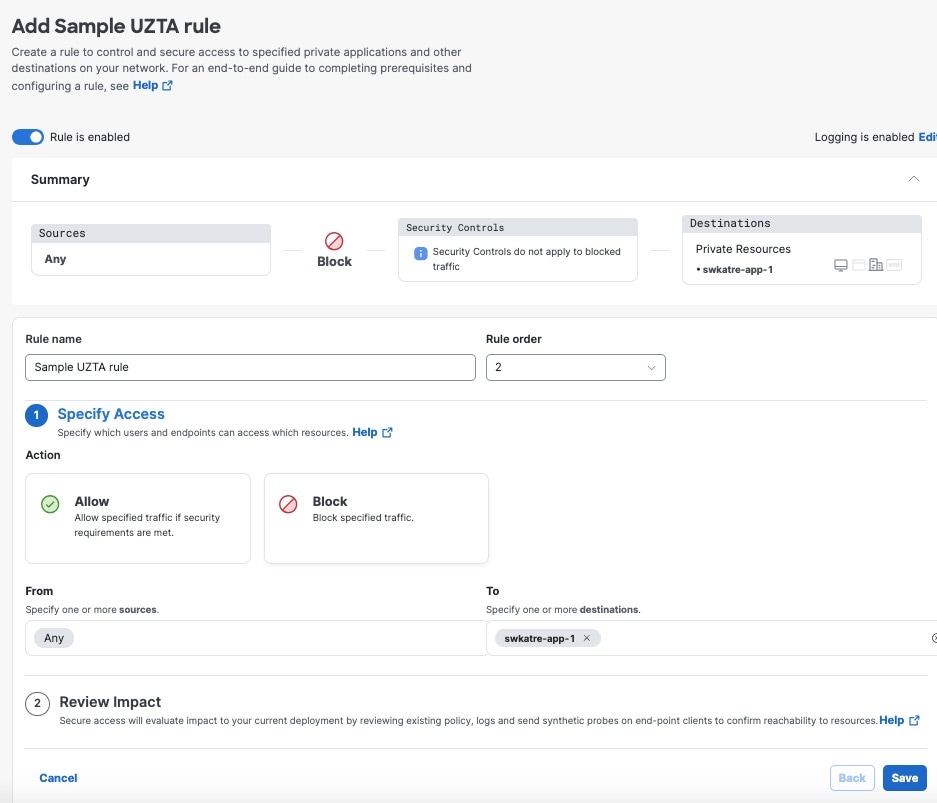
This sample access rule blocks access to a destination named swatw-app-1 :

The access rule configuration blocks access to the destination swatw-app-1, illustrating the available devices set up for universal zero trust network access.

Step 4

Click Connect > Network Connections.

Step 5

Click the FTDs tab.

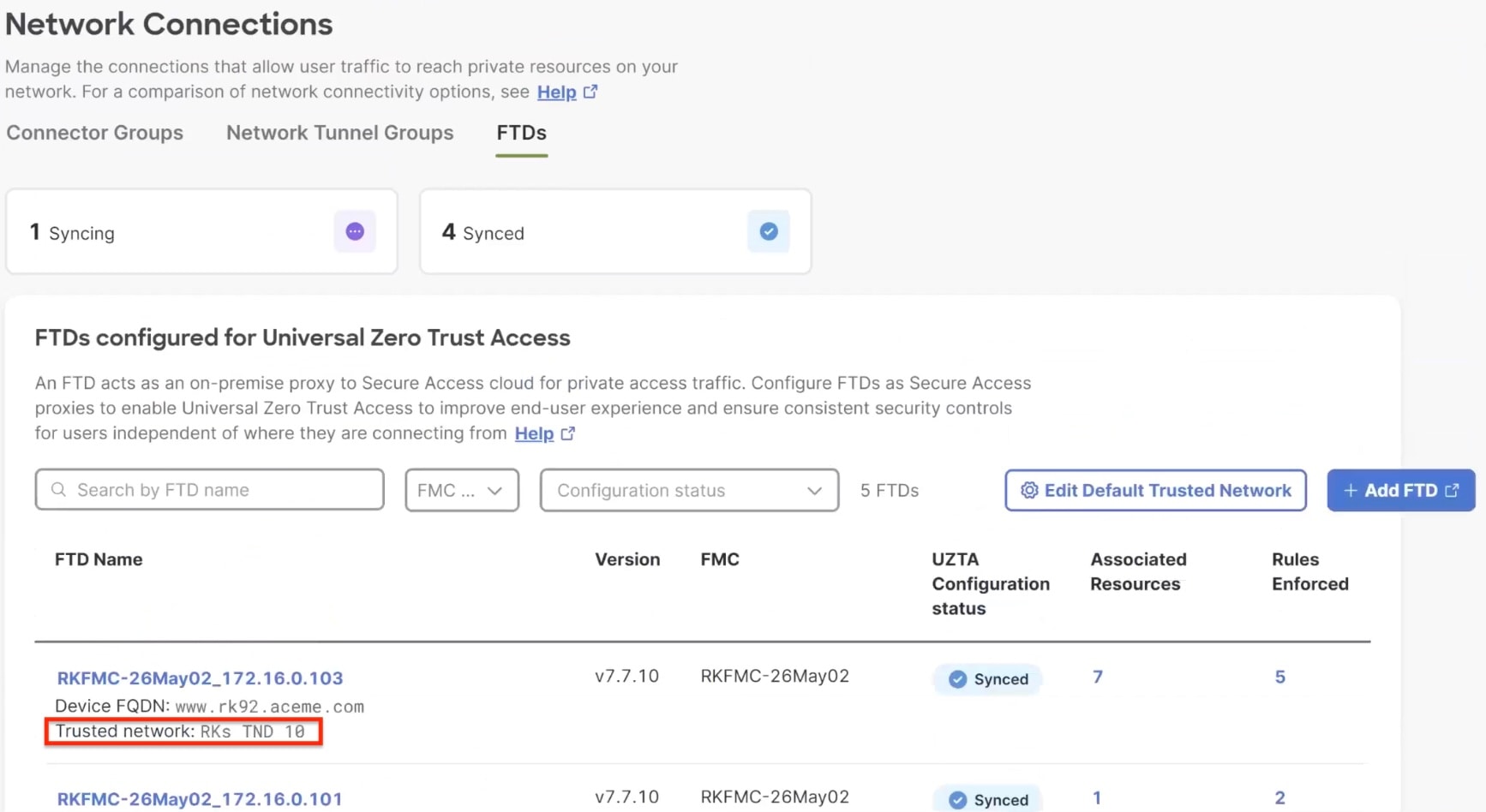
The page displays the available Secure Firewall Threat Defense devices configured for universal zero trust network access.

The image illustrates the available devices configured for universal zero trust network access, highlighting the importance of associating devices with a trusted network to enforce traffic policies.

Before proceeding to the next step, ensure that the device is associated with a trusted network. This association enforces policies on traffic originating from the trusted network.

After onboarding a Threat Defense device, it is automatically associated with a default trusted network if one exists. If not, you must create a trusted network and associate it with the Threat Defense device.

Step 6

Click the name of a Threat Defense device to configure.

Step 7

In the right pane, click Associate Resources.

Note

 
  • Only those resources that are enabled for zero trust access can be associated with a Threat Defense device.

  • A Threat Defense device must have connectivity to the associated private resources.

  • Resources associated with a Threat Defense device are shared with other devices that have the same FQDN.

Step 8

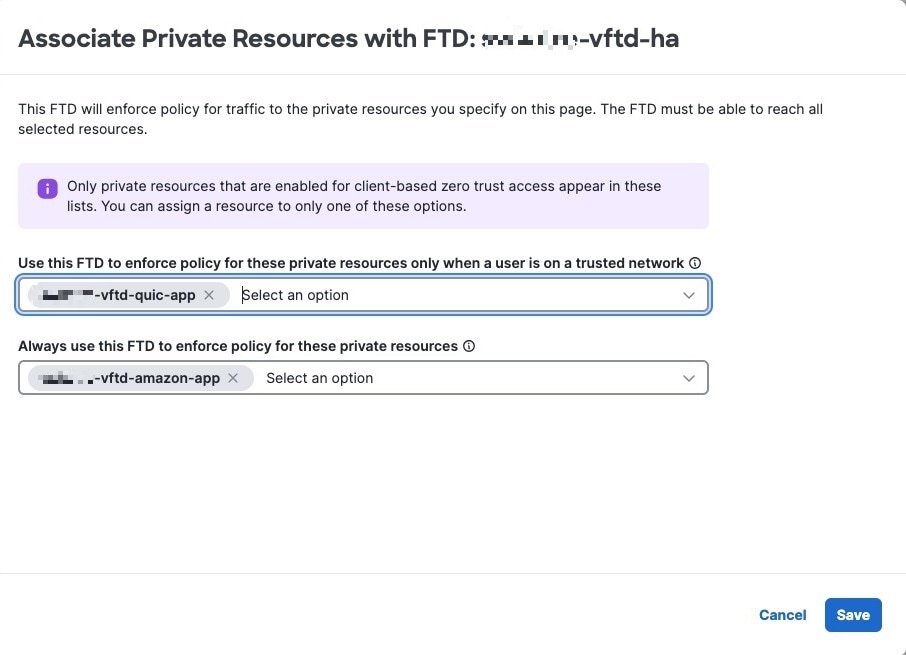
In the Associate Private Resources dialog box, make the following selections to specify the access policy enforcement and traffic flow for a user:

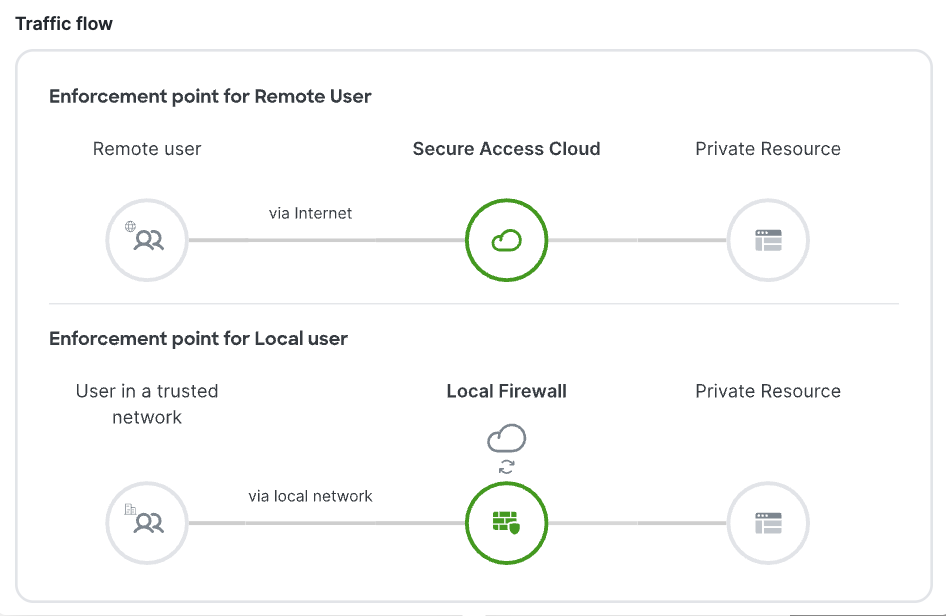
  • Use Threat Defense device to enforce policy only for on-premises users: From the Use this FTD to enforce policy drop-down list, select the private resources that a user should access only from an on-premises location.

    The image illustrates the configuration options for a Threat Defense device, highlighting the settings for enforcing policy based on user location, including on-premises and remote access.
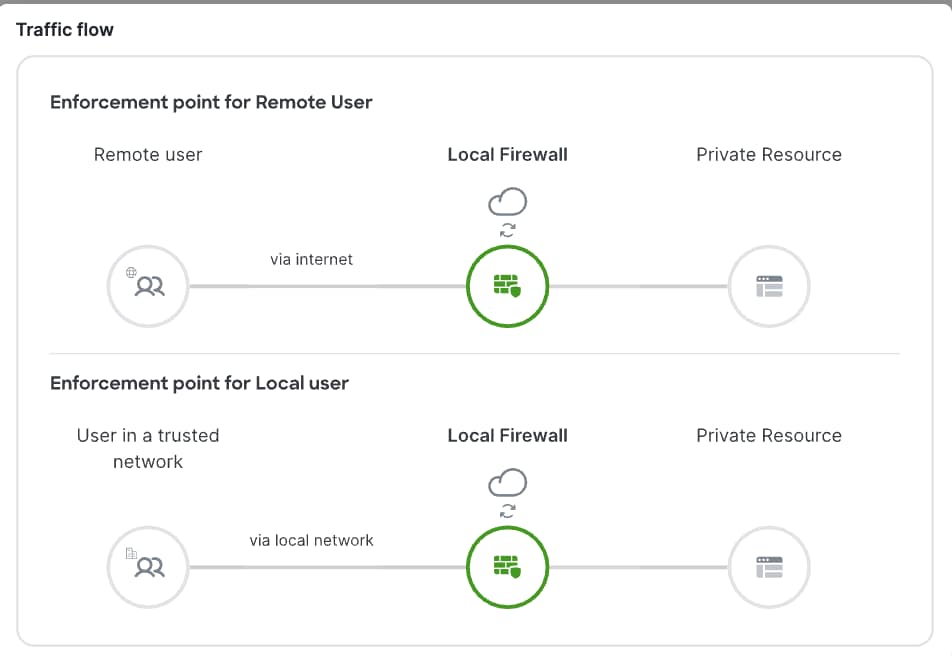
  • Use Threat Defense device to enforce policy for both on-premises and remote users: From the Always use this FTD to enforce policy drop-down list, select the private resources for which the selected Threat Defense device always enforces policy, regardless of whether the user is on-premises or remote.

    The figure illustrates the configuration of a Threat Defense device enforcing access rules for the vftd-quic-app for on-premises users and the vftd-amazon-app for all users, regardless of their location.

The following figure shows an example of using a Threat Defense device to enforce access rules for the vftd-quic-app for on-premises users and vftd-amazon-app for all users, whether on-premises or remote.

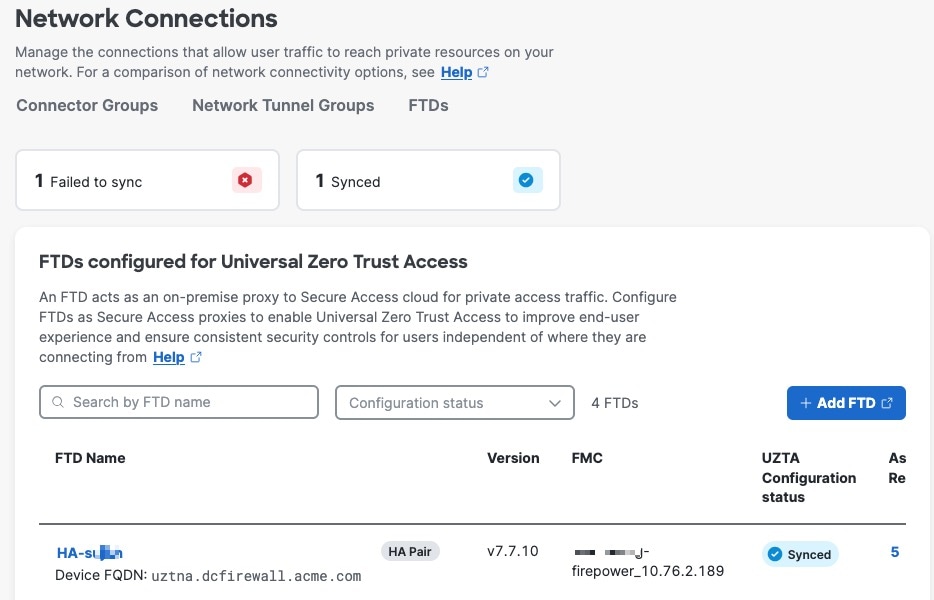
The figure illustrates the configuration of a Threat Defense device enforcing access rules for the vftd-quic-app and vftd-amazon-app, with the UZTA Configuration status indicating Synced.

Step 9

Click Save.

The configurations are applied to the device, and the UZTA Configuration status column for the device displays Synced.

The following figure shows an example.

The figure illustrates the configuration of a Threat Defense device enforcing access rules for the vftd-quic-app and vftd-amazon-app, highlighting the Synced status in the UZTA Configuration column.

Configuration status can also be:

  • Syncing—updates to the Threat Defense device are ongoing.

  • Out of sync—modifications to Secure Access configurations are pending update to the Threat Defense device.

  • Failed to sync—configurations were not updated on the Threat Defense device.

To view a detailed status for each resource and rule associated with a Threat Defense device, complete these actions:

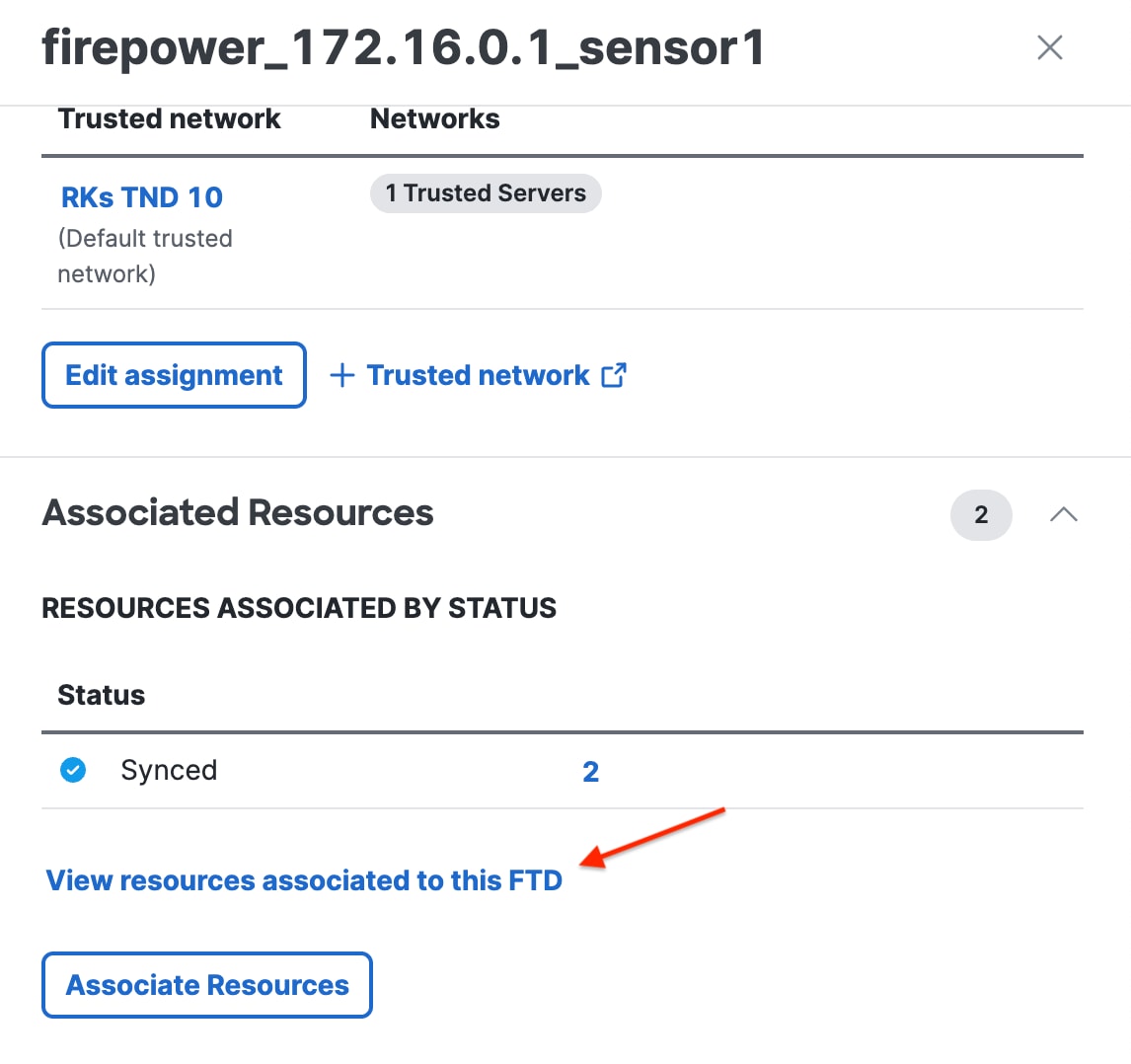
  1. Click the numeral in the Associated Resources column.

    In the slide-in pane, under the Associated Resources section, click View resources associated with this FTD.

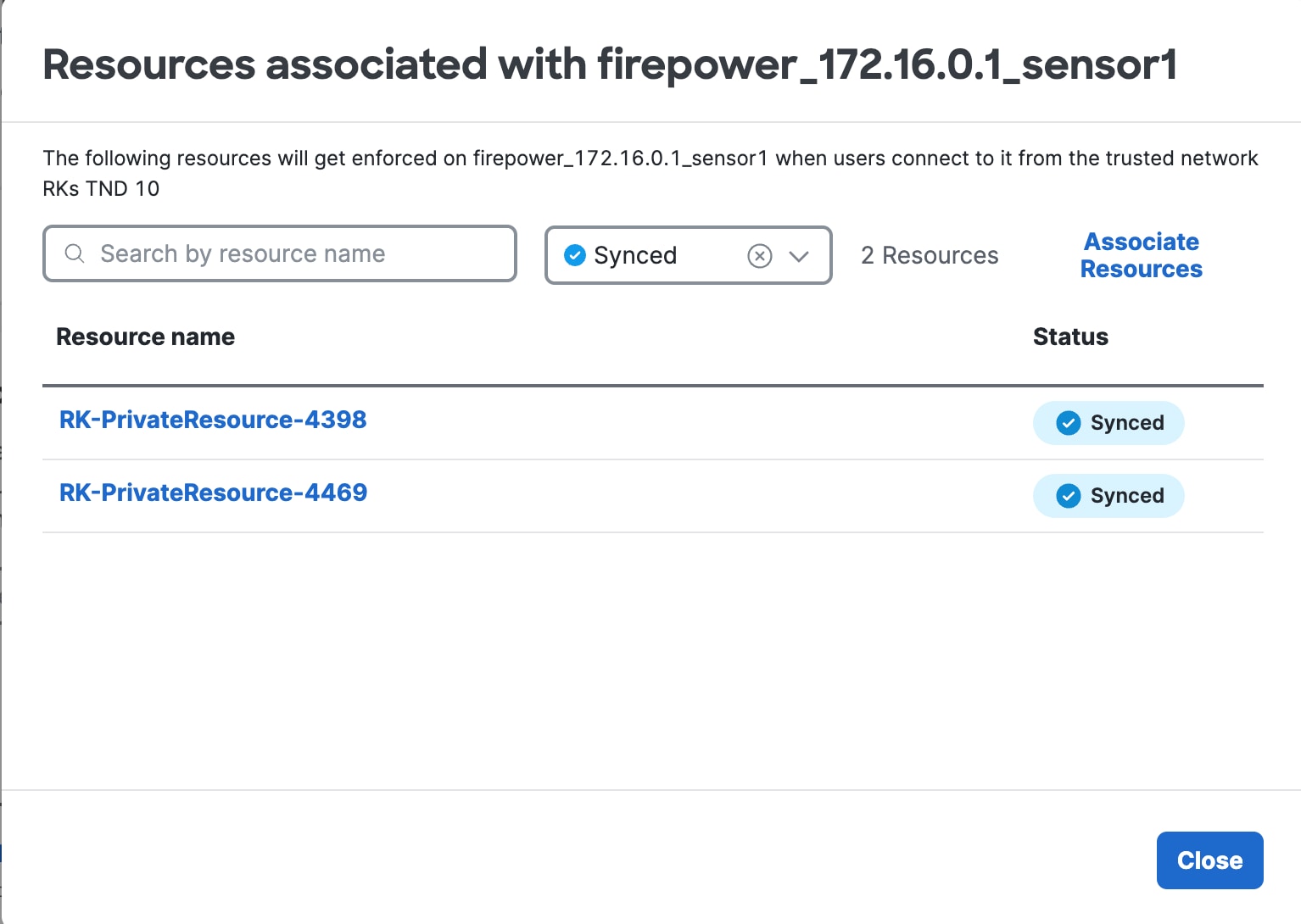
    The image illustrates the configuration status of resources and rules associated with a Threat Defense device, highlighting the failure to sync and update configurations.

    The configuration status of each resource is displayed.

    The image illustrates the configuration status of resources and rules associated with a Threat Defense device, highlighting the actions needed to view detailed information in the slide-in pane.
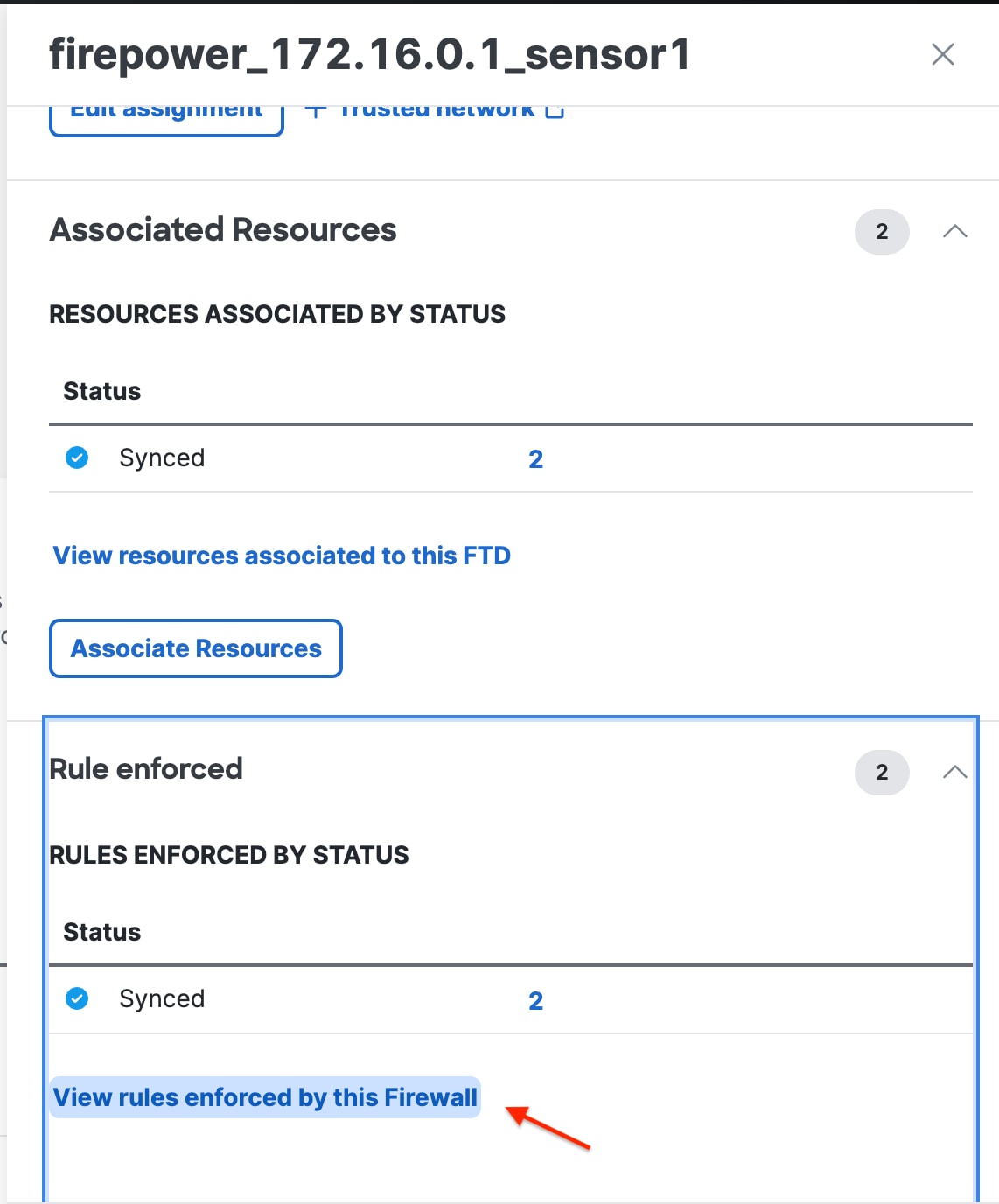
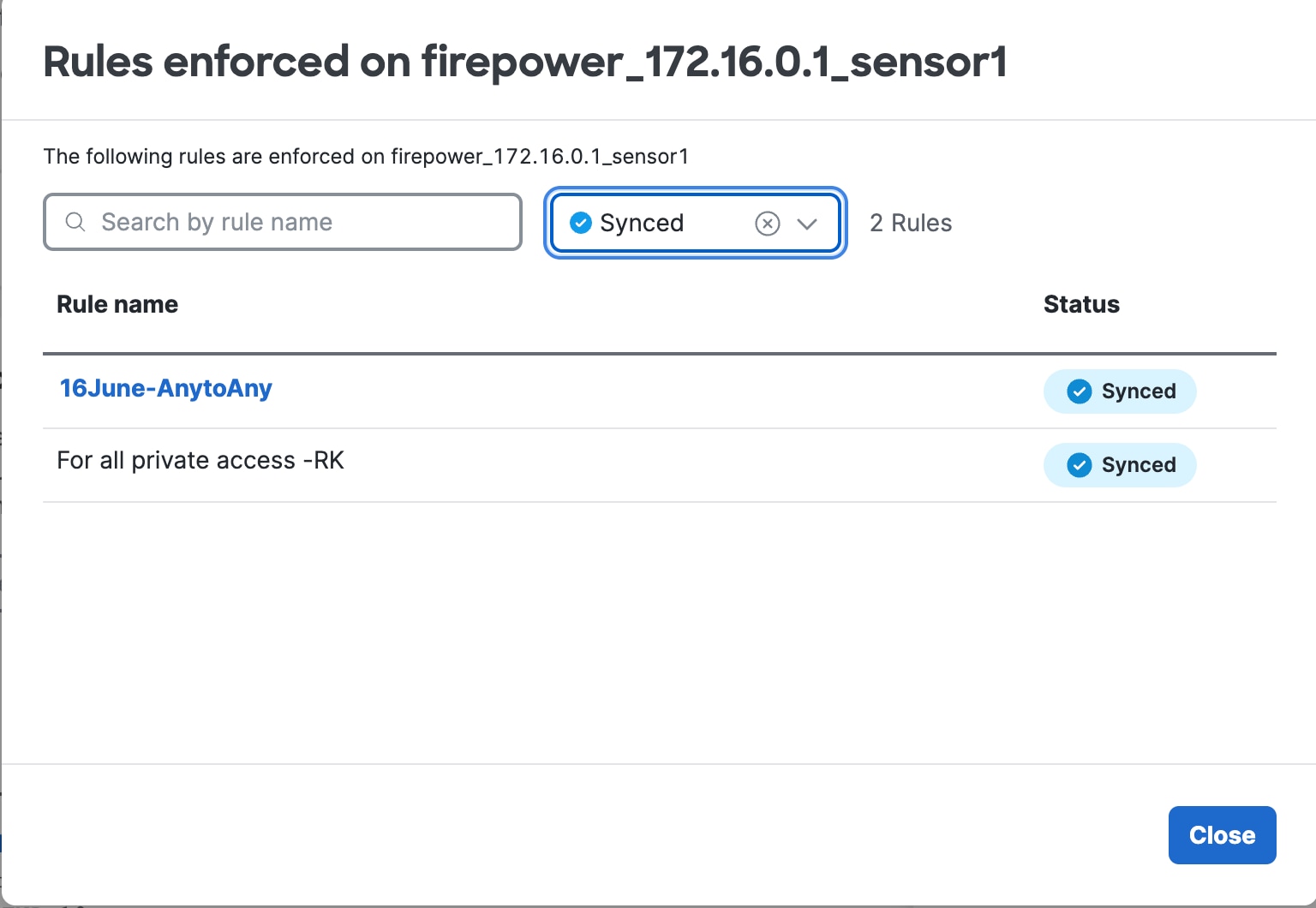
  2. To check the configuration status of each rule enforced by the Threat Defense device, click the numeral in the Rules Enforced column.

    In the slide-in pane, under the Rules Enforced section, click View rules enforced by this Firewall.

    The configuration status of network resources is shown, highlighting the rules enforced by the Firewall for secure client access to private resources.

    The configuration status of each rule that is enforced is displayed.

    The configuration status of firewall rules is displayed in the slide-in pane, showing which rules are enforced for secure network access.

Universal ZTNA is now set up, allowing your clients to access private resources in your network securely.


Network connections are configured, and Universal ZTNA is set up to allow secure access to private resources.

Related documentation

This reference provides documentation resources for universal ZTNA configuration components and related products. For a visual walkthrough of the configuration process, watch the videos at this link.

To know more about...

Read this document...

Universal ZTNA Solution

Universal Zero Trust Network Access Solution Guide

Universal ZTNA Configuration

Universal Zero Trust Network Access Configuration Guide

Secure Access

Secure Access Help Center

Security Cloud Control

Security Cloud Control Getting Started Guide

Firewall Threat Defense Health Metrics

Secure Firewall Threat Defense Health Metrics Collected by Firewall Management Center Health Monitor

Firewall Management Center

Secure Firewall Management Center Administration Guide

Cloud-Delivered Firewall Management Center

Managing Threat Defense with Cloud-Delivered Firewall Management Center in Security Cloud Control

Release Notes for Cloud-Delivered Management Center

Secure Client

Secure Client Administrator Guide

Supported Device Release

Secure Firewall Threat Defense Release Notes