Advanced Settings for Access Control

Advanced access control policy settings typically require little or no modification. The default settings are appropriate for most deployments.

Requirements and prerequisites for advanced settings

Model support

Any

Supported domains

Any

User roles

  • Admin

  • Access Admin

  • Network Admin

  • You can define custom user roles to differentiate between the intrusion configuration in access control policy and rules and the rest of the access control policy and rules. Using these permissions, you can separate the responsibilities of your network administration team and your intrusion administration teams. The existing pre-defined user roles that included the Modify Access Control Policy permission support all sub-permissions; you need to create your own custom roles if you want to apply granular permissions. The granular permissions are:

    • Policies > Security policies > Access Control and choose the Access Control Policy > Modify Access Control Policy > Modify Threat Configuration allows the selection of intrusion policy, variable set, and file policy in a rule, the configuration of the advanced options for network analysis and intrusion policies, the configuration of the Security Intelligence policy for the access control policy, and intrusion actions in the policy default action. If a user has this option only, the user can modify no other part of the policy or rule.

    • Modify Remaining Access Control Policy Configuration controls the ability to edit all other aspects of the policy.

Configuring advanced settings for the access control policy

Advanced access control policy settings typically require little or no modification. The default settings are appropriate for most deployments. Note that many of the advanced preprocessing and performance options in access control policies may be modified by rule updates as described in Update Intrusion Rules in the Cisco Secure Firewall Management Center Administration Guide .


Caution


See Configurations that Restart the Snort Process When Deployed or Activated for a list of advanced setting modifications that restart the Snort process, temporarily interrupting traffic inspection. Whether traffic drops during this interruption or passes without further inspection depends on how the assigned device handles traffic. See Snort Restart Traffic Behavior for more information.


Before you begin

Inheriting settings from a parent policy:

  • If the access control policy has a base policy, you can elect to inherit settings from the base policy. Select Inherit from (base policy) for each setting group where you want to use the parent policy's settings. If you are allowed to configure unique settings for the policy, you must deselect the option to make your edits.

  • If View (View button) appears instead, settings are inherited from an ancestor policy, or you do not have permission to modify the settings. In this case, inheritance has been configured so that these settings are locked. The settings are read-only.

Procedure


Step 1

Choose Policies > Security policies > Access Control.

Step 2

Create or edit an access control policy.

Step 3

Select Advanced Settings from the More drop-down arrow at the end of the packet flow line.

Step 4

For each settings group, click Edit (edit icon) and configure the settings as needed.

For each feature group, a separate dialog box is opened where you can make your changes. Click OK to save any changes.

  • General Settings—These settings apply broadly to the policy, including URL filtering options. For more information, see General settings.

  • Identity Policy Settings—Select the policy to be used to implement user identity discovery. You must implement an identity policy to get user or user group information in connection events, or to write access control rules based on users or groups. For more information, see About identity policies.

  • Decryption Policy Settings—Select the policy to be used when decrypting connections. You must decrypt traffic to apply inspection to encrypted connections.

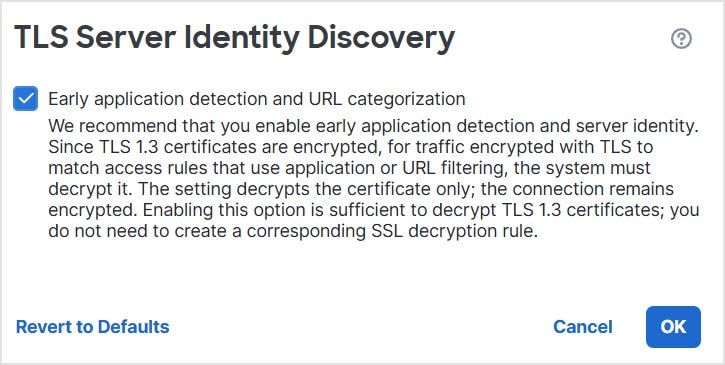
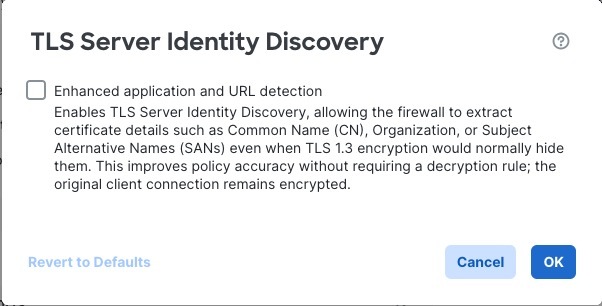
  • TLS Server Identity Discovery—Whether to allow the firewall to extract certificate details such as Common Name (CN), Organization, or Subject Alternative Names (SANs) even when TLS 1.3 encryption would normally hide them. This improves policy accuracy without requiring a decryption rule; the original client connection remains encrypted. For more information, see TLS server identity discovery.

  • Prefilter Policy Settings—Select the policy to be used for statically offloading large flows, implementing early connection blocks, or rezoning plain-text tunnel traffic.

  • Network Analysis and Intrusion Policies—Advanced network analysis and intrusion policy settings allow you to:

    • Specify the intrusion policy and associated variable set that are used to inspect packets that must pass before the system can determine exactly how to inspect that traffic.

    • Change the access control policy’s default network analysis policy, which governs many preprocessing options.

    • Use custom network analysis rules and network analysis policies to tailor preprocessing options to specific security zones, networks, and VLANs.

  • Threat Defense Service Policy—Use the service policy to apply services to specific traffic classes. For example, you can use a service policy to create a timeout configuration that is specific to a particular TCP application, as opposed to one that applies to all TCP applications. The service policy rules are applied after the access control rules. For more information, see Service Policies.

  • Files and Malware SettingsTuning File and Malware Inspection Performance and Storage provides information on performance options for file control and malware defense.

  • Threat Detection—Configure the portscan detector to detect and prevent portscan activity in all types of traffic to protect networks from eventual attacks. Portscan traffic can be detected efficiently in both allowed and denied traffic. For more information, see Threat Detection.

  • Elephant Flow Settings—Elephant flows are large, long duration, and fast flows that can cause duress for Snort cores. There are two actions that you can apply on elephant flows to reduce system stress, CPU hogging, packet drops, and so on. These actions are:

    • Bypass any or all applications—This action bypasses flow from Snort inspection.

    • Throttle—This action applies dynamic rate limit policy (10% reduction) on elephant flows.

    For more information, see Configure elephant flow detection.

  • Intelligent Application Bypass Settings(Use Elephant Flow Settings instead of this option.) Intelligent application bypass (IAB) is an expert-level configuration that specifies applications to bypass or test for bypass if traffic exceeds a combination of inspection performance and flow thresholds.

    IAB settings are applicable for Snort2 devices or pre 7.2.0 Snort3 devices. For more information, see Intelligent application bypass.

  • Transport/Network Layer Preprocessor Settings—Advanced transport and network preprocessor settings apply globally to all networks, zones, and VLANs where you deploy your access control policy. For more information, see Transport/network layer preprocessor settings.

  • Detection Enhancement Settings—Detection enhancement settings determine whether adaptive profiles are used for application detection and intrusion rules in the access control policy. Typically, the system uses the static settings in your network analysis policy to preprocess and analyze traffic. With adaptive profile updates, the system can adapt processing behavior using host information either detected by network discovery or imported from a third party. For more information, see Detection enhancement settings.

  • Performance Settings—Settings for improving the performance of your system as it analyzes traffic for attempted intrusions. These settings are very advanced and should be left as defaults by most users.

  • Latency-Based Performance Settings—Settings specific to latency-based performance. These settings are very advanced and should be left as defaults by most users.

  • Shadow Traffic—The Shadow traffic dashboard enhances the visibility of traffic originating from unsanctioned privacy technologies. This type of traffic is specifically designed to evade traditional network monitoring and analysis by advanced firewalls. There is also a shadow traffic type attribute added to connection and unified events. You can disable this option if you do not need visibility on traffic that might contain unsanctioned content. For more information, see The Shadow Traffic Widget in the Cisco Secure Firewall Management Center Administration Guide

  • Advanced Logging—Enable this feature to enrich connection logs with application data and forward the generated logs to the syslog destinations. Application logging leverages existing deep packet inspection capabilities to extract application data and enables you to enhance network monitoring and gain deeper insights into network traffic. This feature applies to Snort 3 Firewall Threat Defense devices.

    For more information about the application logging, see .Application-Aware Event Logging in the Cisco Secure Firewall Management Center Administration Guide

    Note


    Application logging can cause performance drop within network if used without filters configured in the access control rule. Filter specific traffic types using the access control rules to reduce the volume of logged traffic.

Step 5

Click Save to save the changes to the access control policy.

  • To get back to the rules list, click Access Control in the packet flow line.

  • You must deploy the configuration to apply changes to the managed devices.


General settings

Following are the general advanced settings that you can configure for an access control policy

  • Maximum URL characters to store in connection events—Sets the maximum character length of each URL requested by users in end-of-connection events. Disabling or limiting the number of stored URL characters might improve system performance. The default is 1024. The range is 0 to 4096.

    Set the length to 0 to disable URL logging. Storing zero characters does not affect URL filtering. The system filters traffic based on requested URLs even though the system does not record them.

  • Allow an Interactive Block to bypass blocking for (seconds)—Sets the time allowed for browsing after the user bypasses a URL filtering block. After the timeout expires, the user must bypass the block again. The default is 600 seconds (10 minutes). The range is 0 to 31536000 (8760 hours).

    Setting this value to 0 means the interactive block response is displayed once and the user bypass never expires.

  • Retry URL cache miss lookup—This setting determines what the system does when it needs to look up a URL's category and reputation in the cloud.

    The first time the system encounters a URL that does not have a locally stored category and reputation, it looks up that URL in the cloud and adds the result to the local data store, for faster processing of that URL in the future.

    By default, this setting is enabled. The system momentarily delays the traffic while it checks the cloud for the URL's reputation and category, and uses the cloud verdict to handle the traffic.

    If you disable this setting, when the system encounters a URL that is not in its local cache, the traffic is immediately passed and handled according to the rules configured for uncategorized and reputationless traffic.

    In passive deployments, the system does not retry the lookup, as it cannot hold packets.

  • Enable Threat Intelligence Director—Whether to use Threat Intelligence Director. Disable this option to stop publishing TID data to your configured devices. The default is enabled. For more information, see How To Set Up Threat Intelligence Director.

  • Enable reputation enforcement on DNS traffic—Whether to have the system evaluate domain category and reputation early in URL transactions, when the browser looks up the domain name to get the IP address. Enable this option to improve URL filtering performance and efficacy. The default is enabled. For details and additional instructions, see DNS Filtering: Identify URL Reputation and Category During DNS Lookup and subtopics.

  • Inspect traffic during policy apply—Whether to inspect traffic when you deploy configuration changes unless specific configurations require restarting the Snort process. The default is enabled.

    When this option is enabled, resource demands could result in a small number of packets dropping without inspection. Additionally, deploying some configurations restarts the Snort process, which interrupts traffic inspection. Whether traffic drops during this interruption or passes without further inspection depends on how the assigned device handles traffic. See Snort Restart Scenarios for more information.

TLS server identity discovery

The latest version of the Transport Layer Security (TLS) protocol 1.3, defined by RFC 8446, is the preferred protocol for many web servers to provide secure communications. Because the TLS 1.3 protocol encrypts the server's certificate for additional security, and the certificate is needed to match application and URL filtering criteria in access control rules, the Firepower System provides a way to extract the server certificate without decrypting the entire packet.

You can enable this feature, referred to as TLS server identity discovery, when you configure advanced settings for an access control policy. Certain features are not supported, such as STARTTLS traffic, the HTTP CONNECT method, and in a network where another device is already decrypting traffic.

If you enable this option, we recommend you also enable the decryption policy's advanced TLS adaptive server identity probe option as well. Together, these options enable more efficient decryption of TLS 1.3 traffic. For more information, see TLS 1.3 decryption best practices.

When a new connection starts that will be affected by TLS server identity discovery, the Firewall Threat Defense holds the original ClientHello packet to determine the identity of the server to which it connects before continuing. The Firewall Threat Defense device sends a specialized connection from the Firewall Threat Defense to the server. The server's response includes the server certificate, the specialized connection is terminated, and the original connection is evaluated as required by the access control policy.

TLS server identity discovery prioritizes the certificate's Common Name (CN) over the Server Name Indication (SNI).

To enable TLS server identity discovery, click the Advanced tab, click Edit (edit icon) for the setting, and select Enhanced application and URL detection.

TLS Server Identity Discovery enables the Firepower system to get application and URL categorization early in the process even if the traffic is encrypted.

TLS Server Identity Discovery enables the Firepower system to get application and URL categorization early in the process even if the traffic is encrypted.

We strongly recommend enabling it for any traffic you want to match on application or URL criteria, especially if you want to perform deep inspection of that traffic. A decryption policy is not required because traffic is not decrypted in the process of extracting the server certificate.


Note


  • TLS server identity discovery cannot be used with any of the following:

    • STARTTLS traffic

    • The HTTP CONNECT method

    • Traffic that is already being decrypted by another device on the network

  • Because the certificate is decrypted, TLS server identity discovery can reduce performance depending on the hardware platform.

  • TLS server identity discovery is not supported in inline tap mode or passive mode deployments.

  • Enabling TLS server identity discovery is not supported on any Secure Firewall Threat Defense Virtual deployed to AWS. If you have any such managed devices managed by the Secure Firewall Management Center, the connection event PROBE_FLOW_DROP_BYPASS_PROXY increments every time the device attempts to extract the server certificate.

  • TLS Server Identity Discovery also operates on TLS 1.2 sessions.


Intelligent application bypass

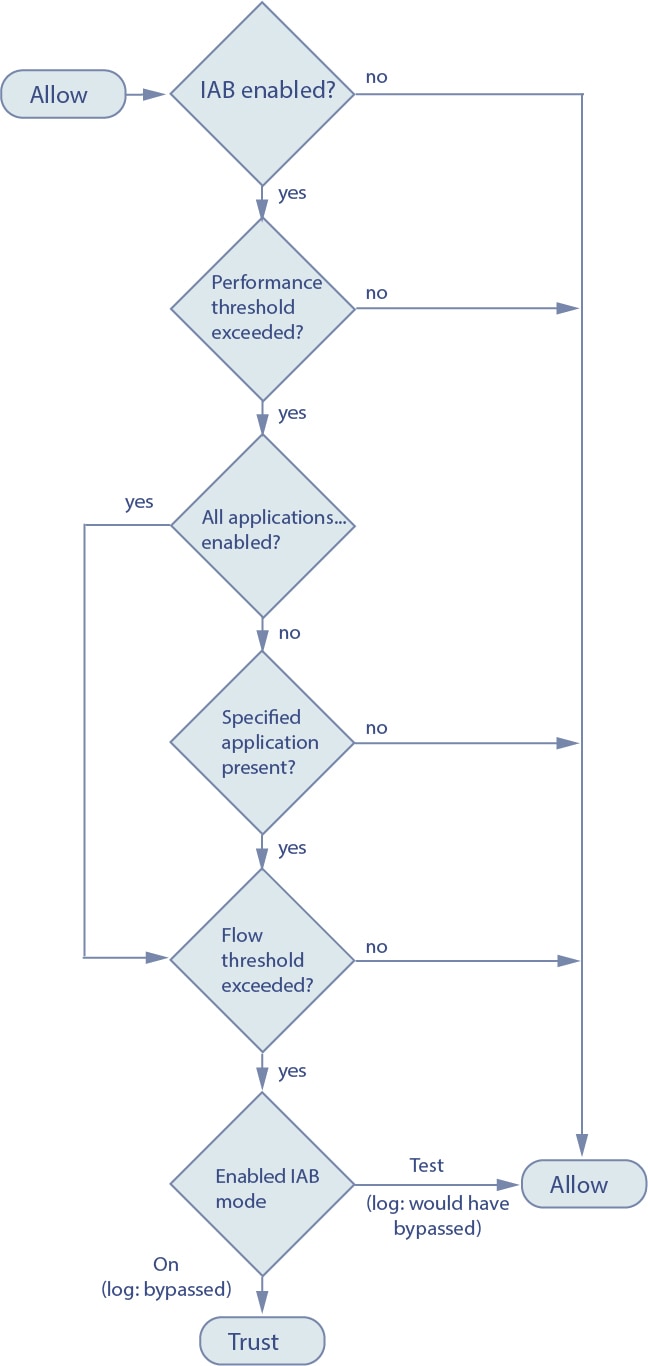
Intelligent application bypass (IAB) identifies applications that you trust to traverse your network without further inspection if performance and flow thresholds are exceeded. For example, if a nightly backup significantly impacts system performance, you can configure thresholds that, if exceeded, trust traffic generated by your backup application. Optionally, you can configure IAB so that, when an inspection performance threshold is exceeded, IAB trusts all traffic that exceeds any flow bypass threshold, regardless of the application type.

The system implements IAB on traffic allowed by access control rules or the access control policy's default action, before the traffic is subject to deep inspection. A test mode allows you to determine whether thresholds are exceeded and, if so, to identify the application flows that would have been bypassed if you had actually enabled IAB (called bypass mode).

The following graphic illustrates the IAB decision-making process:


A flow chart that shows performance thresholds must be exceeded before flow thresholds are considered when determining application bypass

Configuring intelligent application bypass

Not all deployments require IAB, and those that do might use it in a limited fashion. Do not enable IAB unless you have expert knowledge of your network traffic, especially application traffic, and system performance, including the causes of predictable performance issues. Before you run IAB in bypass mode, make sure that trusting the specified traffic does not expose you to risk.

Before you begin

IAB settings are applicable for Snort2 devices or pre 7.2.0 Snort3 devices. For Snort 3 devices, use elephant flow detection instead.

Procedure

Step 1

In the access control policy editor, click Advanced Settings from the More drop-down arrow at the end of the packet flow line. Then, click Edit (edit icon) next to Intelligent Application Bypass Settings.

Step 2

Set the enabled State for IAB.

Turn IAB Off or On, or enable IAB in Test mode.

In test mode, connection events and dashboards tell you what the system would have done if IAB had been on, but traffic is not impacted. Use test mode to check your configuration.

Step 3

Set the Performance Sample Interval.

The Performance Sample Interval specifies the time in seconds between IAB performance sampling scans, during which the system collects system performance metrics for comparison to IAB performance thresholds. The default is 5 seconds. The range is 1 to 1000 seconds.

Step 4

Select the Bypassable Applications and Filters.

Choose from:

  • X Applications/Filters—Click the link and select the applications or application filters whose traffic you want to bypass. You can select by general attributes, specific applications, or both. For example, you could limit bypassable traffic to very low risk applications only.

  • All applications including unidentified applications—Do not restrict bypass. When an inspection performance threshold is exceeded, IAB trusts all traffic that exceeds any flow bypass threshold, regardless of the application type. This is the default.

Step 5

Configure the performance and flow thresholds.

You must configure at least one Inspection Performance Thresholds and one Flow Bypass Thresholds. However, all have defaults and you do not need to change the settings if the defaults are appropriate for your network.

When a performance threshold is exceeded, the system examines flow thresholds and, if one threshold is exceeded, trusts the specified traffic. If you enable more than one of either, only one of each must be exceeded.

  1. Click Configure under Inspection Performance Thresholds and configure the options.

    Inspection performance thresholds provide intrusion inspection performance limits that, if exceeded, trigger the inspection of flow thresholds. Inspection performance thresholds set to 0 are ignored.

    You can configure one or more of the following thresholds:

    • Drop Percentage —The average packets dropped as a percentage of total packets, when packets are dropped because of performance overloads caused by expensive intrusion rules, file policies, decompression, and so on. This does not refer to packets dropped by normal configurations such as intrusion rules.

      Note that specifying an integer greater than 1 activates IAB when the specified percentage of packets is dropped. When you specify 1, any percentage from 0 through 1 activates IAB. This allows a small number of packets to activate IAB.

      The default is 5%. The range is 0 to 100.

    • Processor Utilization Percentage—Average percentage of processor resources used. The default is 95. The range is 0 to 100.

    • Packet Latency —The average packet latency in microseconds. The default is 1000. The range is 0 to 1000000.

    • Flow Rate—The rate at which the system processes flows, measured as the number of flows per second. Note that this option configures IAB to measure flow rate, not flow count. The default is 0. The range is 0 to 1000000.

  2. Click Configure under Flow Bypass Thresholds and configure the options.

    Flow bypass thresholds provide flow limits that, if exceeded, trigger IAB to trust bypassable application traffic in bypass mode or allow application traffic subject to further inspection in test mode. Flow bypass thresholds set to 0 are ignored.

    You can configure one or more of the following flow bypass thresholds:

    • Bytes per Flow —The maximum number of kilobytes a flow can include. The default is 500000. The range is 0 to 2147483647.

    • Packets per Flow—The maximum number of packets a flow can include. The default is 0. The range is 0 to 2147483647.

    • Flow Duration—The maximum number of seconds a flow can remain open. The default is 0. The range is 0 to 2147483647.

    • Flow Velocity—The maximum transfer rate in kilobytes per second. The default is 250000. The range is 0 to 2147483647.

Step 6

Click OK to save IAB settings.

Step 7

Click Save to save the policy.


What to do next

IAB logging and analysis

IAB forces an end-of-connection event that logs bypassed flows and flows that would have been bypassed, regardless of whether you have enabled connection logging. Connection events indicate flows that are bypassed in bypass mode or that would have been bypassed in test mode. Custom dashboard widgets and reports based on connection events can display long-term statistics for bypassed and would-have-bypassed flows.

IAB connection events
Action

When Reason includes Intelligent App Bypass:

  • Allow—indicates that the applied IAB configuration was in test mode and traffic for the application specified by Application Protocol remains available for inspection.

  • Trust—indicates that the applied IAB configuration was in bypass mode and traffic for the application specified by Application Protocol has been trusted to traverse the network without further inspection.

Reason

Intelligent App Bypass indicates that IAB triggered the event in bypass or test mode.

Application Protocol

This field displays the application protocol that triggered the event.

Example 1

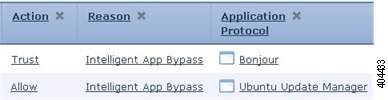
In the following truncated graphic, some fields are omitted. The graphic shows the Action, Reason, and Application Protocol fields for two connection events resulting from different IAB settings in two separate access control policies.

For the first event, the Trust action indicates that IAB was enabled in bypass mode and Bonjour protocol traffic was trusted to pass without further inspection.

For the second event, the Allow action indicates that IAB was enabled in test mode, so Ubuntu Update Manager traffic was subject to further inspection but would have been bypassed if IAB had been in bypass mode.


A diagram showing three columns and two rows in a correlation events view. In the row for the first event, the columns read as follows: Action: Trust; Reason: Intelligent App Bypass; Application Protocol: Bonjour. In the row for the second event, the columns read as follows: Action: Allow; Reason: Intelligent App Bypass; Application Protocol: Ubuntu Update Manager.

Example 2

In the following truncated graphic, some fields are omitted. The flow in the second event was both bypassed (Action: Trust; Reason: Intelligent App Bypass) and inspected by an intrusion rule (Reason: Intrusion Monitor). The Intrusion Monitor reason indicates that an intrusion rule set to Generate Events detected but did not block an exploit during the connection. In the example, this happened before the application was detected. After the application was detected, IAB recognized the application as bypassable and trusted the flow.


A diagram showing four columns and two rows in a correlation events view. The row for the first event is irrelevant to the example. The columns for the second event read as follows: Last Packet: a time stamp is displayed; Action: Trust; Reason: The seemingly illogical combination of the two reasons Intelligent App Bypass and Intrusion Monitor; Application Protocol: HTTP.

IAB custom dashboard widgets

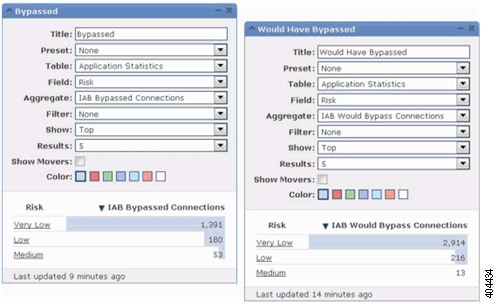
You can create a custom analysis dashboard widget to display long-term IAB statistics based on connection events. Specify the following when creating the widget:

  • Preset: None

  • Table: Application Statistics

  • Field: any

  • Aggregate: either of:

    • IAB Bypassed Connections

    • IAB Would Bypass Connections

  • Filter: any

Dashboad Examples

In the following custom analysis dashboard widget examples:

  • The Bypassed example shows statistics for application traffic bypassed because the applications were specified as bypassable and IAB was enabled in bypass mode in the deployed access control policy.

  • The Would Have Bypassed example shows statistics for application traffic that would have been bypassed because the applications were specified as bypassable and IAB was enabled in test mode in the deployed access control policy. .


Two essentially identical Custom Analysis widgets except that the selection for the Aggregate field is "IAB Bypassed Connections" for the widget configured to display bypassed traffic information, whereas the selection for the Aggregate field is "IAB Would Bypass Connections" for the widget configured for test mode

IAB custom reports

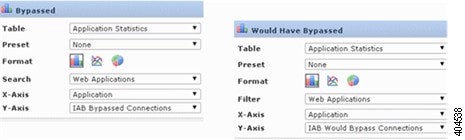
You can create a custom report to display long-term IAB statistics based on connection events. Specify the following when creating the report:

  • Table: Application Statistics

  • Preset: None

  • Filter: any

  • X-Axis: any

  • Y-Axis: either of:

    • IAB Bypassed Connections

    • IAB Would Bypass Connections

Report Examples

The following graphic shows two abbreviated report examples:

  • The Bypassed example shows statistics for application traffic bypassed because the applications were specified as bypassable and IAB was enabled in bypass mode in the deployed access control policy.

  • The Would Have Bypassed example shows statistics for application traffic that would have been bypassed because the applications were specified as bypassable and IAB was enabled in test mode in the deployed access control policy.


Two essentially identical reports where, for both, the Table field selection is "Application Statistics" and the selection for the X-Axis field is "Application." However, the selection for the Y-Axis field is "IAB Bypassed Connections" for the report configured to display bypassed traffic information, whereas the selection for the Y-Axis field is "IAB Would Bypass Connections" for the widget configured for test mode.

Transport/network layer preprocessor settings

Advanced transport and network preprocessor settings apply globally to all networks, zones, and VLANs where you deploy your access control policy.

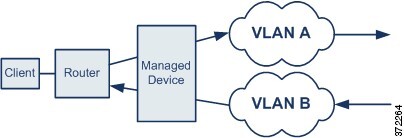
  • Ignore the VLAN header when tracking connections —Whether to ignore or include VLAN headers when identifying traffic. Different VLAN tags in traffic traveling in different directions for the same connection can affect traffic reassembly and rule processing. For example, traffic for the same connection could be transmitted over VLAN A and be received over VLAN B. Select this option if the device might see different VLANs for the same connection. This option is off by default.

    Diagram showing traffic for a single connection that could be transmitted over two VLANs
  • Maximum Active Responses—For a TCP connection that triggers a preprocessor/intrusion drop rule that is configured to provide an active response, the maximum number of active responses per TCP connection. When additional traffic occurs on a connection where an active response has been initiated, and the traffic occurs more than Minimum Response Seconds after a previous active response, the system sends another active response unless the specified maximum has been reached. A setting of 0 disables additional active responses triggered active response rules. The default is no limit. The range is 0 to 25.


    Note


    You have to specifically configure drop rules to provide active responses. For TCP connections, the active response is a RESET packet. For UDP connections, the system sends an ICMP unreachable packet to the source of the connection.


  • Minimum Response Seconds—Until Maximum Active Responses occur, specifies the number of seconds to wait before any additional traffic on a connection where the system has initiated an active response results in a subsequent active response. The default is no limit. The range is 1 to 300.

  • Session Termination Logging Threshold—Do not modify this option unless instructed to do so by Cisco Technical Support.

    Support might ask you during a troubleshooting call to configure your system to log a message when an individual connection exceeds the specified threshold. Changing the setting for this option will affect performance and should be done only with Support guidance. This option specifies the number of bytes that result in a logged message when the session terminates and the specified number was exceeded. The upper limit is 1GB.

Detection enhancement settings

Detection enhancement settings determine whether adaptive profiles are used for application detection and intrusion rules in the access control policy. Typically, the system uses the static settings in your network analysis policy to preprocess and analyze traffic. With adaptive profile updates, the system can adapt processing behavior using host information either detected by network discovery or imported from a third party.


Note


To enable adaptive profiles in Snort 3, you must select both the Enable and Enable Profile Updates options.


  • Enable—You must enable adaptive profiling (its default state) for access control rules to perform application and file control, including malware protection (AMP), and for intrusion rules to use service metadata.

  • Enable Profile Updates—Profile updates, like the target-based profiles you can configure manually in a network analysis policy, help to defragment IP packets and reassemble streams in the same way as the operating system on the target host. The intrusion rules engine then analyzes the data in the same format as that used by the destination host. Profile updates also compare metadata in an intrusion rule to host information to determine whether a rule should apply for a particular host. For more information, see:

  • Adaptive Profiles – Attribute Update Interval—When profile updates are enabled, you can control how frequently in minutes network map data is synced from the management center to its managed devices. The system uses the data to determine what profiles should be used when processing traffic. Increasing the value for this option can improve performance in a large network.

  • Adaptive Profiles – Networks—Optionally, when profile updates are enabled, you can improve performance by constraining profile updates to a comma-separated list of IP addresses, address blocks, and network variables. If you use a network variable, the system uses the variable's value in the variable set linked to the default intrusion policy for your access control policy. For example, you could enter: 192.168.1.101, 192.168.4.0/24, $HOME_NET. IPv4 and IPv6 are supported.

    The default value (0.0.0.0/0) applies adaptive profile updates to all networks.

Adaptive profile updates

Typically, the system uses the static settings in your network analysis policy to preprocess and analyze traffic. With adaptive profile updates, the system can adapt processing behavior using host information either detected by network discovery or imported from a third party.

Profile updates, like the target-based profiles you can configure manually in a network analysis policy, help to defragment IP packets and reassemble streams in the same way as the operating system on the target host. The intrusion rules engine then analyzes the data in the same format as that used by the destination host.

Manually configured target-based profiles apply either the default operating system profile you select, or profiles you bind to specific hosts. Profile updates, however, switch to the appropriate operating system profile based on the operating system in the host profile for the target host.

Consider a scenario where you configure profile updates for the 10.6.0.0/16 subnet and set the default IP Defragmentation target-based policy to Linux. The Firewall Management Center where you configure the settings has a network map that includes the 10.6.0.0/16 subnet.

  • When the system detects traffic from Host A, which is not in the 10.6.0.0/16 subnet, it uses the Linux target-based policy to reassemble IP fragments.

  • When the system detects traffic from Host B, which is in the 10.6.0.0/16 subnet, it retrieves Host B’s operating system data from the network map. The system uses a profile based on that operating system to defragment the traffic destined for Host B.

History for advanced settings for the access control policy

Feature

Minimum Firewall Management Center

Minimum Firewall Threat Defense

Details

Shadow Traffic Monitoring

10.0.0

10.0.0

Monitor traffic originating from unsanctioned privacy technologies, referred to as Shadow Traffic.

New/modified screens:

  • Policies > Access Control > Edit a policy > More > Advanced Settings > Shadow Traffic

  • Insights & Reports > Dashboard > Shadow Traffic

Improved portscan detection.

7.2

7.2 running Snort 3

With an improved portscan detector, you can easily configure the system to detect or prevent portscans. You can refine the networks you want to protect, set the sensitivity, and so on. For devices running Snort 2 and for devices running Version 7.1 and earlier, continue to use the network analysis policy for portscan detection.

New/modified screens: We added Threat Detection to the access control policy's Advanced tab.

New/Modified commands: clear threat-detection portscan , show threat-detection portscan .

Bypass inspection or throttle elephant flows on Snort 3 devices.

7.2.0

7.2.0 with Snort 3

You can now detect and optionally bypass inspection or throttle elephant flows. By default, access control policies are set to generate an event when the system sees an unencrypted connection larger than 1 GB/10 sec; the rate limit is configurable.

For the Firepower 2100 series, you can detect elephant flows but not bypass inspection or throttle. For devices running Snort 2 and for devices running Version 7.1 and earlier, continue to use Intelligent Application Bypass (IAB).

New/modified screens: We added Elephant Flow Settings to the access control policy's Advanced tab.

For more information, see Elephant Flow Detection.

DNS filtering

7.0.0

6.7.0 (experimental)

Any

If URL filtering is enabled and configured, a new option to enhance category and reputation filtering efficacy is enabled by default for each new access control policy.

For more information, see DNS Filtering: Identify URL Reputation and Category During DNS Lookup and subtopics.

The Advanced tab of access control policy has a new option under General Settings: Enable reputation enforcement on DNS traffic.

TLS server identity discovery

6.7.0

Any

Enable access control policies to evaluate URL and application conditions when a client connects to a TLS 1.3-enabled server. TLS server identity discovery enables these conditions to be evaluated without decrypting traffic.

Enabling this feature can impact device performance, depending on model.

The Advanced tab page of access control policy has new options:

  • Warning is displayed on the Advanced tab; moving the slider to the right enables TLS server identity discovery.

  • New option on the Advanced tab page: TLS Server Identity Discovery.

Threat Defense Service Policy.

6.3

Any

You can now configure a Threat Defense Service Policy as part of your access control policy advanced options. You can use Threat Defense Service Policies to apply services to specific traffic classes. Features supported include TCP State Bypass, randomizing TCP sequence numbers, decrementing the time-to-live (TTL) value on packets, Dead Connection Detection, setting a limit on the maximum number of connections and embryonic connections per traffic class and per client, and timeouts for embryonic, half closed, and idle connections.

New screen: Policies > Access Control > Access Control, Advanced tab, Threat Defense Service Policy.

Supported platforms: Secure Firewall Threat Defense