Remote Access VPN

These topics explain how to configure remote access VPN for your network.

Remote access VPN

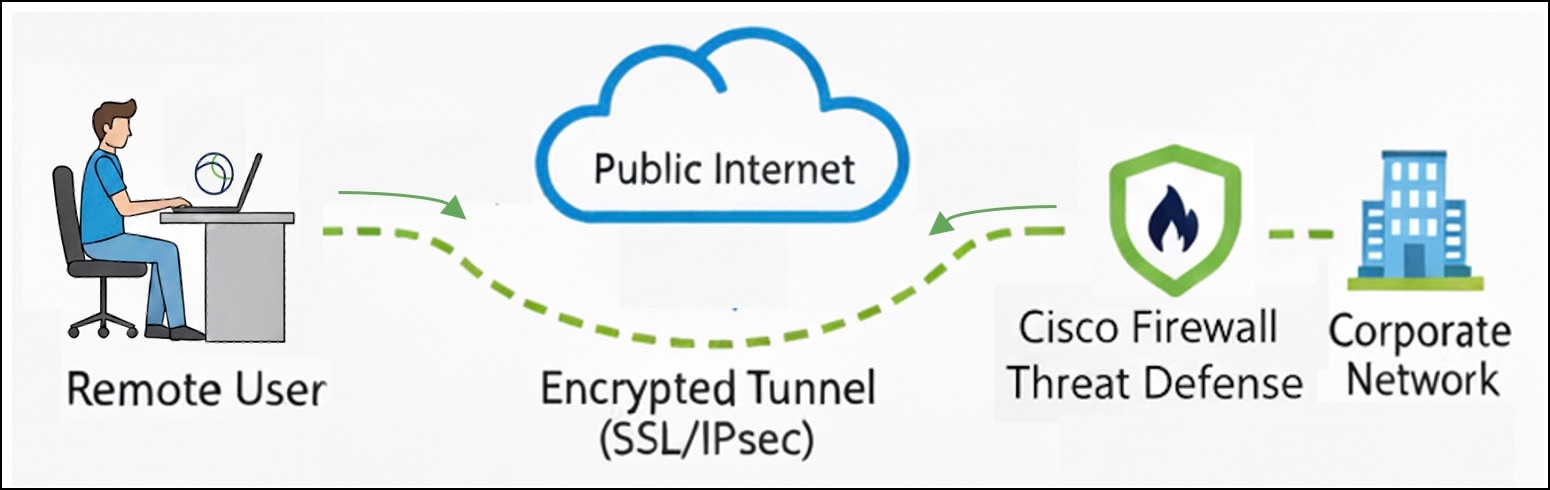
Remote access VPN enables remote users to securely connect to a corporate network by using the Cisco Secure Client client on their laptops or desktops. All traffic between the remote device and the Firewall Threat Defense device is encrypted using SSL or IPsec-IKEv2 protocols, ensuring data protection across untrusted networks. After successful authentication using AAA servers, client certificates, or SAML identity providers, users can access internal corporate applications and services.

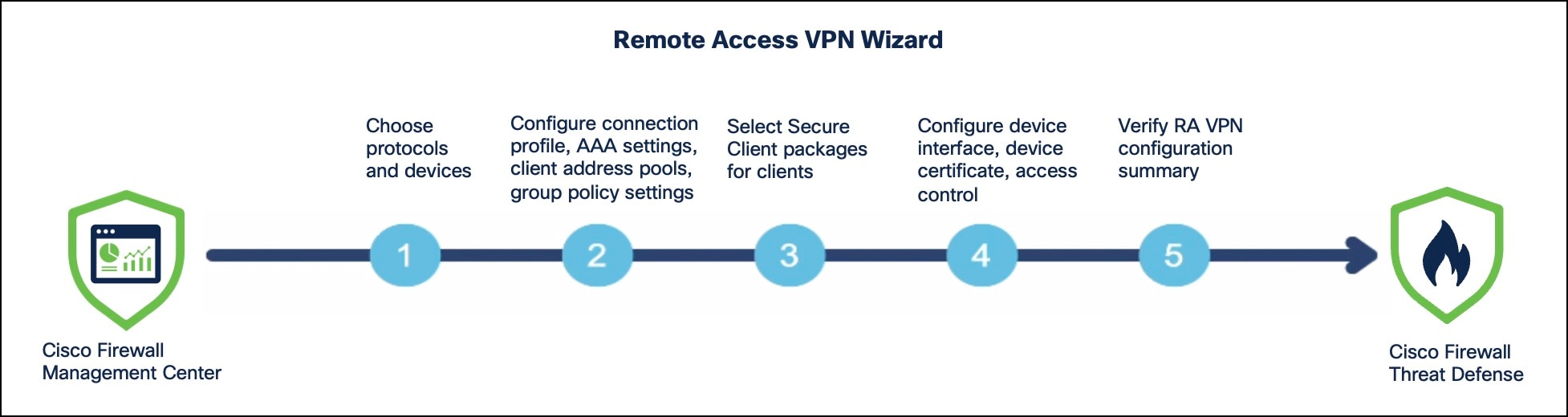
Firewall Management Center simplifies the configuration and management of remote access VPN policies through an intuitive, guided wizard. After you configure a remote access VPN policy, you can deploy it on your Firewall Threat Defense devices.

Figure 1. Remote access VPN using secure firewall
Remote access VPN using Secure Firewall

Plan your remote access VPN

Use these topics to prepare your remote access VPN before you configure it.

Licenses for remote access VPN

This topic lists the licensing requirements for configuring remote access VPN using Management Center.

  • Ensure that export-controlled features are enabled in your Smart License.

    To verify if export-controlled functionality is enabled for your Smart License account, choose Administration > Licenses > Smart Licenses.

  • Ensure that you have one of the following licenses for Secure Client:

    • Secure Client Advantage

    • Secure Client Premier

    • Secure Client VPN Only

Prerequisites for remote access VPN

Review these prerequisites for configuring a remote access VPN policy.

General prerequisites

  • You must have an administrator role to configure a remote access VPN policy.

  • Configure a certificate enrollment object to obtain the identity certificate for each Firewall Threat Defense device that acts as a remote access VPN gateway.

  • Create a security zone or interface group so that remote users can access the network interfaces for VPN connections.

  • Ensure IKE ports (500, 4500), and SSL port 443 are not in use by existing services, NAT, or PAT rules. The Firewall Threat Defense device cannot start VPN services on ports that are already active.

  • Configure DNS on each device in a remote access VPN policy to resolve AAA server names, named URLs, and CA servers with FQDNs or hostnames.

    To configure DNS settings, choose Devices > Platform Settings, edit a policy. From the left pane, click DNS.

AAA server prerequisites

  • Ensure that the AAA server is reachable from the Firewall Threat Defense device. Configure routing to ensure connectivity to the AAA servers (Devices > Device Management, click the Edit icon, and from the left pane, choose Routing).

    For remote access VPN double authentication, ensure that both the primary and secondary authentication servers are reachable from the Firewall Threat Defense device.

  • Before using an AD or LDAP server as an authentication server for your remote access VPN policies, ensure that you configure these parameters:

    • AD or LDAP realms

    • LDAP attribute map

Secure Client prerequisites

  • Download the latest Secure Client image files from Cisco Software Download Center.

    Choose Objects > VPN > Secure Client File to add the Secure Client image files.

  • Download the Secure Client Profile Editor from Cisco Software Download Center to create the Secure Client profile. Use the standalone profile editor to create a new Secure Client profile or modify one.

Guidelines for remote access VPNs

General guidelines

Review these guidelines before configuring and managing remote access VPN policies.

General guidelines

  • Ensure that only one administrator modifies the policy at a time. The web interface allows multiple concurrent sessions, but only the last saved configuration remains.

  • Ensure that you unassign the remote access VPN policy associated with a Firewall Threat Defense device before moving it to a different domain.

  • Verify the ciphers for the remote access VPN policy before deployment:

    • For SSL: Choose Devices > Platform Settings, edit a policy. From the left pane, click SSL > RA-VPN.

    • For IPsec-IKEv2: Choose Secure Connections > Remote Access VPN, edit a remote access policy. Click the Advanced tab and from the left pane, choose IPsec.

  • Do not run curl commands, including HTTP HEAD requests, on the remote access VPN headend device because these commands are not supported.

  • Ensure third-party clients provide a valid user agent because the Firewall Threat Defense device rejects VPN sessions with a null user agent.

  • Configure browser proxy using FlexConfig.

  • Breaking a remote branch deployment (RBD) high-availability pair automatically removes remote access VPN configurations from the standby unit's RBD WAN interface.

  • Limit realms to 16 directories, as only the first 16 are deployed during a remote access VPN connection.

  • When Bypass Access Control policy for decrypted traffic is disabled and a downloadable access control list (DACL) is applied, decrypted traffic is evaluated against the access control policy (ACP) first. Traffic permitted by the ACP is then evaluated against the DACL; traffic denied by the ACP is not evaluated further.

NAT guidelines

  • Verify the NAT rules on the Firewall Threat Defense device to ensure that they do not disrupt the remote access VPN traffic.

  • Enable route lookup for any NAT rule applied to a remote access VPN network that uses DHCP. This configuration ensures that the device identifies the correct egress interface for DHCP request forwarding.

Certificate guidelines

  • Install the identity certificate on the device before deploying the remote access VPN policy to the device.

  • Manually add client certificates to your clients. You cannot use SCEP or CA services to distribute certificates.

Secure Client guideline

Use only one Secure Client package on low-end Firewall Threat Defense devices to prevent memory exhaustion and continuous restarts.

Limitations for remote access VPN

Review these limitations before you configure a remote access VPN.

  • Do not configure IPSec tunnels with null encryption on Firewall Threat Defense devices, as they are not supported.

  • Use IPsec-IKEv2 instead of SSL when implementing remote access VPN with ECMP, as SSL is not supported in ECMP environments.

  • Remote access VPN does not support clustering configurations.

  • Secure Client does not support TACACS, Kerberos Constrained Delegation (KCD) and RSA SecurID (SDI), and SDI authentication methods when connecting to a Firewall Threat Defense device.

Manage user authorization attributes in remote access VPN policies

The Firewall Threat Defense device allows you to apply user authorization attributes, also called entitlements or permissions, to VPN connections. These attributes can come from an external AAA server (such as RADIUS) or through a group policy on the device, allowing precise control of user access during remote VPN sessions.

Authorization attribute order

Firewall Threat Defense applies user authorization attributes in this order:

  • User attributes in the external AAA server—The server returns these attributes after a successful user authentication, authorization, or both.

  • User attributes in the device's group policy—If a RADIUS server returns the RADIUS Class attribute IETF-Class-25 with the value OU=group-policy for a user, the Firewall Threat Defense device assigns the user to the group policy with the same name and enforces any attributes from that group policy which are not provided by the server.

  • User attributes in the device's group policy assigned by a connection profile—The connection profile defines the initial settings for a remote access VPN connection and includes a default group policy that is applied to the user before authentication.


    Note


    The Firewall Threat Defense device does not inherit system default attributes from the default group policy, DfltGrpPolicy. Instead, it uses the attributes from the group policy assigned to the connection profile for the user session, unless overridden by user attributes or a group policy from the AAA server.


Configure a remote access VPN policy

Use the Remote Access VPN Policy Wizard to quickly set up a basic remote access VPN policy. Enhance the configuration by adding optional attributes, then deploy the policy to your Firewall Threat Defense devices.

The wizard consists of five stages:

Stages of the remote access VPN wizard

Before you begin

Ensure that you review Licenses for remote access VPN, Prerequisites for remote access VPN, and Guidelines and limitations for managing remote access VPN users based on geolocation.

Procedure


Step 1

Choose Secure Connections > Remote Access VPN and click Add.

In the Name field, enter the name for the remote access VPN policy.

Step 2

Select protocols and devices.

  1. In VPN Protocols, select SSL, IPSec-IKEv2, or both. These protocols establish secure connections over a public network through VPN tunnels.

  2. In Targeted Devices, select one or more devices as as your remote access VPN gateways.

Step 3

Configure connection profile.

In the Connection Profile Name field, enter the name for the VPN connection profile.

A connection profile includes settings and attributes for authentication, address assignments to VPN clients, and group policies. The default connection profile, DefaultWEBVPNGroup, is available when you configure a remote access VPN policy.

Step 4

Configure AAA settings.

For more information, see Configure AAA settings for a remote access VPN policy.

Step 5

Configure client address pool.

You can assign client IP address pools for your remote users from a AAA server, a DHCP server, and local IP address pools. If you select multiple options, the order of the IP address assignment is AAA server, DHCP server, and local IP address pools.

  • Use AAA Server—Check this check box to assign client IP address pools from a AAA server. This option is supported only for realm and RADIUS authorization. Ensure that realm or RADIUS server is configured to provide client IP addresses.

  • Use DHCP Servers—Check this check box to assign client IP address pools from a DHCP server.

  • Use IPv4 DHCP Servers—Click the edit icon to add one or more DHCP servers.

  • Use IP Address Pools—Check this check box to assign client IP address pools from the Firewall Management Center.

  • IPv4 Address Pools—Click the edit icon to add one or more IPv4 address pools.

  • IPv6 Address Pools—Click the edit icon to add one or more IPv6 address pools.

Step 6

Configure a group policy.

A group policy contains user-oriented attributes for remote access VPN connections. You can assign attributes to users or groups without configuring each attribute individually. The connection profile applies a group policy to define user access terms after the tunnel is established. When a user logs in, a group policy identified by the AAA server is applied. If no group policy has been identified for the user, the default group policy, DfltGrpPolicy is used. Click + to create group policies.

Step 7

Select the Secure Client image that the VPN users will use to connect to the remote access VPN.

When you deploy the remote access VPN policy on the Firewall Threat Defense device, and a client device initiates a VPN connection, the Secure Client package is automatically downloaded to the client device.

Click Add new Secure Client Image to add a new image, and select the required images.

Step 8

Configure VPN interfaces for the device and the identity certificate.

  1. Configure the device interfaces that users will use to connect to the VPN.

    From the Interface group/Security Zone drop-down list, choose a interface group or a security zone that contains device interfaces for the VPN connections.

    Check the Enable DTLS on member interfaces check box, if required.

    Note


    DTLS is applicable only for SSL protocol.

  2. Configure the identity certificate of the Firewall Threat Defense device.

    This certificate authenticates the VPN gateway to remote access clients.

    From the Certificate Enrollment drop-down list, choose a device certificate or click + to add a certificate.

    You can choose an ACME certificate for authenticating the VPN gateway. ACME certificates automate the lifecycle management of SSL and TLS certificates, including their auto-renewal.

Step 9

Configure access controls, including geolocation-based access control and access control for decrypted VPN traffic.

  1. Configure geolocation-based access control for your clients.

    With Version 7.7 or later, you can use a service access object on Firewall Threat Defense devices to control remote clients' VPN access based on geolocation before authentication. By default, there are no geolocation restrictions unless a service access object is specified. For more information, see Manage VPN Access of Remote Users Based on Geolocation and Configure a service access object.

  2. Configure access control for VPN traffic.

    By default, an access control policy inspects all decrypted VPN tunnel traffic. Check the Bypass Access Control policy for decrypted traffic (sysopt permit-VPN) check box to bypass this inspection. VPN filter ACLs and authorization ACLs from the AAA server still apply.

    Note


    If you select this option, you do not need to update the access control policy for remote access VPN.

  3. Verify the summary of the remote access VPN policy and click Finish to save the remote access VPN policy..

    The summary page shows all configured remote access VPN settings and provides links to required additional configurations before policy deployment.

    Click Back to make changes to the configuration, if required.

    You can view the policy in the Remote Access VPN page.


What to do next

Complete these configurations to ensure the policy to work on all devices.

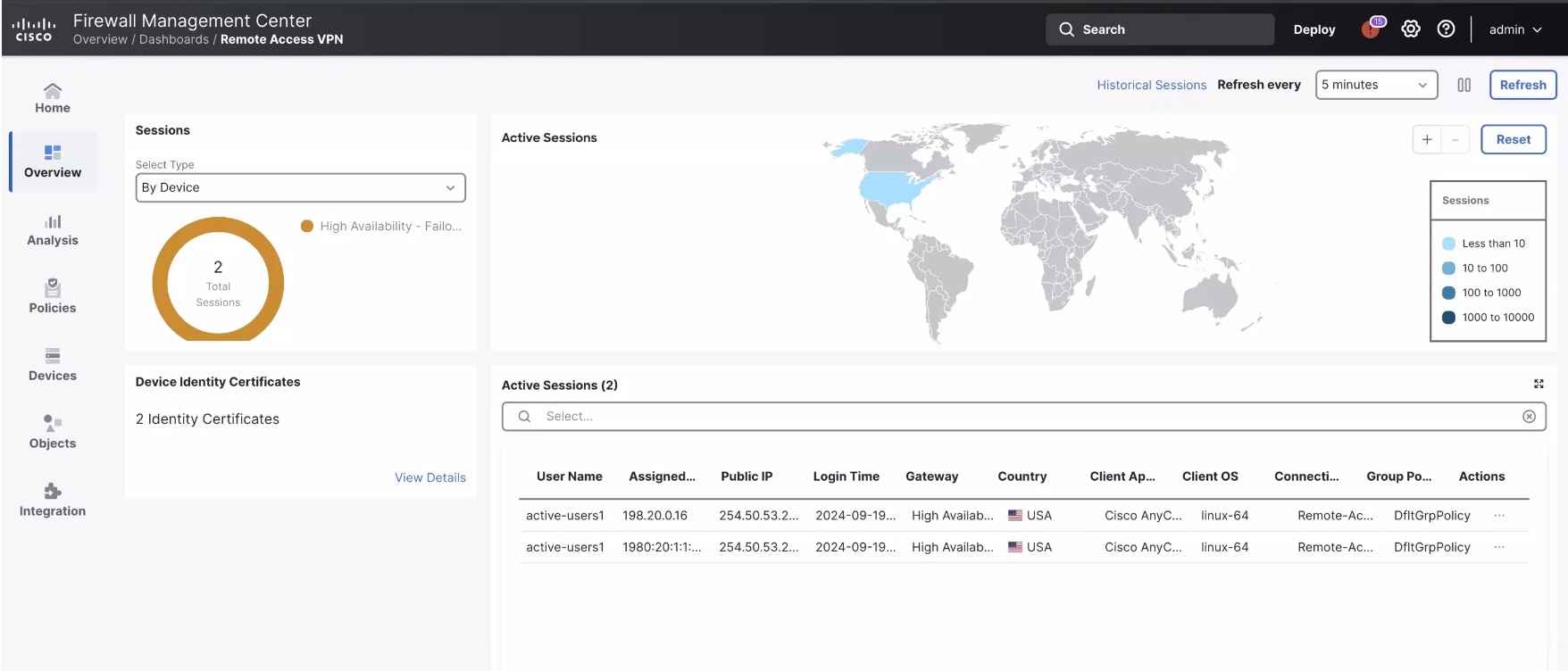
After you deploy the remote access policy on the devices, use the Remote Access VPN dashboard (Insights & Reports > VPN dashboards > Remote Access VPN) to monitor real-time data from active remote access VPN sessions on the devices. You can quickly determine problems related to user sessions and mitigate the problems for your network and users. For more information, see Remote Access VPN Dashboard.

Workflow to configure a remote access VPN connection

This workflow provides the necessary steps to successfully configure a remote access VPN connection on your device.

Table 1. Workflow to configure a remote access VPN connection

Step

Task

More Information

1

Review the licenses, prerequisites, and guidelines.

Licenses for remote access VPN

Prerequisites for remote access VPN

Guidelines and limitations for managing remote access VPN users based on geolocation

2

Create a new remote access VPN policy using the wizard.

Configure a remote access VPN policy

3

Update the access control policy deployed on the device.

Update access control policy in Firewall Threat Defense device

4

(Optional) Configure a NAT exemption rule if NAT is configured on the device.

Configure NAT exemption

5

Configure DNS.

Configure DNS

6

Add Secure Client profile.

Add a Secure Client profile file

7

Deploy the remote access VPN policy.

8

(Optional) Verify the remote access VPN policy configuration.

Configure AAA settings for a remote access VPN policy

In Authentication, Authorization & Accounting (AAA), you can configure the AAA parameters for the remote access VPN policy. You can configure authentication alone, or with authorization and accounting.

Before you begin

Configure the protocols and devices, and the connection profile for a remote access VPN policy as described in Configure a remote access VPN policy.

Procedure


Step 1

From the Authentication Method drop-down list, choose an authentication method.

Authentication is the way a user is identified before being allowed access to the network and network resources. Authentication requires valid user credentials, a certificate, or both.

  • AAA Only—Each user is authenticated using LOCAL authentication, RADIUS, AD, or LDAP servers.

  • SAML—Each user is authenticated using a SAML single sign-on (SSO) server. For more information, see Authenticate remote access VPN users using SAML SSO.

  • Client Certificate Only—Each user is authenticated using a client certificate. For more information, see Authenticate remote access VPN users using client certificates.

  • Client Certificate & AAA—Each user is authenticated using client certificates and AAA methods such as LOCAL authentication, RADIUS, AD, and LDAP servers.

  • Client Certificate & SAML—Each user is authenticated using client certificates and a SAML SSO server.

You can also configure secondary authentication in addition to primary authentication to provide more security for VPN sessions. It applies only to AAA-only and Client Certificate & AAA authentication methods. For more information, refer to Authenticate remote access VPN users using secondary authentication.

Step 2

From the Authentication Server drop-down list, choose an authentication server.

You can click + to configure a LOCAL realm, LDAP realm, AD realm, or a RADIUS server group.

  • LOCAL—Configure LOCAL user settings using this realm.

    You can define users directly on the device and not use an external server. To configure LOCAL authentication, Firewall Threat Defense must be Version 7.0 and later.

  • Active Directory/LDAP—Configure Microsoft Active Directory or LDAP server as an external authentication source using this realm.

    For more information, refer to Create an LDAP realm or an Active Directory realm and realm directory.

  • RADIUS Server Group—Add a RADIUS server group object with one or more RADIUS servers.

    For more information, refer to Add a RADIUS server group.

Step 3

(Optional) Check the Fallback to LOCAL Authentication check box to enable authentication of users using the LOCAL database if the AAA server group is unavailable, provided that the LOCAL database is configured.

When you check this option, choose a LOCAL realm from the LOCAL Realm drop-down list.

Step 4

From the Authorization Server drop-down list, choose an authorization server.

Once authentication is complete, authorization determines which services and commands each authenticated user can access. Authorization functions by gathering a set of attributes that define the user's permitted actions, capabilities, and any restrictions. Without authorization, all authenticated users have the same level of access. Authorization always requires authentication. For more information about authorization attributes, refer to Manage user authorization attributes in remote access VPN policies.

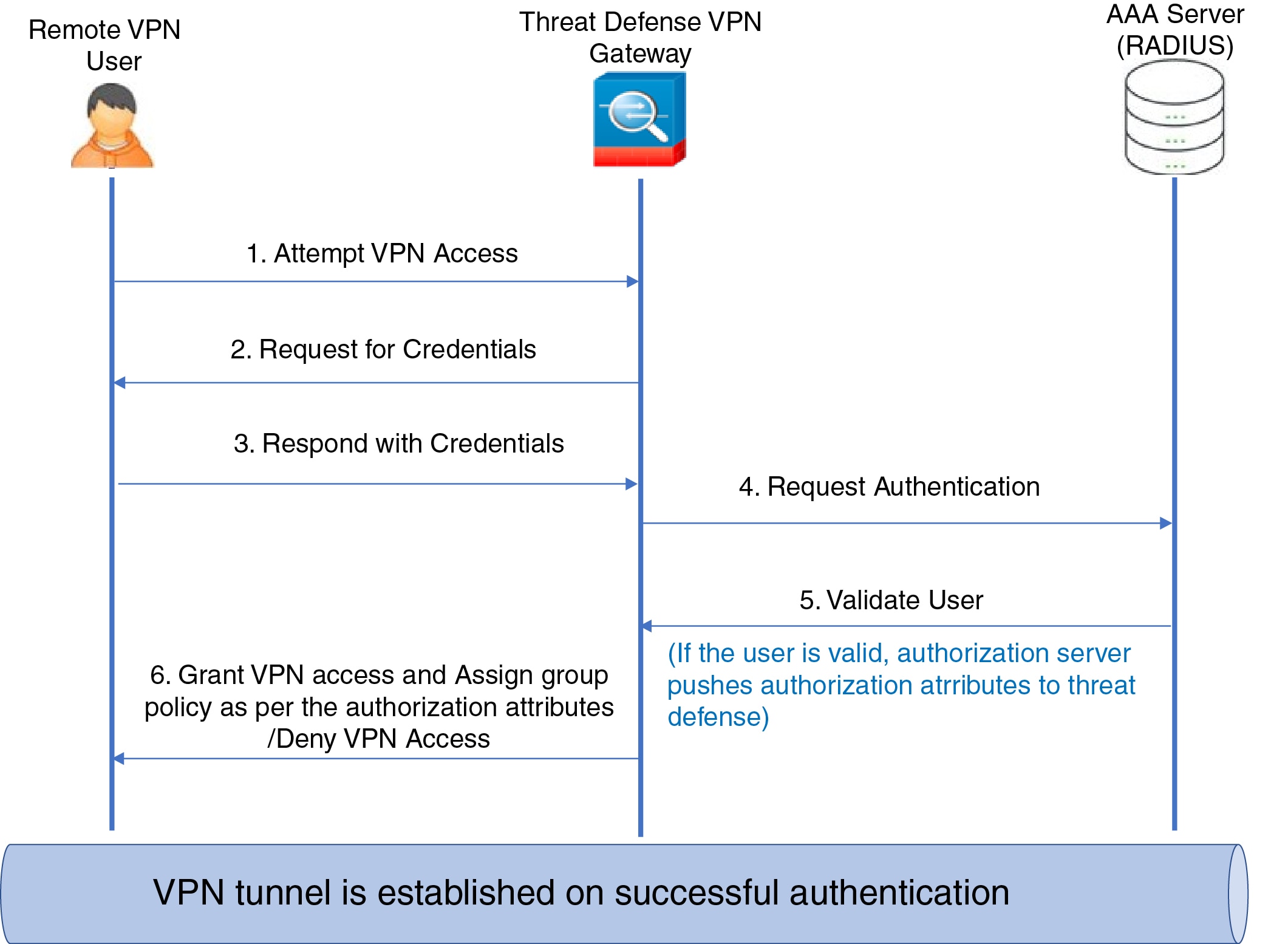
When you set up a RADIUS server for user authorization, you can define multiple authorization attributes on the server for individual users or user groups. After a successful authentication, the specific authorization attributes are pushed to the Firewall Threat Defense device. For more information about RADIUS authorization attributes, refer to Appendix B: RADIUS server attributes for Firewall Threat Defense devices.

Step 5

From the Accounting Server drop-down list, choose a RADIUS server group object as the accounting server.

Accounting tracks the services users access and the network resources they consume. When AAA accounting is enabled, the network access server sends user activity details such as session start and stop times, usernames, bytes transferred, services used, and session durations to the RADIUS server. You can use this data for network management, billing, and auditing. You can use same or different RADIUS servers for AAA.


Authenticate remote access VPN users using client certificates

Configure client certificate authentication to secure remote access VPN connections by verifying user identity through digital certificates.

Client certificate authentication provides enhanced security for remote access VPN users by utilizing digital certificates installed on client devices. You can configure this method for new or existing remote access VPN policies and supports both single certificate and multiple certificate authentication scenarios.

Before you begin

Ensure that client certificates are configured on the endpoints.

Procedure

Step 1

Choose Secure Connections > Remote Access VPN

Step 2

To configure a client certificate for a new remote access VPN policy:

  1. Click Add to create a remote access VPN policy.

  2. Configure the protocols, devices, and connection profile for the policy.

  3. From the Authentication Method drop-down list, choose Client Certificate Only to authenticate each user with a client certificate.

    By default, user names are derived from CN and OU fields of the client certificates. To use different fields, configure the Primary and Secondary fields.

  4. Select Map specific field to use certificate fields as the username, with the default Primary and Secondary fields set to CN (Common Name) and OU (Organizational Unit).

  5. Select Use entire DN (Distinguished Name) as username to automatically retrieve the user identity from the DN. It is a unique identifier used to match users to a connection profile and supports enhanced certificate authentication.

  6. From the Primary and Secondary drop-down lists, choose these common values:

    • C (Country), CN (Common Name)

    • DNQ (DN Qualifier), EA (Email Address)

    • GENQ (Generational Qualifier), GN (Given Name)

    • I (Initial), L (Locality)

    • N (Name)

    • O (Organisation), OU (Organisational Unit)

    • SER (Serial Number), SN (Surname)

    • SP (State Province), T (Title)

    • UID (User ID), UPN (User Principal Name)

  7. Configure the required settings for the remote access VPN policy.

  8. Click Finish to save the remote access VPN policy.

Step 3

To configure a client certificate for an existing remote access VPN policy:

  1. Click the edit icon next to the remote access VPN policy.

  2. Click the edit icon next to the connection profile that you want to modify.

  3. Click the AAA tab.

  4. From the Authentication Method drop-down list, choose Client Certificate Only to authenticate each user with a client certificate.

  5. Repeat Step 2d to Step 2f.

  6. (Optional) Check the Enable multiple certificate authentication check box to authenticate the client using machine and user certificates.

    This option ensures that the device is corporate-issued and also authenticates the user's identity for VPN access. You can choose whether to derive the username from the machine or user certificate.

    From the Certificate to choose drop-down list, choose these options:

    • First Certificate—Maps the username from the machine certificate and authenticates the endpoint.

    • Second Certificate—Maps the username from the user certificate and authenticates the VPN user.

    Note


    If multiple certificate authentication is not enabled, by default, the user certificate (second certificate) is used for authentication.

  7. Click Save to save the remote access VPN policy.


Limitations for multiple certificate-based authentication

Review these restrictions when implementing multiple certificate-based authentication:

  • You can use a maximum of two certificates.

  • You can use only RSA-based certificates.

  • You can use only SHA256, SHA384, and SHA512 certificates during Secure Client aggregate authentication.

  • You cannot combine multiple certificate authentication with SAML authentication.

Associate local realm with remote access VPN policy

You can associate a local realm with a remote access VPN policy to enable local user authentication. The configured local realm applies to all the connection profiles with local authentication enabled.

For more information about creating and managing realms, refer to Manage a realm.

For more information about configuring local user authentication for remote access VPNs, refer to Configure AAA settings for a remote access VPN policy.

Procedure

Step 1

Choose Secure Connections > Remote Access VPN.

Step 2

Click the edit icon next to the remote access VPN policy.

Step 3

Click the link next to Local Realm.

Step 4

From the Local Realm Server drop-down list, choose a realm, or click + to add a new realm.

Step 5

Click OK.

Step 6

Click Save.


Authenticate remote access VPN users using secondary authentication

Configure secondary authentication in addition to primary authentication to provide additional security for VPN sessions.

Secondary authentication applies only to AAA-only and Client Certificate & AAA authentication methods. Users gain access if both primary and secondary authentications succeed. If either authentication fails or a server is unreachable, users are denied access.

Secondary authentication requires VPN users to enter two sets of credentials in Secure Client. You can also configure the system to pre-fill the secondary username from the authentication server or client certificate.

Before you begin

Configure a AAA server to serve as the secondary authentication server.

For example, you can set the primary authentication server as an LDAP or Active Directory realm and the secondary authentication as a RADIUS server.

Follow these steps to authenticate remote access VPN users using secondary authentication:

Procedure

Step 1

Choose Secure Connections > Remote Access VPN

Step 2

Click the edit icon next to the remote access VPN policy.

Step 3

Click the edit icon next to the connection profile that you want to modify and click the AAA tab.

Step 4

From the Authentication Method drop-down list, choose AAA-only or Client Certificate & AAA.

Step 5

From the Authentication Server drop-down list, choose the primary AAA server.

Step 6

(Optional) Check the Fallback to LOCAL Authentication check box to enable user authentication using the LOCAL database if the AAA server group is unavailable.

Ensure that the LOCAL database is configured.

Step 7

Check the Use secondary authentication check box to configure a secondary AAA server and from the Authentication Server drop-down list, choose the secondary AAA server..

Step 8

In Username for secondary authentication, configure these parameters:

  • Prompt—Prompts users to enter their username and password when logging in to the VPN gateway.
  • Use primary authentication username—Uses the username of the primary authentication server for both primary and secondary authentication. Users must enter two passwords when they log in.
  • Prefill username from certificate on user login window—Pre-fills the secondary username from the client certificate when the user connects through Secure Client.
    • Select Map specific field to use certificate fields as the username, with the default Primary and Secondary fields set to CN (Common Name) and OU (Organizational Unit).

    • From the Primary and Secondary drop-down lists, choose the required certificate fields.

    • Select Use entire DN (Distinguished Name) as username to automatically retrieve the user identity from the DN. This unique identifier is used to match users to a connection profile and supports enhanced certificate authentication.

    • If you have enabled the Enable multiple certificate authentication option, from the Certificate to choose drop-down list, choose First Certificate or Second Certificate.

    • Hide username in login window—Pre-fills the secondary username from the client certificate. This username is hidden from the user, preventing modification of the pre-filled username.

    • Use secondary username for VPN session—Uses the secondary username for reporting user activity during a VPN session.

Step 9

Click Save to save the remote access VPN policy.


Authenticate remote access VPN users using SAML SSO

About SAML Single Sign-On authentication

Security Assertion Markup Language (SAML) is an open standard that enables single sign-on (SSO) across multiple applications by exchanging authentication and authorization data between an Identity Provider (IdP) and a Service Provider (SP).

When users authenticate with the IdP, it shares their identity with authorized applications (SPs). This action enables seamless access for users and permits centralized access control.

SAML SSO with Firewall Management Center

Firewall Threat Defense supports SAML 2.0 SSO for remote access VPN connections using Secure Client. With SAML IdP integration, users sign in to Firewall Management Center through the IdP and access resources based on their identity. The integration includes these components:

  • Identity Provider (IdP)—Performs user authentication, authorization, and issues assertions. For example, Duo, Microsoft Entra ID, and Okta.

  • Service Provider (SP)—Obtains the authentication assertion from IdP. A Firewall Threat Defense device acts as the SP.

  • Secure Client—Performs SAML 2.0 authentication using the embedded browser.

Prerequisites for SAML SSO

Review these prerequisites before configuring SAML SSO authentication and authorization for remote access VPN.

  • Create an account with your IdP.

  • Obtain these from your IdP:

    • IdP Entity ID URL

    • Sign-in URL

    • Sign-out URL

    • IdP certificate

  • If you use Duo, download and install Duo Access Gateway.

  • Create a SAML single sign-on server object (Objects > AAA Server > Single Sign-on Server).


    Note


    You can also create a single sign-on server object in the Connection Profile settings when you create a new remote access VPN policy using the wizard.


Guidelines for SAML SSO authentication

Follow these guidelines for authenticating users using SAML SSO and Firewall Threat Defense devices.

General guidelines
  • A Firewall Threat Defense device can function only as a SAML SP. You cannot configure the device as an IdP in a gateway or peer mode.

  • Ensure that you do not use multiple SAML objects with the same IdP entity ID on a single device.

    The device sets the IdP entity ID to the SAML object name from the SSO server object (Objects > AAA Server > Single Sign-on Server).

  • Apply an access policy to a SAML-authenticated user by assigning an identity policy that uses an Active Directory (AD) realm matching the SAML domain. For Azure AD SAML, you must map the Azure AD tenant ID to a realm ID on the device.

  • Synchronize the Network Time Protocol (NTP) servers of the Firewall Threat Defense device and the SAML IdP.

  • Maintain valid signing certificates on the Firewall Threat Defense device and the IdP.

    The device does not perform a revocation check on the IdP's signing certificate.

  • The NameID attribute of the SAML IdP determines the username for authorization, accounting, and VPN session database entries.

Secure Client guidelines
  • Secure Client performs SAML 2.0 authentication through its embedded browser, and the authentication context is not shared with external web browsers.

  • Secure Client can use various methods when connecting to a headend with the embedded browser.

    The client might connect using IPv4 address while the embedded browser uses IPv6 address, or vice versa. If a proxy failure occurs, the client switches to no proxy, and the embedded browser stops navigation.

  • Ensure that you do not use untrusted server certificates in the embedded browser.

SAML assertion timing guidelines

The Firewall Threat Defense device's SAML timeout interacts with NotBefore and NotOnOrAfter conditions in SAML assertions for login requests.

  • Timeout takes effect if the sum of NotBefore and timeout is less than NotOnOrAfter, then.

  • NotOnOrAfter takes effect if the sum of NotBefore and timeout is more than NotOnOrAfter.

  • The device denies the login request if NotBefore is not configured.

  • The device denies the login request if NotOnOrAfter and SAML timeout are not configured.

Limitations for SAML SSO

Review these limitations when using SAML SSO authentication:

General limitations
  • Do not provide SAML authentication attributes in a DAP evaluation similar to RADIUS attributes sent in a RADIUS authentication response from a AAA server. Although the Firewall Threat Defense device supports SAML-enabled group policy in a DAP policy, you cannot check the username attribute during SAML authentication because the SAML IdP masks it.

  • Duo does not work with internal SAML deployments on the Firewall Threat Defense device if client authentication requires proxying due to FQDN changes during two-factor authentication challenges and responses.

  • You cannot access internal servers with SSO after logging in using an internal IdP.

  • Firewall Threat Defense device does not support receiving multiple attributes with a SAML assertion.

Secure Client limitations
  • A Firewall Threat Defense device does not support embedded browser SAML integration in CLI or Start Before Logon (SBL) modes.

  • SAML SSO in Firewall Management Center does not support Start Before Logon (SBL) mode.

Configure SAML SSO authentication

SAML SSO authentication allows users to authenticate once with their identity provider and access the VPN without requiring separate credentials. This method improves user experience while maintaining security standards.

Before you begin

Ensure that you review Prerequisites for SAML SSO, Guidelines for SAML SSO authentication, and Limitations for SAML SSO.

Procedure

Step 1

Choose Secure Connections > Remote Access VPN

Step 2

To configure SAML SSO authentication for a new remote access VPN policy:

  1. Click Add to create a remote access VPN policy.

  2. Configure the protocols, devices, and connection profile for the policy.

  3. From the Authentication Method drop-down list, choose SAML.

  4. From the Authentication Server drop-down list, choose a SAML single sign-on server.

  5. Configure the required settings for the remote access VPN policy.

  6. Click Finish to save the remote access VPN policy.

Step 3

To configure SAML SSO authentication for an existing remote access VPN policy:

  1. Click the edit icon next to the remote access VPN policy.

  2. Click the edit icon next to the connection profile that you want to modify.

  3. Click the AAA tab.

  4. From the Authentication Method drop-down list, choose SAML.

  5. From the Authentication Server drop-down list, choose a SAML single sign-on server.

  6. Check the Override Identity Provider Certificate check box to override the primary SAML IdP certificate with a profile-specific certificate to support multiple SAML applications for an IdP.

    The primary identity certificate is configured in the single sign-on server object.

  7. From the drop-down list, choose the IdP certificate.

  8. In SAML Login Experience, configure a browser for SAML web authentication:

    • VPN client embedded browser—Select this option to use the embedded VPN client browser for VPN-only web authentication.

    • Default OS Browser—Select this option to use the system's default browser for web authentication. You can use SSO and methods like biometric authentication that are not supported in the embedded browser. This option requires an external browser package which is by default Default-External-Browser-Package. To change this browser package, edit the remote access VPN policy, click the Advanced tab and choose a browser package from the Package File drop-down list.

  9. Click Save to save the remote access VPN policy.


Configure SAML authorization

SAML authorization allows you to integrate your VPN solution with existing identity providers for centralized authentication and access control. This configuration involves setting up SAML authentication in connection profiles and creating DAP policies that match SAML criteria.

Before you begin

Ensure that you review Prerequisites for SAML SSO, Guidelines for SAML SSO authentication, and Limitations for SAML SSO.

Follow these steps to configure SAML authorization:

Procedure

Step 1

Configure SAML authentication in the remote access VPN connection profile.

For more information, see Configure SAML SSO authentication.

Step 2

Match a SAML criteria in a DAP policy.

  1. Choose Secure Connections > Dynamic Access Policy.

  2. Create a new DAP policy or edit an existing policy.

  3. Create a DAP record or edit an existing record.

  4. Click the AAA Criteria tab.

  5. In SAML Criteria, click + to create SAML criteria based on the SAML assertions returned by the SSO server.

Step 3

Deploy the remote access VPN configuration.


Configure advanced AAA settings

Configure advanced AAA settings to customize authentication behavior and improve password management for remote access VPN users.

Before you begin

  1. Configure the protocols and devices, and the connection profile for a remote access VPN policy as described in Configure a remote access VPN policy.

  2. Configure the authentication method, and the AAA servers as described in Configure AAA settings for a remote access VPN policy.

Procedure

Step 1

Click the edit icon next to the remote access VPN policy.

Step 2

Click the edit icon next to the connection profile.

Step 3

Click the AAA tab.

Step 4

In Advanced Settings, configure these parameters:

  • (Optional) Check the Strip Realm from username check box to remove the realm from the username before sending it to the AAA server for authentication. By default, this feature is disabled.

    If you select this option and provide a username in the domain\username format, the AAA server receives only the username.

  • (Optional) Check the Strip Group from username check box to remove the group name from the username before sending it to the AAA server for authentication. By default, this feature is disabled.

    Note

     
    A realm is an administrative domain used to manage authentication. When you enable these options, users can authenticate using only their username. You can select any of these options. If your server does not support delimiter parsing, enable both check boxes to ensure authentication.
  • Check the Enable Password Management check box to configure the notification settings for the remote access VPN users about password expiry. Configure one of these options:

    • In the Notify User – days ahead of password expiry field, enter the number of days for password expiry notification.

    • Select Notify user on the day of password expiration.

Step 5

Click Save.


Configure connection profile settings

A connection profile defines authentication settings, VPN client address assignment, and associated group policies. A remote access VPN policy can include multiple connection profiles to support specific devices or distinct user groups with different access requirements.

Procedure


Step 1

Choose Secure Connections > Remote Access VPN.

Step 2

Click the edit icon next to the remote access VPN policy.

Step 3

In the Connection Profile tab, click the edit icon next to a connection profile or click + to configure a new connection profile.

Step 4

Configure IP addresses for VPN clients.

Step 5

(Optional) Configure AAA settings for a remote access VPN policy.

Step 6

(Optional) Configure aliases for a connection profile.

Step 7

Click Save.


Configure IP addresses for VPN clients

You can assign IP addresses to remote access VPN users by using IP address pools. You can source these IP addresses from a AAA server, a DHCP server, or local IP address pools. If you select multiple sources, addresses are assigned in this order: AAA server, DHCP server, and then local IP address pools. IP address pools defined in a connection profile are used only when no pools are defined in the associated group policy or in the default group policy DfltGrpPolicy.

Before you begin


Note


When you configure both a DHCP server and a local IP address pool for address assignment, automatic fallback to the local pool (if the DHCP server is unavailable) works only for SSL-based remote access VPN connections.

For IPsec-based remote access VPN connections, this fallback may not complete in time if the DHCP server is unreachable, which can cause the connection to fail.


To avoid connection issues with IPsec-based remote access VPN, do one of the following:

  • Make sure the DHCP server is reachable, or

  • Use only a local IP address pool for address assignment.

Procedure

Step 1

Choose Secure Connections > Remote Access VPN.

Step 2

Click the edit icon next to the remote access VPN policy.

Step 3

Click the edit icon next to the connection profile.

Step 4

Click the Client Address Assignment tab.

Step 5

Click + next to Address Pools:

  1. Click + next to Address Pools to add IP address pools.

    Note

     
    If you share a remote access VPN policy among multiple Firewall Threat Defense devices, the devices use the same address pool. Assign a unique address pool to each device using device-level object overrides. Unique address pools prevent overlapping IP addresses when devices do not use NAT.
  2. Select IPv4 or IPv6.

  3. In the Address Pools dialog box, choose the IP address pools.

  4. Click + next to Available Pools to add a new IPv4 or IPv6 address pool.

    When you configure an IPv4 address pool, provide a starting and ending IP address. When you configure an IPv6 address pool, enter a number within the range 1 to 16384 in the Number of Addresses field.

  5. Check the Allow Overrides check box to avoid conflicts with IP addresses when objects are shared across many devices. For more information, see Configure address pools.

  6. Click OK.

    If you plan to edit the IP address pools, perform these steps during a maintenance window:

    1. Unassign the device from the remote access VPN policy.

    2. Select the device and click Deploy.

      This deployment removes all the remote access VPN configurations from the device and ends the remote access VPN sessions. Users must reconnect because the sessions are not reestablished.

    3. Click the edit icon next to the IP address pools. Update other remote access VPN configurations, if required, on the Firewall Management Center.

    4. Assign the device to the updated remote access VPN policy.

    5. Deploy the configurations on the device.

      The remote access VPN clients can connect to the device after the maintenance window.

Step 6

Click + next to DHCP Servers to add DHCP servers for address assignment.

Note

 
You can use only IPv4 addresses for DHCP servers.
  1. Choose the server from the object list.

  2. Click Add

  3. Click + to configure a DHCP server as a network object.

  4. Click OK.

Step 7

Click Save.


What to do next

To define the IP address assignment policy, click the Advanced tab, and from the left pane, choose Address Assignment Policy.

Configure aliases for a connection profile

Aliases are alternate names or URLs for connection profiles. You can enable or disable these names and URLs that appear to VPN users during login. The Firewall Threat Defense device applies the matching connection profile when a user selects an alias name or connects using an alias URL.

Procedure

Step 1

Choose Secure Connections > Remote Access VPN.

Step 2

Click the edit icon next to the remote access VPN policy.

Step 3

Click the edit icon next to the connection profile.

Step 4

Click the Aliases tab.

Step 5

Click + next to Alias Names.

Step 6

In the Add Alias Name dialog box, enter an alias in the Alias Name field.

Step 7

Check the Enabled check box to enable the alias for the connection profile.

Step 8

Click OK.

Step 9

Click Save.


Configure access interfaces for a remote access VPN policy

The Access Interface table lists the interface groups and security zones that contain the device interfaces. These are configured for remote access SSL or IPsec IKEv2 VPN connections. The table displays the name of each interface group or security zone, the interface trustpoints used by the interface, and whether Datagram Transport Layer Security (DTLS) is enabled.

Procedure


Step 1

Choose Secure Connections > Remote Access VPN.

Step 2

Click the edit icon next to the remote access VPN policy and click the Access Interface tab.

Step 3

To add an access interface, click +.

In the Add Access Interface dialog box, configure these parameters:

  1. Access Interface—Select the interface group or security zone to which the interface belongs.

    The interface group or security zone must be a Routed type. Other interface types are not supported for remote access VPN connectivity.
  2. Associate the Protocol object with the access interface by selecting these options:

    • Enable IPSet-IKEv2—Select this option to enable IKEv2 settings.

    • Enable SSL—Select this option to enable SSL settings.

      • Select Enable Datagram Transport Layer Security.

        When selected, it enables Datagram Transport Layer Security (DTLS) on the interface and allows the AnyConnect VPN module of Cisco Secure Client to establish an SSL VPN connection using two simultaneous tunnels—an SSL tunnel and a DTLS tunnel.

        Enabling DTLS avoids the latency and bandwidth problems associated with certain SSL connections and improves the performance of real-time applications that are sensitive to packet delays.

        To configure SSL settings, and TLS and DTLS versions, refer to Configure SSL settings .

        To configure SSL settings for the AnyConnect VPN module of Cisco Secure Client , refer to Group policy options for Secure Client .

      • Select the Configure Interface Specific Identity Certificate check box and select the Interface Identity Certificate from the drop-down list.

        If you do not select the Interface Identity Certificate or Trustpoint, the SSL Global Identity Certificate will be used by default.

  3. Click OK.

Step 4

In Access Settings, configure these parameters:

  • Allow Users to select connection profile while logging in—If you have multiple connection profiles, check this check box to allow user to select the correct connection profile during login. You must select this option for IPsec-IKEv2 VPNs.

  • Enable HTTP-only VPN Cookies—Check this check box to restrict cookie data access to the browser and its HTTP session, ensuring the data is only available to the server. This option helps protect against cross-site scripting attacks.

Step 5

In SSL Settings, configure these parameters:

  • Web Access Port Number—The port to use for VPN sessions. The default port is 443.

  • DTLS Port Number—The UDP port to use for DTLS connections. The default port is 443.

  • SSL Global Identity Certificate— The selected SSL Global Identity Certificate will be used for all the associated interfaces if the Interface Specific Identity Certificate is not provided.

    You can choose an ACME certificate for authenticating the VPN gateway. ACME certificates automate the lifecycle management of SSL and TLS certificates, including their auto-renewal.

Step 6

In IPsec-IKEv2 Settings, choose an identity certificate from the IKEv2 Identity Certificate drop-down list.

Step 7

In Service Access Control, choose a service access object from the Service Access Object drop-down list or click + to create a new object.

You can use a service access object to control remote clients' access to VPN on Firewall Threat Defense devices with Version 7.7 or later. This object provides geolocation-based access control to clients before VPN authentication. By default, there is no access control for RA VPN, and remote clients can connect from any geolocation unless specified by a service access object. For more information, see Configure VPN access of remote users based on geolocation and Configure a service access object.

Step 8

In Access Control for VPN Traffic section, select this option to bypass access control policy:

  • Bypass Access Control policy for decrypted traffic (sysopt permit-vpn) — Decrypted traffic is subjected to Access Control Policy inspection by default. Enabling the Bypass Access Control policy for decrypted traffic option bypasses the ACL inspection, but VPN Filter ACL and authorization ACL downloaded from AAA server are still applied to VPN traffic.

    Note


    If you select this option, you need not update the access control policy for remote access VPN as specified in Update access control policy in Firewall Threat Defense device .

Step 9

Click Save.


Postconfiguration tasks for a remote access VPN policy

Use these topics to understand and perform the postconfiguration tasks that must be completed after configuring a remote access VPN policy to ensure proper functionality and deployment.

Update access control policy in Firewall Threat Defense device

Before deploying a remote access VPN policy, update the access control policies on the devices with rules that permit all traffic from the outside interface, with the client networks as the source and the corporate network as the destination.


Note


If you enable the Bypass Access Control policy for decrypted traffic (sysopt permit-VPN) option when configuring the remote access VPN policy, you do not have to update the access control policy.

Enable or disable the option for all your VPN connections. If you disable this option, ensure that the VPN traffic is allowed by the access control policy or pre-filter policy.


Before you begin

Configure remote access VPN policies using the Remote Access VPN Policy Wizard.

Procedure


Step 1

Choose Policies > Security policies > Access Control.

Step 2

Click the edit icon next to the access control policy that you want to update and click Add Rule.

Step 3

In the Name field, enter the name for the rule.

Step 4

Click the Enable Rule toggle button.

Step 5

From the Action drop-down list, choose Allow or Trust.

Step 6

Click the Zones tab.

  1. Select the outside zone from the available zones and click Add Source Zone.

  2. Select the inside zone from the available zones and click Add Destination Zone.

Step 7

Click the Networks tab.

  1. Select the inside network, including the inside interface of the device and the corporate network, from the available networks and click Add Destination Network.

  2. Select the VPN IP address pool network (client network) from Available Networks and click Add Source Network.

Step 8

Configure other required access control rule settings and click Apply and Add New Rule.

Step 9

Save the rule and access control policy.


Configure NAT exemption

NAT exemption allows certain addresses to bypass NAT translation, so both your internal and external hosts can initiate connections with protected hosts.

Unlike identity NAT, which does not restrict translation to specific interfaces, you must apply NAT exemption across all interfaces. NAT exemption lets you specify both real and destination addresses, similar to policy NAT. To control access by port, use static identity NAT with an access list.

For remote access VPN, configure static identity NAT with the route lookup option. Without this option, the Firewall Threat Defense device sends traffic through the interface defined in the NAT rule and ignores the routing table. Misrouting can cause problems, such as DHCP traffic not returning correctly. The route lookup option ensures that the device uses the proper interface based on the routing table, to maintain correct traffic flow for VPN and internal hosts.

Before you begin

Verify if NAT is enabled on the devices with remote access VPN policies. If NAT is enabled, create a NAT exemption policy for the VPN traffic.

Procedure


Step 1

Choose Policies > Network policies > NAT.

Step 2

Edit a NAT policy or click New Policy to create a NAT policy with a NAT rule to allow connections through all interfaces.

Step 3

Click Add Rule to add a NAT rule.

Step 4

In the Add NAT Rule dialog box, configure these parameters:

  1. From the NAT Rule drop-down list, choose Manual NAT Rule.

  2. From the Type drop-down list, choose Static.

  3. Click the Interface Objects tab, and select the source and destination interface objects.

Note


This interface object must match the interface specified in the remote access VPN policy.

  1. Click the Translation tab.

    • From the Original Source and Translated Source drop-down lists, choose the source networks.

    • From the Original Destination and Translated Destination drop-down lists, choose the destination networks.

Step 5

Click the Advanced tab.

Step 6

Check the Do not proxy ARP on Destination Interface check box.

This option disables proxy ARP for incoming packets to mapped IP addresses. By default, the system uses proxy ARP to respond to ARP requests for mapped addresses on the same network, simplifying routing since no extra gateway is needed. If you disable proxy ARP, ensure the upstream router has correct routes to those addresses.

Step 7

Click OK.


Configure DNS

Configure DNS on each Firewall Threat Defense device to enable remote access VPN policies. Without DNS, the devices can resolve only IP addresses. They cannot resolve AAA server names, URLs, and CA servers with FQDN or hostnames.

Procedure


Step 1

Choose Devices > Platform Settings.

Step 2

Edit a Firewall Threat Defense policy or click New Policy to create a new platform settings policy.

Step 3

From the left pane, choose DNS to configure the DNS servers and domain-lookup interfaces.

For more information, see Configure DNS server settings and DNS server groups.

Step 4

Configure split-tunnel in the group policy to allow DNS traffic through remote access VPN tunnel if the DNS server is reachable through the VPN network.


Add a Secure Client profile file

The Secure Client Profile is an XML file that contains configuration settings to control the client's operation and appearance, including host names, addresses, and feature options. You can create and manage this profile using the Secure Client Profile Editor, a standalone, GUI-based tool in the Secure Client software package. For more information about Secure Client Profile Editor, see Cisco Secure Client (including AnyConnect) Administrator Guide.

To use remote access VPN with Firewall Threat Defense devices, assign the Secure Client Profile to VPN clients by attaching it to a group policy. The Firewall Threat Defense device deploys the profiles during a Secure Client connection.

Before you begin

Download the Secure Client Profile Editor from Cisco Software Download Center.

Procedure


Step 1

Choose Secure Connections > Remote Access VPN.

Step 2

Edit a remote access VPN policy.

Step 3

Click the edit icon next to the connection profile to which you want to add the Secure Client profile.

Step 4

Click Edit Group Policy. If you choose to add a new group policy, click Add.

Step 5

Click the tab.

Step 6

From the left pane, click Profile.

Step 7

From the Client Profile drop-down list, choose a Secure Client Profile or click + to add one.

Note


For two-factor authentication, ensure that the timeout is set to 60 seconds or more in the Secure Client profile.

Step 8

Click Save.


Configure advanced options for a remote access VPN policy

This section provides information about configuring advanced settings for a remote access VPN policy.

Manage Secure Client images

Secure Client establishes secure SSL or IPsec IKEv2 connections to the Firewall Threat Defense device for remote users, providing full VPN access to corporate resources.

Client deployment and upgrade processes

The deployment process varies based on client installation status:

  • First-time installation: Users without a pre-installed client can enter the IP address of a clientless VPN-enabled interface in their browser to automatically download and install the Secure Client. The Firewall Threat Defense device detects the remote computer's operating system and delivers the appropriate client package, which automatically installs and establishes a secure connection.

  • Existing client upgrades: For users with a previously installed client, the Firewall Threat Defense device checks the client version upon authentication and upgrades it automatically if a newer version is available.

You can associate new or additional Secure Client images with the VPN policy. You can also remove packages that are unsupported or have reached end of life. Firewall Management Center determines the operating system from the client package filename. If the file has been renamed and lacks OS information, manually select the correct operating system from the available list.

Add a Secure Client image in Firewall Management Center

You can add and update the Secure Client images for a remote access VPN policy.

Before you begin

Download the Secure Client from Cisco Software Download Center.

Follow these steps to add a Secure Client image in Firewall Management Center:

Procedure

Step 1

Choose Secure Connections > Remote Access VPN.

Step 2

Click the edit icon next to the remote access VPN policy.

Step 3

Click the Advanced tab.

Step 4

In the left pane, select Secure Client Images.

Step 5

Click + to add a Secure Client image.

Step 6

Click + in the Secure Client Images dialog box.

Step 7

In the Add Secure Client Image dialog box, configure these parameters:

  1. In the Name and Description fields, enter the values for the Secure Client image.

  2. Click Browse. Locate and select the client image that you want to upload.

When you upload the client image to the Secure Firewall Management Center, the operating system of the image is displayed automatically. You can also add the client image using an object (Objects > VPN > Secure Client File).

Step 8

Click Show Re-order buttons to change the order of the images.

Step 9

Click Save.


Add a Secure Client external browser package in Firewall Management Center

Use the external browser package to enable SAML-based authentication with an external web browser instead of the embedded browser. Download and associate the package with a connection profile to deploy it.

Before you begin

Download the Secure Client external browser package from Cisco Software Download Center.

Procedure

Step 1

Choose Secure Connections > Remote Access VPN.

Step 2

Click the edit icon next to the remote access VPN policy.

Step 3

Click the Advanced tab.

Step 4

In the left pane, select Secure Client Images.

Step 5

From the Package File drop-down list, choose an external browser package.

By default, Default-External-Browser-package is available. You can add only one package to the device. After you enable the external browser in the remote access VPN policy, the browser is pushed to the device. For more information, refer to Configure SAML SSO authentication

Step 6

Click Save.


Customize Cisco Secure Client

You can configure Secure Client customizations using the Firewall Management Center and deploy them to the Firewall Threat Defense device. The device distributes these customizations to the endpoint when a user connects from the Secure Client.

Table 2. Secure Client customizations available in Firewall Management Center

Customization

Description

More Info

GUI text and messages

Customize or localize Secure Client GUI text and informational or error messages

Customize and localize Secure Client GUI text and messages

Icons and images

Customize the logo, images, or icons of the Secure Client GUI

Customize Secure Client icons and images

Scripts

Deploy scripts on endpoint devices when a client establishes or disconnects a VPN session

Deploy scripts on endpoint devices using Secure Client

Binaries

Deploy custom applications using Secure Client APIs

Deploy custom applications using Secure Client APIs

Custom installer transforms

Customize the Secure Client installer

Customize the Secure Client installer

Localized installer transforms

Localize the Secure Client installer

Localize the Secure Client installer

Guidelines for Secure Client customizations

Review these guidelines before you configure the Secure Client customizations.

General guidelines
  • By default, the DfltCustomization customization object is available in a Firewall Threat Defense device. You can get this file when you run the show run all tunnel-groups command.

    FTD# sh run all
    tunnel-group tunnelgroup webvpn-attributes
     customization DfltCustomization

    Ensure that you import the Secure Client profile XML file to the DfltCustomization object. When you import the customization object, the Firewall Management Center checks the XML code for validity.

    For example:

    hostname# import webvpn customization DfltCustomization disk0:/csm/defaultcustomizationwebvpn.xml
  • Add the Windows Secure Client headend deployment package to the remote access VPN policy before deploying customization commands. You must include this package to support Windows, MacOS, or Linux clients.

Guidelines for icon and image customizations
  • Ensure customization object names match the Secure Client GUI filenames. File names are different for each operating system and are case-sensitive. For more information about the filenames, extensions, and sizes for each OS, see the Cisco Secure Client Administrator Guide.

  • Verify that image sizes are correct before deployment. Images are not displayed properly if the size is incorrect, and neither the Firewall Management Center nor the Firewall Threat Defense validates image size.

Limitations for Secure Client customizations

Review these limitations when configuring Secure Client customizations.

General limitations
  • Firewall Management Center removes all Secure Client customizations configured earlier than Version 7.4 directly on the device using CLI commands during deployment.

  • You cannot apply customizations to clusters.

Limitations for GUI text and message customizations
  • Restart Secure Client before you use this customization.

  • Supports only left-to-right languages.

  • Some strings may be truncated in the user interface because of fixed field lengths.

  • Some client messages are hardcoded. For example:

    • Status messages (during an update)

    • Untrusted server messages

    • Deferred update messages

  • Localization depends on the software version.

    If you created a translation table using a template of an earlier Secure Client version, new messages do not appear for remote users. You must merge the latest template with the translation table so that the table has the new messages. Use third-party tools like Gettext to perform the merge.

Limitations for icon and image customizations
  • Restart Secure Client before you use this customization.

  • You cannot apply this customization in macOS.

Limitations for deploying customized scripts
  • Secure Client runs only one OnConnect and one OnDisconnect script; however, these scripts may launch other scripts.

  • Scripts execute only functions that users have permissions to use.

  • You cannot launch the OnConnect script from the Start Before Logon (SBL) user interface.

Limitation for deploying custom applications using Secure Client APIs (Binaries)

After you use this customization, if you deploy an updated version of the Secure Client on the Firewall Management Center, the client will download the update and replace your custom user interface.

Limitation for customizing the client installer

You can apply this customization only on Windows.

Customize and localize Secure Client GUI text and messages

You can customize and localize Secure Client GUI text and messages.

Customize GUI text and messages

To customize the GUI text or messages, you must edit the messages in the message file. You can update error messages to include additional details. For example:

  • Change any label in the login dialog box such as Password to Domain Password.

  • Add support contact details in error messages.

Localize GUI text and messages

Firewall Threat Defense devices use translation tables to translate the labels and user messages displayed in Secure Client. When a user connects to the remote access VPN, Secure Client identifies the locale set on the endpoint and downloads the translation file. Firewall Threat Defense supports 128 locales. By default, Secure Client is installed in English.

  • For Secure Client Version 5.0, the default localization files for various languages are part of the application.

  • For AnyConnect Client Version 4.x, you can download the localization files for a few languages from the Cisco website and upload them to the Firewall Management Center.

Customize Secure Client GUI text and messages

Customizing GUI text and messages helps provide a localized user experience or incorporate organization-specific branding in the Secure Client client. This customization is applied through translation files that contain message strings and their corresponding customized versions.

Before you begin

Configure one or more remote access VPN policies.

Procedure

Step 1

Download the base template or translation file,such as AnyConnect.po, either from the Secure Client package or from the Cisco website.

Step 2

Use a text editor to add the translations or customize the labels or messages.

Step 3

Update the msgstr string corresponding to each msgid.

Step 4

Save the file.

Step 5

Create a Secure Client customization object.

  1. Choose Objects > VPN > Secure Client Customization.

  2. Click Add Secure Client Customization.

  3. Enter the name and description for the customization object.

  4. From the Customization Type drop-down list, choose GUI Text and Messages.

  5. From the Language drop-down list, choose a language for which you are adding the translation.

  6. Click Browse and select the translation file. Supported file extensions are .po, .mo, and .txt.

Step 6

Add the customization object to the remote access VPN policy.

  1. Choose Secure Connections > Remote Access VPN.

  2. Click the edit icon of the remote access VPN policy.

  3. Click the Advanced tab.

  4. In the left pane, click Secure Client Customizations > GUI Text and Messages.

  5. Click + to select the customization object.

  6. Click OK.

Step 7

Click Save.

Step 8

Choose Deploy > Deployment and deploy the policy to assigned devices. The changes become active only when you deploy them.


What to do next

Verify the Secure Client customizations. For more information, refer to Verify Secure Client customizations.

Customize Secure Client icons and images

You can customize Secure Client icons and images.

Customization requirements

To customize the logo, images, and icons of the Secure Client GUI, you must create a Secure Client customization object in the Firewall Management Center. The name of this customization object must match the Secure Client GUI filename. File names are different for each operating system and are case-sensitive. For more information about the filenames, extensions, and sizes for each operating system, see the Cisco Secure Client Administrator Guide.

Image file locations by operating system:

  • Windows: %PROGRAMFILES%\Cisco\Cisco Secure Client\res\

  • Linux: /opt/cisco/secureclient/resources or /opt/cisco/anyconnect/resources

  • macOS: Not supported


Note


When the remote access VPN connection is established, the logo or images are downloaded to the client directory. Ensure that you restart the client for the updated logo or images to appear in your client.


Customize Secure Client images and icons

Custom images and icons enhance the user experience by providing a personalized interface that aligns with your organization's visual identity. These customizations are applied through remote access VPN policies and deployed to connected clients.

Before you begin

Configure one or more remote access VPN policies.

Procedure

Step 1

Create icons or images in the correct file format and size.

Note


Verify that image sizes are correct before deployment. Images are not displayed properly if the size is incorrect, and neither the Firewall Management Center nor the Firewall Threat Defense validates image size.

For more information about the filenames, extensions, and sizes, see the Cisco Secure Client Administrator Guide.

Step 2

Create a new Secure Client customization object.

  1. Choose Objects > VPN > Secure Client Customization.

  2. Click Add Secure Client Customization.

  3. Enter the name and description for the customization object.

    Ensure that the customization object name matches the Secure Client GUI filenames. For more information about the filenames, see the Cisco Secure Client Administrator Guide.

  4. From the Customization Type drop-down list, choose Icon and Images.

  5. From the Platform drop-down list, choose a platform.

  6. Click Browse and select the file. Supported file extensions are .png, .ico, and .jpeg.

  7. Repeat Step 2a to Step 2f to add multiple icons and images.

Step 3

Add the customization object to the remote access VPN policy.

  1. Choose Secure Connections > Remote Access VPN.

  2. Click the edit icon of the remote access VPN policy.

  3. Click the Advanced tab.

  4. In the left pane, click Secure Client Customizations > Icons and Images.

  5. Click + to select the file.

  6. Click Add.

  7. Click OK.

Step 4

Click Save.

Step 5

Choose Deploy > Deployment and deploy the policy to assigned devices. The changes are not active until you deploy them.


What to do next

Verify the Secure Client customizations. For more information, refer to Verify Secure Client customizations.

Deploy scripts on endpoint devices using Secure Client

Secure Client lets you download scripts and run them when these events occur:

  • Establishment of a new client VPN session with a Firewall Threat Defense device. This event triggers an OnConnect script. Reconnection of the VPN session does not trigger this script.

  • Disconnection of a client VPN session with a Firewall Threat Defense device. This event triggers an OnDisconnect script.

Secure Client identifies the OnConnect and OnDisconnect scripts by the filename. It looks for a file whose name begins with OnConnect or OnDisconnect regardless of the file extension.

Use cases

You can use this feature to perform these automated actions:

  • Refresh the group policy upon VPN connection.

  • Mount a network drive upon a VPN connection.

  • Unmount a network drive upon a VPN disconnection.

Scripting behavior and requirements
  • Secure Client launches scripts only after the user logs in and establishes a VPN session.

  • The scripts run asynchronously and do not delay the connection establishment or disconnection.

  • The scripts can have any file extension and must be executable in the endpoint.

  • To enable scripts, select Enable Scripting in the VPN profile. By default, scripts do not launch automatically. They can be in any language. The endpoint must have an application that runs them from the command line.

  • To trigger scripts after login, select Enable Post SBL On Connect Script in the VPN profile.

  • You cannot launch the OnConnect script from the Start Before Logon (SBL) user interface.

  • On 64-bit Windows systems, scripts run using the 32-bit version of cmd.exe, because Secure Client is a 32-bit application.

Add customized scripts for Secure Client

Add customized OnConnect and OnDisconnect scripts to enhance Secure Client functionality and automate endpoint operations during VPN connection events.

Customized scripts allow you to execute specific actions on endpoints when users connect to or disconnect from the VPN. These scripts can be used to configure network settings, install software, or perform other automated tasks.

Before you begin

  1. Configure a remote access VPN.

  2. Enable scripting in the VPN profile.

  3. Add the VPN profile to the remote access VPN group policy.

Follow these steps to add customized scripts for Secure Client:

Procedure

Step 1

Create OnConnect and OnDisconnect scripts for a platform.

Step 2

Create a new Secure Client customization object.

  1. Choose Objects > VPN > Secure Client Customization.

  2. Click Add Secure Client Customization.

  3. Enter the name and description for the customization object.

  4. From the Customization Type drop-down list, choose Scripts.

  5. From the Platform drop-down list, choose a platform.

  6. Select one of these options:

    • On Connect: To select an OnConnect script.

    • On Disconnect: To select an OnDisconnect script.

  7. Click Browse and select the script you want to execute on the endpoint.

Step 3

Add the customization object to the remote access VPN policy.

  1. Choose Secure Connections > Remote Access VPN.

  2. Click the edit icon of the remote access VPN policy.

  3. Click the Advanced tab.

  4. In the left pane, click Secure Client Customizations > Scripts.

  5. Click + to select the customization object.

  6. Click OK.

Step 4

Click Save.

Step 5

Choose Deploy > Deployment and deploy the policy to assigned devices. The changes become active only when you deploy them.


What to do next

Verify the Secure Client customizations. For more information, refer to Verify Secure Client customizations.

Deploy custom applications using Secure Client APIs

For Windows, Linux, or macOS machines, create and deploy a custom client that uses Secure Client APIs. Use this client binary file to replace the Secure Client user interface or CLI binary files.

Executable file specifications

Your executable can use any resource files, such as logo images, that you import into the Firewall Management Center. When you deploy your own executable, use any filenames for your resource files.

The table lists the filenames of Secure Client executable files for different client operating systems.

Table 3. Filenames of Secure Client executable files

Client OS

Client GUI File

Client CLI File

Windows

vpnui.exe

vpncli.exe

Linux

vpnui

vpn

MacOS

Not supported by Firewall Management Center. However, you can deploy an executable for macOS that replaces the client GUI using other means, such as Altiris Agent.

vpn

Deploy custom applications using Secure Client API

Custom applications can be deployed to VPN clients through customization objects that are attached to remote access VPN policies. This allows organizations to distribute custom tools and applications to remote users.

Before you begin

Configure one or more remote access VPN policies.

Procedure

Step 1

Create the custom application using the Secure Client APIs.

Step 2

Create a new Secure Client customization object.

  1. Choose Objects > VPN > Secure Client Customization.

  2. Click Add Secure Client Customization.

  3. Enter the name and description for the customization object.

  4. From the Customization Type drop-down list, choose Binary.

  5. From the Platform drop-down list, choose a platform.

  6. Click Browse and select the custom application.

Step 3

Add the customization object to the remote access VPN policy.

  1. Choose Secure Connections > Remote Access VPN.

  2. Click the edit icon of the remote access VPN policy.

  3. Click the Advanced tab.

  4. In the left pane, click Secure Client Customizations > Binaries.

  5. Click + to select the customization object.

  6. Click OK.

Step 4

Click Save.

Step 5

Choose Deploy > Deployment and deploy the policy to assigned devices. The changes are not active until you deploy them.


Customize the Secure Client installer

Customize the Secure Client GUI by creating a custom transform that deploys with the client installer. Import the transform to the Firewall Management Center and deploy it to the Firewall Threat Defense device. The device then deploys this transform to the endpoint device using the client installer.


Note


This customization is available only for Windows.


Customize or localize the client installer

Client installer customization enables you to modify the appearance, branding, or language of the VPN client installation process. This is useful for organizations that need to provide a localized experience or apply company-specific branding to their VPN deployments.

Before you begin

Configure one or more remote access VPN policies.

Procedure

Step 1

Create a customized or localized transform.

Step 2

Create a new Secure Client customization object.

  1. Choose Objects > VPN > Secure Client Customization.

  2. Click Add Secure Client Customization.

  3. Enter the name and description for the customization.

  4. From the Customization Type drop-down list, choose Customized Installer Transform or Localized Installer Transform.

  5. From the Platform drop-down list, choose an operating system.

  6. Click Browse and select the transform file.

Step 3

Add the customization object to the remote access VPN policy.

  1. Choose Secure Connections > Remote Access VPN.

  2. Click the edit icon of the remote access VPN policy.

  3. Click the Advanced tab.

  4. In the left pane, click Secure Client Customizations.

  5. Click Custom Installer Transforms or Localized Installer Transforms.

  6. Click + to select the customization object.

  7. Click OK.

Step 4

Click Save.

Step 5

Choose Deploy > Deployment and deploy the policy to assigned devices. The changes are not active until you deploy them.


Verify Secure Client customizations

Use CLI commands and transcript details to verify Secure Client customizations after deployment in Firewall Management Center.

Validate the deployment

After the deployment is complete in Firewall Management Center, click the Transcript Details (preview icon)) icon to view the customization commands.

Examples

  1. The example displays transcript details of a GUI text and MESSAGES customization:

    import webvpn translation-table AnyConnect language en-us disk0:/AnyConnect_en-us.po
  2. The example displays the transcript details of customization of the Secure Client logo to ABC logo:

    import webvpn AnyConnect-customization type resource platform win name company_logo.png disk0:/company_logo.png
  3. The example displays the transcript details of customized OnConnect and OnDisconnect scripts. The OnConnect script mounts the network drive and the OnDisconnect script unmounts it.

    import webvpn AnyConnect-customization type binary platform win name 
      scripts_OnConnect_mount.bat disk0:/mount.bat
    import webvpn AnyConnect-customization type binary platform win name 
      scripts_OnDisconnect_unmount.bat disk0:/unmount.bat
Verify customizations using CLI commands

Run these commands on the Firewall Threat Defense device to verify the customizations:

  • show import webvpn translation-table detailed : Displays the available translation tables.

    HQ-FTD# show import webvpn translation-table detailed 
     Translation Tables' Templates:
       AnyConnect           ia4DaAXNSvl5pZboQRGJcs9KMXY=
       customization
     Translation Tables:
       fr                   customization        BWWodsOt1PbvDvYOp8hLb3W7a64=
       ja                   customization        lNvUk1+qTLNZyNrBcApMQPHnm1M=
       ru                   customization        UqyKyUAcjR+xTGUtdiIFnoIiW5U=
  • show import webvpn AnyConnect-customization detailed : Displays details about Secure Client customizations.

    HQ-FTD# show import webvpn AnyConnect-customization detailed
    OEM resources for AnyConnect client:
      linux-64/binary/scripts_OnConnect_conn.sh           w6+n7z80D/8AR+ul2f7DvTmcDTw=
      linux-64/binary/scripts_OnDisconnect_discon.sh      jx5LJC2XBEmEkGeww59CAkszvnI=
      linux-64/resource/company-logo.png                  GsfBDroqGSQEEwuBDS/3DJNVv88=
      win/binary/scripts_OnConnect_mount.bat              dzjfsLYYft/XMlPlzskKl+Wv1bw=
      win/binary/scripts_OnDisconnect_unmount.bat         k6xlKhF1l2IRyJu08+sdYXgKNgM=
      win/resource/company_logo.png                       cmEvxwqvtaS+Pz/6sb9n3NZudS4=
Verify customizations in Secure Client
  • In Secure Client, click the Message History tab to verify if the customizations are downloaded.

  • Use the DART tool to view the client-side diagnostics.

Table 4. Verify customizations in Secure Client

Customization type

Verification

GUI text and message customizations

  • Verify if Secure Client has the localization or customized files in these locations:

    • Windows: %ProgramData%\Cisco\Cisco AnyConnect Secure Mobility Client\l10n\<LANGUAGE-CODE>\LC_MESSAGES (AnyConnect versions 4.9 and earlier)

    • Windows: %ProgramData%\Cisco\Cisco Secure Client\l10n\<LANGUAGE-CODE>\LC_MESSAGES (Secure Client versions 5.0 and later)

    • For macOS and Linux: /opt/cisco/anyconnect/l10n/<LANGUAGE-CODE>/LC_MESSAGES

      /opt/cisco/secureclient/l10n/<LANGUAGE-CODE>/LC_MESSAGES

  • Verify the contents of the localized or customized file and confirm if they have the customized or localized strings. For example: AnyConnect.mo

Image and icon customizations

  • Verify if Secure Client has the customized files in these locations:

    • Windows: %PROGRAMFILES%\ Cisco\Cisco AnyConnect Secure Mobility Client\res\ (AnyConnect versions 4.10 and earlier)

    • Windows: %PROGRAMFILES%\ Cisco\Cisco Secure Client\UI\res (Cisco Secure Client 5.0 and above)

    • Linux: /opt/cisco/anyconnect/resources or /opt/cisco/secureclient/resources

  • Verify the content of the customized icon or image file.

Customized OnConnect and OnDisconnect scripts

  • Verify if the customized scripts are in these locations:

    • Windows: %ProgramData%\Cisco\Cisco Secure Client\Script (Cisco Secure Client 5.0 and above)

    • Windows: %ProgramData%\Cisco\ Cisco AnyConnect Secure Mobility Client\Script (AnyConnect versions 4.9 and earlier)

    • macOS and Linux: /opt/cisco/anyconnect/script or /opt/cisco/secureclient/vpn/script

  • Verify the script.

Configure remote access VPN address assignment policy

Firewall Threat Defense devices support IPv4 and IPv6 address assignment policies for remote access VPN clients. This policy applies to all connection profiles of the remote access policy. If you configure multiple address assignment methods, the device attempts each method in sequence until it finds an IP address.

Before you begin

Ensure that you have configured a remote access VPN policy.

Procedure


Step 1

Choose Secure Connections > Remote Access VPN.

Step 2

Click the edit icon next to the remote access VPN policy.

Step 3

Click the Advanced tab.

Step 4

In the left pane, click Address Assignment Policy.

Step 5

In IPv4 Policy, configure these parameters:

  1. Check the Use authorization server check box to retrieve IP addresses from an external authorization server on a per-user basis. Use this method when the authorization server has IP addresses configured. This address assignment policy supports only RADIUS servers, not AD or LDAP servers.

  2. Check the Use DHCP check box to retrieve IP addresses from a DHCP server configured in a connection profile. You can also define the range of IP addresses by configuring the DHCP network scope in the group policy.

  3. Check the Use an internal address pool check box to retrieve IP addresses from internally configured address pools.

    Create IP address pools using objects, choose Objects > Address Pools and configure them in the connection profile.

  4. In the Allow reuse of IP address field, enter the delay time (in minutes) before an IP address is reassigned to the pool after being released. A delay prevents issues that you could experience due to rapid IP address reassignment. The default delay is zero minutes, and the range is 0 to 480 minutes.

Step 6

In IPv6 Policy, check the Use authorization server and Use an internal address pool check boxes, as required.

Step 7

Click Save.


Configure certificate maps

Use certificate maps to define rules that match user certificates to connection profiles. These maps enable certificate authentication, prompting remote users for a client certificate regardless of the configured authentication method. If no certificate maps match, Firewall Management Center selects the default connection profile. You must define certificate map rules in certificate map objects. For more information about certificate map objects, refer to Certificate map objects.

Procedure


Step 1

Choose Secure Connections > Remote Access VPN.

Step 2

Click the edit icon next to the remote access VPN policy.

Step 3

Click the Advanced tab.

Step 4

In the left pane, click Certificate Maps.

Step 5

In General Settings for Connection Profile Mapping pane, configure these parameters:

Select one or both options to establish certificate authentication and map the client to a connection profile.

  • Check the Use Group URL if Group URL and Certificate Map match different Connection profiles check box if required.

  • Check the Use the configured rules to match a certificate to a Connection Profile check box to apply the rules defined in the connection profile maps.

Step 6

In Certificate to Connection Profile Mapping, click Add Mapping to create a certificate to connection profile mapping for this remote access VPN policy.

In the Add Connection Profile to Certificate Map dialog box, configure these parameters:

  1. From the Certificate Map Name drop-down list, choose a certificate map for the connection profile.

  2. From the Connection Profile drop-down list, choose a connection profile to use when the client certificate satisfies the rules of the map.

  3. Click OK to create the mapping.

Step 7

Click Save.


Configure group policies

A group policy contains user-oriented attributes for remote access VPN connections. You can assign attributes to users or groups without configuring each attribute individually. After the tunnel is established, the connection profile applies a group policy to define user access terms. When a user logs in, the group policy identified by the AAA server is applied. If no group policy is identified for the user, the default group policy, DfltGrpPolicy, is used.

Before you begin

Ensure that you have configured a remote access VPN policy.

Procedure


Step 1

Choose Secure Connections > Remote Access VPN.

Step 2

Click the edit icon next to the remote access VPN policy.

Step 3

Click the Advanced tab.

Step 4

In the left pane, click Group policies.

The group policies associated with the remote access VPN policy are displayed.

Step 5

Click + to add a group policy.

Step 6

Select group policies from the Available Group Policy list and click Add. You can select one or more group policies for a remote access VPN policy.

Step 7

Click OK.

Step 8

Click Save.


Configure LDAP attribute maps for LDAP authorization

LDAP attribute maps are configuration elements that

  • link LDAP user or group attribute names to Cisco-recognized attribute names

  • equate attributes from AD or LDAP servers with Cisco attribute names, and

  • can map one or more LDAP attributes to one or more Cisco LDAP attributes, or to a vendor-specific attribute (VSA).

Use LDAP attribute maps for VPN access control

To assign different VPN policies or access permissions to users based on their credentials, configure LDAP authorization with LDAP attribute maps. To accomplish this configuration, configure a map that links an LDAP attribute to a group policy. The Firewall Threat Defense device assigns this policy to the user during authentication.

How LDAP attribute maps work

During a remote access VPN connection, after the AD or LDAP server returns authentication to the Firewall Threat Defense device, it uses the mapped attributes to adjust how Secure Client completes the connection.

LDAP attribute map components

  • Realm—Specifies the name of the LDAP realm. This name is used as the LDAP attribute map name.

  • Attribute Name Map—Maps the LDAP user or group attribute name to a Cisco-understandable name.

  • Attribute Value Map—Maps the value in the LDAP user or group attribute to the value of a Cisco attribute for the selected name mapping.

When a group policy is used in an LDAP attribute map, it is automatically added to the remote access VPN configuration. If you remove a group policy from the configuration, its associated LDAP attribute mapping is also removed.

Guidelines for LDAP attribute maps

Follow these guidelines when configuring LDAP attribute maps for LDAP authentication and authorization:

  • Configure at least one map for each LDAP attribute. You cannot use duplicate LDAP attribute names.

  • Configure a minimum of one name map for an LDAP attribute map.

  • Use correct spelling and capitalization for both Cisco and LDAP attribute names and values.

  • Remove an LDAP attribute map only if it is not associated with any connection profile in the remote access VPN configuration.

Configure LDAP attribute maps

LDAP attribute mapping allows you to map LDAP server attributes to Cisco attributes for authentication and authorization purposes in remote access VPN policies.

Before you begin

Procedure

Step 1

Choose Secure Connections > Remote Access VPN.

Step 2

Click the edit icon next to the remote access VPN policy.

Step 3

Click the Advanced tab.

Step 4

In the left pane, click LDAP Attribute Mapping.

Step 5

Click + to configure an LDAP attribute map.

You can configure multiple attribute maps. Each attribute map must have a name map and one or more value maps.

Step 6

In the Configure LDAP Attribute Map dialog box, configure these parameters:

  1. From the LDAP Attribute Name drop-down list, choose an attribute.

  2. From the Cisco Attribute Name drop-down list, choose an attribute.

  3. From the LDAP Attribute Value drop-down list, choose an attribute value.

  4. From the Cisco Attribute Value drop-down list, choose an attribute value.

  5. Click Add Value Map to add more value maps.

  6. Click OK.

Step 7

Click Save.


Configure VPN load balancing

VPN load balancing is a network distribution mechanism that groups two or more Firewall Threat Defense devices to distribute remote access VPN sessions evenly across the group.

How VPN load balancing works

  • One device acts as the director and the remaining devices are members.

  • The director routes incoming sessions to the least-loaded device, optimizing resource usage and improving performance and availability.

  • VPN load balancing is based on session distribution, not throughput or other factors.

VPN load balancing group requirements

  • Groups require two or more Firewall Threat Defense devices that support remote access VPN.

  • Devices in a group do not need to be the same type or run identical software versions or configurations.

  • Firewall Threat Defense devices support VPN load balancing with Secure Client SAML authentication.

  • Devices behind NAT can be part of a load-balancing group.

  • Devices in a high availabilty pair can be part of a load-balancing group.

Components of VPN load balancing

VPN load balancing consists of these components:

  • Load-Balancing Group—A virtual group of two or more Firewall Threat Defense devices that share VPN sessions. Devices can run the same or mixed releases, provided they support remote access VPN configurations.

  • Director—A Firewall Threat Defense device in the group that manages load distribution by monitoring all members, tracking their session loads, and routing new sessions to the least-loaded device. The director role is not tied to a specific device. If the current director fails, a member device automatically assumes the role.

  • Members—All non-director Firewall Threat Defense devices in the group. Members participate in load balancing and share remote access VPN connections.

Prerequisites for VPN load balancing

Review these prerequisites before configuring VPN load balancing.

  • Ensure the Firewall Threat Defense certificate includes the IP addresses or FQDNs of all directors and members to which connections are redirected. Use a Subject Alternative Name (SAN) or wildcard certificate to prevent the certificate from being flagged as untrusted.

  • Add the group URL for the VPN load-balancing group IP address to the connection profiles. Specifying a group URL eliminates the need for users to select a group at login.

  • Assign a unique IP address pool for member devices and override the IP address pool in Firewall Management Center for each member.

Guidelines and limitations for VPN load balancing

Review these guidelines and limitation before configuring VPN load balancing:

Guidelines
  • Enable VPN load balancing explicitly, as it is disabled by default.

  • Include a minimum of two Firewall Threat Defense devices in a load-balancing group.

  • Add only co-located devices to a load-balancing group.

  • Configure the identity certificate on each device with a SAN or wildcard.

Limitation

If a member or director device goes down, the device drops all VPN connections. Re-initiate your VPN connections to restore service.

Configure group settings for VPN load balancing

Enable VPN load balancing and configure group settings for all the members of the load-balancing group. You can also configure participation settings when you create the group.

Procedure

Step 1

Choose Secure Connections > Remote Access VPN.

Step 2

Click the edit icon next to the remote access VPN policy.

Step 3

Click the Advanced tab.

Step 4

In the left pane, click Load Balancing.

Step 5

Click the Enable Load balancing between member devices toggle button to activate load balancing.

Step 6

In the Edit Group Configuration dialog box, configure these parameters:

  1. In the Group IPv4 Address and Group IPv6 Address fields, enter the IP address.

    The IP address is for the entire load-balancing group and the director uses this IP address for incoming VPN connections.

  2. In the Communication Interface drop-down list, choose the interface that the director and members use to share information about their load.

  3. In the UDP Port field, enter the port of communication between the director and members.

    The range is from 1 to 65535. The default port is 9023.

  4. Click the IPsec Encryption toggle button to activate IPsec encryption for the communication between the director and members.

    This setting establishes an IPsec tunnel between the director and members using a pre-shared key.

    When you upgrade or downgrade Firewall Threat Defense devices with the IPsec Encryption option enabled, ensure there is no configuration mismatch between the Firewall Management Center and the Firewall Threat Defense to prevent deployment failures.

  5. In the Encryption Key field, enter the key for IPsec encryption and confirm the key.

    Encryption key must be 4–16 characters.

  6. Click OK.

Step 7

Click Save.


Configure additional settings for VPN load balancing

These additional settings for VPN load balancing allow you to specify whether clients receive fully qualified domain names instead of IP addresses during redirection, and control when IKEv2 redirect occurs during the connection process.

Before you begin

VPN load balancing must already be configured for the remote access VPN policy.

Procedure

Step 1

Choose Secure Connections > Remote Access VPN.

Step 2

Click the edit icon next to the remote access VPN policy.

Step 3

Click the Advanced tab.

Step 4

In the left pane, click Load Balancing.

Step 5

Click the Enable Load balancing between member devices toggle button to activate load balancing.

Step 6

Configure the group settings for VPN load balancing.

For more information, see Configure group settings for VPN load balancing.

Step 7

Click Settings.

Step 8

In the Configure Group Parameters dialog box, configure these parameters:

  1. Click the Send FQDN to peer devices instead of IP toggle button to enable redirection using a fully qualified domain name.

    By default, a Firewall Threat Defense device sends only IP addresses to a client.

  2. In IKEv2 Redirect, select one of these phases:

    • Redirect during SA authentication

    • Redirect during SA initialization

  3. Click OK.

Step 9

Click Save.


Configure settings for participating devices

Configure device participation settings to determine how the devices share the load during VPN load balancing.

Device participation settings determine how the devices share the load during VPN load balancing.

Procedure

Step 1

Choose Secure Connections > Remote Access VPN.

Step 2

Click the edit icon next to the remote access VPN policy and click the Advanced tab.

Step 3

In the left pane, click Load Balancing and click the Enable Load balancing between member devices toggle button to activate load balancing.

Step 4

Configure the group settings for VPN load balancing.

For more information, see Configure group settings for VPN load balancing.

Step 5

In Device Participation, all the devices associated with the remote access VPN policy are displayed.

Step 6

Click the Load Balancing toggle button to enable load balancing for a device.

Step 7

Click the edit icon next to a device.

Step 8

In the Edit Device Participation Attributes dialog box, configure these parameters:

  1. In the Priority field, enter a priority number for the device.

    A higher priority number increases the chance that a device becomes a director. By default, the priority is 5. The range is 1 to 10.

  2. In the IPv4 NAT and IPv6 NAT fields, enter the IP address for the VPN interface if the device is behind NAT.

  3. Click OK.

Step 9

Click Save.


Configure IPsec settings for remote access VPNs

IPsec settings for remote access VPNs are security configuration parameters that

  • define crypto maps for VPN tunnel establishment

  • configure IKE policies for secure key exchange, and

  • set IPsec and IKEv2 parameters for encryption and authentication.

IPsec configuration options

You can configure these IPsec settings for your remote access VPN policies:

Configure remote access VPN crypto maps

Firewall Threat Defense automatically generates crypto maps for interfaces with IPsec-IKEv2 protocol enabled. The Crypto Maps page lists these interface groups.

To add or remove interface groups of a remote access VPN policy, click the Access Interface tab.

Procedure

Step 1

Choose Secure Connections > Remote Access VPN.

Step 2

Click the edit icon next to the remote access VPN policy.

Step 3

Click the Advanced tab.

Step 4

In the left pane, click IPsec > Crypto Maps.

Step 5

Select a crypto map in the table and click the edit icon to update the crypto map parameters.

Step 6

In the Edit Crypto Maps dialog box, configure these parameters:

  1. In IKEv2 IPsec Proposals, click + and choose the transform sets to define how to secure tunnel traffic with authentication and encryption.

  2. Check the Enable Reverse Route Injection check box to automatically insert static routes into the routing process for networks and hosts protected by a remote endpoint.

  3. Check the Enable Client Services check box and specify the port number.

    The Client Services server provides HTTPS (SSL) access, enabling Secure Client Downloader to receive software upgrades, profiles, localization and customization files, and other required files. If you enable this option, specify the client services port number. If disabled, users cannot download any files required by Secure Client.

    Note


    You can use the same port as SSL VPN running on the same device. Even if SSL VPN is configured, you must enable this option to allow file downloads over SSL for IPsec-IKEv2 clients.

  4. Check the Enable Perfect Forward Secrecy check box.

    Use Perfect Forward Secrecy (PFS) to generate a unique session key for each encrypted exchange, protecting recorded exchanges from decryption even if endpoint keys are compromised. If enabled, choose a Diffie-Hellman key derivation algorithm for generating the PFS session key from the Modulus Group list.

  5. From the Modulus group drop-down list, choose a modulus group.

    The modulus group specifies the Diffie-Hellman group used to derive a shared secret between two IPsec peers without transmitting it. A larger modulus provides stronger security but requires more processing time. Both peers must use a matching modulus group. Choose a modulus group to allow in the remote access VPN configuration:

    • 1—Diffie-Hellman Group 1 (768-bit modulus)

    • 2—Diffie-Hellman Group 2 (1024-bit modulus)

    • 5—Diffie-Hellman Group 5 (1536-bit modulus, considered good protection for 128-bit keys, but group 14 is better). If you are using AES encryption, use this group (or higher)

    • 14—Diffie-Hellman Group 14 (2048-bit modulus, considered good protection for 128-bit keys)

    • 19—Diffie-Hellman Group 19 (256-bit elliptical curve field size)

    • 20—Diffie-Hellman Group 20 (384-bit elliptical curve field size)

    • 21—Diffie-Hellman Group 21 (521-bit elliptical curve field size)

    • 24—Diffie-Hellman Group 24 (2048-bit modulus and 256-bit prime order subgroup)

  6. In the Lifetime Duration field, enter the lifetime of the security association (SA), in seconds.

    The range is 120 to 2147483647 seconds. The default is 28800 seconds.

    When the lifetime is exceeded, the SA expires and must be renegotiated between the two peers. Shorter lifetimes improve IKE negotiation security, while longer lifetimes allow future IPsec SAs to be established more quickly.

  7. In the Lifetime Size (kbytes) field, enter the volume of traffic (in kilobytes) allowed between IPsec peers before the SA expires.

    The range is 10 to 2147483647 kilobytes. The default is 4,608,000 kilobytes. If you do not specify a value, the SA allows unlimited data.

  8. In ESPv3 Settings, configure these parameters:

    • Check the Validate incoming ICMP error messages check box to validate ICMP error messages received through an IPsec tunnel and destined for a host in the private network.

    • Check the Enable 'Do Not Fragment' Policy check box to define how the IPsec subsystem handles large packets with the do-not-fragment (DF) bit set in the IP header. From the Policy drop-down list, choose one of these options:

      • Set—Sets and uses the DF bit.

      • Copy—Maintains the DF bit.

      • Clear—Ignores the DF bit.

    • Check the Enable Traffic Flow Confidentiality (TFC) Packets check box to send dummy TFC packets that mask the traffic profile traversing the tunnel. Configure the Burst, Payload Size, and Timeout parameters to generate random-length packets at random intervals across the specified SA.

      Note


      Enabling TFC packets prevents the VPN tunnel from being idle, which may cause the VPN idle timeout configured in the group policy to not work as expected.

      • In the Burst field, enter the number of dummy packets to send in one burst. The range is 1 to 16 bytes.

      • In the Payload Size field, enter the size of the dummy packet payload. The range is from 64 to 1024 bytes.

      • In the Timeout field, enter the maximum time between bursts. The range is from 10 to 60 seconds.

  9. Click OK.

Step 7

Click Save.


Configure remote access VPN IKE policies

Configure IKE policies to define the security parameters for IPsec negotiations in remote access VPN connections.

IKE is a key management protocol that authenticates IPsec peers, negotiates encryption keys, and automatically establishes IPsec SAs. IKE negotiation occurs in two phases:

  • Phase 1 — Establishes a secure security association between two IKE peers, enabling secure communication in Phase 2.

  • Phase 2 — Uses the Phase 1 SA to establish SAs for other applications, such as IPsec.

Both phases use proposals to negotiate a connection. An IKE proposal is a set of algorithms that two peers use to secure the negotiation. IKE negotiation begins with both peers agreeing on a common IKE policy that defines the security parameters for subsequent negotiations.

The IKE Policy table lists all the IKE policy objects applicable to the selected VPN configuration when Secure Client endpoints connect using the IPsec protocol.


Note


Firewall Threat Defense supports only IKEv2 for remote access VPNs.
Procedure

Step 1

Choose Secure Connections > Remote Access VPN.

Step 2

Click the edit icon next to the remote access VPN policy.

Step 3

Click the Advanced tab.

Step 4

In the left pane, click IPsec > IKE Policy.

Step 5

Click + to select from the available IKEv2 policies, or add a new IKEv2 policy.

Step 6

Click OK.

Step 7

Click Save.


Configure remote access VPN IPsec and IKEv2 parameters

You can update the IKEv2 session settings, IKEv2 security association settings, IPsec settings, and NAT traversal settings.

Procedure

Step 1

Choose Secure Connections > Remote Access VPN.

Step 2

Click the edit icon next to the remote access VPN policy.

Step 3

Click the Advanced tab.

Step 4

In the left pane, click IPsec > IPsec/IKEv2 Parameters.

Step 5

In IKEv2 Session Settings, configure these parameters:

  • From the Identity Sent to Peers drop-down list, choose how peers identify themselves during IKE negotiations. You can choose one of these options:

    • Auto—Determines the IKE negotiation by connection type.

    • IP address—Uses the IP addresses of the hosts exchanging ISAKMP identity information.

    • Hostname—Uses the fully qualified domain name (FQDN) of the hosts exchanging ISAKMP identity information. This name comprises the hostname and the domain name.

  • Check the Enable Notification on Tunnel Disconnect check box to enable the device to send an IKE notification to the peer when an inbound packet does not match the traffic selectors for its SA. By default, this option is disabled.

  • Check the Do not allow device reboot until all sessions are terminated check box to ensure the device completes all active sessions before it restarts. By default, this option is disabled.

Step 6

In IKEv2 Security Association (SA) Settings, configure these parameters:

  • From the Cookie Challenge drop-down list, choose when to send cookie challenges to peers in response to SA initiation packets. This feature prevents DoS attacks. By default, the system uses cookie challenges when 50% of the available SAs are in negotiation. Choose one of these options:

    • Custom—In the Threshold to Challenge Incoming Cookies field, enter the percentage of in-negotiation SAs that triggers cookie challenges for future negotiations. The range is zero to 100%. The default is 50%.

    • Always—Sends cookie challenges to peer devices always.

    • Never—Disables cookie challenges to peer devices.

  • In the Number of SAs Allowed in Negotiation field, enter the maximum number of SAs permitted in negotiation at any time, in percentage. If you use this parameter with Cookie Challenge, configure the cookie challenge threshold lower than this limit. The default is 100%.

  • In the Maximum number of SAs Allowed field, enter the maximum number of allowed IKEv2 connections.

Step 7

In IPsec Settings, configure these parameters:

  • Check the Enable Fragmentation Before Encryption check box if your network includes NAT devices that do not support IP fragmentation.

  • Check the Path Maximum Transmission Unit Aging check box to reset the PMTU of an SA at regular intervals.

  • In the Value Reset Interval field, enter the interval, in minutes, at which the PMTU value of an SA is reset to its original value. The range is 10 to 30 minutes.

Step 8

In NAT Transparency Settings, configure these parameters:

  • Check the Enable IPsec over NAT-T check box to allow seamless communication between the peer Firewall Threat Defense devices when there are NAT devices between these devices.

    Note

     
    NAT-Traversal uses port 4500. Ensure that other services, such as NAT policy, do not use this port.
  • In the NAT Keepalive Interval field, enter the interval, in seconds, between the keepalive signals sent between the devices to indicate that the session is active. The range is 10 to 3600 seconds. The default is 20 seconds.

    The Firewall Threat Defense device transmits NAT traversal keepalive messages when an intermediate NAT device exists between the Firewall Threat Defense device and the endpoint.

Step 9

Click Save.


Configure additional remote access VPN configurations

This topic provides supplementary configuration parameters and options that extend the basic remote access VPN setup to meet specific deployment requirements and enhance security policies.

Customize remote access VPN AAA settings

This section provides information about customizing your AAA preferences for a remote access VPN policy.

Delegate group policy selection to authorization server

Group policies are assigned to users during VPN tunnel establishment.

Group policy assignment for remote access VPN policies

Assign a group policy to a connection profile in two ways:

  • Create a remote access VPN policy using the wizard.

  • Update an existing connection profile.

You can source group policies from the connection profile, or an external AAA server. If the Firewall Threat Defense device receives conflicting attributes from an external AAA server and the connection profile, the AAA server attributes take precedence.

Figure 2. Selection of remote access VPN group policy by AAA server
Diagram showing how the AAA server selects a remote access VPN group policy based on provided user attributes

For more information, see the Configure Standard Authorization Policies section of Cisco Identity Services Engine Administrator Guide and Appendix B: RADIUS server attributes for Firewall Threat Defense devices.

Assign group policies using ISE or RADIUS server

Configure an ISE or a RADIUS server to set the authorization profile for a user or user group. To do this, configure the server to send IETF RADIUS Attribute 25 and map it to the corresponding group policy name. With this approach, you can configure a group policy to perform these actions:

  • Apply a downloadable ACL.

  • Display a banner.

  • Restrict VLAN access.

  • Apply a Security Group Tag (SGT) to the session.

Assign group policy using the authorization server

Configure ISE or a RADIUS server to set the authorization profile for a user or user group and also select the group policy and other attributes. After users are authenticated, these authorization attributes are pushed to the Firewall Threat Defense device.

Before you begin

Ensure that you have a remote access VPN policy with RADIUS as the authentication server.

Procedure

Step 1

In Firewall Management Center, choose Secure Connections > Remote Access VPN.

Step 2

Click the edit icon next to the remote access VPN policy.

Step 3

Click the Advanced tab.

Step 4

In the left pane, click Group Policies and add the required group policy.

You can map only one group policy to a connection profile. However, you can create multiple group policies within a remote access VPN policy and reference them in an ISE or a RADIUS server. After user authentication, the authorization server dynamically assigns one of these group policies using the authorization attributes, overriding the group policy configured in the connection profile.

Step 5

Deploy the configuration on the Firewall Threat Defense device.

Step 6

In the authorization server, create an authorization profile with RADIUS attributes for IP address and downloadable ACLs.


Deny VPN access to a user group

To block VPN access for a specific user or user group, create a group policy that denies VPN access and reference it in your ISE or RADIUS server authorization configuration.

Before you begin

Ensure that your remote access VPN policy includes authentication and authorization settings.

Procedure

Step 1

In Firewall Management Center, choose Secure Connections > Remote Access VPN.

Step 2

Click the edit icon next to the remote access VPN policy and click the Advanced tab.

Step 3

In the left pane, click Group Policies.

Step 4

Click the edit icon next to a group policy or click + to add a new group policy.

Step 5

In the Add Group Policy or Edit Group Policy dialog box, click the Advanced tab.

Step 6

In the left pane, click Session Settings.

Step 7

In the Simultaneous Login Per User field, enter 0.

This configuration prevents the user or user group from connecting to the VPN even once.

Step 8

Click Save to save the group policy and then save the remote access VPN configuration.


What to do next

  1. Configure ISE or the RADIUS server to send IETF RADIUS Attribute 25 for the specific user or user group, mapping the attribute value to the corresponding group policy name.

    Ensure that the ISE or RADIUS server is the authorization server in the remote access VPN policy.

  2. Deploy the configuration on the Firewall Threat Defense device.

Enforce a connection profile for a user group

By default, Secure Client displays all connection profiles configured in the Firewall Management Center and deployed on the Firewall Threat Defense device, listed by connection profile name, alias, or alias URL. If no connection profiles are configured, Secure Client displays the DefaultWEBVPNGroup connection profile.

To enforce a specific connection profile for a user or user group, you can disable all other connection profiles so that their group aliases and URLs are hidden from users during login. This configuration ensures that users connect only through the connection profile meant for their group.

Use this approach to apply distinct VPN configurations for different user groups, such as mobile users, corporate-issued laptop users, or personal laptop users. Configure a dedicated connection profile for each group and disable the others to automatically apply the correct settings when users connect.

Before you begin

  • In Firewall Management Center, configure a remote access VPN policy with the authentication method as Client Certificate Only or Client Certificate & AAA.

  • Configure ISE or RADIUS server for authorization and associate the group policy with the server.

Procedure

Step 1

In Firewall Management Center, choose Secure Connections > Remote Access VPN.

Step 2

Click the edit icon next to the remote access VPN policy and click the Access Interfaces tab.

Step 3

Uncheck the Allow users to select connection profile while logging in check box.

Step 4

Click the Advanced tab.

Step 5

In the left pane, click Certificate Maps.

Step 6

Check the Use the configured rules to match a certificate to a Connection Profile check box.

Step 7

Click Add Mapping to map the connection profile with a certificate rule.

Step 8

In the Add Connection Profile to Certificate Map dialog box, configure these parameters:

  1. From the Certificate Map Name drop-down list, choose a certificate map, or click + to add a new map.

  2. From the Connection Profile drop-down list, choose a connection profile.

  3. Click OK.

Step 9

Click Save.


Configure RADIUS dynamic authorization

You can use RADIUS servers to authorize users in remote access VPN using dynamic access control lists (ACLs) or ACL names per user. When a user authenticates, the RADIUS server pushes a downloadable ACL or an ACL name directly to the device. This ACL determines the services the user can access. When the user's session expires, the device deletes the ACL. If a user's trust level or posture changes during an active session, the RADIUS server can update ACLs or disconnect the session in real time.

Before you begin

  • Configure a RADIUS server as the authorization server for the remote access VPN policy.

  • Configure a single interface in the security zone or interface group if the RADIUS server references it.

  • Posture VPN in Threat Defense devices does not support group policy change through dynamic authorization or RADIUS change of authorization (CoA).

Procedure

Step 1

In Firewall Management Center, choose Objects > AAA Server > RADIUS Server Group to configure a RADIUS server object.

  1. Configure the required parameters for the RADIUS server object.

  2. Check the Enable dynamic authorization check box.

  3. In the Port field, enter the port for RADIUS dynamic authorization requests.

    The valid range is 1024 to 65535 and the default value is 1700. The RADIUS server group that is registered for dynamic authorization notification listens to the port for the dynamic authorization policy updates from the RADIUS server.

Step 2

Configure a route from the device to the RADIUS server, such as an ISE server, using the interface enabled for dynamic authorization.

For more information, refer to Ways to configure the Cisco Identity Services Engine (Cisco ISE) identity source.

Step 3

Configure the DNS server and domain-lookup interfaces using Platform Settings.

For more information, refer to Configure DNS and DNS server groups.

Step 4

Configure split tunneling in the remote access VPN group policy to allow DNS traffic through the VPN tunnel.

For more information, refer to Configure a group policy object.

Step 5

Deploy the configuration on the device.


Configure two-factor authentication

Firewall Threat Defense devices support two-factor authentication that requires users to verify their identity through two separate steps before gaining access. With two-factor authentication enabled, a user must provide a username and static password, and an additional verification item, such as an RSA token or a passcode. Both factors are handled by a single authentication source. The two-factor authentication server connects directly to the primary authentication source. Two-factor authentication adds an extra layer of identity verification to your remote access VPN.

Firewall Threat Defense devices support these two factors for two-factor authentication:

  • RSA tokens—A time-based one-time passcode generated by an RSA device or application.

  • Duo Push—An authentication request pushed to the Duo Mobile application for user approval.

Prerequisites for configuring RSA two-factor authentication

Review these prerequisites for configuring RSA two-factor authentication in Secure Firewall, covering requirements for both RSA server and ISE server configurations.

Prerequisites for RSA server
  • Configure RADIUS or AD server as an authentication agent. Add this server as the authentication server for the remote access VPN policy in Firewall Management Center.

  • Generate and download the configuration file (sdconf.rec).

  • Create a token profile and assign the token to the user.

  • Give the token to the user after assigning it.

  • Download and install the token in the remote access VPN client.

For more information, refer to RSA documentation.

Prerequisites for ISE server
  • Import the configuration file (sdconf.rec) from the RSA server.

  • Add the RSA server as the external identity source.

  • Configure the shared secret.

Configure RSA two-factor authentication

You can configure your RADIUS or AD server as the authentication agent in the RSA server. Use it as the primary authentication source for your remote access VPN policy. Users authenticate with a username that exists in the RADIUS or AD server. In the password field, users must concatenate their password and the one-time RSA token, separated by a comma, in this format: password,token.

In this setup, it is common practice to use a dedicated RADIUS server, such as Cisco ISE, for authorization. You can configure this second RADIUS server as the accounting server too.

Before you begin

Ensure that you review Prerequisites for configuring RSA two-factor authentication.

Procedure

Step 1

In Firewall Management Center, choose Objects > AAA Server > RADIUS Server Group to configure a RADIUS server object.

Step 2

Configure the RADIUS server in the RADIUS server object with a timeout of 60 seconds or more.

Step 3

Configure a new remote access VPN policy or edit an existing policy.

Step 4

In Authentication, Authorization & Accounting (AAA), from the Authentication Method drop-down list, choose AAA and add the RADIUS server as the authentication server.

For more information, see Configure AAA settings for a remote access VPN policy.

Step 5

Deploy the configuration on the device.


Prerequisites for configuring Duo two-factor authentication

Review these prerequisites before configuring Duo two-factor authentication for remote users in Secure Firewall.

  • Configure a primary authentication RADIUS or AD server for your remote access VPN users.

  • Create a Duo administrator account in Duo Admin Panel.

  • Enroll users in Duo using the Duo Admin Panel.

  • Create a Duo-protected application to integrate Duo with your Firewall Threat Defense device.

    This application generates an integration key, a secret key, and an API hostname. You need these parameters when you configure the authproxy.cfg file using Duo Authentication Proxy.

  • Install Duo Authentication Proxy on a Windows or Linux machine in your network. The Duo proxy server also works as a RADIUS server.

    Download and install the most recent Duo Authentication Proxy.

    To verify the checksum, refer to the Duo documentation at https://duo.com/docs/checksums#duo-authentication-proxy.

  • Configure authproxy.cfg, the Duo authentication file.

    The authproxy.cfg file contains details of the RADIUS or ISE server, the Firewall Threat Defense device, the Duo proxy server details, the integration key, the secret key, and the API host details. For more information, refer to https://duo.com/docs/cisco-firepower#configure-the-proxy.

Configure two-factor authentication for remote access VPN users using Duo

Use Duo Multi-Factor Authentication (MFA) to add a second layer of security and protect your organization by verifying user identities. Remote users must authenticate using their credentials and then use a Duo passcode method such as push, phone call, passcode, or SMS.

Before you begin

Ensure that you review Prerequisites for configuring Duo two-factor authentication.

Procedure

Step 1

In Firewall Management Center, choose Objects > AAA Server > RADIUS Server Group to configure a RADIUS server object for Duo.

Add the Duo Authentication Proxy as the RADIUS server in the RADIUS server object, and set the timeout to more than 60 seconds. For more information, see RADIUS server group configuration options.

Step 2

Assign the RADIUS server as the authentication server for your remote access VPN policy.

For more information, see Configure AAA settings for a remote access VPN policy.

Step 3

Deploy the configuration on the device.


For detailed information about deploying Duo multi-factor authentication for remote access VPN, refer to Configure Duo Multi-Factor Authentication for Remote Workers using Cisco Secure Firewall Management Center.

Configure VPN access of remote users based on geolocation

Geolocation-based VPN access configuration is a security feature that

  • manages remote access VPN connections of users based on their geolocations

  • allows or denies VPN connections from specific countries or regions through configurable rules, and

  • blocks connections that do not meet location-based criteria before authentication and logs the details.

By configuring geolocation-based rules, you can meet compliance requirements and enhance security. If a connection does not meet location-based criteria, Firewall Management Center blocks it before authentication and logs the details.

Requirements and compatibility

This feature supports all versions of Secure Client.


Note


Firewall Threat Defense device must be Version 7.7.0 or later.


Workflow to manage VPN access of remote users based on geolocation

The table summarizes the workflow for managing VPN access of remote users based on geolocation.

Step

Task

More Information

1

Review guidelines and limitations for managing VPN access of remote users based on geolocation.

Guidelines for managing remote access VPN users based on geolocation

Limitations to manage VPN access of remote users based on geolocation

2

Define a policy to allow geolocation-based access control for your remote clients.

Configure a service access object

2

Update the remote access VPN configuration with the policy.

3

Deploy the configurations on the devices.

4

After clients connect to the Firewall Threat Defense device, complete these tasks:

  1. Verify active remote access VPN sessions in the Remote Access VPN dashboard.

  2. Verify logs for the denied remote access VPN sessions in Firewall Management Center.

  3. Troubleshoot service access policies.

Monitor and verify geolocation-based access control policies

Troubleshoot geolocation-based access control policies

Guidelines for managing remote access VPN users based on geolocation

Review these guidelines when managing remote access VPN users based on geolocation:

  • In a service access object, use a geolocation object (country, continent, or geolocation object) only in one rule.

  • Configure the service access rules in the correct order because you cannot reorder these rules.

Limitations to manage VPN access of remote users based on geolocation

Review these limitations when managing VPN access of remote users based on geolocation:

  • Clustering is not supported.

  • Geolocation-based unclassified IP addresses are not categorized according to their geographic origin. For such unclassified IP addresses, the Firewall Management Center enforces the default service access policy action.

  • Connections from IETF RFC1918 addresses are allowed for geolocation-based remote access VPN regardless of service-access policy settings.

Monitor and verify geolocation-based access control policies

Use these monitoring and verification procedures to ensure that geolocation-based access control policies are working correctly for remote access VPN users. Monitor active sessions in the dashboard, review denied sessions through syslog, and verify policy configuration using CLI commands.

Monitor active remote access VPN sessions in remote access VPN dashboard

Choose Insights & Reports > VPN dashboards > Remote Access VPN.

Figure 3. Active remote access VPN sessions in the remote access VPN dashboard
Active remote access VPN sessions in the remote access VPN dashboard
Monitor denied remote access VPN sessions

Monitor denied remote access VPN sessions at Troubleshooting > + Show more > Advanced > Troubleshooting Logs. To view these sessions, configure syslog settings in the Firewall Threat Defense device.

  1. Choose Devices > Platform Settings and create or edit a threat defense policy.

  2. In the left pane, click Syslog.

  3. Click the Logging Setup tab.

  4. Check the Enable Logging check box.

  5. Click the VPN Logs radio button.

  6. From the Logging Level drop-down list, choose 6 - informational.

  7. Click Save.


Note


You cannot view the denied remote access VPN sessions if the All Logs option is configured with a Logging Level between 0 and 2.


Figure 4. Troubleshooting logs
Troubleshooting logs for remote access VPN sessions in Management Center
Verify service access policies

From the Firewall Threat Defense device CLI, run these commands:

  • show running-config service-access : Displays the user-defined service access policies.

    firepower#show running-config service-access
       service-access deny geolocation OBJGRP_Asia1
       service-access permit interface outside ra-ssl-client geolocation OBJGRP_India
       service-access deny ra-ikev2 geolocation any
  • show service-access : Displays details of the user-defined service access policies.

    firepower# show service-access
    1 outside         : ra-ikev2 ra-ssl-client (permit) hits = 8288
      Last hit time   : 10:58:10.038 IST Tue Jul 16 2024
      object-group    : FMC_INTERNAL_XXY
    2 any             : ra-ikev2 ra-ssl-client (deny) hits = 123
      Last hit time   : 11:23:12.032 IST Tue Jul 17 2024
      object-group    : any
    firepower# show service-access detail
    1 outside         : ra-ikev2 ra-ssl-client (permit) hits = 8288
      Last hit time   : 10:58:10.038 IST Tue Jul 16 2024
      object-group    : FMC_INTERNAL_XXY
      geolocation     : Egypt(818) Jordan(400)
                        Iran (Islamic Republic of)(364)
                        Saudi Arabia(682)
  • show geodb : Displays details of the geolocation table.

    show geodb{ ipv4| ipv6| counters| context}[ location country_name| lookup ip_address][ detail]

    • show geodb{ ipv4| ipv6} : Displays the total number of IPv4 or IPv6 address mappings.

      firepower# show geodb ipv4
       Geolocation Table - IPv4
       Total number of mappings available: 532507
       Last geolocation data read time:  17:02:13.000 IST Thu Jul 18 2024 
       Running geolocation update version: 2024-02-15-019
    • show geodb{ ipv4| ipv6} location country_name detail : Displays the details of the IPv4 or IPv6 address mappings.

      firepower# show geodb ipv4 location Antarctica detail
      Geolocation Table - IPv4
      id=0x00007fff82c284e0, geo_id=10, hits=0
              range_lower=77.70.176.176, range_upper=77.70.176.183
      id=0x00007fff82cca360, geo_id:10, hits=0
           range_lower=79.110.169.69, range_upper=79.110.169.69      
      Total number of mappings available: 28
    • show geodb counters : Displays the details of active, permitted, and denied sessions.

      firepower# show geodb counters
      current   – ongoing sessions
      permitted – cumulative permitted sessions
      denied    – cumulative denied sessions
      Location                current          permitted      denied 
      Egypt                     0                   0             5
      India                     45                  1345         45
    • show geodb{ ipv4| ipv6lookup ip_address : Displays the geolocation of a specific IPv4 or IPv6 address.

      firepower# show geodb ipv4 lookup 223.223.128.24
      Geolocation of 223.223.128.24 is "India" (356) with id=0x000015114d0aa330 
      Matching network range: 223.223.128.0 - 223.223.159.255

Troubleshoot geolocation-based access control policies

This topic provides syslogs and CLI commands to troubleshoot geolocation-based access control policies using Threat Defense devices.

Syslogs

To enable syslogs for remote access VPN service access policies, perform these steps:

  1. Choose Devices > Platform Settings.

  2. Create a platform settings policy, or edit an existing one.

  3. In the left pane, click Syslog.

  4. Click the Logging Setup tab and check the Enable Logging check box.

  5. Click the Syslog Settings tab and enable the syslogs for service access syslog 751031 and 716166.

CLI commands
  • Use the show running-config service-access , and show service-access commands to view details of user-defined service access policies.

  • Use the show geodb command to view details of the geolocation table.

  • Use the debug geolocation <debug-level> command to capture debug logs for geolocation. The debug levels are 1 (Error), 2 (Warning), 3 and 4 (Info), 5 (Debug), or 255 (Debug all).

  • Use the clear geodb counters command to clear the geolocation table counters such as the hit counts of the service access policies. To clear the permitted and denied counters for locations, reboot the device. The command does not clear these counters.

Configure split tunneling

Split tunneling allows you to route selected traffic through an encrypted VPN while other applications can access the internet directly.

Procedure


Step 1

Choose Secure Connections > Remote Access VPN.

Step 2

Click the edit icon next to the remote access VPN policy.

Step 3

Click the edit icon next to the connection profile that you want to modify.

Step 4

Click + to add a group policy or click Edit Group Policy.

Step 5

In the Add Group Policy or Edit Group Policy dialog box, click the General tab.

  1. From the left pane, click Split Tunneling.

  2. From the IPv4 Split Tunneling or IPv6 Split Tunneling drop-down list, choose Exclude networks specified below and choose the networks to exclude from VPN traffic.

    By default, all traffic routes through the VPN tunnel.

  3. In Split Tunnel Network List Type, click Standard Access List or Extended Access List, and select an access list from the drop-down list or add a new one.

    If you choose to add a new standard or extended access list, configure these parameters in the New Access List Object dialog box:

    1. In the Name field, enter a name for the access list.

    2. Click Add to match traffic based on a network.

    3. From the Action drop-down list, choose Allow.

    4. Click the Network tab and select the network whose traffic you want to route through the VPN tunnel.

    5. Click Add.

    6. Click Save.

Step 6

Click Save.


Configure dynamic split tunneling

Dynamic split tunneling allows you to fine-tune split tunneling based on DNS domain names. You can include or exclude specific DNS domains from your VPN tunnel. Excluded domains are not blocked, traffic to those domains is kept outside the VPN tunnel. For example, you can send Cisco WebEx traffic over the public internet, freeing up VPN bandwidth for traffic destined to your protected network.

Procedure


Step 1

Choose Secure Connections > Remote Access VPN.

Step 2

Click the edit icon next to the remote access VPN policy.

Step 3

Click the edit icon next to the connection profile that you want to modify.

Step 4

Click + to add a group policy or click Edit Group Policy.

Step 5

In the Add Group Policy or Edit Group Policy dialog box, click the Secure Client tab.

Step 6

From the left pane, click Custom Attributes and click +.

Step 7

In the Add Custom Attribute dialog box, configure these parameters:

  1. From the Secure Client Attribute drop-down list, choose Dynamic Split Tunneling.

  2. Click + next to the Custom Attribute Object drop-down list to create an object.

  3. In the Add Secure Client Custom Attribute dialog box, configure these parameters:

    1. In the Name field, enter the name for the custom attribute object.

    2. In the Include domains field, enter the domain names to route through the VPN tunnel.

      You can include domains that would otherwise be excluded based on their IP addresses.

    3. In the Exclude domains field, enter the domain names to route outside the VPN tunnel.

      Excluded domains are not blocked, their traffic simply routes outside the VPN tunnel.

    4. Click Save.

  4. Click Add.

Step 8

Click Save.


What to do next

  1. Deploy the configuration on the Firewall Threat Defense device.

  2. Verify the configured dynamic split tunnel configuration on the Firewall Threat Defense device and the Secure Client. For more information, refer to Verify dynamic split tunneling configuration.

Verify dynamic split tunneling configuration

Verify dynamic split tunneling configuration in Firewall Threat Defense devices and Secure Client clients to ensure proper VPN policy implementation.

Verify dynamic split tunneling configuration in a Firewall Threat Defense device

From the Firewall Threat Defense device CLI, run these commands to verify the dynamic split tunneling configuration:

  • show running-config webvpn : View details of the remote access VPN policy.

    ftd# show run webvpn
    webvpn
    enable outside
    anyconnect-custom-attr dynamic-split-exclude-domains
    anyconnect-custom-attr dynamic-split-include-domains
    http-headers
    hsts-server
    enable
    max-age 31536000
    include-sub-domains
    no preload
    hsts-client
    enable
    content-security-policy
    anyconnect image disk0:/csm/anyconnect-win-4.1005111-webdeploy-k9.pkg regex "Windows"
    anyconnect profiles xmltest disk0:/csm/xmltest.xml
    anyconnect enable
    tunnel-group-list enable
    cache
    disable
    certificate-group-map cert_map_test 10 cert_auth
    error-recovery disable
    
  • show running-config group-policy <group-policy-name>: View details of the group policy of the remote access VPN policy.

    ftd# show run group-policy Secure_Client_Local_Auth
    group-policy Secure_Client_Local_Auth attributes
    vpn-idle-timeout 30
    vpn-simultaneous-logins 3
    vpn-session-timeout none
    vpn-filter none
    vpn-tunnel-protocol ssl-client
    split-tunnel-policy tunnelspecified
    ipv6-split-tunnel-policy-tunnelall
    split-tunnel-network-list value AC_networks
    Default-domain none
    split-dns none
    address-pools value AC_pool
    anyconnect-custom dynamic-split-exclude-domains value cisco.com
    anyconnect-custom dynamic-split-include-domains none
    
Verify dynamic split tunneling configuration on Secure Client

Click the Statistics (The image illustrates the process of verifying dynamic split tunneling configuration, highlighting the VPN Statistics section where users can check the domains listed under Dynamic Split Exclusion or Inclusion.) icon and choose VPN > Statistics. You can confirm the domains under the Dynamic Split Exclusion or Inclusion category.

Configure Secure Client management VPN tunnel

A Secure Client management VPN tunnel is a VPN connection that

  • automatically connects to the corporate network as soon as the endpoint device powers up

  • ensures that endpoints are up-to-date with software patches and updates, and

  • disconnects once the user establishes their own VPN session.

Management VPN tunnel operation

When the endpoint device starts, Secure Client detects the management VPN feature and initiates a session using the host entry defined in the server list of the Secure Client management VPN profile.

To configure the Secure Client management VPN tunnel on a Firewall Threat Defense device, you need these components:

  • A connection profile with certificate-based authentication and a group URL.

  • A Secure Client management VPN profile file, with a server group URL and backup servers if required.

  • A group policy associated with a remote access VPN policy that includes the management VPN profile, split tunneling with explicitly included networks, client bypass protocol, and no banner.

Prerequisites for Secure Client management VPN tunnel

Review these prerequisites before configuring and establishing a management VPN tunnel connection.

General prerequisites
  • Ensure that Firewall Threat Defense and Firewall Management Center are versions 6.7.0 or later.

  • Download the Secure ClientSecure Client Headend Deployment Package Version 4.7 or later and upload it to Firewall Threat Defense remote access VPN policy.

  • Configure certificate authentication in the connection profile.

  • Do not configure a banner in the group policy.

  • Verify the split tunneling configuration in the management tunnel group policy.

Certificate prerequisites
  • Ensure that the Firewall Threat Defense device has these certificates:

    • A valid identity certificate for remote access VPN.

    • A root certificate from the local Certificate Authority(CA).

  • Install a valid identity certificate on the endpoints connecting to the management VPN tunnel.

  • Install the endpoint identity certificate in the Machine Certificate Store (Windows) or System Keychain (macOS).

  • Install the CA certificate for the Firewall Threat Defense device on all endpoints

  • Install the CA certificate for all endpoints on the Firewall Threat Defense device.

Limitations of Secure Client management VPN tunnel

Review these limitations when using Secure Client management VPN tunnel:

  • Supports only certificate authentication, it does not support AAA-based authentication.

  • Public or private proxy settings are not supported.

  • Secure Client upgrades and module downloads are not supported when the management VPN tunnel is connected.

Configure Secure Client management VPN tunnel on Firewall Threat Defense

The management VPN tunnel allows endpoints to automatically establish VPN connectivity at startup, ensuring immediate access to corporate resources. This configuration requires setting up a dedicated connection profile and management VPN profile specifically for the management tunnel.

Procedure

Step 1

Create a remote access VPN policy.

Choose Secure Connections > Remote Access VPN

For information, refer to Configure a remote access VPN policy.

Step 2

Configure the management VPN tunnel connection profile settings:

Note


Create a dedicated connection profile for the Secure Client management VPN tunnel.

  1. Click the edit icon next to the remote access VPN policy

  2. Click the edit icon next to the connection profile that you want to modify.

  3. Click the AAA tab.

  4. From the Authentication Method drop-down list, choose Client Certificate Only

  5. Configure the authorization and accounting settings.

  6. Click the Aliases tab of the connection profile.

  7. In URL Alias, click +.

  8. In the Add URL Alias dialog box, configure these parameters:

    1. From the URL Alias drop-down list, choose a URL alias.

    2. Check the Enabled check box to enable the URL.

    3. Click OK.

  9. Click Save to save the connection profile settings.

Step 3

Create a management VPN profile using the Secure Client profile editor:

  1. Download the Secure Client Profile Editor from Cisco Software Download Center.

  2. Create a Secure Client management VPN profile with the required settings for your VPN users and save the file.

    The management VPN profile stores all settings required to establish the VPN tunnel at endpoint startup.

  3. In the management VPN profile server list, specify the server as the group URL from the connection profile (Step 2h).

Step 4

Create a VPN profile using the Secure Client profile editor.

Step 5

Upload the Secure Client management VPN profile and VPN profile to Firewall Management Center:

  1. Choose Objects > VPN > Secure Client File

  2. Click Add Secure Client File.

  3. In the Add Secure Client File dialog box, configure these parameters:

    1. In the Name field, enter the name of the Secure Client management VPN profile file.

    2. From the File Type drop-down, choose Secure Client Management VPN Profile.

    3. Click Browse and select the management VPN profile file.

    4. Click Save.

  4. Repeat Step 5b to Step 5c to upload the Secure Client VPN profile to Firewall Management Center.

Step 6

Associate the management VPN profile with a group policy and configure group policy settings:

Add the management VPN profile to the group policy associated with the management tunnel connection profile. When a user connects, Secure Client downloads both the management VPN profile and the user VPN profile. This action enables the management VPN tunnel.

  1. Click the edit icon next to the connection profile that you want to modify.

  2. Click Edit Group Policy. Edit Group Policy > Secure Client > Management Profile Edit Group Policy and choose AnyConnect Secure Client, then click Management Profile.

  3. In the Edit Group Policy dialog box, click the Secure Client tab.

  4. From the left pane, choose Management Profile.

  5. From the Management VPN Profile drop-down list, choose the management profile file.

  6. Click Save.

Note


Ensure that the group policy does not have a banner. To check the banner settings, edit the connection profile. Click the General tab and select Banner.

Step 7

Configure split tunneling in the group policy.

For information, refer to Configure split tunneling.

Step 8

Deploy the configuration on the Firewall Threat Defense device.


What to do next

Verify Secure Client management VPN tunnel.

Verify Secure Client management VPN tunnel

This topic provides instructions to verify Secure Client management VPN tunnel using Secure Firewall across different interfaces and devices.

Verify Secure Client management VPN tunnel using Secure Client

Click the Statistics (The image illustrates the process of verifying a Secure Client management VPN tunnel using Secure Firewall, highlighting the steps to access VPN statistics through the interface and command line.) icon and choose VPN > Statistics.

Verify Secure Client management VPN tunnel in a Firewall Threat Defense device

From the Firewall Threat Defense device CLI, run the show VPN-sessiondb anyconnect command.

Verify Secure Client management VPN tunnel in Firewall Management Center

Choose Events & Logs > Analysis > Audit Logs to view details of the management tunnel session.

Configure Secure Client modules on Firewall Threat Defense devices

Secure Client can integrate with various Cisco endpoint security solutions using different Secure Client modules to offer enhanced security.

Secure Client module configuration on Firewall Threat Defense devices is a security management feature that

When a user connects to the Firewall Threat Defense headend device, it downloads and installs Secure Client and the required modules on the endpoint.

You can use Firewall Threat Defense devices to distribute, manage, and upgrade Secure Client modules and profiles on endpoints.

Types of Secure Client modules

This topic lists the different types of Secure Client modules and describes their functionality and deployment characteristics.

The Secure Client supports these modules:

  • AMP Enabler: Deploys Cisco Secure Endpoint to endpoints from a locally hosted enterprise server, providing malware detection, removal, and protection. In Cisco Secure Client 5.0, this module is available only for macOS. Windows offers native Secure Endpoint integration.

  • DART: Collects system logs and diagnostic information to troubleshoot Secure Client installation and connection issues. You can send this data to Cisco TAC to troubleshoot issues. By default, Diagnostics and Reporting Tool (DART) is not enabled in new remote access VPN group policies for version 6.7 and later.

  • Feedback: Sends feature and module usage data to the Cisco Feedback Server to help improve Secure Client quality and performance. Secure Client does not download the Feedback module to the endpoint.

  • ISE Posture: Performs client-side endpoint compliance checks, including antivirus, antispyware, and OS verification using Cisco Identity Services Engine (ISE). The client receives the posture policy from the headend, collects posture data, compares results against the policy, and reports back to the headend.

  • Network Access Manager: Manages device authentication and user identity for secure access to wired and wireless networks at layer 2. This module is not supported on macOS and Linux.

  • Network Visibility: Monitors endpoint application usage to identify behavior anomalies and support capacity planning, auditing, compliance, and security analytics. You can share the usage data with NetFlow tools such as Cisco Stealthwatch.

  • Umbrella Roaming Security: Provides DNS-layer security using Cisco Umbrella, including content filtering, multiple policies, robust reporting, and Active Directory integration.

  • Start Before Login: Establishes a VPN connection before Windows login, enabling domain authentication over VPN. You must enable SBL in the Secure Client VPN profile and add it to the remote access VPN group policy.

  • Web Security: Protects endpoints by blocking risky sites and testing unknown sites using , powered by Cisco Talos. Supports on-premises and cloud-based deployments. This module is not available in AnyConnect version 4.5 and later or in Secure Client Version 5.0.

Prerequisites for configuring Secure Client modules

Review these prerequisites before configuring Secure Client Premier modules in Threat Defense devices.

License prerequisites
  • Ensure that you have one of these Secure Client Premier licenses:

    • Secure Client Premier

    • Secure Client Advantage

    • Secure Client VPN Only

  • Ensure that export-controlled features are enabled in your Smart License.

    To verify if export-controlled functionality is enabled in Firewall Management Center, choose Administration > Licenses > Smart Licenses.

General prerequisites
  • Configure the products you plan to use with the modules.

  • Download these Secure Client packages from Cisco Software Download Center to your local host:

    • Secure Client Headend Deployment Package for the required platforms: Contains all Secure Client modules.

    • Profile Editor: Creates profiles for modules that require them.

      To enable the module and connect to the corresponding security service, some modules require a Secure Client profile. The profile editor supports only Windows.

      See the table to determine which modules require a client profile.

      Secure Client Module

      Requires a Client Profile

      AMP Enabler

      Yes

      ISE Posture

      Yes

      Network Access Manager

      Yes

      Network Visibility Module

      Yes

      Umbrella Roaming Secure Module

      Yes

      Feedback

      Yes

      Web Security

      Yes

      DART

      No

      Start Before Login

      No

Guidelines for configuring Secure Client modules

This topic lists the guidelines for configuring Secure Client on Threat Defense devices.

  • All Secure Client modules are supported from AnyConnect version 4.8 and later, and in Secure Client version 5.0.

  • Each module supports profiles with specific file extensions. The table lists the modules and the supported file extensions of their profiles.

    Table 5. Supported file extensions of profiles

    Module

    File extension

    AMP Enabler

    *.xml, *.asp

    Feedback

    *.xml

    ISE Posture

    *.xml, *.isp

    Network Access Manager

    *.xml, *.nsp

    Network Visibility

    *.xml, *.nvmsp

    Umbrella Roaming Security

    *.xml, *.json

    Web Security

    *.xml, *.wsp, *.wso

  • Configure only one entry per client module.

  • Install Network Access Manager before enabling ISE Posture for Windows systems.

  • Disable the Always send DNS requests over tunnel option under split tunnelling in the remote access VPN group policy to use the Umbrella Roaming Security module.

  • Enable SBL in the Secure Client VPN profile to use SBL.

Configure a remote access VPN group policy with Secure Client modules

To install and update Secure Client modules on endpoints, add the modules to the remote access VPN group policy.

Before you begin

Ensure that you have configured a remote access VPN policy in the Firewall Management Center.

Procedure

Step 1

Choose Secure Connections > Remote Access VPN.

Step 2

Click the edit icon next to the remote access VPN policy.

Step 3

Click the edit icon next to the connection profile that you want to modify.

Step 4

Click Edit Group Policy.

Step 5

In the Edit Group Policy dialog box, configure these parameters:

  1. Click the Secure Client tab.

  2. From the left pane, choose Client Modules.

  3. Click +.

  4. In the Add Client Module dialog box, configure these parameters:

    1. From the Client Module drop-down list, choose a module.

    2. From the Profile to download drop-down list, choose a profile, or click + to add a new profile file.

    3. Check the Enable module download check box to download the module on the endpoint.

    4. Click Add.

  5. Repeat Step 5c to Step 5d to add more modules.

  6. Click Save to save the group policy.

Step 6

Click Save to save the remote access VPN policy.


What to do next

  1. Deploy the configuration on the Firewall Threat Defense device.

  2. Launch Secure Client, select the VPN profile, and connect to the VPN. Secure Client installs the configured modules on the endpoint.

  3. Verify the configuration. For more information, refer to Verify Secure Client module configuration.

Install Secure Client modules using a Firewall Threat Defense device

Use this procedure to deploy Secure Client modules to remote users connecting through VPN. The modules are automatically distributed when users establish VPN connections.

Before you begin

Ensure that you review Prerequisites for configuring Secure Client modules and Guidelines for configuring Secure Client modules.

Procedure

Step 1

Create profiles for the required Secure Client modules.

Step 2

In Firewall Management Center, configure the modules and add the profiles to the remote access VPN group policy.

Step 3

Deploy the configuration on the Firewall Threat Defense device.

Step 4

From the endpoint, use Secure Client to initiate a VPN connection to the Firewall Threat Defense device.

Step 5

The Firewall Threat Defense device authenticates the user.

Step 6

Secure Client checks for updates.

Step 7

The Firewall Threat Defense device distributes the Secure Client modules and the profiles on the endpoint.


Verify Secure Client module configuration

This topic provides instructions to verify Secure Client modules configuration across the Firewall Threat Defense device, endpoint devices, and Firewall Management Center.

Verify configuration in the Firewall Threat Defense device

From the Firewall Threat Defense CLI, run these commands to view the profiles and the Secure Client module configuration:

  • show disk0 : View the profiles and their configuration.

  • show run webvpn : View details of the Secure Client configurations.

  • show run group-policy <ravpn_group_policy_name> : View details of the remote access VPN group policy.

  • show VPN-sessiondb anyconnect : View details of the active Secure Client VPN sessions.

Verify configuration in the endpoint device
  1. Use the Secure Client to establish a VPN connection to the Firewall Threat Defense device.

  2. Verify if the configured modules are downloaded and installed as part of the Secure Client.

  3. Verify if the configured profiles, if any, are available in the locations documented in Profile Locations for all Operating Systems.

Verify configuration in Firewall Management Center

You can monitor remote access VPN sessions and troubleshoot user session issues from the remote access VPN dashboard in Firewall Management Center. Choose Insights & Reports > VPN dashboards > Remote Access VPN.

Application-based (per app VPN) remote access VPN for mobile devices

When you use Secure Client to establish a VPN connection from a mobile device, all traffic, including personal application traffic, is routed through the VPN tunnel. Per App VPN allows only approved applications on your Android or iOS device to use the VPN.

To use Per App VPN, you must install and configure a third-party Mobile Device Manager (MDM), define the list of approved applications in the MDM, and enable Per App VPN in the Firewall Threat Defense headend device.

Benefits

Application-based remote access VPN provides these benefits:

  • Performance: Reduce VPN traffic over the corporate network and free up headend device resources.

  • Protection: Protect the corporate VPN tunnel from unapproved or malicious applications.

Prerequisites for configuring application-based VPN tunnels

Review these prerequisites before configuring application-based VPN tunnels.

Licensing prerequisites
  • Secure Client Premier, or Secure Client Advantage.

  • Essentials license must allow export-controlled functionality.

    To verify this functionality in Firewall Management Center, choose Administration > Licenses > Specific Licenses.

General prerequisites
  • Configure a remote access VPN policy in Firewall Management Center.

  • Install and configure a third-party Mobile Device Manager (MDM).

    You must configure the applications allowed over the VPN in the MDM and enroll each device to the MDM server.

  • Download Cisco AnyConnect Enterprise Application Selector from Cisco Software Download Center.

    You need this tool to define the per-app VPN policy.

Determine application IDs for mobile applications

Before you configure per-application VPN in the Firewall Threat Defense headend device, find the application ID for each application you want to allow through the tunnel.

We recommend that you configure the per-application policy in MDM to simplify device configuration. If you configure the policy on the device, supply an application ID for each application on every endpoint.

Application IDs (bundle IDs in iOS) use the reverse DNS format. You can use an asterisk as a wildcard, for example, *.* allows all applications, and com.cisco.* allows all Cisco applications.

Procedure

Step 1

Determine application IDs for Android devices.

Open Google Play in your browser, search for the application, and check the URL. The application ID appears in the ID= parameter.

For example, https://play.google.com/store/apps/details?ID=com.facebook.orca is the Facebook Messenger URL and the app ID is com.facebook.orca.

For applications not available in Google Play, use a third-party package name viewer to extract the app ID.

Step 2

Search for the application in your browser for iOS devices.

Step 3

Find the Apple App Store download link.

Example:

For example, https://apps.apple.com/us/app/messenger/id454638411 is the Facebook Messenger URL.

Step 4

Copy the number after ID.

Example:

In this example, it is 454638411.

Step 5

Add the number to this URL and open it in a new browser window: https://itunes.apple.com/lookup?ID=454638411

Step 6

Download the text file and open it in a text editor.

Step 7

Search for bundleId.

Example:

For example: "bundleId":"com.facebook.Messenger".

In this example, the bundle ID is com.facebook.Messenger. Use this as the app ID.


What to do next

After you prepare your list of application IDs, see Configure application-based VPN tunnels in mobile devices to configure the policy.

Configure application-based VPN tunnels in mobile devices

After you install and configure your MDM software, you can enable per-application VPN in the Firewall Threat Defense headend device. MDM controls which applications use the VPN tunnel.

Before you begin

Ensure that you review Prerequisites for configuring application-based VPN tunnels.

Follow these steps to configure application-based VPN tunnels in mobile devices:

Procedure

Step 1

Define the per-application VPN policy using the Cisco AnyConnect Enterprise Application Selector.

You can manage allowed applications in two ways:

  • Use MDM: Create a single Allow All policy and define allowed applications in MDM. This method is recommended.

  • Use headend device: Create a separate rule for each application with a unique name and application ID. For more information about obtaining application IDs, see Determine the Application IDs for Mobile Apps.

To create an Allow All policy for both Android and iOS platforms using the AnyConnect Enterprise Application Selector:

Screenshot of AnyConnect Enterprise Application Selector
  1. From the drop-down list, choose Android or iOS as the platform type.

  2. In the Friendly Name field, enter a name for the policy, for example, Allow_All.

  3. In the App ID field, enter the application ID or *.* to match all applications.

    You can skip the other options.

  4. Click Add Rule.

  5. Choose Policy > View Policy to get the base64-encoded string for the policy.

    Copy the encrypted XML string. Use it during per-application VPN configuration.

    Screenshot of View Policy dialog box in AnyConnect Enterprise Application Selector

Step 2

In Firewall Management Center, enable per-application VPN in the Firewall Threat Defense headend device.

  1. Choose Secure Connections > Remote Access VPN.

  2. Click the edit icon next to the remote access VPN policy.

  3. Click the edit icon next to the connection profile.

  4. Click Edit Group Policy.

  5. In the Edit Group Policy dialog box, click the Secure Client tab.

  6. From the left pane, click Custom Attributes and click +.

  7. In the Add Custom Attribute dialog box, configure these parameters:

    1. From the Secure Client Attribute drop-down list, choose Per App VPN.

    2. Click + next to Custom Attribute Object drop-down list.

    3. In the AddSecure Client Custom Attribute dialog box, configure these parameters:

      1. In the Name field, enter the name that you used in Step 1b for the per-application VPN custom attribute object.

      2. In the Attribute Value field, enter the base64 encoded string from the Cisco AnyConnect Enterprise Application Selector (Step 1e).

      3. Click Save.

    4. Click Add and click Save.

Step 3

Deploy your changes on Firewall Management Center.


What to do next

  1. In the endpoint device, open Secure Client, choose the VPN profile, then connect to the VPN.

  2. Verify the configuration. For more information, refer to Verify per-application configuration.

Verify per-application configuration

This topic provides instructions to verify Per App configuration on Firewall Threat Defense and Secure Client.

Verify per-application configuration in a Firewall Threat Defense device

Run these commands in the Firewall Threat Defense CLI:

  • show run webvpn : View details of the remote access VPN policy.

  • show run group-policy <ravpn_group_policy_name> : View details of the group policy of the remote access VPN policy.

  • show run anyconnect-custom-data : View the custom attributes and their associated values.

Verify per-application configuration in the endpoint device

After the endpoint establishes VPN connection with the Firewall Threat Defense., perform these steps:

  1. Click the Statistics icon of the Secure Client.

  2. Verify that Tunnel Mode is Application Tunnel instead of Tunnel All Traffic.

  3. Verify that Tunneled Apps lists the applications that you enabled in the MDM.

Monitor remote access VPNs

Monitor remote access VPN connections and AAA server connectivity using the remote access VPN dashboard and CLI commands.

Remote access VPN dashboard

The Remote Access VPN dashboard provides real-time monitoring of active VPN sessions across your devices, enabling you to quickly identify and resolve remote user session issues. Choose Insights & Reports > VPN dashboards > Remote Access VPN to access the dashboard.

Benefits of using the dashboard

  • Visualize active user sessions based on their location.

  • View detailed information about active user sessions.

  • Mitigate user session problems by terminating sessions if required.

  • Distribute active user sessions per device, encryption type, Secure Client version, operating system, and connection profile.

  • View expiration details for device identity certificates.

Dashboard widgets

  • Active Sessions (Tabular View)

  • Active Sessions (Map view)

  • Sessions

  • Device Identity Certificates

Active sessions (table view)

This widget displays a table of all connected remote access VPN users. For each session, you can view:

  • Username, assigned IP address, and public IP address

  • Login time, VPN gateway, and connection profile

  • Client application, client operating system, and group policy

Use the filter to narrow results by any of these criteria.

For any individual session, you can terminate:

  • A specific user session

  • All sessions for a specific user on a specific VPN gateway

  • All sessions on a specific VPN gateway

Dual address stack sessions—If a client device supports dual address stack (IPv4 and IPv6 addresses) and the remote access VPN configuration includes both IPv4 and IPv6 address pools, the device assigns both address types to the client's tunnel interface. Firewall Management Center displays two sessions for the same user, one per address, even though only a single VPN session exists on the device. If you run the show VPN-sessiondb l2l filter ipaddress command on the device, you can see only a single remote access VPN session.

Active sessions (map view)

This widget displays an interactive heat map of active remote access VPN user locations. The map displays countries with active sessions using shades of blue. Darker shades indicate higher session counts. Hover over any country to see its name and total active session count. You can use zoom in, zoom out, and reset controls.

Sessions

This widget provides real-time monitoring of active remote access VPN sessions in the devices. You can filter sessions by:

  • Device: Displays the number of sessions per device.

  • Encryption Type: Displays the number of Secure Client SSL or IPsec sessions.

  • Secure Client Version: Displays the sessions per Secure Client version.

  • Operating System: Displays the sessions for each operating systems (Windows, Linux, macOS, Mobile OS).

  • Connection Profile: Displays the sessions per connection profile.

Device identity certificates

This widget displays identity certificate expiration details for your remote access VPN gateways. You can view expired certificates and those expiring within the next 30 days. To view certificates in the Devices > Certificates page, click View Details.

Monitor remote access VPN user activity

Monitor remote access VPN user activity to track user connections, analyze network usage patterns, analyze user behavior, and maintain network security oversight.

Procedure


Choose Events & Logs > Users > User Activity.

You can view historical events such as:

  • Connection profile and IP address

  • Geolocation data and connection duration

  • Throughput and device information


Remote access VPN user activity data is displayed, showing connection profiles, geolocation information, and throughput details for analysis.

Troubleshoot remote access VPNs

This topic provides troubleshooting methods for remote access VPNs using logs, debug commands, DART diagnostics, and AAA server connectivity commands.

Use troubleshooting logs

To view remote access VPN logs, choose Troubleshooting > + Show more > Advanced > Troubleshooting Logs. To view these logs, you must configure the syslog settings in the Firewall Threat Defense device. For more information about configuring syslog settings in the device, refer to Monitor denied remote access VPN sessions.

Use debug commands


Caution


Debug output is CPU-intensive and can make the system unusable. Follow these guidelines when using debug commands:

  • Use these commands only when troubleshooting specific problems or working with Cisco TAC.

  • Run debug commands during periods of low network traffic and minimal user activity to reduce processing overhead.


The table lists debug commands for remote access VPN.

CLI Command

Description

system support diagnostic-CLI

Log in to Firewall Threat Defense Lina CLI.

debug webvpn

Debugs WebVPN configurations.

debug SSL

Debugs SSL sessions.

debug crypto ipsec

Debugs IPsec configurations.

debug crypto ikev2

Debugs IKEv2 configurations.

debug crypto ikev1

Debugs IKEv1 configurations.

debug crypto CA

Debugs CA operations.

Use DART to troubleshoot Secure Client issues

Use the Secure Client Diagnostics and Reporting Tool (DART) to collect diagnostic data for troubleshooting Secure Client installation and connection issues.

Use commands to troubleshoot AAA server connectivity

The table lists debug commands to troubleshoot AAA server connectivity in remote access VPN connections.

CLI Command

Description

show AAA-server

Displays AAA server statistics.

show network

Displays IP address settings, DNS, and management details.

show network-static-routes

Displays the management interface default route and static routes.

show route

Displays data traffic routing table entries.

ping system and traceroute system

Verifies the path to the AAA server through the management interface.

ping interface and traceroute

Verifies the path to the AAA server through the data interfaces.

test AAA-server authentication and test AAA-server authorization

Tests authentication and authorization on the AAA server.

clear AAA-server statistics or clear AAA-server statistics protocol

Clears AAA server statistics by group or protocol.

AAA-server groupname activehosthostname

Activates a failed AAA server.

AAA-servergroupnamefailhosthostname

Marks a AAA server as failed.

debug LDAP

Debugs LDAP issues.

debug AAA authentication

Debugs AAA authentication.

debug AAA authorization

Debugs AAA authorization.

debug AAA accounting

Debugs AAA accounting.

Appendix A: Concurrent VPN sessions of Firewall Threat Defense devices

This topic provides maximum concurrent remote access VPN session limits for different Firewall Threat Defense device models to support capacity planning and system performance optimization.

Concurrent VPN sessions (Firewall Threat Defense Virtual models)

The number of concurrent remote access VPN sessions on a Firewall Threat Defense Virtual device is governed by the smart-licensed entitlement tier and enforced by a rate limiter. Each device model has a maximum session limit to maintain acceptable system performance. Use these limits when planning capacity.

Device Model

Maximum Concurrent Remote Access VPN Sessions

Firewall Threat Defense Virtual5

50

Firewall Threat Defense Virtual10

250

Firewall Threat Defense Virtual20

250

Firewall Threat Defense Virtual30

250

Firewall Threat Defense Virtual50

750

Firewall Threat Defense Virtual100

10,000

Concurrent VPN sessions (hardware models)

The maximum concurrent VPN sessions are governed by platform-specific limits and are not dependent on the license. There is a maximum limit to the number of concurrent remote access VPN sessions allowed on a device based on the device model. This limit is designed so that system performance does not degrade to unacceptable levels. Use these limits for capacity planning.

Device Model

Maximum Concurrent Remote Access VPN Sessions

Secure Firewall 220

50

Firepower 1010

75

Firepower 1120

150

Firepower 1140

400

Firepower 2110

1500

Firepower 2120

3500

Firepower 2130

7500

Firepower 2140

10,000

Secure Firewall 1210

200

Secure Firewall 1220

300

Secure Firewall 1230

500

Secure Firewall 1240

1000

Secure Firewall 1250

1500

Secure Firewall 3110

3000

Secure Firewall 3120

6000

Secure Firewall 3130

15,000

Secure Firewall 3140

20,000

Secure Firewall 6100

60,000

Secure Firewall 4215

20,000

Secure Firewall 4225

25,000

Secure Firewall 4245

30,000

Firepower 4100, all models

10,000

Firepower 9300 appliance, all models

20,000

ISA 3000

25

For capacity of other hardware models, check the data sheets.


Note


Once the maximum session limit is reached, the Firewall Threat Defense device denies incoming VPN connections and generates a syslog message. Refer to the syslog messages %FTD-4-113029 and %FT-4-113038 in the syslog messaging guide. For more information, refer to Cisco Secure Firewall Threat Defense Syslog Messages.


Appendix B: RADIUS server attributes for Firewall Threat Defense devices

Lists the RADIUS attributes used for user authorization between the specified device and the RADIUS server.

You can apply user authorization attributes (user entitlements or permissions) to VPN connections using Firewall Threat Defense devices. These attributes come from the external RADIUS server configured for authentication, authorization, or both in the remote access VPN policy.


Note


Firewall Threat Defense devices support attributes with vendor ID 3076.


These user authorization attributes are sent from the Firewall Threat Defense device to the RADIUS server.

  • Attributes 146 and 150 for authentication and authorization requests.

  • Attributes 146, 150, and 151 for accounting start, interim-update, and stop requests.

Table 6. RADIUS attributes sent from Firewall Threat Defense to RADIUS server

Attribute

Attribute Number

Syntax, Type

Single or Multi-valued

Description or Value

Connection Profile Name or Tunnel Group Name

146

String

Single

1-253 characters

Client Type

150

Integer

Single

2= Secure Client SSL VPN, 6= Secure Client IPsec VPN (IKEv2)

Session Type

151

Integer

Single

1= Secure Client SSL VPN, 2= Secure Client IPsec VPN (IKEv2)

Table 7. RADIUS attributes sent to Secure Firewall Threat Defense

Attribute

Attribute Number

Syntax, Type

Single or Multi-valued

Description or Value

Address-Pools

217

String

Single

The network object defined in the Firewall Threat Defense device that will be used as the address pool for clients connecting to the remote access VPN connection. Define the network object in the Objects page.

Banner1

15

String

Single

The banner to display when the user logs in.

Banner2

36

String

Single

The second part of the banner to display when the user logs in. Banner2 is appended to Banner1.

Downloadable ACLs

Cisco-AV-Pair

merge-dacl {before-avpair | after-avpair}

Supported through Cisco-AV-Pair configuration.

Filter ACLs

86, 87

String

Single

Filter ACLs are referred by ACL name in the RADIUS server. The ACL configuration must be present on the Firewall Threat Defense device, to be used during RADIUS authorization.

86=Access-List-Inbound

87=Access-List-Outbound

Group-Policy

25

String

Single

The group policy for the connection. You must create the group policy in the remote access VPN Group Policy page. You can use one of the following formats:

  • group policy name

  • OU= group policy name

  • OU= group policy name ;

Simultaneous-Logins

2

Integer

Single

The number of separate simultaneous connections the user is allowed to establish. The range is 0 to 2147483647.

VLAN

140

Integer

Single

The VLAN in which to confine the user's connection. The range is 0 to 4094. You must also configure this VLAN on a subinterface on the Firewall Threat Defense device.

You must set the values of the IE-Proxy-Server-Method attribute returned from ISE to one of the following:

  • IE_PROXY_METHOD_PACFILE: 8

  • IE_PROXY_METHOD_PACFILE_AND_AUTODETECT: 11

  • IE_PROXY_METHOD_PACFILE_AND_USE_SERVER: 12

  • IE_PROXY_METHOD_PACFILE_AND_AUTODETECT_AND_USE_SERVER: 15

Firewall Threat Defense will deliver a proxy setting only if one of the above values is used for the IE-Proxy-Server-Method attribute.

Table 8. Supported RADIUS Authorization Attributes

Attribute Name

Firewall Threat Defense

Attr. No.

Syntax/Type

Single or Multi-
Valued

Description or Value

Access-Hours

Y

1

String

Single

Name of the time range, for example, Business-hours.

Access-List-Inbound

Y

86

String

Single

Both Access-List attributes take the name of an ACL that is configured on the Firewall Threat Defense device. Create these ACLs using the Extended Access List object type.

These ACLs control traffic flow in the inbound (traffic entering the Firewall Threat Defense device) or outbound (traffic leaving the Firewall Threat Defense device) direction.

Access-List-Outbound

Y

87

String

Single

Address-Pools

Y

217

String

Single

The network object defined in the Firewall Threat Defense device that identifies a subnet, which will be used as the address pool for clients connecting to the remote access VPN. Define the network object in the Objects page and then associate the network object with a group policy or a connection profile.

Allow-Network-Extension-Mode

Y

64

Boolean

Single

0=Disabled
1=Enabled

Authenticated-User-Idle-Timeout

Y

50

Integer

Single

1-35791394 minutes

Authorization-DN-Field

Y

67

String

Single

Possible values: UID, OU, O, CN, L, SP, C, EA, T, N, GN, SN, I, GENQ, DNQ, SER, use-entire-name

Authorization-Required

66

Integer

Single

0 = No
1 = Yes

Authorization-Type

Y

65

Integer

Single

0 = None
1 = RADIUS
2 = LDAP

Banner1

Y

15

String

Single

Banner string to display for Cisco VPN remote access sessions: IPsec IKEv1, Secure Client SSL-TLS/DTLS/IKEv2, and Clientless SSL

Banner2

Y

36

String

Single

Banner string to display for Cisco VPN remote access sessions: IPsec IKEv1, Secure Client SSL-TLS/DTLS/IKEv2, and Clientless SSL. The Banner2 string is concatenated to the Banner1 string , if configured.

Cisco-IP-Phone-Bypass

Y

51

Integer

Single

0=Disabled
1=Enabled

Cisco-LEAP-Bypass

Y

75

Integer

Single

0=Disabled
1=Enabled

Client Type

Y

150

Integer

Single

1=Cisco VPN Client (IKEv1)
2= Secure Client SSL VPN
3=Clientless SSL VPN
4=Cut-Through-Proxy
5=L2TP/IPsec SSL VPN
6= Secure Client IPsec VPN (IKEv2)

Client-Type-Version-Limiting

Y

77

String

Single

IPsec VPN version number string

DHCP-Network-Scope

Y

61

String

Single

IP Address

Extended-Authentication-On-Rekey

Y

122

Integer

Single

0=Disabled
1=Enabled

Framed-Interface-Id

Y

96

String

Single

Assigned IPv6 interface ID. Combines with Framed-IPv6-Prefix to create a complete assigned IPv6 address.

For example, Framed-Interface-ID=1:1:1:1 combined with Framed-IPv6-Prefix=2001:0db8::/64 gives the assigned IP address 2001:0db8::1:1:1:1.

Framed-IPv6-Prefix

Y

97

String

Single

Assigned IPv6 prefix and length. Combines with Framed-Interface-Id to create a complete assigned IPv6 address.

For example, prefix 2001:0db8::/64 combined with Framed-Interface-Id=1:1:1:1 gives the IP address 2001:0db8::1:1:1:1. You can use this attribute to assign an IP address without using Framed-Interface-Id, by assigning the full IPv6 address with prefix length /128, for example, Framed-IPv6-Prefix=2001:0db8::1/128.

Group-Policy

Y

25

String

Single

Sets the group policy for the remote access VPN session. You can use one of these formats:

  • group policy name

  • OU= group policy name

  • OU= group policy name ;

IE-Proxy-Bypass-Local

83

Integer

Single

0=None
1=Local

IE-Proxy-Exception-List

82

String

Single

New line (\n) separated list of DNS domains

IE-Proxy-PAC-URL

Y

133

String

Single

PAC address string

IE-Proxy-Server

80

String

Single

IP address

IE-Proxy-Server-Policy

81

Integer

Single

1=No Modify
2=No Proxy
3=Auto detect
4=Use Concentrator Setting

IKE-KeepAlive-Confidence-Interval

Y

68

Integer

Single

10-300 seconds

IKE-Keepalive-Retry-Interval

Y

84

Integer

Single

2-10 seconds

IKE-Keep-Alives

Y

41

Boolean

Single

0 = Disabled
1 = Enabled

Intercept-DHCP-Configure-Msg

Y

62

Boolean

Single

0 = Disabled
1 = Enabled

IPsec-Allow-Passwd-Store

Y

16

Boolean

Single

0 = Disabled
1 = Enabled

IPsec-Authentication

13

Integer

Single

0 = None
1 = RADIUS
2 = LDAP (authorization only)
3 = NT Domain
4 = SDI
5 = Internal
6 = RADIUS with Expiry
7 = Kerberos/Active Directory

IPsec-Auth-On-Rekey

Y

42

Boolean

Single

0 = Disabled
1 = Enabled

IPsec-Backup-Server-List

Y

60

String

Single

Server Addresses (space delimited)

IPsec-Backup-Servers

Y

59

String

Single

1 = Use Client-Configured list
2 = Disable and clear client list
3 = Use Backup Server list

IPsec-Client-Firewall-Filter-Name

57

String

Single

Specifies the name of the filter to be pushed to the client as firewall policy

IPsec-Client-Firewall-Filter-Optional

Y

58

Integer

Single

0 = Required
1 = Optional

IPsec-Default-Domain

Y

28

String

Single

Specifies the single default domain name to send to the client (1-255 characters).

IPsec-IKE-Peer-ID-Check

Y

40

Integer

Single

1 = Required
2 = If supported by peer certificate
3 = Do not check

IPsec-IP-Compression

Y

39

Integer

Single

0 = Disabled
1 = Enabled

IPsec-Mode-Config

Y

31

Boolean

Single

0 = Disabled
1 = Enabled

IPsec-Over-UDP

Y

34

Boolean

Single

0 = Disabled
1 = Enabled

IPsec-Over-UDP-Port

Y

35

Integer

Single

4001- 49151. The default is 10000.

IPsec-Required-Client-Firewall-Capability

Y

56

Integer

Single

0 = None


1 = Policy defined by remote FW Are-You-There (AYT)

2 = Policy pushed CPP

4 = Policy from server

IPsec-Sec-Association

12

String

Single

Name of the security association

IPsec-Split-DNS-Names

Y

29

String

Single

Specifies the list of secondary domain names to send to the client (1-255 characters).

IPsec-Split-Tunneling-Policy

Y

55

Integer

Single

0 = No split tunneling
1 = Split tunneling
2 = Local LAN permitted

IPsec-Split-Tunnel-List

Y

27

String

Single

Specifies the name of the network or ACL that describes the split tunnel inclusion list.

IPsec-Tunnel-Type

Y

30

Integer

Single

1 = LAN-to-LAN
2 = Remote access

IPsec-User-Group-Lock

33

Boolean

Single

0 = Disabled
1 = Enabled

IPv6-Address-Pools

Y

218

String

Single

Name of IP local pool-IPv6

IPv6-VPN-Filter

Y

219

String

Single

ACL value

L2TP-Encryption

21

Integer

Single

Bitmap:
1 = Encryption required
2 = 40 bits
4 = 128 bits
8 = Stateless-Req
15= 40/128-Encr/Stateless-Req

L2TP-MPPC-Compression

38

Integer

Single

0 = Disabled
1 = Enabled

Member-Of

Y

145

String

Single

Comma-delimited string, for example:


                                    Engineering, Sales
                                

An administrative attribute that can be used in dynamic access policies. It does not set a group policy.

MS-Client-Subnet-Mask

Y

63

Boolean

Single

An IP address

NAC-Default-ACL

92

String

ACL

NAC-Enable

89

Integer

Single

0 = No
1 = Yes

NAC-Revalidation-Timer

91

Integer

Single

300-86400 seconds

NAC-Settings

Y

141

String

Single

Name of the NAC policy

NAC-Status-Query-Timer

90

Integer

Single

30-1800 seconds

Perfect-Forward-Secrecy-Enable

Y

88

Boolean

Single

0 = No
1 = Yes

PPTP-Encryption

20

Integer

Single

Bitmap:
1 = Encryption required
2 = 40 bits
4 = 128 bits
8 = Stateless-Required
15= 40/128-Encr/Stateless-Req

PPTP-MPPC-Compression

37

Integer

Single

0 = Disabled
1 = Enabled

Primary-DNS

Y

5

String

Single

An IP address

Primary-WINS

Y

7

String

Single

An IP address

Privilege-Level

Y

220

Integer

Single

An integer between 0 and 15.

Required-Client- Firewall-Vendor-Code

Y

45

Integer

Single

1 = Cisco Systems (with Cisco Integrated Client)
2 = Zone Labs
3 = NetworkICE
4 = Sygate
5 = Cisco Systems (with Cisco Intrusion Prevention Security Agent)

Required-Client-Firewall-Description

Y

47

String

Single

String

Required-Client-Firewall-Product-Code

Y

46

Integer

Single

Cisco Systems Products:

1 = Cisco Intrusion Prevention Security Agent or Cisco Integrated Client (CIC)

Zone Labs Products:
1 = Zone Alarm
2 = Zone AlarmPro
3 = Zone Labs Integrity

NetworkICE Product:
1 = BlackIce Defender/Agent

Sygate Products:
1 = Personal Firewall
2 = Personal Firewall Pro
3 = Security Agent

Required-Individual-User-Auth

Y

49

Integer

Single

0 = Disabled
1 = Enabled

Require-HW-Client-Auth

Y

48

Boolean

Single

0 = Disabled
1 = Enabled

Secondary-DNS

Y

6

String

Single

An IP address

Secondary-WINS

Y

8

String

Single

An IP address

SEP-Card-Assignment

9

Integer

Single

Not used

Session Subtype

Y

152

Integer

Single

0 = None
1 = Clientless
2 = Client
3 = Client Only

Session Subtype applies only when the Session Type (151) attribute has the following values: 1, 2, 3, and 4.

Session Type

Y

151

Integer

Single

0 = None
1 = Secure Client SSL VPN
2 = Secure Client IPSec VPN (IKEv2)
3 = Clientless SSL VPN
4 = Clientless Email Proxy
5 = Cisco VPN Client (IKEv1)
6 = IKEv1 LAN-LAN
7 = IKEv2 LAN-LAN
8 = VPN Load Balancing

Simultaneous-Logins

Y

2

Integer

Single

0-2147483647

Smart-Tunnel

Y

136

String

Single

Name of a Smart Tunnel

Smart-Tunnel-Auto

Y

138

Integer

Single

0 = Disabled
1 = Enabled
2 = AutoStart

Smart-Tunnel-Auto-Signon-Enable

Y

139

String

Single

Name of a smart tunnel auto sign-on list appended by the domain name.

Strip-Realm

Y

135

Boolean

Single

0 = Disabled
1 = Enabled

SVC-Ask

Y

131

String

Single

0 = Disabled
1 = Enabled
3 = Enable default service
5 = Enable default clientless
(2 and 4 not used)

SVC-Ask-Timeout

Y

132

Integer

Single

5-120 seconds

SVC-DPD-Interval-Client

Y

108

Integer

Single

0 = Off
5-3600 seconds

SVC-DPD-Interval-Gateway

Y

109

Integer

Single

0 = Off)
5-3600 seconds

SVC-DTLS

Y

123

Integer

Single

0 = False
1 = True

SVC-Keepalive

Y

107

Integer

Single

0 = Off 15-600 seconds

SVC-Modules

Y

127

String

Single

String (name of a module)

SVC-MTU

Y

125

Integer

Single

MTU value
256-1406 in bytes

SVC-Profiles

Y

128

String

Single

String (name of a profile)

SVC-Rekey-Time

Y

110

Integer

Single

0 = Disabled
1-10080 minutes

Tunnel Group Name

Y

146

String

Single

1-253 characters

Tunnel-Group-Lock

Y

85

String

Single

Name of the tunnel group or “none”.

Tunneling-Protocols

Y

11

Integer

Single

1 = PPTP
2 = L2TP
4 = IPSec (IKEv1)
8 = L2TP/IPSec
16 = WebVPN
32 = SVC
64 = IPsec (IKEv2)
8 and 4 are mutually exclusive.
0 - 11, 16 - 27, 32 - 43, 48 - 59 are legal values.

Use-Client-Address

17

Boolean

Single

0 = Disabled
1 = Enabled

VLAN

Y

140

Integer

Single

0-4094

WebVPN-Access-List

Y

73

String

Single

Access-List name

WebVPN ACL

Y

73

String

Single

Name of a WebVPN ACL in the device.

WebVPN-ActiveX-Relay

Y

137

Integer

Single

0 = Disabled
Otherwise = Enabled

WebVPN-Apply-ACL

Y

102

Integer

Single

0 = Disabled
1 = Enabled

WebVPN-Auto-HTTP-Signon

Y

124

String

Single

Reserved

WebVPN-Citrix-Metaframe-Enable

Y

101

Integer

Single

0 = Disabled
1 = Enabled

WebVPN-Content-Filter-Parameters

Y

69

Integer

Single

1 = Java ActiveX
2 = Java Script
4 = Image
8 = Cookies in images

WebVPN-Customization

Y

113

String

Single

Name of the customization

WebVPN-Default-Homepage

Y

76

String

Single

A URL such as http://example-example.com

WebVPN-Deny-Message

Y

116

String

Single

Valid string (up to 500 characters)

WebVPN-Download_Max-Size

Y

157

Integer

Single

0x7fffffff

WebVPN-File-Access-Enable

Y

94

Integer

Single

0 = Disabled
1 = Enabled

WebVPN-File-Server-Browsing-Enable

Y

96

Integer

Single

0 = Disabled
1 = Enabled

WebVPN-File-Server-Entry-Enable

Y

95

Integer

Single

0 = Disabled
1 = Enabled

WebVPN-Group-based-HTTP/HTTPS-Proxy-Exception-List

Y

78

String

Single

Comma-separated DNS or IP address with an optional wildcard (*), for example *.cisco.com, 192.168.1.*, wwwin.cisco.com)

WebVPN-Hidden-Shares

Y

126

Integer

Single

0 = None
1 = Visible

WebVPN-Home-Page-Use-Smart-Tunnel

Y

228

Boolean

Single

Enabled if clientless home page is to be rendered through Smart Tunnel.

WebVPN-HTML-Filter

Y

69

Bitmap

Single

1 = Java ActiveX
2 = Scripts
4 = Image
8 = Cookies

WebVPN-HTTP-Compression

Y

120

Integer

Single

0 = Off
1 = Deflate Compression

WebVPN-HTTP-Proxy-IP-Address

Y

74

String

Single

Comma-separated DNS or IP address:port, with http= or https= prefix (for example http=10.10.10.10:80, https=11.11.11.11:443)

WebVPN-Idle-Timeout-Alert-Interval

Y

148

Integer

Single

0-30. 0 = Disabled.

WebVPN-Keepalive-Ignore

Y

121

Integer

Single

0-900

WebVPN-Macro-Substitution

Y

223

String

Single

Unbounded.

WebVPN-Macro-Substitution

Y

224

String

Single

Unbounded.

WebVPN-Port-Forwarding-Enable

Y

97

Integer

Single

0 = Disabled
1 = Enabled

WebVPN-Port-Forwarding-Exchange-Proxy-Enable

Y

98

Integer

Single

0 = Disabled
1 = Enabled

WebVPN-Port-Forwarding-HTTP-Proxy

Y

99

Integer

Single

0 = Disabled
1 = Enabled

WebVPN-Port-Forwarding-List

Y

72

String

Single

Port forwarding list name

WebVPN-Port-Forwarding-Name

Y

79

String

Single

String name, for example, “Corporate-Apps”.

This text replaces the default string, “Application Access,” in the clientless portal home page.

WebVPN-Post-Max-Size

Y

159

Integer

Single

0x7fffffff

WebVPN-Session-Timeout-Alert-Interval

Y

149

Integer

Single

0-30. 0 = Disabled.

WebVPN Smart-Card-Removal-Disconnect

Y

225

Boolean

Single

0 = Disabled
1 = Enabled

WebVPN-Smart-Tunnel

Y

136

String

Single

Name of a Smart Tunnel

WebVPN-Smart-Tunnel-Auto-Sign-On

Y

139

String

Single

Name of a Smart Tunnel auto sign-on list appended by the domain name.

WebVPN-Smart-Tunnel-Auto-Start

Y

138

Integer

Single

0 = Disabled
1 = Enabled
2 = Auto Start

WebVPN-Smart-Tunnel-Tunnel-Policy

Y

227

String

Single

One of “e networkname,” “i networkname,” or “a,” where networkname is the name of a Smart Tunnel network list, e indicates the tunnel excluded, i indicates the tunnel specified, and a indicates all tunnels.

WebVPN-SSL-VPN-Client-Enable

Y

103

Integer

Single

0 = Disabled
1 = Enabled

WebVPN-SSL-VPN-Client-Keep- Installation

Y

105

Integer

Single

0 = Disabled
1 = Enabled

WebVPN-SSL-VPN-Client-Required

Y

104

Integer

Single

0 = Disabled
1 = Enabled

WebVPN-SSO-Server-Name

Y

114

String

Single

Valid string

WebVPN-Storage-Key

Y

162

String

Single

WebVPN-Storage-Objects

Y

161

String

Single

WebVPN-SVC-Keepalive-Frequency

Y

107

Integer

Single

15-600 seconds, 0=Off

WebVPN-SVC-Client-DPD-Frequency

Y

108

Integer

Single

5-3600 seconds, 0=Off

WebVPN-SVC-DTLS-Enable

Y

123

Integer

Single

0 = Disabled
1 = Enabled

WebVPN-SVC-DTLS-MTU

Y

125

Integer

Single

MTU value is from 256-1406 bytes.

WebVPN-SVC-Gateway-DPD-Frequency

Y

109

Integer

Single

5-3600 seconds, 0=Off

WebVPN-SVC-Rekey-Time

Y

110

Integer

Single

4-10080 minutes, 0=Off

WebVPN-SVC-Rekey-Method

Y

111

Integer

Single

0 (Off), 1 (SSL), 2 (New Tunnel)

WebVPN-SVC-Compression

Y

112

Integer

Single

0 (Off), 1 (Deflate Compression)

WebVPN-UNIX-Group-ID (GID)

Y

222

Integer

Single

Valid UNIX group IDs

WebVPN-UNIX-User-ID (UIDs)

Y

221

Integer

Single

Valid UNIX user IDs

WebVPN-Upload-Max-Size

Y

158

Integer

Single

0x7fffffff

WebVPN-URL-Entry-Enable

Y

93

Integer

Single

0 = Disabled
1 = Enabled

WebVPN-URL-List

Y

71

String

Single

URL list name

WebVPN-User-Storage

Y

160

String

Single

WebVPN-VDI

Y

163

String

Single

List of settings

History for remote access VPN

This topic provides the feature history for remote access VPN functionality in Secure Firewall.

Feature

Minimum Firewall Management Center

Minimum Firewall Threat Defense

Details

Geolocation-based RA VPN

7.7

7.7

You can now allow or block remote access VPN connections by country or region. If a connection does not meet your location-based criteria, the device blocks the connection before authentication and records it for auditing.

Secure Client Customizations

7.4

Any

You can configure Secure Client customizations and deploy them to the VPN headend. The Threat Defense device distributes these customizations to the endpoint when a user connects to the VPN.

  • GUI text and messages

  • Icons and images

  • Scripts

  • Binaries

  • Customized Installer Transforms

  • Localized Installer Transforms

Remote Access VPN dashboard

7.3

Any

Use the Remote Access VPN dashboard to monitor active VPN sessions in real time, quickly identify session issues, and take corrective action.

New/Modified Screen:

Insights & Reports > VPN dashboards > Remote Access VPN

SAML with Certificate Support

7.2

Any

Use the remote access VPN wizard to configure certificate and SAML-based machine user authentication.

Multiple IDP trustpoint support

7.1

Any

Firewall Management Center supports multiple identity provider trustpoints with Microsoft Azure, allowing multiple applications to share the same Entity ID with unique identity certificates.

AnyConnect VPN SAML External Browser

7.1

Any

You can now configure Secure Client VPN SAML external browser to use the client's local browser for web authentication. This feature enables SSO, passwordless authentication, and advanced methods such as biometrics, web authentication, Fast IDentity Online (FIDO), Universal 2nd Factor (U2F), and YubiKeys. The embedded browser does not support these options. The remote access VPN wizard includes the SAML login experience configuration.

Multi-Certificate Authentication

7.0

Any

Firewall Management Center supports multiple certificate-based authentication for Firewall Threat Defense devices. It validates the machine certificate to confirm the device is corporate-issued and validates the user's identity certificate to grant Secure Client VPN access.

VPN Load balancing

7.0

Any

Use VPN load balancing to distribute remote access VPN sessions equally across two or more devices.

AnyConnect Custom Attributes

7.0

Any

Firewall Management Center supports Secure Client custom attributes, enabling you to configure Secure Client features such as per-application VPN in mobile devices, dynamic split tunneling in Firewall Threat Defense devices.

Local User Authentication

7.0

Any

Use Firewall Management Center to configure and manage local users on Firewall Threat Defense devices. Assign them for primary or secondary remote access VPN authentication.

Selective Policy Deployment

7.0

Any

You can include or exclude remote access VPN configuration changes during deployment.

Support for AnyConnect Modules Configuration

6.7

Any

Use Firewall Management Center to configure Secure Client modules and profiles for additional security.

Support for LDAP Authorization

6.7

Any

Use Firewall Management Center to configure LDAP authorization for remote access VPN.

SAML single sign-on support for remote access VPN

6.7

Any

Configure a SAML 2.0 server as the single sign-on authentication server for remote access VPNs.

Secure Client Management VPN tunnel support

6.7

Any

Firewall Threat Defense remote access VPN supports Secure Client management VPN tunnel, which automatically establishes VPN connectivity to endpoints at power-on, without any user intervention.

Support for Datagram Transport Layer Security (DTLS) 1.2

6.6

Any

DTLS 1.2 is now part of the default SSL cipher group and can be configured along with TLS 1.2.