Elephant Flow Detection

Elephant flows are extremely large (in total bytes), continuous flows set up by a TCP (or other protocols) flow measured over a network link. By default, elephant flows are those larger than 1 GB/10 seconds. They can cause performance duress in Snort cores. Elephant flows are not numerous, but they can occupy a disproportionate share of the total bandwidth over a period of time. They can lead to problems, such as high CPU utilization, packet drops, and so on.

From Firewall Management Center 7.2.0 onwards (Snort 3 devices only), you can use the elephant flow feature to detect and remediate elephant flows, which helps to reduce system stress and resolve the mentioned issues.

About Elephant Flow Detection and Remediation

You can use the elephant flow detection feature to detect and remediate elephant flows. The following remediation actions can be applied:

  • Bypass elephant flow–You can configure elephant flow to bypass Snort inspection. If this is configured, Snort does not receive any packet from that flow.

  • Throttle elephant flow–You can apply rate-limit to the flow and continue to inspect flows. The flow rate is calculated dynamically and 10% of the flow rate is reduced. Snort sends the verdict (QoS flow with 10% less flow rate) to the firewall engine. If you choose to bypass all applications including unidentified applications, you cannot configure the throttle action (rate-limit) for any flow.


Note


For the elephant flow detection to work, Snort 3 must be the detection engine.


Elephant Flow Upgrade from Intelligent Application Bypass

Intelligent Application Bypass (IAB) is deprecated from version 7.2.0 onwards for Snort 3 devices.

For devices running 7.2.0 or later, you must configure elephant flow settings under the Elephant Flow Settings section in the AC policy (Advanced settings tab).

Post-upgrade to 7.2.0 (or later), if you are using a Snort 3 device, the elephant flow configuration settings will be picked and deployed from the Elephant Flow Settings section and not from the Intelligent Application Bypass Settings section, so if you have not migrated to Elephant Flow configuration settings, your device will lose the elephant flow configuration upon the next deployment.

The following table shows the IAB or elephant flow configurations that can be applied to version 7.2.0 or later and to version 7.1.0 or earlier that are running Snort 3 or Snort 2 engines.

Firewall Management Center

Firewall Threat Defense

Elephant Flow or IAB Configuration

Firewall Management Center 7.0 or 7.1

Snort 2 device

Configuration from IAB is applicable.

Snort 3 device

Configuration from IAB is applicable.

Firewall Management Center 7.2.0

Snort 2 device

Configuration from IAB is applicable.

Snort 3 device (7.1.0 and earlier)

Configuration from IAB is applicable.

Snort 3 device (7.2.0 and later)

Configuration from Elephant Flow is applicable.

Configure elephant flow detection

You can configure elephant flow to take actions on elephant flows, which helps resolve issues, such as system duress, high CPU utilization, packet drops, and so on.


Attention


Elephant flow detection is not applicable for prefiltered, trusted, or fast-forwarded flows, which do not process through Snort. As elephant flows are detected by Snort, elephant flow detection is not applicable for encrypted traffic.


Procedure


Step 1

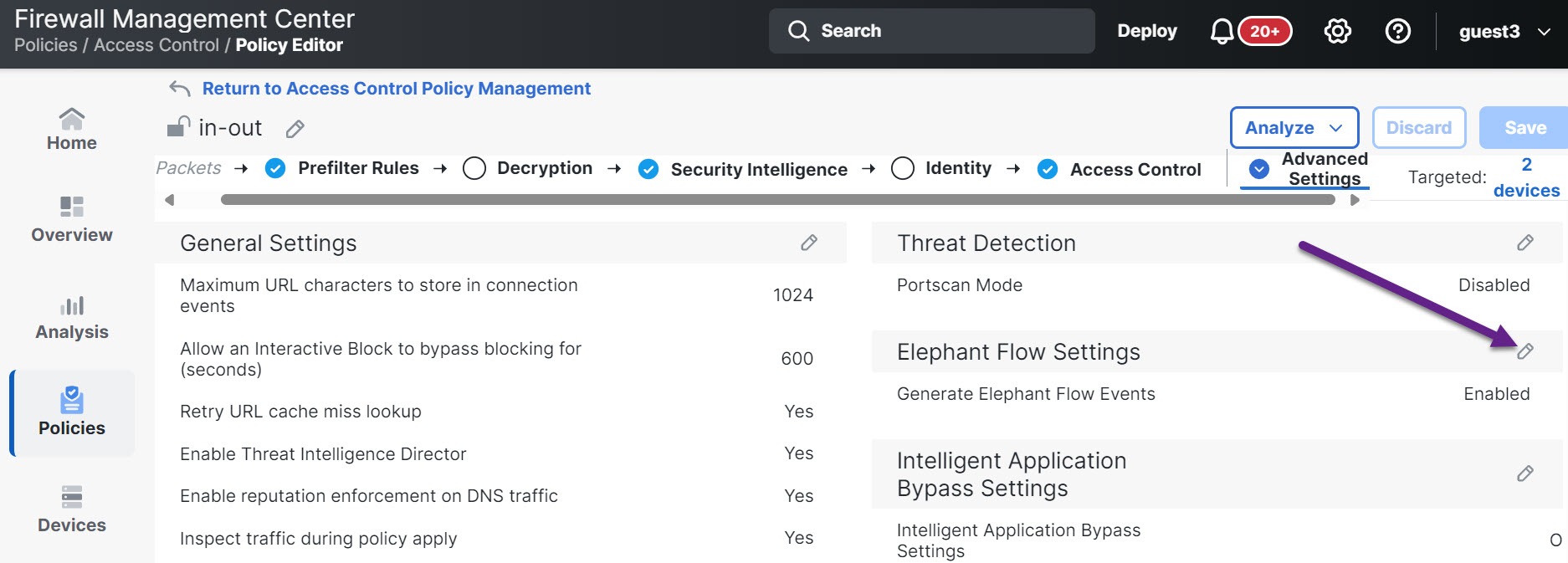
In the access control policy editor, click Advanced Settings from the More drop-down arrow at the end of the packet flow line. Then, click Edit (edit icon) next to Elephant Flow Settings.

If View (View button) appears instead, settings are inherited from an ancestor policy, or you do not have permission to modify the settings. If the configuration is unlocked, uncheck Inherit from base policy to enable editing.

Figure 1. Configure Elephant Flow Detection
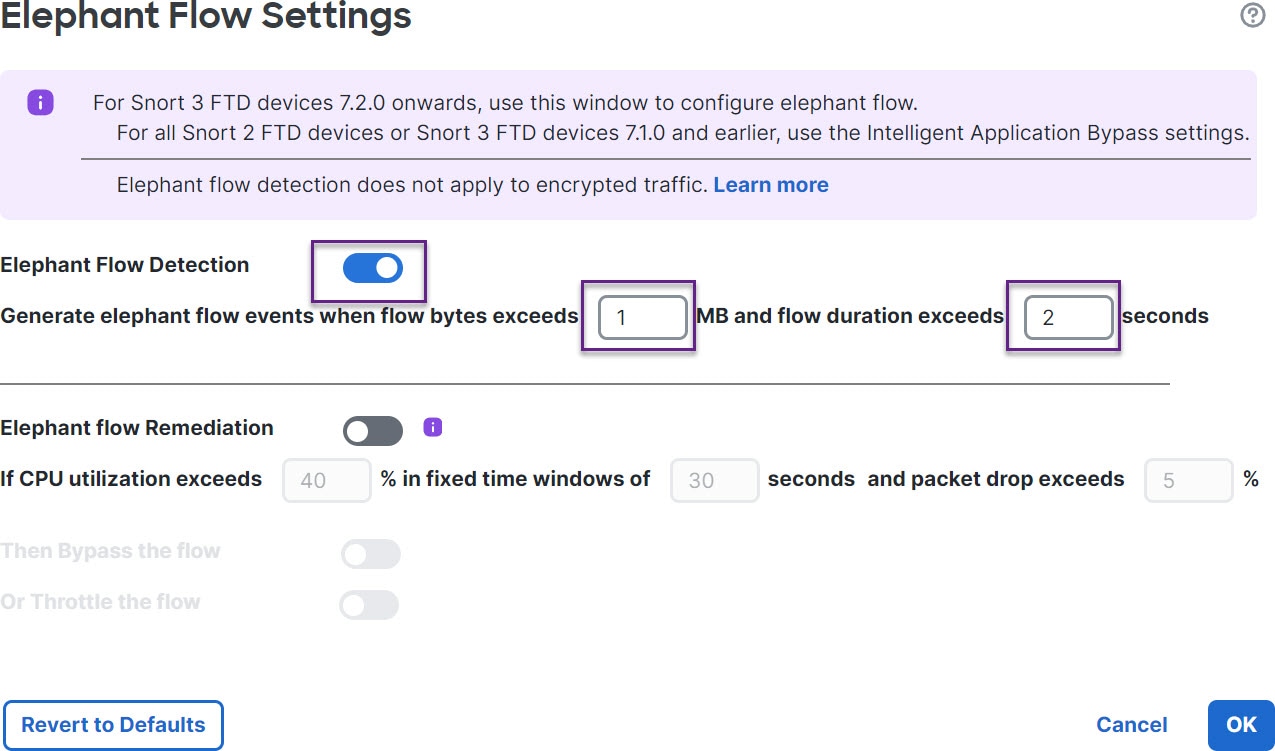
Figure 2. Configure Elephant Flow Detection

Step 2

The Elephant Flow Detection toggle button is enabled by default. You can configure the values for flow bytes and flow duration. When they exceed your configured values, elephant flow events are generated.

Step 3

To remediate elephant flows, enable the Elephant Flow Remediation toggle button.

Step 4

To set the criteria for remediation of the elephant flow, configure the values for CPU utilization %, duration of fixed time windows, and packet drop %.

CPU utilization is calculated per elephant flow and is derived from the flow latency. If the CPU utilization crosses the configured threshold and other configurations, such as fixed time windows and packet drops, are also matched, the elephant flow remediation actions are applied. Similarly, packet drop calculation is based on the packets dropped per CPU. After the packet drop percentage exceeds the configured value on a specific CPU, the remediation actions are applied. For example, consider that configurations are set to the default, that is, CPU utilization of 40%, fixed time window of 30 seconds, and packet drop of 5%. On a specific CPU, if more than 5% of packet drops are detected and the CPU utilization per flow exceeds 40% in the fixed time frame of 30 seconds, then the flows are either bypassed or throttled.

Step 5

You can perform the following actions for elephant flow remediation when it meets the configured criteria:

  1. Bypass the flow—Enable this button to bypass Snort inspection for selected applications or filters. Choose from:

    • All applications including unidentified applications—Select this option to bypass all the application traffic. If you configure this option, you cannot configure the throttle action (rate-limit) for any flow.
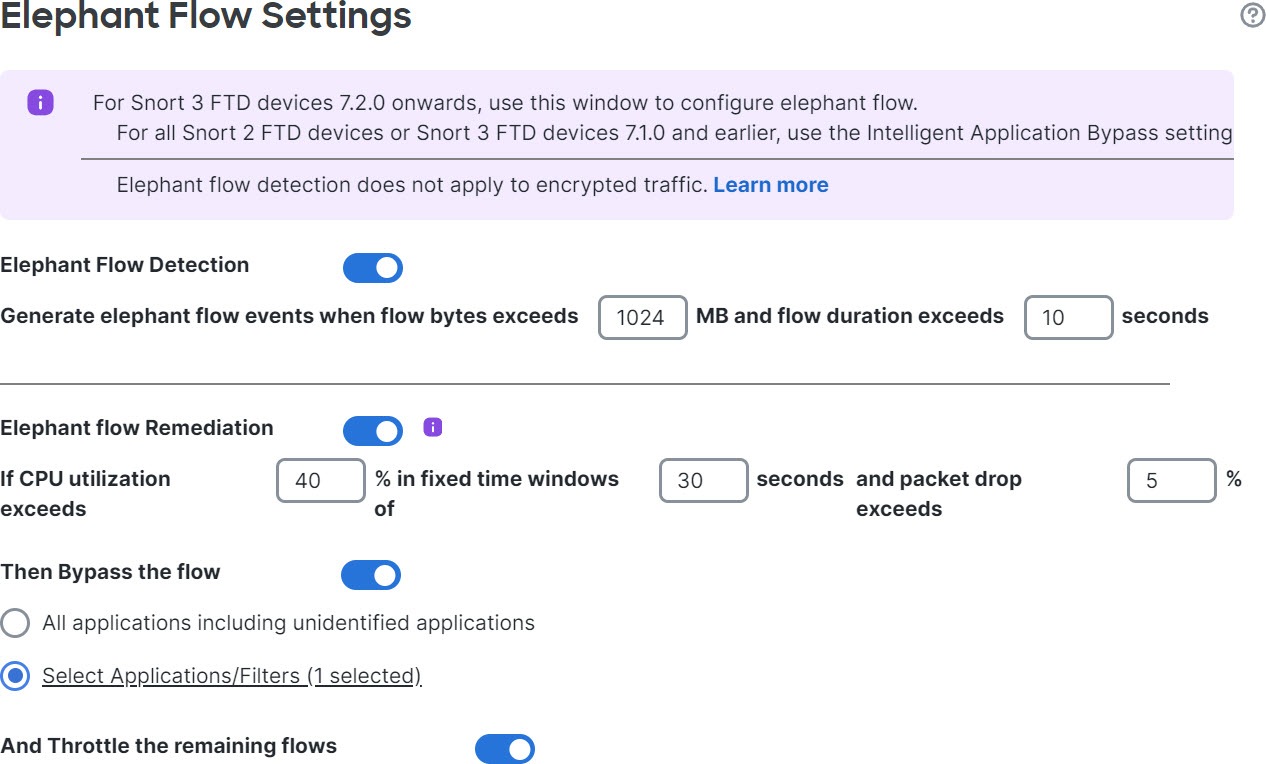
    • Select Applications/Filters—Select this option to select the applications or filters whose traffic you want to bypass; see the topic Configuring Application Conditions and Filters in the Access Control Rules chapter in the Cisco Secure Firewall Management Center Device Configuration Guide.

  2. Throttle the flow—Enable this button to apply rate-limit to the flow and continue to inspect flows. Note that you can select the applications or filters to bypass Snort inspection and throttle the remaining flows.

Note


Automatic removal of throttle from a throttled elephant flow occurs when the system is out of duress, that is, the percentage of Snort packet drops is lesser than your configured threshold. Consequently, rate limiting is also removed.

You can also manually remove throttling from a throttled elephant flow, using the following threat defense commands:

  • clear efd-throttle <5-tuple/all> bypass—This command removes throttling from the throttled elephant flow and bypasses Snort inspection.

  • clear efd-throttle <5-tuple/all>—This command removes throttling from the throttled elephant flow and Snort inspection continues. Elephant flow remediation is skipped after using this command.

    For more information about these commands, see the Cisco Secure Firewall Threat Defense Command Reference.

Step 6

In the Remediation Exemption Rule section, click Add Rule to configure L4 access control list (ACL) rules for flows that must be exempted from remediation.

Step 7

In the Add Rule window, use the Networks tab to add the network details, that is the source network and the destination network. Use the Ports tab to add the source port and the destination port.

If an elephant flow is detected and it matches the rules that are defined, an event is generated with the reason as Elephant Flow Exempted in the Reason column header of Connection Events.

Step 8

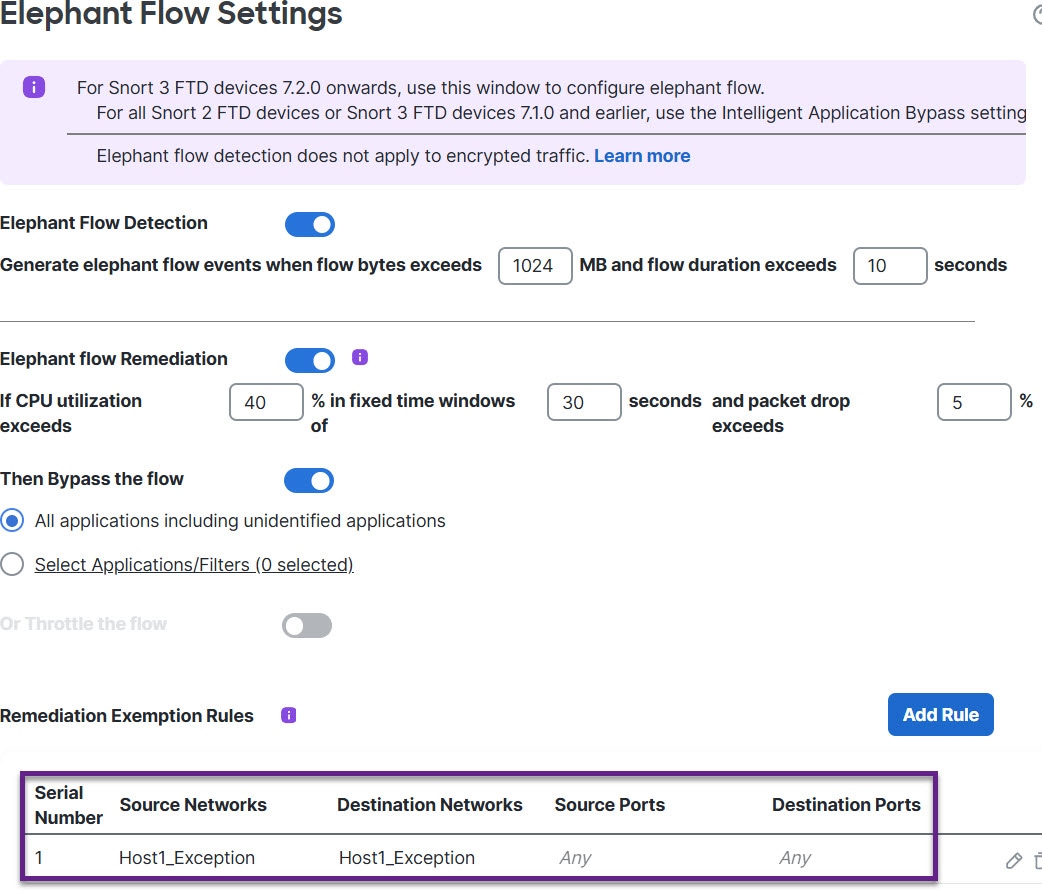
In the Remediation Exemption Rule section, you can view the flows that are exempt from the remediation action.

Step 9

Click OK to save the elephant flow settings.

Step 10

Click Save to save the policy.


What to do next

Deploy configuration changes; see Deploy Configuration Changes.

After configuring your elephant flow settings, monitor your connection events to see if any flows are detected, bypassed, or throttled. You can view this in the Reason field of your connection event. The three reasons for elephant flow connections are:

  • Elephant Flow

  • Elephant Flow Throttled

  • Elephant Flow Trusted


Attention


Enabling elephant flow detection alone does not cause generation of connection events for elephant flows. If a connection event is already logged for another reason and the flow is also an elephant flow, then the Reason field contains this information. However, to ensure that you are logging all elephant flows, you must enable connection logging in the applicable access control rules.
Refer to Cisco Secure Firewall Elephant Flow Detection for more information.

Examples for Elephant Flow Detection

About Elephant Flows

Elephant flows are extremely large (in total bytes), relative long-running network connections set up by a TCP (or other protocols) flow measured over a network link. By default, elephant flows are flows or connections that are larger than 1 GB per 10 seconds. They can cause performance duress or issues in Snort cores. Elephant flows are important because they can potentially consume an excessive amount of CPU resources and impact other competing flows for detection resources and cause issues, such as increased latency or packet drops.

Benefits of Elephant Flow Detection and Remediation

  • Elephant flow configuration allows customization and the option to bypass or even throttle elephant flows.

  • You can choose to bypass or throttle flows that are based on your chosen applications to provide Snort inspection of suspect traffic, while bypassing more trusted traffic.

  • Elephant flow remediation helps prioritize and free up more bandwidth for your internal applications, depending on your specific requirements.

Elephant Flow Workflow

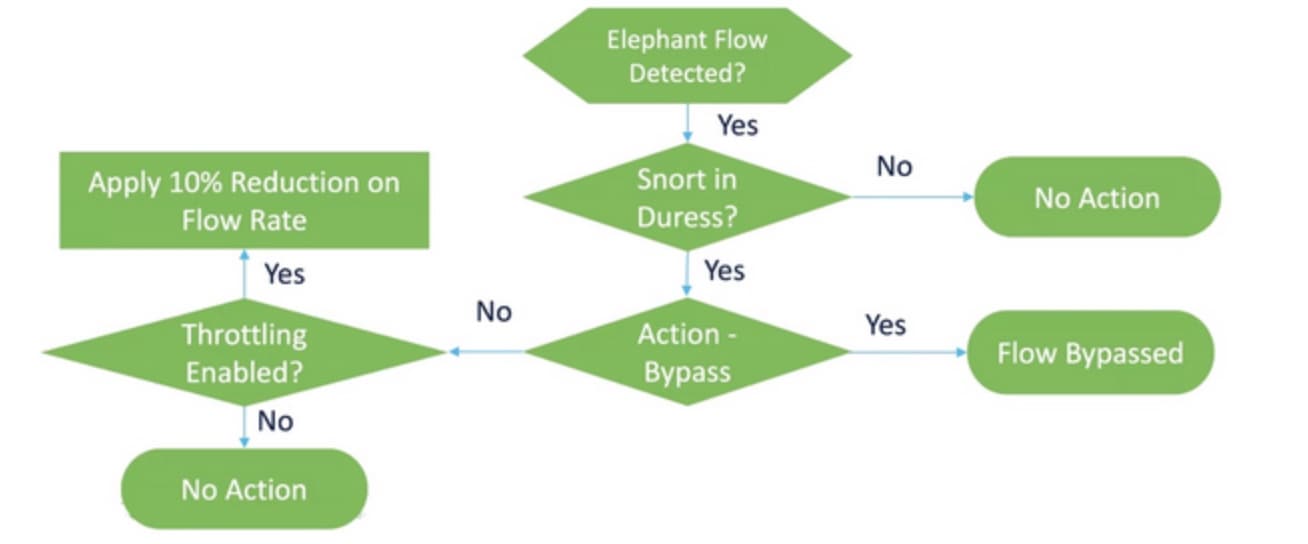
When an elephant flow is detected based on your configured parameters, you can choose to bypass or throttle the flow. When a flow is bypassed, the traffic is allowed to pass without Snort inspection. Throttling indicates that the flow throughput is reduced. The reduction on flow rate is done in 10 percent increments until the CPU utilization reduces to below the configured threshold. Bypassing or throttling happens after identifying the elephant flow and meeting the additional CPU and time window parameters. Prior to identification of the elephant flow, your intrusion policy processes the flow, assuming that you have configured this in an Allow rule. This means that elephant flows are not allowed to pass through the system completely uninspected because most of the attacks are detected very early in a connection.

To understand how flows are handled, see the following flow diagram.

Figure 3. Elephant Flow Workflow

No action is taken unless the system detects a Snort duress condition (performance issue). The system does not throttle or bypass a flow just because it is large. Also, the actions of throttle and bypass are mutually exclusive. This means that you can either bypass or throttle a flow, but not both.

If you do not want to bypass all the elephant flows causing duress, you can limit the bypass option to specific applications only. You can prioritize connectivity for the applications that you trust, without throttling performance. You can configure the applications that must be bypassed, but the remaining flows (causing duress) are throttled. This ensures that the other nontrusted application flows still receive full Snort inspection although their bandwidth is reduced.

Sample Business Scenario

In a data center, several activities are happening, such as replication of data between clusters, virtual machine integration, and database backup. Users in an organization could be watching videos on an OTT or downloading them. Bandwidth utilization for such activities might result in elephant flows, slow down the network, and impact the performance of important tasks. As a network administrator (and depending on your specific requirements), you want visibility into such large flows that are causing bandwidth issues and remediate them.

As an example, let us see how you can configure elephant flow parameters to bypass Snort inspection for WebEx traffic (which your organization uses for real-time video conferencing) and throttle the remaining applications or connections, including videos, movies, and so on.

Prerequisites

  • Ensure that you are running management center 7.2.0 or later and that the managed threat defense is also 7.2.0 or later.

  • Only enabling elephant flow detection does not generate additional connection events. Elephant flow detection adds the Elephant Flow notation to matching connections that are already being logged to the management center. To log these events, you must enable connection logging in your access control policy. You can do that for specific rules or add a Monitor rule that logs all connections, including elephant flows.

Configure Elephant Flow Parameters

Procedure


Step 1

Choose Policies > Security policies > Access Control.

Step 2

Click Edit (edit icon) next to the access control policy that you want to edit.

Step 3

Choose Advanced Settings from the More drop-down arrow at the end of the packet flow line.

Step 4

Click Edit (edit icon) next to Elephant Flow Settings.

Step 5

The Elephant Flow Detection toggle button is enabled by default. The default setting enables detection only and no default action is configured. The detection settings allow you to adjust the flow bytes and duration so that you can identify the elephant flows in your system.

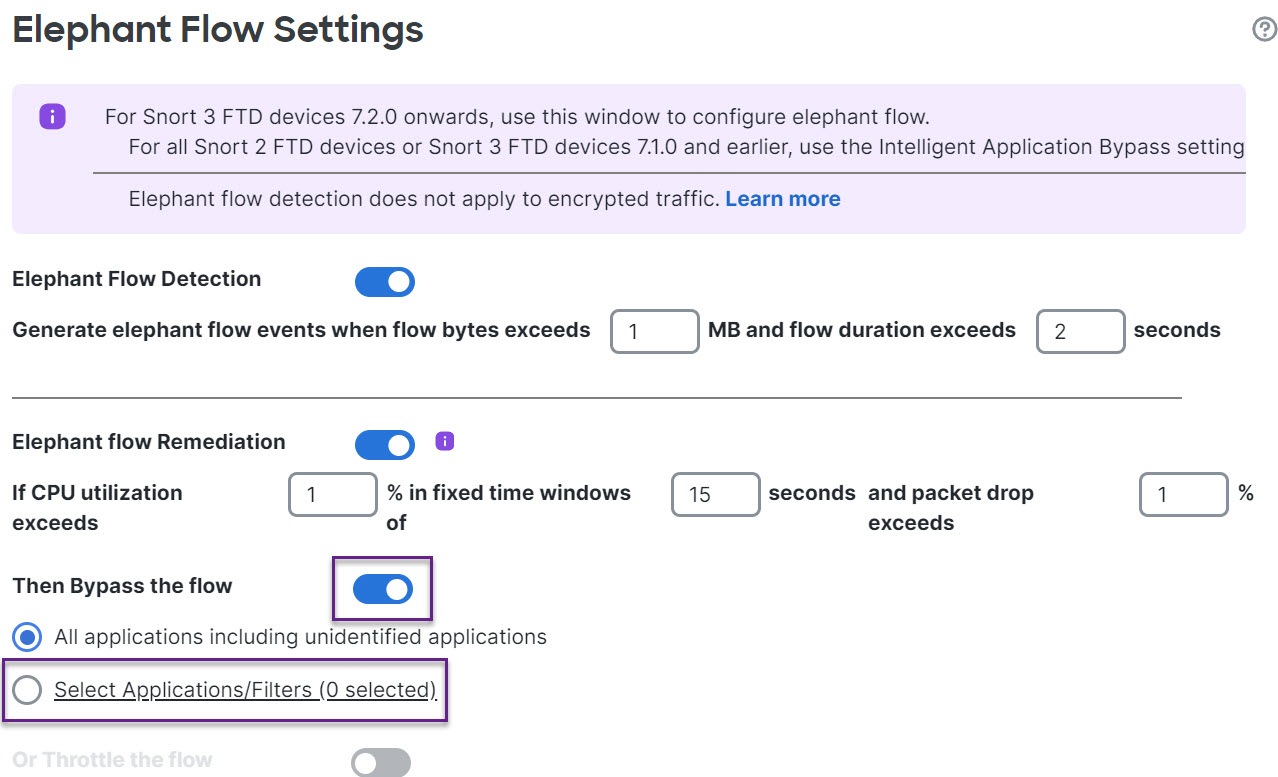
As a test setting, configure the flow bytes and duration parameters, as shown in the following figure.

Step 6

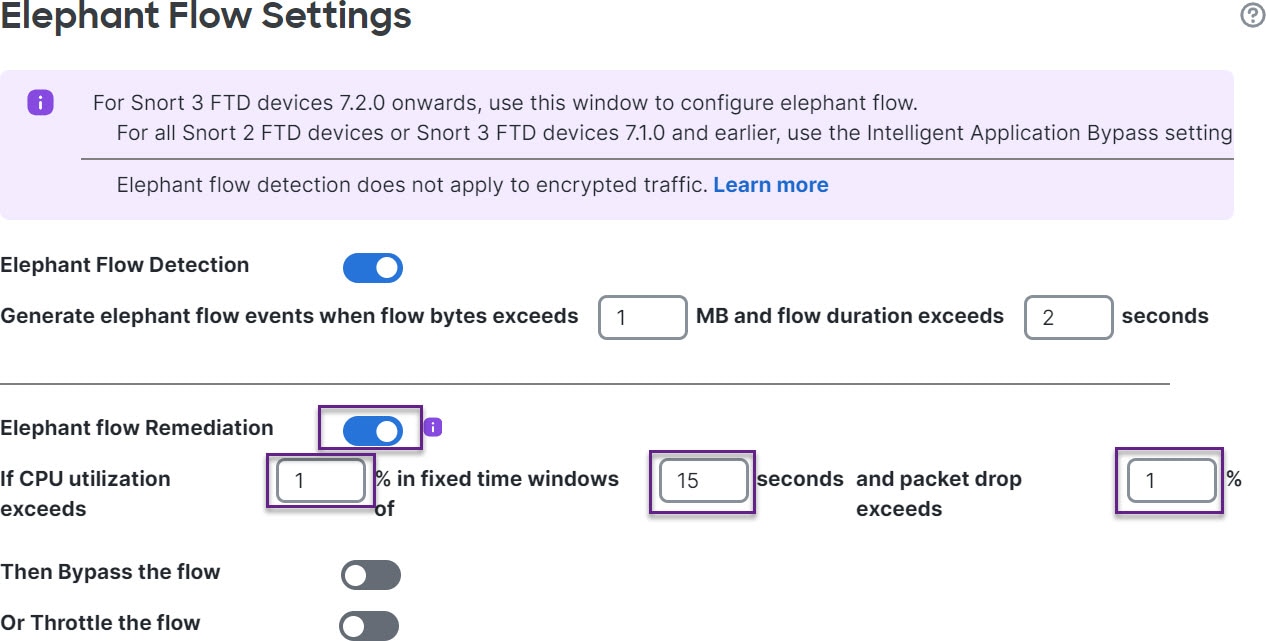
Enable the Elephant Flow Remediation toggle button. When an elephant flow is detected, you can choose to bypass or throttle the flow. Bypassing a flow means that the traffic is allowed to pass without Snort inspection. Throttling indicates that the flow throughput is reduced. This rate reduction is done in 10 percent increments until the CPU utilization reduces to lesser than the configured threshold.

As a test setting, configure the elephant flow remediation parameters as shown in the following figure.

Step 7

Enable the Bypass the flow toggle button and click the Select Applications/Filters radio button.

Step 8

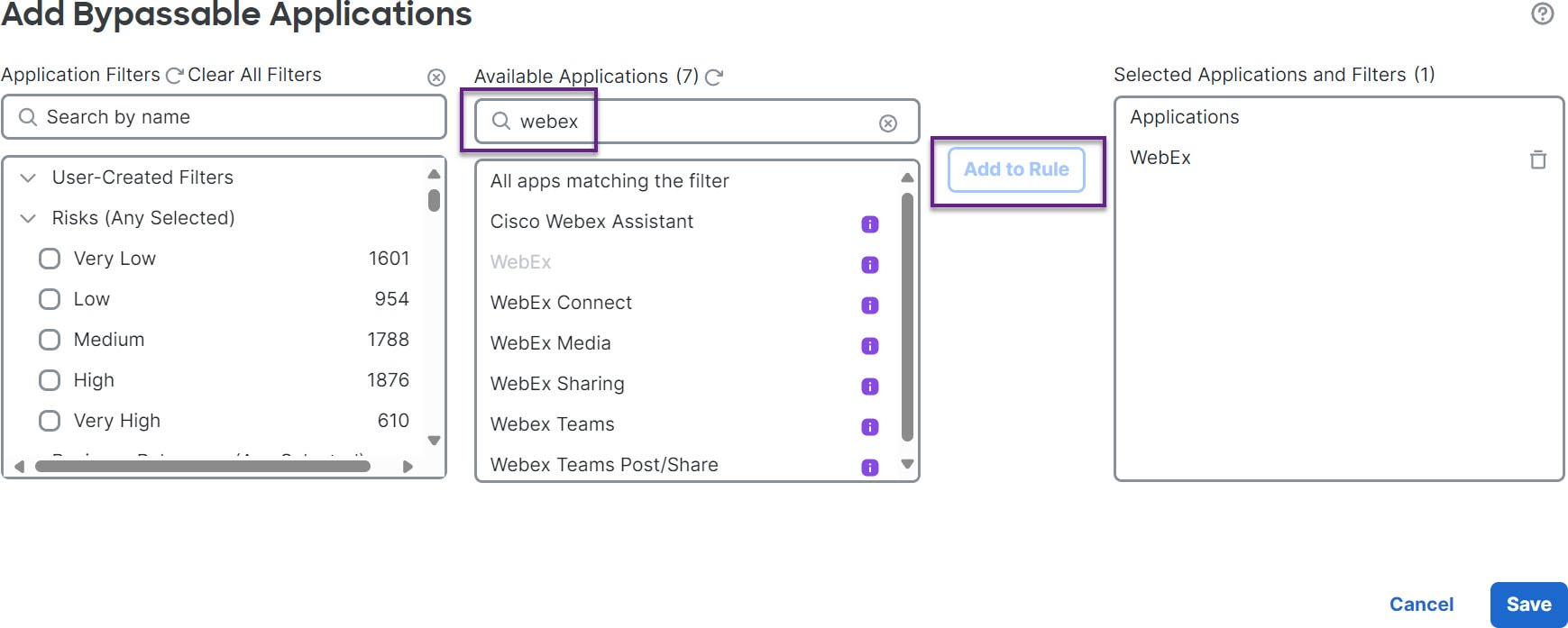
Under Application Filters, search for and select the WebEx application, add it to the rule, and click Save. This means that WebEx connections are trusted and prioritized and will skip Snort inspection if these WebEx connections are detected as elephant flows, based on the configured parameters.

Step 9

Enable the Throttle toggle button to throttle the remaining flows (causing duress). This ensures that all the other flows are slowed down in 10 percent increments until the Snort duress condition is met.

Step 10

Click OK.

Step 11

Click Save.


What to do next

Deploy configuration changes.

View Events for Elephant Flows

After configuring your elephant flow settings, monitor your connection events to see if any flows are detected, bypassed, or throttled. You can see this information in the Reason field of your connection events. The three types for elephant flow connections are:

  • Elephant Flow

  • Elephant Flow Throttled

  • Elephant Flow Trusted

Procedure

Step 1

Choose Events & Logs > + Show more > Connection > Events. You can also view the events from the Unified Events viewer.

Step 2

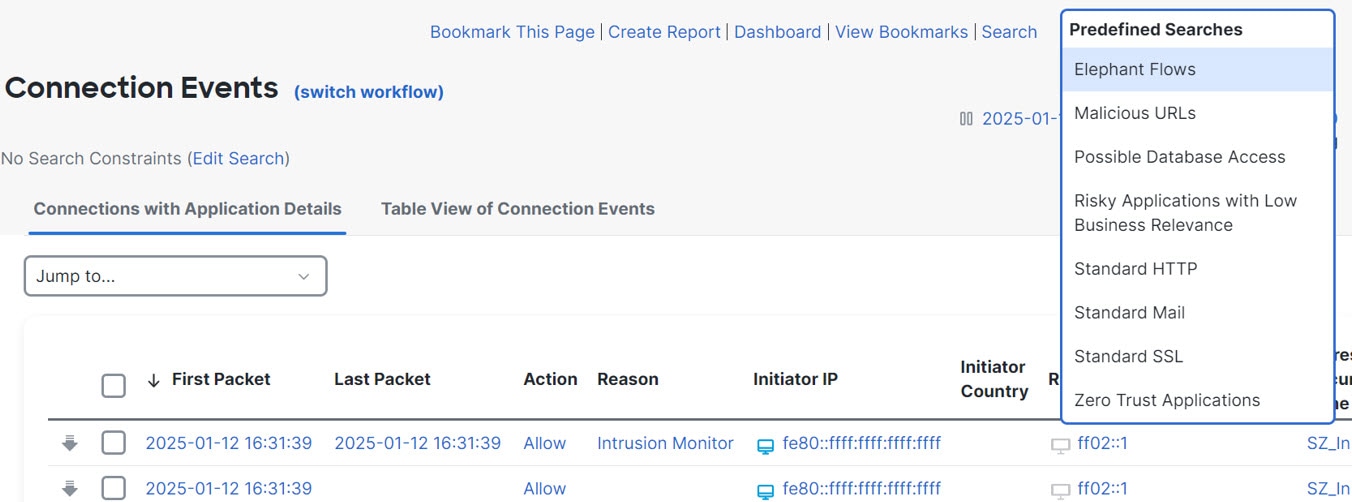
In the Connection Events page, from the Predefined Search drop-down list, choose Elephant Flows to display elephant flow events.

Tip


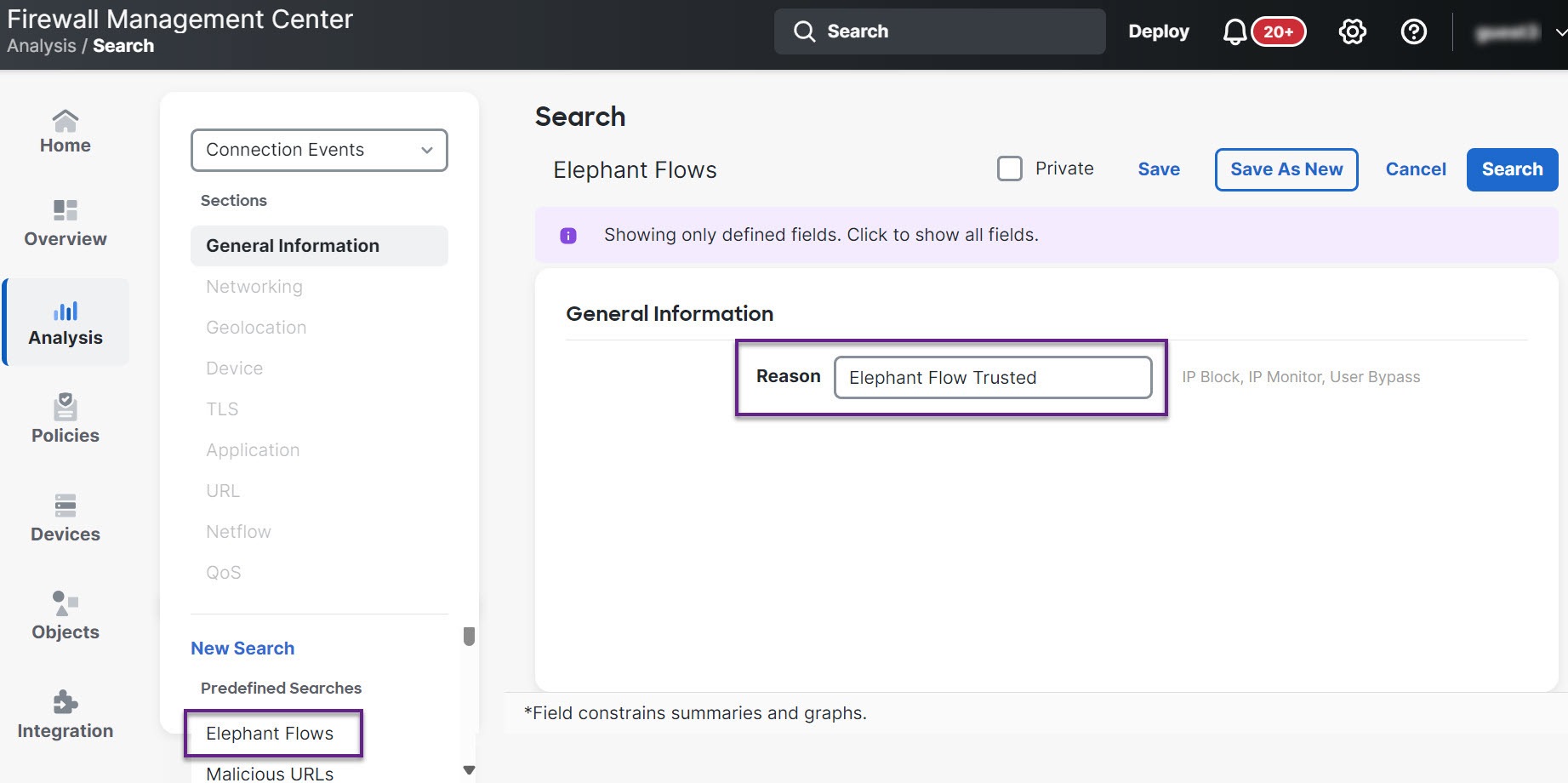
To see Elephant Flow Trusted or Elephant Flow Throttled event types, click the Edit Search link on the top-left corner of the page and in the Reason field, choose Elephant Flows in the left panel. Enter Elephant Flow Trusted or Elephant Flow Throttled, depending on what you want to search.

Step 3

View the elephant flow that was detected mid-flow and the Reason field shows Elephant Flow. At the end of the flow, it was bypassed and the Reason field shows Elephant Flow Trusted.


Configure Elephant Flow Remediation Exemption

You can configure L4 access control list (ACL) rules for flows that must be exempted from remediation. If a flow is detected as an elephant flow and it matches the rules that are defined, that flow is exempted from the remediation action.

Before you begin

You must be running management center 7.4.0 or later and the managed threat defense must also be 7.4.0 or later.

Procedure


Step 1

Choose Policies > Security policies > Access Control.

Step 2

Click Edit (edit icon) next to the access control policy you want to edit.

Step 3

Choose Advanced Settings from the More drop-down arrow at the end of the packet flow line.

Step 4

Click Edit (edit icon) next to Elephant Flow Settings.

Step 5

Ensure that you have configured the elephant flow detection and remediation parameters. See Configure Elephant Flow Parameters.

Step 6

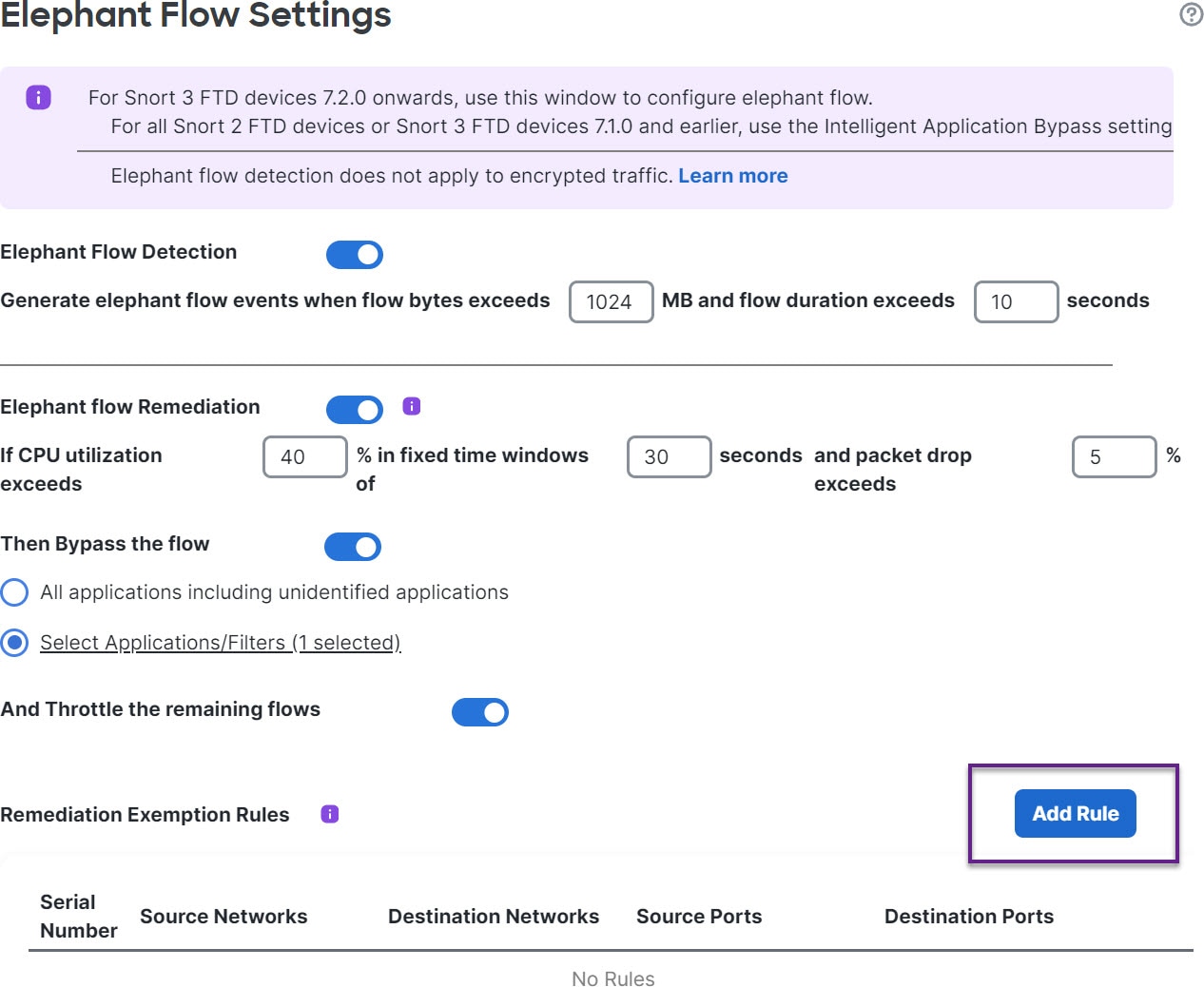
Click the Add Rule button next to Remediation Exemption Rules.

Step 7

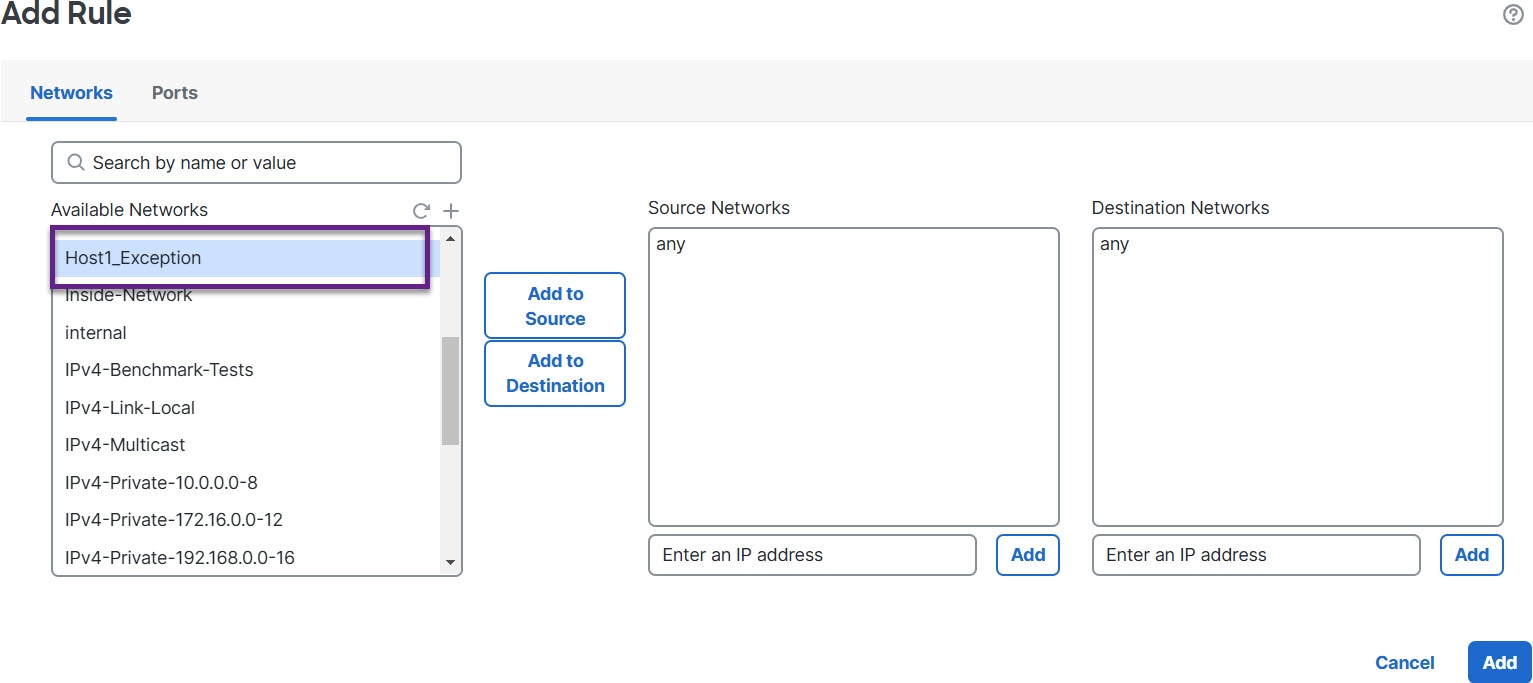
From the list of Available Networks, choose the configured host to exempt from elephant flow remediation. For the purposes of this example, we have created a host called “Host1_Exception.”

Step 8

Click Add to Source or Add to Destination (as required) to add this host to the source or destination.

Step 9

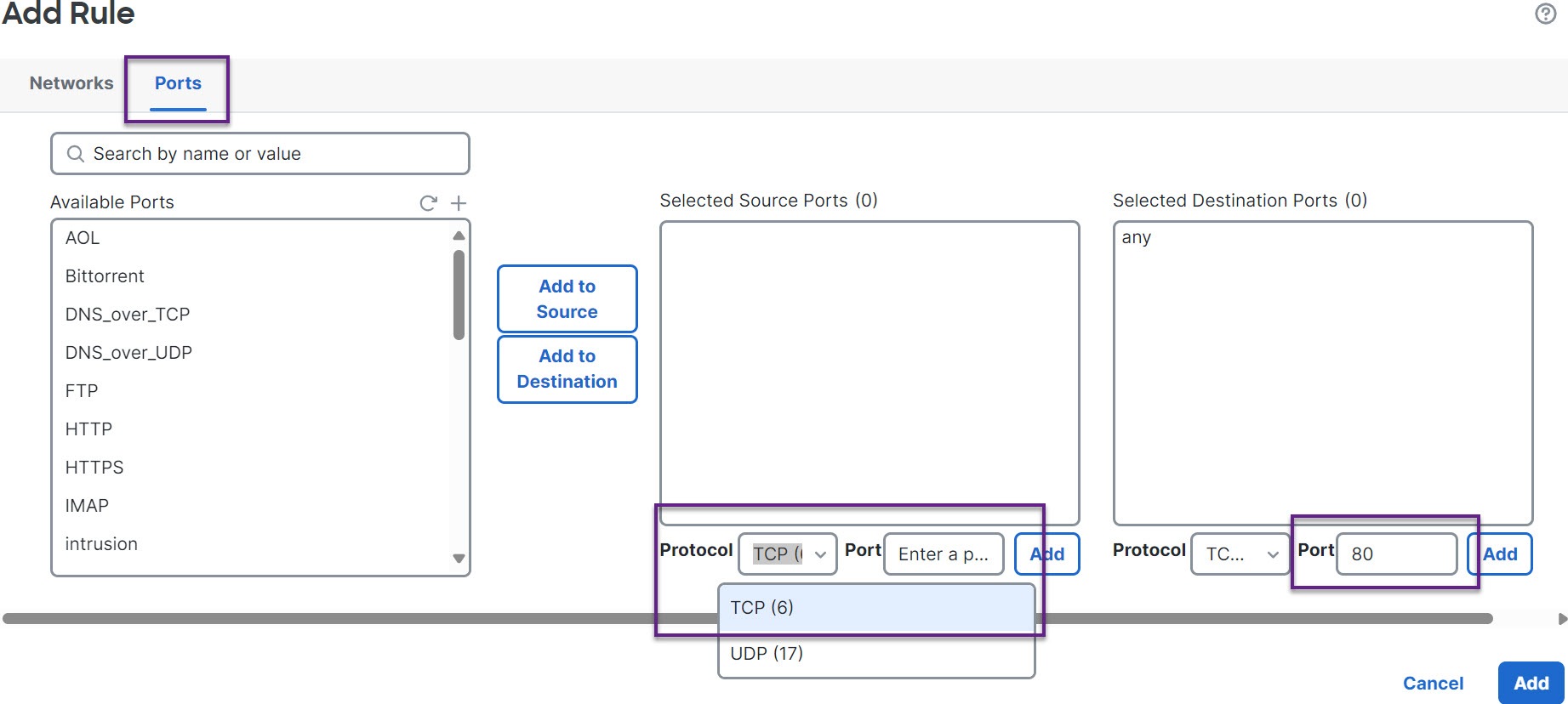
Click the Ports tab.

Step 10

For the source port, choose Protocol as TCP and enter 80 as the destination port, and click Add.

Step 11

Click OK.

Step 12

Click Save.


What to do next

Deploy configuration changes.

View Events for Elephant Flow Remediation Exemption

Procedure

Step 1

Choose Events & Logs > + Show more > Connection > Events. You can also view the events from the Unified Events viewer.

Step 2

View the elephant flows that were exempted from remediation. The Reason field shows Elephant Flow Exempted.


Additional References

For detailed conceptual information, see the Elephant Flow Detection for Snort 3 chapter in this guide or the content in the following link: