Rule-Based Decryption Policies

The following topics provide details about rule-based decryption policies.

Rule-based decryption policies

You can create a decryption policy using a wizard that guides you through the available options for inbound decryption, outbound decryption, or both. After you create the rule-based decryption policy, you can add more rules, reorder rules, or make other changes to suit your needs.

A rule-based decryption policy is the most flexible but also the most complex. You can convert a standard decryption policy to a rule-based policy at any time.

Decryption policy types

Decryption policy types include standard decryption policies and rule-based decryption policies.

Standard decryption policies

We recommend the standard decryption policy type because it's easy to set up with a wizard-like appearance, enabling you to easily pick security zones, users and networks, and other objects to use in your policy. A standard decryption policy is particularly suitable for users who are not familiar with the complexities of decryption policies.

This section provides an example of setting up a standard decryption policy.

This sample decryption policy decrypts outbound traffic to an outside security zone for all Special Identities or Guest users.

This policy decrypts outbound traffic only. All traffic from the OutsideZone security zone on any IPv4 network is decrypted using an internal CA named IntCA.

Key points about decryption policies include:

  • The rule is a partial example; more options are available.

  • You can configure inbound criteria, outbound criteria, or both.

  • In addition to objects, you can also optionally configure outbound decryption exclusions, such as:

    • Undecryptable applications (such as ones that use certificate pinning).

    • URL categories such as medical, trading, and finance.

  • You can configure outbound block criteria for certificate status and TLS version.

  • A standard policy has advanced policy options that are similar to rule-based policies.

Rule-based decryption policies

Rule-based decryption policies are created using a wizard that guides you through the available options for inbound decryption, outbound decryption, or both. After you create the rule-based decryption policy, you can add more rules to it, reorder rules, or make other changes to suit your needs.

A rule-based decryption policy is the most flexible but also the most potentially complicated. You can convert a standard decryption policy to a rule-based policy at any time.
Create a rule-based decryption policy

A rule-based decryption policy is a rule-based security policy that controls how encrypted network traffic is handled.

Create rule-based decryption policy to protect outbound and inbound network connections through various rule actions.

You can create any of these types of rule-based decryption policies:

  • Outbound protection policy with rules that protect outbound connections. The destination server is outside your protected network. This type of rule has a Decrypt - Resign rule action. We also create additional rules with a Do Not Decrypt action that excludes traffic you specify (such as traffic that uses certificate pinning).

    Refer to Create a rule-based decryption policy with outbound connection protection for guidance on creating a decryption rule with outbound connection.

  • Inbound protection policy with a rule that protects inbound connections; that is, the destination server is inside your protected network. This type of rule has a Decrypt - Known Key or Decrypt - Replace Cert rule action. We also create additional rules with a Do Not Decrypt action that excludes traffic you specify (such as traffic that uses certificate pinning.) These rules are disabled initially but you can modify and enable them later if you wish.

    Refer to Create a rule-based decryption policy with inbound connection protection or guidance on creating a decryption rule with inbound connection.

  • Other actions (including Do Not Decrypt, Block, and Block with Reset).

    See Create a rule-based decryption policy with other rule actions

Create a rule-based decryption policy with outbound connection protection

This task creates a decryption policy that protects outbound connections by intercepting and decrypting SSL/TLS traffic between internal clients and external servers, then re-encrypting the traffic with an internal CA certificate.

This task discusses how to create a decryption policy with a rule that protects outbound connections; that is, the destination server is outside your protected network. This type of rule has a Decrypt - Resign rule action.

When you create a decryption policy, you can create multiple rules at the same time, including multiple Decrypt - Known Key rules, multiple Decrypt - Replace Cert rules, and multiple Decrypt - Resign rules.

If you enabled Change Management, you must create and assign a ticket before you can create a decryption policy. Before the decryption policy can be used, the ticket and all associated objects (like certificate authorities) must be approved. For more information, see Create change management tickets and Policies and objects that support change management.

Before you begin

You can optionally must upload or generate an internal CA certificate for your managed device before you can create a decryption policy that protects outbound connections. You can do this in any of the following ways:

  • Create an internal CA certificate object by going to Objects > PKI > Internal CAs and referring to PKI objects.

  • At the time you create this decryption policy.

Follow these steps to create a rule-based decryption policy with outbound connection protection:

Procedure


Step 1

Log in to Secure Firewall Management Center if you haven't already done so.

Step 2

Click Policies > Security policies > Decryption.

Step 3

Click Create New > Decryption Policy (Rule-Based).

Step 4

Give the policy a unique Name and, optionally, a Description.

The following characters are not supported in decryption policy names:

  • #,;,{,},=,$,<,>

Step 5

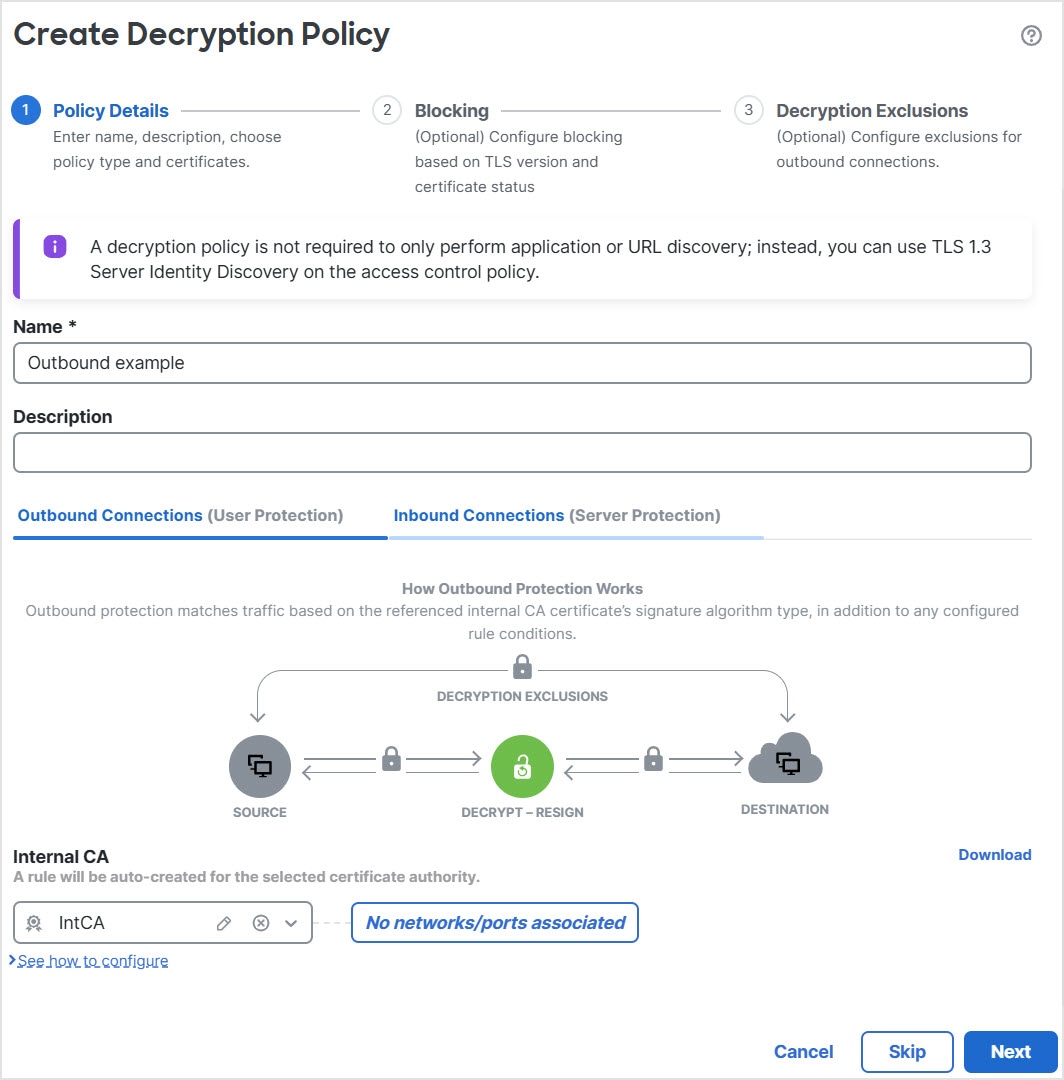
Click the Outbound Connections tab.

Your decryption policy can cover outbound servers with a Decrypt - Resign rule or inbound servers with a Decrypt - Known Key rule. We create one decryption rule per combination of certificate and networks/ports, if any.

Step 6

From the Internal CA list, upload or choose certificates for the rules.

For more information about internal certificates, see Generate an internal CA for outbound protection and Upload an internal CA for outbound protection.

  1. (Optional.) Choose networks and ports.

    For more information:

  2. Click Next.

  3. Continue with Rule-based decryption policy block connections.

  4. Click Save.


What to do next

Create a rule-based decryption policy with inbound connection protection

This task creates a decryption policy that protects inbound connections using either a Decrypt - Known Key or Decrypt - Replace Cert rule action.

This task discusses how to create a decryption policy with a rule that protects inbound connections; that is, the destination server is inside your protected network. This type of rule has a Decrypt - Known Key or Decrypt - Replace Cert rule action.

When you create a decryption policy, you can create multiple rules at the same time, including multiple Decrypt - Known Key or Decrypt - Replace Cert rules and multiple Decrypt - Resign rules.

Before you begin

You can optionally upload an internal certificate for your internal server before you can create a decryption policy that protects inbound connections. You can do this in any of the following ways:

  • Create an internal certificate object by going to Objects > PKI > Internal Certs and referring to PKI objects.

  • At the time you create this decryption policy.

If you enabled Change Management, you must create and assign a ticket before you can create a decryption policy. Before the decryption policy can be used, the ticket and all associated objects (like certificate authorities) must be approved. For more information, see Create change management tickets and Policies and objects that support change management.

Follow these steps to create a decryption policy with inbound connection protection:

Procedure


Step 1

Log in to Secure Firewall Management Center if you haven't already done so.

Step 2

Click Policies > Security policies > Decryption.

Step 3

Click Create New > Decryption Policy (Rule-Based).

Step 4

Perform these steps:

  1. Give the policy a unique Name and, optionally, a Description.

    The following characters are not supported in decryption policy names:

    • #,;,{,},=,$,<,>

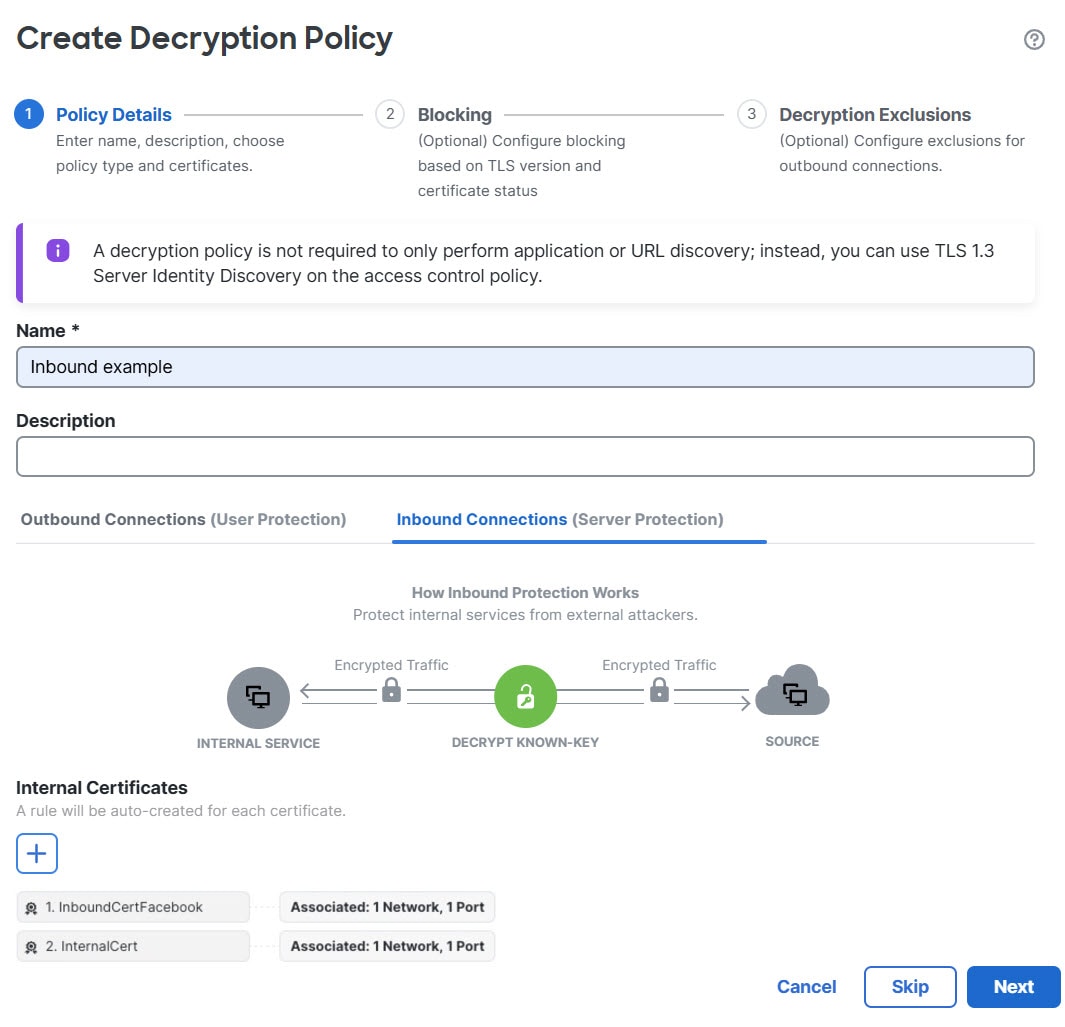
  2. From the Internal Certificates list, upload or choose certificates for the rules.

    For more information about internal CA certificates, see Internal certificate authority objects.

  3. (Optional.) Choose networks and ports.

    For more information:

  4. Click the Inbound Connections tab.

    Your decryption policy can cover outbound servers with a Decrypt - Resign rule or inbound servers with a Decrypt - Known Key rule.

  5. Click Next.

  6. Continue with Rule-based decryption policy block connections

Step 5

Continue with Configure Rule-based decryption policy exclusions.


What to do next

Rule-based decryption policy block connections

Block connections to servers with unsecure TLS versions and server certificate statuses while creating a rule-based decryption policy to enhance network security.

This topic provides details about how to block connections to servers with unsecure TLS versions and server certificate statuses while creating a rule-based decryption policy . The Block with Reset rules are created in your decryption policy that are disabled by default.

Procedure


Step 1

Complete the tasks mentioned in:

Step 2

Configure the blocking options on the Blocking page.

The Blocking page provides blocking options. By default, all the options are disabled for decryption policy actions.

  • Block connections based on TLS version—Check this check box to block connections to servers using unsecure TLS versions. By default, SSL v3.0, TLS v1.0, and TLS v1.1 which are known to be vulnerable, are selected. You can choose other versions from the drop-down list.
  • Block connections based on server certificate status—Check this check box to block connections to servers with unsecure server certificate statuses. By default, Invalid Signature, Expired, Not Yet Valid, and Invalid Certificate are selected. You can choose other statuses from the drop-down list.

Click Delete (delete icon) to remove the selections or click Reset to default to revert back to the default selections.

Step 3

Click Next.


What to do next

Continue with Configure Rule-based decryption policy exclusions.

Configure Rule-based decryption policy exclusions

This task helps you create exclusions in your decryption policy to prevent decryption of traffic that should remain encrypted for compliance, security, or functional reasons.

This task discusses how to exclude certain types of traffic from decryption. We create Do Not Decrypt rules in your decryption policy for this purpose. The rules are initially enabled only for an outbound decryption policy (a policy that uses the Decrypt - Resign policy action).

Before you begin

You must upload an internal CA certificate for your managed device before you can create a rule-based decryption policy that protects outbound connections. You can do this in any of the following ways:

  • Create an internal CA certificate object by going to Objects > PKI > Internal CAs and referring to PKI objects.

  • At the time you create this decryption policy.

Follow these steps to configure decryption policy exclusions:

Procedure


Step 1

Complete the tasks discussed in:

Step 2

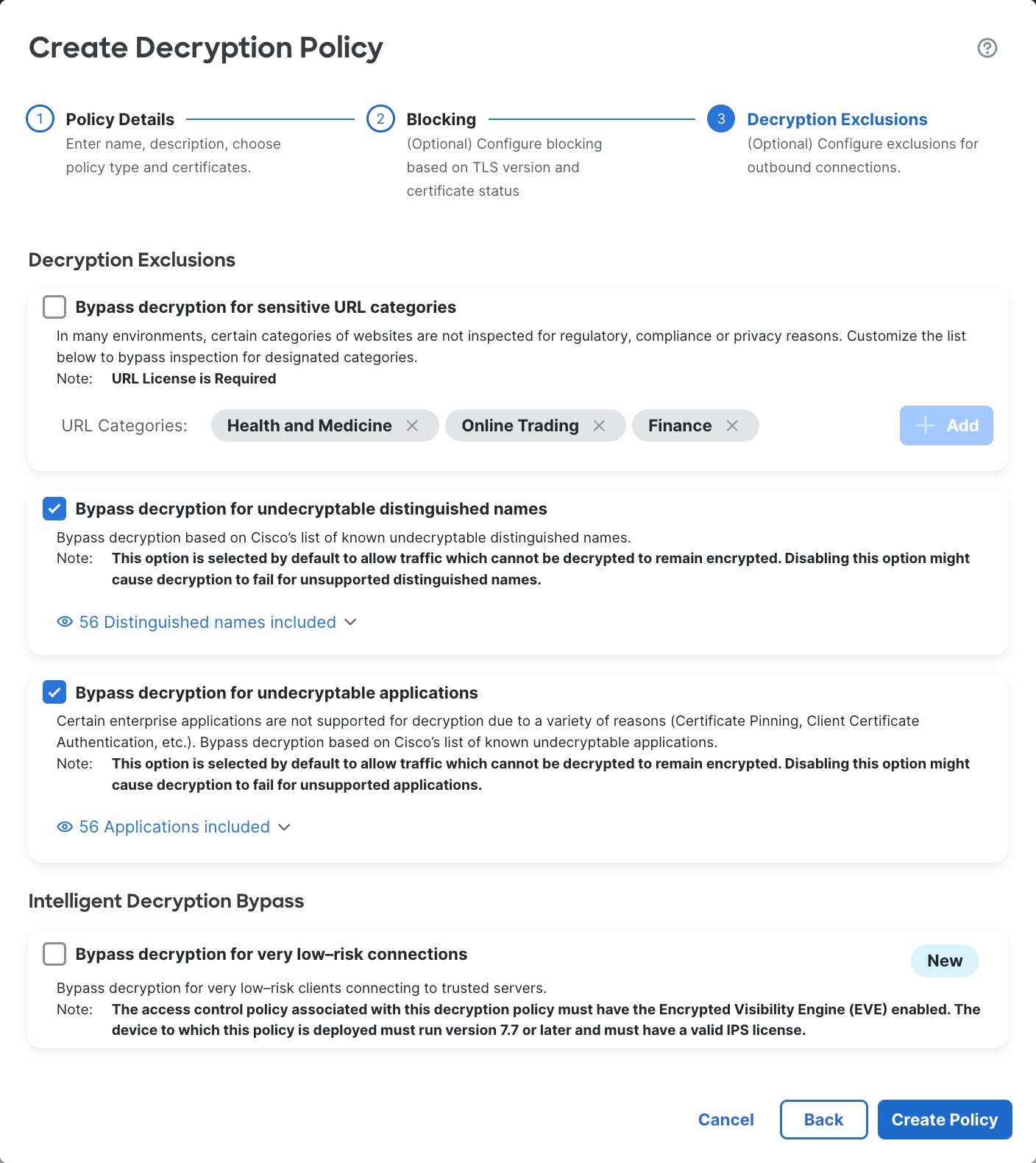
Select the appropriate exclusion options based on your security requirements.

The exclusions page provides the following options. All options are enabled for an outbound protection policy (Decrypt - Resign rule action) and disabled for all other decryption policy actions.

Item

Description

Bypass decryption for sensitive URL categories

Check the box to not decrypt traffic from the indicated categories. Depending on the laws in your area, decryption certain traffic, such as finance or health-related, might be prohibited. Consult an authority in your area for more information.

Click Add to add more categories.

Click Delete (delete icon) to remove categories.

Bypass decryption for undecryptable distinguished names

Check the box to not decrypt traffic when re-signing the certificate is likely to cause the connection to fail. Typically, this behavior is associated with certificate pinning, which is discussed in TLS/SSL certificate pinning guidelines.

The list of undecryptable distinguished names is maintained by Cisco.

Bypass decryption for undecryptable applications

Check the box to not decrypt traffic when re-signing the certificate is likely to cause the connection to fail.

Typically, this behavior is associated with certificate pinning, which is discussed in TLS/SSL certificate pinning guidelines.

Undecryptable applications are updated automatically in the Vulnerability Database (VDB). You can find a list of all applications on the Secure Firewall Application Detectors page; the undecryptable tag identifies applications Cisco determines are undecryptable.

The list of undecryptable applications is maintained by Cisco.

Bypass decryption for very low-risk connections

Check this check box to not decrypt traffic for very low-risk clients connecting to trusted servers, based on the threat confidence levels of clients which is determined by the Encrypted Visibility Engine (EVE) and the URL Category Reputation. An Auto-Rule-Low-Risk-Connections Do Not Decrypt rule is created and enabled in the new decryption policy.

To use the Bypass decryption for very low-risk connections option, you must enable the EVE in the corresponding access control policy, and the managed devices must be running Version 7.7 or later with a valid IPS license.

To see our current list of application risk and relevance categorizations, go to Secure Firewall Application Detectors.

This figure shows default options.

For an outbound decryption policy, you can specify which (if any) types of traffic to exclude from decryption. For example, you can exclude traffic going to sensitive website categories such as finance or health.

Step 3

Click Create Policy.

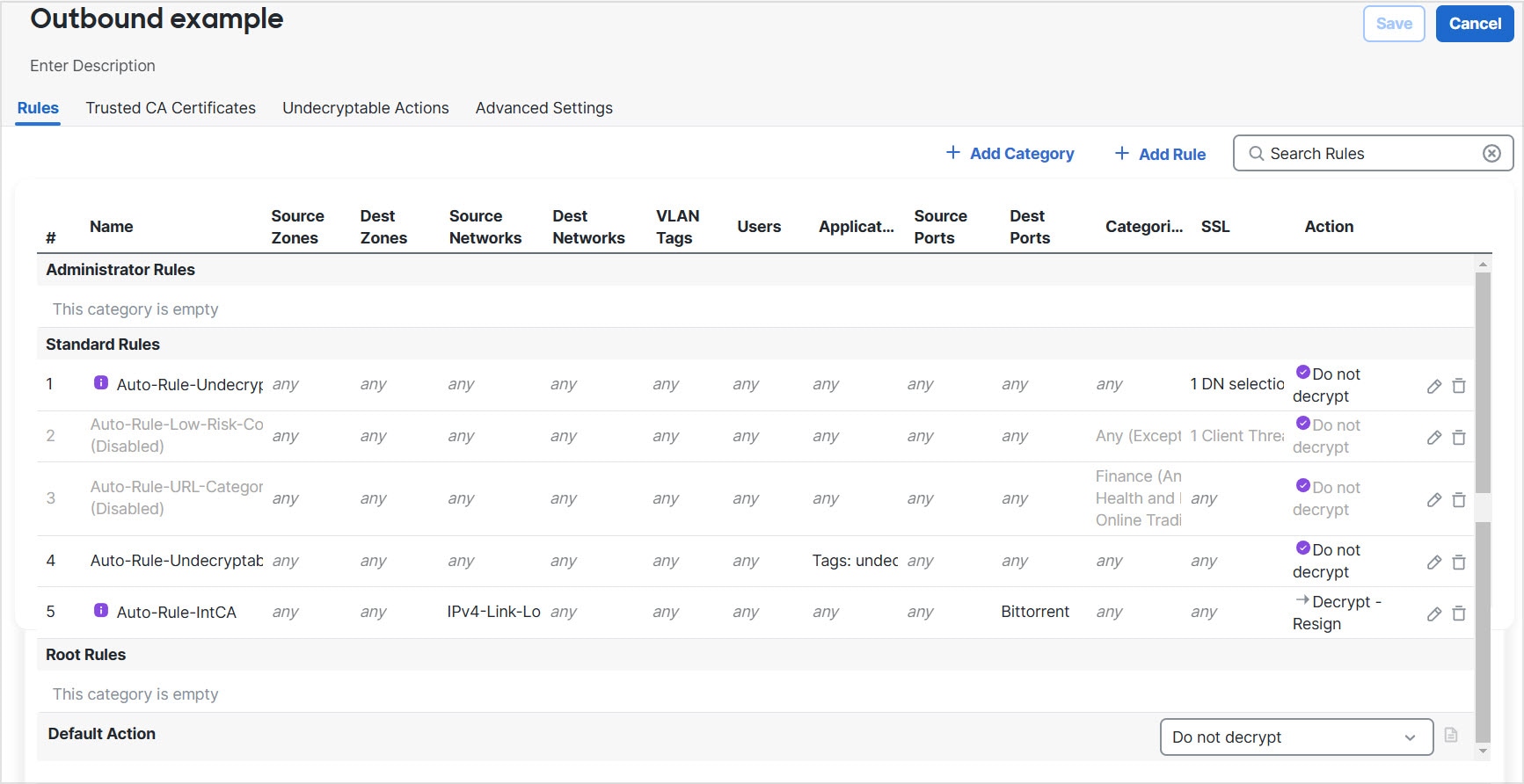
This figure shows a sample outbound protection policy.

This sample decryption policy has one Decrypt - Resign rule applied to traffic that matches the networks and ports chosen. It decrypts traffic and subsequently re-encrypts it by signing with the internal certificate object you specified. We add Do Not Decrypt rules for traffic you specified to be excluded from decryption.

In the preceding example, the Do Not Decrypt rules corresponding to your choices for rule exclusions are automatically added before the Decrypt - Resign rule. The rule for sensitive URL categories is disabled because, by default, that exclusion is disabled. Had you selected the Bypass decryption for sensitive URL categories check box, the rule would have been enabled.


What to do next

Generate an internal CA for outbound protection

This task allows you to generate an internal certificate authority object to protect outbound connections when creating a decryption rule.

This task discusses how you can optionally generate an internal certificate authority when you create a decryption rule that protects outbound connections. You can also perform these tasks using Objects as discussed in Upload a signed certificate issued in response to a CSR.

Before you begin

Make sure you understand the requirements for generating an internal certificate authority object as discussed in Internal certificate authority objects.

Procedure


Step 1

From the Internal CA list, click Create New > Generate CA.

Step 2

Give the internal CA a Name and provide a two-letter Country Name.

Step 3

Click Self-Signed or CSR.

For more information about these options, see Internal certificate authority objects.

Step 4

Enter the requested information in the provided fields.

Step 5

Click Save.

Step 6

If you chose CSR, after the signing request has been completed, click Install Certificate as follows:

  1. Repeat the preceding steps in this procedure.

  2. Edit the CA from the Internal CA list as follows.

    To install an internal CA from a certificate signing request, click Edit next to the name of the internal CA

  3. Click Install Certificate.

  4. Follow the prompts on your screen to complete the task.

Step 7

Continue creating the policy as discussed in Create a rule-based decryption policy with outbound connection protection.


Upload an internal CA for outbound protection

Upload an internal certificate authority to create a decryption rule that protects outbound connections.

This task discusses how you can optionally upload an internal certificate authority when you create a decryption rule that protects outbound connections. You can also perform these tasks using Objects as discussed in Upload a signed certificate issued in response to a CSR.

Before you begin

Make sure you understand the requirements for generating an internal certificate authority object as discussed in Internal certificate authority objects.

Follow these steps to upload an internal CA for outbound protection:

Procedure


Step 1

From the Internal CA list, click Create New > Upload CA.

Step 2

Give the internal CA a Name.

Step 3

Paste or browse to locate the certificate and its private key in the provided fields.

Step 4

If the CA has a password, select the Encrypted check box and enter the password in the adjacent field.

Step 5

Continue creating the policy as discussed in Create a rule-based decryption policy with outbound connection protection.


Upload an internal certificate for inbound protection

This task helps you manage certificate objects and configure decryption for secure access control by uploading an internal certificate for inbound protection.

This task discusses how to upload an internal certificate when you create a decryption rule that protects inbound connections. You can also upload the internal certificate using Objects as discussed in Import a CA certificate and private key.

Before you begin

Make sure you have an internal certificate in one of the formats discussed in Internal certificate authority objects.

Follow these steps to upload an internal certificate for inbound protection:

Procedure


Step 1

Log in to Secure Firewall Management Center if you haven't already done so.

Step 2

Click Policies > Security policies > Decryption.

Step 3

Enter a name for the policy in the Name field and an optional description in the Description field.

Step 4

Click the Inbound Connections tab.

Step 5

From the Internal Certificates list, click Add (add icon).

Step 6

If an internal certificate object exists, click its name. Otherwise, click Upload.

  1. Enter the required information.

    See Add internal certificate objects.

Continue creating the decryption policy as discussed in Create a rule-based decryption policy with inbound connection protection.


Install an internal CA on client machines

To decrypt outbound traffic, the Firewall Threat Defense acts as a man-in-the-middle, first decrypting traffic (and subjecting it to deep inspection if you choose), then re-encrypting the traffic with a different internal CA. When the encrypted traffic is returned to the client, the client must trust the CA, or users see errors in their browser.

For example, the error might be:
www.example.com uses an invalid security certificate. The certificate is not trusted because 
the issuer certificate is unknown

To avoid this, import the internal CA on your client machines (typically using network policies). For more information, consult a resource such as:

Create a rule-based decryption policy with other rule actions

Create and manage decryption policies in the Secure Firewall Management Center to control encrypted traffic actions, such as Do Not Decrypt, Block, Block With Reset, or Monitor.

To create a decryption rule with a Do Not Decrypt, Block, Block With Reset, or Monitor rule action, create a rule-based decryption and edit the policy to add the rule.

When you create a rule-based decryption policy , you can create multiple rules at the same time, including multiple Decrypt - Known Key rules, multiple Decrypt - Replace Cert rules, and multiple Decrypt - Resign rules.

If you enabled Change Management, you must create and assign a ticket before you can create a decryption policy. Before the decryption policy can be used, the ticket and all associated objects (like certificate authorities) must be approved. For more information, see Create change management tickets and Policies and objects that support change management.

Procedure


Step 1

Log in to Secure Firewall Management Center if you haven't already done so.

Step 2

Click Policies > Security policies > Decryption.

Step 3

Perform these actions:

  1. Give the policy a unique Name and, optionally, a Description.

    The following characters are not supported in decryption policy names:

    • #,;,{,},=,$,<,>

  2. Click Next.

  3. The bypass page is provided for your information only; you cannot bypass traffic for other types of decryption (such as Block).

  4. Click Create Policy.

  5. Wait for the policy to be created.

Step 4

Click Edit (edit icon) next to the decryption policy name.

Step 5

Click Add Rule.

  1. Give the rule a Name.

  2. From the Action list, click a rule action and see one of the sections for more information:

Step 6

Click Save.


What to do next

Rule-based decryption policy default actions

The default action for a decryption policyrule-based decryption policy determines how the system handles decryptable encrypted traffic that does not match any non-monitor rule in the policy. When you deploy a decryption policyrule-based decryption policy without a decryption rules, the default action determines how all decryptable traffic on your network is handled. Note that the system does not perform any kind of inspection on encrypted traffic that the default action blocks.

To set the policy default action:

  1. Log in to the Secure Firewall Management Center if you haven't already done so.

  2. Click Policies > Security policies > Decryption.

  3. Click Edit (edit icon) next to the name of the decryption policy.

  4. In the Default Action row, click one of the actions from the list.

Table 1. Decryption policy Default Actions

Default Action

Effect on Encrypted Traffic

Block

Block the TLS/SSL session without further inspection.

Block with reset

Block the TLS/SSL session without further inspection and reset the TCP connection. Choose this option if traffic uses a connectionless protocol like UDP. In that case, the connectionless protocol tries to reestablish the connection until it is reset.

This action also displays a connection reset error in the browser so the users are informed that the connection is blocked.

Do not decrypt

Inspect the encrypted traffic with access control.

Default handling options for undecryptable traffic

This reference provides information about identifying and managing undecryptable TLS/SSL traffic types in decryption policies. It covers handling handshake errors, unsupported cipher suites, compressed sessions, and session caching issues, along with user-facing actions for blocking or allowing such encrypted connections.

Table 2. Undecryptable traffic types

Type

Description

Default Action

Available Action

Compressed Session

The TLS/SSL session applies a data compression method.

Inherit default action

Do not decrypt

Block

Block with reset

Inherit default action

SSLv2 or SSL v3 Session

The session is encrypted with SSL version 2 or version 3.

Inherit default action

Do not decrypt

Block

Block with reset

Inherit default action

Unknown Cipher Suite

The system does not recognize the cipher suite.

Inherit default action

Do not decrypt

Block

Block with reset

Inherit default action

Unsupported Cipher Suite

The system does not support decryption based on the detected cipher suite.

Inherit default action

Do not decrypt

Block

Block with reset

Inherit default action

Session not cached

The TLS/SSL session has session reuse enabled, the client and server reestablished the session with the session identifier, and the system did not cache that session identifier.

Inherit default action

Do not decrypt

Block

Block with reset

Inherit default action

Handshake Errors

An error occurred during TLS/SSL handshake negotiation.

Inherit default action

Do not decrypt

Block

Block with reset

Inherit default action

Decryption Errors

An error occurred during traffic decryption.

Block

Block

Block with Reset

When you first create a decryption policy, logging connections that are handled by the default action is disabled by default. Because the logging settings for the default action also apply to undecryptable traffic handling, logging connections handled by the undecryptable traffic actions is disabled by default.

Note that if your browser uses certificate pinning to verify a server certificate, you cannot decrypt this traffic by re-signing the server certificate. For more information, see rule-based decryption rules guidelines and limitations.

If a decryption policy is associated with an access control policy that uses TCP state bypass, matching traffic is acted on based on the policy's configured Undecryptable Actions for Handshake Errors.

For example, if a decryption policy's Handshake Errors is set to Block, traffic matching the rule is blocked and the connection event's action is reported as a handshake error.

For more information about TCP state bypass, see:

Set default handling for undecryptable traffic

Set undecryptable traffic actions to handle certain types of encrypted traffic the system cannot decrypt or inspect, ensuring proper network security enforcement for encrypted connections.

You can set undecryptable traffic actions at the decryption policyrule-based decryption policy level to handle certain types of encrypted traffic the system cannot decrypt or inspect. When you deploy adecryption policyrule-based decryption policy that contains no decryption rules, the undecryptable traffic actions determine how all undecryptable encrypted traffic on your network is handled.

Depending on the type of undecryptable traffic, you can choose to:

  • Block the connection.

  • Block the connection, then reset it. This option is preferrable for connectionless protocols like UDP, which keep trying to connect until the connection is blocked.

  • Inspect the encrypted traffic with access control.

  • Inherit the default action from the decryption policyrule-based decryption policy.

Procedure


Step 1

Log in to Secure Firewall Management Center if you haven't already done so.

Step 2

Click Policies > Security policies > Decryption.

Step 3

Click Edit (edit icon) next to the name of the decryption policy.

Step 4

In the decryption policy editor, click Undecryptable Actions.

Step 5

For each field, choose either the decryption policy's default action or another action you want to take on the type of undecryptable traffic. See Default handling options for undecryptable traffic and Rule-based decryption policy default actions for more information.

Step 6

Click Save to save the policy.


What to do next

Rule-based decryption policy advanced options

A decryption policyrule-based decryption policy 's Advanced Settings page contains global settings. These settings apply to all managed devices that are configured for Snort 3.

A decryption policyrule-based decryption policy advanced settings are all ignored on any managed device that runs:

  • A version earlier than 7.1

  • Snort 2

Block flows requesting ESNI

Encrypted Server Name Indication (ESNI (link to draft proposal)) is a way for a client to tell a TLS 1.3 server what the client is requesting. Because the SNI is encrypted, the system cannot identify the server. You can choose to block these connections.

Disable HTTP/3 advertisement

This option strips HTTP/3 (RFC 9114) from the ClientHello in TCP connections. HTTP/3 is part of the QUIC transport protocol, not the TCP transport protocol. Blocking clients from advertising HTTP/3 provides protection against attacks and evasion attempts potentially burried within QUIC connections.

Propagate untrusted server certificates to clients

This setting applies only to traffic matching a Decrypt - Resign rule action.

Enable this option when the server certificate is untrusted. The managed device substitutes its certificate authority (CA) for the server certificate. An untrusted server certificate is one that is not listed as a trusted CA in the Secure Firewall Management Center. (Objects > PKI > Trusted CAs).

Enable TLS 1.3 decryption

Whether to apply decryption rules to TLS 1.3 connections. If you do not enable this option, the decryption rules apply to TLS 1.2 or lower traffic only. See TLS 1.3 decryption best practices.

Enable adaptive TLS server identity probe

Automatically enabled when TLS 1.3 decryption is enabled. A probe is a partial TLS connection with the server, the purpose of which is to obtain the server certificate and cache it. (If the certificate is already cached, the probe is never established.)

If TLS 1.3 Server Identity Discovery is disabled on the access control policy with which the decryption policy is associated, we attempt to use the Server Name Indication (SNI), which is not as reliable.

The adaptive TLS server identity PROBE occurs on any of these conditions as opposed to on every connection as in earlier releases:


Note


Enable adaptive TLS server discovery mode is not supported on any Secure Firewall Threat Defense Virtual deployed to AWS. If you have any such managed devices managed by the Secure Firewall Management Center, the connection event PROBE_FLOW_DROP_BYPASS_PROXY increments every time the device attempts to extract the server certificate.


Enable QUIC Decryption

Whether to apply decryption rules to connections that use the HTTP/3 over the QUIC protocol. When you decrypt QUIC connections, the system can inspect the contents of the sessions for intrusions, malware, or other issues. You can also apply granular control and filtering of decrypted QUIC connections based on specific criteria in the access control policy. QUIC support is in line with RFC 9000, 9001, 9002, 9114, 9204.

Consider the following when implementing QUIC decryption:

  • On high availability or clustered devices, QUIC decryption works only if the connection remains on the same node. If the connection fails over, or is forwarded to another node, the connection drops and must be re-established. Multi-instance is supported without restrictions.

  • Rules that apply to QUIC traffic would include the UDP protocol with destination port 443.

  • Access control rules that apply to QUIC traffic would include the HTTP/3 or QUIC protocols, either explicitly or by implication.

The following limitations apply to QUIC decryption:

  • QUIC decryption applies to Firewall Threat Defense 7.6+ only. Devices running a lower release cannot decrypt QUIC connections.

  • Connections from browsers using the Chromium stack (Google Chrome, Opera, Edge) cannot be decrypted for outbound traffic. But inbound traffic from the same browsers can be decrypted.

  • Connection Migration as described in RFC 9000 is not supported. The concept of Connection ID in QUIC allows endpoints to retain the same connection in the event of address change.

  • Key update, session resumption, and QUIC version 2 are not supported.

  • Interactive Block and Interactive Block with Reset (in access control rules) is not supported. These actions will work as Block and Block with Reset.

  • The active connection-ID per connection is limited to 5. If necessary, you can modify these limits using the system support quic-tuning and system support quic-tuning-reset commands in the device CLI.

TLS 1.3 decryption best practices

Both the decryption policyrule-based decryption policy and the access control policy have advanced options that affect how traffic is handled, whether the traffic is being decrypted or not.

The advanced options are:

  • Decryption policy:

    • TLS 1.3 decryption

    • TLS adaptive server identity probe

  • Access control policy: TLS 1.3 Server Identity Discovery

    The access control policy setting takes precedence over the decryption policy setting.

Use the following table to decide which option to enable:

TLS adaptive server identity probe setting (decryption policy)

TLS 1.3 Server Identity Discovery setting (access control policy)

Result

Recommended when

Enabled

Disabled

Adaptive probe sent if decryption policy contains any rule conditions specified in Rule-based decryption policy advanced options and if the server certificate is not cached.

  • You're not using application or URL conditions in access control rules

  • You're decrypting traffic

Enabled

Enabled

Probe is always sent if the server certificate is not cached.

Use only if your access control rules have URL or application conditions

Disabled

Enabled

Probe is always sent if the server certificate is not cached.

Not recommended.

Disabled

Disabled

Probe is never sent.

Very limited usefulness; use only if not decrypting traffic and not using application or URL conditions in the access control rule


Note


A cached TLS server's certificate is available to all Snort instances on a particular Firewall Threat Defense. The cache can be cleared with a CLI command and is automatically cleared when the device is rebooted.


For more information, see the discussion of TLS server identity discovery on secure.cisco.com.