Shadow Traffic Monitoring

Overview of Shadow Traffic Monitoring

From Secure Firewall Version 10.0.0, you can better monitor traffic originating from unsanctioned privacy technologies, referred to as shadow traffic. This type of traffic is specifically designed to evade traditional network monitoring and analysis by advanced firewalls.

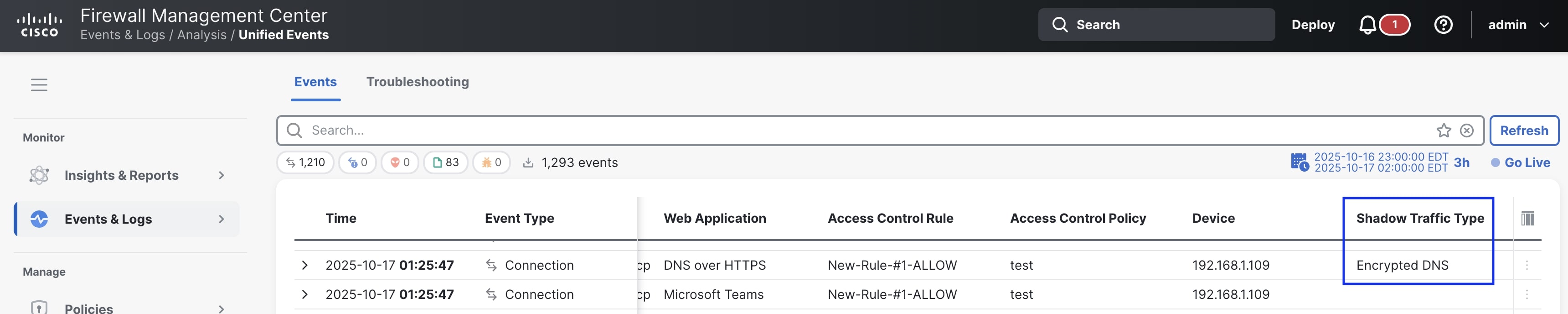
A new dedicated dashboard along with widgets is introduced in the Management Center to track specific shadow traffic flows such as Encrypted DNS, Evasive Private VPN traffic, Multihop Proxy traffic, Domain Fronting, and Fake TLS traffic flows. A new column for shadow traffic has also been added to the Connection Events and Unified Events windows.

Figure 1. Shadow Traffic Type in Connection Events
Figure 2. Shadow Traffic Type in Unified Events

The Encrypted Visibility Engine (EVE) and AppID modules detect shadow traffic.

Detections by

Encrypted DNS

Evasive VPNs

Multihop Proxy

Domain Fronting

Fake TLS

EVE

Yes

Yes

Yes

No

Yes

AppID

Yes

Yes

Yes

Yes

No

Detection and monitoring of shadow traffic is enabled by default. If required, you can also disable monitoring of shadow traffic. For more information, see Disable Monitoring of Shadow Traffic.

Shadow Traffic Widgets

Navigate to Insights & Reports > Dashboard, and then Shadow Traffic to view the shadow traffic widgets. These widgets provide information about shadow traffic that bypasses the intended visibility or access control measures of threat defense devices. Various techniques can be used to generate shadow traffic, and widgets display the number of connections and other details for different types of shadow traffic that the Threat Defense device can detect and monitor. The following types of shadow traffic are detected and monitored:

  • Evasive VPN

  • Encrypted DNS

  • Domain Fronting

  • Multihop Proxies

  • Fake TLS

Evasive VPN

Evasive VPN traffic circumvents network restrictions and firewall rules by using techniques such as traffic masking or protocol obfuscation, making VPN traffic appear similar to regular web traffic.

This widget displays the total number of evasive VPN connections, along with the process or application name identified by the Encrypted Visibility Engine (EVE) for each connection. To view detailed connection events for a specific EVE process or application, click the EVE Process Name or Application name at the bottom of the widget. This action opens the Connection Events window, where all connections associated with the selected EVE Process Name or Application name and classified as Evasive VPN traffic are filtered and displayed.

Recommended action: To block evasive VPN traffic, create or update an access control rule to block traffic to the identified EVE processes or application.

Encrypted DNS

Encrypted DNS traffic refers to DNS queries that are secured using advanced encryption protocols, making it difficult for traditional DNS filtering systems and firewalls to inspect or block them.

This widget displays the total number of encrypted DNS connections and highlights the top responder IP addresses, identified from known resolver lists. To view detailed connection events for a specific responder IP address, click the Responder IP address at the bottom of the widget. This action opens the Connection Events window, where all connections associated with the selected Responder IP address and classified as Encrypted DNS traffic are filtered and displayed.

Recommended action: To block encrypted DNS traffic, create or update an access control rule to block traffic to the identified responder IP addresses.

Domain Fronting

Domain fronting conceals the actual destination of encrypted traffic by advertising a widely trusted front domain during the TLS handshake (using the SNI field), while the HTTP Host header inside the encrypted session specifies a different backend service hosted by the same provider. This technique can bypass basic domain-based filtering and requires advanced traffic inspection for reliable detection.

This widget displays the total number of connections and highlights the top server names that are identified as domain fronting URLs. To view detailed connection events for a specific server, click the Server Name at the bottom of the widget. This action opens the Connection Events window, where all connections associated with the selected server name and classified as Domain Fronting traffic are filtered and displayed.


Note


Domain fronting is detected only when decryption is enabled.


Recommended action: To block domain fronting traffic, create or update an access control rule to block traffic to the identified server URLs. You can also block domain fronting traffic by creating a custom detector to match a set of related server URLs, and then add a rule to block the custom application.

Multihop Proxies

Multihop proxies route internet traffic through multiple intermediary servers before reaching the final destination, adding additional layers of obfuscation and privacy.

This widget displays the total number of multihop proxy connections and highlights the top responder IP addresses, identified from known resolver lists. To view detailed connection events for a specific responder IP address, click the Responder IP address at the bottom of the widget. This action opens the Connection Events window, where all connections associated with the selected Responder IP address and classified as Multihop Proxy traffic are filtered and displayed.

Recommended action: To block multihop proxy traffic, create or update an access control rule to block traffic to the identified responder IP addresses.

Fake TLS

FakeTLS attempts to evade basic domain-based filtering by presenting a trusted domain name during a TLS/HTTPS session, while actually connecting to infrastructure not legitimately associated with that domain. Also, parts of the TLS handshake, such as cipher suite lists and extensions, can be faked or modified to appear legitimate, and may include unusual or unregistered cipher suites.

This widget displays the total number of fake TLS traffic connections and highlights the top responder IP addresses, identified from known resolver lists. To view detailed connection events for a specific responder IP address, click the Responder IP address at the bottom of the widget. This action opens the Connection Events window, where all connections associated with the selected Responder IP address and classified as Fake TLS traffic are filtered and displayed.


Note


Fake TLS traffic is detected only when EVE is enabled.


Recommended action: To block fake TLS traffic, create or update an access control rule to block traffic to the identified responder IP addresses.

Requirements and Prerequisites for Monitoring Shadow Traffic

Model Support

  • Supported on on-prem Management Center running Secure Firewall version 10.0.0.

  • Cloud-delivered Firewall Management Center (cdFMC) is not supported.

Licenses for Monitoring Shadow Traffic

  • Essentials

  • Threat (IPS) – only if EVE is enabled

Guidelines and Limitations for Monitoring Shadow Traffic

  • IPv4/IPv6 addressing and multi-instances are not supported.

  • HA and clustered devices are supported.

  • REST APIs are not supported.

  • Encrypted Client Hello (ECH) detection is not supported.

Disable Shadow Traffic Monitoring

Procedure


Step 1

Choose Policies > Security policies > Access Control.

Step 2

Click Edit (edit icon) next to the access control policy you want to edit.

Step 3

Choose More > Advanced Settings.

Step 4

Click Edit (edit icon) in the Shadow Traffic field.

Step 5

Uncheck the checkbox in the Shadow Traffic window to disable monitoring of shadow traffic.


Feature History for Shadow Traffic Monitoring

Feature

Minimum Firewall Management Center

Minimum Firewall Threat Defense

Details

Shadow Traffic Monitoring

10.0.0

10.0.0

Monitor traffic originating from unsanctioned privacy technologies, referred to as Shadow Traffic.

New/modified screens:

  • Policies > Access Control > Edit a policy > More > Advanced Settings > Shadow Traffic

  • Insights & Reports > Dashboard > Shadow Traffic