Cisco Catalyst Center Third-Generation Appliance Installation Guide, Release 3.1.x

PDF

Front and rear panels

Want to summarize with AI?

Log in

Overview

Provides links to the topics that describe the front and rear panels of the third-generation Catalyst Center appliances.

Click the appropriate link to view a description of the front and rear panels for your third-generation Catalyst Center appliance.


32-core and 56-core appliances

The figures and tables describe the front and rear panels of the 32- and 56-core third-generation Catalyst Center appliances.

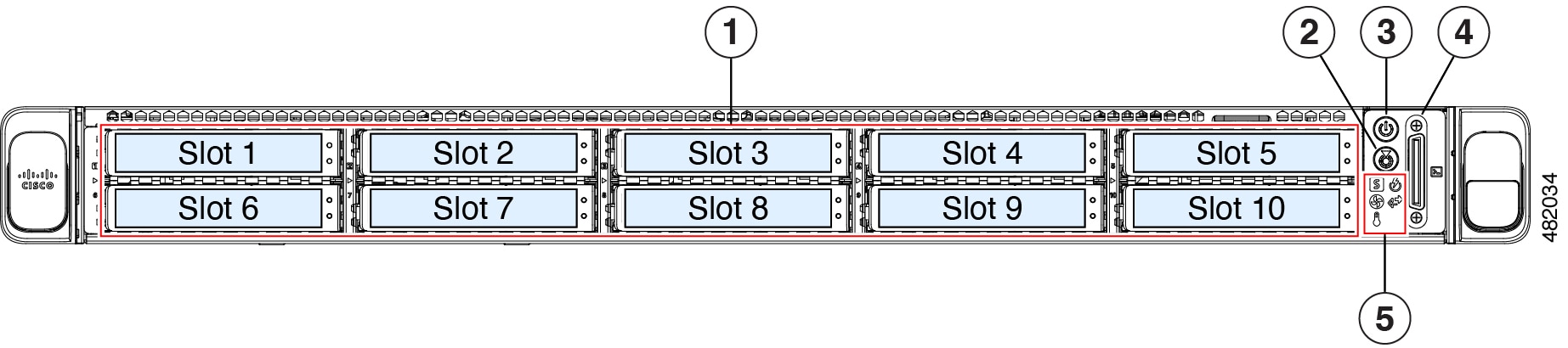
Figure 1. Front panel
Callout number Description

1

The appliance includes 10 drives.

32-core appliance:

  • Two 960 GB SSD (in slots 1 and 2)

  • Eight 1.9 TB SSD (in slots 3 through 10)

56-core appliance:

  • Two 960 GB SSD (in slots 1 and 2)

  • Eight 3.8 TB SSD (in slots 3 through 10)

Each installed drive includes two LEDs: a fault LED on the left and an activity LED on the right.

When the drive fault LED indicates:

  • Off: The drive is operating properly.

  • Amber: The drive has failed.

  • Amber, blinking: The drive is rebuilding.

When the drive activity LED indicates:

  • Off: There is no drive in the sled (no access, no fault).

  • Green: The drive is ready.

  • Green, blinking: The drive is reading or writing data.

2

Unit identification (:

  • Off: The unit identification function is not in use.

  • Blue, blinking: The unit identification function is activated.

3

Power button ():

  • Off: There is no AC power to the server.

  • Amber: The server is in standby power mode. Power is supplied only to the Cisco IMC and some motherboard functions.

  • Green: The server is in main power mode. Power is supplied to all server components.

4

KVM connector

(used with KVM cable that provides one DB-15 VGA, one DB-9 serial, and two USB 2.0 connectors)

5

System LED cluster:

  • Fan status ():

    • Green: All fan modules are operating properly.

    • Amber, blinking: One or more fan modules breached the non-recoverable threshold.

  • System health ():

    • Green: The server is running in normal operating condition.

    • Green, blinking: The server is performing system initialization and memory check.

    • Amber, steady: The server is in a degraded operational state (minor fault).

    • Amber, 2 blinks: There is a major fault with the system board.

    • Amber, 3 blinks: There is a major fault with the memory DIMMs.

    • Amber, 4 blinks: There is a major fault with the CPUs.

  • Power supply status ():

    • Green: All power supplies are operating normally.

    • Amber, steady: One or more power supplies are in a degraded operational state.

    • Amber, blinking: One or more power supplies are in a critical fault state.

  • Network link activity ():

    • Off: The Ethernet LOM port link is idle.

    • Green: One or more Ethernet LOM ports are link-active, but there is no activity.

    • Green, blinking: One or more Ethernet LOM ports are link-active, with activity.

  • Temperature status ():

    • Green: The server is operating at normal temperature.

    • Amber, steady: One or more temperature sensors breached the critical threshold.

    • Amber, blinking: One or more temperature sensors breached the non-recoverable threshold.

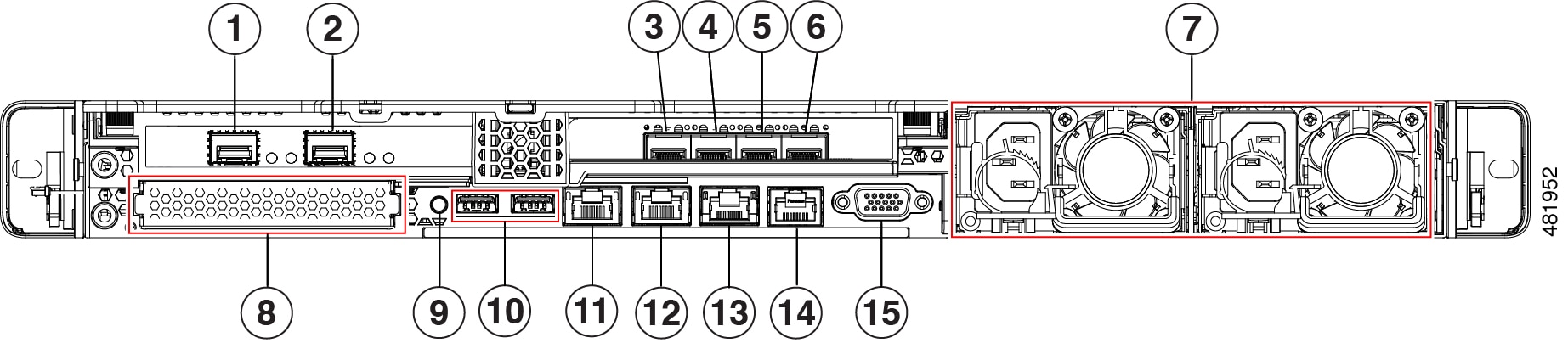
Figure 2. Rear panel
Callout number Description

1, 4

10-Gbps Enterprise Port (Network Adapter 1): In the Maglev Configuration wizard, this port appears as Network Adapter 1. Connect this port to a switch that provides access to your Enterprise network.

  • The primary instance (callout 1) is the left port on the Intel E810-XXVDA2 network adapter, in the appliance's PCIe riser 1/slot 1.

  • The secondary instance (callout 4) is the second port on the Intel E810-XXVDA4 network adapter, in the appliance's PCIe riser 3/slot 3.

This port has a link status (ACT) LED and a link speed (LINK) LED.

When the link status LED indicates:

  • Off: Link is active, but there is no traffic present.

  • Green, blinking: Traffic is present on the active link.

When the speed LED indicates:

  • Off: No link is present.

  • Amber: Link speed is 10 Gbps or less.

Note
Although capable of operating at lower speeds, this port is intended to operate at 10 Gbps only.

2, 3

10-Gbps Intracluster Port (Network Adapter 2): "In the Maglev Configuration wizard, this port is called Network Adapter 2. Connect this port to a switch that provides access to the other nodes in the cluster.

  • The primary instance (callout 2) is the right port on the Intel E810-XXVDA2 network adapter, in the appliance's PCIe riser 1/slot 1.

  • The secondary instance (callout 3) is first port on the Intel E810-XXVDA4 network adapter, in the appliance's PCIe riser 3/slot 3.

This port has a link status (ACT) LED and a link speed (LINK) LED.

When the link status LED indicates:

  • Off: Link is active, but there is no traffic present.

  • Green, blinking: Traffic is present on the active link.

When the speed LED indicates:

  • Off: No link is present.

  • Amber: Link speed is 10 Gbps or less.

Note
Although capable of operating at lower speeds, this port is intended to operate at 10 Gbps only.

5

1-Gbps/10-Gbps Internet Port (Network Adapter 4): This Ethernet port can support 1 Gbps and 10 Gbps, depending on the link partner. It is identified as Network Adapter 4 in the Maglev Configuration wizard. This port is optional. Use it to connect to the internet if you cannot use the 10-Gbps enterprise port. Connect the port to the internet or to a proxy server that connects to the internet.

This is the secondary instance of the internet port. It is the third port on the Intel E810-XXVDA4 network adapter, located in the appliance's PCIe riser 3, slot 3.

This port has a link status (ACT) LED and a link speed (LINK) LED.

  • When the link status LED indicates:

    • Off: Link is active, but there is no traffic present.

    • Green, blinking: Traffic is present on the active link.

  • When the speed LED indicates:

    • Off: No link is present.

    • Amber: Link speed is 10 Gbps or less.

    Note
    Although capable of operating at lower speeds, this port is intended to operate at 10 Gbps only.

6

1-Gbps/10-Gbps Management Port (Network Adapter 3): This Ethernet port can support 1 Gbps and 10 Gbps, depending on the link partner capability. It is identified as Network Adapter 3 in the Maglev Configuration wizard. Connect this port to a switch that provides access to your enterprise management network.

This is the secondary instance of the Management port. It's the fourth port on the Intel E810-XXVDA4 network adapter, in the appliance's PCIe riser 3/slot 3.

This port has a link status (ACT) LED and a link speed (LINK) LED.

When the link status LED indicates:

  • Off: Link is active, but there is no traffic present.

  • Green, blinking: Traffic is present on the active link.

When the speed LED indicates:

  • Off: No link is present.

  • Amber: Link speed is 10 Gbps or less.

Note
Although capable of operating at lower speeds, this port is intended to operate at 10 Gbps only.

7

Power supplies (two, 1+1 redundancy)

Note

The power supplies receptacles are oriented in the opposite direction from the direction shown in the picture.

8

Modular LAN-on-motherboard (mLOM) card bay (x16 PCIe lane)

9

Unit identification button/LED

10

USB 3.0 ports (two)

11

1-Gbps/10-Gbps Management Port (Network Adapter 3): This Ethernet port can support 1 Gbps and 10 Gbps, depending on the link partner capability. It is identified as Network Adapter 3 in the Maglev Configuration wizard. Connect this port to a switch that provides access to your enterprise management network.

This is the primary instance of the Management port. It's labeled 1 on the appliance's rear panel.

This port has a link status (ACT) LED and a link speed (LINK) LED.

  • When the link status LED indicates:

    • Off: No link is present.

    • Green, blinking: Traffic is present on the active link.

    • Green: Link is active, but there is no traffic present.

  • When the speed LED indicates:

    • Off: No link is present.

    • Green: Link speed is 10 Gbps.

    • Amber: Link speed is 1 Gbps.

    Note
    Although capable of operating at lower speeds, this port is intended to operate at 10 Gbps only.

12

1-Gbps/10-Gbps Internet Port (Network Adapter 4): This Ethernet port can support 1 Gbps and 10 Gbps, depending on the link partner capability. It is identified as Network Adapter 4 in the Maglev Configuration wizard. This port is optional. Use it to connect to the internet if you cannot use the 10-Gbps enterprise port. Connect the port to the internet or to a proxy server that connects to the internet..

This is the primary instance of the internet port. It's labeled 2 on the appliance's rear panel.

This port has a link status (ACT) LED and a link speed (LINK) LED.

  • When the link status LED indicates:

    • Off: No link is present.

    • Green, blinking: Traffic is present on the active link.

    • Green: Link is active, but there is no traffic present.

  • When the speed LED indicates:

    • Off: No link is present.

    • Green: Link speed is 10 Gbps.

    • Amber: Link speed is 1 Gbps.

    Note
    Although capable of operating at lower speeds, this port is intended to operate at 10 Gbps only.

13

1-Gbps Cisco IMC Port: This is the embedded port to the right of the internet port. The port receives an IP address when you enable browser access to the appliance's Cisco IMC GUI (see Enable browser access to the Cisco Integrated Management Controller). This port is reserved for out-of-band management of the appliance chassis and software. Connect this port to a switch that provides access to your enterprise management network.

This port has a link status LED and a link speed LED.

When the link status LED indicates:

  • Off: No link is present.

  • Green, blinking: Traffic is present on the active link.

  • Green: Link is active, but there is no traffic present.

When the speed LED indicates:

  • Off: Link speed is 10 Mbps or less.

  • Green: Link speed is 1 Gbps.

  • Amber: Link speed is 100 Mbps.

14

COM port (RJ-45 connector)

15

VGA video port (DB-15 connector)


80-core appliance

The figures and tables describe the front and rear panels of the 80-core third-generation Catalyst Center appliance.

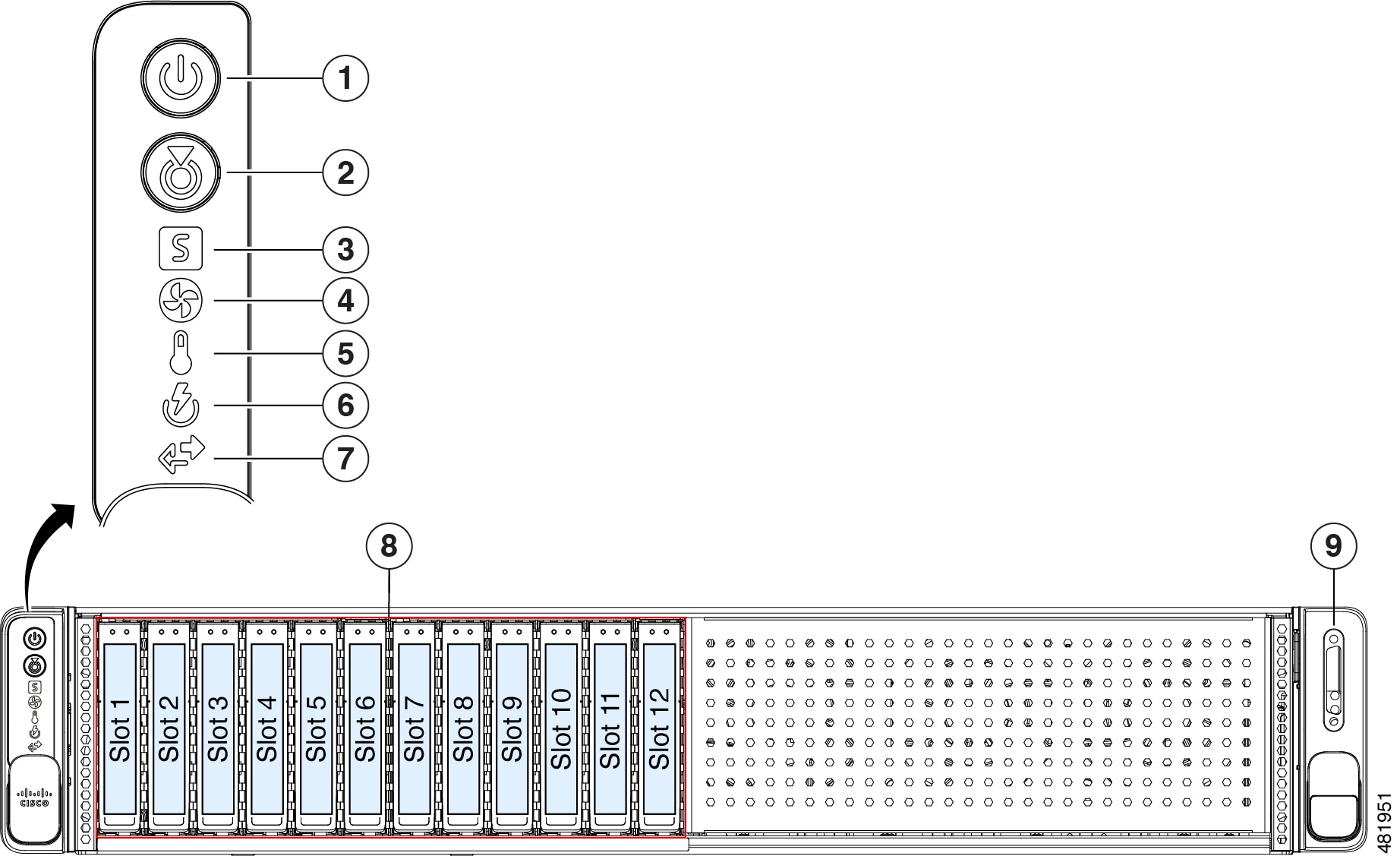
Figure 3. Front panel
Callout number Description

1

Power button ():

  • Off: There is no AC power to the server.

  • Amber: The server is in standby power mode. Power is supplied only to the Cisco IMC and some motherboard functions.

  • Green: The server is in main power mode. Power is supplied to all server components.

2

Unit identification (:

  • Off: The unit identification function is not in use.

  • Blue, blinking: The unit identification function is activated.

3

System health ():

  • Green: The server is running in normal operating condition.

  • Green, blinking: The server is performing system initialization and memory check.

  • Amber, steady: The server is in a degraded operational state (minor fault). For example:

    • Power supply redundancy is lost.

    • CPUs are mismatched.

    • At least one CPU is faulty.

    • At least one DIMM is faulty.

    • At least one drive in a RAID configuration failed.

  • Amber, 2 blinks: There is a major fault with the system board.

  • Amber, 3 blinks: There is a major fault with the memory DIMMs.

  • Amber, 4 blinks: There is a major fault with the CPUs.

4

Fan status ():

  • Green: All fan modules are operating properly.

  • Amber, blinking: One or more fan modules breached the non-recoverable threshold.

5

Temperature status ():

  • Green: The server is operating at normal temperature.

  • Amber, steady: One or more temperature sensors breached the critical threshold.

  • Amber, blinking: One or more temperature sensors breached the non-recoverable threshold.

6

Power supply status ():

  • Green: All power supplies are operating normally.

  • Amber, steady: One or more power supplies are in a degraded operational state.

  • Amber, blinking: One or more power supplies are in a critical fault state.

7

Network link activity ():

  • Off: The Ethernet LOM port link is idle.

  • Green: One or more Ethernet LOM ports are link-active, but there is no activity.

  • Green, blinking: One or more Ethernet LOM ports are link-active, with activity.

8

The appliance includes 12 drives:

  • Two 960 GB SSD (in slots 1 and 2)

  • Ten 3.8 TB SSD (in slots 3 through 12)

Each installed drive has two LEDs: a fault LED on the left and an activity LED on the right.

When the drive fault LED is:

  • Off: The hard drive is operating properly.

  • Amber: Drive fault detected.

  • Amber, blinking: The device is rebuilding.

  • Amber, blinking with one-second interval: Drive locate function activated in the software.

When the drive activity LED indicates:

  • Off: There is no hard drive in the hard drive tray (no access, no fault).

  • Green: The hard drive is ready.

  • Green, blinking: The hard drive is reading or writing data.

9

KVM connector

Use this with a KVM cable that provides one DB-15 VGA connector, one DB-9 serial connector, and two USB 2.0 connectors.

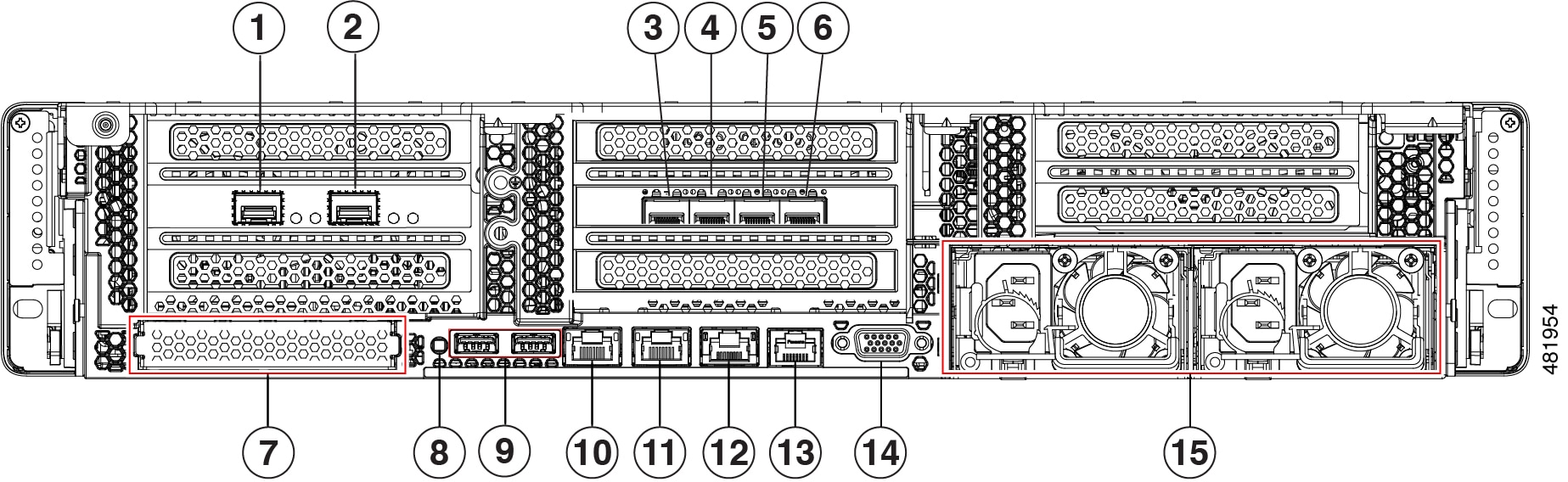
Figure 4. Rear panel
Callout number Description

1, 4

10-Gbps Enterprise Port (Network Adapter 1): This port is identified as Network Adapter 1 in the Maglev Configuration wizard. Connect it to a switch with connections to the Enterprise network.

  • The primary instance (callout 1) is the left port on the Intel E810-XXVDA2 network adapter in the appliance's riser 1A/slot 2.

  • The secondary instance (callout 4) is the second port on the Intel E810-XXVDA4 network adapter in the appliance's riser 3A/slot 5.

This port has a link status (ACT) LED and a link speed (LINK) LED.

When the link status LED indicates:

  • Off: Link is active, but there is no traffic present.

  • Green, blinking: Traffic is present on the active link.

When the speed LED indicates:

  • Off: No link is present.

  • Amber: Link speed is 10 Gbps or less.

Note
Although capable of operating at lower speeds, this port is intended to operate at 10 Gbps only.

2, 3

10-Gbps Intracluster Port (Network Adapter 2): This port is identified as Network Adapter 2 in the Maglev Configuration wizard. Connect this port to a switch with connections to the other nodes in the cluster.

  • The primary instance (callout 2) is the right port on the Intel E810-XXVDA2 network adapter, in the appliance's riser 1A/slot 2.

  • The secondary instance (callout 3) is the first port on the Intel E810-XXVDA4 network adapter, in the appliance's riser 3A/slot 5.

This port has a link status (ACT) LED and a link speed (LINK) LED.

When the link status LED indicates:

  • Off: Link is active, but there is no traffic present.

  • Green, blinking: Traffic is present on the active link.

When the speed LED indicates:

  • Off: No link is present.

  • Amber: Link speed is 10 Gbps or less.

Note
Although capable of operating at lower speeds, this port is intended to operate at 10 Gbps only.

5

1-Gbps/10-Gbps Internet Port (Network Adapter 4): This Ethernet port can support 1 Gbps and 10 Gbps, depending on the link partner. It is identified as Network Adapter 4 in the Maglev Configuration wizard. This port is optional and is used for connecting to the internet when it is not possible to do so via the 10-Gbps Enterprise port. Connect to the internet or a proxy server that has connections to the internet.

This is the secondary instance of the internet port. It's the third port on the Intel E810-XXVDA4 network adapter, in the appliance's riser 3A/slot 5.

This port has a link status LED and a link speed LED. When the status LED is:

  • When the link status LED indicates:

    • Off: Link is active, but there is no traffic present.

    • Green, blinking: Traffic is present on the active link.

  • When the speed LED indicates:

    • Off: No link is present.

    • Amber: Link speed is 10 Gbps or less.

    Note
    Although capable of operating at lower speeds, this port is intended to operate at 10 Gbps only.

6

1-Gbps/10-Gbps Management Port (Network Adapter 3): This Ethernet port can support 1 Gbps and 10 Gbps, depending on the link partner. It is identified as Network Adapter 3 in the Maglev Configuration wizard. Connect this port to a switch that provides access to your enterprise management network.

This is the secondary instance of the Management port. It's the fourth port on the Intel E810-XXVDA4 network adapter, in the appliance's riser 3A/slot 5.

This port has a link status LED and a link speed LED. When the status LED is:

  • When the link status LED indicates:

    • Off: Link is active, but there is no traffic present.

    • Green, blinking: Traffic is present on the active link.

  • When the speed LED indicates:

    • Off: No link is present.

    • Amber: Link speed is 10 Gbps or less.

    Note
    Although capable of operating at lower speeds, this port is intended to operate at 10 Gbps only.

7

Modular LAN-on-motherboard (mLOM) card bay (x16 PCIe lane)

8

Unit identification button and LED

9

USB 3.0 ports (two)

10

1-Gbps/10-Gbps Management Port (Network Adapter 3): This Ethernet port can support 1 Gbps and 10 Gbps, depending on the link partner. It is identified as Network Adapter 3 in the Maglev Configuration wizard. Connect this port to a switch that provides access to your enterprise management network.

This is the primary instance of the Management port. It's on the rear panel of the appliance, to the right of the second USB port.

This port has a link status (ACT) LED and a link speed (LINK) LED.

  • When the link status LED indicates:

    • Off: No link is present.

    • Green, blinking: Traffic is present on the active link.

    • Green: Link is active, but there is no traffic present.

  • When the speed LED indicates:

    • Off: No link is present.

    • Green: Link speed is 10 Gbps.

    • Amber: Link speed is 1 Gbps.

    Note
    Although capable of operating at lower speeds, this port is intended to operate at 10 Gbps only.

11

1-Gbps/10-Gbps Internet Port (Network Adapter 4): This Ethernet port can support 1 Gbps and 10 Gbps, depending on the link partner. It is identified as Network Adapter 4 in the Maglev Configuration wizard. This port is optional and is used for connecting to the internet when it is not possible to do so via the 10-Gbps Enterprise port. Connect to the internet or a proxy server that has connections to the internet.

This is the primary instance of the internet port. It's on the rear panel, between the Management and Cisco IMC ports.

This port has a link status (ACT) LED and a link speed (LINK) LED.

  • When the link status LED indicates:

    • Off: No link is present.

    • Green, blinking: Traffic is present on the active link.

    • Green: Link is active, but there is no traffic present.

  • When the speed LED indicates:

    • Off: No link is present.

    • Green: Link speed is 10 Gbps.

    • Amber: Link speed is 1 Gbps.

    Note
    Although capable of operating at lower speeds, this port is intended to operate at 10 Gbps only.

12

1-Gbps Cisco IMC Port: This is the embedded port to the right of the internet port. It is assigned an IP address when you enable browser access to the appliance's Cisco IMC GUI (see Enable browser access to the Cisco Integrated Management Controller). This port is reserved for out-of-band management of the appliance chassis and software. Connect this port to a switch that provides access to your enterprise management network.

This port has a link status LED and a link speed LED.

When the link status LED indicates:

  • Off: No link is present.

  • Green, blinking: Traffic is present on the active link.

  • Green: Link is active, but there is no traffic present.

When the speed LED indicates:

  • Off: Link speed is 10 Mbps or less.

  • Green: Link speed is 1 Gbps.

  • Amber: Link speed is 100 Mbps.

13

COM port (RJ-45 connector)

14

VGA video port (DB-15 connector)

15

Power supplies (two, 1+1 redundancy)