Overview
You can add additional appliances to a cluster using the Maglev Configuration wizard.
Do the steps in this procedure to configure the second and third appliances in the cluster.
In order to build a three-node cluster, the same version of the System package must be installed on your three Catalyst Center appliances. Otherwise, unexpected behavior and possible downtime can occur.
Before you configure the appliances in a three-node cluster, ensure that you have logged out of those appliances. Otherwise, the Quick Start workflow (which you complete to discover your network's devices and enable telemetry) will not start after you have configured your cluster's appliances and log in to Catalyst Center for the first time.
Ensure that all of the IP addresses you enter while completing this procedure are valid addresses with valid netmasks. Also make sure that the addresses and their corresponding subnets do not overlap. Service communication issues can result if they do.
When joining each new secondary node to the cluster, you must specify the physical IP address of the cluster link of the first host in the cluster.
If you are replacing a node in an HA-enabled cluster, use the physical IP address of the cluster link of either of the remaining nodes.
When joining secondary nodes to a cluster, understand:
-
Be sure to join only a single node to the cluster at a time. Do not attempt to add multiple nodes at the same time, because this results in unpredictable behavior.
Before adding a new node to the cluster, be sure that all installed packages are deployed on the primary node. You can check this by using Secure Shell to log in to the primary node's Catalyst Center Management port as the Linux user (maglev) and then running the command
maglev package status. All installed packages should appear in the command output asDEPLOYED.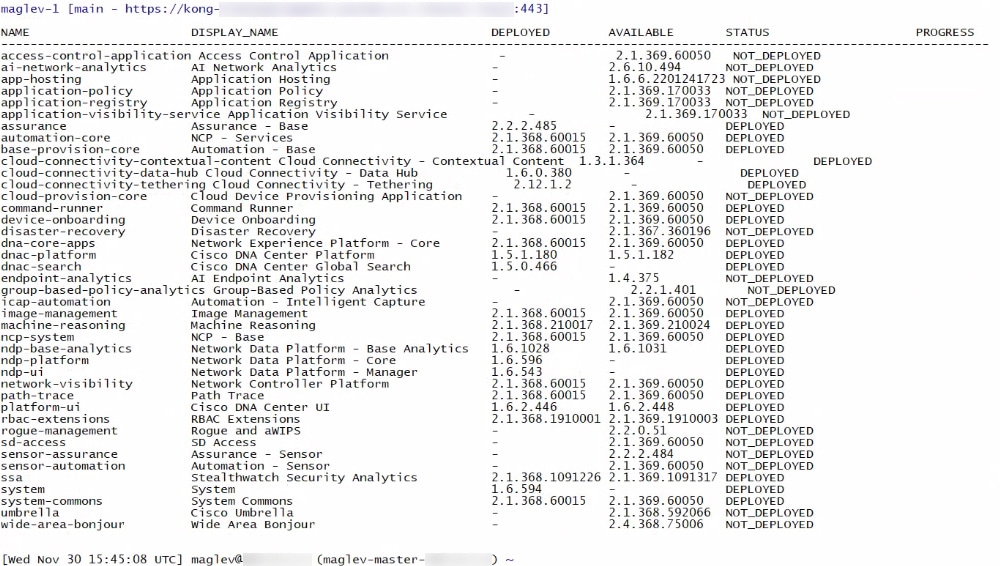
-
Expect some service downtime during the cluster attachment process for each secondary node. Services will need to be redistributed across the nodes, and the cluster will be down for periods of time during that process.
Before you begin
Ensure that you:
-
Configured the first appliance in the cluster according to the steps in Configure the primary node using the Maglev wizard.
-
Collected all of the information specified in Required IP addresses and subnets and Required configuration information.
-
Installed the second and third appliances, as described in Appliance installation workflow.
-
Have done these steps:
-
Ran the maglev package status command on the first appliance.
You can also access this information from the Catalyst Center GUI by clicking the Help icon (
 ) and choosing .
 -
Contacted the Cisco TAC, gave them the output of this command, and asked them to point you to the ISO that you should install on your second and third appliances.
-
-
Configured Cisco IMC browser access on both secondary appliances, as described in Enable browser access to the Cisco Integrated Management Controller.
-
Checked that both the secondary appliances' ports and the switches they use are properly configured (as described in Execute preconfiguration tasks).
-
Confirmed that you are using a compatible browser. For a list of compatible browsers, see the Release Notes document for the version of Catalyst Center you are installing.
-
Enabled ICMP on the firewall between Catalyst Center and both the default gateway and the DNS server you specify in this procedure. The Maglev Configuration wizard uses ping to verify the gateway and DNS server you specify.
This ping might get blocked if a firewall is in place and ICMP is not enabled on that firewall. When this happens, you will not be able to complete the wizard.
Procedure
| 1. | Point your browser to the Cisco IMC IP address you set during the Cisco IMC GUI configuration you performed, and log in to the Cisco IMC GUI as the Cisco IMC user (see Enable browser access to the Cisco Integrated Management Controller).
After successful login, the appliance displays the
Cisco Integrated Management Controller Chassis Summary window, with a hyperlinked menu at the top of the window.
|
|||||||||||||||||
| 2. | From the hyperlinked menu, select and then select HTML based KVM. The KVM console opens in a separate window or tab automatically. Use it to monitor the progress of the configuration and respond to the Maglev Configuration wizard prompts. |
|||||||||||||||||
| 3. | With the KVM displayed, reboot the appliance by selecting one of these options:
If you are asked to confirm your choice to reboot the appliance, click OK. After displaying reboot messages, the KVM console displays the Static IP Configuration screen. 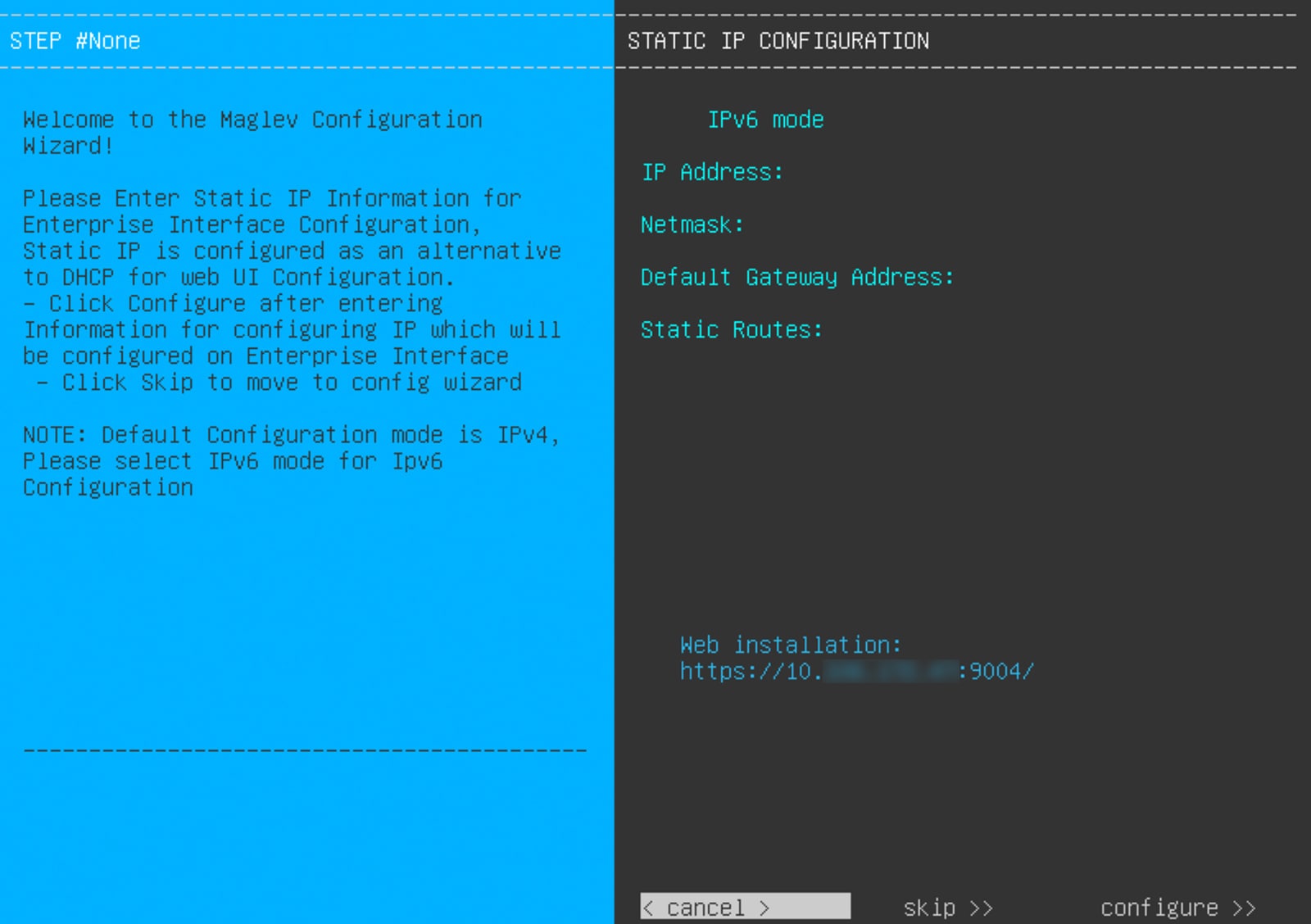
|
|||||||||||||||||
| 4. | Click Skip. The KVM console displays the Maglev Configuration wizard welcome screen. 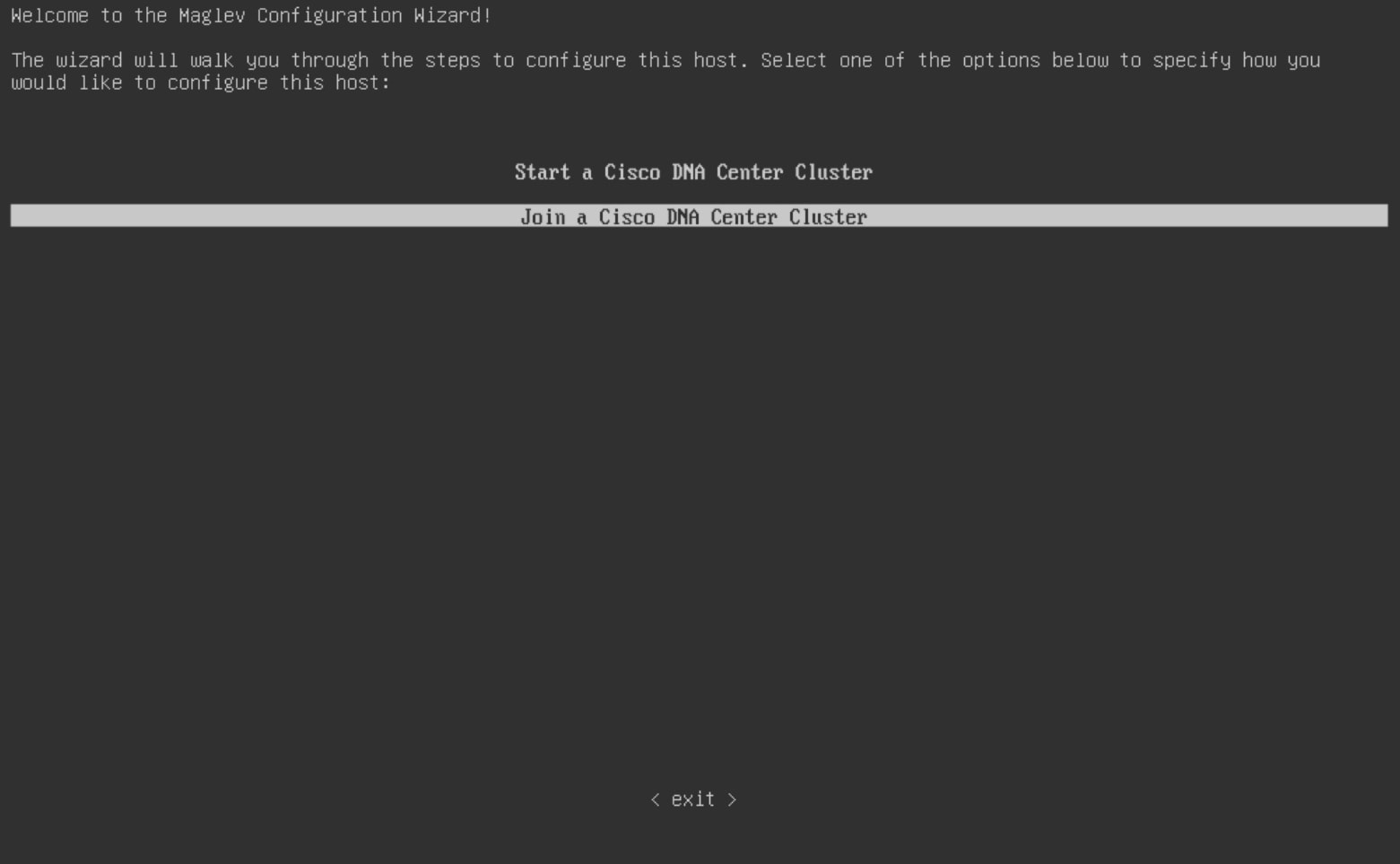
|
|||||||||||||||||
| 5. | Click Join a Catalyst Center Cluster to begin configuring the secondary node. The screen updates. 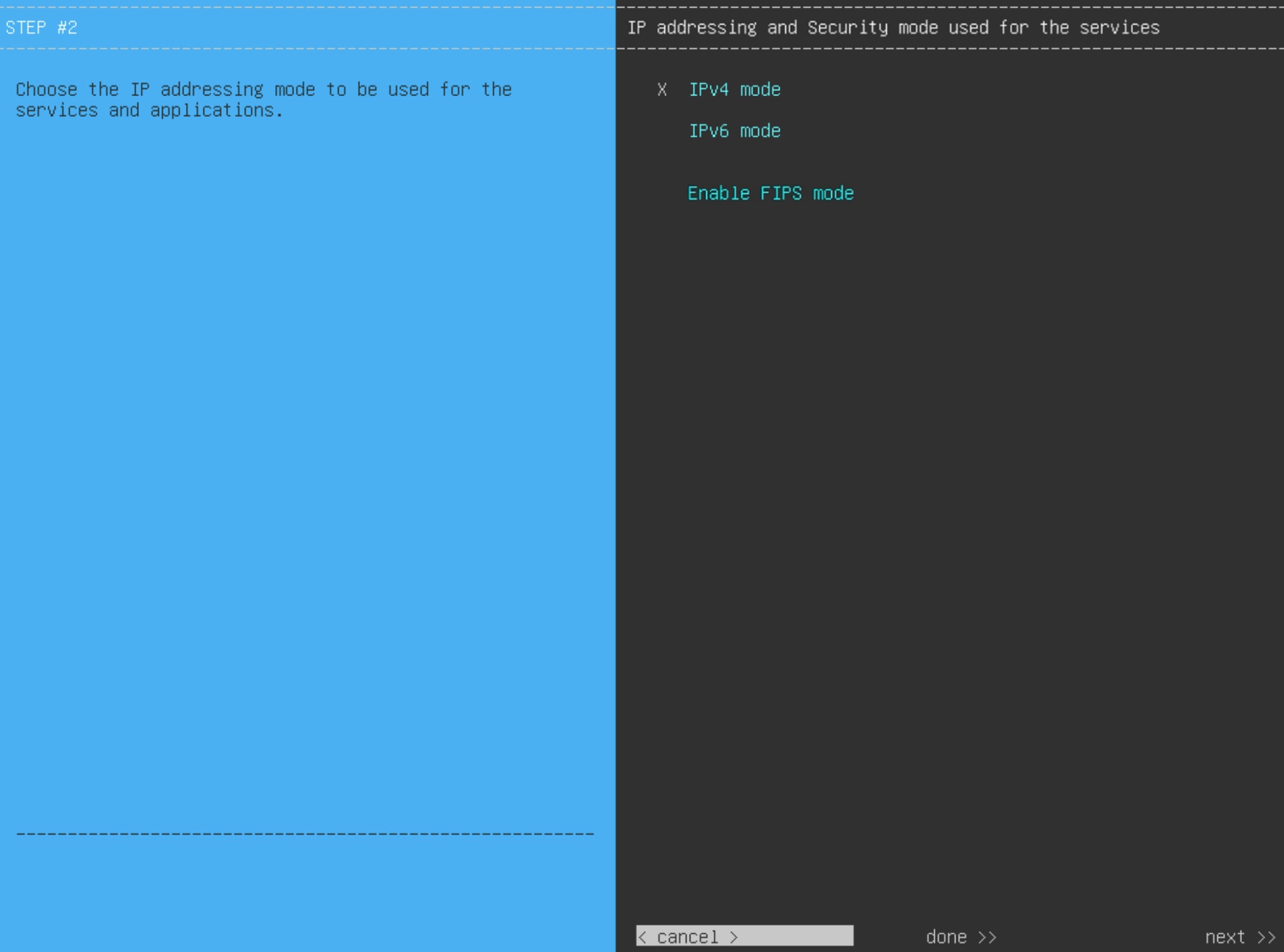
|
|||||||||||||||||
| 6. | Do these steps, then click next>> to continue:
|
|||||||||||||||||
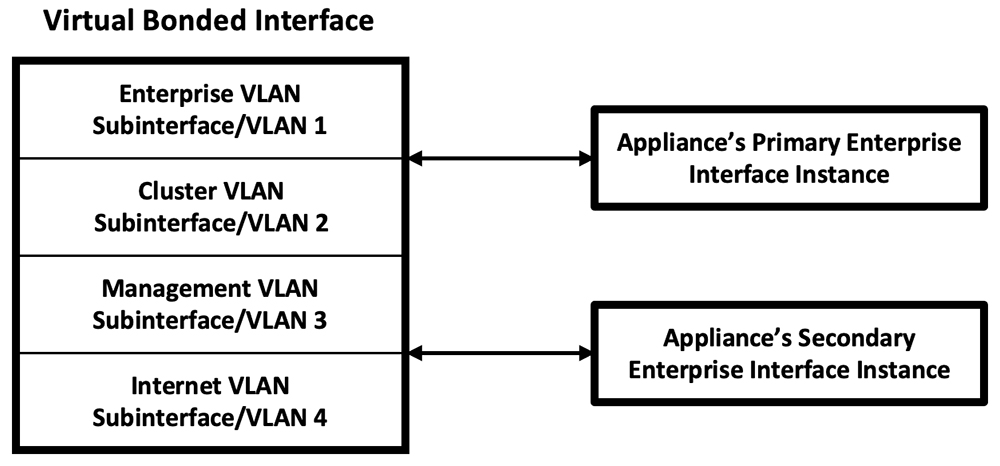
| 7. | (Optional) Do these steps to enable Layer 2 port channel mode (with VLAN tagging) for the appliance. After making your selections, click next>> to continue. 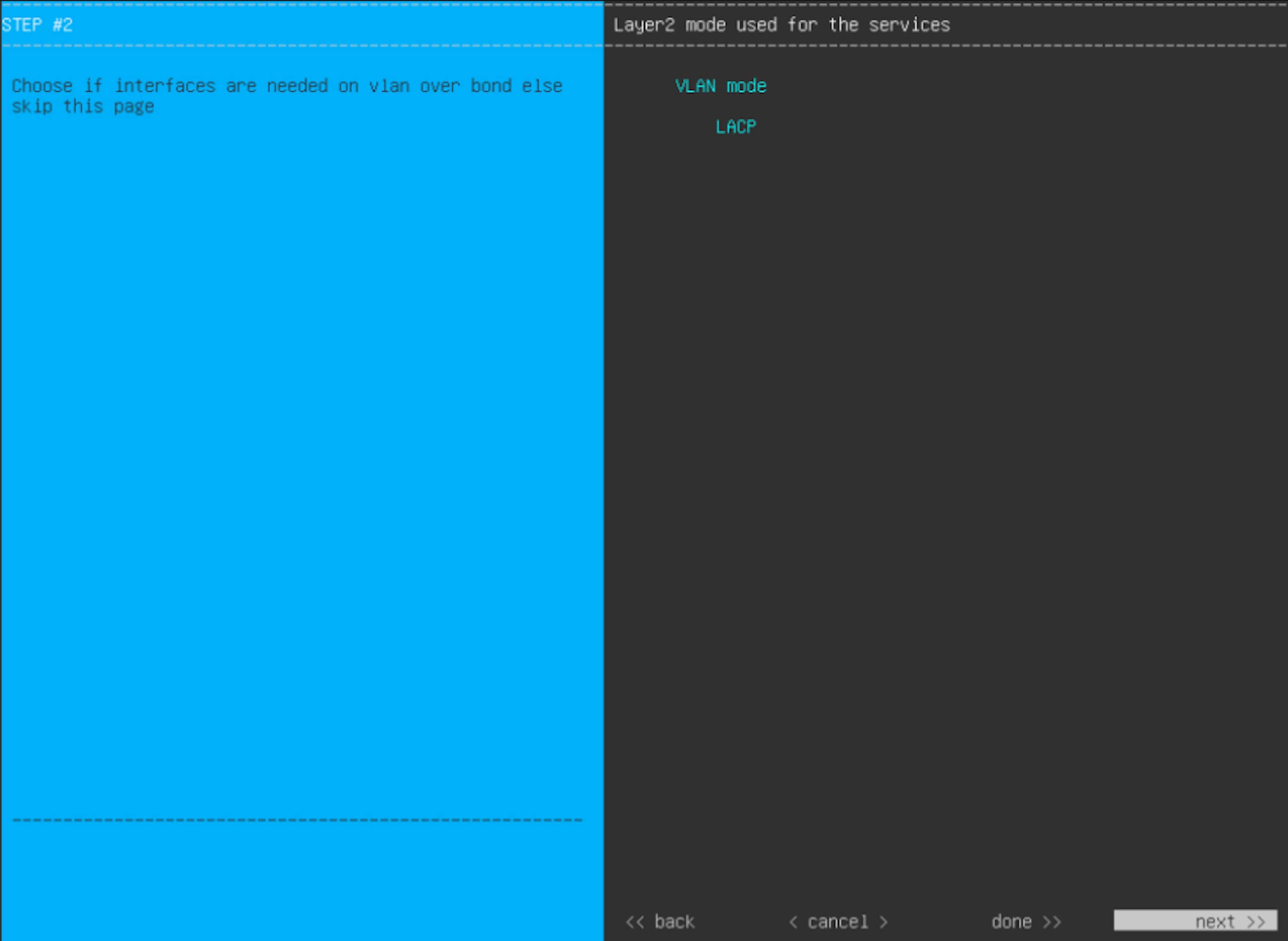
The wizard discovers all of the ports on the appliance and presents them to you one by one, in separate screens, in this order:
If the wizard fails to display either or both of the Enterprise and Cluster ports during the course of configuration, it might indicate that these ports are nonfunctional or disabled. These two ports are required for Catalyst Center functionality. If you discover that they are nonfunctional, select cancel to exit the configuration wizard immediately. Be sure that you have completed all of the steps provided in Execute preconfiguration tasks before resuming the configuration or contacting the Cisco Technical Assistance Center. |
|||||||||||||||||
| 8. | The wizard first presents the 10-Gbps Enterprise port as NETWORK ADAPTER #1. As explained in Interface cable connections, this is a required port used to link the appliance to the enterprise network. Apply the host IP address, netmask, and other values that are appropriate for this purpose (see Required IP addresses and subnets and Required configuration information for the values to enter). 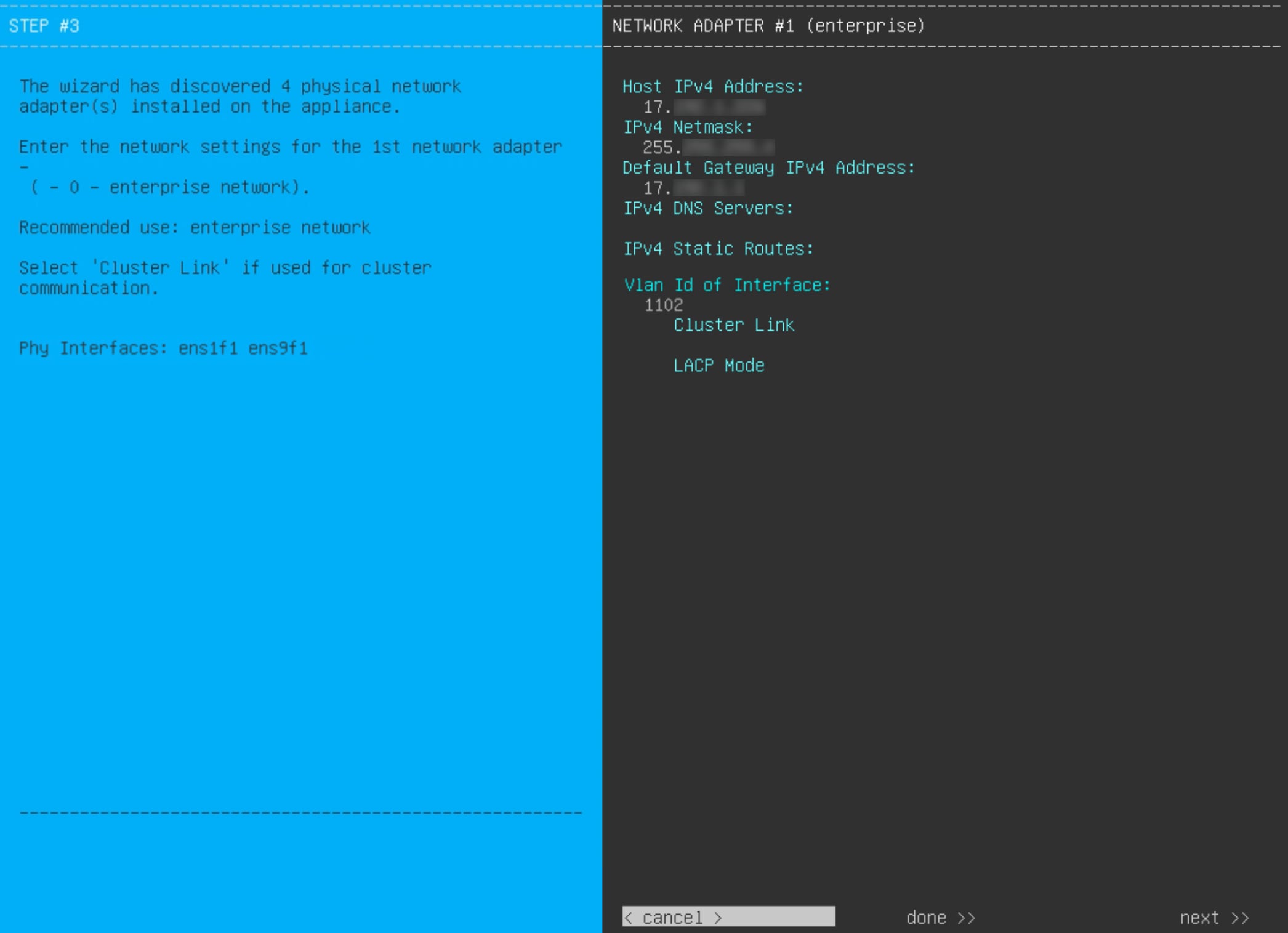
Enter the configuration values for NETWORK ADAPTER #1, as shown in this table.
After you finish entering the configuration values, click next>> to continue. The wizard validates the values you entered and issues an error message if any are incorrect. If you receive an error message, check that the value you entered is correct, then reenter it. If needed, click <<back to reenter it. |
|||||||||||||||||
| 9. | After successful validation of the Enterprise port values you entered, the wizard presents the 10-Gbps Cluster port and presents it as NETWORK ADAPTER #2. As explained in Interface cable connections, this port is used to link the appliance to the cluster, so apply the host IP address, netmask, and other values that are appropriate for this purpose (see Required IP addresses and subnets and Required configuration information for the values to enter). 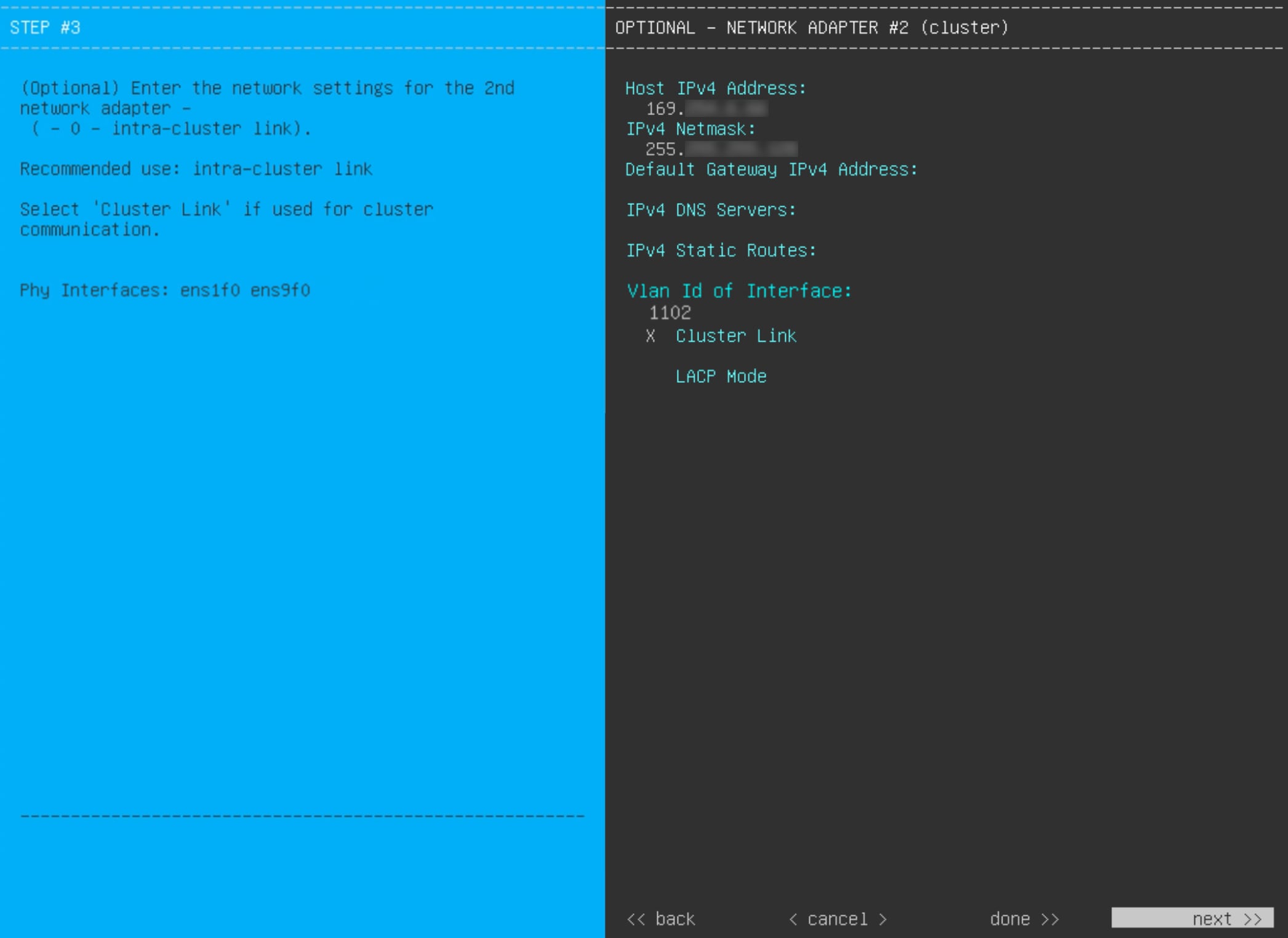
Enter the configuration values for NETWORK ADAPTER #2, as shown in this table.
After you provide the necessary information, click next>> to continue. Correct validation errors, if any, as you did in previous screens. The wizard validates and applies your network adapter configurations. |
|||||||||||||||||
| 10. | After successful validation of the Cluster port values you entered, the wizard presents the 1 Gbps/10 Gbps Management port and presents it as NETWORK ADAPTER #3. As explained in Interface cable connections, this port is used to access the Catalyst Center GUI from your management network. Apply the host IP address, netmask, and other values that are appropriate for this purpose (see Required IP addresses and subnets and Required configuration information for the values to enter). 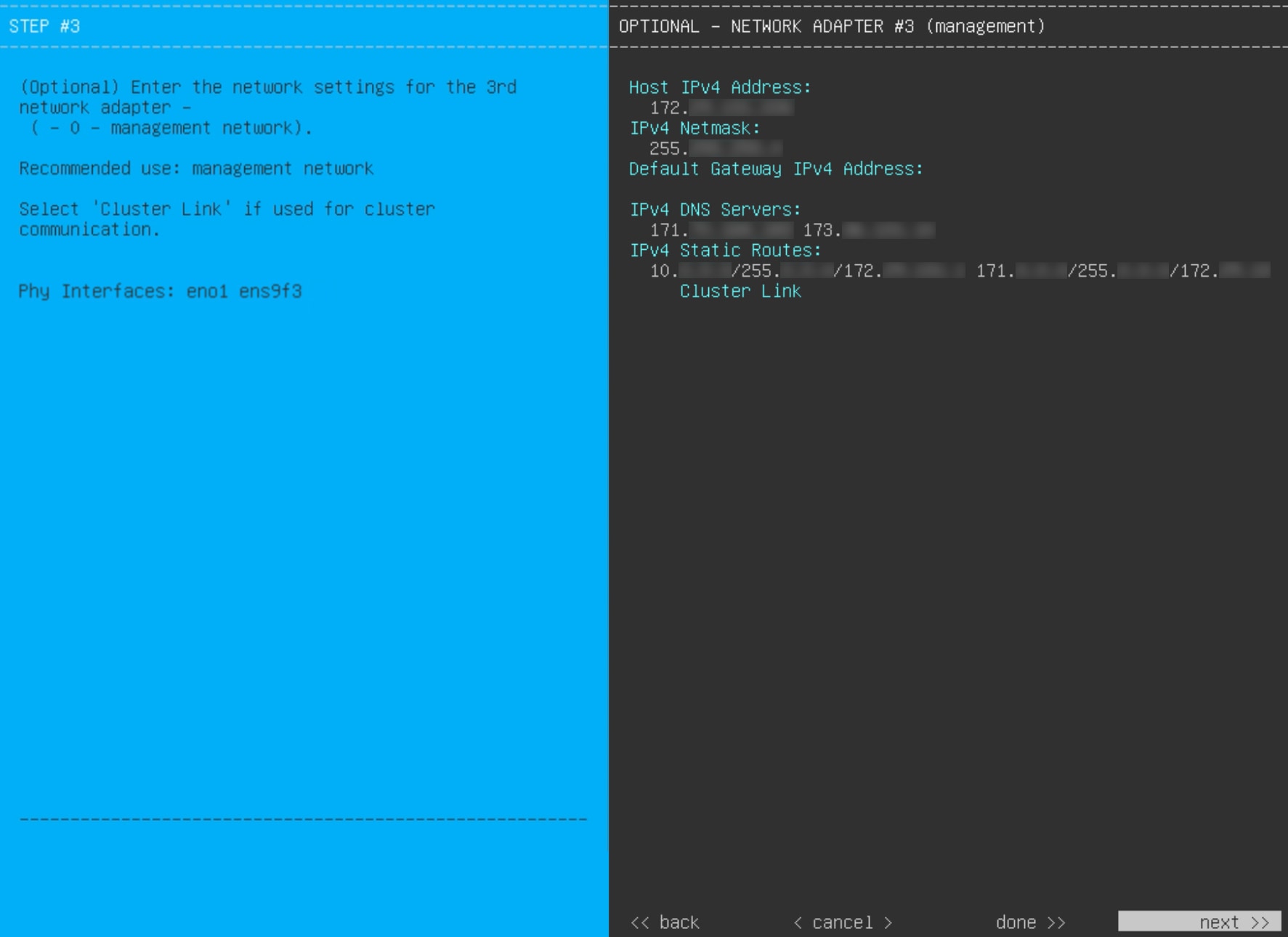
Enter the configuration values for NETWORK ADAPTER #3, as shown in this table.
After you provide the necessary information, click next>> to continue. Correct validation errors, if any, as you did in previous screens. The wizard validates and applies your network adapter configurations. |
|||||||||||||||||
| 11. | After successful validation of the Management port values you entered, the wizard presents the 1 Gbps/10 Gbps Internet port as NETWORK ADAPTER #4. As explained in Interface cable connections, this is an optional port used to link the appliance to the Internet when you cannot do so through the 10 Gbps Enterprise port. Apply the host IP address, netmask, and other values that are appropriate for this purpose (see Required IP addresses and subnets and Required configuration information for the values to enter). 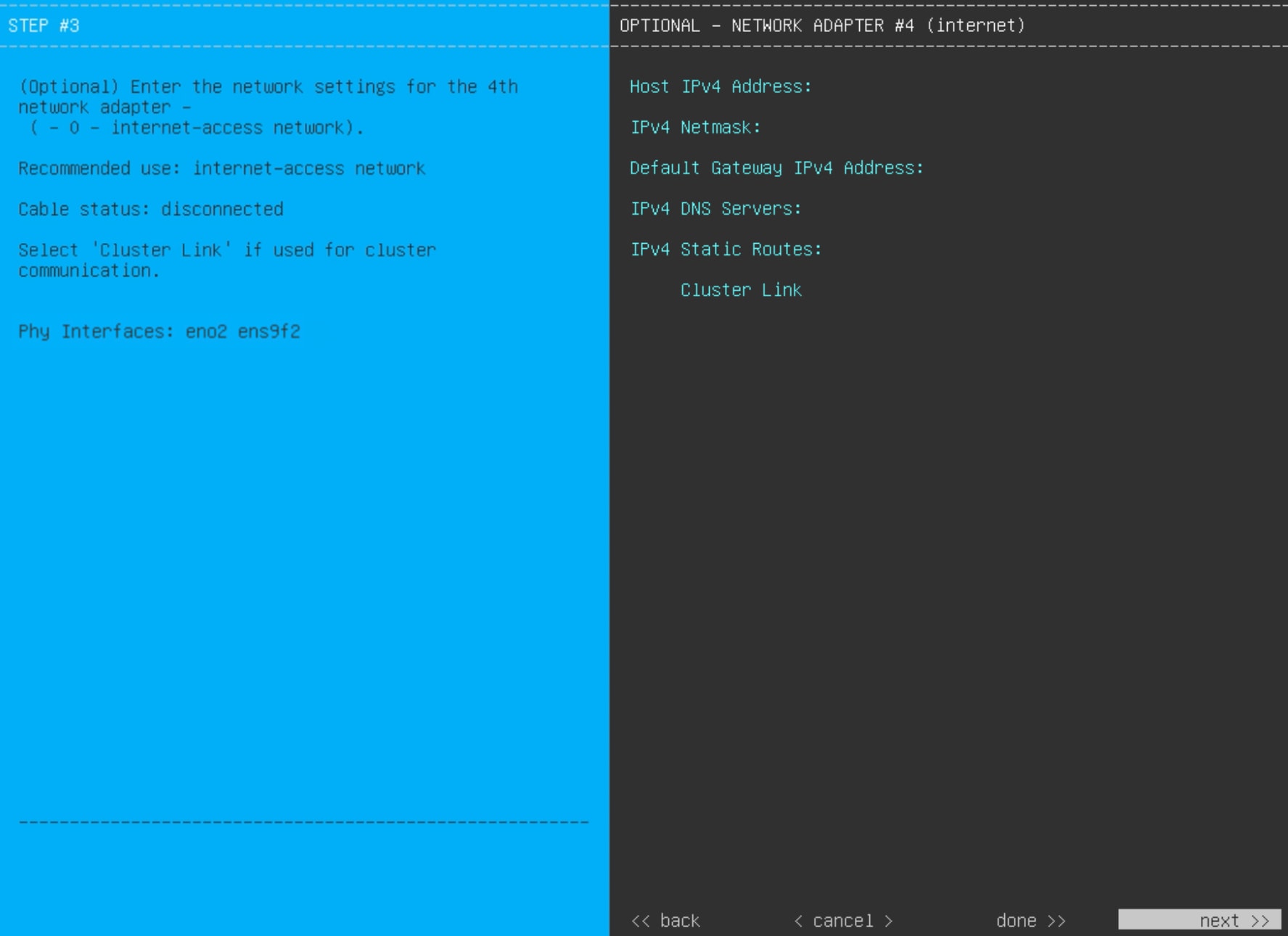
Enter the configuration values for NETWORK ADAPTER #4, as shown in this table.
After you provide the necessary information, click next>> to continue. Correct validation errors, if any, as you did in previous screens. The wizard validates and applies your network adapter configurations. |
|||||||||||||||||
| 12. | After the network adapter configuration is complete, the wizard prompts you to enter configuration values for the NETWORK PROXY that you are using, as shown. 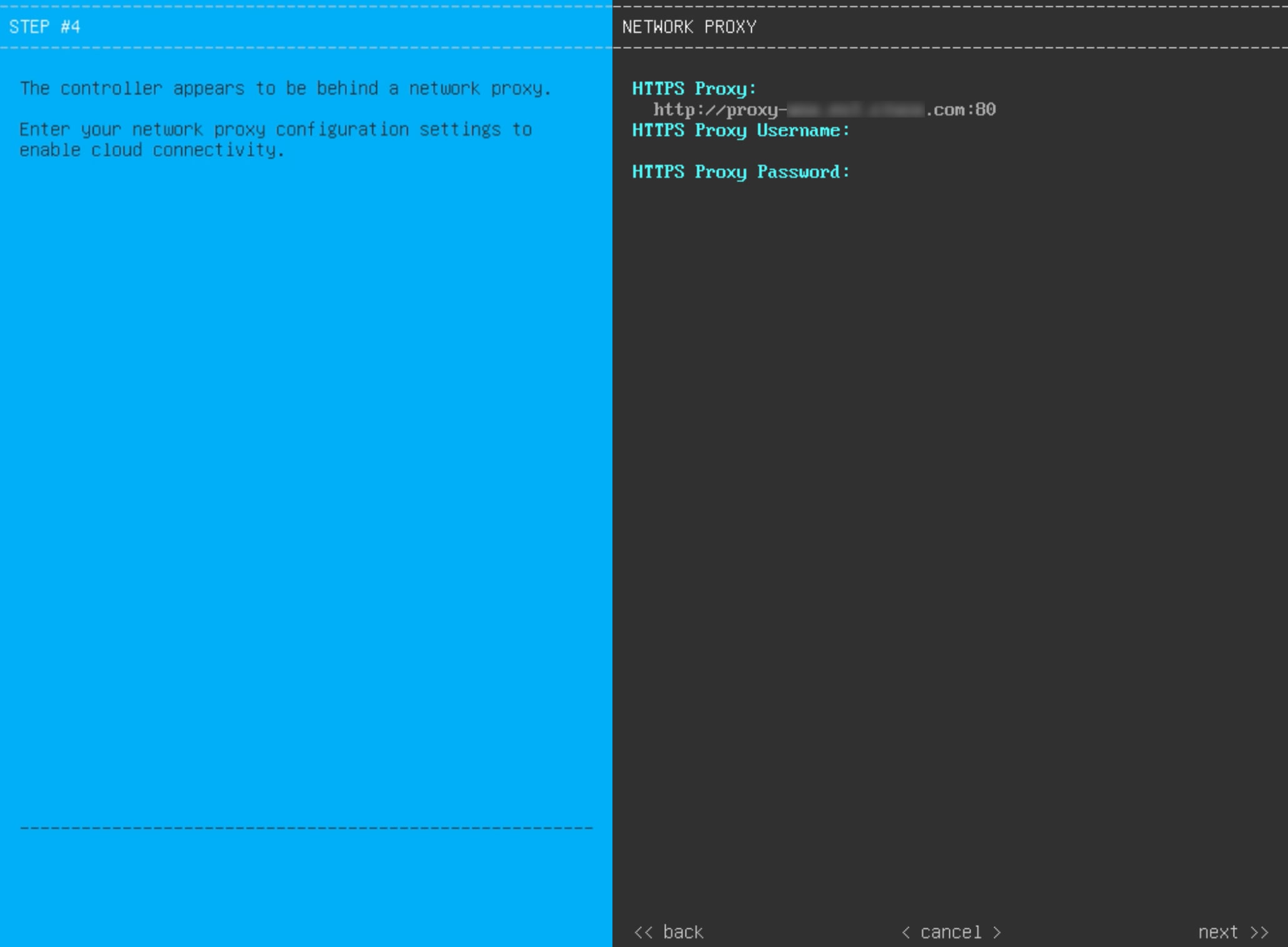
Enter the configuration values for the NETWORK PROXY, as shown in this table.
After you provide the necessary information, click next>> to continue. Correct validation errors, if any, as you did in previous screens. |
|||||||||||||||||
| 13. | After the network proxy configuration completes, the wizard prompts you to identify the Cluster port on the primary node and primary node login details in MAGLEV CLUSTER DETAILS (as shown). 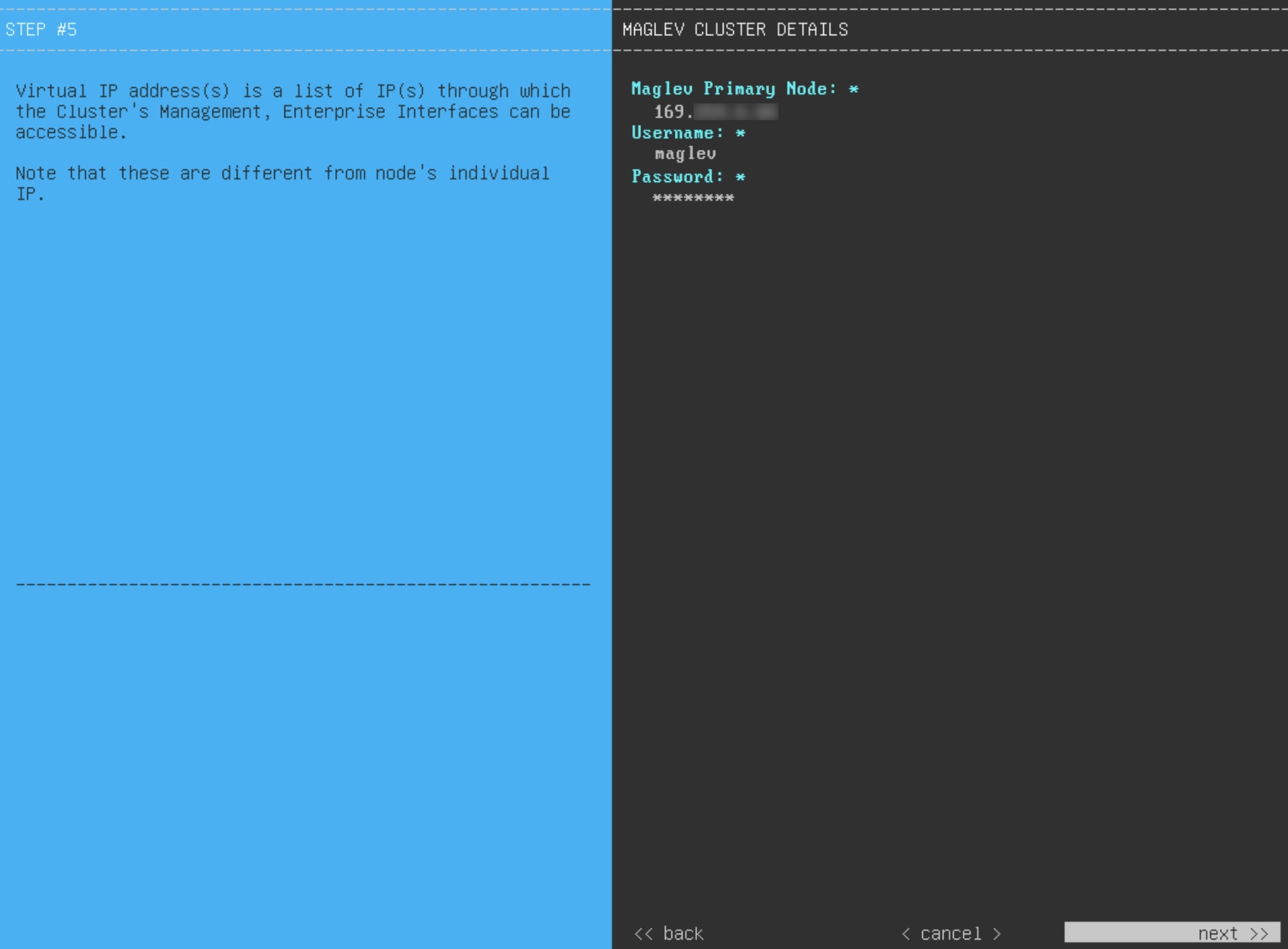
Enter the values for MAGLEV CLUSTER DETAILS, as shown in this table.
After you provide the necessary information, click next>> to continue. Correct validation errors, if any, as you did in previous screens. |
|||||||||||||||||
| 14. | After you have entered the cluster details, the wizard prompts you to enter the USER ACCOUNT SETTINGS values, as shown. 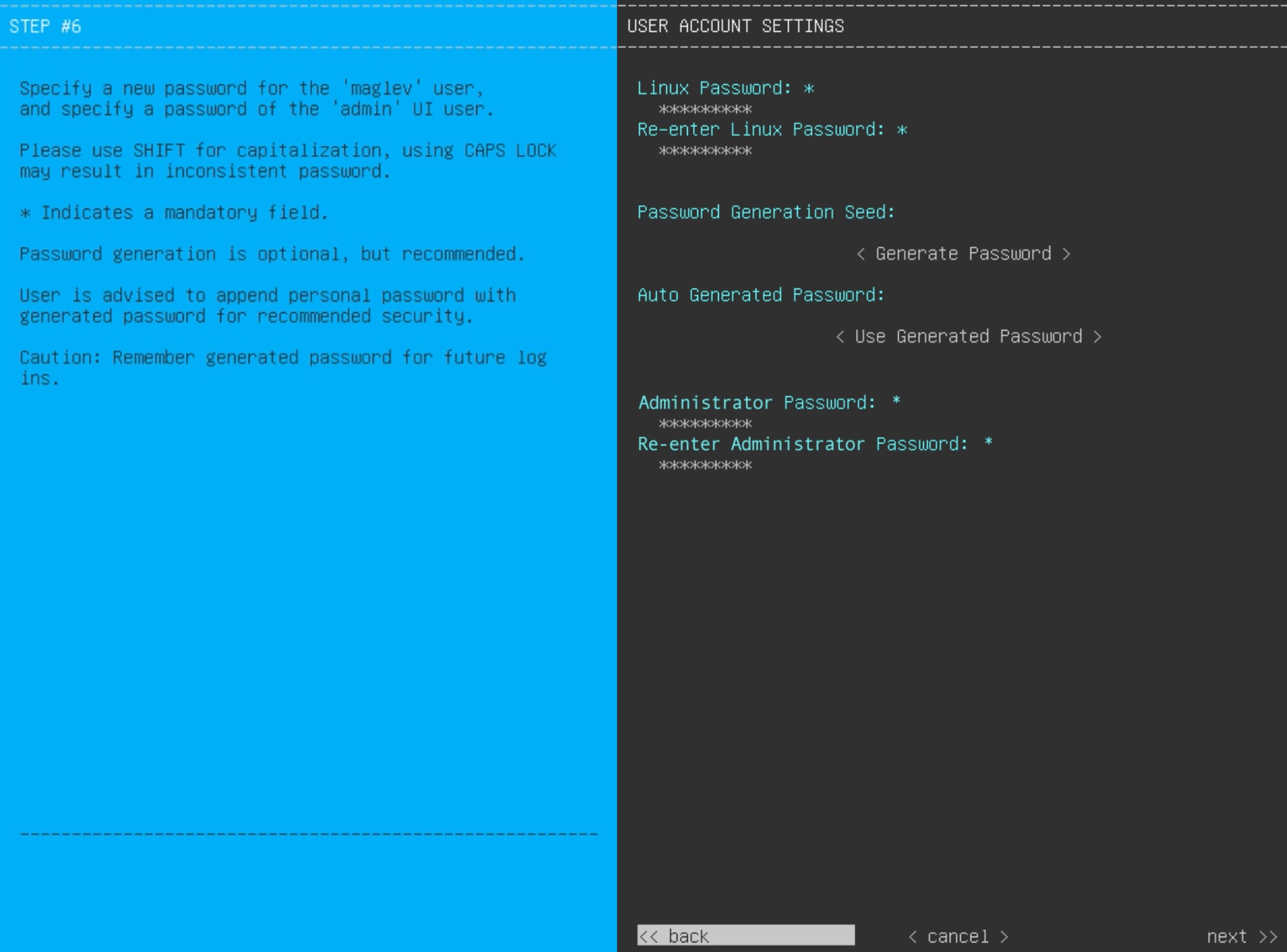
Enter the values for USER ACCOUNT SETTINGS, as shown in this table.
After you provide the necessary information, click next>> to continue. Correct validation errors, if any, as you did in previous screens. |
|||||||||||||||||
| 15. | After you have entered the user account details, the wizard prompts you to enter NTP SERVER SETTINGS values. 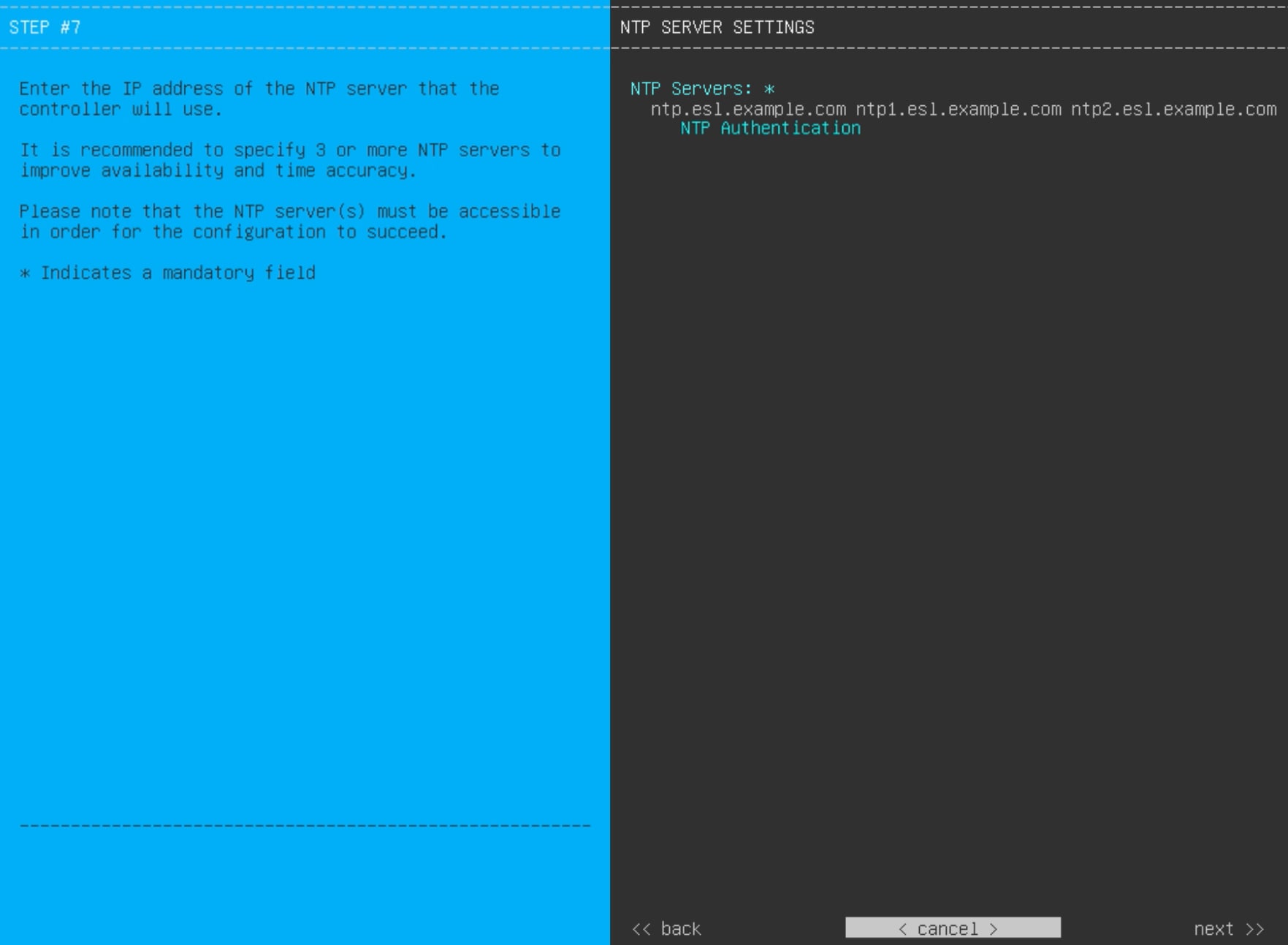
Enter the values for NTP SERVER SETTINGS, as shown in this table.
After you provide the necessary information, click next>> to continue. Correct validation errors, if any, as you did in previous screens. The wizard validates and applies your NTP server configuration. |
|||||||||||||||||
| 16. | When you are finished entering the NTP server settings, a final message appears, stating that the wizard is ready to apply the configuration (as shown). 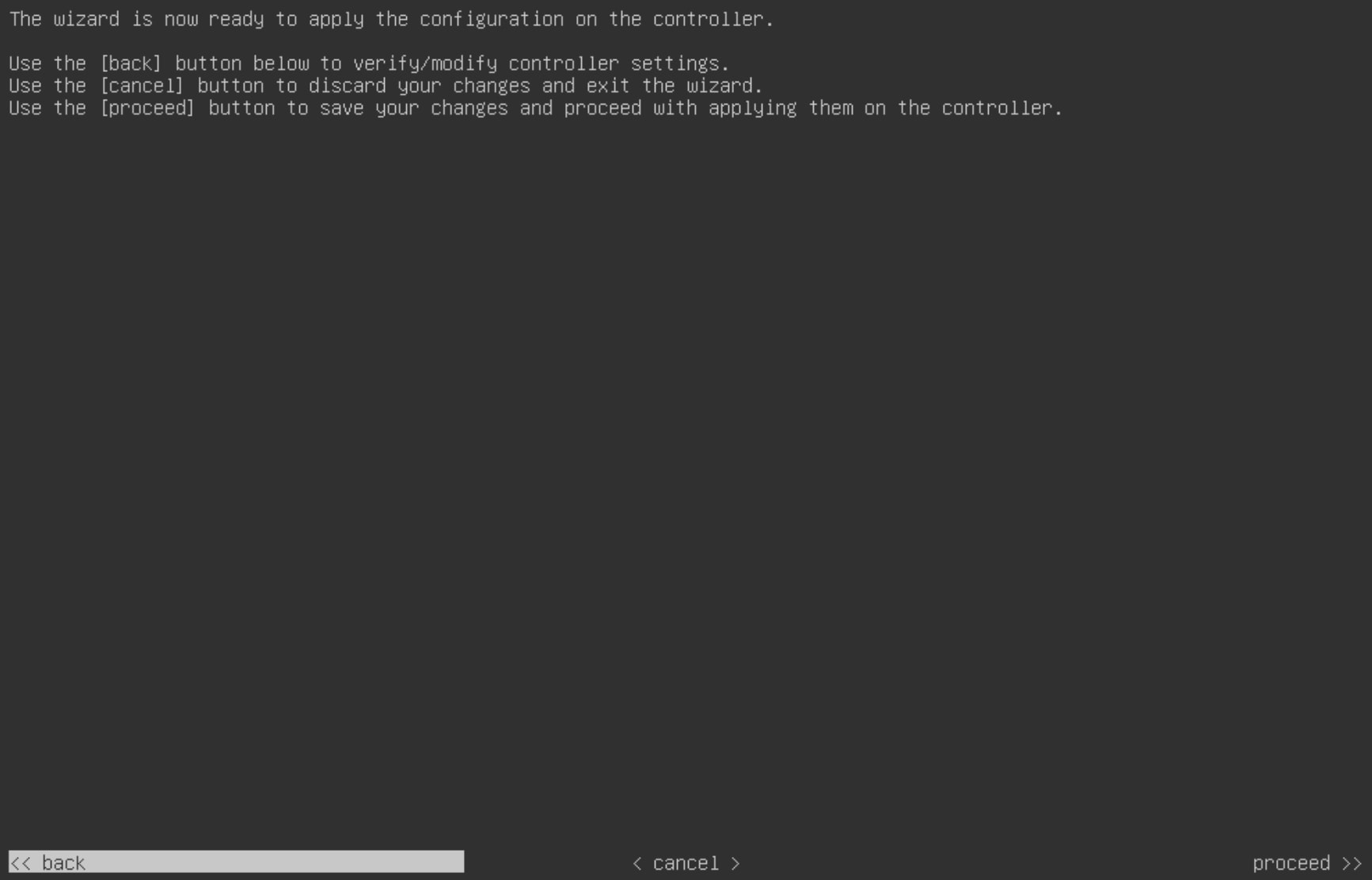
Click proceed>> to complete the configuration wizard. The host will reboot automatically and display messages on the KVM console as it applies your settings and brings up services. This process can take several hours. You can monitor its progress via the KVM console. At the end of the configuration process, the appliance power cycles again, then displays a CONFIGURATION SUCCEEDED! message. 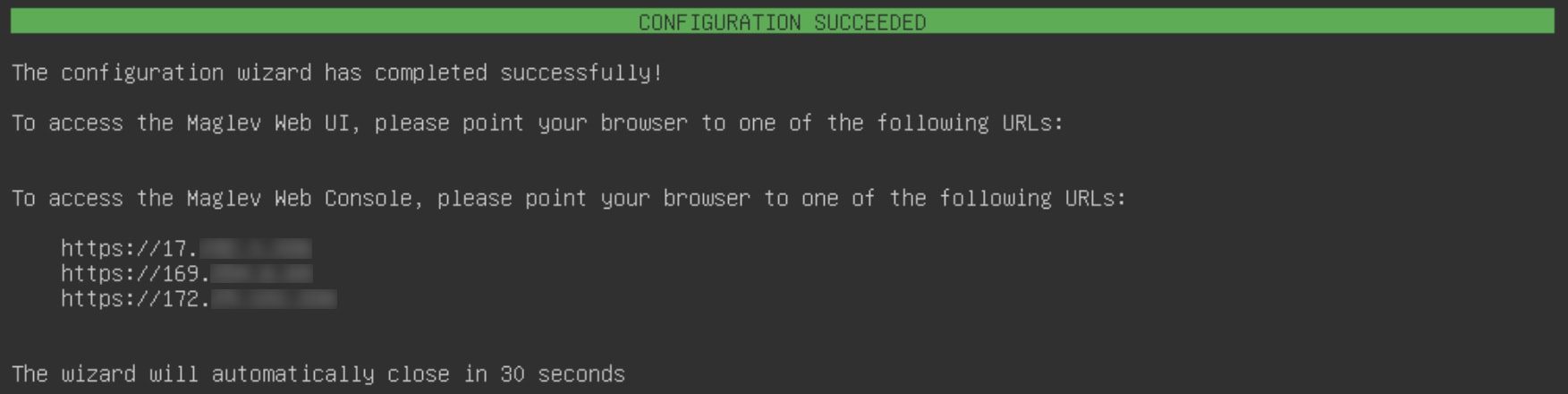
|
What to do next
-
If you have an additional appliance to deploy as the third and final node in the cluster, repeat this procedure.
-
If you have finished adding hosts to the cluster, do the first-time setup: First-time setup workflow.