Cisco Catalyst Center Third-Generation Appliance Installation Guide, Release 3.1.x

PDF

Check the LEDs

Want to summarize with AI?

Log in

Overview

Provides links to the topics that describe what the LEDs on a Catalyst Center appliance indicate.

After you have powered up the appliance, check the state of the front-panel and rear-panel LEDs to ensure it is functioning. Click the appropriate link to view a description of your appliance's LEDs.
32-core and 56-core appliances

Use these illustrations to identify the LEDs on your appliance after installation and power-on, before you configure it.

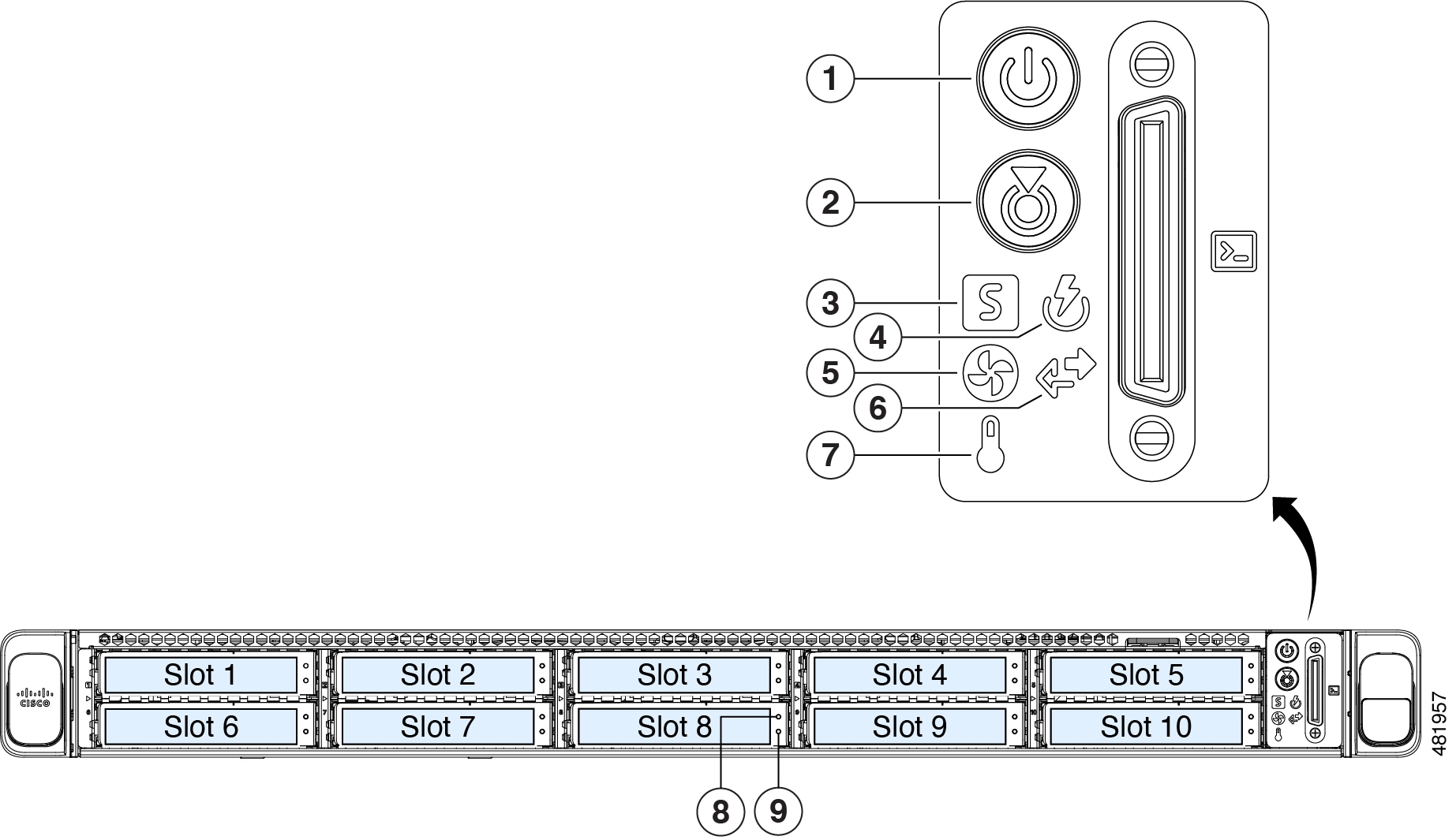
Figure 1. 32-core and 56-core appliance front panel LEDs

This table describes the front panel LED indicators and their meanings.

LED Status indicator

1

Power status: Green

2

Unit identification: Off

3

System status: Green

4

Power supply status: Green

5

Fan status: Green

6

Network link activity: Off

7

Temperature status: Green

8

Drive fault LED: Off

9

Drive activity LED: Green

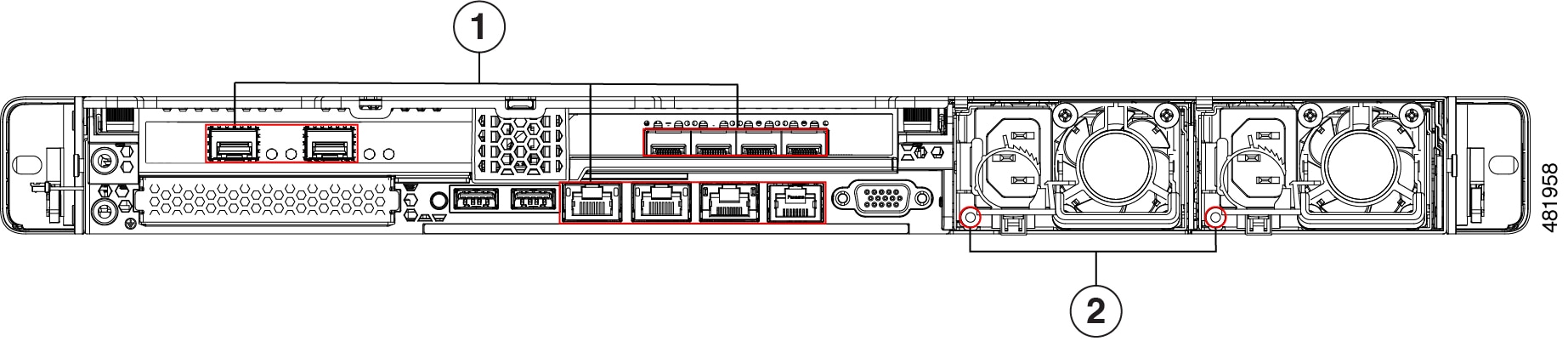
Figure 2. 32-core and 56-core appliance rear panel LEDs

This table describes the rear panel LED indicators and their meanings.

LED Status indicator

1

After initial power-on, all the ports should have their link status and link speed LEDs showing as off.

After network settings are configured and tested using either the Maglev Configuration wizard or browser-based configuration wizard, the link status and link speed LEDs for all cabled ports should be green. The LED for all uncabled ports should remain off.

2

AC power supply status LEDs: Green


80-core appliance

These illustrations show the LEDs for a functional appliance after physical installation and first power-on and before configuration.

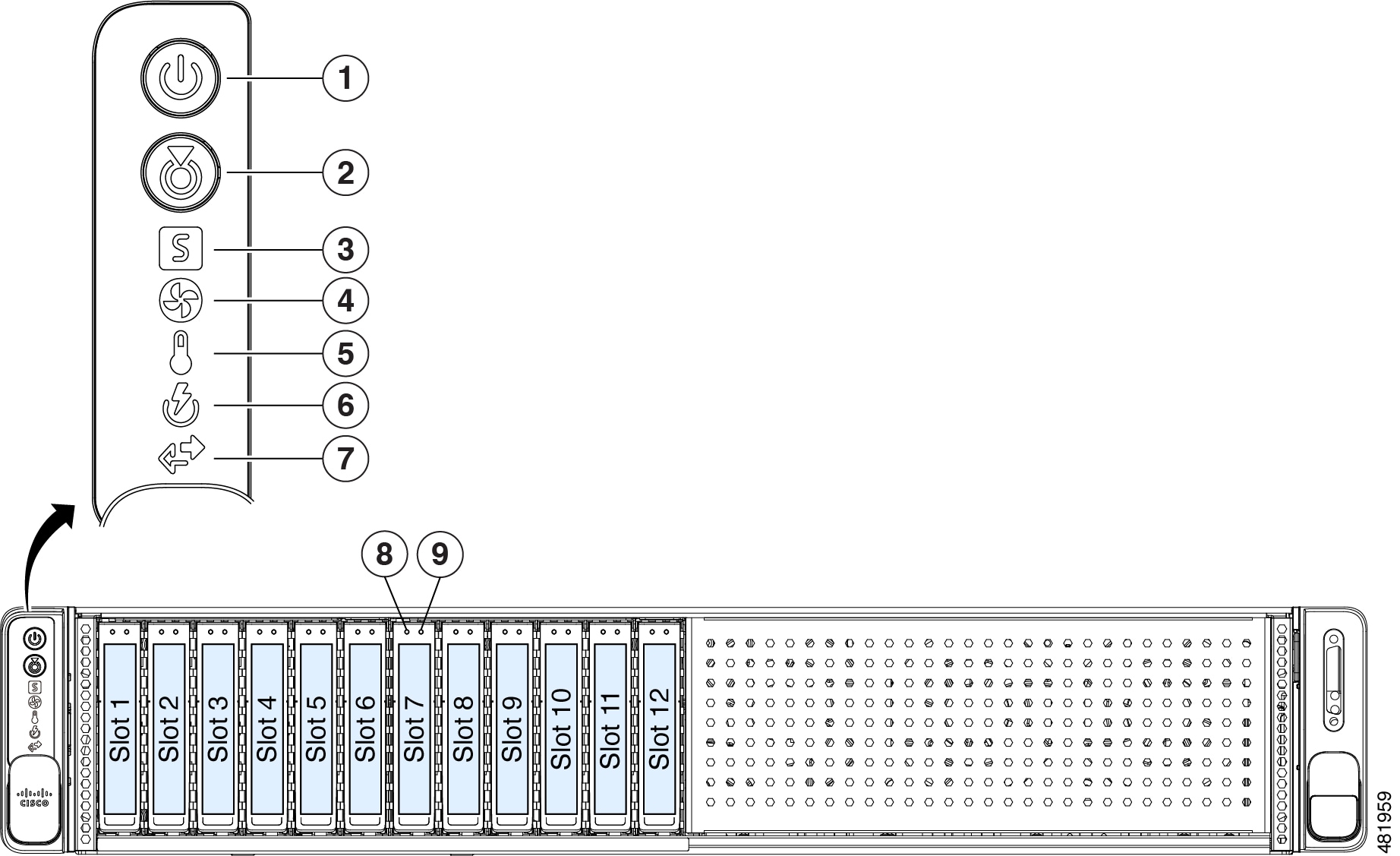
Figure 3. 80-core appliance front panel LEDs

This table describes the front panel LED indicators and their meanings.

LED Status indicator

1

Power status: Green

2

Unit identification: Off

3

System status: Green

4

Fan status: Green

5

Temperature status: Green

6

Power supply status: Green

7

Network link activity: Off

8

Drive fault LED: Off

9

Drive activity LED: Green

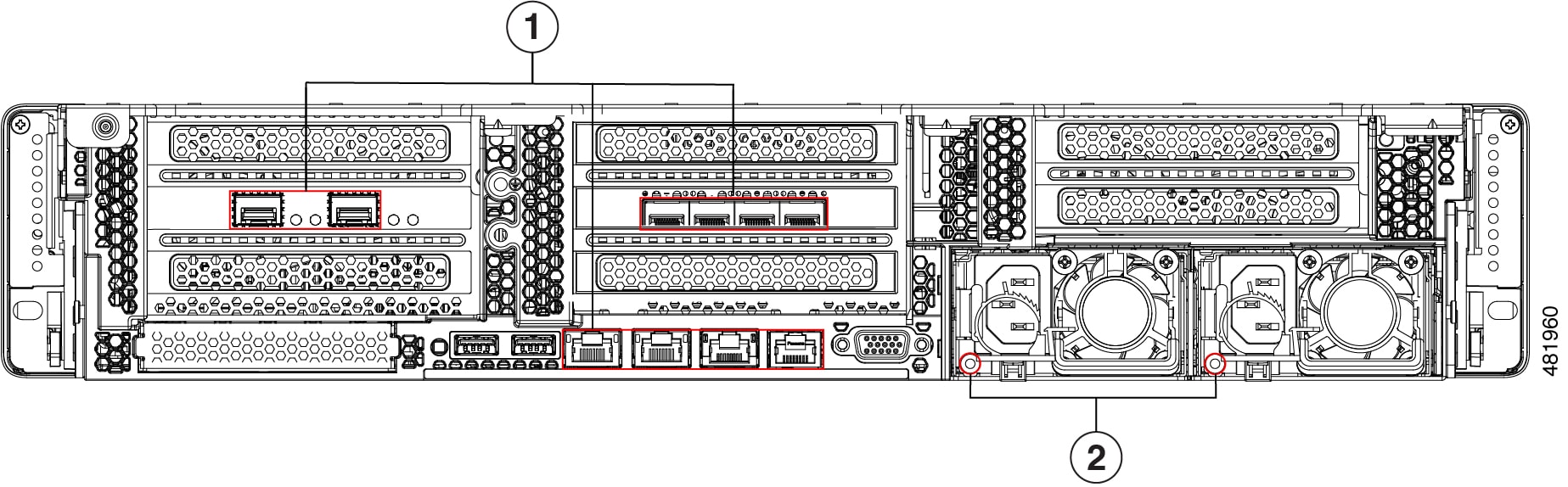
This table describes the rear panel LED indicators and their meanings.

Figure 4. 80-core appliance rear panel LEDs
LED Status indicator

1

After initial power-on, all the ports should have their link status and link speed LEDs showing as off.

After network settings are configured and tested using either the Maglev Configuration wizard or browser-based configuration wizard, the link status and link speed LEDs for all cabled ports should be green. The LED for all uncabled ports should remain off.

2

AC power supply status LEDs: Green