Overview
You can set up the first appliance in a cluster using the Maglev Configuration wizard.
Do the steps in this procedure to configure the first installed appliance as the primary node. You must always configure the first appliance as the primary node, whether it will operate standalone or as part of a cluster.
If you are configuring the installed appliance as a secondary node for an existing cluster that already has a primary node, follow the steps described in Configure a secondary node using the Maglev wizard instead.
Verify that all of the IP addresses you enter while completing this procedure are valid addresses with valid netmasks. Also verify that the addresses and their corresponding subnets do not overlap. Service communication issues can result if they do.
Before configuring the appliances in a three-node cluster, log out of those appliances. If you remain logged in, the Quick Start workflow—which you use to discover network devices and enable telemetry—does not start after you configure your cluster’s appliances and log in to Catalyst Center for the first time.
Before you begin
Ensure that you have done these prerequisites:
-
Collected all of the information specified in Required IP addresses and subnets and Required configuration information.
-
Installed the first appliance, as described in Appliance installation workflow.
-
Configured Cisco IMC browser access on the primary node, as described in Enable browser access to the Cisco Integrated Management Controller.
-
Checked that the ports of the primary node appliance, and the switches they use, are properly configured, as described in Execute preconfiguration tasks.
-
Confirmed that you are using a compatible browser. For a list of compatible browsers, see the Release Notes document for the release of Catalyst Center you are installing.
-
Enabled ICMP on the firewall between Catalyst Center and both the default gateway and the DNS server you specify in this procedure. The Maglev Configuration wizard uses ping to verify the gateway and DNS server you specify.
If ICMP is not enabled and a firewall is in place, the ping may be blocked, which will prevent you from completing the wizard.
Procedure
| 1. | Point your browser to the Cisco IMC IP address you set during the Cisco IMC GUI configuration you did, and log in to the Cisco IMC GUI as the Cisco IMC user (see Enable browser access to the Cisco Integrated Management Controller).
After you log in, the appliance displays the
Cisco Integrated Management Controller Chassis Summary window with a hyperlinked menu at the top.
|
|||||||||||||||||
| 2. | From the hyperlinked menu, select and then select HTML-based KVM. The KVM console opens in a separate window or tab automatically. Use it to monitor the progress of the configuration and respond to the Maglev Configuration wizard prompts. |
|||||||||||||||||
| 3. | With the KVM displayed, reboot the appliance by making one of these selections:
If you are asked to confirm your choice to reboot the appliance, click OK. After displaying reboot messages, the KVM console displays the Static IP Configuration screen. 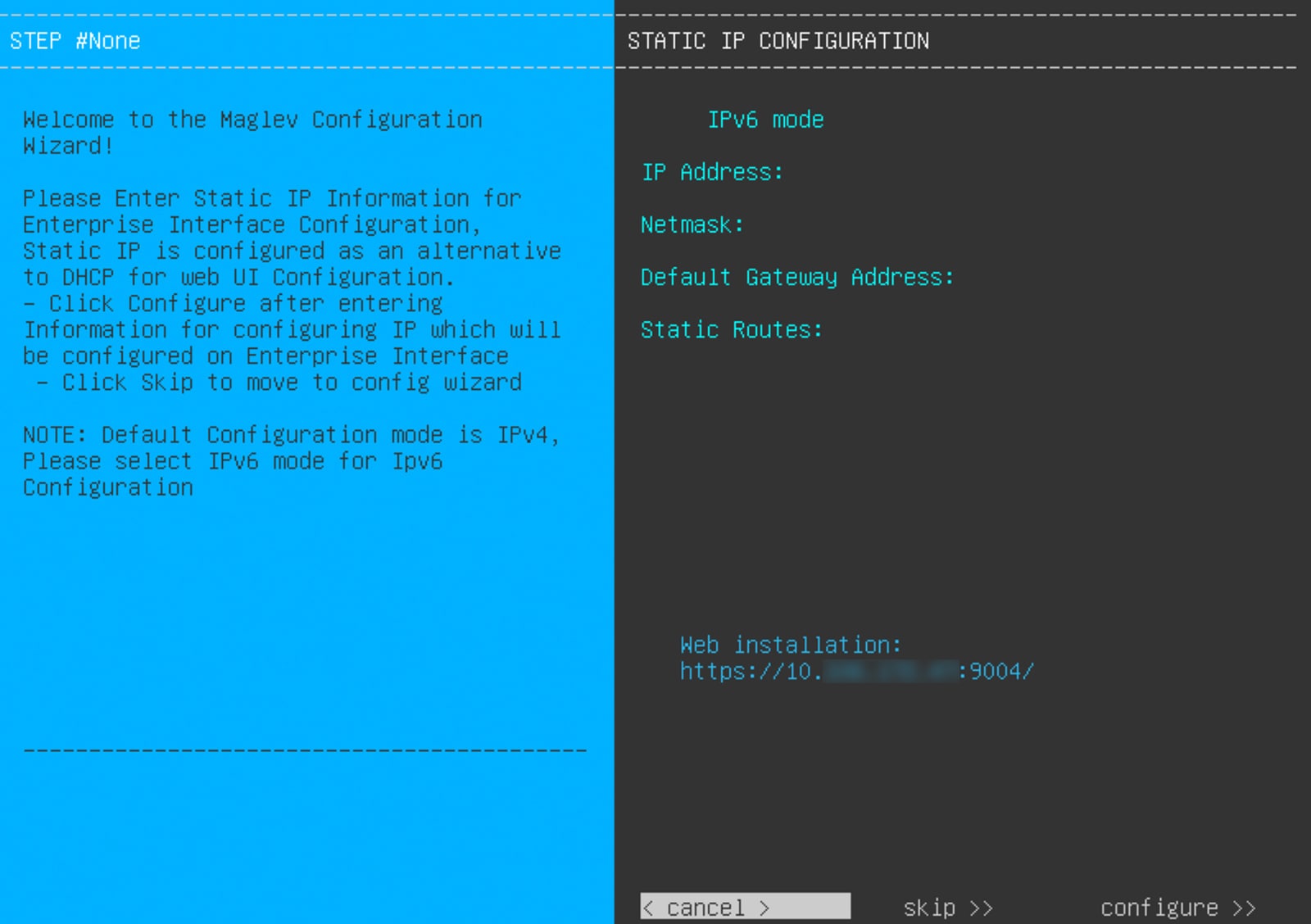
|
|||||||||||||||||
| 4. | Click Skip. The KVM console displays the Maglev Configuration wizard welcome screen. 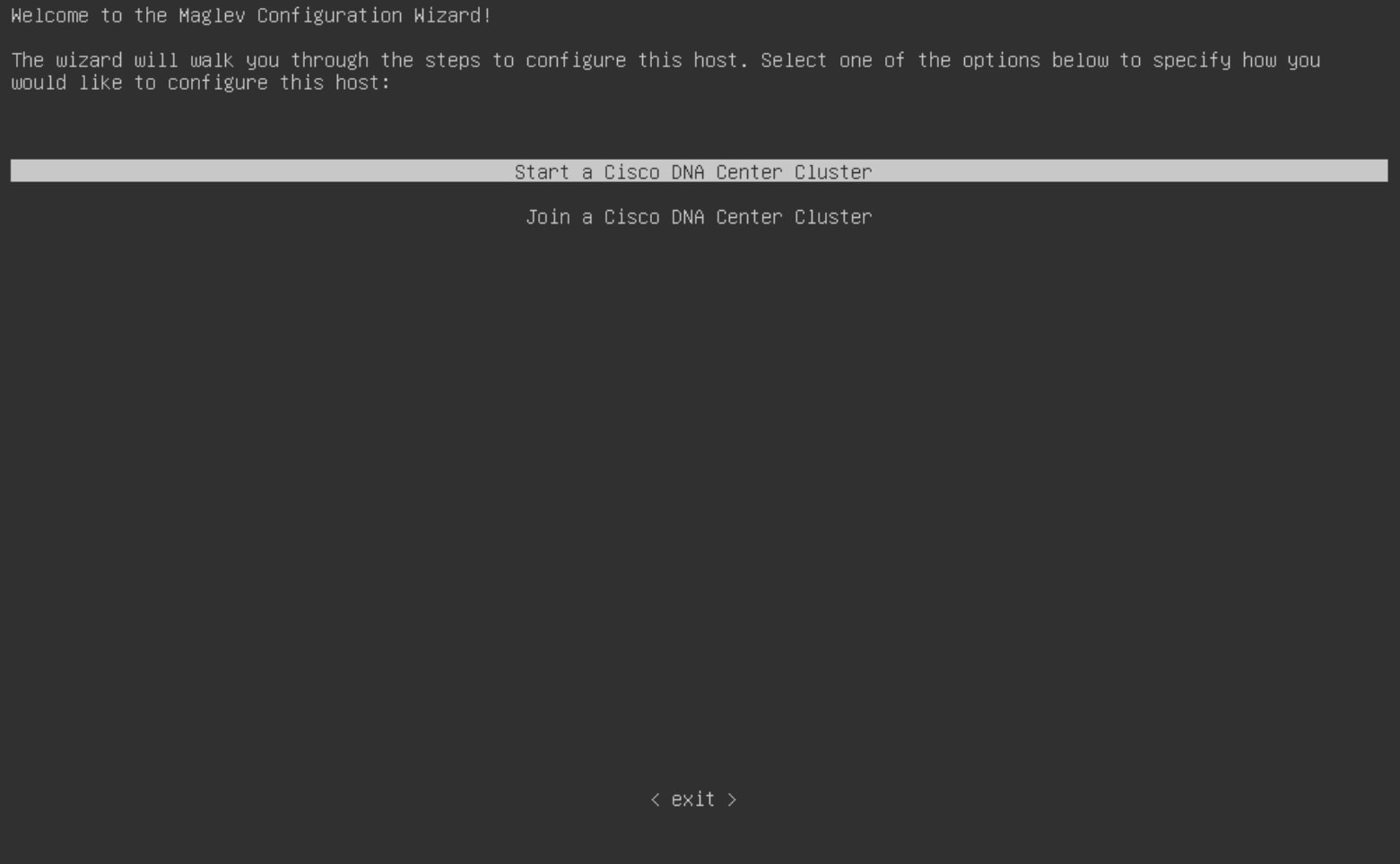
|
|||||||||||||||||
| 5. | Click Start a Catalyst Center Cluster to begin configuring the primary node. The screen updates. 
|
|||||||||||||||||
| 6. | Select one of these options:
The screen updates. 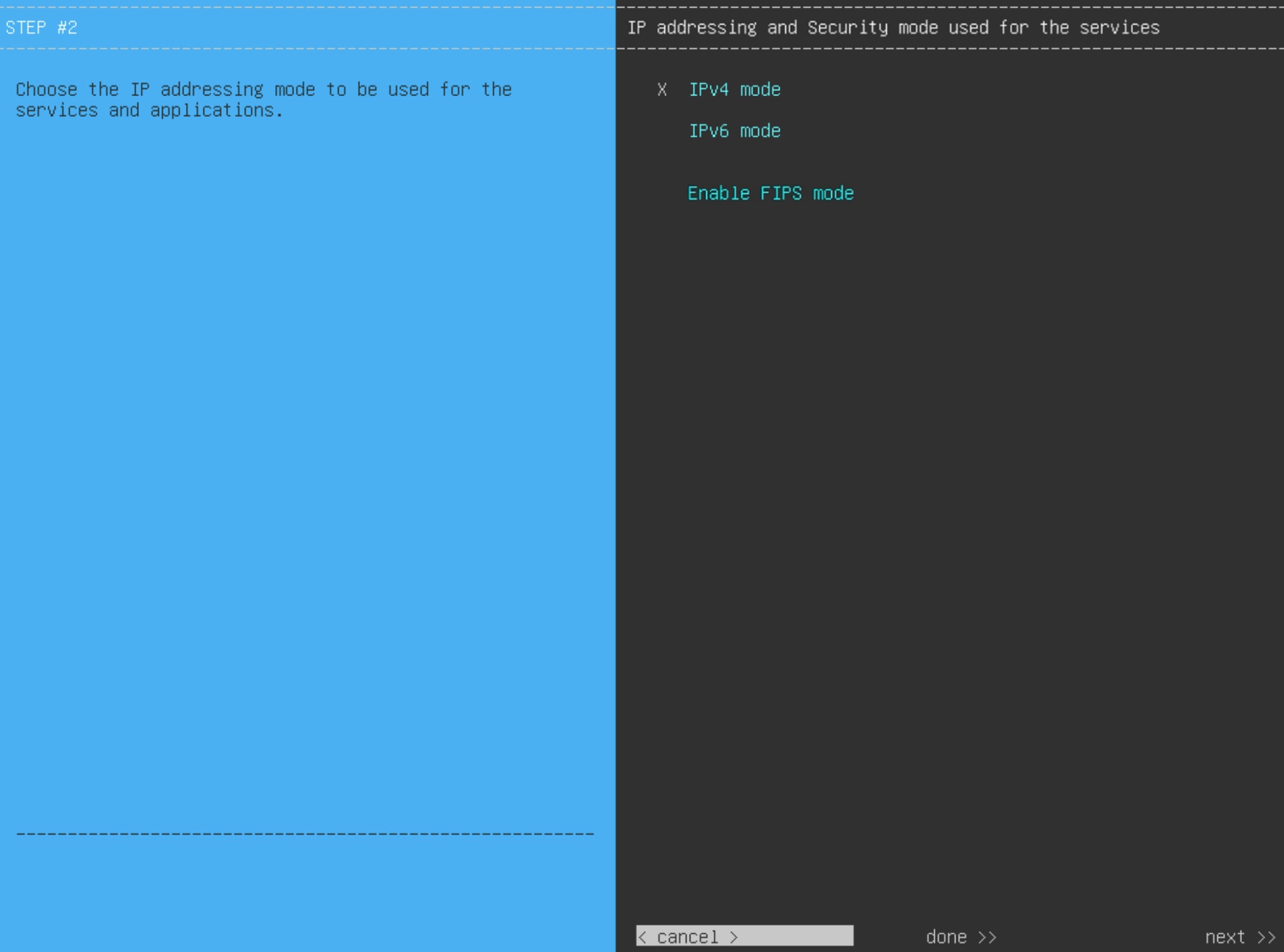
|
|||||||||||||||||
| 7. | Do these steps, then click next>> to continue:
|
|||||||||||||||||
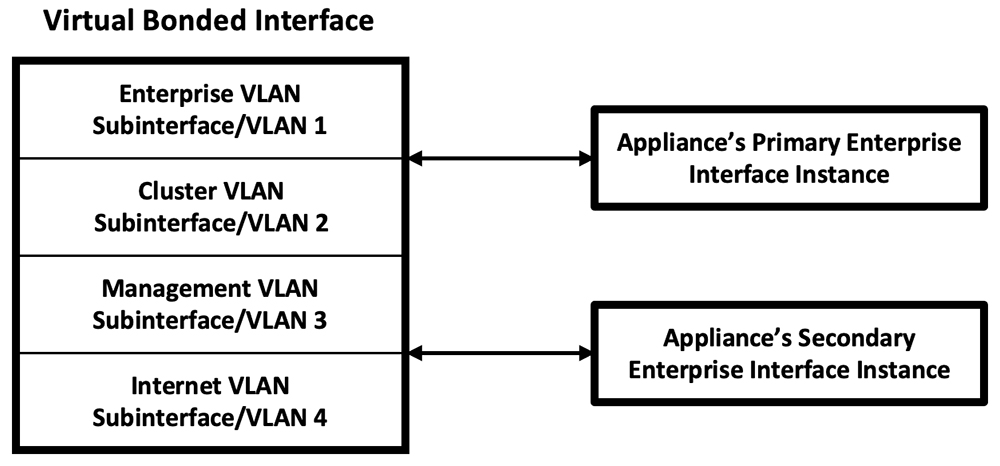
| 8. | (Optional) Follow the onscreen instructions to enable Layer 2 port channel mode (with VLAN tagging) for the appliance. After making your selections, click next>> to continue. 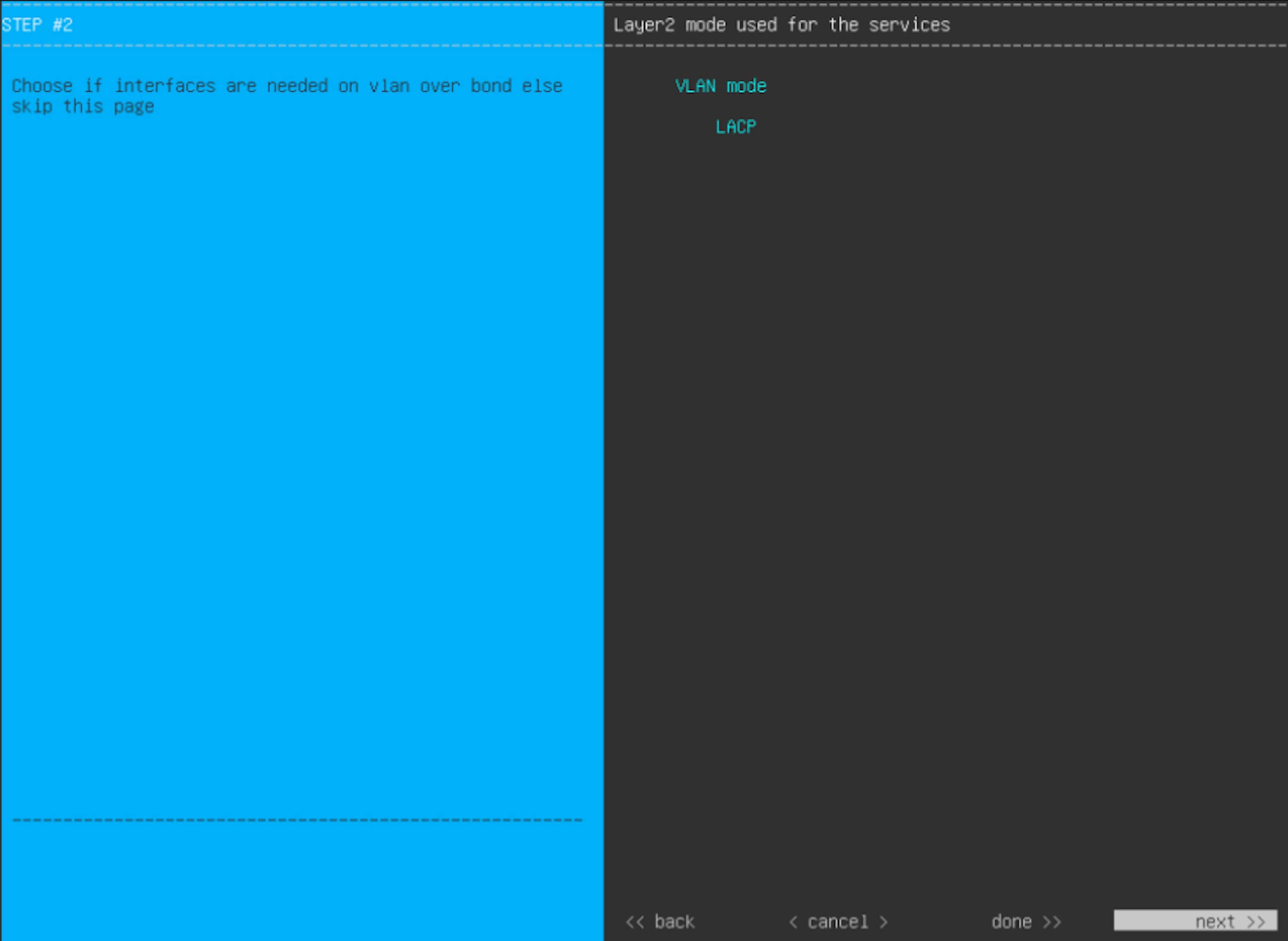
The wizard discovers all of the ports on the appliance and presents them to you one by one, in separate screens, in this order:
If the wizard fails to display either or both of the Enterprise and Cluster ports during the course of configuration, it might indicate that these ports are nonfunctional or disabled. These two ports are required for Catalyst Center functionality. If you discover that they are nonfunctional, select cancel to exit the configuration wizard immediately. Be sure that you have completed all of the steps provided in Execute preconfiguration tasks before resuming the configuration or contacting the Cisco Technical Assistance Center. |
|||||||||||||||||
| 9. | The wizard first presents the 10 Gbps Enterprise port as NETWORK ADAPTER #1. As explained in Interface cable connections, this is a required port used to link the appliance to the enterprise network. Apply the host IP address, netmask, and other values that are appropriate for this purpose (see Required IP addresses and subnets and Required configuration information for the values to enter). 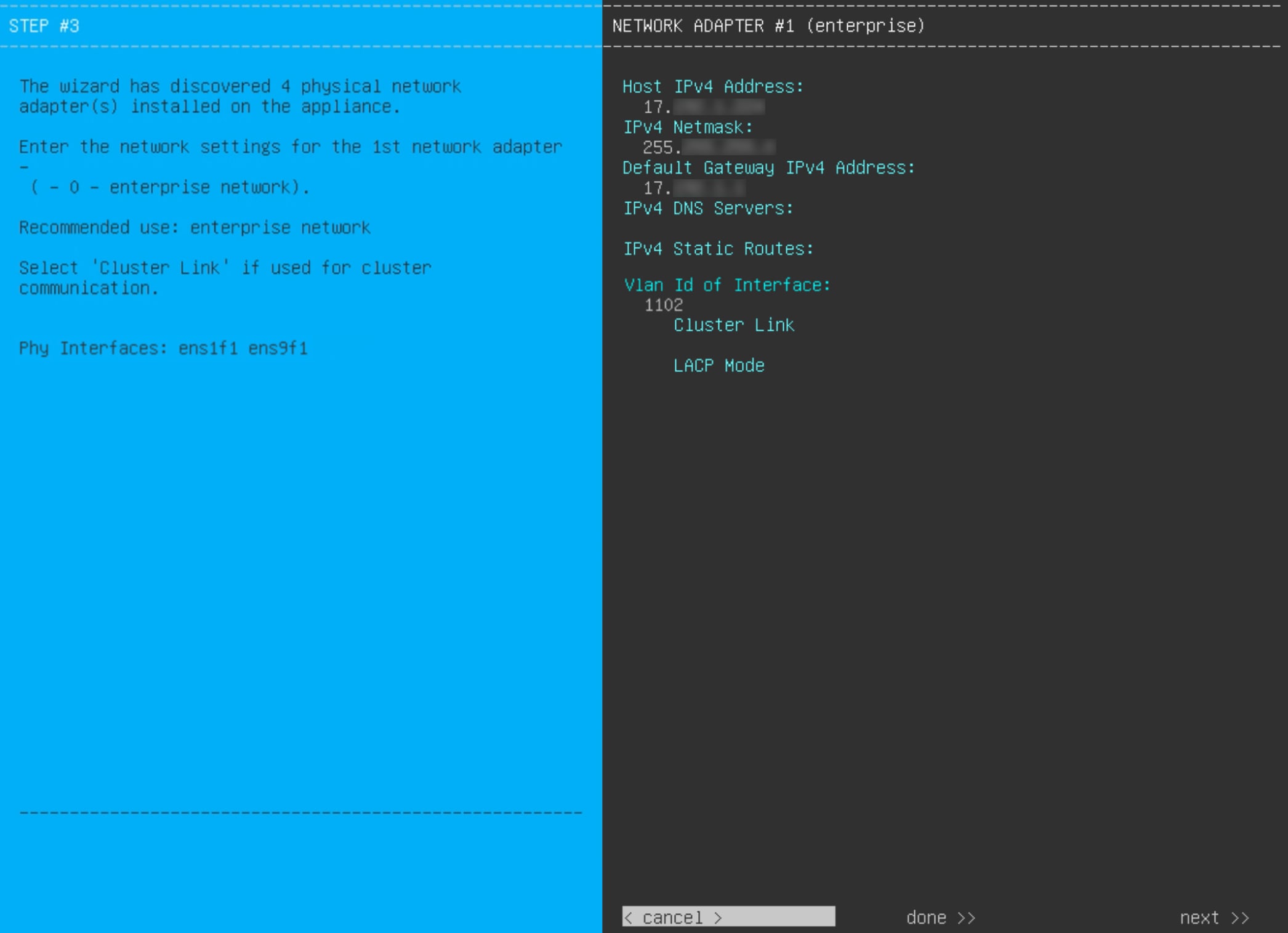
This table lists the configuration values for NETWORK ADAPTER #1 to enter.
After you finish entering the configuration values, click next>> to continue. The wizard validates the values you entered and issues an error message if any are incorrect. If you receive an error message, check that the value you entered is correct, then reenter it. If needed, click <<back to reenter it. |
|||||||||||||||||
| 10. | After successful validation of the Enterprise port values you entered, the wizard presents the 10 Gbps Cluster port and presents it as NETWORK ADAPTER #2. As explained in Interface cable connections, this port is used to link the appliance to the cluster, so apply the host IP address, netmask, and other values that are appropriate for this purpose (see Required IP addresses and subnets and Required configuration information for the values to enter). 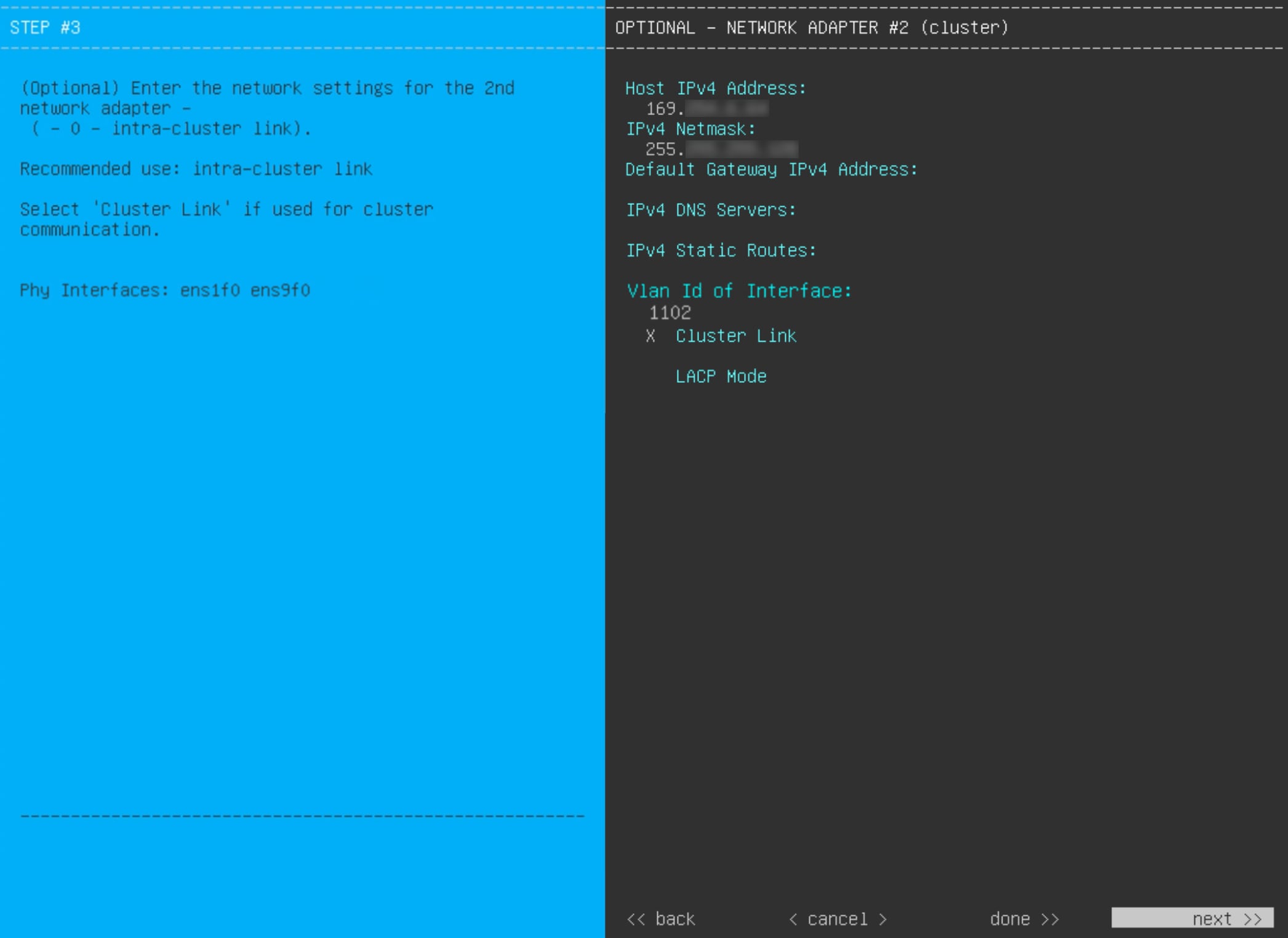
This table lists the configuration values for NETWORK ADAPTER #2 to enter.
After you provide the necessary information, click next>> to continue. Correct validation errors, if any, as you did in previous screens. The wizard validates and applies your network adapter configurations. |
|||||||||||||||||
| 11. | After successful validation of the Cluster port values you entered, the wizard presents the 1 Gbps/10 Gbps Management port and presents it as NETWORK ADAPTER #3. As explained in Interface cable connections, this port is used to access the Catalyst Center GUI from your management network. Apply the host IP address, netmask, and other values that are appropriate for this purpose (see Required IP addresses and subnets and Required configuration information for the values to enter). 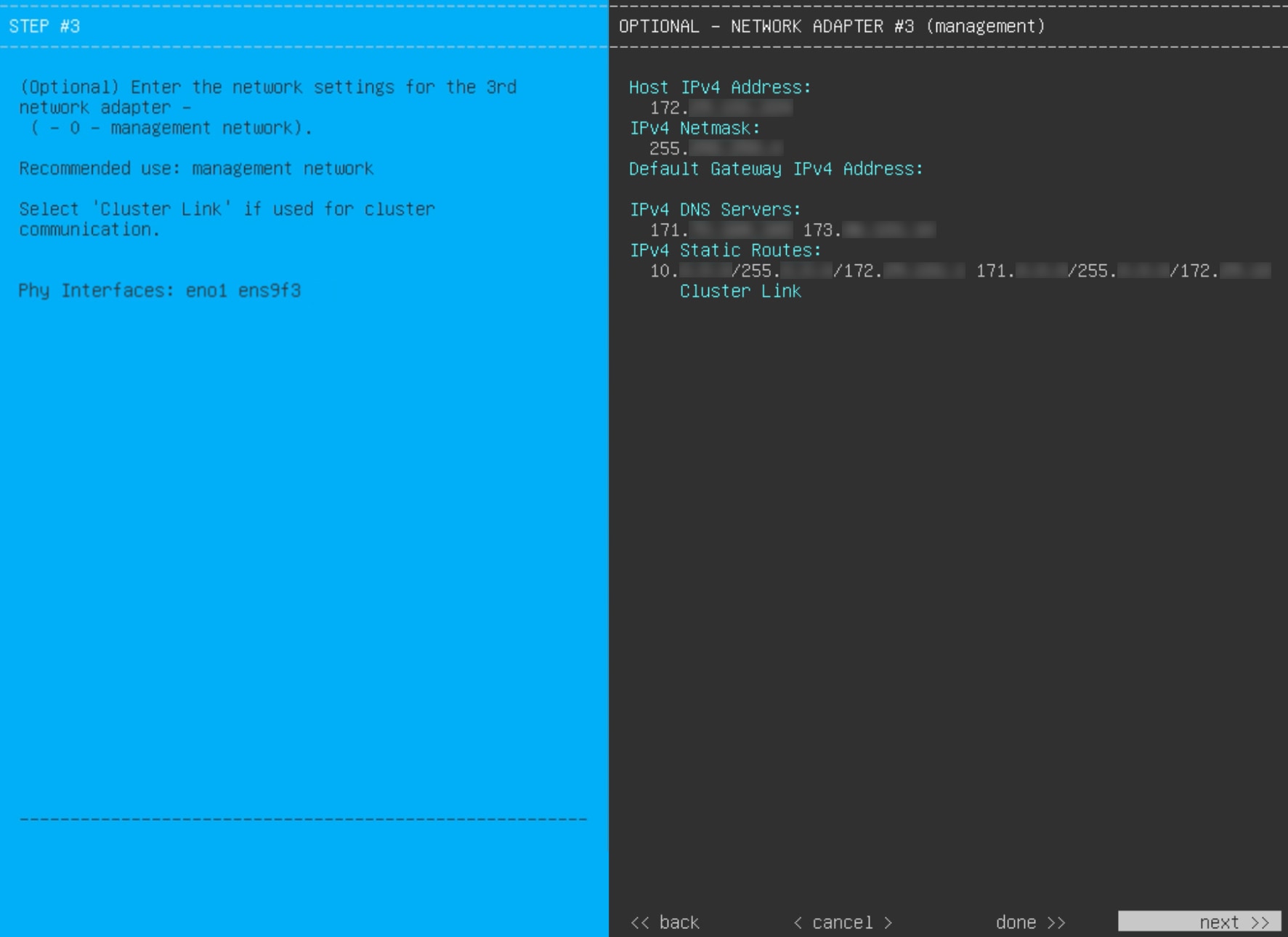
This table lists the configuration values for NETWORK ADAPTER #3 to enter. After you provide the necessary information, click next>> to continue. Correct validation errors, if any, as you did in previous screens. The wizard validates and applies your network adapter configurations.
|
|||||||||||||||||
| 12. | After successful validation of the Management port values you entered, the wizard presents the 1 Gbps/10 Gbps Internet port as NETWORK ADAPTER #4. As explained in Interface cable connections, this is an optional port used to link the appliance to the Internet when you cannot do so through the 10 Gbps Enterprise port. Apply the host IP address, netmask, and other values that are appropriate for this purpose (see Required IP addresses and subnets and Required configuration information for the values to enter). 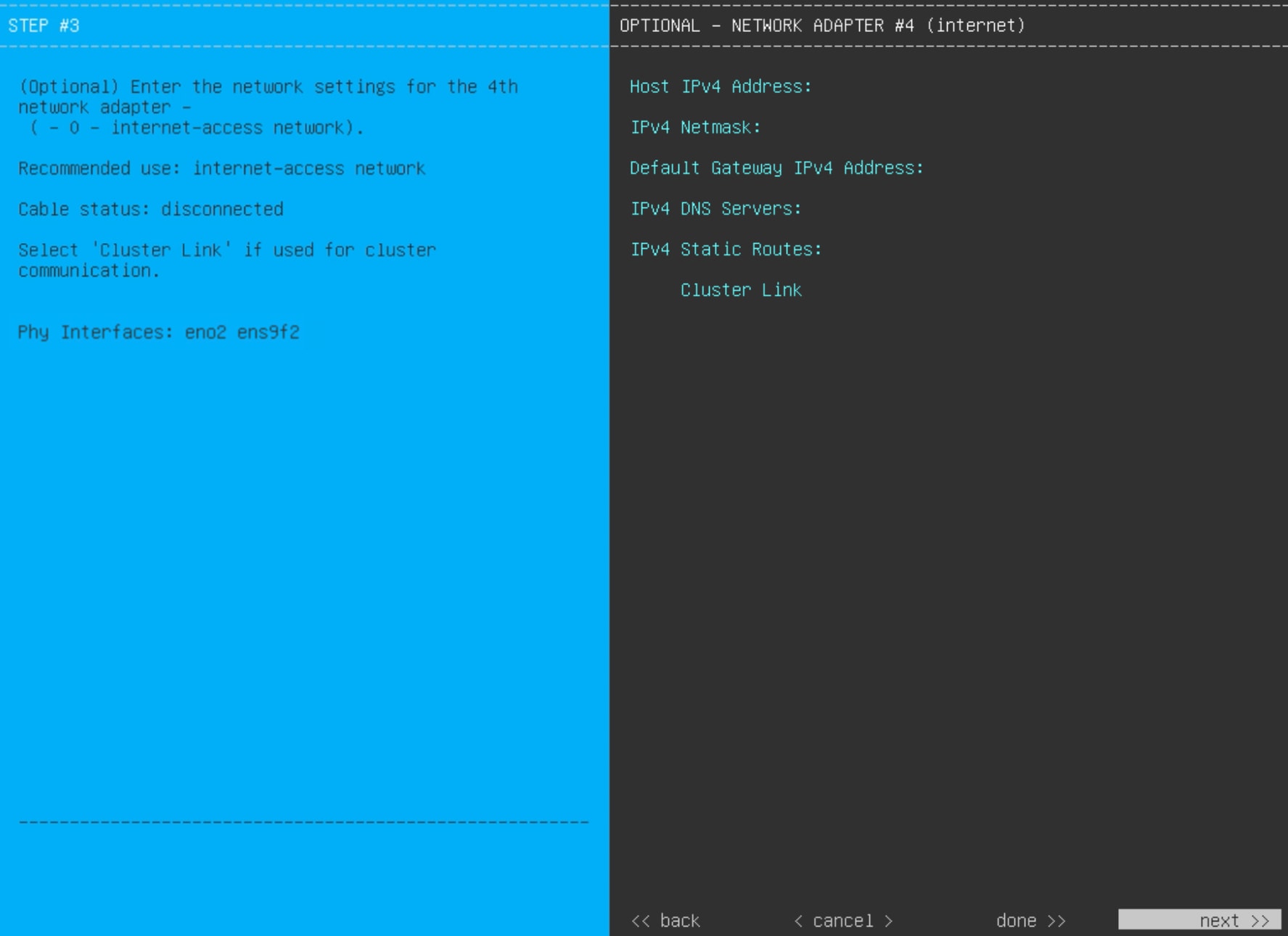
This table lists the configuration values for NETWORK ADAPTER #4 to enter.
After you provide the necessary information, click next>> to continue. Correct validation errors, if any, as you did in previous screens. The wizard validates and applies your network adapter configurations. |
|||||||||||||||||
| 13. | After the network adapter configuration is complete, the wizard prompts you to enter the IP address of the DNS server that you are using, as shown. 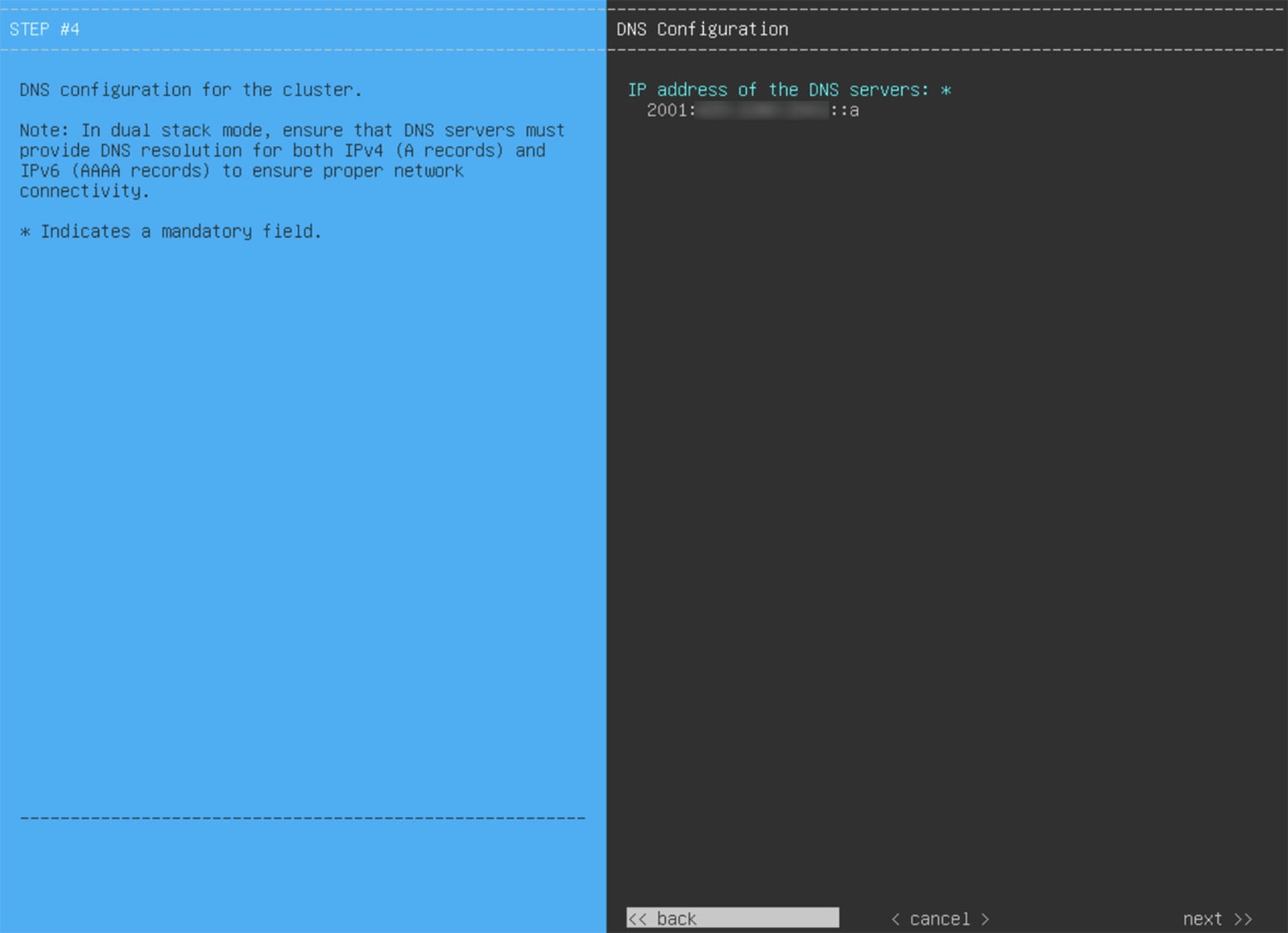
|
|||||||||||||||||
| 14. | After DNS server configuration is complete, the wizard prompts you to enter configuration values for the NETWORK PROXY that you are using, as shown. 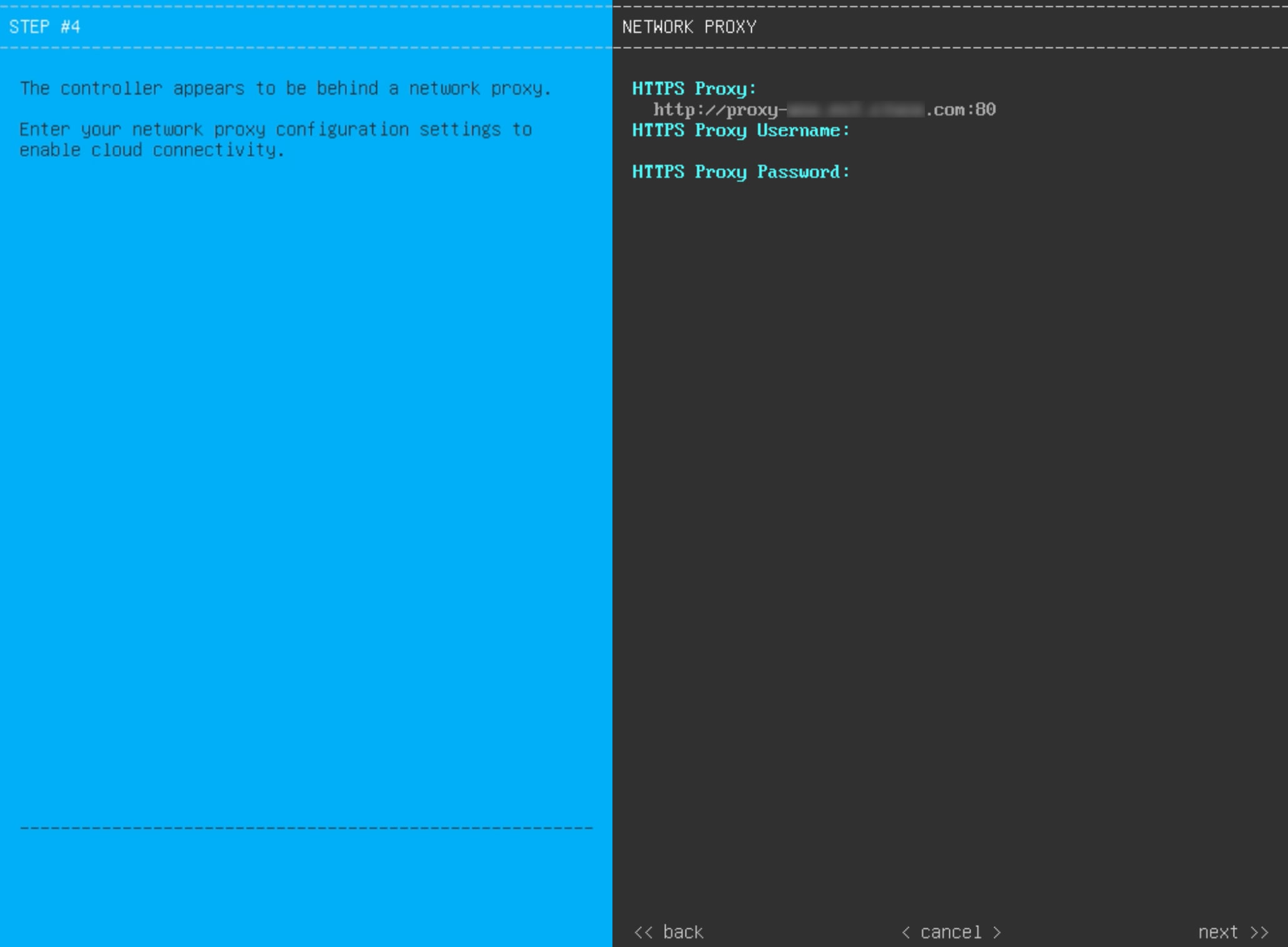
Enter the configuration values for the NETWORK PROXY, as shown in this table.
After you provide the necessary information, click next>> to continue. Correct validation errors, if any, as you did in previous screens. |
|||||||||||||||||
| 15. | After network proxy configuration completes, the wizard prompts you to enter virtual IP addresses for the primary node, in MAGLEV CLUSTER DETAILS, as shown. 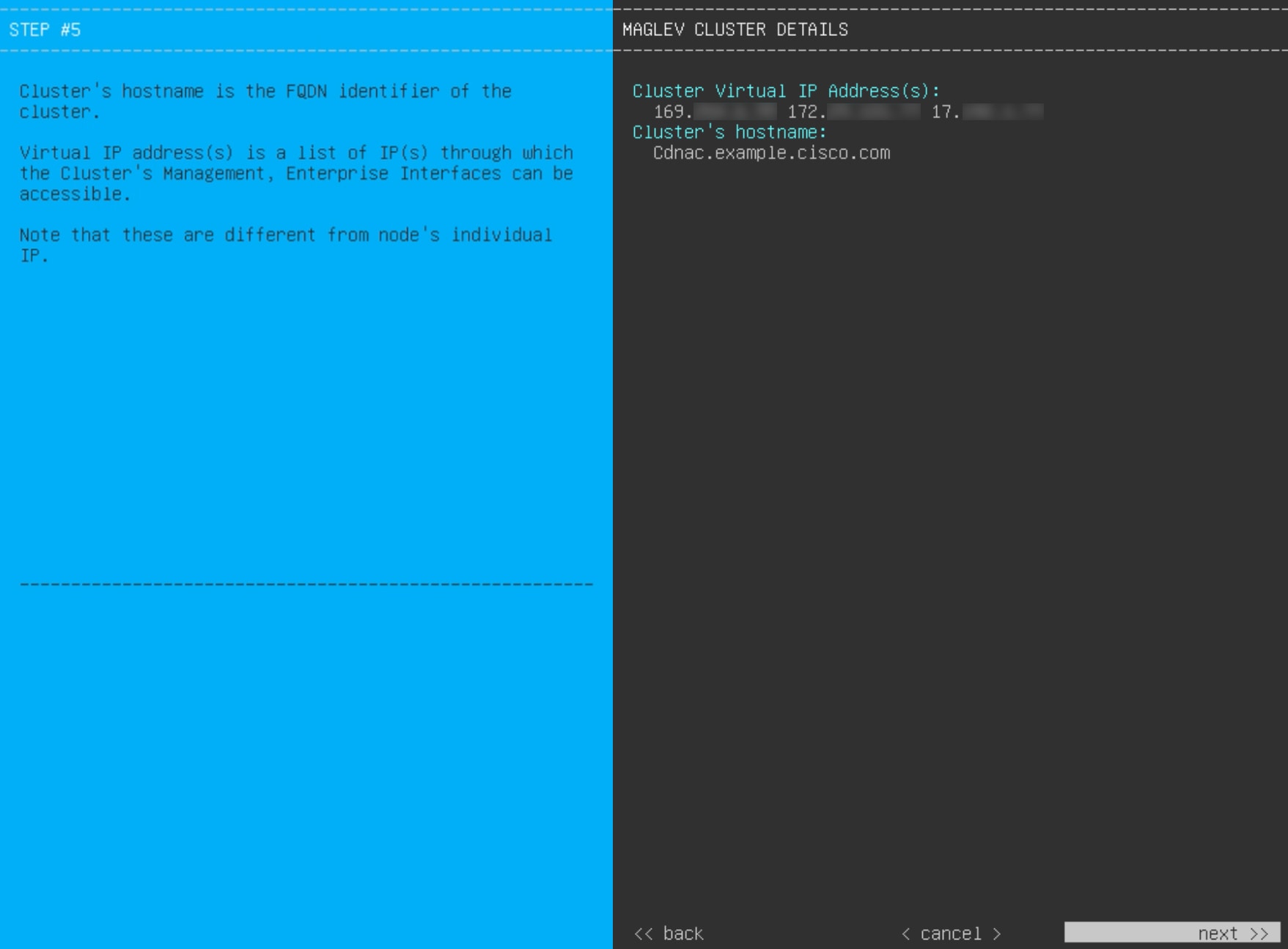
Enter a space-separated list of the virtual IP addresses used for traffic between the cluster and your network. This is required for both three-node clusters and single-node clusters that will be converted into a three-node cluster in the future. If you have a single-node cluster setup and plan to stick with it, skip this step and continue to the next step.
You can also specify a fully qualified domain name (FQDN) for your cluster. Catalyst Center uses this domain name to do these tasks:
After you provide the necessary information, click next>> to continue. Correct validation errors, if any, as you did in previous screens. |
|||||||||||||||||
| 16. | After you have entered the cluster details, the wizard prompts you to enter USER ACCOUNT SETTINGS values, as shown. 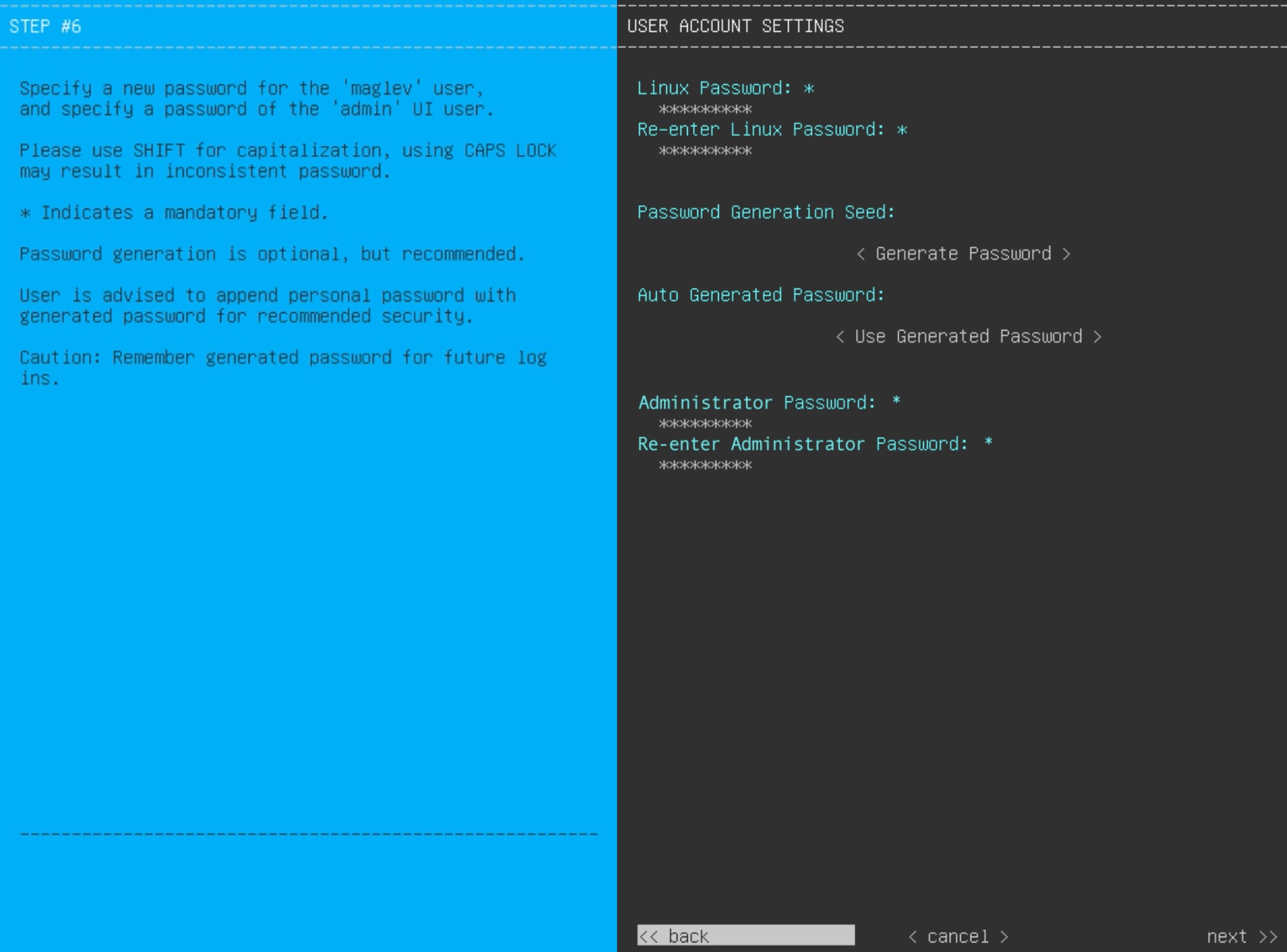
This table lists the configuration values for USER ACCOUNT SETTINGS to enter.
After you provide the necessary information, click next>> to continue. Correct validation errors, if any, as you did in previous screens. |
|||||||||||||||||
| 17. | After you have entered the user account details, the wizard prompts you to enter NTP SERVER SETTINGS values. 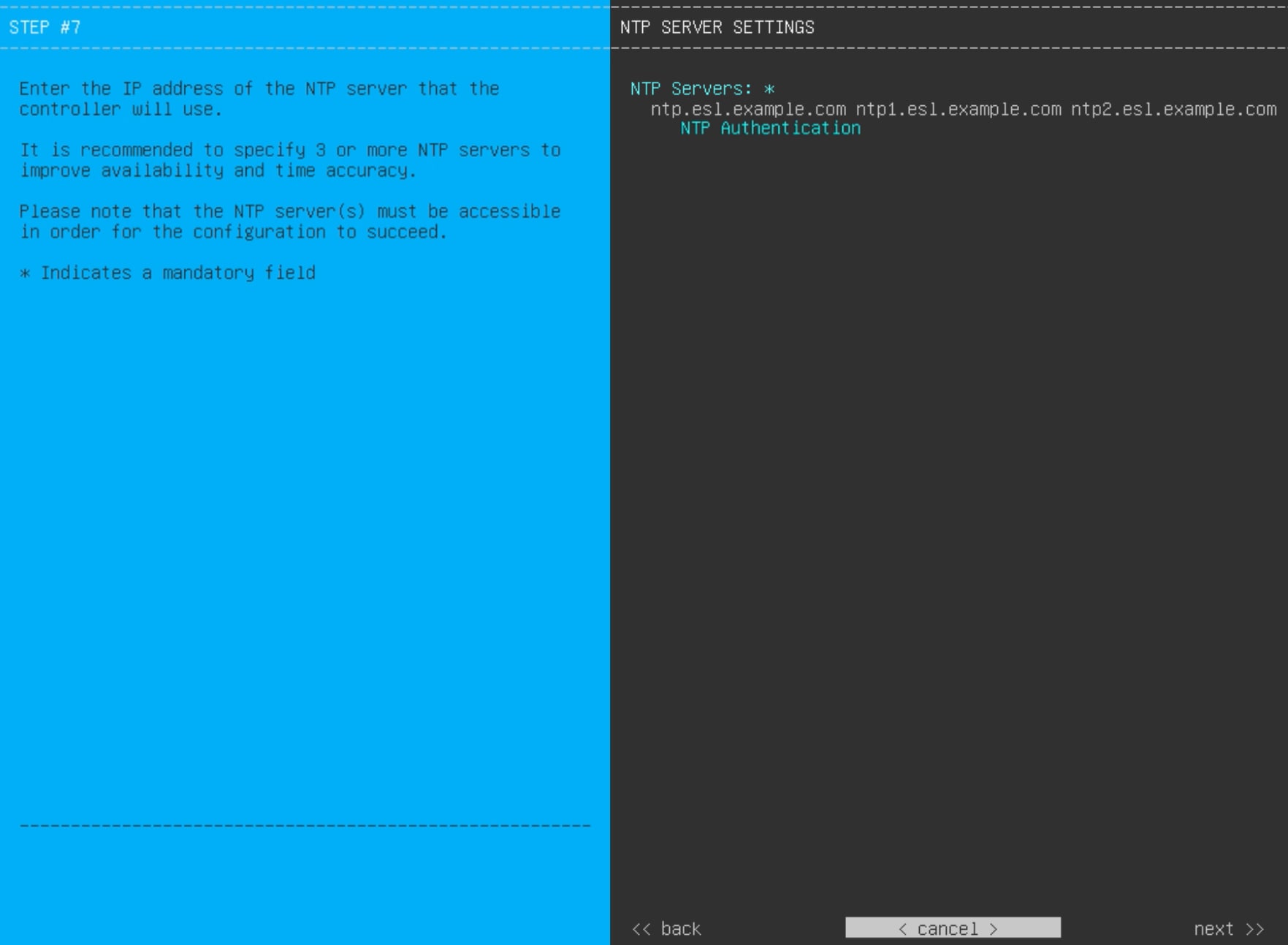
This table lists the configuration values for NTP SERVER SETTINGS to enter.
After you provide the necessary information, click next>> to continue. Correct validation errors, if any, as you did in previous screens. The wizard validates and applies your NTP server configuration. |
|||||||||||||||||
| 18. | After you have specified the appropriate NTP servers, the wizard prompts you to enter MAGLEV ADVANCED SETTINGS values, as shown.
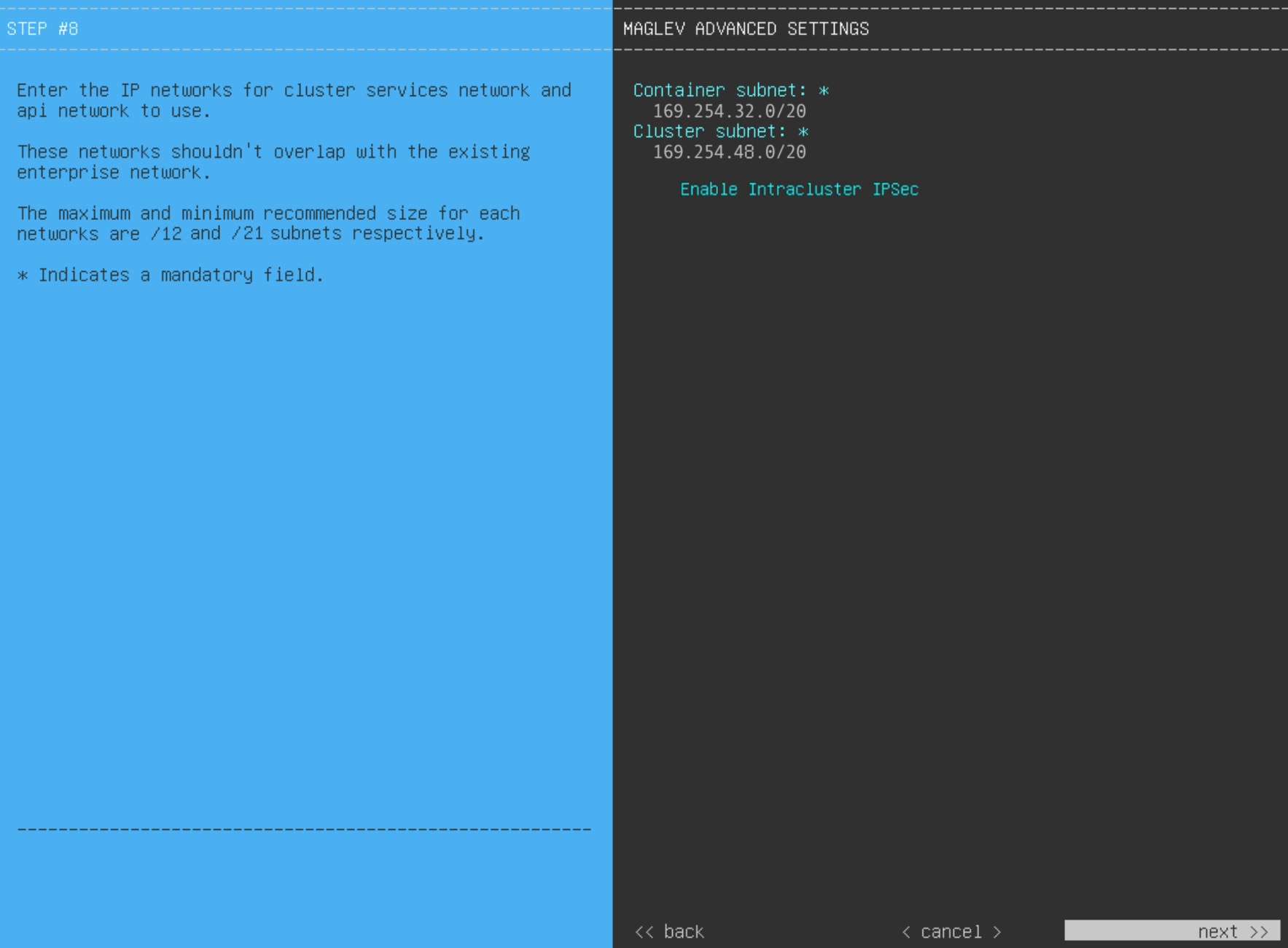
This table lists the configuration values for MAGLEV ADVANCED SETTINGS to enter.
When you are finished, click next>> to continue. Correct validation errors, if any, as you did in previous screens. |
|||||||||||||||||
| 19. | After you have entered the Maglev advanced settings, a final message appears, stating that the wizard is ready to apply the configuration (as shown). 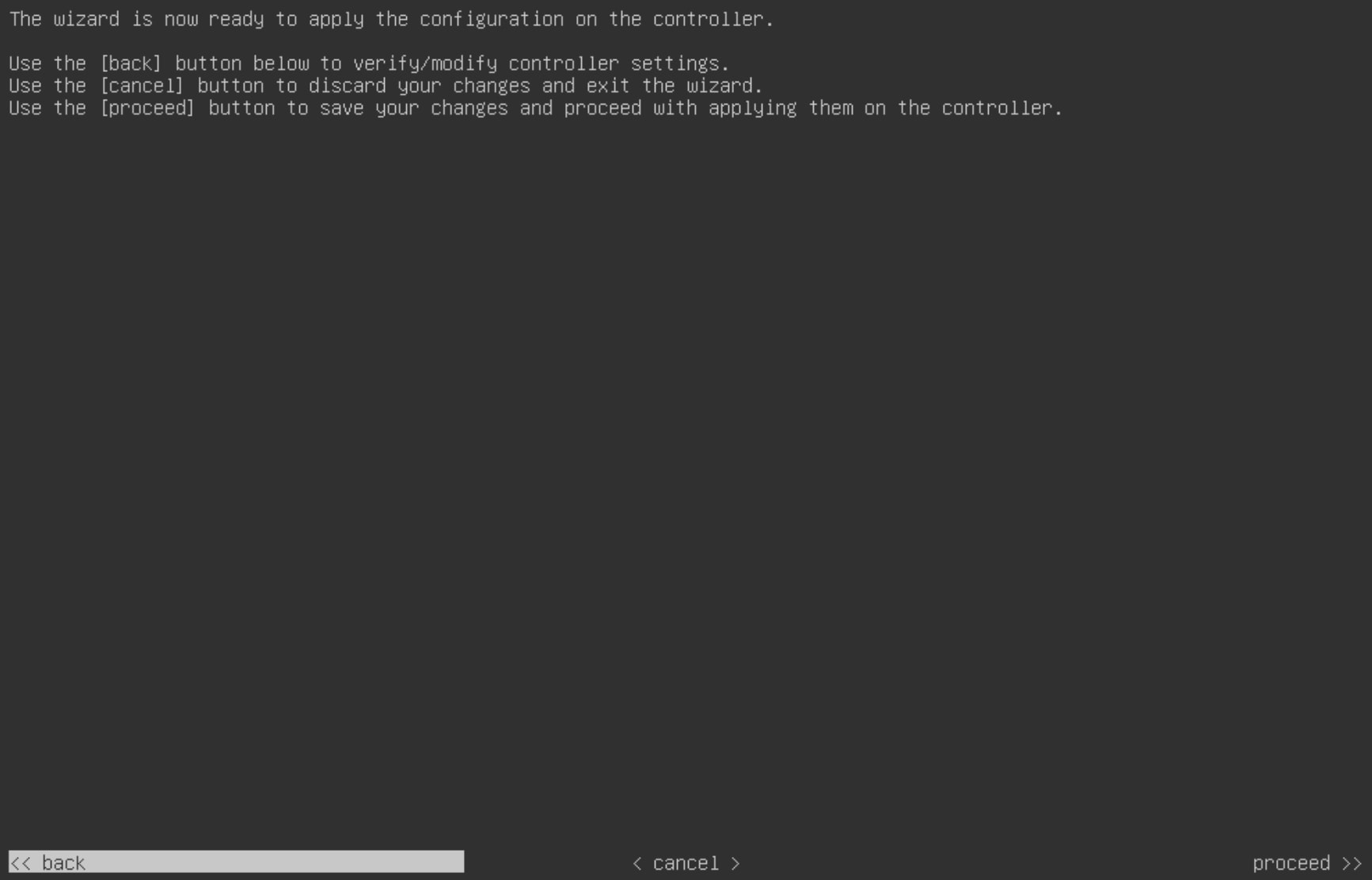
Click proceed>> to complete the configuration wizard. The host will reboot automatically and display messages on the KVM console as it applies your settings and brings up services. This process can take several hours. You can monitor its progress using the KVM console. At the end of the configuration process, the appliance power cycles again, then displays a CONFIGURATION SUCCEEDED! message. 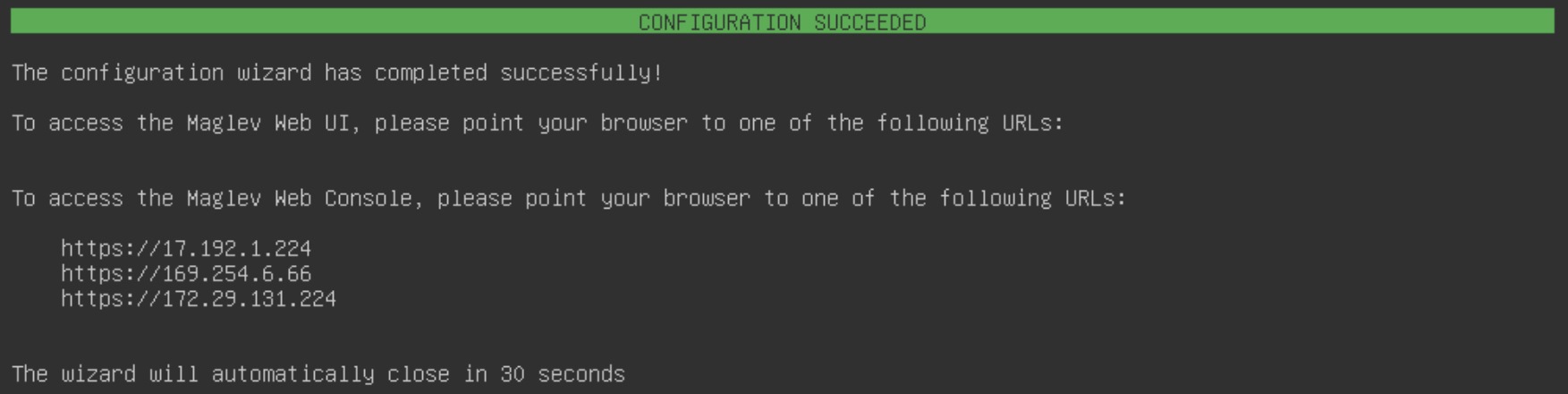
|
What to do next
-
If you are deploying this appliance in standalone mode only, do the first-time setup: First-time setup workflow.
-
If you are deploying this appliance as the primary node in a cluster, configure the second and third installed appliances in the cluster: Configure a secondary node using the Maglev wizard.