Overview
Describes how to use the Cisco IMC configuration utility to configure a Catalyst Center appliance's Cisco IMC port.
After installing the appliance, as described in Appliance installation workflow, use the Cisco IMC configuration utility to assign an IP address and gateway to the appliance CIMC port. You can access the Cisco IMC GUI to configure the appliance.
After you complete the Cisco IMC setup, log in to Cisco IMC and run the tasks listed in Execute preconfiguration tasks to ensure correct configuration.
To help ensure the security of your deployment, Cisco IMC prompts you to change the Cisco IMC default user default password when you boot the appliance for the first time. To change the Cisco IMC user password later, use the Cisco IMC GUI accordingly:
From the top-left corner of the GUI, click the Toggle Navigation icon (
) and then choose .
The Local User Management tab should already be selected.
Check the check box for user 1, and then click Modify User.
In the Modify User Details dialog box, check the Change Password check box.
Enter and confirm the new password, and then click Save.
Procedure
| 1. | Access the appliance console by attaching either of these options:
|
|
| 2. | Make sure that the appliance power cord is plugged in and the power is on. |
|
| 3. | Press the Power button on the front panel to boot the appliance. The Cisco IMC configuration utility boot screen opens. 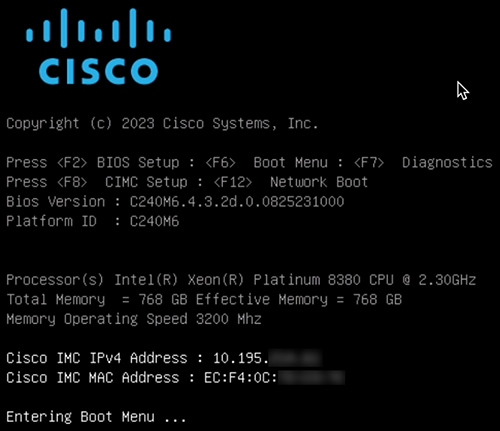
|
|
| 4. | Press F8 to perform the Cisco IMC configuration. The CIMC configuration utility displays the CIMC User Details screen, as shown. 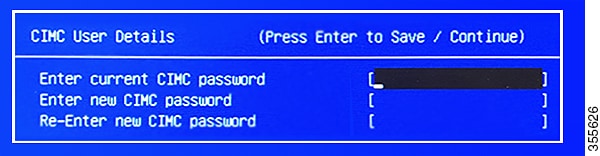
|
|
| 5. | Enter the default CIMC user password (the default on a new appliance is password) in the Enter current CIMC Password field. |
|
| 6. | Enter and confirm the new CIMC user password in the Enter new CIMC password and Re-Enter new CIMC password fields. When you press Enter after entering the new password in the Re-Enter new CIMC password field, the Cisco IMC configuration utility displays the NIC Properties screen, as shown. 
|
|
| 7. | Perform these actions:
|
|
| 8. | Press F1 to specify Additional settings. The Cisco IMC configuration utility displays the Common Properties screen, as shown. 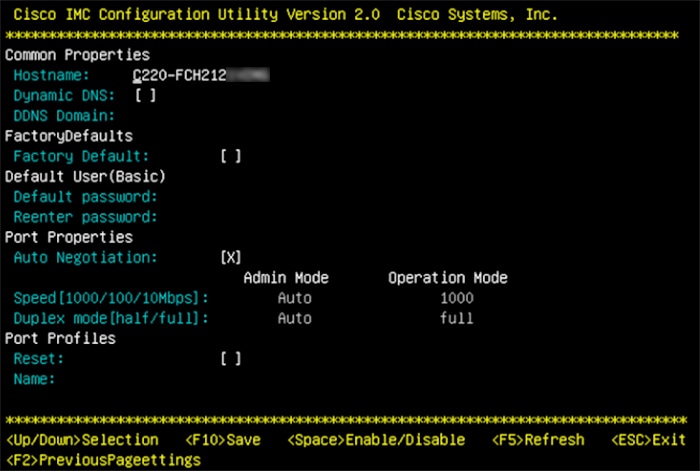
|
|
| 9. | Perform these actions:
|
|
| 10. | Press F10 to save the settings. |
|
| 11. | Press Escape to exit and reboot the appliance. |
|
| 12. | After the settings are saved and the appliance finishes rebooting, open a browser on a client machine that can access the appliance subnet, and enter this URL: https://CIMC_ip_address, where CIMC_ip_address is the Cisco IMC port IP address that you entered in Step 7. Your browser displays a main Cisco IMC GUI login window similar to the one shown. 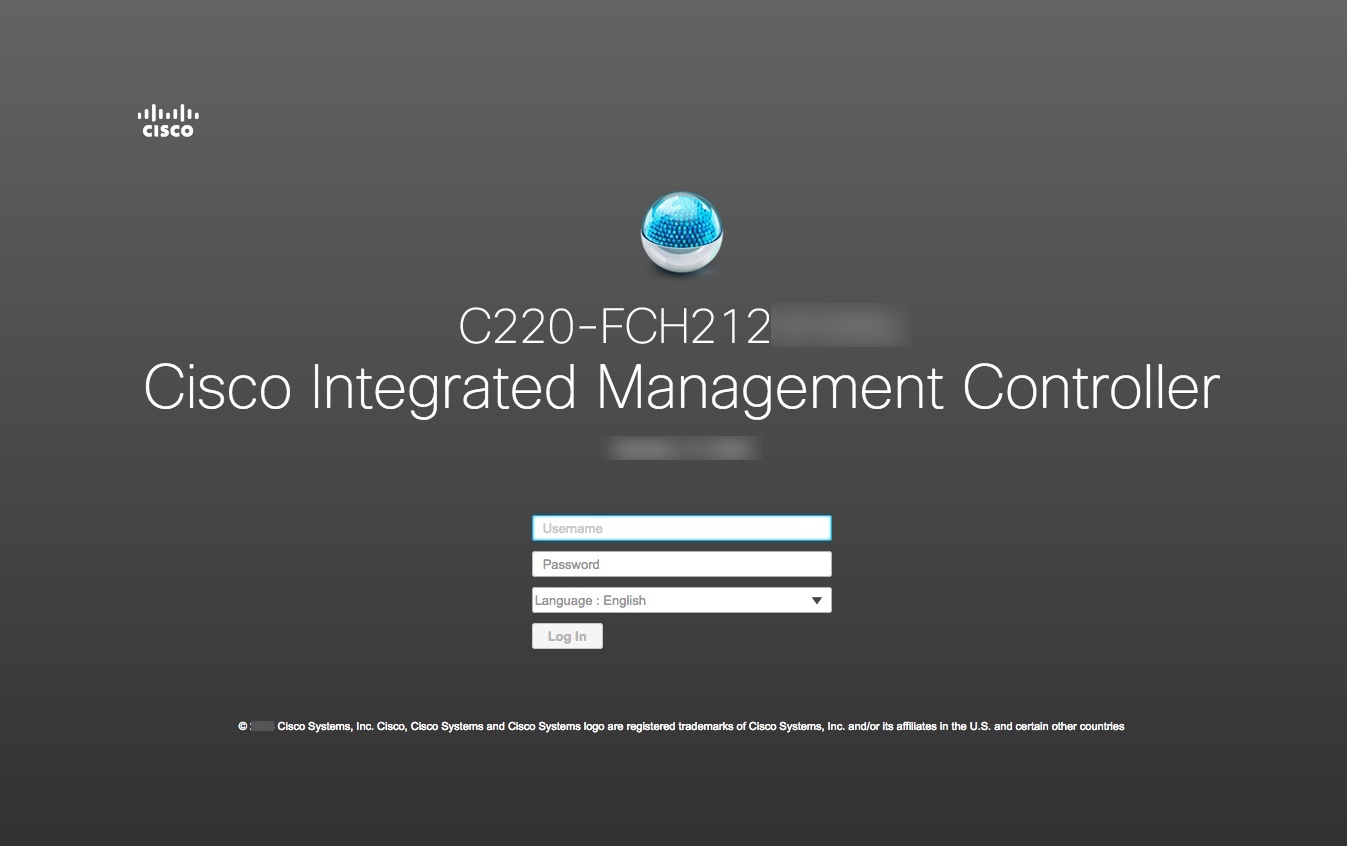
|
|
| 13. | Log in using the Cisco IMC user ID and password you set in Step 5. If your login is successful, a Cisco Integrated Management Controller Chassis Summary window appears in your browser. 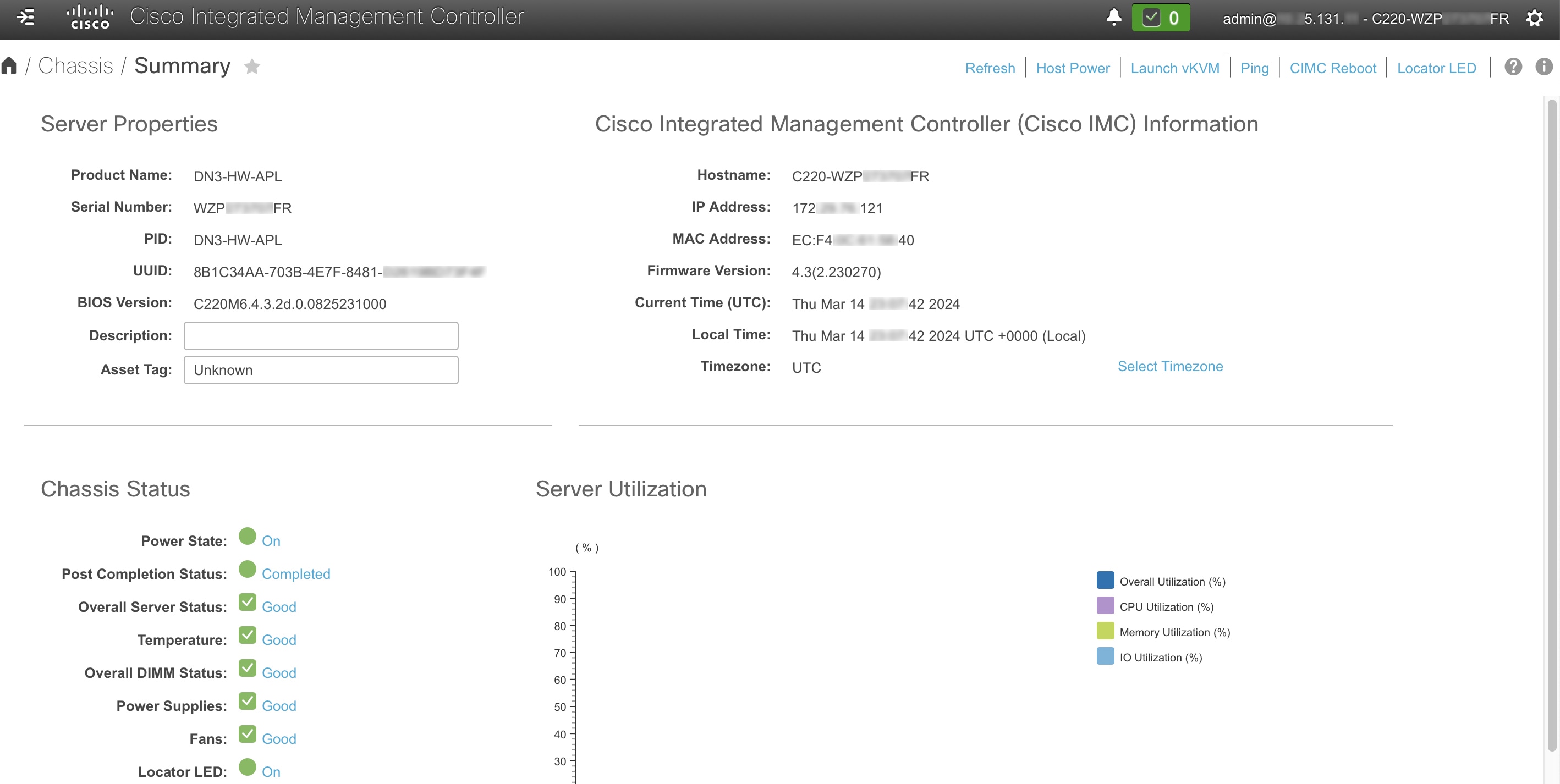
|
|
| 14. | Confirm that this version of Cisco IMC is supported by the Catalyst Center release you're going to install: |