Cisco Optical Network Controller Configuration Guide, Releases 26.x.x

PDF

Cisco Optical Network Controller Configuration Guide, Releases 26.x.x

View Service Assurance details

Want to summarize with AI?

Log in

Use this procedure to view Service Assurance details. The Service Assurance application visualizes circuits, related nodes, links, circuit paths, and live PM details for installed services.
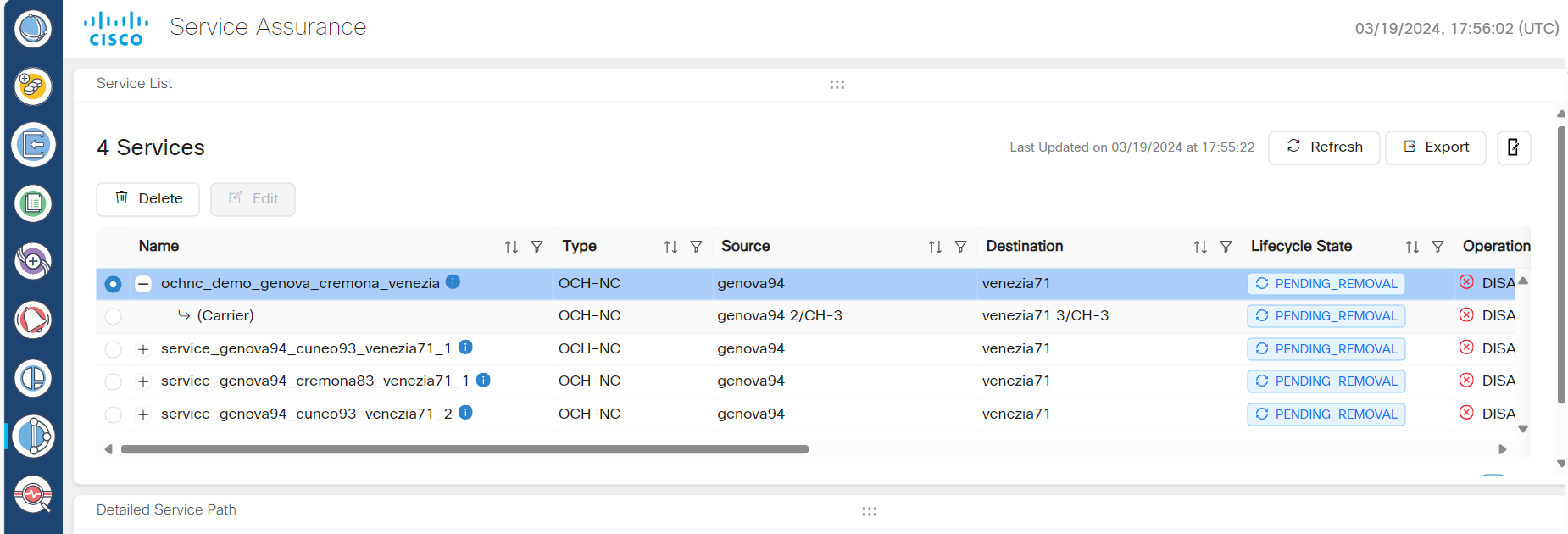

Use this procedure to view service details, circuit paths, related nodes, links, and live PM information in the Service Assurance application.

The Service Assurance application visualizes circuits, related nodes, links, circuit paths, and live PM details for installed services.

Figure 1. Service Assurance
Screenshot of Workspaces Service Assurance

Before you begin

Follow these steps to view Service Assurance details:

Procedure

1.

Click Service Assurance in the left panel.

2.

Select the service from the Service List.

3.

In the Detailed Service Path layout, you can view the service details by hovering over the visual circuit for each node, ports, links, and paths of any service at any given time. These details are available when the Lifecycle State is either INSTALLED or DELETION FAILED.

From Cisco Optical Network Controller 24.3.1 release onwards:

  • Live PM information is enabled on the visual circuit. The tool tip is enabled to display these details when it is hovered over the nodes and internal ports visible in the Detailed Service Path circuits.

  • The new features include Composite Power and Channel Power values, which can be enabled using the toggle button options provided and refreshed at different time intervals as per requirement.

  • The tool tip for each port also displays the channel power, estimated channel power, composite power, and estimated composite power values.

  • Live PM values for greenfield and brownfield circuits are available.

4.

Click Export to export the details of the table from the screen to a spreadsheet file.

Figure 2. Live PM Channel and Composite Power Values
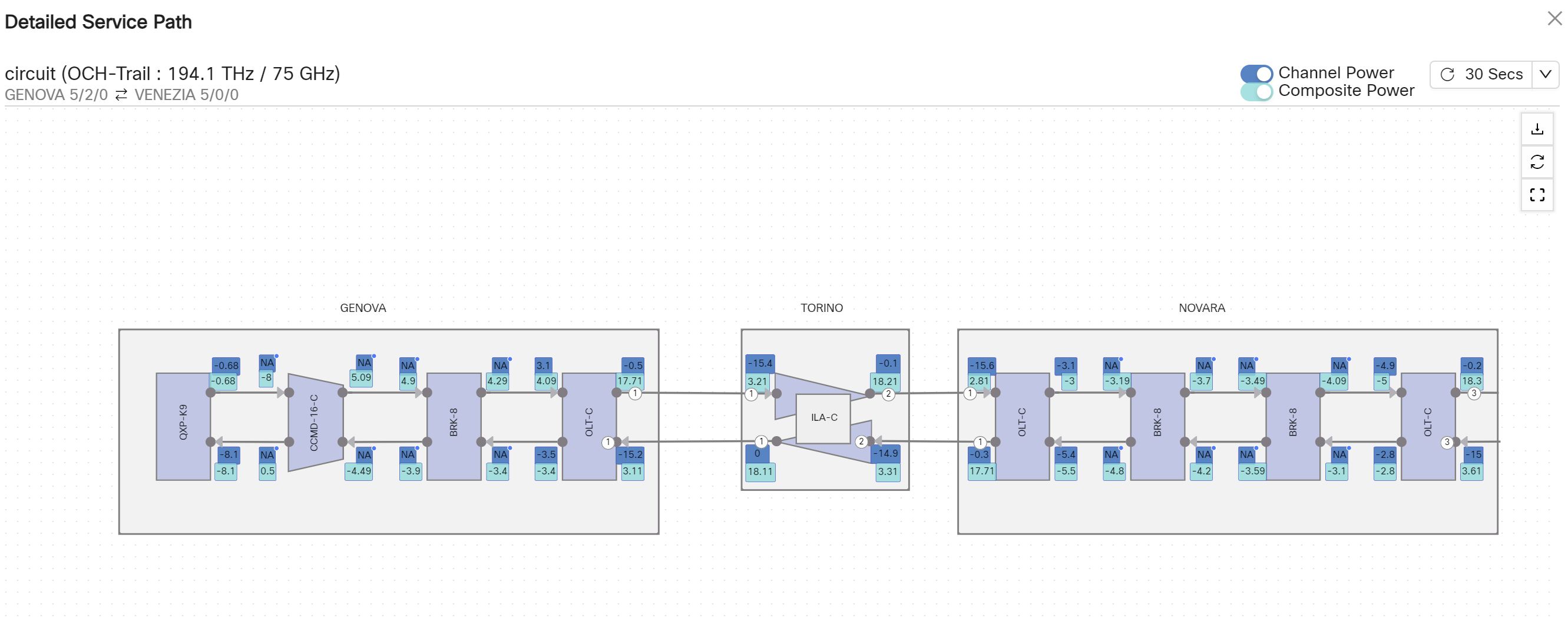
Screenshot of Live PM Channel and Composite Power Values
Note
  • You can use the fit to screen option provided in the Detailed Service Path screen.

  • NA is displayed for not applicable ports on live PM.

  • You can use the cursor to point to every port used by the circuit and view the service state, alarm summary, and the live power summary. It is also possible to cross-launch to COSM UI for any selected port.

5.

Click Refresh to refresh live PM data at the required rate or interval.

The Service Assurance application displays the selected service path and related live PM details.