Important.
Results generated by AI. Before using results, verify accuracy and completeness.
Copy
Use this procedure to add local users to Cisco Optical Network Controller. Add local user accounts to Cisco Optical Network Controller by completing these steps.
Use this procedure to add local users to Cisco Optical Network Controller in Cisco Optical Network Controller. Complete this task when you need to configure, verify, or manage the related network operation.
Add local user accounts to Cisco Optical Network Controller by completing these steps.
Before you begin
You need administrative user privileges to access Cisco Optical Network Controller.
Follow these steps to add local users to Cisco Optical Network Controller:
Procedure
From the Cisco Optical Network Controller home page click Settings.
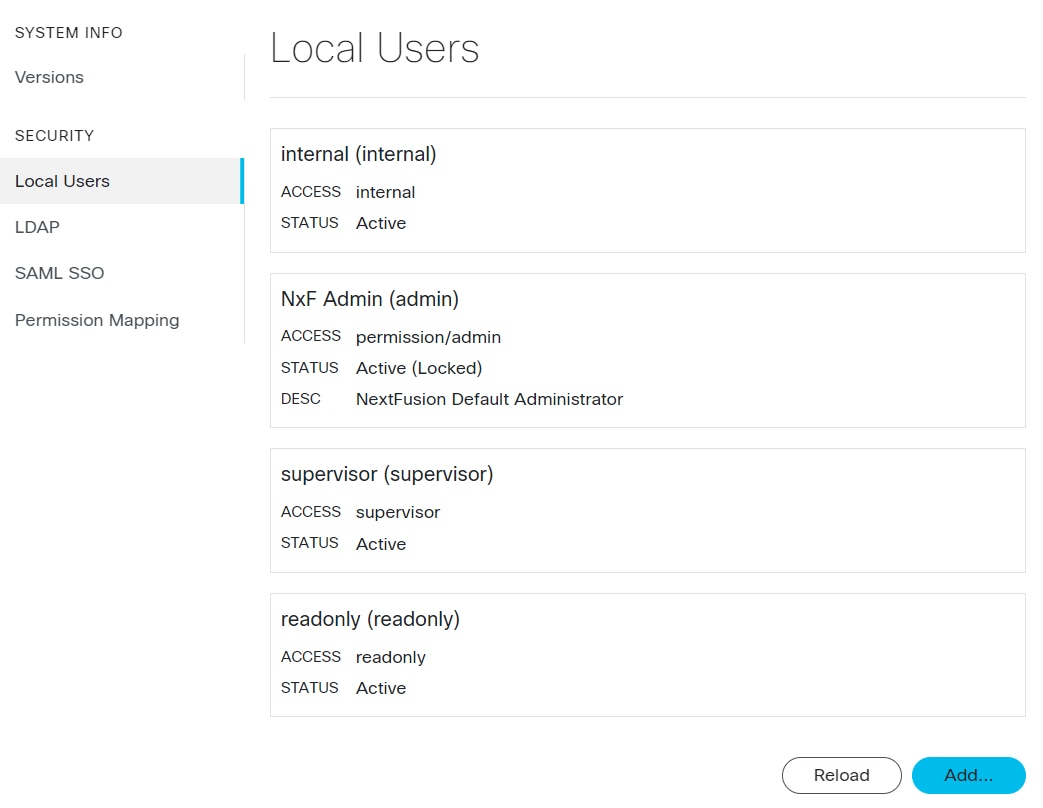
From the panel list, select Local Users and click Add.
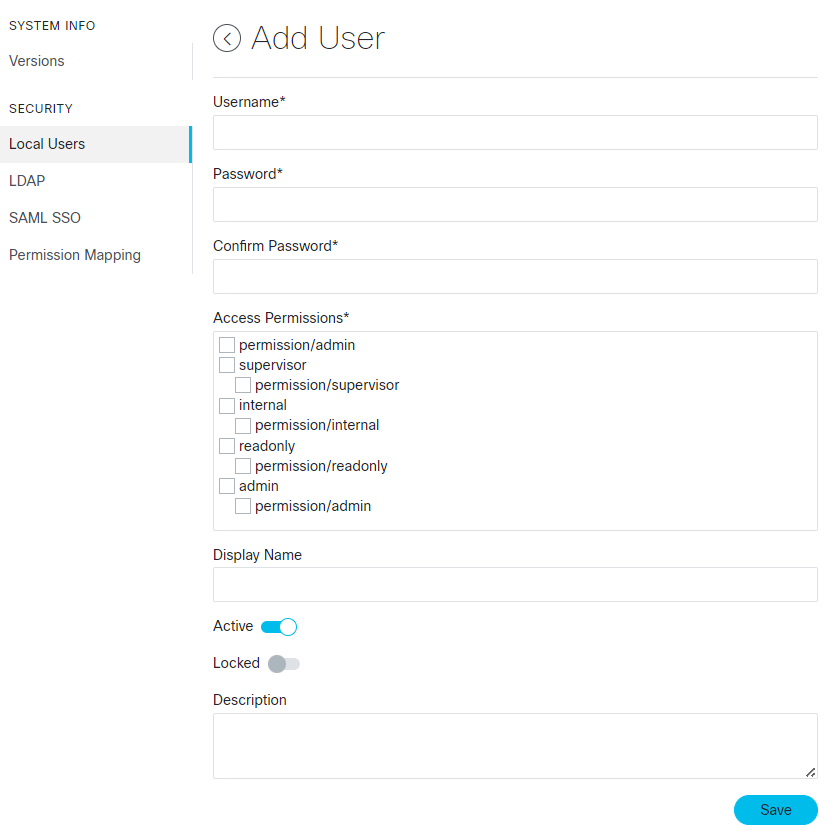
The Add User screen appears.
In the Add User screen, fill these mandatory fields.
Enter a username in Username*.
In Password*, enter a password.
In Confirm Password*, re-enter the password to confirm the password.
Note
Cisco Optical Network Controller uses cryptographic mechanism to secure credentials stored in the system. Cisco Optical Network Controller CLI and Web UI passwords use salted one-way hashing with yescrypt and bcrypt, respectively. Cisco Optical Site Manager device credentials saved for enrolled nodes are also stored with cryptographic protection.
Select the access permissions from the list Access Permissions*.
Figure 1. Local Users
For example permission/<admin>
NoteDescription and Display Name are optional fields.
Figure 2. Add User
Use the toggle switches to set the user status.
Note
The toggle switches are independent of each other, they can both be disabled or enabled at the same time.
Active enabled: Allows the user to log into Cisco Optical Network Controller.
Active disabled: Forbids the user from logging into Cisco Optical Network Controller.
Locked enabled: Prevents deleting the user for auditing purposes or to retain historical data associated with that user.
Locked disabled: Allows removal of the user
Table 1. Toggle combinations
Active status
Locked status
User status
Active enabled
Locked enabled
Prevents accidental deletion of user
Active enabled
Locked disabled
Allows user deletion
Active disabled
Locked disabled
Temporarily disables a user and allows user deletion
Active disabled
Locked enabled
Temporarily disables a user but prevent accidental deletion
Click Save.
Cisco Optical Network Controller successfully saves the new user.