System Security Configuration Guide for Cisco 8000 Series Routers, IOS XR Releases

PDF

System Security Configuration Guide for Cisco 8000 Series Routers, IOS XR Releases

Multifactor authentication for SSH

Want to summarize with AI?

Log in

Explains how SSH login combines user credentials with a token, cryptographic device, or mobile approval to reduce access risks caused by compromised or weak passwords.


Multifactor authentication (MFA) for SSH is a multistep identity-verification method that

  • requires two or more verification factors

  • combines something the user knows with something the user has, and

  • reduces access risk from compromised or weak passwords.

Both the SSH client and server must support keyboard-interactive authentication. The default Cisco IOS XR client order is public-key, keyboard-interactive, and password authentication; you can change it with ssh client auth-method .

Table 1. Feature History Table

Feature Name

Release Information

Feature Description

Multi-Factor Authentication for SSH

Release 25.4.1

Introduced in this release on: Fixed Systems (8010 [ASIC: A100]) (select variants only*)

*This feature is supported on:

  • 8011-32Y8L2H2FH

  • 8011-12G12X4Y-A/D

Multi-Factor Authentication for SSH

Release 25.1.1

Introduced in this release on: Fixed Systems (8700 [ASIC: K100], 8010 [ASIC: A100]) (select variants only*)

*This feature is supported on:

  • 8712-MOD-M

  • 8011-4G24Y4H-I

Multi-Factor Authentication for SSH

Release 24.4.1

Introduced in this release on: Fixed Systems (8200 [ASIC: P100], 8700 [ASIC: P100]) (select variants only*); Modular Systems (8800 [LC ASIC: P100]) (select variants only*)

*This feature is supported on:

  • 8212-48FH-M

  • 8711-32FH-M

  • 88-LC1-36EH

  • 88-LC1-12TH24FH-E

  • 88-LC1-52Y8H-EM

Multi-Factor Authentication for SSH

Release 24.1.1

You can now deploy robust authentication mechanisms for SSH connections to your routers and reduce security risks due to compromised or weak passwords. We now support multi-factor authentication (MFA)—a secure access management solution that verifies the identity of a user using multiple verification factors—for SSH login on Cisco IOS XR routers. These verification factors include a combination of login credentials such as username and password and a token, a cryptographic device, or a mobile phone with MFA application installed.

No new commands or data models were introduced or modified as part of this feature.


How Duo multifactor authentication works

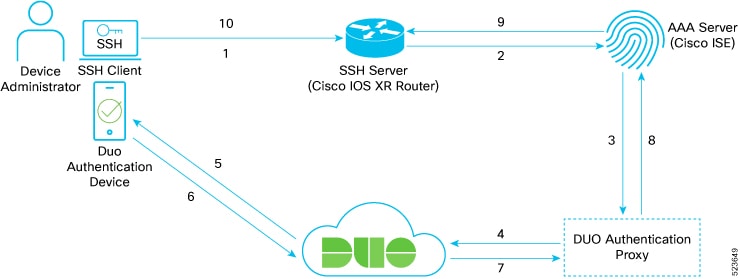
The sample workflow uses a Cisco IOS XR router as the SSH server and Cisco ISE as the AAA server.

Summary

The workflow uses these components:

  • SSH client: Initiates the administrator's connection.

  • SSH server: Receives the connection on the router.

  • Cisco ISE: Provides RADIUS or TACACS+ AAA.

  • Duo Authentication Proxy: Coordinates primary authentication and contacts Duo for secondary authentication.

  • Duo cloud and authentication device: Deliver and approve the second-factor request.

Workflow

Figure 1. MFA setup for an SSH connection: Sample topology
Flow between an SSH client, Cisco IOS XR SSH server, Cisco ISE, Duo Authentication Proxy, Duo cloud, and a Duo authentication device.

These stages describe Duo MFA for SSH:

  1. The administrator initiates an SSH connection with credentials for a user configured in ISE.

  2. The router forwards the request to Cisco ISE.

  3. ISE sends the request to the Duo Authentication Proxy. The proxy returns it to ISE for first-factor authentication, and ISE reports the result.

  4. After successful ISE authentication, the proxy requests second-factor authentication from Duo cloud.

  5. Duo cloud sends a push notification to the administrator's Duo authentication device.

  6. The administrator approves the notification.

  7. Duo cloud reports approval to the proxy.

  8. The proxy reports successful authentication to ISE.

  9. ISE authorizes the administrator.

  10. The administrator establishes the SSH connection to the router.

Result

The router grants SSH access after both verification factors and AAA authorization succeed.


Set up multifactor authentication for SSH

Set up the sample Duo MFA topology for SSH access to a Cisco IOS XR router.

Before you begin

  • Use Cisco IOS XR Software Release 24.1.1 or later and configure router AAA with ISE.

  • Provide Cisco ISE as the RADIUS or TACACS+ server.

  • Install Duo Authentication Proxy on Windows or Linux.

  • Install the Duo application on the authentication device.

Procedure

  1. Configure the Duo system and activate the mobile device.

  2. Install and configure Duo Authentication Proxy.

  3. Integrate Cisco ISE with Duo and configure device-administration policies.

  4. Configure the router RADIUS attributes for the proxy.

  5. Verify SSH login with the primary credentials and Duo second factor.

The SSH login request can traverse the router, ISE, Duo Authentication Proxy, and Duo cloud for multifactor authentication and authorization.


Configure the Duo system

Prepare Duo cloud and the administrator's mobile authenticator for SSH MFA.

Procedure

  1. Create a Duo account at duo.com.

  2. Protect the Cisco ISE application and record its Duo credentials.

    For details, see the First Steps listed in https://duo.com/docs/radius.

    1. Sign in to Duo and select Applications.
    2. Search for Cisco ISE and select Protect This Application.
    3. Copy the Integration Key, Secret Key, and API Hostname to a secure location.
  3. Add the Duo mobile device from Dashboard > Users > username > Add Phone.

  4. Activate Duo Mobile from Dashboard > 2FA Devices > phone-number > Activate Duo Mobile.

The Duo application is protected, and the administrator's mobile device can receive second-factor requests.


Configure the Duo authentication proxy

Relay primary authentication between ISE and the configured identity source and request the Duo second factor.

For more details, see https://duo.com/docs/authproxy-reference.

Procedure

  1. Download and install the latest Duo authentication proxy on Windows or Linux machine.

    This example uses Windows Server 2016 for the primary proxy and Ubuntu for the secondary proxy.

  2. Configure the proxy for your primary authenticator.

    Edit the Duo authentication proxy configuration file, authproxy.cfg, located in the conf subdirectory of the proxy installation path in the server using a text editor. You can add multiple ISE servers as RADIUS clients and multiple router subnets or IP addresses.

  3. Start each proxy server and inspect its logs for configuration or connectivity errors.

    On Windows, configure Windows Firewall to allow connections for the authentication proxy.


Configure Cisco Identity Services Engine

Use Cisco ISE for primary authentication and SSH user authorization in the Duo MFA workflow.

For more details, see Configure Duo Two Factor Authentication for ISE Management Access.

Procedure

  1. Add the Duo authentication proxy as a RADIUS token server.

    Go to Administration > Identity Management > External Identity Sources > RADIUS Token, and select Add. Use the same shared secret configured in the authentication proxy.

    For details, see step 1 listed under ISE Configuration.

  2. Select the configured RADIUS token server as the administrative identity source.

    Go to Administration > System > Admin Access > Admin Access > Authentication Method, and select the configured source, such as RADIUS:DUO.

    For details, see step 2 listed under ISE Configuration.

  3. Create the device-administration policy set.

    Go to Work Centers > Device Administration > Device Admin Policy Sets.

    In this example, we created a policy set that matches on both protocols (RADIUS and TACACS+) with the Allowed Protocols set to Default Device Admin .

  4. Configure authentication and authorization policies in the policy set.

    • Authentication policy: In this example, we have set a default rule to check the Identity Source Sequence that we defined in the steps above which contains the RADIUS Token Servers (Duo Authentication Proxies) and Active Directory.

    • Authorization policy: In this example, we have set a rule that checks if the authenticated user belongs either to the Domain Users or NS-ISE-IOS-Admins groups that we have configured in the active directory (AD). If the user belongs to one of these groups, then the system returns the pre-configured command sets and shell profile.

  5. Synchronize the active directory users with Duo or add the users manually.

    For details, see Enroll user with Duo.

ISE can authenticate through the Duo proxy and return the authorized command sets and shell profile for approved users.


Configure router RADIUS attributes

Send router RADIUS requests to the Duo authentication proxy.

For more details, see Configure Your RADIUS Clients.

Before you begin

Use the proxy address and the secret configured in the radius_server_auto section of authproxy.cfg.

Procedure

Configure the proxy as the RADIUS server and commit the shared attributes.

Example:

Router# configure
Router(config)# radius-server host 209.165.200.225 auth-port 1812 acct-port 1813
Router(config-radius-host)# key sample-radius-secret
Router(config-radius-host)# commit

The router sends RADIUS authentication traffic to the Duo authentication proxy on port 1812 and accounting traffic on port 1813.


Verify multifactor authentication

Confirm that primary authentication, Duo second-factor authentication, and SSH authorization complete successfully.

Procedure

  1. Initiate an SSH connection from a client already added to ISE.

  2. Sign in with the administrator's Active Directory credentials.

  3. Confirm that the Duo authentication device receives the configured push or passcode request.

  4. Approve the push or enter the correct passcode.

    The administrator is authenticated and authorized to access the router through SSH.

  5. Check ISE RADIUS live logs for requests sent through the Duo Authentication Proxy.

  6. Check the Authentication Proxy log for configuration, authentication, or connectivity errors.

The verified connection demonstrates successful primary authentication, Duo approval, ISE authorization, and router access.