System Security Configuration Guide for Cisco 8000 Series Routers, IOS XR Releases

PDF

System Security Configuration Guide for Cisco 8000 Series Routers, IOS XR Releases

OpenSSH certificate authentication

Want to summarize with AI?

Log in

Explains how an OpenSSH CA signs host and user certificates to establish mutual trust between a client and a Cisco IOS XR router.


OpenSSH certificate authentication is a two-way SSH trust model that

  • uses an SSH key as a CA to sign host and user certificates

  • authenticates the router to the client and the client user to the router, and

  • avoids first-connection trust establishment when both certificates chain to the trusted CA.

The certificate records the subject public key, signing CA, type, validity, key ID, and serial number. A user certificate also records principals that the router matches against the login username.

Supported key types

OpenSSH certificates support RSA, DSA, ECDSA, and Ed25519 keys. User certificates can also contain supported critical options and extensions created with ssh-keygen utility.

Table 1. Feature History Table
Feature Name Release Information Feature Description
OpenSSH Certificate based Authentication for Router Release 25.4.1

Introduced in this release on: Fixed Systems (8010 [ASIC: A100]) (select variants only*)

*This feature is supported on:

  • 8011-32Y8L2H2FH

  • 8011-12G12X4Y-A/D

OpenSSH Certificate based Authentication for Router Release 25.1.1

Introduced in this release on: Fixed Systems (8700 [ASIC: K100], 8010 [ASIC: A100]) (select variants only*)

*This feature is supported on:

  • 8712-MOD-M

  • 8011-4G24Y4H-I

OpenSSH Certificate based Authentication for Router Release 24.4.1

Introduced in this release on: Fixed Systems (8200 [ASIC: P100], 8700 [ASIC: P100]) (select variants only*); Modular Systems (8800 [LC ASIC: P100]) (select variants only*)

*This feature is supported on:

  • 8212-48FH-M

  • 8711-32FH-M

  • 88-LC1-36EH

  • 88-LC1-12TH24FH-E

  • 88-LC1-52Y8H-EM

OpenSSH Certificate based Authentication for Router Release 7.5.3

You can now use OpenSSH certificates to authenticate to the remote routers from a client machine. This feature uses the ssh-keygen utility, a standard SSH component to generate and manage authentication keys, available in OpenSSH to create a CA (Certificate Authority) like infrastructure for logging into the router.

In this feature, the certificates that are used to authenticate router and client are both signed by the same CA. This automatically establishes trust between router and client, and eliminates the need to establish trust, while using the client for remote logging to router for the first time.


How OpenSSH certificate authentication works

A system with OpenSSH and ssh-keygen provides the certificate-signing infrastructure.

Summary

The router and client trust the same CA. The CA signs a router host certificate and a user certificate before the client opens the SSH connection.

Workflow

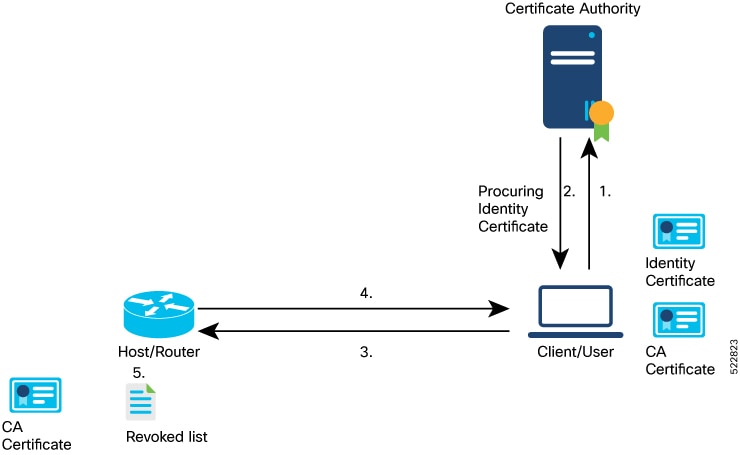
Figure 1. Router authentication workflow
Figure 2. User authentication workflow

These stages describe OpenSSH certificate authentication:

  1. An administrator creates an OpenSSH trustpoint on the router and assigns it to host and user authentication.

  2. The CA system generates an SSH CA key pair. Its public key is installed in the router trustpoint.

  3. The router generates a certificate-signing request. The CA signs it as a host certificate, and the signed certificate is imported into the router.

  4. The client generates a user key pair. The CA signs the public key with the login username as a principal, and the signed user certificate is installed on the client.

  5. The client trusts the CA for the router host and presents its user certificate during login. The router validates the certificate, matches its principal to the login username, and permits authorized access.

Result

The host and user certificates establish a mutually authenticated SSH channel.


Prerequisites for OpenSSH certificate authentication

Establish CA trust and valid identities before an OpenSSH certificate login.

  • Use a CA system that has OpenSSH and the ssh-keygen utility.

  • Install the CA public key in an OpenSSH trustpoint on the router.

  • Assign a trustpoint for host authentication and up to ten trustpoints for user authentication.

  • Import a valid CA-signed host certificate into the router.

  • Install the CA-signed user certificate and its matching private key on the client.

  • Set a user-certificate principal that matches the SSH login username.

  • Configure the username locally on the router unless TACACS+ certificate-user authorization is enabled.

The router and client can authenticate each other only when their certificates are valid, signed by a trusted CA, and associated with the requested identities.


Configure OpenSSH certificate authentication

Establish certificate-based authentication between an OpenSSH client and a Cisco IOS XR router.

Before you begin

  • Provide a CA system and client system with OpenSSH and ssh-keygen .

  • Provide secure methods to transfer the CA public key, certificate-signing request, signed host certificate, and signed user certificate.

Procedure

  1. Establish the OpenSSH trustpoint on the router and generate its CA key pair on the CA host.

    1. On the router, create an OpenSSH trustpoint and assign it to host and user authentication.

      Example:

      Router# configure
      Router(config)# crypto ca openssh trustpoint sample-openssh-ca
      Router(config)# ssh server openssh trustpoint host sample-openssh-ca
      Router(config)# ssh server openssh trustpoint user sample-openssh-ca
      Router(config)# commit
    2. On the CA host, generate the CA key pair and display its public key.

      Example:

      ca-host$ ssh-keygen -t rsa -f sample-ca-key
      ca-host$ cat sample-ca-key.pub

      Leave the passphrase empty.

  2. Create, install, and verify the CA-signed router host certificate.

    1. On the router, install the CA public key in the trustpoint and verify it.

      Example:

      Router# crypto ca openssh authenticate sample-openssh-ca
      Enter the CA pubkey.
      End with a blank line or the word "quit" on a line by itself
      Do you accept this certificate? [yes/no]: yes
      Router# show crypto ca openssh certificates

      Paste the complete CA public key at the prompt.

    2. On the router, generate and display the host certificate-signing request.

      Example:

      Router# crypto ca openssh enroll sample-openssh-ca
      Display Certificate Request to terminal? [yes/no]: yes

      Copy only the host-key content between the host-key markers to a file named sample-host.pub on the CA host.

    3. On the CA host, sign the router host key and display the signed certificate.

      Example:

      ca-host$ ssh-keygen -h -s sample-ca-key -I "sample-router" -V +10w -z 10 sample-host.pub
      ca-host$ cat sample-host-cert.pub

      The example creates a host certificate with identity sample-router, a 10-week validity period, and serial number 10.

    4. On the router, import the signed host certificate and verify its properties.

      Example:

      Router# crypto ca openssh import sample-openssh-ca certificate
      Enter the OpenSSH certificate.
      End with a blank line
      Router# show crypto ca openssh certificates

      The output lists the CA certificate and router host certificate with the host certificate's key ID, serial number, and validity period.

  3. Create and install the CA-signed user certificate and authorize its username on the router.

    1. On the client host, generate the user key pair and display its public key.

      Example:

      client-host$ ssh-keygen -t rsa -f sample-user-key
      client-host$ cat sample-user-key.pub
    2. On the CA host, sign the user public key with a principal that matches the router username.

      Example:

      ca-host$ ssh-keygen -s sample-ca-key -I "sample-user-cert" -V +10w -n sample-user -z 20 sample-user-key.pub
      ca-host$ ssh-keygen -Lf sample-user-key-cert.pub

      The user-certificate signing command uses these parameters:

      Table 2. User-certificate signing parameters

      Parameter

      Description

      Example value

      CACert

      Specifies the filename of the CA private key that signs the user public key.

      sample-ca-key

      IdentityOfSysReqCert

      Specifies the identity assigned to the user certificate.

      sample-user-cert

      CertValidity

      Specifies the certificate validity period.

      +10w

      Username

      Specifies the principals added to the certificate. During authentication, a principal must match the SSH login username. Separate multiple principals with commas.

      sample-user

      CertSerialNo

      Specifies the certificate serial number.

      20

      CopiedUserCertName

      Specifies the filename containing the user public key copied from the client host for signing.

      sample-user-key.pub

      Note

      In addition to the mandatory user-certificate fields, you can configure supported critical options and extensions. See the ssh-keygen documentation for details.

    3. On the client host, install the signed user certificate and trust the CA for the router host.

      Place sample-user-key-cert.pub with its matching private key. Add an @cert-authority entry containing the router hostname and CA public key to the client's known_hosts file.

    4. On the router, configure the username that matches the user-certificate principal.

      Example:

      Router# configure
      Router(config)# username sample-user
      Router(config-un)# group root-lr
      Router(config-un)# commit
  4. On the client host, connect to the router with the signed user certificate and matching private key.

    Example:

    client-host$ ssh -o CertificateFile=sample-user-key-cert.pub -i sample-user-key sample-user@192.0.2.2 -o StrictHostKeyChecking=yes

The client validates the router host certificate, and the router validates and authorizes the signed user certificate.