Cisco Crosswork Network Controller 7.2 Administration Guide

PDF

Rebalance cluster resources

Want to summarize with AI?

Log in

Rebalance cluster resources to ensure even distribution of workloads and maintain optimal cluster performance.


  • Rebalancing ensures that workloads are evenly distributed, preventing performance bottlenecks caused by uneven resource utilization.

  • Efficient resource utilization is critical for maintaining a healthy and well-performing cluster.

You can initiate rebalancing at any time through the user interface. Additionally, Crosswork Network Controller continuously monitors CPU usage across all VMs and will notify you if utilization exceeds predefined thresholds. These alarms serve as prompts to take corrective actions, such as adding more worker VMs and redistributing resources, before performance issues arise.

Rebalancing is required in these scenarios:

  1. A new VM is added on day N in the cluster.

  2. An existing VM is replaced on day N in the cluster.

  3. A VM is down for over 5 minutes in the cluster.

  4. The CPU or memory utilization of a VM constantly exceeds 95% in the cluster.

To avoid performance degradation, it is recommended to deploy new worker VMs (see Add a VM to the Crosswork Network Controller cluster) before CPU usage exceeds 90%. However, note that when new VMs are added, active workloads are not automatically redistributed, making rebalancing a necessary step. If you already have 5 or 6 VMs in your cluster and still experience resource shortages, please reach out to the Cisco Customer Experience team for assistance.

Caution

Rebalancing can take from 15 to 30 minutes during which the Crosswork Applications will be unavailable. Once initiated, a rebalance operation cannot be canceled.

To rebalance resources between the existing VMs in your cluster, follow these steps:

Before you begin

  • Crosswork must be in maintenance mode before rebalancing to ensure data integrity.

  • Any users logged in during the rebalancing will lose their sessions. Notify other users beforehand that you intend to put the system in maintenance mode for rebalancing, and give them time to log out. You can use the Active Sessions window (Administration > Users and Roles > Active sessions tab) to see who is currently logged in (or sessions that were abandoned and have not been cleaned up yet).

Procedure

1.

From the main menu, choose Administration > Crosswork Manager.

2.

On the Crosswork summary tab, click the System summary tile to display the Cluster Management window.

3.

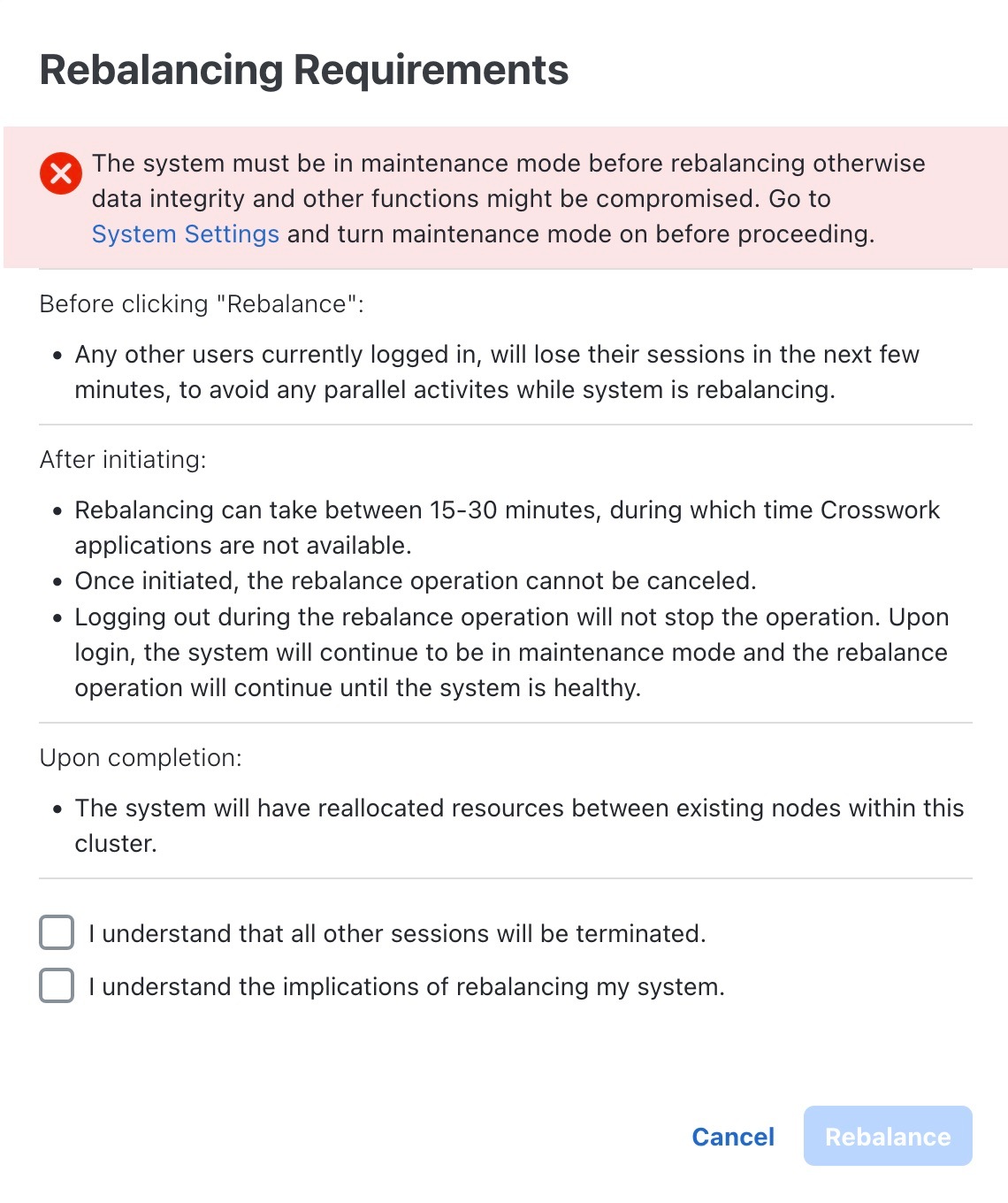
Click Actions > Rebalance, and the Rebalance Requirements are displayed. Read through the requirements and select the two check boxes once you are ready to start the rebalancing.

Figure 1. Rebalancing requirements
4.

Click Rebalance to initiate the process. Crosswork begins to reallocate the resources in the over utilized VM to the other VMs in the cluster.

A dialog box indicating the status of rebalancing is displayed. Kindly wait for the process to complete.

5.

After the rebalancing process is completed, you may see one of the following result scenarios:

  • Success scenario: A dialog box indicating successful rebalancing operation. Follow the instructions in the dialog box to proceed further.

    Figure 2. Rebalancing result - success
  • Failure scenario - scope available to add new worker nodes: A dialog box indicating rebalancing failure is displayed. In this case, the system prompts you to add a new worker VM and try the rebalance process again.

    Figure 3. Rebalancing result - add new worker node
  • Failure scenario - no scope to add new worker nodes: A dialog box indicating rebalancing failure is displayed. In this case, the system prompts you to contact the TAC as new worker VMs cannot be added.

    Figure 4. Rebalancing result - contact TAC

Best practice for moving workloads with placement APIs

Use these guidelines to ensure reliable workload movement in your cluster when using placement APIs, especially if the Crosswork Network Controller UI is unavailable or during VM or database recovery scenarios:

  • The API method is preferred if the Crosswork Network Controller UI is not working due to high CPU utilization (>=95%) for a period of time.

  • When replacing a VM containing a database, use the placement API to move the database before rebalancing workloads across the VMs.

  • During a VM power-down and power-up scenario, typically the database pod recovers automatically within a few hours. If the VM is down for more than 5 minutes, redistribute resources using the placement API and rebalance the cluster.

  • When moving non-core service and application workloads, exclude database services when identifying services to be moved.


Capabilities of placement APIs for workload distribution

Understand how placement APIs support manual workload movement between cluster VMs when automated or UI-based placement is unavailable.

You can use APIs to manually move database or application service workloads from one VM to other VMs in the cluster. The API method is preferred if the Crosswork Network Controller UI is not working due to high CPU utilization (>=95%) for a period of time.

Databases refer to robot-postgres and cw-timeseries-db. If a VM containing a database is replaced, the placement API must be explicitly invoked to instantiate the database on a new VM. In the event of VM replacement, the recommended order is to first use the API to move the database, followed by rebalancing to evenly distribute workloads across the VMs.

On clusters with worker VMs installed, the robot-postgres and cw-timeseries-db database services are pinned to the worker VMs, while the local-postgres pods are pinned to the hybrid VMs.

API example: place services for database pods

Request
 
 
curl --request POST --location 'https://<Vip>:30603/crosswork/platform/v2/placement/move_services_to_nodes' \
--header 'Content-Type: application/json' \
--header 'Authorization: <your-jwt-token>' \
--data '{
    "service_placements": [
        {
            "service": {
                "name": "robot-postgres",
                 "clean_data_folder": true,
                 "pin_to_node":true
            },
            "nodes": [
                {
                    "name": "fded-1bc1-fc3e-96d0-192-168-5-114-worker.cisco.com"
                },
                {
                    "name": "fded-1bc1-fc3e-96d0-192-168-5-115-worker.cisco.com"
                }
            ]
        },
        {
            "service": {
                "name": "cw-timeseries-db",
                 "clean_data_folder": true ,
                 "pin_to_node":true
             },
            "nodes": [
                {
                    "name": "fded-1bc1-fc3e-96d0-192-168-5-114-worker.cisco.com"
                },
                {
                    "name": "fded-1bc1-fc3e-96d0-192-168-5-115-worker.cisco.com"
                }
            ]
        }
    ]
}'
 
 
Response
 
{
    "job_id": "PJ5",
    "result": {
        "request_result": "ACCEPTED",
        "error": null
    }
}

API example: place services for non-core pods

Request
 
 
curl --request POST --location 'https://<Vip>:30603/crosswork/platform/v2/placement/move_services_to_nodes' \
--header 'Content-Type: application/json' \
--header 'Authorization: <your-jwt-token>' \
--data '{
    "service_placements": [
        {
            "service": {
                "name": "helios"
        
            },
            "nodes": [
                {
                    "name": "fded-1bc1-fc3e-96d0-192-168-5-114-worker.cisco.com"
                },
                {
                    "name": "fded-1bc1-fc3e-96d0-192-168-5-115-worker.cisco.com"
                }
            ]
        },
        {
            "service": {
                "name": "dg-manager"
             },
            "nodes": [
                {
                    "name": "fded-1bc1-fc3e-96d0-192-168-5-114-worker.cisco.com"
                },
                {
                    "name": "fded-1bc1-fc3e-96d0-192-168-5-115-worker.cisco.com"
                }
            ]
        }
    ]
}'
 
 
Response
 
{
    "job_id": "PJ5",
    "result": {
        "request_result": "ACCEPTED",
        "error": null
    }
}

Move services between cluster VMs using the placement API

Move database or application service workloads to different VMs in the cluster to address resource imbalances, high CPU utilization, or VM replacement events.

Perform this task when automated placement or the Crosswork Network Controller UI is unavailable, or during planned resource redistributions after VM replacement.

Before you begin

  • Ensure you have your authorization token (<your-jwt-token>).

  • Identify the names of services and target VMs (using Grafana or other cluster tools).

  • Confirm access to the Grafana Monitoring Dashboard.

Follow these steps to move services between cluster VMs using the placement API:

Procedure

1.

Open the Grafana dashboard for the VM running the service using this link: [Grafana Monitoring Dashboard](https://clusterendpoint:30603/grafana.monitoring/d/TYiQ9vgWk/platform-summary?orgId=1&refresh=1m\)

2.

Identify the top five services with the highest CPU usage on the VM with the highest CPU utilization. Exclude database services by checking the pod CPU dashboard.

3.

Find the top three VMs with the lowest CPU utilization in Grafana.

4.

Use the placement API to move the top five services to the underutilized VMs.

For the required API request structure and examples, see Capabilities of placement APIs for workload distribution.

5.

After moving services, monitor resource utilization in Grafana and follow the cluster rebalancing procedure as needed. For more information, see Rebalance cluster resources.

Note

During a VM power-down and power-up, database replica recovery depends on the data size. Typically, the pod recovers on its own within a few hours. If the VM is down for more than 5 minutes in the cluster, redistribute the resources as described above and follow the cluster rebalancing procedure.