- Preface
- Basic Functionality
- Basic Configurations
- Configuring System
- Configuring Green Ethernet
- Configuring Thermal Protection
- Configuring Ports
- Configuring Security
- Configuring Aggregation
- Configuring Link OAM
- Configuring Loop Protection
- Configuring Spanning Tree
- Configuring MVR
- Configuring LLDP
- Configuring SyncE
- Configuring EPS
- Configuring MEP
- Configuring ERPS
- Configuring MAC Table
- Configuring VLANs
- Configuring VLAN Translation
- Configuring Ethernet Services
- Configuring Performance Monitor
- Configuring QoS
- Configuring HQoS
- Configuring Mirroring
- Configuring PTP
- Configuring sFlow
- Configuring Traffic Test
- Configuring Traffic Test Loops
- Configuring DDMI
- Configuring UDLD
- Configuring Flex Links
- Monitoring System
- Monitoring Green Ethernet
- Monitoring Thermal Protection
- Monitoring Ports
- Monitoring Link OAM
- Monitoring Security
- Monitoring Aggregation
- Monitoring Loop Protection
- Monitoring Spanning Tree
- Monitoring MVR
- Monitoring LLDP
- Monitoring Ethernet Services
- Monitoring Performance Monitor
- Monitoring PTP
- Monitoring MAC Table
- Monitoring VLANs
- Monitoring sFlow
- Monitoring DDMI
- Monitoring UDLD
- Monitoring Flex Links
- Diagnostics
- Maintenance
- Use Cases
Maintenance
The Maintenance feature available on the ME 1200 Web GUI allows you to perform maintenance procedures on the ME 1200 switch.
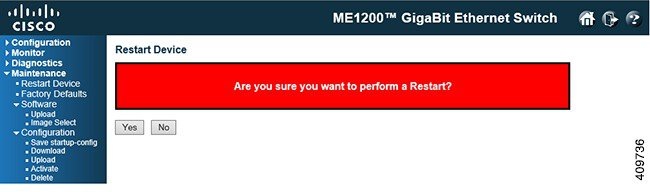
Restart Device
Factory Defaults
You can reset the
configuration of the switch with this option. Only the IP configuration is
retained.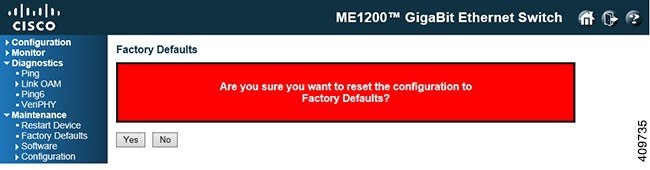
-
Click Yes to reset the configuration to Factory Defaults.
-
Click No to return to the Port State page without resetting the configuration.
 Note | Restoring factory default can also be performed by making a physical loopback between port 1 and port 2 within the first minute from switch reboot. In the first minute after boot, 'loopback' packets will be transmitted at port 1. If a 'loopback' packet is received at port 2 the switch will do a restore to default. |
Software
Software Upload
This option
facilitates an update of the firmware controlling the switch.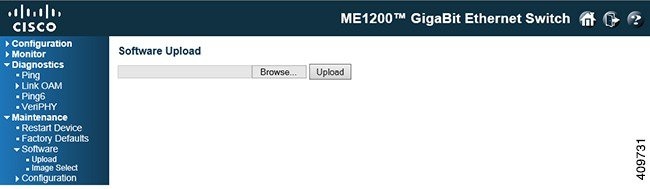
Browse to the location of a software image and click Upload.
After the software image is uploaded, a page announces that the firmware update is initiated. After about a minute, the firmware is updated and the switch restarts.
Warning: While the firmware is being updated, Web access appears to be defunct. The front LED flashes Green/Off with a frequency of 10 Hz while the firmware update is in progress. Do not restart or power off the device at this time or the switch may fail to function afterwards.
Firmware Selection
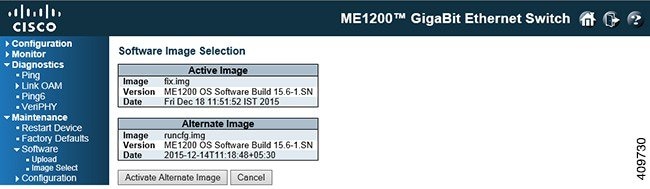
This option provides information about the active and alternate (backup) firmware images in the device, and allows you to revert to the alternate image.
-
In case the active firmware image is the alternate image, only the Active Image table is shown. In this case, the Activate Alternate Image button is also disabled.
-
If the alternate image is active (due to a corruption of the primary image or by manual intervention), uploading a new firmware image to the device will automatically use the primary image slot and activate this.
-
The firmware version and date information may be empty for older firmware releases. This does not constitute an error.
-
Image: The file name of the firmware image, from when the image was last updated.
-
Version: The version of the firmware image.
-
Date: The date where the firmware was produced.
-
Activate Alternate Image: To use the alternate image, click Activate Alternate Image. This button may be disabled depending on system state.
Configuration
Maintaining Configuration Files
The switch stores its
configuration in a number of text files in CLI format. The files are either
virtual (RAM-based) or stored in flash on the switch.

-
running-config: A virtual file that represents the currently active configuration on the switch. This file is volatile.
-
startup-config: The startup configuration for the switch, read at boot time. If this file does not exist at boot time, the switch will start up in default configuration.
-
default-config: A read-only file with vendor-specific configuration. This file is read when the system is restored to default settings.
-
Up to 31 other files, typically used for configuration backups or alternative configurations.
Save startup-config
This option copies running-config to startup-config, thereby ensuring that the currently active configuration will be used at the next reboot.
Download
It is possible to
download any of the files on the switch to the web browser. Select the file and
click
Download
Configuration.
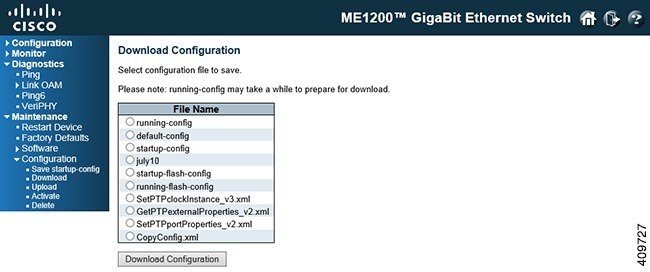
Download of running-config may take a little while to complete, as the file must be prepared for download.
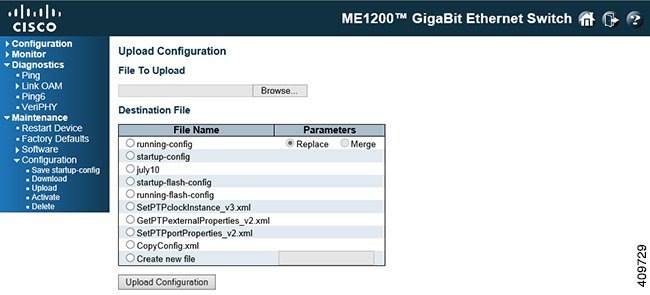
Upload:
-
Replace mode: The current configuration is fully replaced with the configuration in the uploaded file.
-
Merge mode: The uploaded file is merged into running-config.
If the flash file system is full (that is, contains default-config and 32 other files, usually including startup-config), it is not possible to create new files. Instead an existing file must be overwritten or another file must be deleted.
Select the file to upload, select the destination file on the target, then click Upload Configuration.
Activate
It is possible to
activate any of the configuration files present on the switch, except for
running-config which represents the currently active
configuration.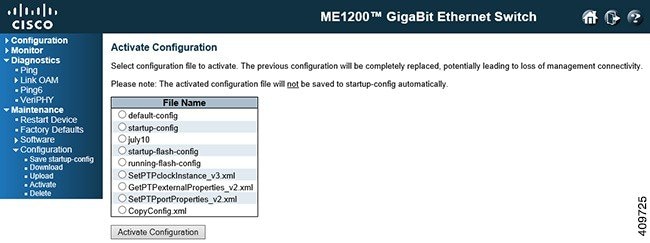
Select the file to activate and click Activate Configuration.
Delete
It is possible to
delete any of the writable files stored in flash, including
startup-config. If this is done and the switch is
rebooted without a prior
Save operation, this effectively resets the switch
to default configuration.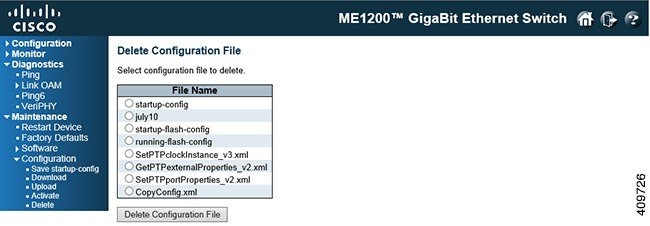
 Feedback