- Preface
- Basic Functionality
- Basic Configurations
- Configuring System
- Configuring Green Ethernet
- Configuring Thermal Protection
- Configuring Ports
- Configuring Security
- Configuring Aggregation
- Configuring Link OAM
- Configuring Loop Protection
- Configuring Spanning Tree
- Configuring MVR
- Configuring LLDP
- Configuring SyncE
- Configuring EPS
- Configuring MEP
- Configuring ERPS
- Configuring MAC Table
- Configuring VLANs
- Configuring VLAN Translation
- Configuring Ethernet Services
- Configuring Performance Monitor
- Configuring QoS
- Configuring HQoS
- Configuring Mirroring
- Configuring PTP
- Configuring sFlow
- Configuring Traffic Test
- Configuring Traffic Test Loops
- Configuring DDMI
- Configuring UDLD
- Configuring Flex Links
- Monitoring System
- Monitoring Green Ethernet
- Monitoring Thermal Protection
- Monitoring Ports
- Monitoring Link OAM
- Monitoring Security
- Monitoring Aggregation
- Monitoring Loop Protection
- Monitoring Spanning Tree
- Monitoring MVR
- Monitoring LLDP
- Monitoring Ethernet Services
- Monitoring Performance Monitor
- Monitoring PTP
- Monitoring MAC Table
- Monitoring VLANs
- Monitoring sFlow
- Monitoring DDMI
- Monitoring UDLD
- Monitoring Flex Links
- Diagnostics
- Maintenance
- Use Cases
Basic
Functionality
This section describes the basic functionality of the ME 1200 Web GUI interface.
- Logging in to the Web GUI
- Reset Configuration to Factory Defaults
- Software Upgrade
- Display and Save Configuration to FLASH
Logging in to the Web GUI
The following assumes the Cisco ME 1200 device is powered on and has a functional connection to a computer using the serial console port on the device (115200 baud, No parity, 8 data bits, 1 stop bit, no flow control), as well as a connection from the computer's LAN port to a copper port on the device. The computer must be running a terminal emulator such as TerraTerm or PuTTY on Windows or Minicom on Linux.
Configure your computer's LAN port to an address in the same subnet as the ME 1200 device. Open your browser and enter the IP address of the device (**You may have to turn off your wireless receiver or adjust your firewall settings.)
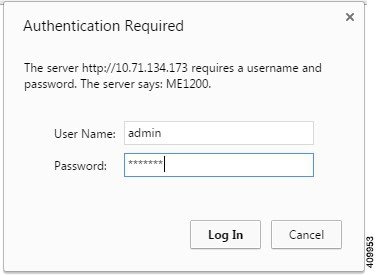
Enter the same default username and password into the popup box.
Reset Configuration to Factory Defaults
Once you have access to the online GUI, you will see a list of links on the left side of the page. Click on .
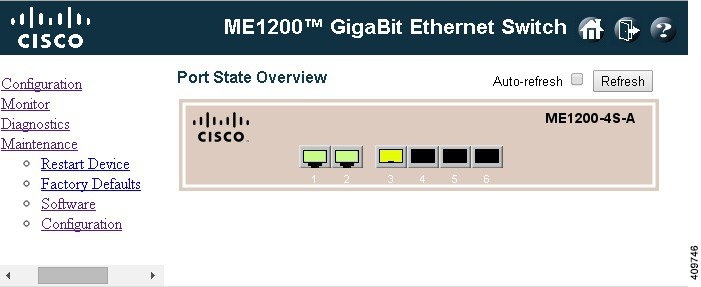
Confirm that you
want to reset the configuration to factory defaults.

You will then see a confirmation message the reset has been completed.
Software Upgrade
To perform a software upgrade, save the new image on your computer. In the left panel of the GUI, click .
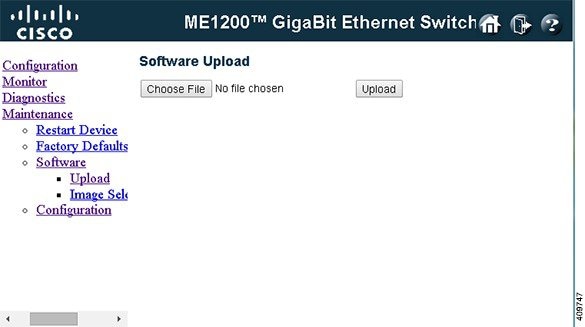
Click Choose File and select the new image. Then click Upload. You will see a confirmation message and a status bar showing the progress of the firmware upgrade.
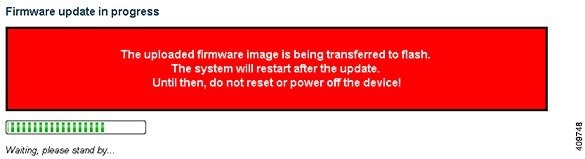
The box will automatically reboot when finished. You may also switch to an alternate image already loaded onto the box by clicking Image Select under Software.
Display and Save Configuration to FLASH
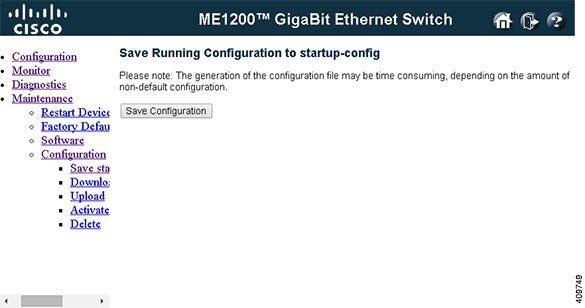
To save the configuration to flash, click .
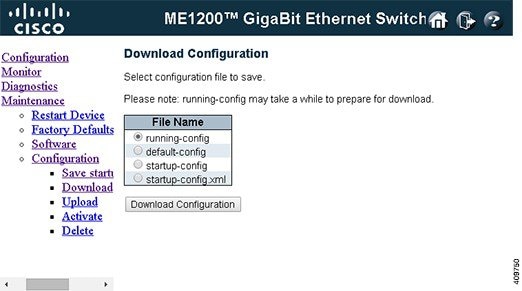
To display the configuration, click . Choose the configuration you want to download, and click Download Configuration.
 Feedback