- Preface
- Basic Functionality
- Basic Configurations
- Configuring System
- Configuring Green Ethernet
- Configuring Thermal Protection
- Configuring Ports
- Configuring Security
- Configuring Aggregation
- Configuring Link OAM
- Configuring Loop Protection
- Configuring Spanning Tree
- Configuring MVR
- Configuring LLDP
- Configuring SyncE
- Configuring EPS
- Configuring MEP
- Configuring ERPS
- Configuring MAC Table
- Configuring VLANs
- Configuring VLAN Translation
- Configuring Ethernet Services
- Configuring Performance Monitor
- Configuring QoS
- Configuring HQoS
- Configuring Mirroring
- Configuring PTP
- Configuring sFlow
- Configuring Traffic Test
- Configuring Traffic Test Loops
- Configuring DDMI
- Configuring UDLD
- Configuring Flex Links
- Monitoring System
- Monitoring Green Ethernet
- Monitoring Thermal Protection
- Monitoring Ports
- Monitoring Link OAM
- Monitoring Security
- Monitoring Aggregation
- Monitoring Loop Protection
- Monitoring Spanning Tree
- Monitoring MVR
- Monitoring LLDP
- Monitoring Ethernet Services
- Monitoring Performance Monitor
- Monitoring PTP
- Monitoring MAC Table
- Monitoring VLANs
- Monitoring sFlow
- Monitoring DDMI
- Monitoring UDLD
- Monitoring Flex Links
- Diagnostics
- Maintenance
- Use Cases
- QoS Ingress Port Classification
- QoS Ingress Port Policer Configuration
- QoS Ingress Queue Policer Configuration
- QoS Egress Port Schedulers
- QoS Egress Port Shapers
- QoS Egress Port Tag Remarking
- Port DSCP Configuration
- DSCP-based QoS Ingress Classification
- DSCP Translation
- DSCP Classification
- QoS Control List Configuration
- Storm Policer Configuration
- QoS Weighted Random Early Detection
Configuring
QoS
The QoS feature available on the ME 1200 Web GUI allows you to do the following:
- QoS Ingress Port Classification
- QoS Ingress Port Policer Configuration
- QoS Ingress Queue Policer Configuration
- QoS Egress Port Schedulers
- QoS Egress Port Shapers
- QoS Egress Port Tag Remarking
- Port DSCP Configuration
- DSCP-based QoS Ingress Classification
- DSCP Translation
- DSCP Classification
- QoS Control List Configuration
- Storm Policer Configuration
- QoS Weighted Random Early Detection
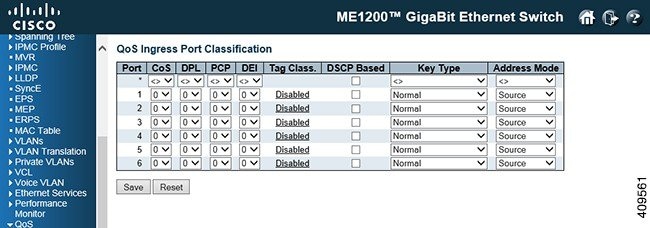
QoS Ingress Port Classification
-
Port: The port number for which the configuration below applies.
-
CoS: Controls the default class of service. All frames are classified to a CoS. There is a one to one mapping between CoS, queue and priority. A CoS of 0 (zero) has the lowest priority.
If the port is VLAN aware, the frame is tagged and Tag Class. is enabled, then the frame is classified to a CoS that is mapped from the PCP and DEI value in the tag. Otherwise the frame is classified to the default CoS.The classified CoS can be overruled by a QCL entry. 
Note
If the default CoS has been dynamically changed, then the actual default CoS is shown in parentheses after the configured default CoS.
-
DPL: Controls the default drop precedence level. All frames are classified to a drop precedence level.
If the port is VLAN aware, the frame is tagged and Tag Class. is enabled. Then, the frame is classified to a DPL that is mapped from the PCP and DEI value in the tag. Otherwise the frame is classified to the default DPL.
The classified DPL can be overruled by a QCL entry.
-
PCP: Controls the default PCP value. All frames are classified to a PCP value.
If the port is VLAN aware and the frame is tagged, then the frame is classified to the PCP value in the tag. Otherwise the frame is classified to the default PCP value.
-
DEI: Controls the default DEI value. All frames are classified to a DEI value.
If the port is VLAN aware and the frame is tagged, then the frame is classified to the DEI value in the tag. Otherwise the frame is classified to the default DEI value.
-
Tag Class: Shows the classification mode for tagged frames on this port.
-
Disabled: Uses default CoS and DPL for tagged frames.
-
Enabled: Uses mapped versions of PCP and DEI for tagged frames.
Click on the mode in order to configure the mode and/or mapping.
Note
This setting has no effect if the port is VLAN unaware. Tagged frames received on VLAN unaware ports are always classified to the default CoS and DPL.
-
-
DSCP Based: Check this check box to enable DSCP Based QoS Ingress Port Classification.
-
Key Type: The key type specifying the key generated for frames received on the port. The allowed values are: Filtering on DMAC type (unicast/multicast/broadcast) is supported for any key type.
-
Address Mode: The IP/MAC address mode specifying whether the QCL classification must be based on source (SMAC/SIP) or destination (DMAC/DIP) addresses on this port. This parameter is only used when the key type is Normal. The allowed values are:
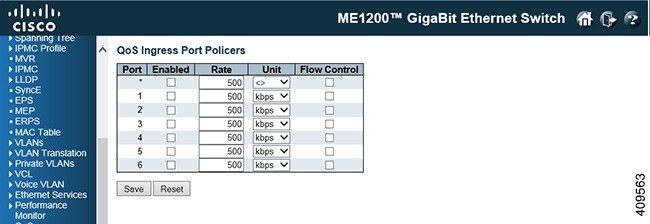
QoS Ingress Port Policer Configuration
-
Port: The port number for which the configuration below applies.
-
Enabled: Controls whether the policer is enabled on this switch port.
-
Rate: Controls the rate for the policer. The default value is 500. This value is restricted to 100-1000000 when the Unit is kbps or fps, and it is restricted to 1-3300 when the Unit is Mbps or kfps.
-
Unit: Controls the unit of measure for the policer rate as kbps, Mbps, fps or kfps. The default value is kbps.
-
Flow Control: If flow control is enabled and the port is in flow control mode, then pause frames are sent instead of discarding frames.
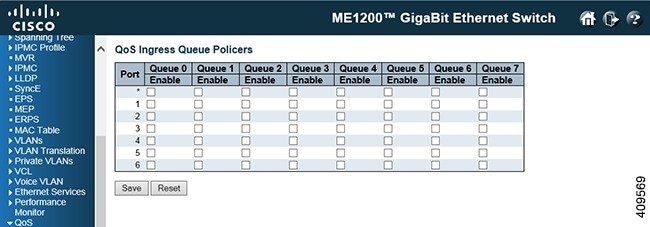
QoS Ingress Queue Policer Configuration
-
Port: The port number for which the configuration below applies.
-
Enable (E): Controls whether the queue policer is enabled on this switch port.
-
Rate: Controls the rate for the queue policer. The default value is 500. This value is restricted to 100-1000000 when the Unit is kbps, and it is restricted to 1-3300 when the Unit is Mbps.
This field is only shown if at least one of the queue policers is enabled.
-
Unit: Controls the unit of measure for the queue policer rate as kbps or Mbps. The default value is kbps.
This field is only shown if at least one of the queue policers is enabled.
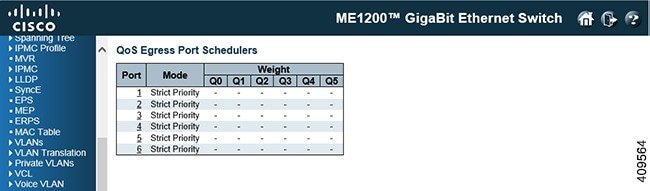
QoS Egress Port Schedulers
QoS Egress Port Shapers
This option provides an overview of QoS Egress Port Shapers for all switch ports.

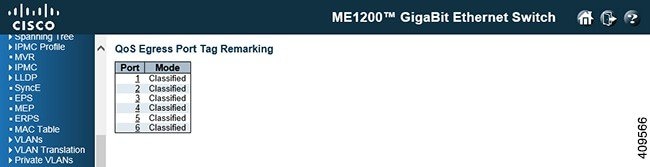
QoS Egress Port Tag Remarking
Port DSCP Configuration
-
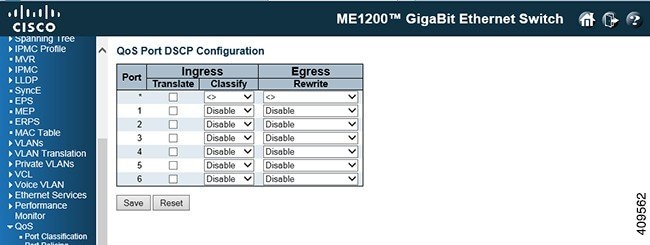
Port: The Port column shows the list of ports for which you can configure dscp ingress and egress settings.
-
Ingress: In Ingress settings, you can change Ingress translation and classification settings for individual ports.
There are two configuration parameters available in Ingress: -
Egress: Port Egress rewriting can have one of the following values:
-
Disable: No Egress rewrite.
-
Enable: Rewrite enabled without remapping.
-
Remap DP Unaware: DSCP from analyzer is remapped and frame is remarked with remapped DSCP value. The remapped DSCP value is always taken from the table.
-
Remap DP Aware: DSCP from analyzer is remapped and frame is remarked with remapped DSCP value. Depending on the DP level of the frame, the remapped DSCP value is either taken from the table or from the table.
-
DSCP-based QoS Ingress Classification
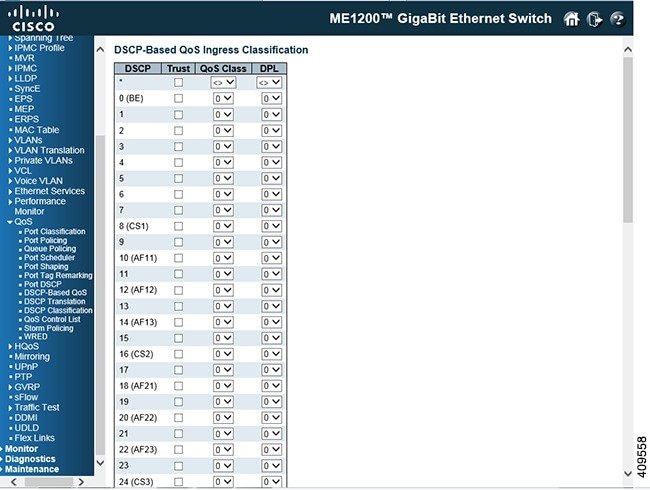
This option allows you to configure the basic QoS DSCP based QoS Ingress Classification settings for all switches.
-
DSCP: Maximum number of supported DSCP values are 64.
-
Trust: Controls whether a specific DSCP value is trusted. Only frames with trusted DSCP values are mapped to a specific QoS class and Drop Precedence Level. Frames with untrusted DSCP values are treated as a non-IP frame.
-
QoS Class: QoS class can be any value in the range 0-7.
-
DPL: Drop Precedence Level (0-1).
DSCP Translation
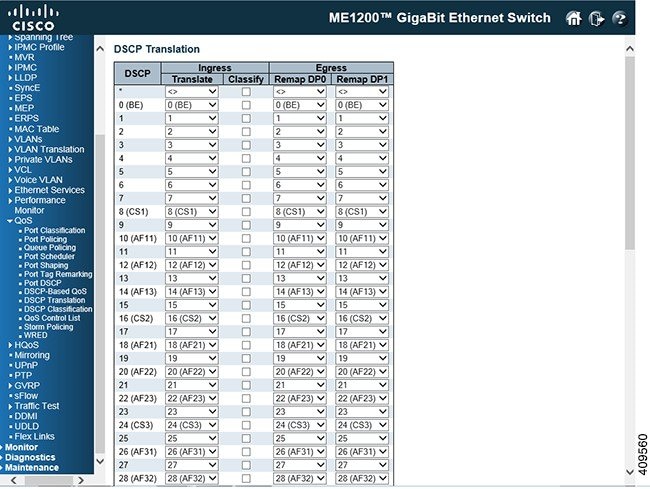
This option allows you to configure the basic QoS DSCP Translation settings for all switches. DSCP translation can be done in Ingress or Egress.
-
DSCP: Maximum number of supported DSCP values are 64 and valid DSCP value ranges from 0 to 63.
-
Ingress: Ingress side DSCP can be first translated to new DSCP before using the DSCP for QoS class and DPL map.
There are two configuration parameters for DSCP Translation: -
Egress: The following parameters are configurable for Egress side: -
Remap DP0: Controls the remapping for frames with DP level 0. Select the DSCP value from select menu to which you want to remap. DSCP value ranges form 0 to 63.
-
Remap DP1 Controls the remapping for frames with DP level 1. Select the DSCP value from select menu to which you want to remap. DSCP value ranges form 0 to 63.
-
DSCP Classification
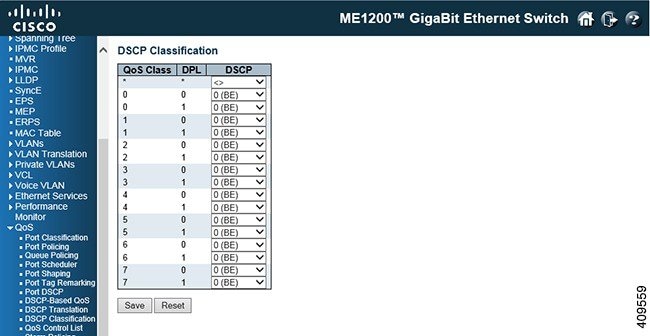
QoS Control List Configuration
This option shows the QoS Control List (QCL) which is made up of the QoS Control Entries (QCEs). Each row describes a QCE that is defined. The maximum number of QCEs is 1024 on each switch.

-
QCE: Indicates the QCE ID.
-
Port: Indicates the list of ports configured with the QCE or Any.
-
DMAC: Indicates the destination MAC address. Possible values are: The default value is Any.
-
SMAC: Match specific source MAC address or Any. If a port is configured to match on destination addresses, this field indicates the DMAC.
-
Tag Type: Indicates tag type. Possible values are: The default value is Any.
-
VID: Indicates VLAN ID, either a specific VID or range of VIDs. VID can be in the range 1-4095 or Any.
-
PCP: Priority Code Point: Valid values of PCP are specific(0, 1, 2, 3, 4, 5, 6, 7) or range(0-1, 2-3, 4-5, 6-7, 0-3, 4-7) or Any.
-
Drop Eligible Indicator (DEI): Valid value of DEI are 0, 1 or Any.
-
Frame Type: Indicates the type of frame. Possible values are: -
Action: Indicates the classification action taken on ingress frame if parameters configured are matched with the frame's content. Possible actions are: -
Modification icons: You can modify each QCE in the table using the following buttons: -
Insert QCE before this QCE icon: Inserts a new QCE before the current row.
-
Edit QCE icon: Edits the QCE.
-
Move QCE up icon: Moves the QCE up the list.
-
Move QCE down icon: Moves the QCE down the list.
-
Delete QCE icon: Deletes the QCE.
-
Add QCE to end of list icon: The lowest plus sign adds a new entry at the bottom of the QCE listings.
-
Storm Policer Configuration
This option allows you to configure the Storm policers for the switch.
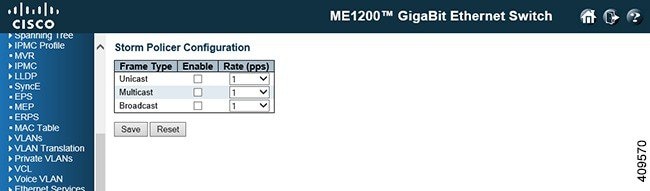
-
Frame Type: The settings in a particular row apply to the frame type listed here: Unicast, Multicast or Broadcast.
-
Enable: Enable or disable the storm policer for the given frame type.
-
Rate: The rate unit is packets per second (pps). Valid values are: 1, 2, 4, 8, 16, 32, 64, 128, 256, 512, 1K, 2K, 4K, 8K, 16K, 32K, 64K, 128K, 256K, 512K or 1024K.
QoS Weighted Random Early Detection
This option allows you to configure the Random Early Detection (RED) settings for queue 0 to 5.
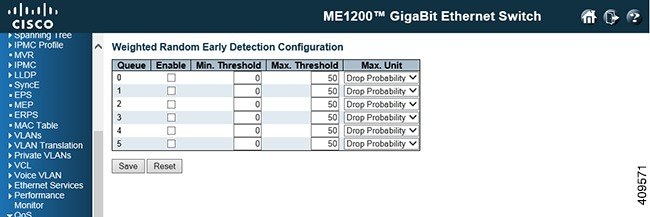
RED cannot be applied to queue 6 and 7.
Through different RED configuration for the queues (QoS classes), it is possible to obtain Weighted Random Early Detection (WRED) operation between queues.
-
Queue: The queue number (QoS class) for which the configuration below applies.
-
Enable: Controls whether RED is enabled for this queue.
-
Min. Threshold: Controls the lower RED fill level threshold. If the queue filling level is below this threshold, the drop probability is zero. This value is restricted to 0-100%.
-
Max. Threshold: Controls the upper RED drop probability or fill level threshold for frames marked with Drop Precedence Level 1 (yellow frames). This value is restricted to 1-100% Max.
-
Max. Unit: Selects the unit for Max. Threshold. Possible values are:
 Feedback