EVPN Configuration Guide for Cisco 8000 Series Routers, Cisco IOS XR Releases

PDF

EVPN Configuration Guide for Cisco 8000 Series Routers, Cisco IOS XR Releases

EVPN E-LAN all-active multihoming mode

Want to summarize with AI?

Log in

Explains how EVPN E-LAN all-active multihoming modes allow multiple active connections to a single Ethernet LAN, providing redundancy and load balancing.


An EVPN E-LAN all-active multihoming mode is a networking model that

  • enables multiple simultaneous active connections from an EVPN to a single Ethernet LAN

  • allows all PE routers attached to a particular Ethernet segment to forward traffic to and from that Ethernet segment, and

  • provides redundancy and load balancing by allowing traffic distribution across all available links, enhancing network reliability and efficiency by utilizing all potential paths without requiring a failover mechanism.

Table 1. Feature History Table

Feature Name

Release Information

Feature Description

EVPN E-LAN all-active multihoming mode

Release 26.2.1

Introduced in this release on: Modular Systems (8800 [LC ASIC: K100])(select variants only*);

*This feature is supported on Cisco 88-LC1-48Y8H-EM line cards.

EVPN E-LAN all-active multihoming mode

Release 25.4.1

Introduced in this release on: Fixed Systems (8010 [ASIC: A100])(select variants only*)

*This feature is supported on:

  • 8011-32Y8L2H2FH

  • 8011-12G12X4Y-A

  • 8011-12G12X4Y-D

EVPN E-LAN all-active multihoming mode

Release 25.1.1

Introduced in this release on: Fixed Systems (8010 [ASIC: A100]) (select variants only*)

*This feature is now supported on the Cisco 8011-4G24Y4H-I routers.

EVPN E-LAN all-active multihoming mode

Release 24.4.1

Introduced in this release on: Fixed Systems (8700) (select variants only*)

* The EVPN E-LAN all-active multihoming functionality is now extended to the Cisco 8712-MOD-M routers.

E-LAN all-active multihoming mode

Release 24.3.1

Introduced in this release on: Fixed Systems (8200 [ASIC: P100], 8700 [ASIC: P100])(select variants only*); Modular Systems (8800 [LC ASIC: P100])(select variants only*)

* The EVPN E-LAN all-active multihoming functionality is now extended to:

  • 8212-48FH-M

  • 8711-32FH-M

  • 88-LC1-52Y8H-EM

  • 88-LC1-12TH24FH-E

E-LAN all-active multihoming mode

Release 24.2.11

Introduced in this release on: Modular Systems (8800 [LC ASIC: P100]) (select variants only*)

The all-active multihoming mode enables redundant network connectivity by allowing a CE device to connect to more than one PE device. In this mode, all the links actively forward the traffic.

* This feature is supported only on routers with the 88-LC1-36EH line cards.


Business connectivity challenges

Consider a scenario where the enterprise XYZ is operating in two different cities, with its headquarters (HQ) in Denver and a branch office in Dallas.

The business customer hosts all voice and video services in their active data center at HQ, Denver. The branch site in Dallas has minimal services for regional operations and might need to offload certain tasks to HQ. Additionally, the HQ site is used to update storage over a high-speed connection. Enterprise XYZ has approached the service provider for Layer 2 connectivity services, requiring direct L2 services for data center workloads at both HQ and the branch site.

The HQ in Denver is critical for the business, necessitating maximum throughput and high availability. The remote branch in Dallas can operate with a single uplink.


All-active multihoming as the ideal solution

To address these requirements, the service provider plans to deploy Layer 2 connectivity that seamlessly balances workloads across multiple sites while providing reliable and redundant connections with high availability. EVPN all-active multihoming mode is chosen as the solution for this scenario.

In all-active multihoming mode, both the PE devices attached to the Ethernet segment are allowed to receive and send traffic. This mode ensures redundant connectivity with no traffic disruption in the event of a network failure. It also offers high availability, efficient bandwidth utilization, and faster convergence, making it ideal for scenarios like HQ in Denver where maximum throughput and reliability are essential.


How EVPN E-LAN all-active multihoming works

Summary

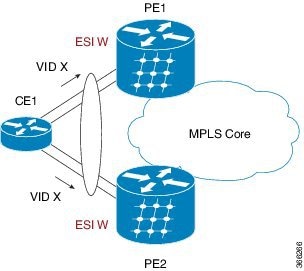
The EVPN E-LAN all-active multihoming mode enables load balancing and redundancy by allowing multiple PE devices to forward traffic concurrently. PE devices use identical Ethernet Segment Identifiers (ESIs) and bundle interfaces to achieve this.

The key components involved in the process are:

  • CE1: Single bundles towards two EVPN PE devices, allowing connectivity to the MPLS core.

  • PE1 and PE2: Utilize identical ESIs and attach to the Ethernet segment using bundle interfaces, enabling simultaneous traffic forwarding within the same EVI.

  • MPLS core: The central network component that provides connectivity and routes traffic between PEs and other network entities.

Workflow

The process involves these stages:

  1. Configuration of CE1: CE1 is configured with single bundle interfaces directed towards both PE1 and PE2.

  2. ESI configuration on PEs: Both PE1 and PE2 are configured with identical ESIs, allowing them to recognize and manage the same Ethernet segment.

  3. Traffic forwarding: In this all-active mode, both PE1 and PE2 can concurrently forward traffic within the same EVI, providing load balancing and redundancy.

  4. Load balancing: Traffic is distributed across both PEs, leveraging the Active/Active per Flow (AApF) mechanism for optimal utilization of resources.

Result

The EVPN E-LAN all-active multihoming mode ensures efficient load balancing, increased redundancy, and robust connectivity within the MPLS network by enabling simultaneous traffic forwarding through multiple PEs.


Configure EVPN E-LAN all-active multihoming mode

Set up an EVPN E-LAN all-active multihoming mode on PE1 and PE2.

This task involves configuring BGP sessions, MPLS Label Distribution Protocol (LDP), and EVPN EVI parameters on both PE1 and PE2 to enable EVPN E-LAN all-active multihoming.

Before you begin

  • Ensure all equipment is powered on and accessible.

  • Verify network connectivity between PE1 and PE2.

  • You must configure BGP when you set up EVPN with an EVI under a bridge-domain because BGP enables EVPN to work properly. Without BGP, the EVPN instance only functions locally and cannot connect to remote PEs.

Procedure

1.

Configure BGP session and MPLS LDP on PE1.

Example:

Configure BGP session on PE1.

Router(config)# router bgp 100
Router(config-bgp)# bgp router-id 54.54.54.54
Router(config-bgp)# address-family l2vpn evpn
Router(config-bgp)# neighbor 51.51.51.51
Router(config-bgp-nbr)# remote-as 100
Router(config-bgp-nbr)# update-source Loopback 0
Router(config-bgp-nbr)# address-family l2vpn evpn
Router(config-bgp)# neighbor 55.55.55.55
Router(config-bgp-nbr)# remote-as 100
Router(config-bgp-nbr)# update-source Loopback 0
Router(config-bgp-nbr)# address-family l2vpn evpn

Configure MPLS LDP on PE1.

Router(config)# mpls ldp
Router(config-ldp)# router-id 54.54.54.54
Router(config-ldp)# interface FourHundredGigE0/0/0/2
2.

Configure BGP session and MPLS LDP on PE2.

Example:

Configure BGP session on PE2.

Router(config)# router bgp 100
Router(config-bgp)# bgp router-id 55.55.55.55
Router(config-bgp)# address-family l2vpn evpn
Router(config-bgp)# neighbor 51.51.51.51
Router(config-bgp-nbr)# remote-as 100
Router(config-bgp-nbr)# update-source Loopback 0
Router(config-bgp-nbr)# address-family l2vpn evpn
Router(config-bgp)# neighbor 54.54.54.54
Router(config-bgp-nbr)# remote-as 100
Router(config-bgp-nbr)# update-source Loopback 0
Router(config-bgp-nbr)# address-family l2vpn evpn

Configure MPLS LDP on PE2.

Router(config)# mpls ldp
Router(config-ldp)# router-id 55.55.55.55
Router(config-ldp)# interface FourHundredGigE0/0/0/2
3.

Configure bridge domain and EVI on PE1 and PE2.

Example:

Router(config)# l2vpn 
Router(config-l2vpn)# bridge group bg1
Router(config-l2vpn-bg)# bridge-domain bd1
Router(config-l2vpn-bg-bd)# interface Bundle-Ether11.1
Router(config-l2vpn-bg-bd-ac)# evi 1
Router(config-l2vpn-bg-bd-ac)# root
Router(config)# l2vpn 
Router(config-l2vpn)# bridge group bg2
Router(config-l2vpn-bg)# bridge-domain bd2
Router(config-l2vpn-bg-bd)# interface Bundle-Ether11.2
Router(config-l2vpn-bg-bd-ac)# evi 2
4.

Configure EVPN EVI and advertise MAC routes on PE1 and PE2.

Example:

Router(config)# evpn
Router(config-evpn)# evi 1
Router(config-evpn-evi)# advertise-mac
Router(config-evpn-evi)# exit
Router(config-evpn)# evi 2
Router(config-evpn-evi)# advertise-mac
5.

Configure the same ESI on PE1 and PE2.

Example:

Router(config)# evpn
Router(config-evpn)# interface Bundle-Ether11
Router(config-evpn-ac)# ethernet-segment
Router(config-evpn-ac-es)# identifier type 0 40.00.00.00.00.00.00.00.01
Router(config-evpn-ac-es)# commit
6.

EVPN E-LAN all-active multihoming mode running configuration.

Example:


/* PE1 Configuration */
router bgp 100
 bgp router-id 54.54.54.54
 address-family l2vpn evpn
 !
 neighbor 51.51.51.51
  remote-as 100
  update-source Loopback0
  address-family l2vpn evpn
  !
 !
 neighbor 55.55.55.55
  remote-as 100
  update-source Loopback0
  address-family l2vpn evpn
  !
 !
!
mpls ldp
 router-id 54.54.54.54
 interface FourHundredGigE0/0/0/2
 !
!/* PE2 Configuration */
router bgp 100
 bgp router-id 55.55.55.55
 address-family l2vpn evpn
 !
 neighbor 51.51.51.51
  remote-as 100
  update-source Loopback0
  address-family l2vpn evpn
  !
 !
 neighbor 54.54.54.54
  remote-as 100
  update-source Loopback0
  address-family l2vpn evpn
  !
 !
!
mpls ldp
 router-id 55.55.55.55
 interface FourHundredGigE0/0/0/2
 !
!
/* Configuration on PE1 and PE2 */
l2vpn
 bridge group bg1
  bridge-domain bd1
   interface Bundle-Ether11.1
   !
   evi 1
   !
  !
 !
 bridge group bg2
  bridge-domain bd2
   interface Bundle-Ether11.2
   !
   evi 2
   !
  !
 !
!
evpn
 evi 1
  advertise-mac
  !
 !
 evi 2
  advertise-mac
  !
 !
 interface Bundle-Ether11
  ethernet-segment
   identifier type 0 40.00.00.00.00.00.00.00.01
  !
 !
!
7.

Use the show evpn ethernet-segment int Bundle-Ether 11 carving detail command to verify that EVPN all-active multihoming mode is configured on PE1 and PE2.

Example:


Router#show evpn ethernet-segment int Bundle-Ether 11 carving detail

Ethernet Segment Id      Interface                          Nexthops            
------------------------ ---------------------------------- --------------------
0040.0000.0000.0000.0001 BE11                                54.54.54.54
                                                             55.55.55.55
  ES to BGP Gates   : Ready
  ES to L2FIB Gates : Ready
  Main port         :
     Interface name : Bundle-Ether11
     Interface MAC  : 008d.9c38.7205
     IfHandle       : 0x0f00001c
     State          : Up
     Redundancy     : Not Defined
  ESI ID            : 1
  ESI type          : 0
     Value          : 0040.0000.0000.0000.0001
  ES Import RT      : 4000.0000.0000 (from ESI)
  Topology          :
     Operational    : MH, All-active
     Configured     : All-active (AApF) (default)
  Service Carving   : Auto-selection
     Multicast      : Disabled
  Convergence       : 
  Peering Details   : 2 Nexthops
     54.54.54.54 [MOD:P:00:T]
     55.55.55.55 [MOD:P:00:T]
  Service Carving Synchronization:
     Mode           : NONE
     Peer Updates   :
             54.54.54.54 [SCT: N/A]
             55.55.55.55 [SCT: N/A]
  Service Carving Results:
     Forwarders     : 2
     Elected        : 1
            EVI E   :        2
     Not Elected    : 1
            EVI NE  :        1
  EVPN-VPWS Service Carving Results:
     Primary        : 0
     Backup         : 0
     Non-DF         : 0
  MAC Flush msg     : STP-TCN
  Peering timer     : 3 sec [not running]
  Recovery timer    : 30 sec [not running]
  Carving timer     : 0 sec [not running]
  Revert timer      : 0 sec [not running]
  HRW Reset timer   : 5 sec [not running]
  Local SHG label   : 24004
  Remote SHG labels : 1
              24004 : nexthop 55.55.55.55
  Access signal mode: Bundle OOS