Register leaf nodes as ACI border gateways by preconfiguring the nodes or by using DHCP discovery.
Use this procedure to register leaf nodes as ACI border gateways for fabric discovery and management.
You can register a leaf node before discovery if you know its serial number. Otherwise, connect the node to the network and register it after Cisco APIC discovers it through DHCP.
Before you begin
Register each leaf node with the border gateway node type so that Cisco APIC identifies it as an ACI border gateway.
You cannot register a spine switch as a border gateway. Cisco APIC blocks the discovery.
Procedure
-
Preconfigure the node registration policy if you know the serial number:
- In the Work pane, choose .
Figure 1. Preconfigured ACI border gateway registration 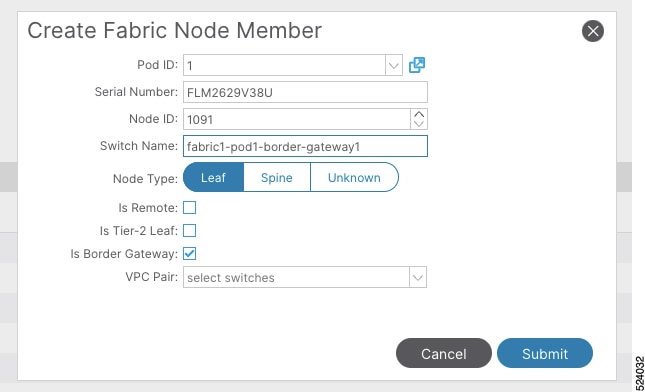
- In the Work pane, choose .
-
Register the node after DHCP discovery:
- In the Work pane, right-click the serial number of the newly discovered leaf switch and click Register.
Figure 2. DHCP-discovered ACI border gateway registration 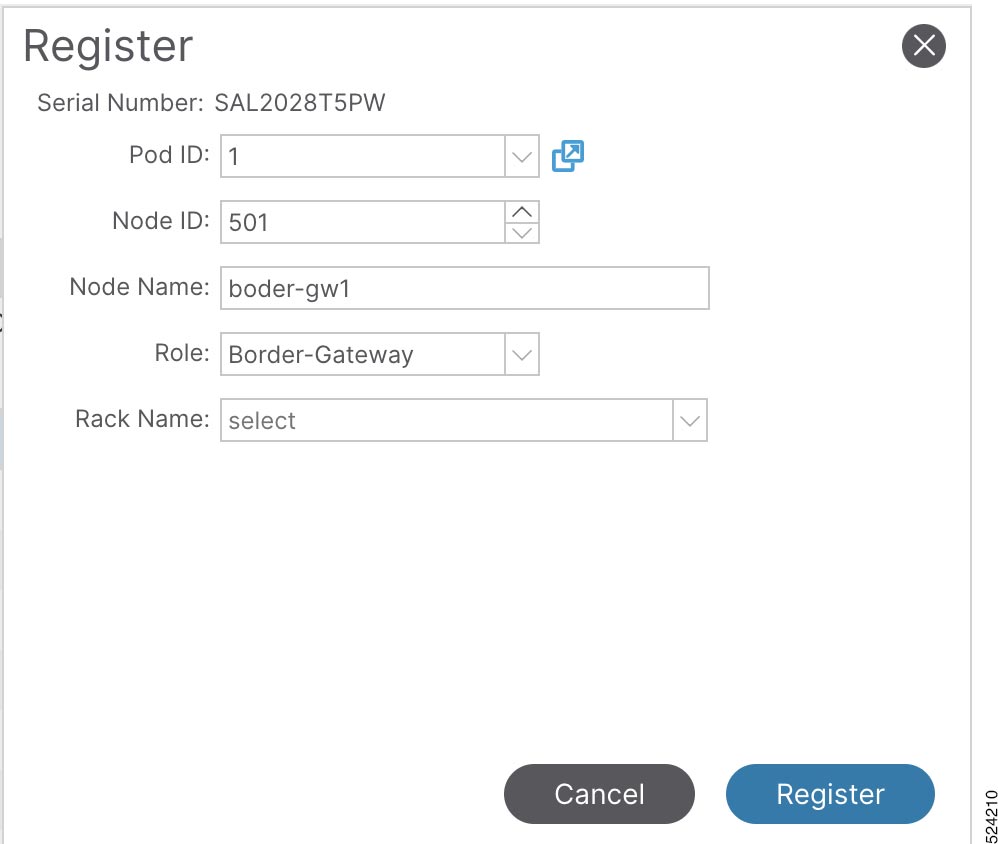
- In the Work pane, right-click the serial number of the newly discovered leaf switch and click Register.
The leaf nodes are registered as ACI border gateways and appear in the fabric inventory.
What to do next
Create border gateway sets by using the procedure in Create border gateway sets by using the GUI.