Cisco Catalyst 9800 Series Wireless Controller Software Configuration Guide, Cisco IOS XE 26.1.x

PDF

Cisco Catalyst 9800 Series Wireless Controller Software Configuration Guide, Cisco IOS XE 26.1.x

Dynamically configure URWB parameters

Want to summarize with AI?

Log in

Adjust URWB parameters dynamically on APs without rebooting, improving network management and reducing service interruptions.


This feature allows you to adjust certain Ultra-Reliable Wireless Backhaul (URWB) configuration parameters on supported access points (APs) without needing to reboot the device. This makes network management smoother and reduces service interruptions.

Hot-configurable URWB parameters

These URWB parameters can be updated dynamically, without requiring a device reboot.

  • Radio frequency and bandwidth

  • Radio DFS role

  • Radio DFS backup channel list

  • Radio crypto and key-control rotation timeout

  • Network key

  • MPLS ethertype

  • MPLS allow Ethernet I

  • MPLS ether filter method

  • MPLS unicast flood

  • MPLS unicast flood limitation

  • Mobility role (base / base-relay)

  • Mobility scan parameters (idle, after, RSSI threshold)

  • Mobility RSSI hysteresis

  • Mobility times (warmup, timeout)

  • Mobility backhaul checks

  • P2MP primary

  • P2MP parameters (RSSI threshold, autoscan, cluster ID, tower ID)

  • High-availability enablement

  • High-availability timeout

  • Multicast

  • MPO enablement

  • MPO fine-tuning parameters (maximum links, minimum RSSI, QoS classification)

  • MPO telemetry enablement


Parameters requiring a device reload

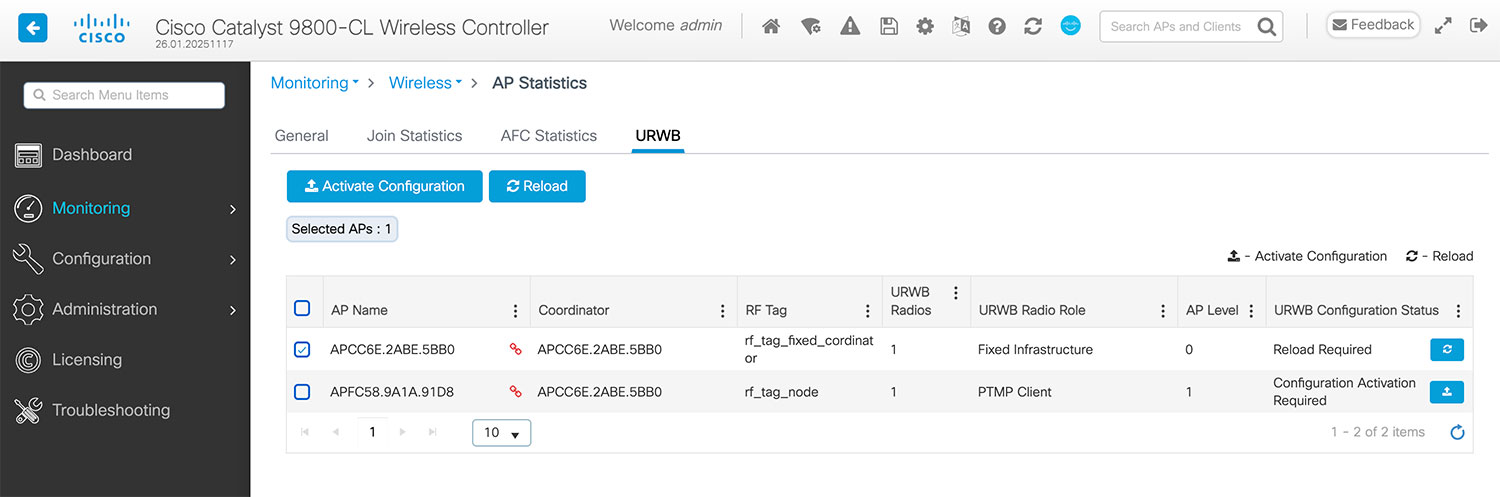
These URWB parameters cannot be changed dynamically. The device must be rebooted for the changes to take effect. You can use either the reload command or use the Reload button in the URWB tab of the Monitoring > Wireless > AP Statistics page.

  • URWB global enablement

  • Coordinator mode

  • Switch between P2MP base and P2MP client

  • Radio role (disabled, fixed, P2MP, mobility)

  • Band ID

Note

Changing the country code requires a device reload.


Configure URWB parameters using CLI

This task helps you modify hot-configurable URWB parameters and safely apply them to the network device.

Note

To prevent partial or inconsistent configurations, changes are first staged, and then explicitly applied.

Before you begin

  • Confirm the parameters you intend to update are hot-configurable. See the Hot-configurable URWB parameters section for the supported list of parameters.

  • Ensure that the required APs are operating in URWB mode.

Follow these steps to apply configuration changes to URWB parameters:

Procedure

1.

Select the AP to which the configuration is to be applied.

Note

When updating configurations in a wireless mesh network, apply the configuration to the remote devices first, and then to the Coordinator AP. This helps prevent loss of connectivity to the rest of the network during the update.

2.

After making the required configuration changes, verify that the Config Status field is set to 'Live update required.'

See the View Configuration Update Status Summary section on how to view the summary of the configuration updates.

3.

Apply the configuration changes using the ap name ap-name urwb apply-running-config command.

Note

The Config Status field transitions to 'In progress.'

4.

After the configuration is successfully applied, confirm that the Config Status field is set to 'Up to date.'

See the View Configuration Update Status Summary section on how to view the summary of the configuration updates.


Configure URWB parameters using GUI

This task helps you modify hot-configurable URWB parameters and apply them to the network device.

Procedure

1.

Choose Configuration > Tags & Profiles > URWB Network Profile.

2.

Click the URWB Network Profile name to open the Edit URWB Network Profile page.

3.

Select the appropriate tab and make the necessary changes.

4.

Click Update and Apply on Device. The system displays a message confirming successful configuration.

5.

Choose Monitoring > Wireless > AP Statistics, and select the URWB tab.

6.

Activate the configuration using one of these methods:

  • Click the buttom displayed on the URWB Configuration Status field of the AP.

  • Select the AP and click the button on the page.
7.

(Optional) Reload the device. Use this option only if URWB parameter changes require a device reboot. Use one of these methods:

  • Click the button displayed on the URWB Configuration Status field of the AP.

  • Select the AP name and click the button on the page.

View configuration update summary

You can view the summary of the configuration updates status using the command given here.

  • show ap urwb status

controller# show ap urwb status

*If configuration error is 'Present' please run 'show ap urwb err-status' for details

AP name          Coordinator name Config status Config error RF tag             Radio roles
--------------------------------------------------------------------------------------------- 
AP345D.A812.0B6C AP345D.A812.0B6C Up to date                 cm_p2mp_rf_tag_me  PTMP Base   
APC828.E536.7920 AP345D.A812.0B6C Up to date                 cm_p2mp_rf_tag_mp2 PTMP Secondary
APE4A4.1CD8.1700 AP345D.A812.0B6C Up to date                 cm_p2mp_rf_tag_mp1 PTMP Secondary