Cisco Secure Access for Government Help

PDF

Cisco Secure Access for Government Help

Manage Logging

Want to summarize with AI?

Log in

Describes managing logging. Secure Access allows for the logging of events and traffic, and these logs can be saved to your own S3 bucket.


Secure Access allows for the logging of events and traffic, and these logs can be saved to your own S3 bucket.

Secure Access logs are CSV-formatted, compressed (gzip), and saved every 10 minutes. For more information, see Log Formats and Versioning.


Enable Logging

Secure Access allows for the logging of events and traffic through a policy's rule. By default, logging is disabled. Logging can be enabled or disabled at any time for any rule.

Before you begin

  • Full Admin user role is required. For more information, see Manage Accounts.

Procedure

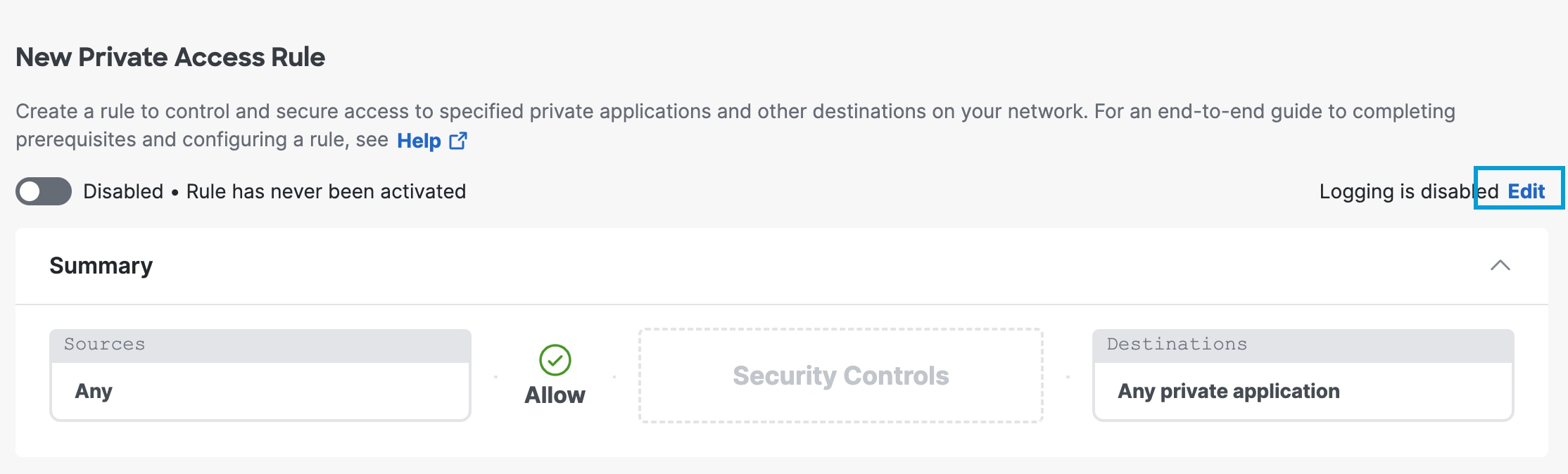
  1. For each rule, click Edit and make changes as needed.


    The Enable Logs interface.
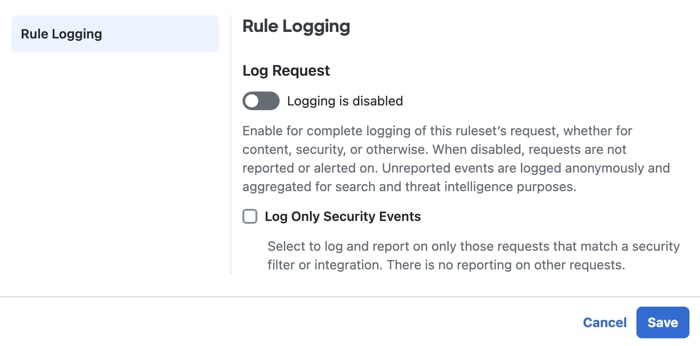
  2. Make changes as needed and click Save.


    The Log Setup interface.

    Settings are:

    • Log Request— Enable the logging of this ruleset's request to log all request activity for a rule including content, security, or otherwise.

    • Log Only Security Events—Only logs security events and not all requests. This provides better user privacy.


Enable Logging to Your Own S3 Bucket

You can configure Secure Access to log events to an Amazon S3 bucket that you manage. To enable logging to a self-managed Amazon S3 bucket, follow the prerequisite steps to set up an AWS account and create an Amazon S3 bucket. Once you have created an S3 bucket in Amazon, configure Secure Access to use it for the storage of logs.


Prerequisites

  • Full Admin user role is required. For more information, see Manage Accounts.

  • A login to Amazon AWS service (http://aws.amazon.com/console/). If you don't have an account, Amazon provides free sign-up for S3.

    Note

    Amazon requires a credit card in case your usage exceeds free plan usage.

  • A bucket configured in Amazon S3 to be used for storing logs. The S3 bucket must be provisioned in the AWS GovCloud (US-East) (us-gov-east-1) region.For more information, see Amazon's S3 documentation.

    Note
    Periods in S3 bucket names are not supported.

JSON Bucket Policy

When you set up your Amazon S3 bucket in AWS GovCloud (US-East), you must add a bucket policy that accepts uploads from Secure Access. Copy the following preconfigured JSON and substitute your S3 bucket name for bucketname. Then, paste the Secure Access S3 bucket policy into your Amazon S3 bucket policy.
{
    "Version": "2008-10-17",
    "Statement": [
        {
            "Sid": "bucket-name-sid1",
            "Effect": "Allow",
            "Principal": {
                "AWS": "arn:aws-us-gov:iam::362951712785:role/s3-log-exporter-role-reporting-prod-01"
            },
            "Action": "s3:PutObject",
            "Resource": "arn:aws-us-gov:s3:::your-bucket-name/*"
        },
        {
            "Sid": "bucket-name-sid2",
            "Effect": "Deny",
            "Principal": {
                "AWS": "arn:aws-us-gov:iam::362951712785:role/s3-log-exporter-role-reporting-prod-01"
            },
            "Action": "s3:GetObject",
            "Resource": "arn:aws-us-gov:s3:::your-bucket-name/*"
        },
        {
            "Sid": "bucket-name-sid3",
            "Effect": "Allow",
            "Principal": {
                "AWS": "arn:aws-us-gov:iam::362951712785:role/s3-log-exporter-role-reporting-prod-01"
            },
            "Action": "s3:GetBucketLocation",
            "Resource": "arn:aws-us-gov:s3:::your-bucket-name"
        },
        {
            "Sid": "bucket-name-sid4",
            "Effect": "Allow",
            "Principal": {
                "AWS": "arn:aws-us-gov:iam::362951712785:role/s3-log-exporter-role-reporting-prod-01"
            },
            "Action": "s3:ListBucket",
            "Resource": "arn:aws-us-gov:s3:::your-bucket-name"
        }
    ]
}

Procedure

Note

You must first configure a bucket in Amazon S3 to be used for storing logs. The S3 bucket must be provisioned in the AWS GovCloud (US-East) (us-gov-east-1) region. For more information, see Amazon's S3 documentation.

Procedure

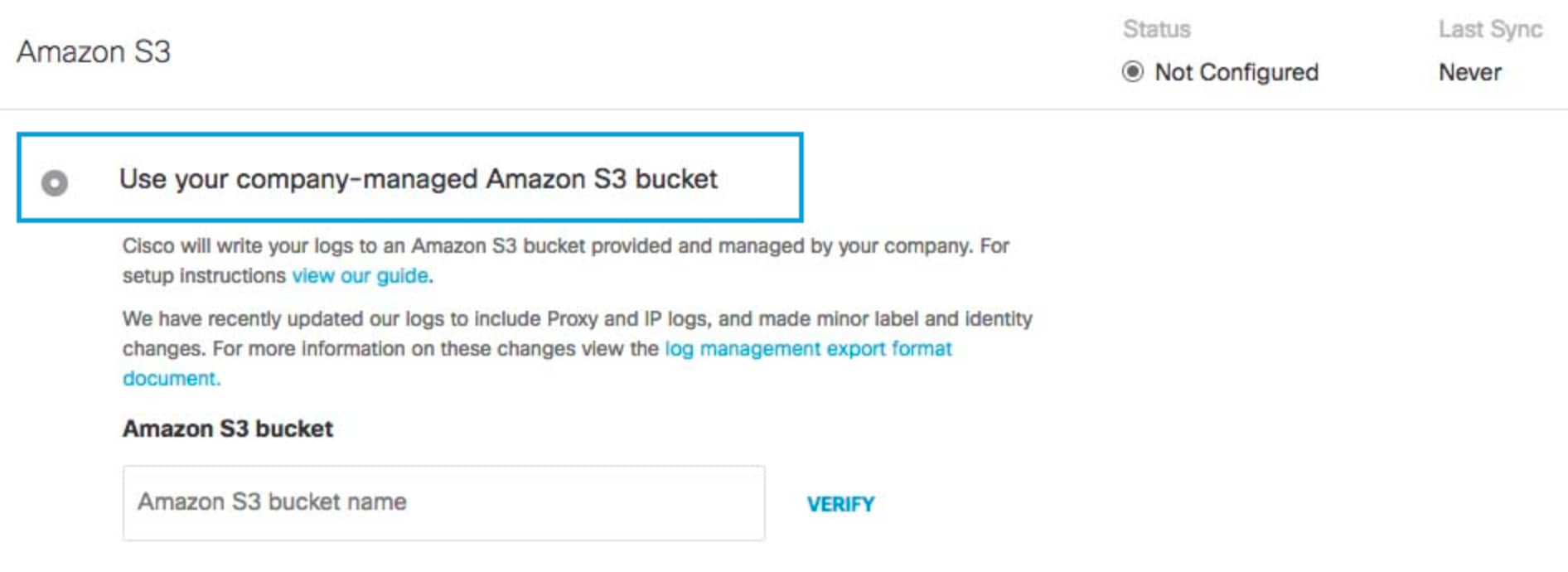
  1. Navigate to Admin > Log Management and in the Amazon S3 area select Use your company-managed Amazon S3 bucket.

    The Use Your Company S3 interface.
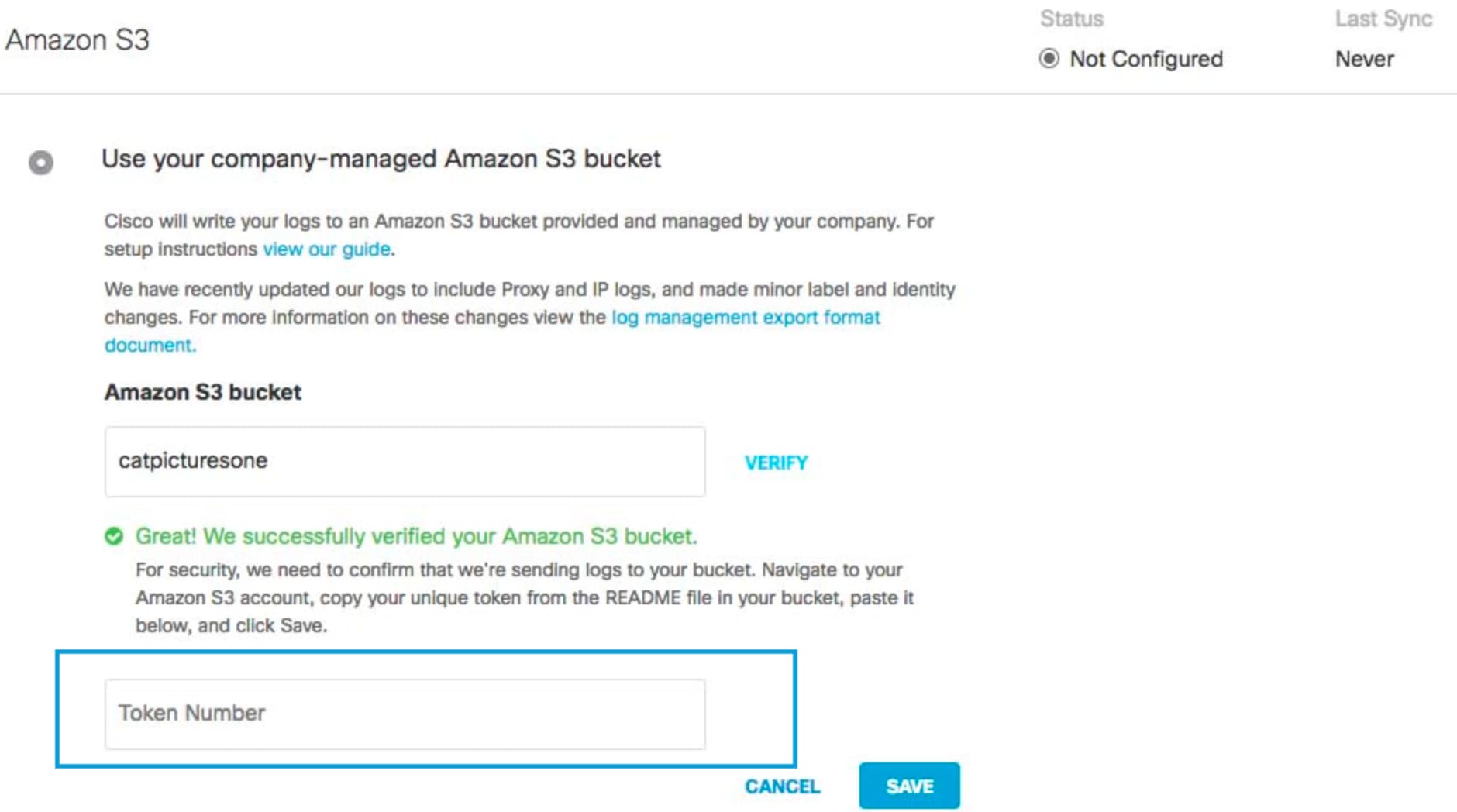
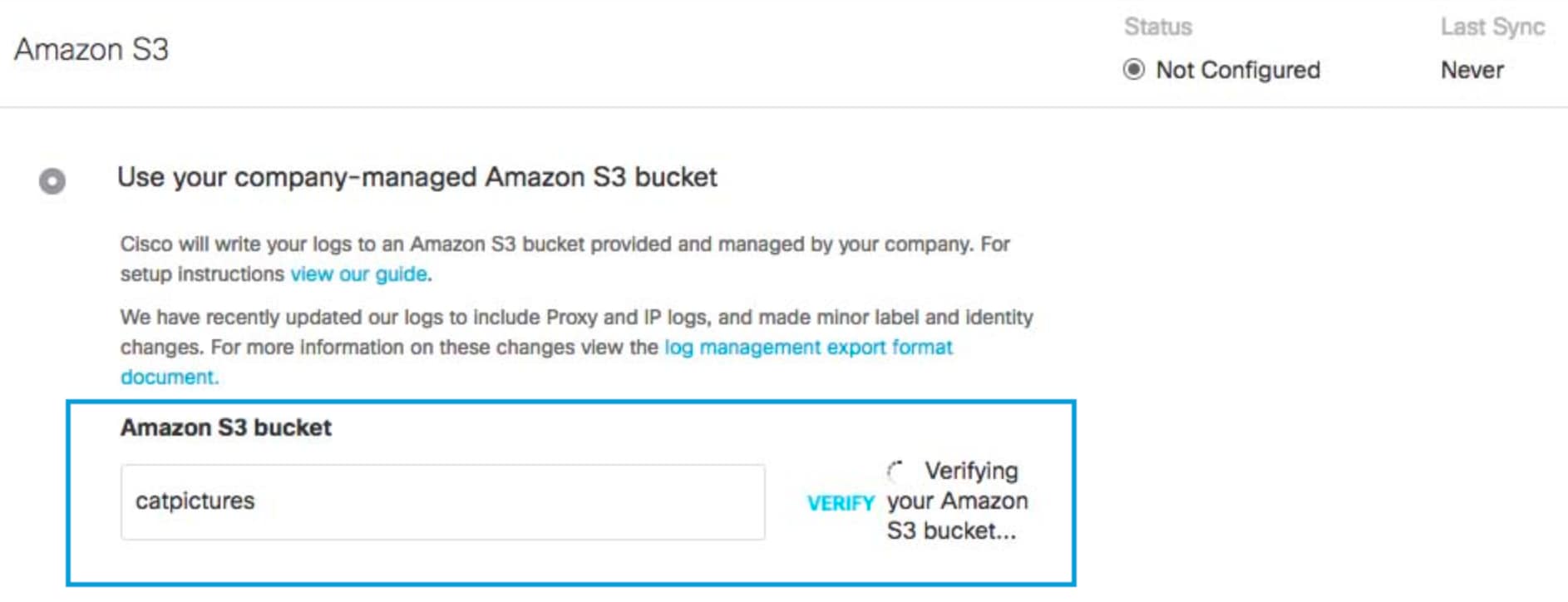
  2. In the Amazon S3 Bucket field, type or paste the exact bucket name you created in Amazon S3 and click Verify.

    Secure Access verifies your bucket, connects to it, and saves a README_FROM_UMBRELLA.txt file to your bucket.

    The Amazon S3 Bucket interface.
  3. Open the README_FROM_UMBRELLA.txt file Secure Access saved to your bucket, copy and paste the token listed in it into Token Number, and click Save.

    The Success Msg interface.

S3 Bucket Data Path

You can integrate your self-managed AWS S3 bucket with the Cisco Cloud Security App for Splunk. Use the data path to your AWS S3 bucket to set up the integration. The S3 bucket data path contains the following path fields:

<AWS S3 bucket name>-<AWS region>/<AWS S3 bucket directory prefix>
  1. AWS S3 bucket name and AWS region—the name of your AWS S3 bucket, a dash (-), and the AWS region.

  2. AWS S3 bucket directory prefix—the directory prefix (customer folder name) to the AWS S3 bucket.

Sample S3 Bucket Data Path:

my_company_name-us-gov-east-1/dnslogs

Use the data path to your self-managed S3 bucket to:

  • Download log files with the AWS CLI.

  • Set up your AWS S3 bucket with the Cisco Cloud Security App for Splunk. The Cisco Cloud Security App for Splunk enables you to analyze your Secure Access logs found in your AWS S3 bucket. For more information, see Cisco Cloud Security App for Splunk.


Download Files From the S3 Bucket Locally

You can use the Amazon command-line interface (CLI) to download files from a self-managed S3 bucket to your local directory.

Prerequisites

  • Install the AWS CLI to your system.

Run the AWS CLI to download your files from an S3 bucket to your local directory. To run the AWS CLI command in test mode (without syncing files), use the --dryrun flag.

AWS CLI command syntax:

aws s3 sync s3://DATAPATH /path/to/local/directory/

Detailed sample command:

aws s3 sync s3://mycompany-us-gov-east-1/dnslogs /opt/splunk/etc/apps/TA-cisco_umbrella/data/

Stop Logging

You can stop logging at any time. When logging is stopped, Secure Access immediately stops sending logs to your S3 storage.

Before you begin

  • Full Admin user role is required. For more information, see Manage Accounts.

Procedure

  1. Navigate to Admin > Log Management.

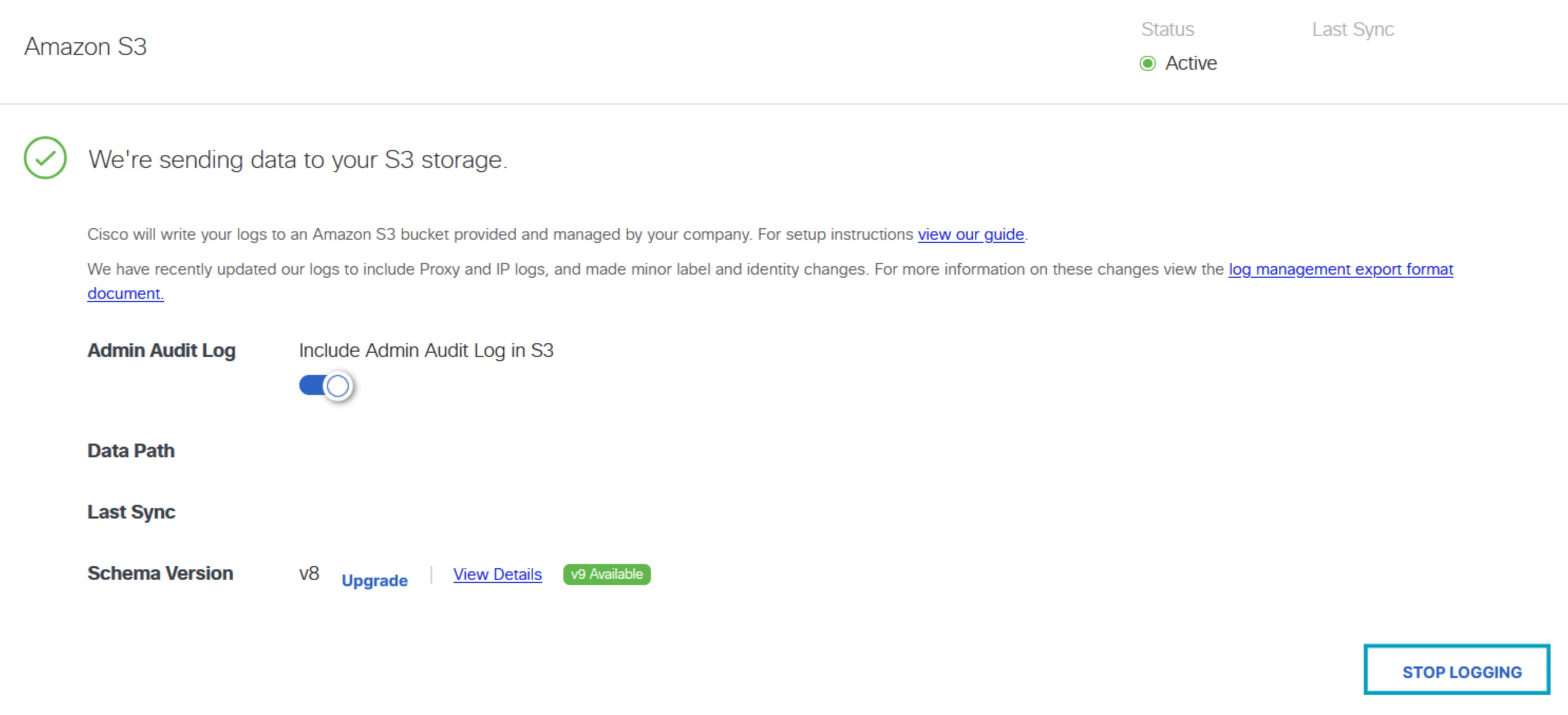
  2. In the Amazon S3 area, click Stop Logging.

    The Stop Logging Latest interface.

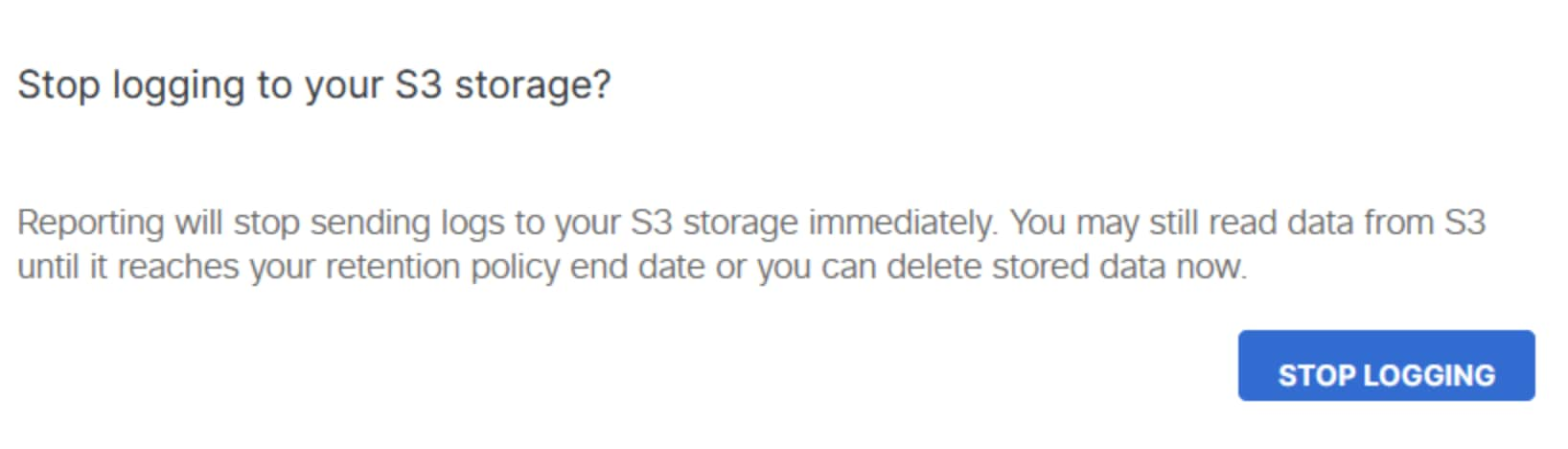
  3. Click Stop Logging to confirm your request.

    The Stop Logging interface.

Log Formats and Versioning

Cisco Secure Access stores zipped comma-separated values (CSV) log files in your own AWS S3 bucket. Each log file displays multiple columns of information extracted from your Secure Access logs. A log file may have additional fields that are not shown on the Secure Access reports.

The latest version of the Secure Access log format is version 9 (v9).

Note

Logs are not always chronological and are not always in the specific time bucket based on the timestamp of the log event.

Prerequisites


Log File Name Formats

Logs are uploaded in ten-minute intervals from the Secure Access log queue to the AWS S3 bucket. Within the first two hours after a completed configuration, you should receive your first log upload to your AWS S3 bucket.

Note

To check if everything is working, the Last Sync time in Secure Access should update and logs should begin to appear in your AWS S3 bucket. The logs appear in a GZIP format with the following file name format. The files will also be sorted into date-stamped folders.

  • DNS traffic

    dnslogs/<year>-<month>-<day>/<year>-<month>-<day>-<hour>-<minute>.csv.gz

  • Web traffic

    proxylogs/<year>-<month>-<day>/<year>-<month>-<day>-<hour>-<minute>.csv.gz

  • Firewall traffic

    firewalllogs/<year>-<month>-<day>/<year>-<month>-<day>-<hour>-<minute>.csv.gz

  • Admin Audit logs

    auditlogs/<year>-<month>-<day>/<year>-<month>-<day>-<hour>-<minute>.csv.gz

  • IPS traffic

    intrusionlogs/<year>-<month>-<day>/<year>-<month>-<day>-<hour>-<minute>.csv.gz

  • DLP traffic

    dlplogs/<year>-<month>-<day>/<year>-<month>-<day>-<hour>-<minute>.csv.gz

  • Remote Access VPN traffic

    vpnlogs/<year>-<month>-<day>/<year>-<month>-<day>-<hour>-<minute>.csv.gz

  • Zero Trust Network Access traffic

    ztnalogs/<year>-<month>-<day>/<year>-<month>-<day>-<hour>-<minute>.csv.gz


Subfolders

Logs are uploaded to AWS S3 buckets in the appropriate subfolder with the following naming format.

<subfolder>/<YYYY>-<MM>-<DD>/<YYYY>-<MM>-<DD>-<hh>-<mm>-<xxxx>.csv.gz

Secure Access names a log subfolder (<subfolder>) with one of the following folder names:

  • dnslogs

  • proxylogs

  • firewalllogs

  • iplogs

  • auditlogs

  • dlplogs

  • vpnlogs

  • ztnalogs

The <xxxx> segment of the log GZIP file name is a random string of four alphanumeric characters, which prevents duplicate file names from being overwritten.

Example: dnslogs/2019-01-01/2019-01-01-00-00-e4e1.csv.gz


Find Your Log Schema Version

Depending on the Secure Access subscription that you have, and depending on the type of AWS S3 bucket you configure, there are different versions of the log schemas available. Once your system is configured to log to an AWS S3 bucket you can view the log schema version in use.


Log Schema Versions
  • v1—For customers who have configured their own S3 bucket before November 2017.

    Note
    To upgrade from v1 to a higher version of the Secure Access log format, you must remove your existing S3 bucket, disable the integration, and then recreate a new bucket. For all other versions, you can upgrade from the Log Management screen of the Secure Access dashboard by clicking Upgrade.
  • v2—For customers who have configured their own S3 bucket after November 2017, or are using a Cisco-managed bucket. This version is inclusive of everything in version 1.

  • v3— The same as version 2, but adds two new fields: Most Granular Identity Type and Identity Types for DNS logs.

  • v4—The same as version 3, but adds the Blocked Categories field for DNS and Proxy logs.

  • v5—The same as version 4, but adds three new fields: all Identities, all Identity Types, and Request Method for Proxy logs.

  • v6—The same as version 5, but adds the following fields to Proxy logs: Certificate Errors, Destination Lists IDs, DLP Status, File Name, Rule ID, and Ruleset ID.

  • v7—The same as version 6, but adds the DLP file label field.

  • v8—The same as version 7, but adds fields to the Proxy, DLP, and Firewall logs.

    • Proxy logs—Adds the Isolate Action, File Action, and Warn Status fields.

    • DLP logs—Changes the Event Type field. The event type is either Real Time or SaaS API.

    • Firewall logs—Adds the FQDNs and Destination List IDs fields.

  • v9—The same fields as version 8, but the v9 log format adds fields to the IPS and Web logs.

    • Adds new fields to the Intrusion Prevention System (IPS) logs: operation mode, policy resource ID, direction, firewall rule ID, IPS config type, AWS region.

    • Adds new fields to the Web logs: forwarding method and producer.

    • Adds Remote Access Virtual Private Network logs.

    • Adds Zero Trust Network Access logs.


View Your Log Schema Version and Last Sync Time

Procedure

  1. Navigate to Admin > Log Management.

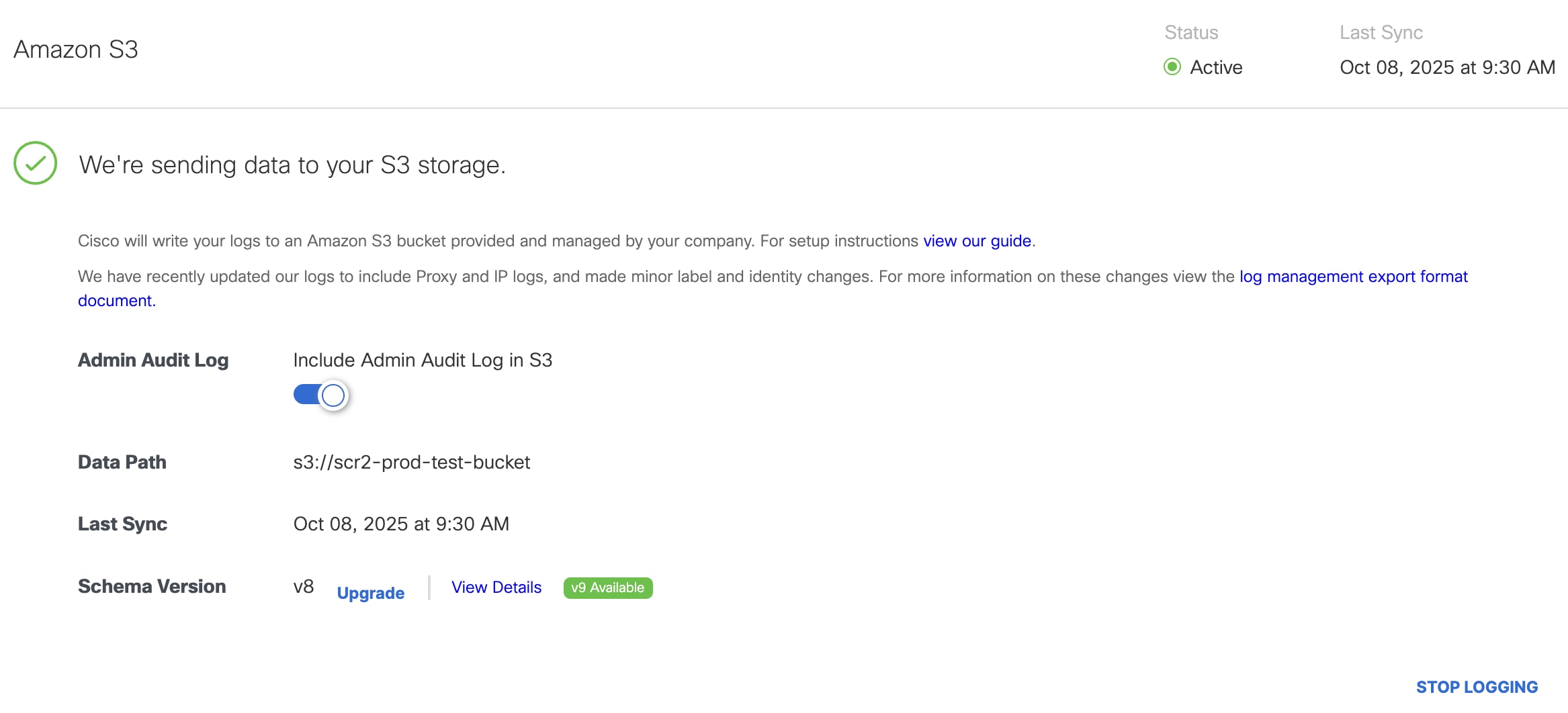
  2. In the Amazon S3 area, Secure Access displays the log Schema Version in use and Last Sync time.Last Sync is the date and time of the last sync of your logs to Amazon S3.

    The Log Management interface.

Log File Fields


Estimate the Size of a Log

The size of your S3 logs depends on the number of events that occur and the volume of the traffic in your organization.

  1. Download one of your Secure Access log files. The Secure Access log file is a comma-separated values (CSV) file.

  2. Count the number of rows in the CSV file minus one for the header row.

    The number of rows is equivalent to the number of events in the twenty-four hour period.

  3. Multiply the number of rows of data by the number of bytes of data listed in a single row in the file.

    The result is the estimate of the size of the event log recorded for one day.


Estimate the Size of an Exported Report

The size of an exported report depends on the number of events that occur, which is dependent on the volume of your traffic. The size of each log line varies based on a number of items—for example, the length of the domain name or the number of categories. Assuming each log line is 220 bytes, a million requests would be 220 MB.

Procedure

  1. Navigate to Monitor > Activity Search.

  2. For Filters, run a report for the last 24 hours and then click the Export CSV icon.


    The Export CSV Activity Search interface.
  3. Open the downloaded CSV file. The number of rows (minus one for the header) is the number of queries per day. Multiply the number of rows by the number of bytes in one row to get the estimate for one day.


Reports and CSV Formats


Activity Search Report

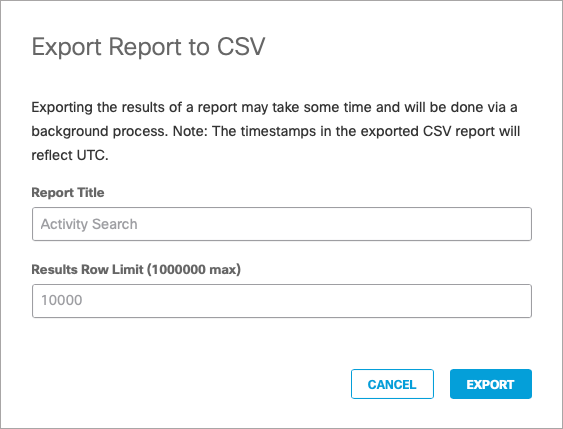
You can export the results of the Activity Search Report to a CSV format. For more information, see Export Report Data to CSV and View the Activity Search Report.

Fields in the Activity Search Report:

  • Type—The type of request made, such as DNS.

  • Date—The date the request was made.

  • Time—The time the request was made, in UTC.

  • Action—Whether the request was Allowed or Blocked.

  • Errors—Any certificate or protocol errors in the request.

  • Ruleset ID—The ID number assigned to the ruleset.

  • Ruleset Name—The ruleset that was applied.

  • Rule ID—The ID number assigned to the rule.

  • Rule Name—The rule that was applied.

  • Destination List IDs—The ID number assigned to a destination list.

  • Destination Lists

  • Signature List ID—The unique ID assigned to a Default or Custom Signature List.

  • IPS Signature—The threat detected in our IPS/IDS protection.

  • IPS Signature Severity—The severity of the IPS Signature.

  • IPS Signature CVE—Common vulnerabilities and exposures related to the IPS Signature.

  • Identities—All tunnel identities associated with this request.

  • Identity Types—The types of identity that were associated with the request. For example, Roaming Computers or Networks.

  • Policy or Ruleset Identity—The identity that made the request.

  • Policy or Ruleset Identity Type—The type of the identity that made the request.

  • Forwarding Method—The method used to forward the identity of the client to the proxy.

  • Internal IP—The internal IP address that made the request.

  • External IP—The external IP address that made the request.

  • Source IP—The IP of the computer making the request.

  • Destination IP—The destination IP requested.

  • Source Port—The port the request was made on.

  • Destination Port—The destination port the request was made on.

  • Destination—The domain of the request.

  • Hostname—The name of the host.

  • Categories—The content categories, if any, that matched against the destination IP address or port requested.

  • Integrations—Integration categories you set.

  • Blocked Categories—The category that resulted in the destination being blocked.

  • Application—The application associated with the request.

  • Application Category—The categories for any applications associated with the request.

  • Query Type—The type of DNS request that was made.

  • Content Type—The type of web content; typically text or html.

  • Protocol—The actual protocol of the traffic. For example, TCP, UDP, or ICMP.

  • Filename—The name of the file.

  • File Action (Remote Browser Isolation)—The action taken on a file during a Remote Browser Isolation session.

  • Total Size in Bytes—The total size in bytes.

  • Request Size—Request size in bytes.

  • Response Size—Response size in bytes.

  • Packet Size—Packet size in bytes.

  • Referrer—The referring domain or URL.

  • User Agent—The browser agent that made the request.

  • Status Code—The HTTP status code.

  • Direction—The direction of the packet. It is directed either towards the internet or to the customer's network.

  • Threats—Any threats associated with the request.

  • Threat Types—The types of threats associated with the request.

  • SHA256 Hash—The hex digest of the response content.

  • Cisco AMP Result—The malware detected by AMP.

  • Cisco AMP Disposition—What action was taken on the file download.

  • Cisco AMP Score—The risk score associated with the downloaded file. This field returns blank unless the verdict is Unknown, in which the value will be 0.

  • Antivirus Result—Threats detected by the antivirus.

  • Potentially Unwanted Applications—A list of all potentially unwanted application (PUA) results for the proxied file as returned by the antivirus scanner.

  • Detected Response File Type—The file type of the response, as detected by the file type control that blocked the request based on factors such as URL or content type header.

  • Isolated State—Whether the Remote Browser Isolation state was isolated or not.

  • Data Loss Prevention State—Whether the DLP status was allowed or blocked.

  • Tenant Controls—Whether the request is Tenant Application Access Control protected.


Zero Trust Access Activity Search Fields

The Activity Search report displays the Zero Trust Access event details.

Field Name Reports Section Description
Ingress Region Event Details The geographic region of the data center where Secure Access received the incoming traffic.
Tunnel Type Event Details The type of traffic supported by the network tunnel, which the endpoint established with the proxy. The transport protocol on the tunnel is either HTTP or HTTP3.
Transaction ID Event Details The unique ID associated with the Zero Trust request. Use the transaction ID to correlate and troubleshoot connection issues.
Block Reason Block Details Secure Access provides an explanation for blocking access to the private resource.
Associated Rule Block Details When access was blocked for not meeting access or posture requirements, Secure Access reports the closest matched policy rule that would have allowed access.
Associated Posture Block Details The posture profile that is configured for the associated rule.
Endpoint Application Endpoint Details The name of the endpoint application, which initiated the connection.
Application Signature Endpoint Details The SHA256 signature of the endpoint application process.
Endpoint Username Endpoint Details The username that is associated with the endpoint application process.

Top Categories Report


Top Destinations Report

You can export the results of the Top Destinations Report to a CSV format. For more information, see Export Report Data to CSV and Top Destinations Report.

Fields in the Top Destinations Report:

  • Domain—The domain that was requested.

  • Query Count—The number of requests for the domain.

  • Categories—The content categories that matched against the destination requested. See Manage Content Category Lists.


Top Resources Report

You can export the results of the Top Resources Report to a CSV format. For more information, see Export Report Data to CSV.

Fields in the Top Resources Report:

  • Identity—The identity making requests.

  • Query Count—The number of requests made by the identity.


Admin Audit Log Formats

The Cisco Secure Access Admin Audit logs show the administrative changes to your organization's Secure Access settings. For information about the size of a log file, see Estimate the Size of a Log.

Example

This is an example of a v4 through v9 Admin Audit log event:

id,timestamp,email,user,type,action,logged in from,before,after
"123","2024-07-22 10:46:45","[user@domain.com](mailto:user@domain.com)","","logexportconfigurations","update","209.165.200.227","version: 4","version: 5"

Order of Fields in Admin Audit Log

Note
Not all the fields that are listed are found in most or all requests. When a field does not have a value, Secure Access sets the field to the empty string ("") in the log.

V9 Log Format

The CSV fields in the header row of the Admin Audit log.

id,timestamp,email,user,type,action,logged in from,before,after
Note
The last two fields, "Before" and "After," may contain line breaks if the previous or updated value spans multiple lines.

The description of each field and the log version in which each field was released, from Version 4 up to Version 9. For more information about log versions, see Find Your Log Schema Version.

Field name Description Release version
id A unique identifier of the audit event. v4
timestamp

The date and time of the administrative change event, expressed as a UTC-formatted string (e.g., 2024-01-16 17:48:41).

Note
Unlike the Secure Access dashboard and reports, Secure Access logs do not convert the timestamp to your local timezone.
v4
email The email of the user that triggered the event. v4
user The account name of the user who created the change. v4
type Where the change was made, such as settings or a policy. v4
action The type of change made, such as Create, update, or Delete. v4
logged in from The user's IP source. v4
before The policy or setting before the change was made. v4
after The policy or setting after the change was made. v4

Cloud Firewall Log Formats

Cloud firewall logs show traffic that has been handled by Secure Access cloud-delivered firewall. For information about the size of a log file, see Estimate the Size of a Log.

Example

This is an example of a v9 Cloud Firewall log:

timestamp,origin IDs,identities,identity type,direction,protocol,packet size,source IP,source port,destination IP,destination port,data center,rule ID,action,fqdns,destination list IDs,first packet timestamp,last packet timestamp,packets sent,packets received,bytes sent,bytes received,fw event id
"2024-06-14 18:59:57","\[211039844\]","Passive Monitor", "CDFW Tunnel Device","OUTBOUND","1","84","172.17.3.4","60951","146.112.255.129","443","ams1.edc","12","ALLOW","google.com,apple.com","44,66","1718391597","1718391597","3","3","1108","755","39-42"

Order of Fields in the Cloud Firewall Log

Note

Not all the fields that are listed are found in most or all requests. When a field does not have a value, Secure Access sets the field to the empty string ("") in the log.

V9 Log Format

The CSV fields in the header row of the Cloud Firewall logs.

timestamp,origin ids,identities,identity type,direction,protocol,packet size,source ip,source port,destination ip,destination port,data center,rule id,action,fqdns,destination list ids,first packet timestamp,last packet timestamp,packets sent,packets received,bytes sent,bytes received,fw event id

The description of each field and the log version in which each field was released, up to Version 9. For more information about log versions, see Find Your Log Schema Version.

Field name Description Release version
timestamp

The date and time of the cloud-delivered firewall traffic event, expressed as a UTC-formatted string (e.g., 2024-01-16 17:48:41).

Note
Unlike the Secure Access dashboard and reports, Secure Access logs do not convert the timestamp to your local timezone.
v1
origin ids The unique identity of the network tunnel. v1
identities The names of the network tunnel. v5
identity type The type of identity that made the request. Should always be CDFW Tunnel Device. v5
direction The direction of the packet. It is destined either towards the internet or to the customer's network. v1
protocol The actual protocol of the traffic. Valid values are: TCP, UDP, or ICMP. v1
packet size The size in bytes of the packet sent to the CDFW. v1
source ip The internal IP address of the user-generated traffic towards the CDFW. If the traffic goes through NAT before it comes to CDFW, it will be the NAT IP address. v1
source port The internal port number of the user-generated traffic towards the CDFW. v1
destination ip The destination IP address of the user-generated traffic towards the CDFW. v1
destination port The destination port number of the user-generated traffic towards the CDFW. v1
data center The name of the data center that processed the user-generated traffic. v1
rule id The ID of the rule that processed the user traffic. v1
action The final verdict whether to allow or block the traffic based on the rule. v1
fqdns The fully qualified domain names (FQDNs) that match the request. v8
destination list ids The destination list IDs that Secure Access applied in the rule. v8
first packet timestamp The timestamp when the first packet of the session was received in UTC in seconds. Populated only for traffic handled by Cisco Secure Firewall. v9
last packet timestamp The timestamp when the last packet of the session was received in UTC in seconds. Populated only for traffic handled by Cisco Secure Firewall. v9
packets sent The number of packets sent during the session. Populated only for traffic handled by Cisco Secure Firewall. v9
packets received The number of packets received during the session. Populated only for traffic handled by Cisco Secure Firewall. v9
bytes sent The number of bytes sent during the session. Populated only for traffic handled by Cisco Secure Firewall. v9
bytes received The number of bytes received during the session. Populated only for traffic handled by Cisco Secure Firewall. v9
fw event id The ID of the firewall event. Populated only for traffic handled by Cisco Secure Firewall. v9

Data Loss Prevention (DLP) Log Formats

The Cisco Secure Access DLP logs show information about DLP events where data identifiers were triggered and a violation occurred. DLP logs are available in all log format versions. For information about the size of a log file, see Estimate the Size of a Log.

Note

A single DLP event can present in multiple rows of the logs when different data identifiers and file labels are triggered for the same content. Rows related to the same content or event have the same Unique Event ID.

Example

This is an example of a v9 DLP log event:

timestamp,event type,unique event id,severity,identity,owner,name,application,destination,action,rule,data classification,data identifier,content type,file size,sha 256 hash,file label
"2022-02-15 12:05:45","Real Time","f64dcc3f-50fa-410a-b8e1-589894276cee_17c81f85-34f7-4bc5-aa4c-155571f484f6","ALERT","Network1","","first.xlsx","Dropbox","https://upload.dropbox.com/ajax/mercury/upload.php?av=100050982596543&__user=100050982596543","BLOCK","privateappsrule","Built-in PCI Classification","Credit Card Number - Strict","text/html","48","abbd2352c3cfea8846871928bf99ca24dc3a6f162170926649381a6d968869ab", "Confidential"

Order of Fields in the DLP Log

Note

Not all the fields that are listed are found in most or all requests. When a field does not have a value, Secure Access sets the field to the empty string ("") in the log.

V9 Log Formats

The CSV fields in the header row of the DLP logs.

timestamp,event type,unique event id,severity,identity,owner,name,application,destination,action,rule,data classification,data identifier,content type,file size,sha 256 hash,file label

The description of each field and the log version in which each field was released, up to Version 9. For more information about log versions, see Find Your Log Schema Version.

Field name Description Release version
timestamp

The date and time of the DLP event, expressed as a UTC-formatted string (e.g., 2024-01-16 17:48:41).

Note
Unlike the Secure Access dashboard and reports, Secure Access logs do not convert the timestamp to your local timezone.
v6
event type The type of event that matched a data identifier. Real Time denotes a proxy-based DLP event triggered by a Real Time rule and SaaS API denotes a DLP event triggered by any of the SaaS API rules. v8
unique event id The unique identifier for the event. There can be multiple violation matches in one event. v6
severity The severity of the rule: Low/Info, Medium/Warn, High/Alert, or Critical. v6
identity The source that triggered the violation. v6
owner The owner of the file. v6
name The name of the file. v6
application The application of the request. v6
destination The domain of the request. v6
action If the violation was Blocked or Monitored. v6
rule The DLP rule name. v6
data classification The data classification whose data identifier matched on the violation. v6
data identifier The data identifier that matched on the request. v6
content type The mime type of the file that matches the data identifier. v6
file size The size of the file in bytes. v6
sha 256 hash The hex digest of the response content. v6
file label The file name label that matched on the file properties. v7

DNS Log Formats

The Cisco Secure Access DNS logs show your organization's traffic through the Secure Access DNS resolvers. For information about the size of a log file, see Estimate the Size of a Log.

Examples

This is an example of a v9 DNS Log of an Allowed Action event:

timestamp,most granular identity,identities,internal ip,external ip,action,query type,response code,domain,categories,most granular identity type,identity types,blocked categories
"2024-09-11 18:46:00","Active Directory User (adusername@example.net)","Active Directory User (adusername@example.net),WIN11-SNG01-Example","10.10.1.100","24.123.132.133","Allowed","1 (A)","NOERROR","domain-visited.com.","Software/Technology,Business Services,Allow List,Infrastructure and Content Delivery Networks,SaaS and B2B,Application","AD Users","AD Users,Anyconnect Roaming Client",""

An example of a v9 DNS Log of a Blocked Action event with Blocked Categories.

timestamp,most granular identity,identities,internal ip,external ip,action,query type,response code,domain,categories,most granular identity type,identity types,blocked categories
"2024-09-11 18:46:00","Active Directory User (adusername@example.net)","Active Directory User (adusername@example.net),WIN11-SNG01-Example","10.10.1.100","24.123.132.133","Blocked","1 (A)","NOERROR","domain-visited.com.","Chat,Social Networking","AD Users","AD Users,Anyconnect Roaming Client","Social Networking"

Order of Fields in the DNS Log

Note

Not all the fields that are listed are found in most or all requests. When a field does not have a value, Secure Access sets the field to the empty string ("") in the log.

V9 Log Formats

The CSV fields in the header row of the DNS logs.

timestamp,most granular identity,identities,internal ip,external ip,action,query type,response code,domain,categories,most granular identity type,identity types,blocked categories

The description of each field and the log version in which each field was released, up to Version 9. For more information about log versions, see Find Your Log Schema Version.

Field name Description Release version
timestamp

The date and time of the DNS event, expressed as a UTC-formatted string (e.g., 2024-01-16 17:48:41).

Note
Unlike the Secure Access dashboard and reports, Secure Access logs do not convert the timestamp to your local timezone.
v8
most granular identity The first identity matched with this request in order of granularity. v8
identities All identities associated with this request. v5
internal ip The internal IP address that made the request. v8
external ip The external IP address that made the request. v8
action Whether the request was allowed or blocked. v8
query type The type of DNS request that was made. v8
response code The DNS return code for this request. v8
domain The domain that was requested. v8
categories The security or content categories that the destination matches. For category definitions, see Manage Threat Categories and Manage Content Category Lists. v8
most granular identity type The first identity type matched with this request in order of granularity. v3
identity types The type of identity that made the request, for example: Roaming Computer, Network. v3
blocked categories The categories that resulted in the destination being blocked. v4

IPS Log Formats

The Cisco Secure Access IPS logs show the traffic, events, and possible threats detected by the Secure Access Intrusion Prevention System. For information about the size of a log file, see Estimate the Size of a Log.

Example

This is an example of a v9 IPS log:

timestamp,identities,identity types,generator id,signature id,signature message,signature list id,severity,attack classification,cves,ip protocol,session id,source ip,source port,destination ip,destination port,action,operation mode,policy resource id,direction,firewall rule id,ips config type,aws region
"2024-09-11 23:17:13","Firewall Tunnel Name","Network Tunnels","1","16606","SERVER-ORACLE BEA WebLogic Server Plug-ins Certificate overflow attempt","50516","HIGH","Attempted User Privilege Gain","cve-2009-1016","TCP","12345","123.123.123.123","80","1.1.1.1","40762","Would Block","IDS","50516","S2C","21171","PROFILE","eu-central-2b"

Order of Fields in the IPS Log

Note

Not all the fields that are listed are found in most or all requests. When a field does not have a value, Secure Access sets the field to the empty string ("") in the log.

V9 Log Format

The CSV fields in the header row of the IPS log.

timestamp,identities,identity types,generator id,signature id,signature message,signature list id,severity,attack classification,cves,ip protocol,session id,source ip,source port,destination ip,destination port,action,operation mode,policy resource id,direction,firewall rule id,ips config type,aws region

The description of each field and the log version in which each field was released, up to Version 9. For more information about log versions, see Find Your Log Schema Version.

Field name Description Release version
timestamp

The date and time of the IPS detection event, expressed as a UTC-formatted string (e.g., 2024-01-16 17:48:41).

Note
Unlike the Secure Access dashboard and reports, Secure Access logs do not convert the timestamp to your local timezone.
v8
identities All tunnel identities that are associated with this request. v8
identity types The type of identity that is associated with this request. v8
generator id Unique ID assigned to the part of the IPS that generated the event. v8
signature id Used to uniquely identify signatures. v8
signature message A brief description of the signature. v8
signature list id Unique ID assigned to a Default or Custom Signature List. v8
severity The severity level of the rule. Valid values are: High, Medium, Low, and Very Low. v8
attack classification The category of attack detected by a rule that is part of a more general type of attack class. Valid values are: trojan-activity, attempted-user, and unknown. v8
cves A list of information about security vulnerabilities and exposures. v8
ip protocol The actual protocol of the traffic, such as TCP, UDP, ICMP. v8
session id The unique identifier of a session, which is used to group the correlated events between various services. v8
source ip The IP of the computer making the request. v8
source port The port number of the request. v8
destination ip The port number of the request. v8
destination port The destination port number of the request. v8
action The action performed when criteria meets a rule, for example: block, warn, and would_block. v8
operation mode The mode of operation of the IPS, either detection or prevention. Valid values are: IDS, IPS, and UNKNOWN. v9
policy resource id The ID of the IPS policy resource. An example of a policy resource is: signature list. v9
direction The direction of the packet that matches the signature. Valid values are: S2C, C2S, and UNKNOWN. v9
firewall rule id The ID of the rule that matches the firewall session. v9
ips config type The type of the IPS configuration. Valid values are: CONFIG, PROFILE, and UNKNOWN. v9
aws region The AWS region where Secure Access stores your logs. v9

Remote Access VPN Log Formats

The Cisco Secure Access remote access virtual private network (VPN) logs show the VPN session connection events, which are managed by the Secure Access VPN services. Some relevant fields to aid debugging and trouble-shooting VPN sessions include:

  • Display Username for Failed Events – Significantly improves how quickly issues can be tracked and addressed.

  • ASA Syslog Message ID Extraction Support – Offers detailed insights by identifying the specific sys-log messages used in the remote access logs.

  • Device ID – Includes the device ID with every event, providing critical help to network administrators in numerous ways.

  • Failed Events for Posture – Provides vital information for effective triage during failed connection attempts.

For information about the size of a log file, see Estimate the Size of a Log.

Examples

This is an example v9 Secure Access VPN log of a CONNECTED event:

timestamp,hostname,aws region,event type,origin ids,origin type,user id,organization id,retention days,storage location,msp organization id,session id,session type,vpn profile,public ip,assigned ip,connected at,disconnection reason,os version,anyconnect version
"2024-09-11 21:40:51","hostname-example","us-east-1","CONNECTED","\[1296793508\]","7","example-userid","8236318","365","us","","1486","IKEv2","CiscoSecureAccessVPN","24.123.132.133","10.10.1.100","","","Mac OS X 14.6.1","5.1.2.42"
This is an example of v9 Secure Access VPN log of a DISCONNECTED event:

timestamp,hostname,aws region,event type,origin ids,origin type,user id,organization id,retention days,storage location,msp organization id,session id,session type,vpn profile,public ip,assigned ip,connected at,disconnection reason,os version,anyconnect version	
"2024-09-11 22:28:52","hostname-example","us-east-1","DISCONNECTED","\[1290579891\]","7","example-userid","8236318","365","us","","1476","TLS","CiscoSecureAccessVPN","24.123.132.133","10.10.1.100","2024-09-11T19:54:05Z","User Requested","Mac OS X 14.6.1","5.0.05040"

This is an example of v9 Secure Access VPN log of a failed AUTHORIZATION-CHECK event:

timestamp,hostname,aws region,event type,origin ids,origin type,user id,organization id,retention days,storage location,msp organization id,session id,session type,vpn profile,public ip,assigned ip,connected at,disconnection reason,os version,anyconnect version
"2024-09-11 21:40:51","hostname-example","us-east-1","FAILED","\[1296793508\]","7","example-userid","8236318","365","us","","1486","IKEv2","CiscoSecureAccessVPN","24.123.132.133","10.10.1.100","","","Mac OS X 14.6.1","5.1.2.42"
This is an example of v9 Secure Access VPN log of a failed CERT-AUTH-CHECK event:

timestamp,hostname,aws region,event type,origin ids,origin type,user id,organization id,retention days,storage location,msp organization id,session id,session type,vpn profile,public ip,assigned ip,connected at,disconnection reason,os version,anyconnect version
"2024-09-11 21:40:51","hostname-example","us-east-1","FAILED","\[1296793508\]","7","example-userid","8236318","365","us","","1486","IKEv2","CiscoSecureAccessVPN","24.123.132.133","10.10.1.100","","","Mac OS X 14.6.1","5.1.2.42"
Order of Fields in the RAVPN Log

Note

Not all the fields that are listed are found in most or all requests. When a field does not have a value, Secure Access sets the field to the empty string ("") in the log.

V9 Log Format

The CSV fields in the header row of the RAVPN logs.

timestamp,hostname,aws region,event type,origin ids,origin type,user id,organization id,retention days,storage location,msp organization id,session id,session type,vpn profile,public ip,assigned ip,connected at,disconnection reason,os version,anyconnect version

The description of each field and the log version in which each field was released, up to Version 9. For more information about log versions, see Find Your Log Schema Version.

Field name Description Release version
timestamp

The date and time of the RAVPN event, expressed as a UTC-formatted string (e.g., 2024-01-16 17:48:41).

Note
Unlike the Secure Access dashboard and reports, Secure Access logs do not convert the timestamp to your local timezone.'
v9
hostname The name of the node on the Cisco headend side where user VPN connections are established and events are generated. v9
aws region The AWS region that stores your VPN logs. v9
event type The label that describes the type of event. Valid values are: CONNECTED, DISCONNECTED, FAILED, or UNKNOWN. v9
origin ids The internal IP address of the device that connected to the Secure Access remote VPN services. v9
origin type The type of device connected to the Secure Access VPN services. v9
user id The ID of the VPN user. The ID is the email address associated with the user account. v9
organization id The Secure Access organization ID. For more information, see Find Your Organization ID . v9
retention days The number of days that AWS S3 stores your Secure Access VPN log. v9
storage location The two-character label that identifies the location of your Cisco-managed VPN logs. Configure the storage location on Secure Access for your organization. The storage location options are: eu or us. v9
msp organization id The Secure Access managed organization ID. v9
session id The unique ID of the VPN session. v9
session type The protocol used by the device with the VPN session, for example: TLS. v9
vpn profile The name of the VPN connection profile that establishes a VPN session. v9
public ip The public IP address of the device with the Cisco Secure Client and VPN module. v9
assigned ip The IP address assigned to the device with the Cisco Secure Client and VPN module. v9
connected at The date and time of the start of the initial CONNECTED VPN event for a DISCONNECTED event expressed in milliseconds as a UTC-formatted string. v9
disconnection reason The description of the VPN disconnected event. The value is null for other event types. v9
os version The type and version of the user device's operating system. v9
anyconnect version The version of the Cisco Secure Client with the VPN module. v9

Web Log Formats

The Cisco Secure Access Web logs show your organization's traffic through the Secure Access proxy. For information about the size of a log file, see Estimate the size of a log.

Example

This is an example of a v9 Web log event:

timestamp,policy identity label,internal client ip,external client ip,destination ip,content type,action,url,referer,user agent,status code,request size,response size,response body size,sha—sha256,categories,av detections,puas,amp disposition,AMP malware name,amp score,policy identity type,blocked categories,identities,identity types,request method,dlp status,certificate errors,file name,ruleset id,rule ID,destination list ids,isolate action,file action,warn status,forwarding method,producer
"2025-01-06 13:39:24","SIG2-Denver","10.X.X.X","10.X.X.X","10.X.X.X","","ALLOWED","https://example.com","","","200","1557","6441","","","Software/Technology,Allow List,Computers and Internet","","","","","","Network Tunnels","","SIG2-EX,RTO-XXXX-SIG","Network Tunnels,Internal Networks","CONNECT","","","","13368132","610352","9999583","not_isolated","","","",""

Order of Fields in the Web Log

Note

Not all the fields that are listed are found in most or all requests. When a field does not have a value, Secure Access sets the field to the empty string ("") in the log.

n","File Action","Warn Status","Forwarding Method","Producer"

V9 Log Format

The CSV fields in the header row of the Web log.

timestamp,policy identity label,internal client ip,external client ip,destination ip,content type,action,url,referer,user agent,status code,request size,response size,response body size,sha—sha256,categories,av detections,puas,amp disposition,AMP malware name,amp score,policy identity type,blocked categories,identities,identity types,request method,dlp status,certificate errors,file name,ruleset id,rule ID,destination list ids,isolate action,file action,warn status,forwarding method,producer

The description of each field and the log version in which each field was released, up to Version 9. For more information about log versions, see Find Your Log Schema Version.

Field name Description Release version
timestamp

The date and time of the Web traffic event, expressed as a UTC-formatted string (e.g., 2024-01-16 17:48:41).

Note
Unlike the Secure Access dashboard and reports, Secure Access logs do not convert the timestamp to your local timezone.
v1
policy identity label The identity that made the request. v1
internal client ip The internal IP address of the computer making the request. v1
external client ip The egress IP address of the network where the request originated. v1
destination ip The destination IP address of the request. v1
content type The type of web content, typically text/html. v1
action Whether the request was allowed or blocked. v1
url The URL requested. v1
referer The referring domain or URL. v1
user agent The browser agent that made the request. v1
status code The HTTP status code; should always be 200 or 201. v1
request size Request size in bytes. v1
response size Response size in bytes. v1
response body size Response body size in bytes. v1
sha—sha256 The hex digest of the response content. v1
categories The security categories for this request, such as Malware. v1
av detections The detection name according to the antivirus engine used in file inspection. v1
puas A list of all potentially unwanted application (PUA) results for the proxied file as returned by the antivirus scanner. v1
amp disposition The status of the files proxied and scanned by Cisco Advanced Malware Protection (AMP) as part of the File Inspection feature; can be Clean, Malicious or Unknown. v1
amp malware name If Malicious, the name of the malware according to AMP. v1
amp score The score of the malware from AMP. This field returns blank ("") unless the verdict is Unknown, in which the value will be 0. v1
policy identity type The first identity type that made the request. Examples: Roaming Computer, Network. v1
blocked categories The category that resulted in the destination being blocked. v4
identities All identities associated with this request. v5
identity types The type of identities that were associated with the request. Examples: Roaming Computer, Network. v5
request method The HTTP request method. Examples: GET, POST, HEAD, PUT, DELETE. v5
dlp status If the request was Blocked for DLP. v6
certificate errors Any certificate or protocol errors in the request. v6
file name The name of the file. v6
ruleset id The ID number assigned to the ruleset. v6
rule id The ID number assigned to the rule. v6
destination list ids The ID number assigned to a destination list. v6
isolate action The remote browser isolation state associated with the request. v8
file action The action taken on a file in a remote browser isolation session. Valid values are: UNKNOWN, DETECT, BLOCK, MALWARE_CLOUD_LOOKUP, MALWARE_WHITELIST, CLOUD_LOOKUP_TIMEOUT, CUSTOM_DETECTION, CUSTOM_DETECTION_BLOCK, ARCHIVE_BLOCK_DEPTH_EXCEEDED, ARCHIVE_BLOCK_ENCRYPTED, ARCHIVE_BLOCK_FAILED_TO_INSPECT, TID_BLOCK v8
warn status The Warn page's state associated with the request. v8
forwarding method The method used to forward the proxy events. Example: Secure Web Appliance. v9
producer The producer of the proxy events. v9

Zero Trust Access Log Formats

The Cisco Secure Access Zero Trust Access logs show your organization's traffic through the Secure Access Zero Trust Access services. ZTA logs include traffic events that take place at the time of ZTA session authentication for both client-based and browser-based ZTA sessions.

For information about the size of a log file, see Estimate the Size of a Log.

Example

This is an example of a v9 Zero Trust Access log event:

timestamp,identity email,identity labels,identity type labels,hostname,verdict,client os,client browser,client geo location,client ip,ruleset id,rule id,private app group id,private app id,private resource id,private resource group id,step up auth type,step up auth result,step up auth token life,posture id,requested id fqdn,resolved ip,app connector group id,headend type,duo device id,duo device id string,system password,client firewall,disk encryption,anti malware agents
"2017-10-02 23:52:53","network@example.com","Network. AD Computer","Networks","ts-auto.com","ALLOW","Mac OS 10.9.5","Chrome 9.9","Canada","10.10.10.10","56","12","25","129","200","756","SAML_SSO","SUCCESS","6000","256","prod.example.com","1.1.1.1","45","CLAP",,"921c9ab4123456789aa5d6e814b90","enabled\[1000\]","SYS","THIRDPARTY","\[cisco-amp 1.20.0.877, windows-defender 1.20.0.877\]",

Order of Fields in Zero Trust Access Logs

Note

Not all the fields that are listed are found in most or all requests. When a field does not have a value, Secure Access sets the field to the empty string ("") in the log.

ssword","Client Firewall","Disk Encryption","Anti Malware Agents"

V9 Log Format

The CSV fields in the header row of the Zero Trust Access log.

timestamp,identity email,identity labels,identity type labels,hostname,verdict,client os,client browser,client geo location,client ip,ruleset id,rule id,private app group id,private app id,private resource id,private resource group id,step up auth type,step up auth result,step up auth token life,posture id,requested id fqdn,resolved ip,app connector group id,headend type,duo device id,duo device id string,system password,client firewall,disk encryption,anti malware agents

The description of each field and the log version in which each field was released, up to Version 9. For more information about log versions, see Find Your Log Schema Version.

Field name Description Release version
timestamp

The date and time of the ZTA event, expressed as a UTC-formatted string (e.g., 2024-01-16 17:48:41).

Note
Unlike the Secure Access dashboard and reports, Secure Access logs do not convert the timestamp to your local timezone.
v9
identity email The email address of the Active Directory user. v9
identity labels The list of labels for the identity. v9
identity type labels The label of the identity type. v9
hostname The hostname of the user device. v9
verdict Whether the user has access to a resource. v9
client os The operating system of the user device. v9
client browser The name of the browser on the user device. v9
client geo location The regional location of the user device. v9
client ip The IP address of the user device. v9
ruleset id The ID of the ruleset. v9
rule id The ID of the access rule. v9
private app group id The ID of the private application group. v9
private app id The ID of the private application. v9
private resource id The ID that Secure Access assigns to the customer-defined private application. v9
private resource group id The ID if the rule matched is based on the private application group. v9
step up auth type The type of authentication. Valid values are: SAML_SSO, MFA, or NONE. v9
step up auth result The result of the authentication. Valid values are: SUCCESS or FAILURE. v9
step up auth token life The time in seconds between when you generated the token and used the token. v9
posture id ID of the matching posture profile. v9
requested id fqdn The IP or FQDN of the requested application. v9
resolved ip The IP of the application returned by the proxy. v9
app connector group id The group ID of the App Connector. v9
headend type The type of the headend. Valid values are: CLAP or BAP. v9
duo device id The ID of the Duo App on the device. v9
duo device id string The ID label of the Duo App on the device. v9
system password Whether the system password is enabled with its timeout in seconds. v9
client firewall The client system firewall. Valid values are SYS or NONE. v9
disk encryption The client Disk Encryption Type. Valid values are: SYS, NONE or THIRD PARTY. v9
anti malware agents The clients' anti malware agents. v9