Cisco Secure Access for Government Help

PDF

Cisco Secure Access for Government Help

Control Apps

Want to summarize with AI?

Log in

Describes control apps. You can control applications through rules and through the App Discovery report in View App Details and the App Grid. The application settings are a rule component that enables controlling of supported apps, regardless of usage, at the policy level.


You can control applications through rules and through the App Discovery report in View App Details and the App Grid. The application settings are a rule component that enables controlling of supported apps, regardless of usage, at the policy level. The App Discovery report allows you to review apps in your organization and control apps individually.

Note
App blocking requires enablement within a rule. Apps that are not present in application settings, or do not have the Edit app controls, Control this app, or Block this app options in App Discovery cannot be blocked. If you need to block an app we don't have yet, contact Support to request it.

Procedure

Before you begin

Full Admin user role. For more information, see Manage Accounts.

Procedure

  1. Navigate to Monitor > Reports > App Discovery.


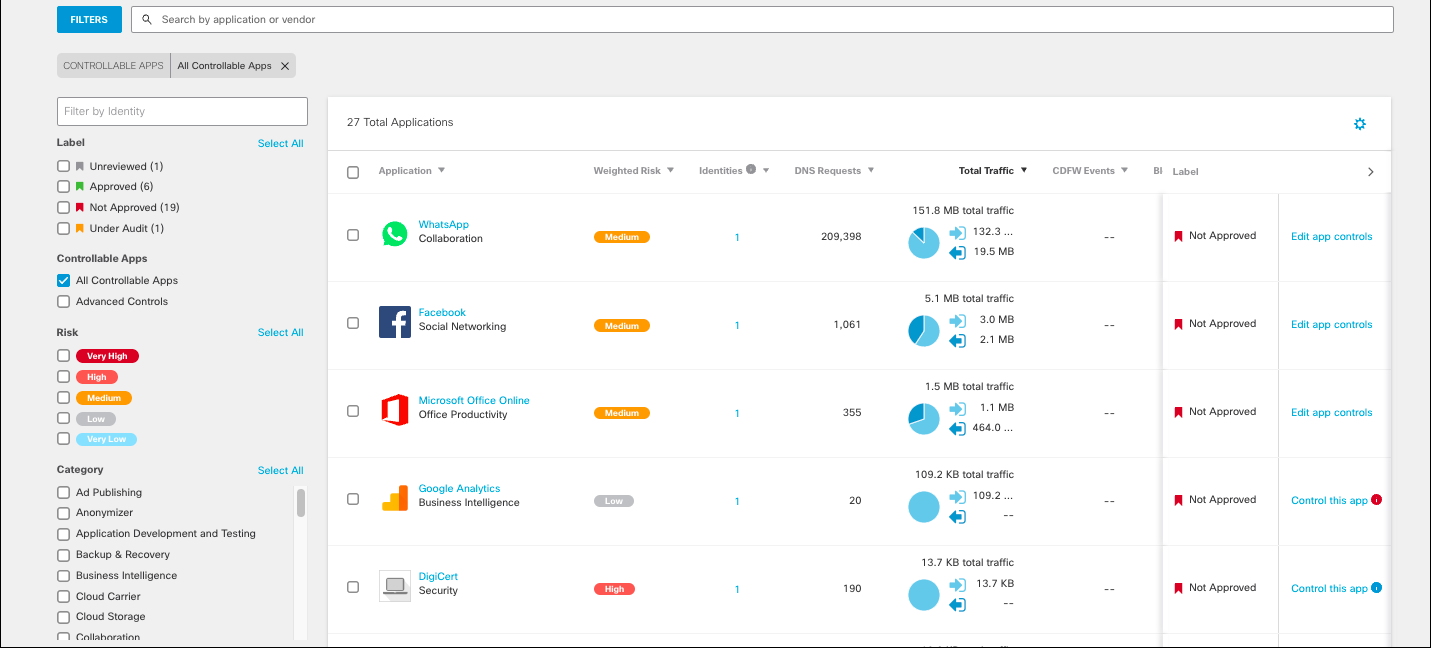
    The App Discovery interface.
  2. From the overview, click Unreviewed Apps. The App Grid appears depicting data for the last 90 days.

  3. Select a Controllable Apps filter: All Controllable Apps or Advanced Controls.


    The App Control interface.
  4. Click Edit App Controls, Control This App, or Block This App.

    • Block This App—Appears when a block has not been configured for this app, or a red tooltip icon will appear if the app setting is configured but has not yet been applied to a policy.

    • Control This App—Appears when Block or Allow have not been configured for this app, or a red tooltip icon will appear if the app setting is configured but has not yet been applied to a policy.

    • Edit App Controls—Appears when the app has already had settings configured but can be edited.

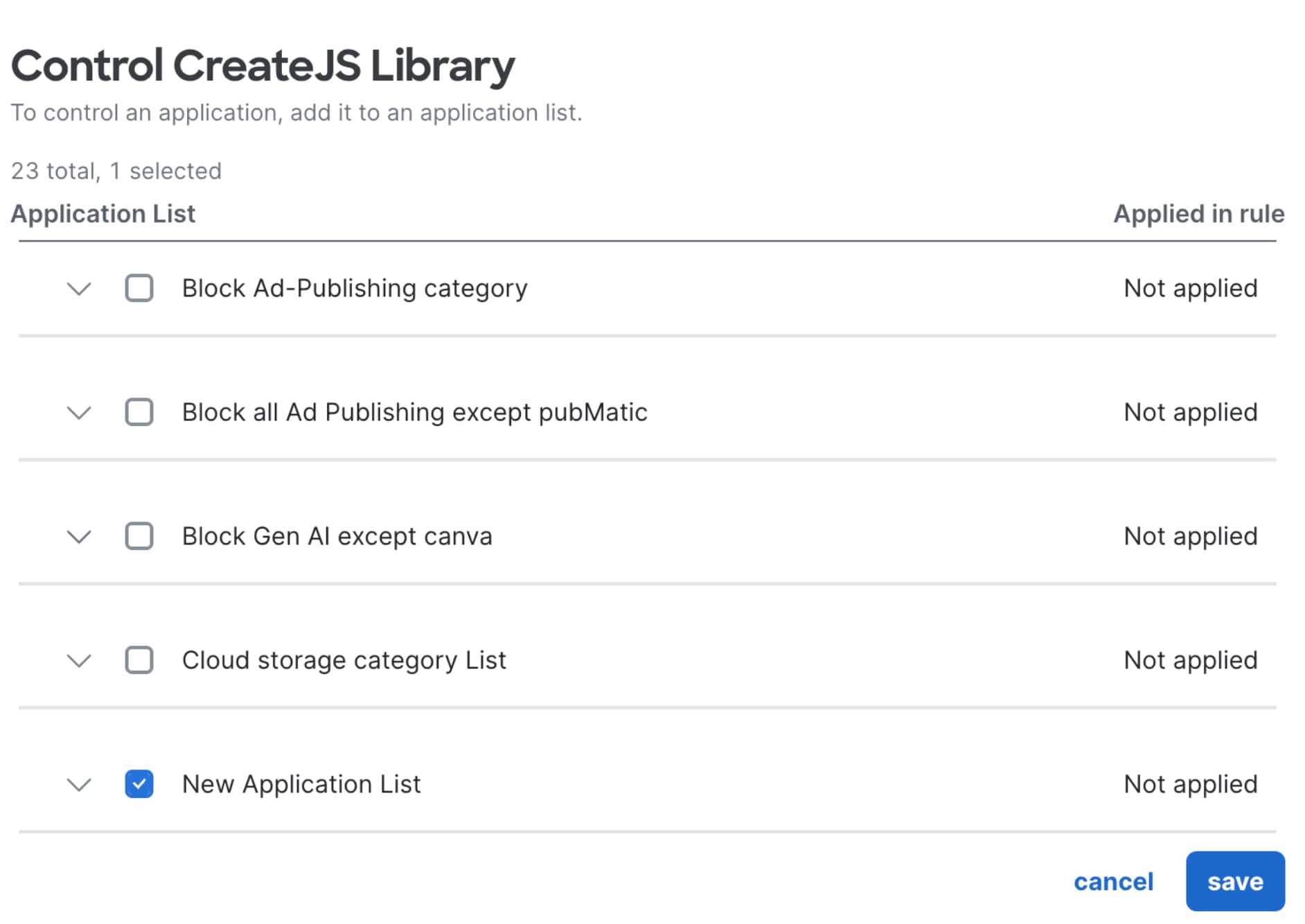
  5. On clicking Control This App, the Control Application Name window appears. Choose one or more application lists to add this application to and click Save. Once saved, the internet access rules set for the application lists are applied to the application.

    The application can only be added to application lists currently active in a policy.


    The Control App interface.

Control Application Lists