Cisco Secure Access for Government Help

PDF

Cisco Secure Access for Government Help

Manage Notification Pages

Want to summarize with AI?

Log in

Describes managing notification pages. Secure Access displays notification pages to end users when users try to: Access a destination that is blocked by security profile configurations in an internet access rule. In this case, they see a Block page.


Secure Access displays notification pages to end users when users try to:

  • Access a destination that is blocked by security profile configurations in an internet access rule. In this case, they see a Block page.

  • Access an internet destination that matches a rule that is configured with the Warn action. In this case, they see a Warn page.

You can display the default Secure Access notification or create one or more custom notifications to display in different situations.

Each security profile is associated with a single notification page configuration that includes both Block and Warn pages.

View Notification Pages Displayed to End Users

In Secure Access you can view the default notification page and any custom notification pages. For more information, see Preview Notification Pages.

Display Custom Notification Pages to End Users

  • Create custom notification pages for blocked destinations and destinations in rules configured with the Warn action. See Create Custom Block and Warn Pages.

  • Configure one or more security profiles to use custom notification pages. See Add a Security Profile.

  • In the default security profile, choose the block and warn pages to display when traffic matches internet access rules that use the default security profile. To choose a default security profile, see Edit Rule Defaults and Global Settings.

  • Configure internet access rules to use the security profiles which you have configured to display your custom notification pages. If you want to display a Warn page, choose the Warn action in the rule.

  • Deploy required certificate(s). For more information, see Certificates for Internet Decryption.If user devices do not have the necessary certificate, users will see standard browser error when they try to access a blocked destination.

About Warn Pages for Internet Access Traffic

When end users try to access a destination in an access rule configured with the Warn action, they must click a link in a warning message in order to access the destination.

A Warn page, once clicked through, allows content access for one hour. After one hour, the Warn page reappears and the user must click through again to access the requested destination.

About Block Pages for Private Access Traffic

The notification pages described in this section do not apply to private access rules. See Manage Private Access Rules.

Preview Notification Pages

In Cisco Secure Access, you can preview the default notification page and any custom notification pages. Secure Access displays a preview of the notification pages from a Security profile for internet access and on the Secure > Settings > Notification Pages page.

This guide describes the steps to preview default and custom notification pages from a Security profile for internet access.

Before you begin

  • Full Admin user role. For more information, see Manage Accounts.

  • The organization's DNS must resolve to the Secure Access's DNS servers.

Procedure

  1. Navigate to Secure > Profiles > Security Profiles.

  2. Edit an existing profile, or click Add Profile > Internet Access.

  3. Scroll down to End-User Notifications and click Edit.

  4. Preview the default notification pages.

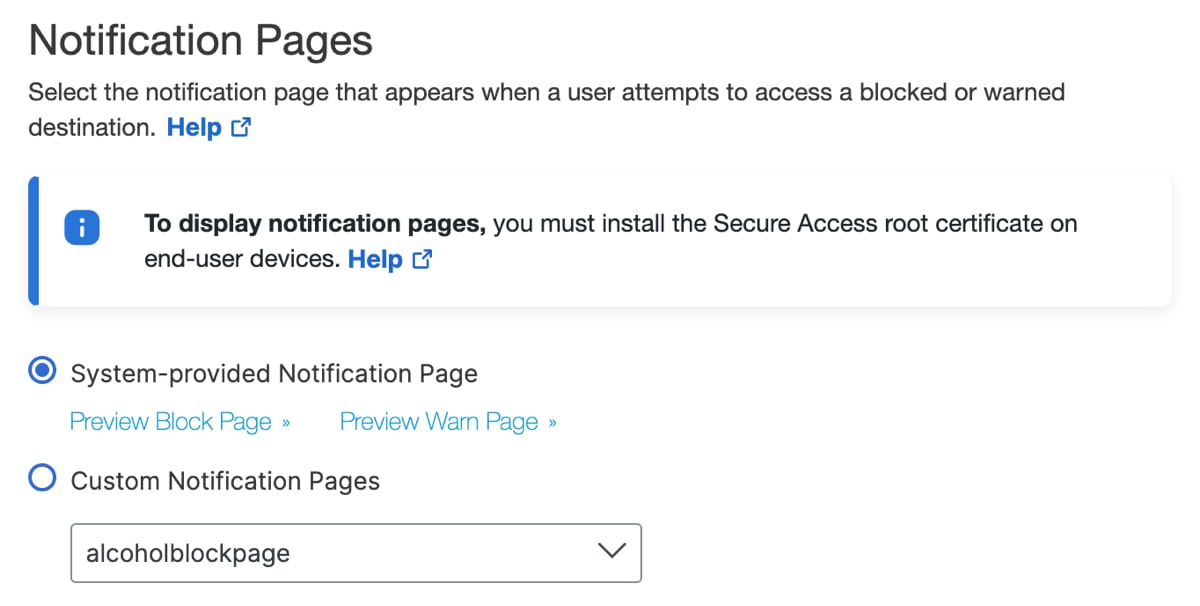
    1. Select System-provided Notification Pages.

    2. Click the blue Preview links (one each for Block and Warn pages).


      The Notification Page System Settings interface.
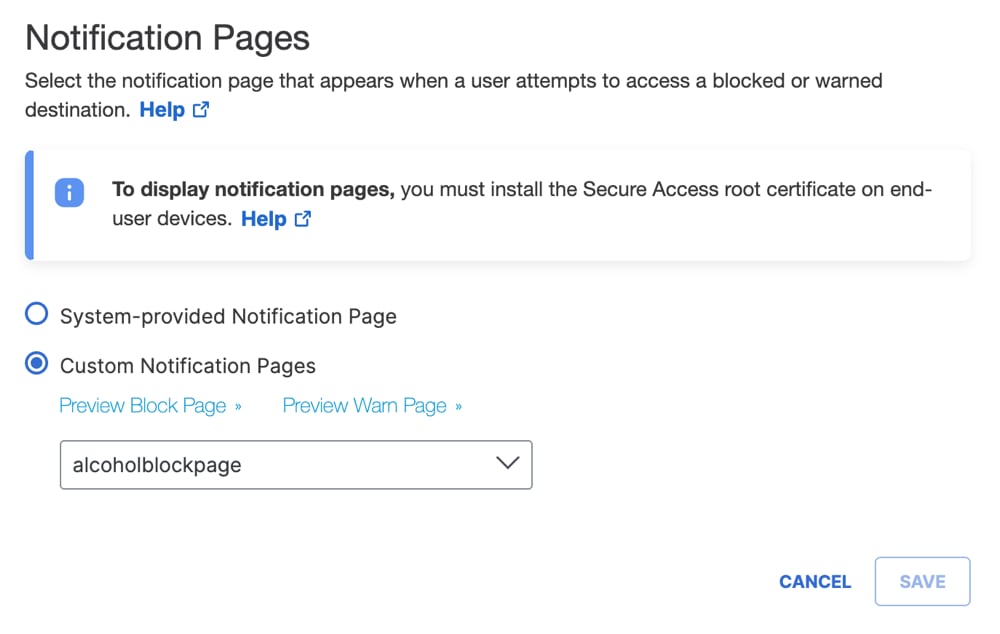
  5. Preview a custom notification page.

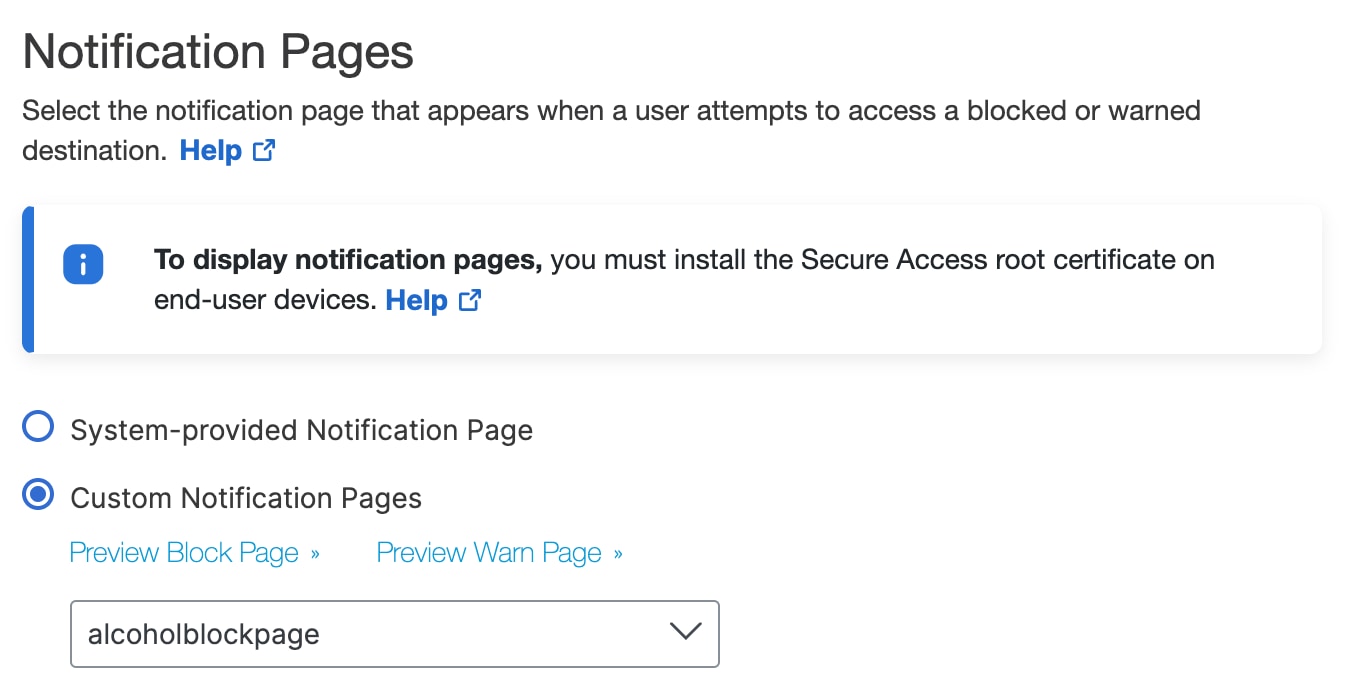
    1. Select Custom Notification Pages.

    2. Click Choose an existing appearance and choose the notification page design you want to preview.

    3. Click the blue Preview links (one each for Block and Warn pages).


      The Add Notifications Block Warn interface.
  6. Click Save


Create Custom Block and Warn Pages

Instead of showing end users the default block or warn message with the Secure Access logo, you can display your own logo, custom Block and Warn messages, and an option to contact an administrator. You can also display different pages depending on the reason for the block.

You can create a custom Block page and a custom Warn page as a set, and then choose them in security profiles for internet access.

Before you begin

  • Full Admin user role. For more information, see Manage Accounts.

  • Gather your logo, help desk email address, and any other information you want to provide.

  • If you use a custom logo, Secure Access notification pages support PNG and JPEG.

    Images larger than 125x70 pixels will be cropped and resized.

Procedure

  1. Navigate to Secure > Settings > Notification Pages.

  2. Click +Add, or expand the setting you want to edit.

    The settings on the page are optional.
    The Notification Pages Add interface.
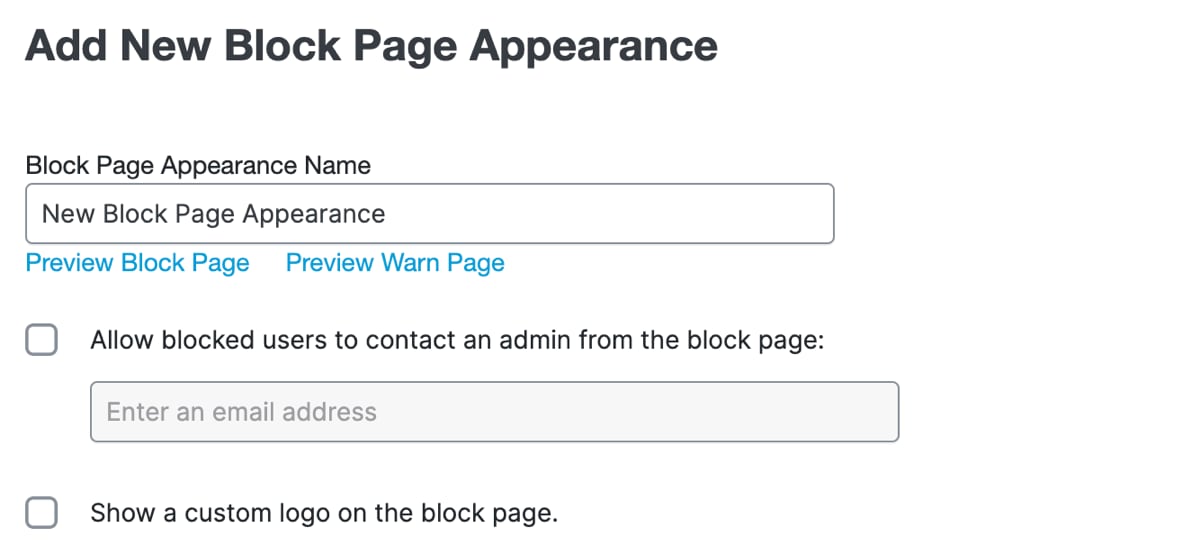
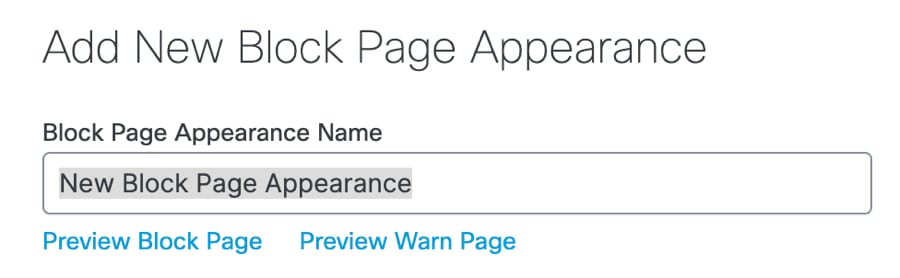
  3. If this is a new configuration, name this set of notification pages.


    The Add New Block Page Options interface.
  4. Click Allow blocked users to contact an admin from the block page. If you want to allow end users to contact an administrator from a block message, provide the email address that will be used to forward user messages. For more information, see Allow Users to Contact an Administrator.

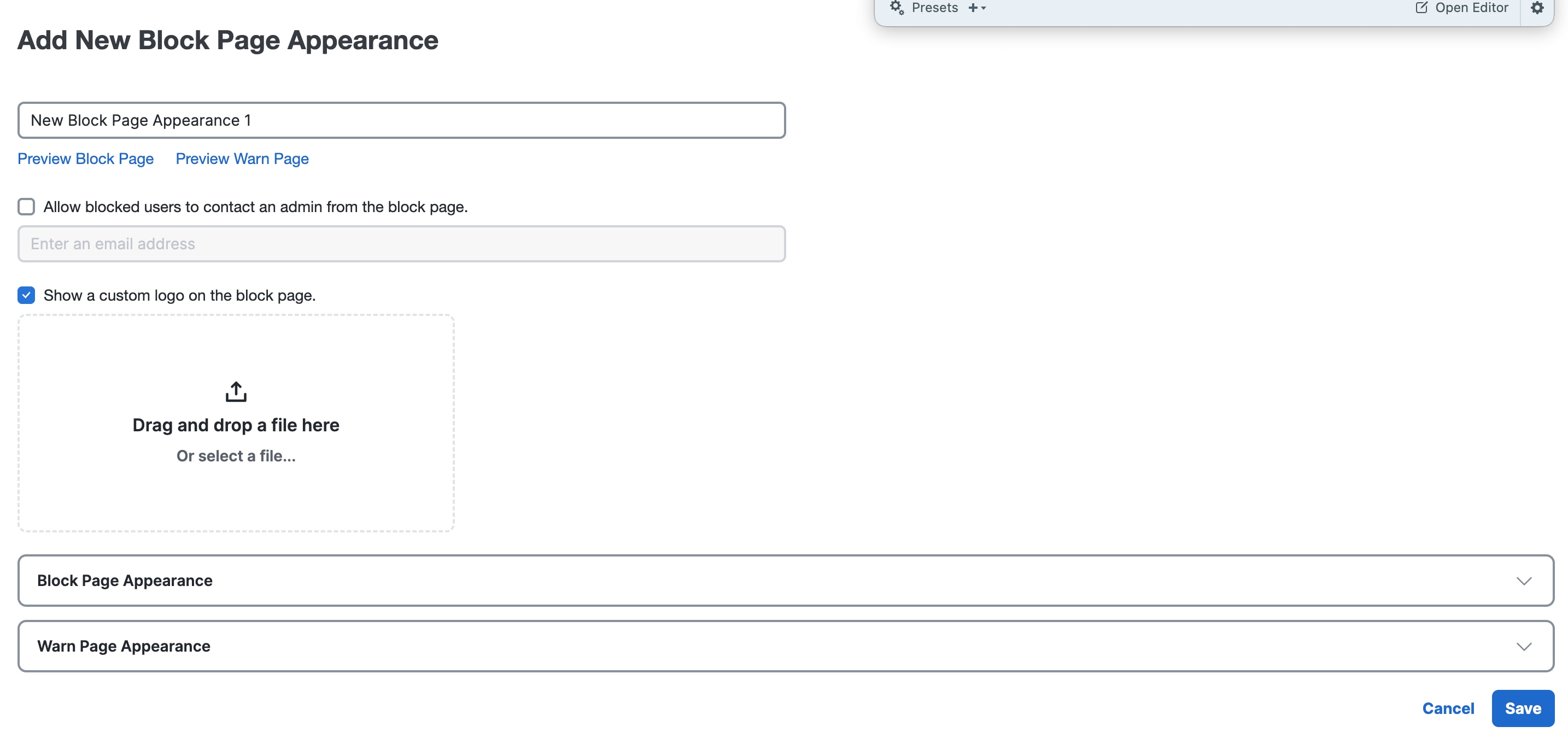
  5. Click Show a custom logo on the block page.

    Secure Access notification pages support PNG and JPEG. Images larger than 125x70 pixels will be cropped and resized.

    The New Block Page Appearance interface.
  6. Expand Block Page Appearance.

    1. If you want to display a unique message based on the reason for the block, click Differently and click a Block reason. If you want to display the same message for all block reasons, select The Same so that users see a consistent notification regardless of the reason for the block.

    2. Click Show a block page with the default message to display the default message.

    3. Click Show a block page with a custom message to specify your custom message.

      You can adjust the size of text, as well as bold, italicize, underline, or strikethrough it. You can also add hyperlinks, numbered lists, and bulleted lists.

      You can also use the following variables within your message.

      • [domain]—Substitutes the domain name that the end-user tried to browse to.

      • [client_ip]—Substitutes the external IP address of the client that is hitting the block page.

    4. Click Redirect Users to this URL and enter the URL to which users should be redirected.

  7. Expand Warn Page Appearance.

    1. Click Show a warn page with the default message to display the default message.

    2. Click Show a warn page with a custom message to specify your custom message, using the same guidelines as for a custom block message.

  8. Preview your notification pages:

    1. Scroll to the top of your configuration.

    2. Click the Preview Block Page or Preview Warn Page links.


      The View Block Page Links interface.
  9. Click Save.


Allow Users to Contact an Administrator

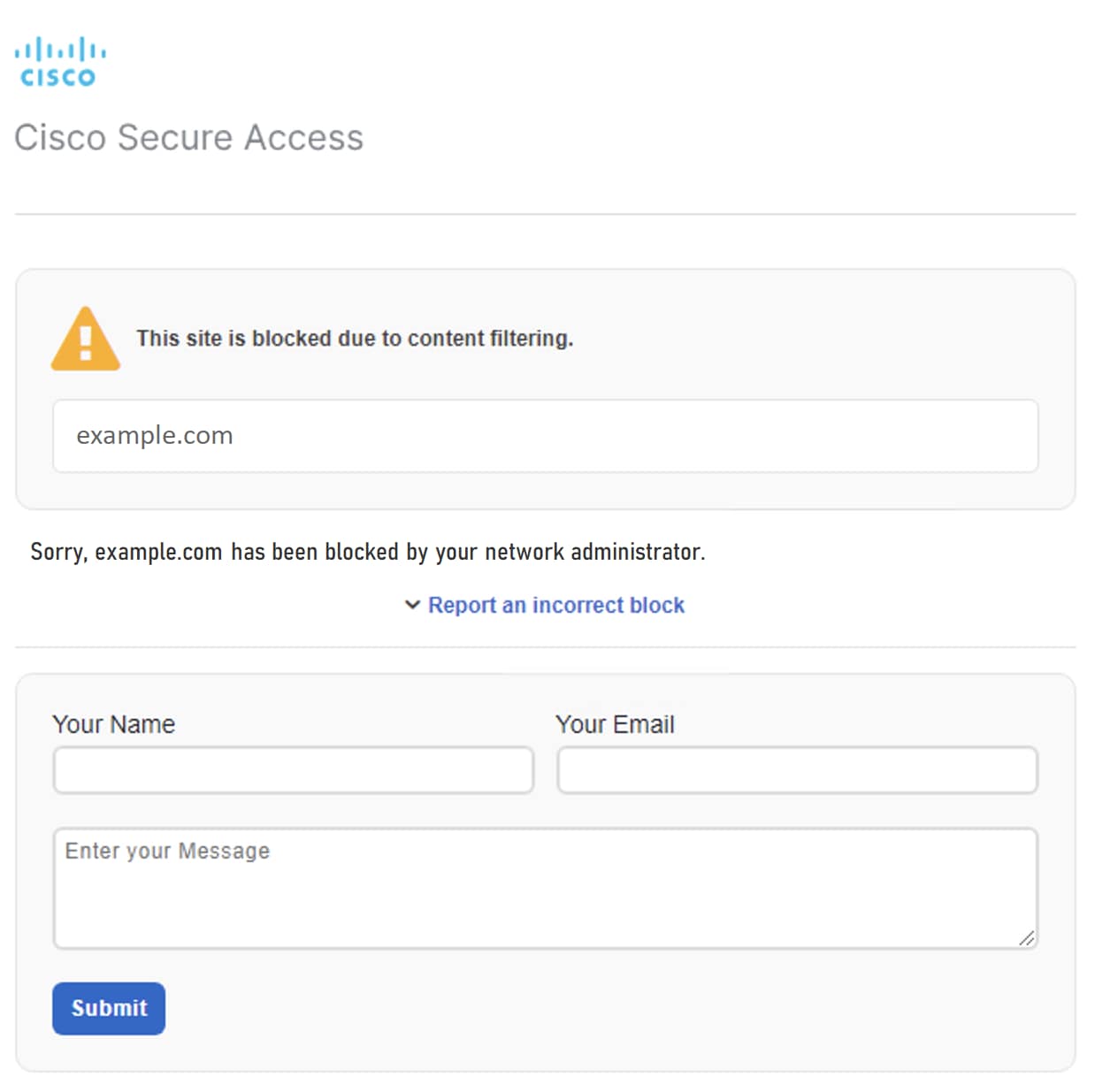
If you configure Secure Access to allow end users to contact an administrator from the block page, users can notify you if they feel a website should not be blocked. When end users attempt to access blocked sites, Secure Access includes a contact form at the bottom of block notifications:


The End User Contact Administrator interface.

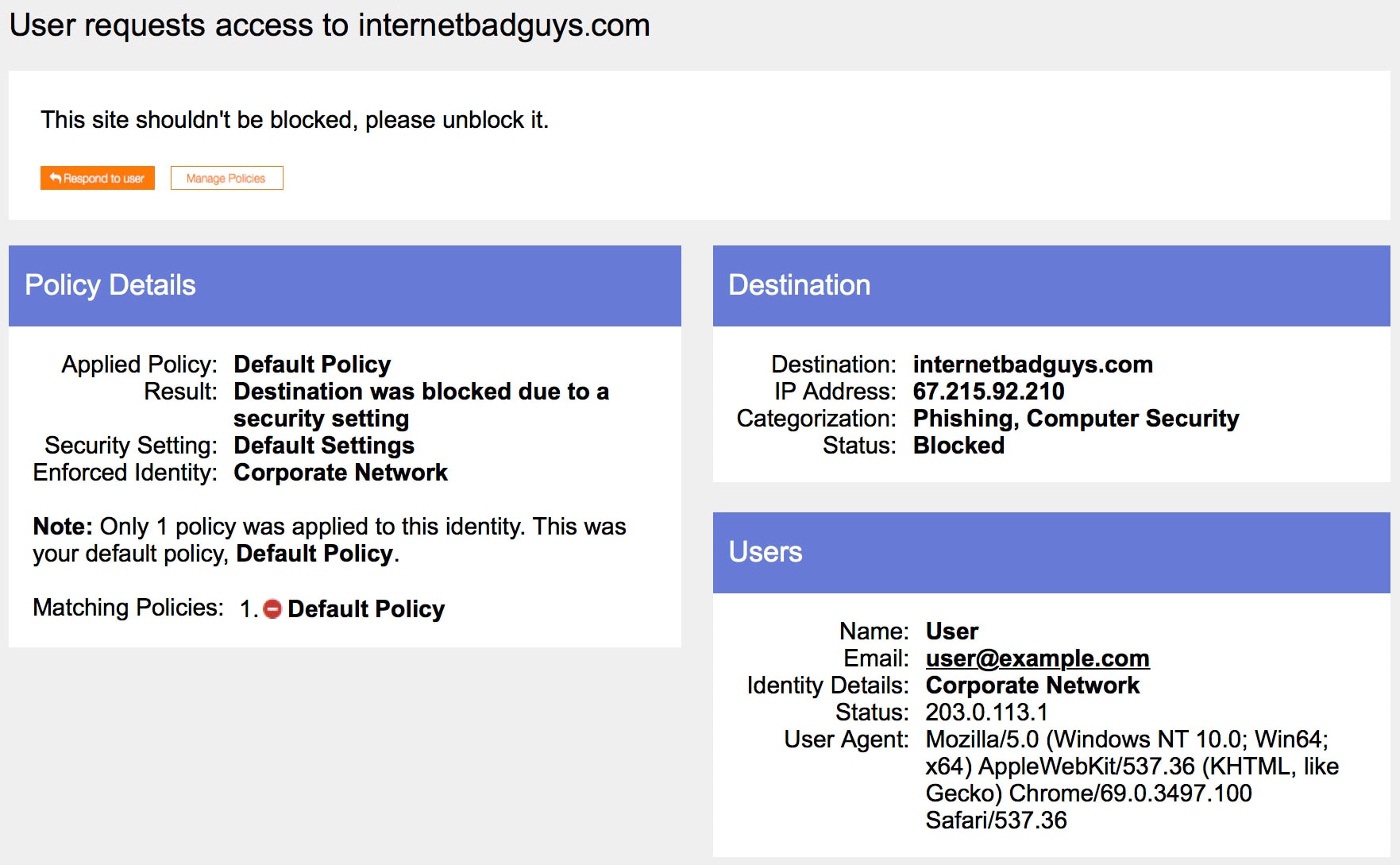
After the end user submits the form, Secure Access sends an email message to the administrator address you provided, including the user's message and diagnostic information that helps you determine whether to allow access to the site.

Note
Assistance With Allowing Websites: If you are unsure if a website should be allowed or have questions about a domain classification, contact Support.

Before you begin

Procedure

  1. Navigate to Secure > Settings > Notification Pages and click the setting you want to edit.


    The Add Block Page interface.
  2. Select Allow blocked users to contact an admin from the block page and enter an email address of the administrator, to allow end-users to contact an administrator from your organization. You can only add one email.


    The Add Email interface.
  3. Click Save.

    The following is an example of an email sent to an administrator when a user sent a message from a block page:


    The De31bbb Email interface.

Block Page IP Addresses

When Secure Access blocks a domain or URL, the Secure Access DNS servers display a block page instead of the requested page. Secure Access provides different types of block pages depending on the security event.

IP Addresses for Secure Access Block Pages

The following table describes the types of block pages, DNS record types, and Anycast IP addresses for the Secure Access servers.

Block Page Type Record Type IPv6 Addresses
Domain List A 18.253.87.126, 18.253.94.118, 18.253.45.107
Domain List AAAA 2600:1f15:3a9:7900:88ea:d972:3b3a:7a46, 2600:1f15:3a9:7901:3db6:77bf:525b:8e96, 2600:1f15:3a9:7902:b9d7:218b:91ea:a727
Command and Control Callback A 18.252.236.99, 18.253.205.239, 16.64.88.211
Command and Control Callback AAAA 2600:1f15:3a9:7900:c93b:96cc:9c8a:1cfa, 2600:1f15:3a9:7901:3ce8:3056:eaa5:f8db, 2600:1f15:3a9:7902:7f5b:ffa9:e18a:eedf
Content Category or Application A 182.30.49.246, 18.254.225.10, 16.64.34.204
Content Category or Application AAAA 2600:1f15:3a9:7900:dbe3:4913:94a2:28e7, 2600:1f15:3a9:7901:c751:a90b:a7d0:783a, 2600:1f15:3a9:7902:3897:34e9:ed25:b88c
Malware A 18.254.71.48, 16.64.77.81, 16.64.3.101
Malware AAAA 2600:1f15:3a9:7900:3d59:9958:fcf7:4d4b, 2600:1f15:3a9:7901:baed:f166:bb99:b852, 2600:1f15:3a9:7902:542d:b93c:62c1:da4d
Phishing A 16.64.58.196, 182.30.95.86, 16.64.44.65
Phishing AAAA 2600:1f15:3a9:7900:90c4:c14:60f4:78ec, 2600:1f15:3a9:7901:9037:4de:9df1:b3ef, 2600:1f15:3a9:7902:36d9:ec53:c1d:384
Security Integrations, Newly Seen Domains, DNS Tunneling VPN, Potentially Harmful, and Dynamic DNS A 16.64.101.72, 18.252.86.49, 18.252.224.185, 16.64.116.188, 16.64.19.231, 18.254.233.234
Security Integrations, Newly Seen Domains, DNS Tunneling VPN, Potentially Harmful, and Dynamic DNS AAAA 2600:1f15:3a9:7900:e608:e9d7:8148:b66e, 2600:1f15:3a9:7901:2a94:3c22:9765:b43b, 2600:1f15:3a9:7902:a7c0:1479:a270:1699

Domains for Secure Access Block Pages

Secure Access displays block pages on these domains:

  • block.secureaccessfed.cisco

  • phishing.block.secureaccessfed.cisco

  • malware.block.secureaccessfed.cisco