Cisco Secure Access for Government Help

PDF

Cisco Secure Access for Government Help

Enable SafeSearch

Want to summarize with AI?

Log in

Describes enabling safesearch. SafeSearch is a search engine filter for internet-bound traffic that blocks search results for explicit content such as pornography, violence, gore, and other offensive adult content.


SafeSearch is a search engine filter for internet-bound traffic that blocks search results for explicit content such as pornography, violence, gore, and other offensive adult content. When enabled, if an end user enters a potentially inappropriate or suggestive phrase into a search engine, the search engine only returns safe "family-friendly" results.

SafeSearch applies to Google, YouTube, Yahoo, and Bing. SafeSearch can not be disabled on an end-user device for any applicable search engine or site.

When you enable SafeSearch in a security profile, you must also enable decryption in the same security profile. For more information, see Manage Traffic Decryption.

To enable SafeSearch and decryption, see Add a Security Profile for Internet Access.

Confirm That SafeSearch is Working

The most reliable way to confirm that SafeSearch is enabled is to visit a search engine or site where SafeSearch settings are enforced. You can also perform a search using a term that might be deemed inappropriate and review search results. Only "family friendly" results should be returned.

Tests must be done through a source that is included in an access rule that is configured to use a security profile in which SafeSearch is enabled.

The following topics provide guidance on how to verify SafeSearch enforcement for popular search engines such as Google, YouTube, Yahoo, and Bing.


Google

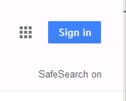
After attempting a search in Google, a SafeSearch on indicator should be displayed.

The Google Safeseach interface.

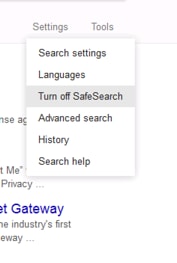
In the browser, under Settings, if you select Turn off SafeSearch, it has no effect and explicit sites are not listed in searches.

The Turnoff Safesearch interface.

YouTube

Results when searching YouTube displays that “Restricted Mode” is "On". Expanding this result indicates that "Restricted Mode is enabled by your network administrator".


The Youtube Safesearch interface.

Yahoo

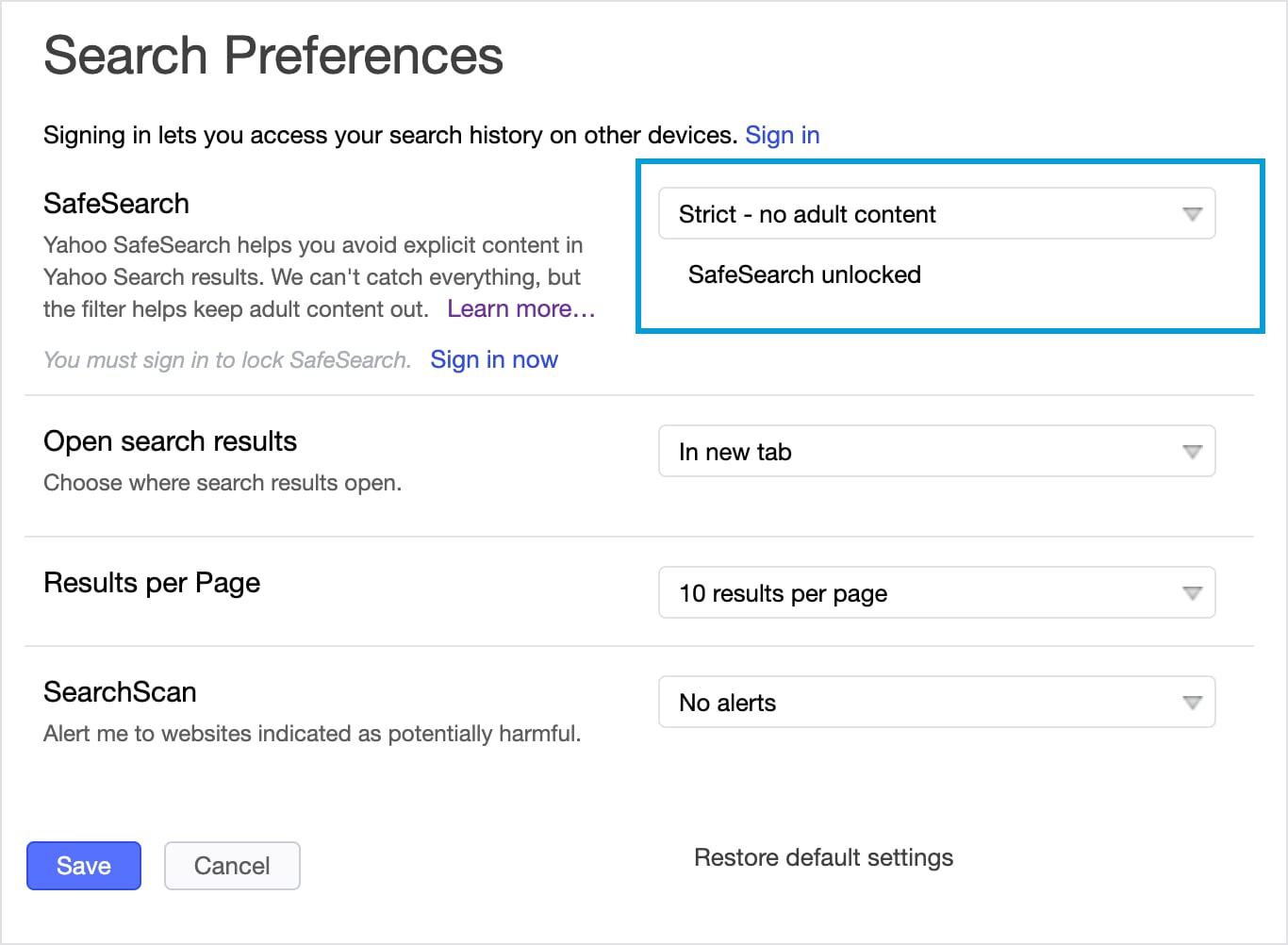
From the Yahoo search page, click Settings and then Preferences.

SafeSearch should be set to Strict - no adult content. You cannot change the setting.


The Yahoo Safesearch interface.

Bing

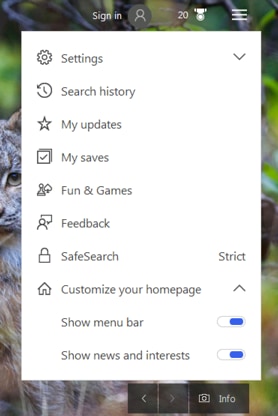
From the menu icon, Bing displays that SafeSearch is set to “Strict”.

Figure 1. safesearch_bing.png
The Safesearch Bing interface.

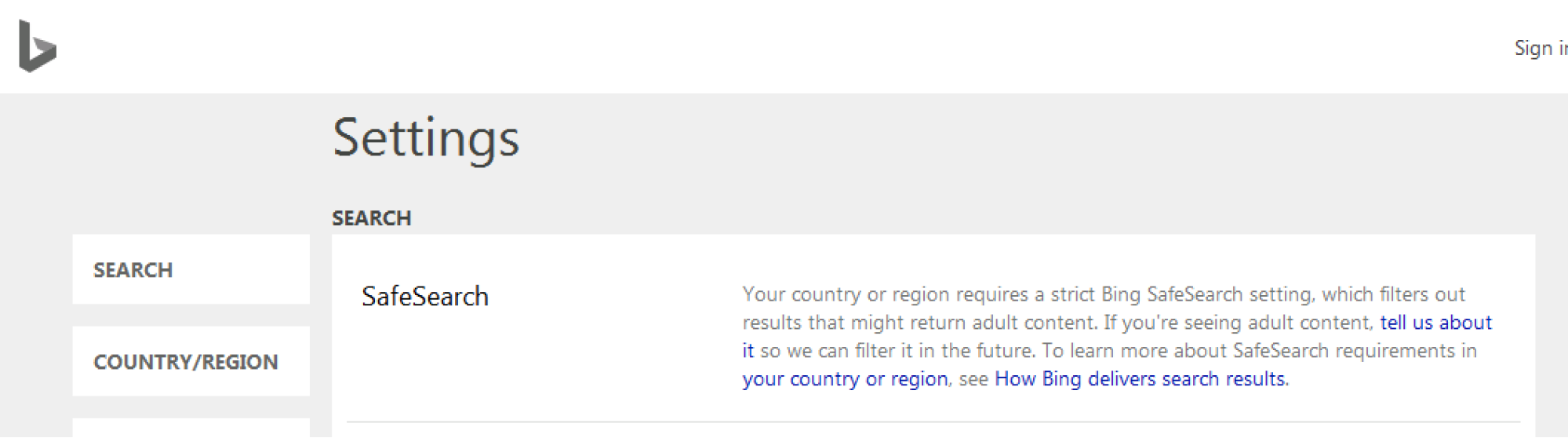
Clicking SafeSearch takes you to a page describing SafeSearch, but there is no disable option.


The Safesearch Settings interface.