Cisco Security Cloud Control: Secure Firewall ASA Management

PDF

Cisco Security Cloud Control: Secure Firewall ASA Management

Upgrade ASA and ASDM images in a high availability pair

Want to summarize with AI?

Log in

Learn how to upgrade ASA and ASDM images in an active/standby high availability pair in Security Cloud Control, including workflow, prerequisites, upgrade sequence, and failover behavior.


Security Cloud Control Firewall Management supports upgrading Cisco Secure Firewall ASA devices that are configured in an Active/Standby High Availability (HA) pair.

During the upgrade, Security Cloud Control Firewall Management upgrades the devices sequentially to minimize traffic disruption:

  1. The standby ASA is upgraded first.

  2. The standby device reboots and returns to the Standby-Ready state.

  3. Security Cloud Control Firewall Management initiates a failover, making the upgraded device the active ASA.

  4. The primary ASA device is then upgraded and rebooted.

Because one device remains active during most of the process, the upgrade provides near-zero downtime. During the failover event, a brief traffic interruption or a small number of dropped packets may occur depending on the network environment.

If you need more information about how ASAs are configured and work in failover mode, see Failover for High Availability in the ASA documentation.

Workflow for upgrading an ASA high availability pair

The following workflow describes how Secure Firewall Management Center upgrades ASA devices in an Active/Standby high availability pair.

  1. Download images to both devices

    Secure Firewall Management Center downloads the ASA and ASDM images to both devices in the high availability pair.

    Note

    Users have the choice of downloading ASA and ASDM images but not upgrading immediately. If the ASA and ASDM images were downloaded previously, Security Cloud Control will not download them again; Security Cloud Control continues the upgrade workflow with the next step.

  2. Secure Firewall Management Center upgrades the standby device

    The secondary ASA (standby device) is upgraded and rebooted while the primary ASA continues to process traffic.

  3. Verify standby readiness

    After reboot, the upgraded device enters the Standby-Ready state.

  4. Initiate failover

    Secure Firewall Management Center initiates a failover so that the upgraded device becomes the active ASA.

  5. Upgrade the remaining device

    The original primary ASA, which is now the standby device, is upgraded and rebooted.

  6. Restore the original active device

    After the device returns to the Standby-Ready state, Secure Firewall Management Center initiates another failover so that the original primary ASA becomes active again.

This process ensures that one device remains active throughout the upgrade, minimizing service interruption.

Warning

Upgrading devices that have self-signed certificates may experience issues; see New Certificate Detected for more information.


Workflow

This is the process by which Security Cloud Control upgrades the active/standby pair of ASAs:

Procedure

1.

Security Cloud Control downloads the ASA and ASDM images to both ASAs.

Note

Users have the choice of downloading ASA and ASDM images but not upgrading immediately. If the ASA and ASDM images were downloaded previously, Security Cloud Control will not download them again; Security Cloud Control continues the upgrade workflow with the next step.

2.

Security Cloud Control upgrades the secondary ASA first.

3.

Once the upgrade is complete and the secondary ASA returns to the "Standby-Ready" state, Security Cloud Control initiates a failover so that the secondary ASA becomes the active ASA.

4.

Security Cloud Control upgrades the primary ASA, which is now the current standby ASA.

5.

Once the primary ASA returns to the "Standby-Ready" state, Security Cloud Control initiates a failover so that the primary ASA becomes the active ASA.

Warning

Upgrading devices that have self-signed certificates may experience issues; see New Certificate Detected for more information.


Upgrade ASA and ASDM Images in a high availability pair

Procedure

1.

In the left pane, click Security Devices.

2.

Click the Devices tab.

3.

Select the device you want to upgrade.

4.

In the Device Actions pane, click Upgrade.

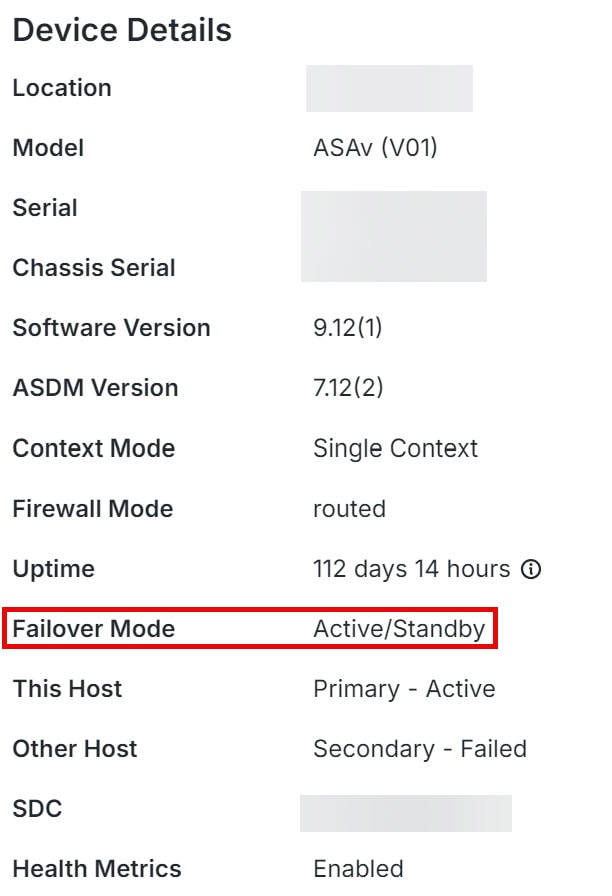
Notice that the failover mode of the device is Active/Standby:

Shows device details of ASA HA pair
5.

(Optional) If you want Secure Firewall Management Center to perform the upgrade later, select the Schedule Upgrade check box. Click the field to select a date and time in the future. When you are done, click Done.

6.

In step 1, click Use SCC Image Repository to select the ASA software image you want to upgrade to, and click Continue.

If you are upgrading from images stored in your own repository, select Specify Image URL and enter the image location. Supported protocols include FTP, TFTP, HTTP, HTTPS, SCP, and SMB.

See Custom URL Upgrade for URL syntax information.

7.

In step 2, select the ASDM image you want to upgrade to. You are only presented with ASDM choices that are compatible with the ASA you can upgrade.

8.

In step 3, confirm your choices and decide whether you only want to download the images to your ASAs or copy the images, install them, and reboot the device.

9.

Click Perform Upgrade.

Secure Firewall Management Center automatically performs the HA upgrade workflow described earlier.

Note

The upgrade process is designed to provide near-zero downtime. If the upgrade of the standby device fails, the process stops and a failure notification is sent by email or webhook, if configured, or displayed in the user interface.