Cisco Security Cloud Control: Secure Firewall ASA Management

PDF

Cisco Security Cloud Control: Secure Firewall ASA Management

Jobs monitoring in Security Cloud Control

Want to summarize with AI?

Log in

Explains how to monitor bulk operations in Security Cloud Control, review job progress and device-level results, search or filter jobs by action, user, or status, and reinitiate or cancel bulk actions.


Jobs monitoring in Security Cloud Control is a management interface that

  • provides an overview of the progress of bulk operations, such as reconnecting multiple devices, reading configurations from multiple devices, or upgrading multiple devices simultaneously

  • uses color-coded rows along with the status of individual actions, indicating if they have succeeded or failed, and

  • displays results for each of the devices affected by the bulk operation when a row is expanded.

Job access methods

You can reach the Jobs page in two different ways:

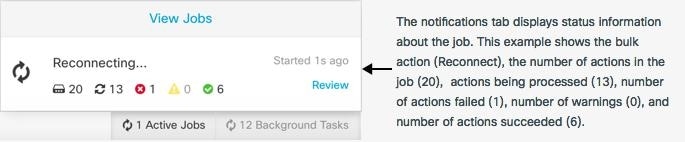
  • In the Notifications tab, when there is a new Job notification, click the Review link. You will be redirected to the Jobs page and see the specific job represented by the notification.

  • In the left pane, click Events & Logs > Events heading > Jobs. This table shows a complete list of the bulk actions performed in Security Cloud Control.

One row in the table represents a single bulk operation. This one bulk operation may have been, for example, an attempt to reconnect 20 devices. Expanding a row in the Jobs page displays the results for each of the devices affected by the bulk operation.
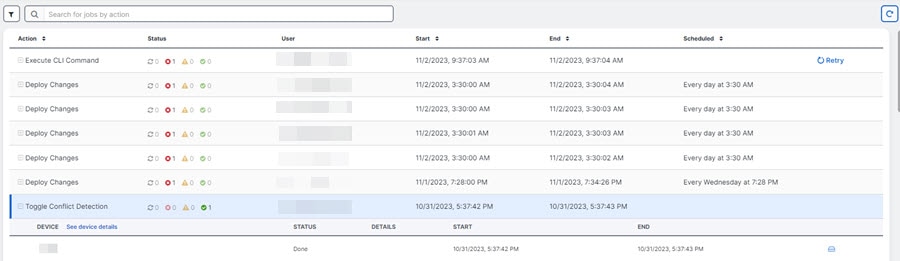
The Jobs page displays a table of bulk operations, with each row representing an operation and expandable to show results for affected devices.
The image illustrates the Jobs page interface, showing a table with rows representing individual bulk operations and options to filter and search by actions, users, and status.

When you're on the Jobs page, you can filter and search by different actions, the users who performed them, and the action status.


Reinitiate a bulk action

This task allows you to retry failed actions within a bulk operation without re-running the entire job.

After reviewing the Jobs page, if you find that one or more actions in a bulk action have failed, you can retry the bulk action after making the necessary corrections. Note that Security Cloud Control will re-run the job only for the failed actions.

Procedure

1.

In the Jobs page, select the row that indicates a failed action.

2.

Click the Retry (The image illustrates the process of reinitiating a bulk action, highlighting the steps to retry failed actions within a bulk operation without re-running the entire job.) icon.

The system retries only the failed actions from the original bulk operation, and the job status updates accordingly.


Cancel a bulk action

Cancel bulk actions that are currently in progress when you need to stop ongoing operations on multiple devices that may be taking longer than expected or are no longer needed.

You can cancel the bulk actions that are currently in progress on multiple devices. For example, if you have tried to reconnect four managed devices, and three of them have successfully reconnected, but the fourth device is still neither connected nor disconnected, you can cancel the bulk action.

Procedure

1.

From the Security Cloud Control Home page, click Firewall.

2.

In the left pane, click Events & Logs > Events heading > Jobs.

3.

Identify the running bulk action and click the Cancel link on the right side.

Note

If any part of the bulk action is successful, it cannot be undone. Any ongoing action will be cancelled.

The bulk action is cancelled, stopping any ongoing operations while preserving any successfully completed portions of the action.