Cisco Security Cloud Control: Secure Firewall ASA Management

PDF

Cisco Security Cloud Control: Secure Firewall ASA Management

Change request management

Want to summarize with AI?

Log in

Explains how change request management enables linking business justifications to change log events through third-party ticketing systems.


Change request management is a functionality that

  • enables the linking of a Change Request and its business justification to a Change Log event

  • opens the Change Request in a third-party ticketing system, and

  • allows creation of a Change Request in Security Cloud Control and associates it with change log events.

Change request management usage

Use Change Request Management to create a Change Request in Security Cloud Control and associate it with change log events. You can search for this change request by Name within the change log.

Note

In Security Cloud Control, Change Request Tracking and Change Request Management refer to the same functionality.

Enable change request management

Enable change request tracking to provide visibility and control over configuration changes made by all users in your organization.

Enabling change request tracking affects all users of your organization.

Procedure

1.

From the Security Cloud Control Home page, click Firewall.

2.

Choose Administration > General Settings.

3.

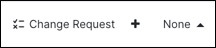
Enable the Change Request Tracking toggle button.The Change Request menu and drop-down list are highlighted, indicating their locations in the user interface after enabling change request management.

When enabled, the Change Request menu appears at the bottom-left corner and the Change Request drop-down list is available in the Change Log page.

Change request tracking is now enabled for your organization. The Change Request menu is available at the bottom-left corner, and the Change Request drop-down list appears in the Change Log page.


Create a change request

Create a change request to organize and track configuration changes that will be made to devices in your network, ensuring proper documentation and oversight of modifications.

Change requests provide a structured way to group related configuration changes and maintain an audit trail of modifications. Once created, all subsequent changes will be associated with the active change request until it is cleared or disabled.

Procedure

1.

In Security Cloud Control, click the Create Change Request (+) icon in the Change Request menu at the bottom-left corner.

2.

Enter a Name and Description.

Ensure that the Name corresponds to a Change Request name that your organization intends to use, and that the Description describes the purpose of the change.

Note

You cannot modify the name of a Change Request after you create it.

3.

Click Save.

Note

When a Change Request is saved, Security Cloud Control associates all the new changes with the corresponding Change Request name. This association continues until you either disable change requests or clear the change request details from the menu.

The change request is created and becomes the active change request. All subsequent configuration changes will be associated with this change request until you disable change request management or clear the change request details.


Associate a change request with a change log event

Associate change requests with change log events to maintain an audit trail and track the reasons for configuration changes.

Use this procedure when you need to link a change request to a specific change log event to document the authorization and rationale for configuration changes.

Procedure

1.

From the Security Cloud Control Home page, click Firewall.

2.

In the left pane, click Events & Logs > Logs > Change Log.

3.

Expand the change log to view the events you want to associate with a Change Request.

4.

Click the drop-down list adjacent to the corresponding change log entry.

Note

The latest change requests are displayed at the top of the change request list.

5.

Select a change request and click Select.

The change request is now associated with the change log event, creating a traceable link between the authorization and the configuration change.


Search for change log events with change requests

This task helps you locate specific change log events by searching for associated change request names, allowing you to track changes and their corresponding documentation.

Use this procedure when you need to find change log events that are linked to particular change requests for auditing, tracking, or analysis purposes.

Procedure

1.

From the Security Cloud Control Home page, click Firewall.

2.

In the left pane, click Events & Logs > Logs > Change Log.

3.

In the change log search field, enter the name of a change request to find the associated change log events.

Security Cloud Control highlights the change log events that are exact matches.

The system displays change log events that match your search criteria, with exact matches highlighted for easy identification.


Search for a change request

Enable users to quickly locate existing change requests by searching through names and descriptions using partial matches.

Use this search functionality when you need to find specific change requests among multiple entries in the system.

Procedure

1.

In Security Cloud Control, click the Create Change Request (+) icon in the Change Request menu at the bottom-left corner.

2.

Enter the name of the Change Request or a relevant keyword in the search field. As you enter a value, the results that partially match your input, appear in both the Name and Description fields.

The system displays change requests that match your search criteria in both the name and description fields, allowing you to locate the desired change request quickly.


Filter change requests

Filter change requests to quickly locate and review specific configuration changes or events in your security environment.

Use the filter functionality in the Change Log to narrow down the list of change requests based on specific criteria. This helps you efficiently review and manage configuration changes across your devices.

Procedure

1.

From the Security Cloud Control Home page, click Firewall.

2.

In the left pane, click Events & Logs > Logs > Change Log.

3.

Click the filter icon to view all the options.

4.

In the search field, enter the name of a Change Request.

As you enter a value, the results that partially match your entry appear.

5.

Select a change request by checking the corresponding check box.

The matches appear in the Change Log table. Security Cloud Control highlights the change log events that are exact matches.

The Change Log table displays only the filtered change requests that match your search criteria, with exact matches highlighted for easy identification.


Clear the change request toolbar

Clear the change request toolbar to prevent change log events from being automatically associated with an existing change request.

When you need to avoid automatic association of change log events with an existing change request, clear the information in the change request toolbar.

Procedure

1.

From the Security Cloud Control Home page, click Firewall.

2.

Click the Create Change Request (+) icon in the Change Request menu at the bottom-left corner.

3.

Click Clear.

The Change Request menu now displays None.

The change request toolbar is cleared and displays None, ensuring that change log events will not be automatically associated with any existing change request.


Clear a Change Request Associated with a Change Log Event

Procedure

1.

From the Security Cloud Control Home page, click Firewall.

2.

In the left pane, click Events & Logs > Logs > Change Log.

3.

Expand the Change Log to view the events that you want to disassociate from Change Requests.

4.

Click the drop-down list adjacent to the corresponding change log entry.

5.

Click Clear.


Delete a change request

Delete a change request to remove it from the active change request list when it is no longer needed.

Deleting a Change Request removes it from the change request list, but not from the Change Log.

Procedure

1.

Click the Create Change Request (+) icon in the Change Request menu at the bottom-left corner.

2.

Select the change request and click the bin icon to delete it.

3.

Click the check mark to confirm.

The change request is removed from the change request list but remains available in the change log for historical reference.


Disable change request management

This task disables Change Request Management functionality for your account when it is no longer needed or desired.

Disabling Change Request Management or Change Request Tracking affects all users of your account.

Procedure

1.

From the Security Cloud Control Home page, click Firewall.

2.

Choose Administration > General Settings.

3.

Disable the Change Request Tracking toggle button.

Change Request Management and Change Request Tracking features are disabled for all users in your account.


Manage change requests and associate change log events

This task helps you track changes made to firewall devices and associate them with change requests to resolve tickets maintained in external systems. You can create change requests, associate change log events with them, and search for events related to specific change requests.

These use cases assume that you have enabled Change Request Management. You can use change request management in various scenarios to maintain audit trails and associate firewall changes with external ticketing systems.

Procedure

1.

Track changes made to the firewall device to resolve a ticket maintained in an external system.

This use case describes a scenario where you want to make changes to a firewall device to resolve a ticket maintained in an external system and want to associate the change log events resulting from these firewall changes to a change request.

  1. Create a change request.

  2. Use the ticket name or number from the external system as the name of the change request and add the justification for the change and other relevant information in the Description field.

  3. Ensure that the new change request is visible in the change request toolbar.

  4. Make the changes to the firewall device.

  5. In the navigation pane, click Change Log and find the change log events that are associated with your new change request.

  6. Clear the change request toolbar to avoid automatic association of change log events with an existing change request.

2.

Manually update individual change log events after changes are made to the firewall device.

This use case describes a scenario where you have made changes to a firewall device to resolve a ticket that is maintained in an external system, but forgot to use the Change Request Management feature to associate change requests with the change log events. You want to update the change log events with the ticket number.

  1. Create a change request. Use the ticket name or number from the external system as the name of the change request. Use the Description field to add the justification for the change and other relevant information.

  2. In the navigation pane, click Change Log and search for the change log events that are associated with the changes.

  3. Associate a change request with a change log event.

  4. Clear the change request toolbar to avoid automatic association of change log events with an existing change request.

3.

Search for change log events associated with a change request.

This use case describes a scenario where, you want to find out what change log events were recorded in the change log because of the work done to resolve a ticket maintained in an external system.

  1. In the navigation pane, click Change Log.

  2. Search for change log events that are associated with change requests using one of these methods:

    • In the Change Log search field, enter the exact name of the change request to find change log events associated with that change request. Security Cloud Control highlights change log events that are exact matches.

    • Filter change requests to find the change log events.

  3. View each change log to find the highlighted change log events showing the associated change request.

You have successfully managed change requests and associated change log events with external tickets. The change log now contains trackable events linked to your change requests, providing an audit trail for firewall modifications.