Cisco Crosswork Network Controller 7.2 Traffic Engineering and Optimization

PDF

Cisco Crosswork Network Controller 7.2 Traffic Engineering and Optimization

Native SR paths

Want to summarize with AI?

Log in

This section provides an overview of native SR paths that use the network’s native IGP with segment routing extensions to forward traffic. It also outlines the device prerequisites required for successful visualization of these paths and describes the steps to create path queries and view native SR IGP paths on the topology map.


A native SR path is a segment routing path that

  • uses the network’s native IGP (such as OSPF or IS-IS) with segment routing extensions to forward traffic,

  • uses all available Equal Cost Multi-Path (ECMP) routes between a source and destination, and

  • supports operations, administration, and maintenance (OAM) activities to monitor segment-routed label-switched paths (LSPs) and isolate forwarding problems for troubleshooting.
Device prerequisites to view native SR paths

To enable successful visualization of native SR paths, ensure devices satisfy these requirements:

Run the required software version

  • Ensure your device operates on Cisco IOS XR 7.3.2 or higher.

  • To verify the version, run the show version command.

Enable and confirm gRPC configuration

  • Enable gRPC on your device and verify the configuration. For more information about enabling gRPC on PCE, refer to the "Requirements for adding SR-PCE providers" section in the Cisco Crosswork Network Controller 7.2 Administration guide.

  • Run the show run grpc command to confirm gRPC configuration.

    Example gRPC configuration:

    tpa
    vrf default
    address-family ipv4
    default-route mgmt
    !
    address-family ipv6
    default-route mgmt
    !
    !
    !
    
    or
    
    linux networking
    vrf default
    address-family ipv4
    default-route software-forwarding
    !
    address-family ipv6
    default-route software-forwarding
    !
    !
    ! 
    Note

    address-family is only required in an IPv4 topology.

  • To enable gRPC with a secure connection, upload valid security certificates to the device.

Enable and verify GNMI capability

  • Confirm that your device supports and has GNMI enabled.

  • To verify, navigate to Device Management > Network Devices, click the device IP address, and check that GNMI is listed under Connectivity details.

  • The encoding type depends on the device's capabilities, the supported data model, and the expected transmission method between the device and Crosswork Network Controller. Devices that support GNMI may offer these encoding types:

    • JSON: Human-readable and widely supported by most devices.

    • BYTES: Encodes data in binary format for efficient transmission.

    • PROTO: A compact, efficient binary format used with gRPC.

    • ASCII: A plain-text format that is human-readable but less commonly used compared to JSON.

    • JSON IETF: A standardized variant of JSON that adheres to IETF YANG specifications.

Configure the static route to the CDG router

  • Add a static route from your device to the southbound CDG IP address.

    Example configuration:

    RP/0/RP0/CPU0:xrvr-7.3.2#config
    RP/0/RP0/CPU0:xrvr-7.3.2(config)#router static
    RP/0/RP0/CPU0:xrvr-7.3.2(config-static)#address-family ipv4 unicast <CDG Southbound interface IP: eg. 172.24.97.110> <Device Gateway eg: 172.29.105.1>
    RP/0/RP0/CPU0:xrvr-7.3.2(config-static)#commit

Visualize native paths

This task guides you to create and run a path query, view past and ongoing queries, and see paths in the topology map.

Follow these steps to create a path query.

Procedure

1.

From the main menu, choose Services & Traffic Engineering > Path Query. The Path Query dashboard appears.

2.

Click New query.

3.

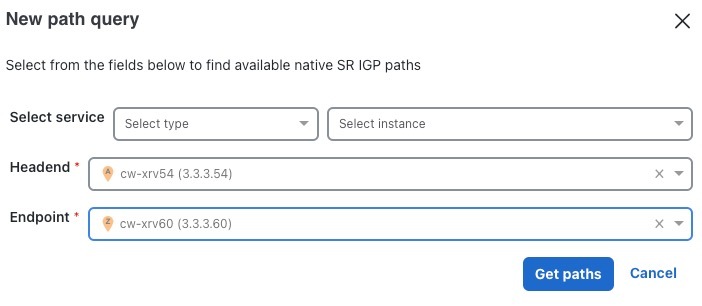
Enter the device information in the required fields to find available Native SR IGP Paths and click Get paths.

Note

Path queries may take a moment to complete. When the Running Query ID pop-up appears, select View past queries to return to the path query dashboard. If path queries exist in the list, you can view their details while your new query runs in the background. The blue running icon in the Query State column indicates a query in progress. A green query state means you can view the completed query.

Figure 1. New path query

New path query
4.

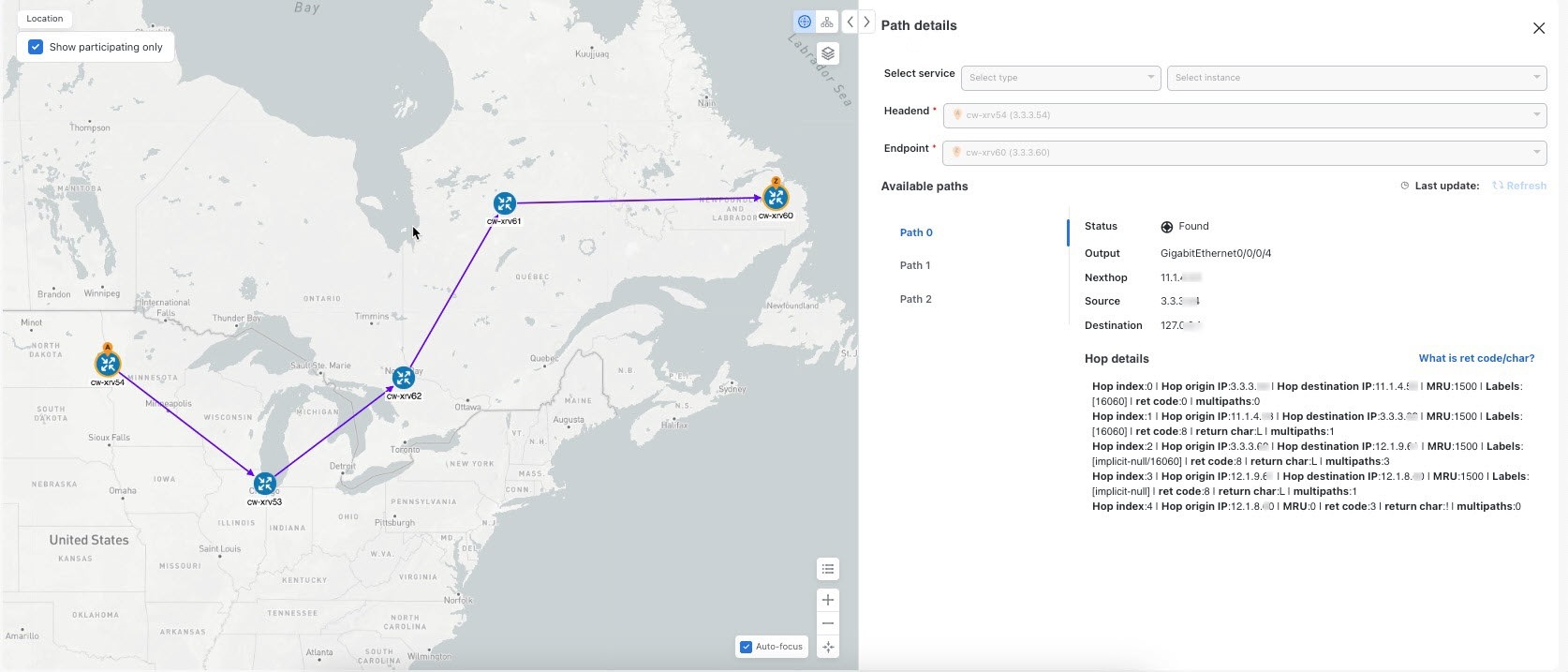
Click View results when it becomes available on the Running Query ID pop-up. The Path details page appears, showing the available path details. The topology map displays Native SR IGP paths on the left.

Figure 2. Path details

Path details