Use this procedure to visualize and analyze flexible algorithm nodes and links on the topology map.
Crosswork Network Controller allows you to visualize flexible algorithm nodes and links on the topology map. You can view nodes and links that have been manually configured or dynamically provisioned using the UI.
To apply a flexible algorithm constraint when dynamically provisioning an SR-MPLS policy, see Create dynamic SR-MPLS policies based on optimization intent.
Before you begin
Configure flexible algorithms in your network. Refer to the SR flexible algorithm configuration documentation for your specific device to view descriptions and supported configuration commands (for example, see the Segment Routing Configuration Guide for Cisco NCS 540 Series Routers).
Visualization of flexible algorithms is not possible if the same flexible algorithm ID is used across different domains.
Procedure
| 1. | Choose . |
|
| 2. | On the topology map, click |
|
| 3. | Click Flex Algo. |
|
| 4. | From the drop-down list, select up to two flexible algorithm IDs. |
|
| 5. | View the flexible algorithm types and confirm that your selections are correct. Note the color assignments for each flexible algorithm. |
|
| 6. | (Optional) Select Show selected Flex Algo topology only to isolate the flexible algorithms on the topology map. When you enable this option, SR policy selection is disabled.
|
|
| 7. | After making changes to flexible algorithm selections, click Apply to display the updated topology map. 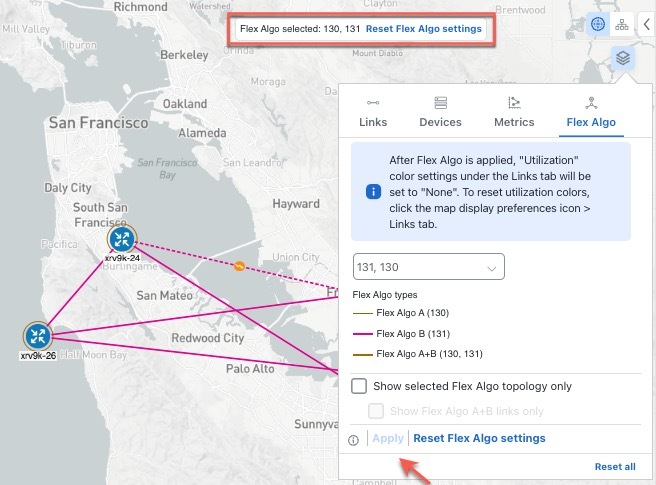
|
|
| 8. | Click Save View to save the topology view and flexible algorithm selections. |
 .