Use this procedure to visualize multiple candidate paths on the topology map.
Visualizing MCPs gives you insight into which paths might be a better alternative to the currently active one. If you want to switch the active path, you must manually configure the device to activate the desired candidate path.
Important notes
-
Only PCC-initialized SR-TE policies with MCPs are supported.
-
Crosswork Network Controller does not distinguish dynamic paths from explicit paths. The Policy Type field value displays as 'Unknown'.
-
Active explicit paths are visible, but inactive candidate explicit paths are not shown in the UI.
Before you begin
A policy must be pre-configured with Multiple Candidate Paths (MCPs) on devices before they can be visualized on the Crosswork Network Controller Traffic Engineering topology map.
Procedure
| 1. | From the main menu, choose or SRv6 tab. |
|
| 2. | Navigate to the active SR-TE policy that has MCPs configured and view it on the topology map.
In this example, you see that the active path is going from
cw-xrv53 > cw-xrv57 > cw-xrv58 > cw-xrv59 > cw-xrv60 .
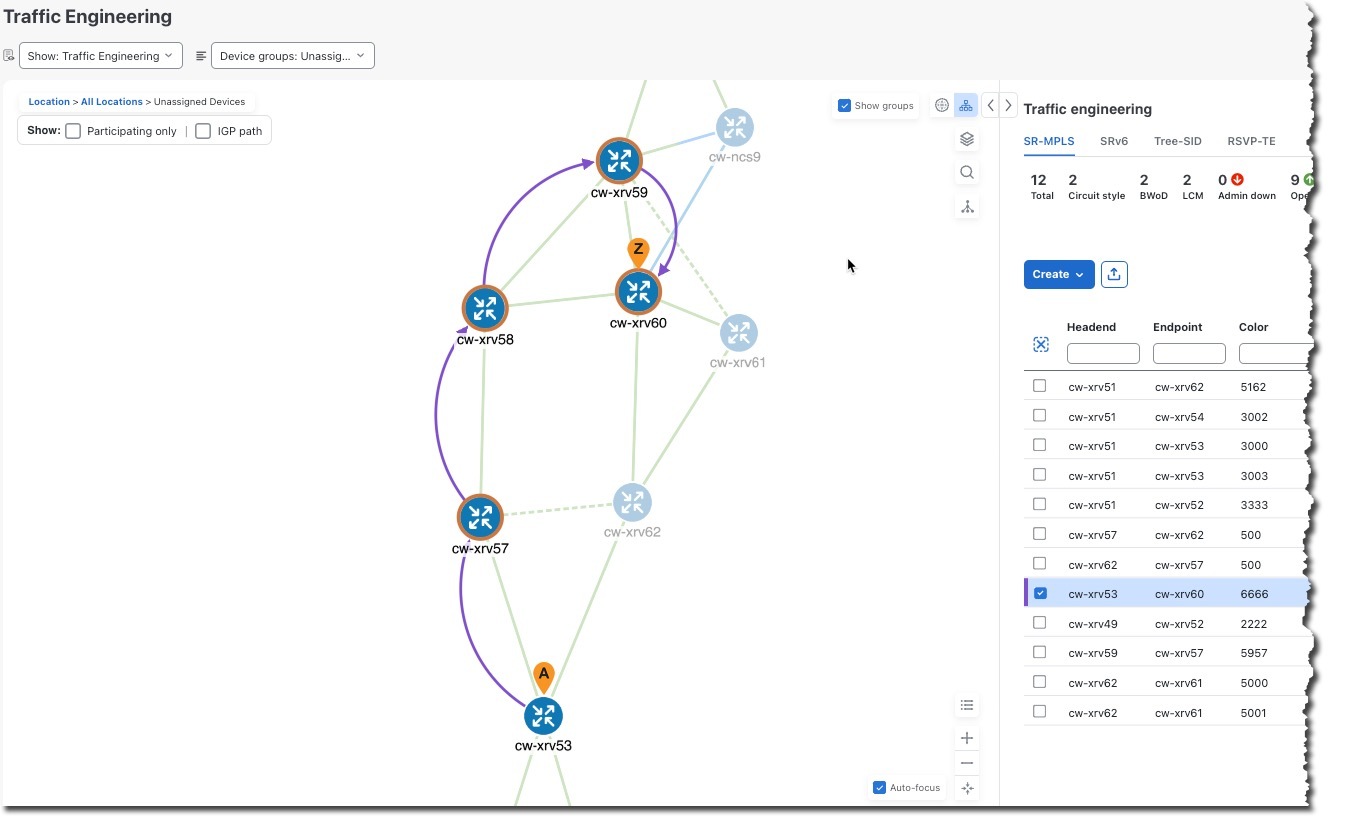
|
|
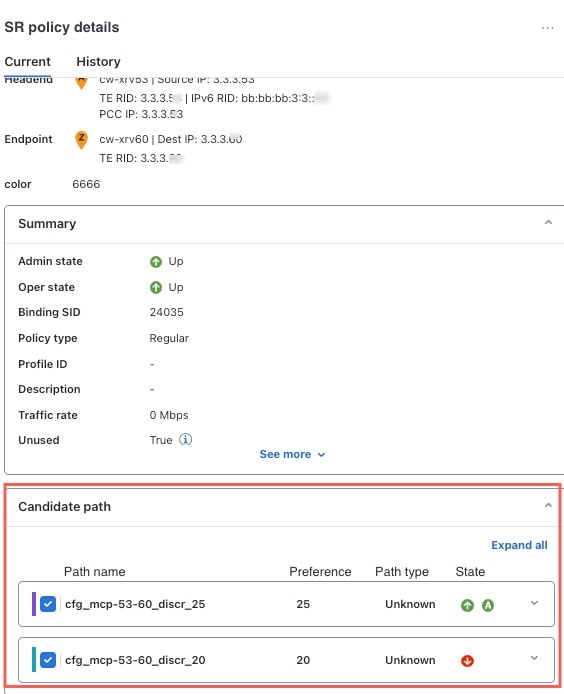
| 3. | View the list of candidate paths.
|
|
| 4. | You can expand individual paths or click Expand all to view details of each path. |
|
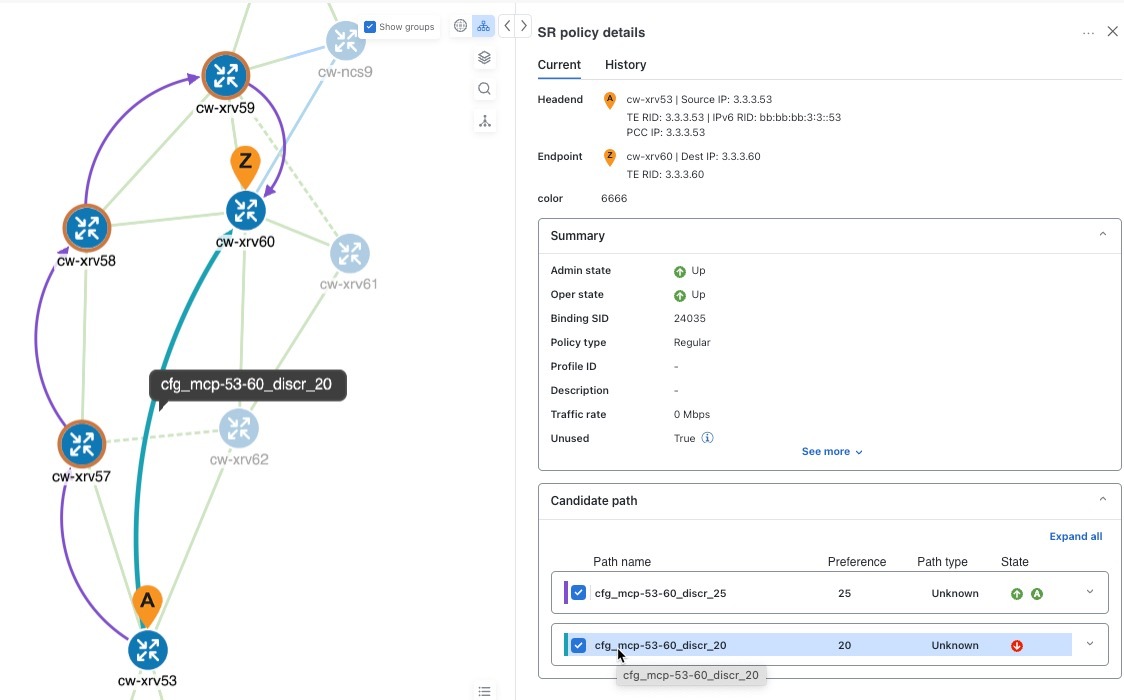
| 5. | Visualize the candidate path on the topology map.
|