This section provides the procedure for integrating Catalyst Center with ServiceNow for network and SWIM events without using the dedicated Cisco Catalyst app, including steps for bundle configuration and event settings.
Catalyst Center supports an application (Catalyst Center) that facilitates integration with ServiceNow. This application (app) is designed to work with ServiceNow without its Event Management plug-in.
Install the Cisco Catalyst app (version 2.3.1) within the ServiceNow instance. Ensure that the app does these tasks:
Schedules the basic one-way synchronization of Catalyst Center discovered devices into the ServiceNow Configuration Management Database (CMDB) using Catalyst Center inventory as a source of truth. The Cisco Catalyst app supports CMDB synchronization from Catalyst Center to ServiceNow.
Automatically triggers problem, incident, and change workflows for network events published by Catalyst Center.
Enriches Incident tickets with network details from Catalyst Center The Cisco Catalyst app makes REST API calls into Catalyst Center. This API call helps in fetching client or user enrichment information based on either the client MAC address or the network user ID.
Supports integration of the Catalyst Center platform with ServiceNow for an automated way to create change request (CR) tickets in ServiceNow for network events.
This table describes the procedure for configuring Catalyst Center integration with ServiceNow using the Cisco Catalyst app. Follow the procedure to configure integration for network events, SWIM events, or both event types depending upon the functionality that you require.
Table 1. Catalyst Center-to-ServiceNow integration with Cisco Catalyst app procedure
Step
Description
Step 1
Install or upgrade to the latest Catalyst Center release.
Synchronizing the network device inventory with the ServiceNow CMDB is a prerequisite to enable the auto-generation of ITSM tickets. Therefore, the CMDB Sync must be enabled first (if it is not already done outside of Catalyst Center). Check with your ServiceNow administrator to see whether the CMDB Sync is being done elsewhere.
This bundle enables data to be sent from Catalyst Center to create any type of workflow in ITSM. Change Management and Incident/Problem Management workflows should be enabled based on the automation or assurance use cases that you want to log tickets to in ServiceNow.
Step 7
Configure network event settings in Event Settings.
The Catalyst Center platform and ITSM integration allows the user to select from a list of possible issues to create and modify the severity of events, incidents, or problems in ServiceNow to match business priorities.
Step 8
Configure the Automation Events for ITSM (ServiceNow) bundle.
Access your ServiceNow instance and review the network and SWIM event data that has been posted using the Catalyst Center REST APIs in this procedure. Begin to review and use this data per your business or network needs.
Requirements
Review these networking and systems requirements to ensure they are met for the Catalyst Center-to-ServiceNow integration:
Networking:
Configure the Cisco Catalyst app with the IP address and access information of the Catalyst Center installation used in this integration.
Note
Contact your Catalyst Center administrator to obtain this information.
Ensure HTTPS network access exists between Catalyst Center and ServiceNow.
Note
Contact your network administrator to establish this connection.
Management, Instrumentation, and Discovery (MID) server:
The MID server is running and accessible from the ServiceNow instance.
The Catalyst Center platform is accessible from the MID server.
The Catalyst Center platform REST APIs are allowed from the MID server.
Note
The MID server is used to proxy the REST requests from the ServiceNow instance.
The Catalyst Center platform is enabled in Catalyst Center.
Configure and activate the required bundle or bundles in the Catalyst Center platform. For more information, see the procedures in the next section.
Note
These bundles have the required APIs that integrate with the Cisco Catalyst app in ServiceNow.
Configure the basic ITSM (ServiceNow) CMDB synchronization bundle
Perform this procedure to either trigger or schedule a synchronization between the Catalyst Center devices and your ServiceNow CMDB system. If devices have not been synchronized between Catalyst Center and the ServiceNow CMDB system, you must activate this bundle before activating any other bundles.
Note
The Catalyst Center CMDB synchronization cannot detect multiple instances of Catalyst Center:
To identify the attributes that were synchronized from a particular Catalyst Center instance, each attribute is tagged with a Catalyst Center IP address.
ServiceNow can now identify which Catalyst Center instance the attribute came from. An extra attribute for the Configuration Item (CI) has been added to retain the Catalyst Center IP address or hostname information.
Before you begin
Ensure that you have ServiceNow running on a system that you will integrate with Catalyst Center platform.
Run a successful Discovery job in Catalyst Center. You can check whether a Discovery job is successful in Device Inventory. From the main menu, choose Provision > Inventory to view the results.
You must have the appropriate permissions to perform the tasks as described in this procedure. For more information about role-based access control for the Catalyst Center platform, see the Cisco Catalyst Center Platform User Guide.
Procedure
1.
From the main menu, choose Platform > Manage > Bundles.
Review the bundles and their current status that appear on the screen.
2.
Click the Basic ITSM (ServiceNow) CMDB synchronization bundle link or icon (a colored square with an initial) for additional information about the bundle.
Additional information provided may include:
General information: Vendor, version, platform, tags displayed under the square icon.
Information: Tab that displays general information (purpose of bundle and how bundle works in the network), sample schemas, configuration notes, and other data about the bundle.
Contents: Tab that accesses the integration flows and APIs that make up the bundle.
Release Notes: Tab that displays latest release information about the bundle, including its version.
3.
Click the Contents tab.
4.
Click the Integration Flows header.
An integration flow or list of integration flows appears underneath the header.
5.
Click Enable to activate the integration flow links.
An Information field appears in the window.
6.
In the Information field, click Enable to confirm enabling the bundle.
After clicking Enable to confirm, a success message appears.
7.
Click Okay in the success message.
8.
Click the integration flow link to perform these tasks:
Review the Description, Tags, How to Use this Flow, and scheduler.
Click Run Now (to run the scheduler now), Run Later (to schedule for a later time), or Recurring (to set up a recurring schedule).
For Run Later, you need to select a date, time, and time zone. For Recurring, you need to set a repeating interval (daily or weekly), an interval duration (minutes or hours), and a start and end date.
Click Schedule to enable the scheduler.
Configure and enable an integration flow schedule, only after you have finished configuring the bundle. To configure and enable an integration flow schedule, return to this view and click Schedule. You can also click the View Flows link in the Configure Basic ITSM (ServiceNow) CMDB synchronizationslide-in pane. Alternatively, click the menu icon and choosePlatform > Developer Toolkit > Integration Flows > Schedule to Publish Inventory Details-ServiceNow Connector.
9.
Click the X icon to return to the previous bundle window.
10.
Click the Configure button to configure at the bundle level.
A configuration slide-in pane appears. Review the CMDB synchronization information.
11.
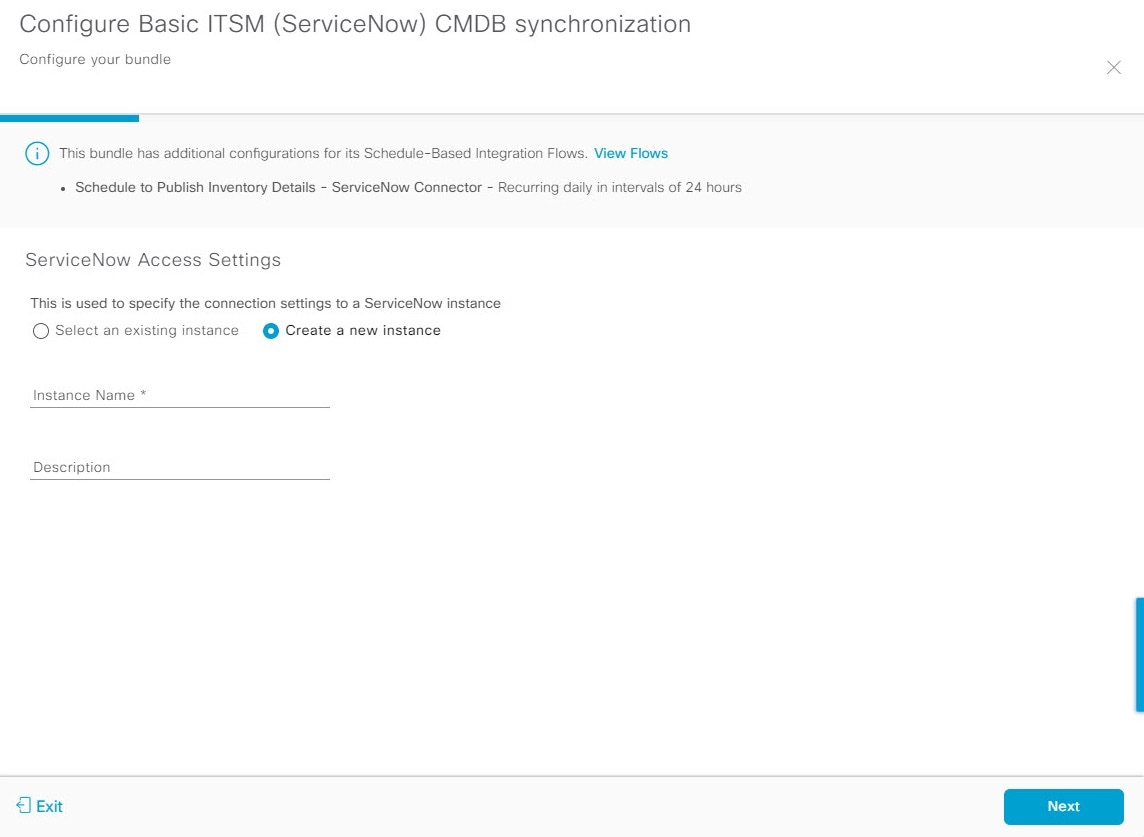
Click the radio button to configure either an existing ServiceNow access setting or a new one for the CMDB synchronization.
Figure 1. ServiceNow Access Settings
For configuring an existing setting, select it from the drop-down menu in the window and click Next.
12.
For configuring a new access setting, this instance information must be entered.
Instance Name: Name of the instance.
Description: Descriptive text of the instance.
Click Next.
13.
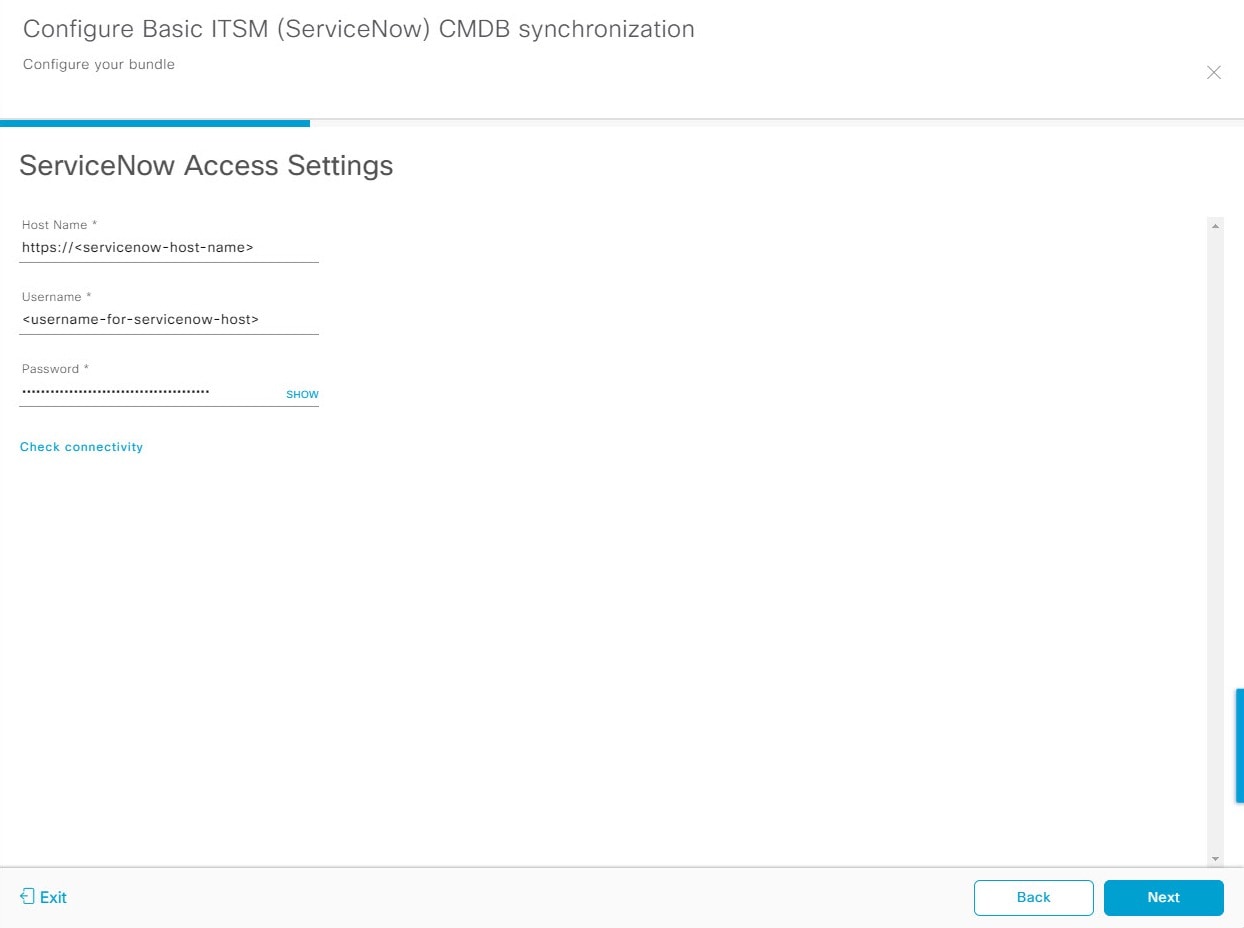
For configuring a new access setting, these additional settings information must be entered.
Figure 2. ServiceNow Access Settings
Hostname: Hostname or IP address of the ServiceNow server.
Username: Username for access to the ServiceNow server.
Password: Password for access to the ServiceNow server.
Click Check Connectivity to check access to the ServiceNow server.
Click Next.
14.
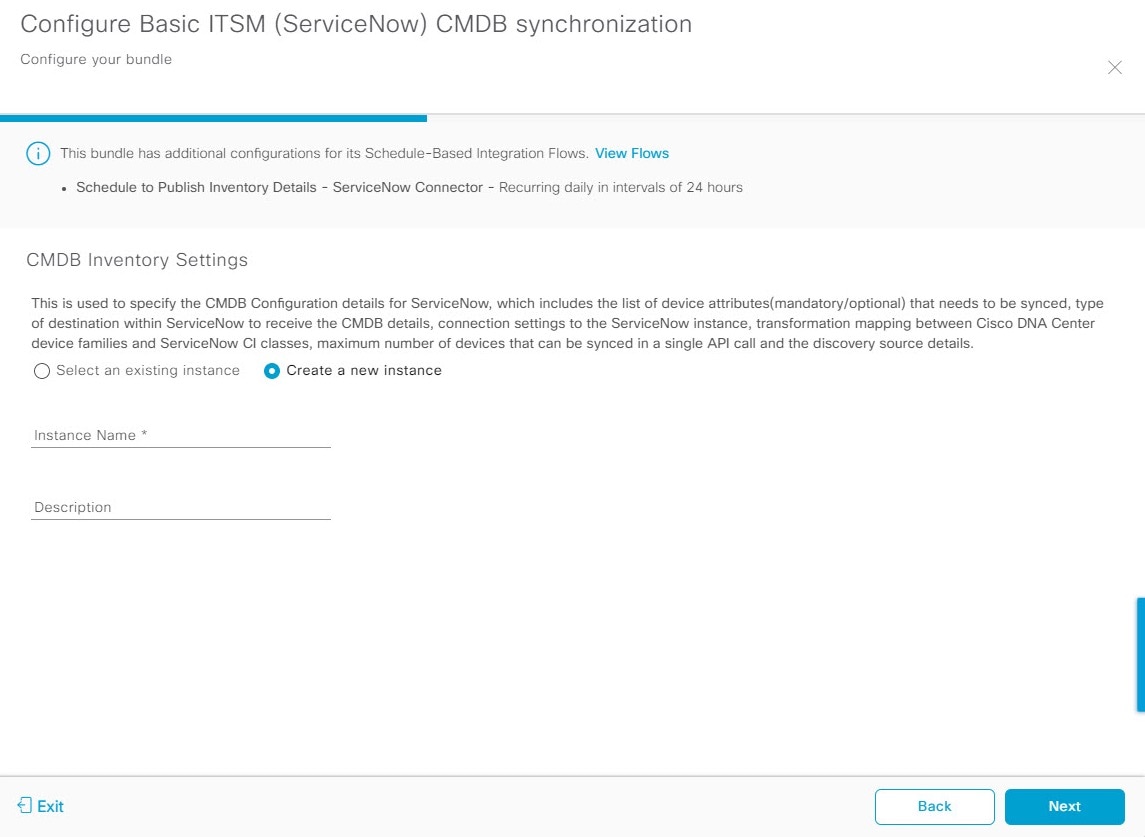
Click the radio button to configure either an existing instance or configure a new instance for the CMDB inventory settings.
Figure 3. CMDB Inventory Settings
For configuring an existing instance, select it from the drop-down menu in the window and click Configure.
15.
For configuring a new instance, this additional information must be entered.
Instance Name: Name of the instance.
Description: Descriptive text of the instance.
Click Next.
16.
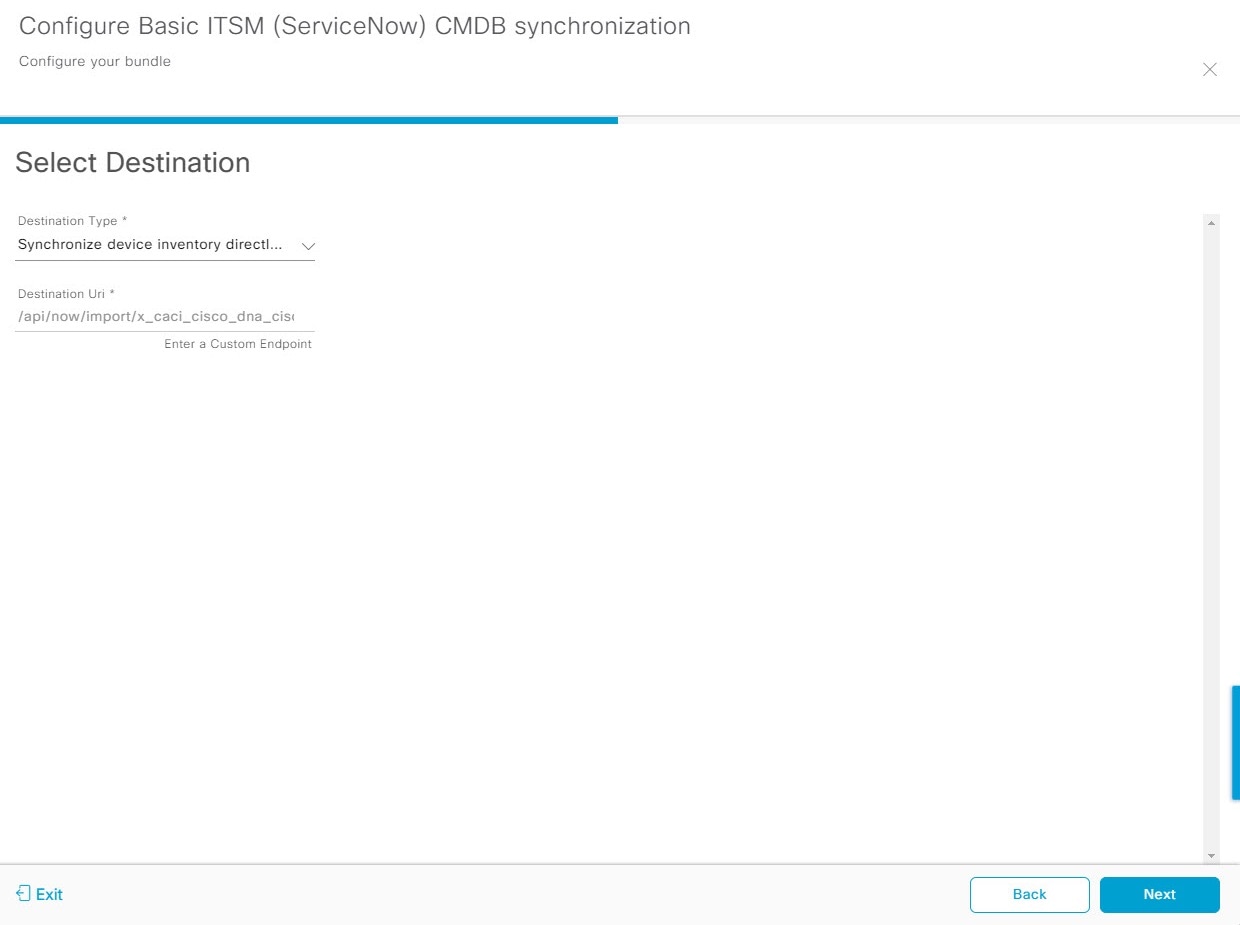
In the Select Destination window, enter this information:
Destination Type: There are two destination type options to select from:
Synchronize device inventory directly with CMDB
Post device inventory details to a staging table
Note
Use the Synchronize device inventory directly with CMDB destination type to send data to a REST API endpoint within the Cisco Catalyst app. You should use this destination type, if you are using the Cisco Catalyst app and do not have your own customized ServiceNow instance. Use the other destination type (Post device inventory details to a staging table) to send data to a REST API endpoint outside of the Cisco Catalyst app. Ensure that the created staging table has a field called u_inventory_details. The inventory details from the Cisco Catalyst app are mapped to this field. With the Post device inventory details to a staging table destination type, after data transfer, you must write custom code to move the data from the staging table and map it to the ServiceNow CMDB.
Destination URI: Uniform Resource Identifier of the ServiceNow server (CMDB) or staging table.
Figure 4. Select Destination window
Click Next.
17.
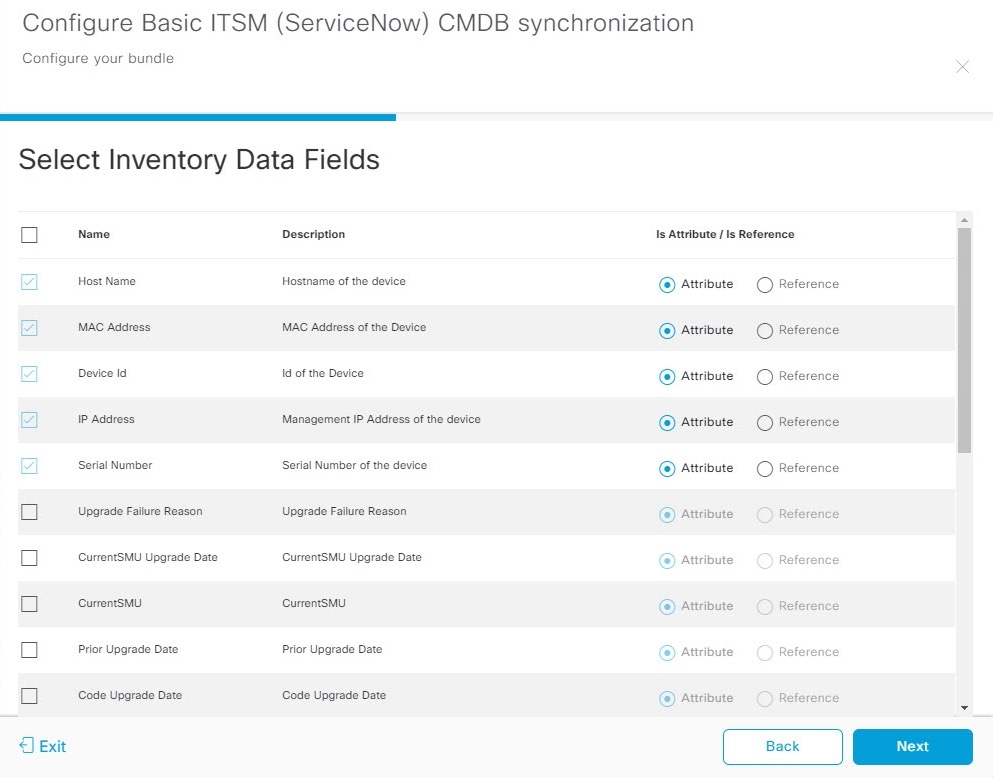
In the Select Inventory Data Fields window, select the data fields to by synchronized.
Note
Inventory data fields are Cisco created data types that can be designated as an attribute or reference to be synchronized into a CMDB or staging table.
To select all inventory data fields for synchronization, click the top check box in the Select Inventory Data Fields. If you want to synchronize only specific fields, review each one and select the appropriate check boxes.
Figure 5. Select Inventory Data Fields window
The Select Inventory Data Fields window consists of these columns:
Name: Name of the inventory data field.
Description: Brief description of the inventory data field.
Is Attribute/Is Reference: Whether the inventory data field is an attribute or a reference. A reference data field is used to create a relationship between two tables in a database. This is used for querying purposes. An attribute data field is used to add more data to a table in a database.
18.
For the data fields selected to be synchronized in the preceding step, review their designation as either attribute or reference.
To change a data field's default designation, just click the desired data field designation (Attribute or Reference).
The integration supports only 'location', 'building', and 'part number' as reference fields.
After selecting the data fields to be synchronized and whether the data field is an attribute or reference, click Next.
19.
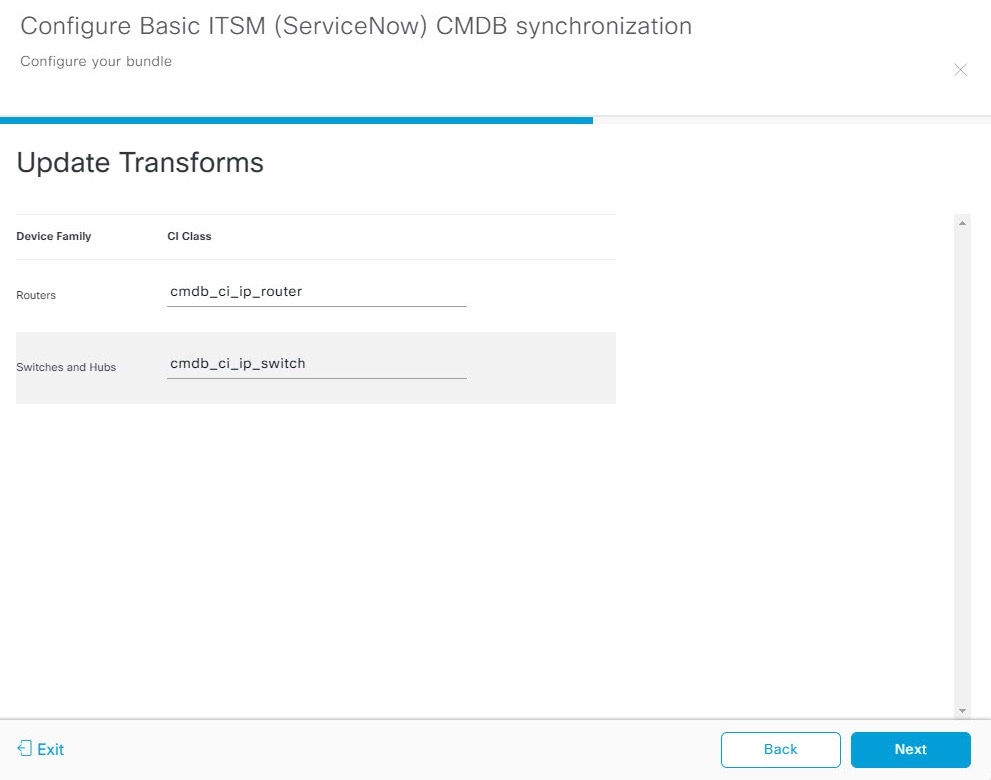
In the Update Transforms window, either accept or update the ServiceNow transformation mapping between Catalyst Center device families and ServiceNow CI classes.
Figure 6. Update Transforms window
Device families are the Catalyst Center device classifications (for example, Unified AP, Routers, Wireless Controller, Switches, and Hubs), where the inventory attributes/references mapping to ServiceNow is already available in the existing Cisco Catalyst application in ServiceNow. The type and number of device families vary, depending on the different Cisco devices in the user's network.
Note
Catalyst Center platform is able to automatically retrieve all of the device families in the user's Catalyst Center network and display them in this GUI window.
CI classes are the database tables for ServiceNow (for example, cmdb_ci_wap_network, cmdb_ci_ip_router, and cmdb_ci_ip_switch). The CI Class column in the GUI window is used to map the CI classes to their respective device families.
This table displays the Catalyst Center default CI classes for each device family. The default CI classes can be modified by the user. In case of other device families not listed below, Cisco will not have any default values specified in the CI Class column. The ServiceNow application user must either manually create the corresponding CI Classes and attribute or reference mappings, or use a pre-existing CI class as a parent CI class. Ensure that the pre-existing or newly created class is inherited from the Network Gear (cmdb_ci_netgear) class.
Table 2. Default Device Family to CI Class Mapping List
Device Family
Corresponding CI Class
Unified AP
cmdb_ci_wap_network
Wireless Controller
x_caci_cisco_dna_wireless_lan_controller
Routers
cmdb_ci_ip_router
Switches and Hubs
cmdb_ci_ip_switch
Meraki Access Point
cmdb_ci_wap_network
Meraki Cameras
cmdb_ci_netgear
Meraki Dashboard
cmdb_ci_netgear
Meraki Security Appliances
cmdb_ci_netgear
Meraki Switches
cmdb_ci_ip_switch
After accepting or updating the information in this window, click Next.
Note
After configuring the bundle and setting up the schedule, if a new device (device family) is discovered and it lacks a CI class mapping in the Update Transform window, you must reconfigure the bundle to include a CI class mapping. This ensures that all devices are properly synced to the CMDB CI tables as expected.
20.
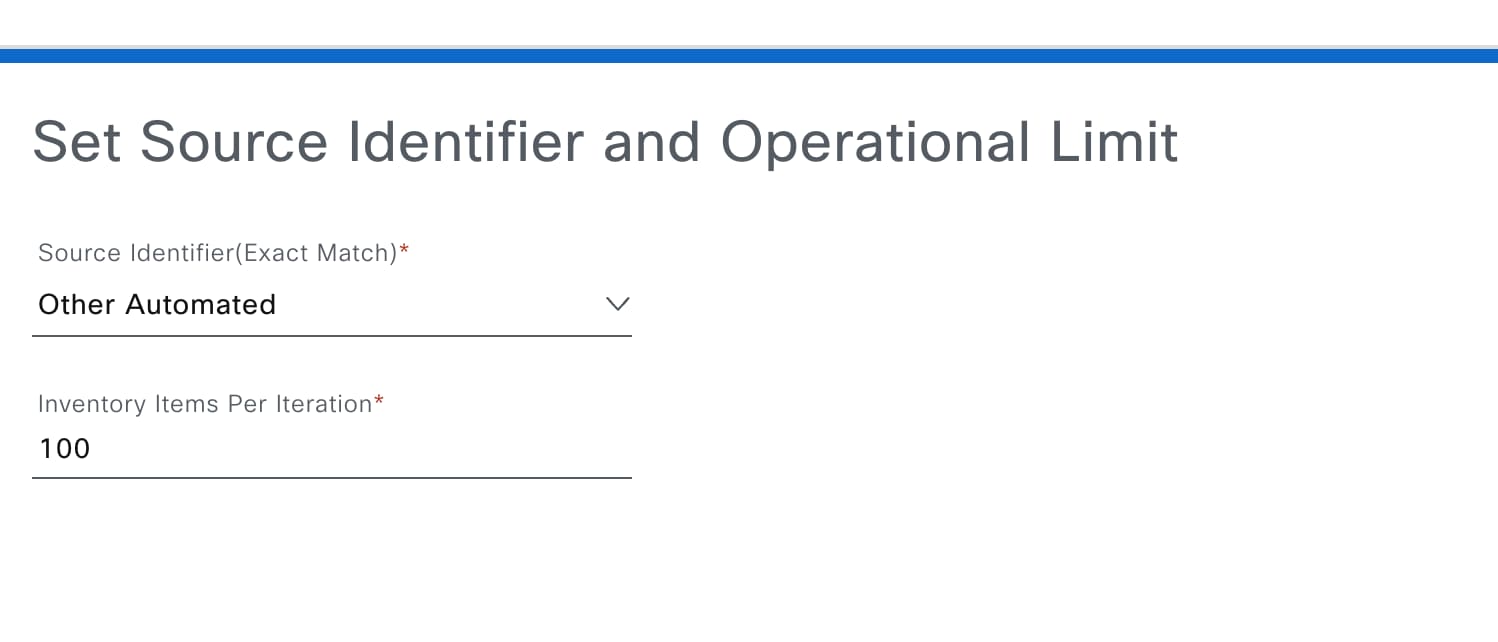
In the Set Source Identifier and Operational Limit window, configure the data source and maximum limit.
Figure 7. Set Source Identifier and Operational Limit window
Configure these values:
Source Identifier (Exact Match): Enter the same value as previously selected or keep the value at its default, Other Automated.
Synchronize device inventory directly with CMDB
Post device inventory details to a staging table
Note
Other Automated is a preconfigured value for the discovery source attribute in an OOB ServiceNow instance. This is the value that indicates the data source from where the ServiceNow CI was discovered. As a default, one of the existing preconfigured values is used for the integration.
We recommend that you create your own discovery source, so as to uniquely identify the source from where the devices were fetched to synchronize into the ServiceNow instance. The steps to create a new discovery source are described in the ServiceNow App 'Installation and Configuration guide'.
Inventory Items Per Iteration: Maximum number of devices that can be synchronized in an iteration (single API call). We recommend that you set the limit to 100 devices.
After entering the information, click Next.
21.
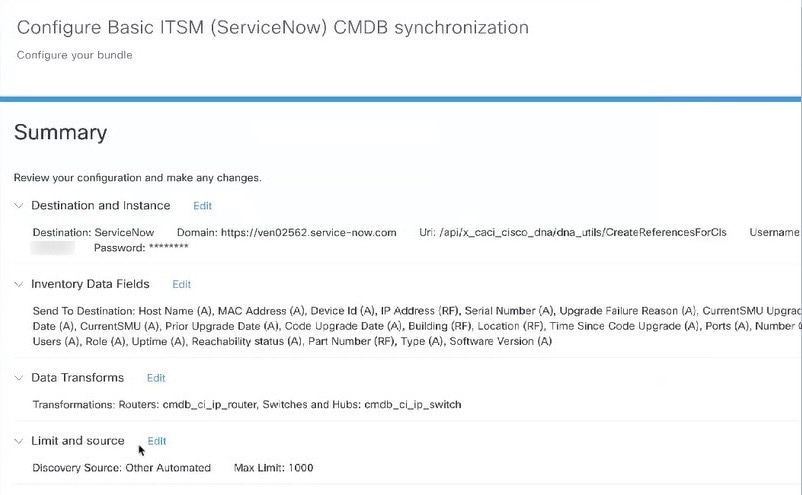
In the Summary window, review the configuration summary.
Figure 8. Summary window
After reviewing the information, click Configure.
For a successful configuration, you will receive a Done! Bundle Configured message.
What to do next
Configure the Integration Flow for this bundle (Schedule to Publish Inventory Details - ServiceNow Connector), using one of the methods described in Step 8.
You can also test the CMDB synchronization by doing these tasks:
From the main menu, choose Platform > Runtime Dashboard > CMDB Synchronization Summary. Click Refresh to update the GUI view. Review the inventory device synchronization status to ServiceNow.
From the main menu, choose Platform > Runtime Dashboard > Event Summary. Click Refresh to refresh the GUI view. Click the individual events in the window to view the event data and access links to ServiceNow.
Go to ServiceNow and search for a synchronized device. Check the Configuration and Other Attributes tabs for synchronized data in that device's record.
Configure event settings
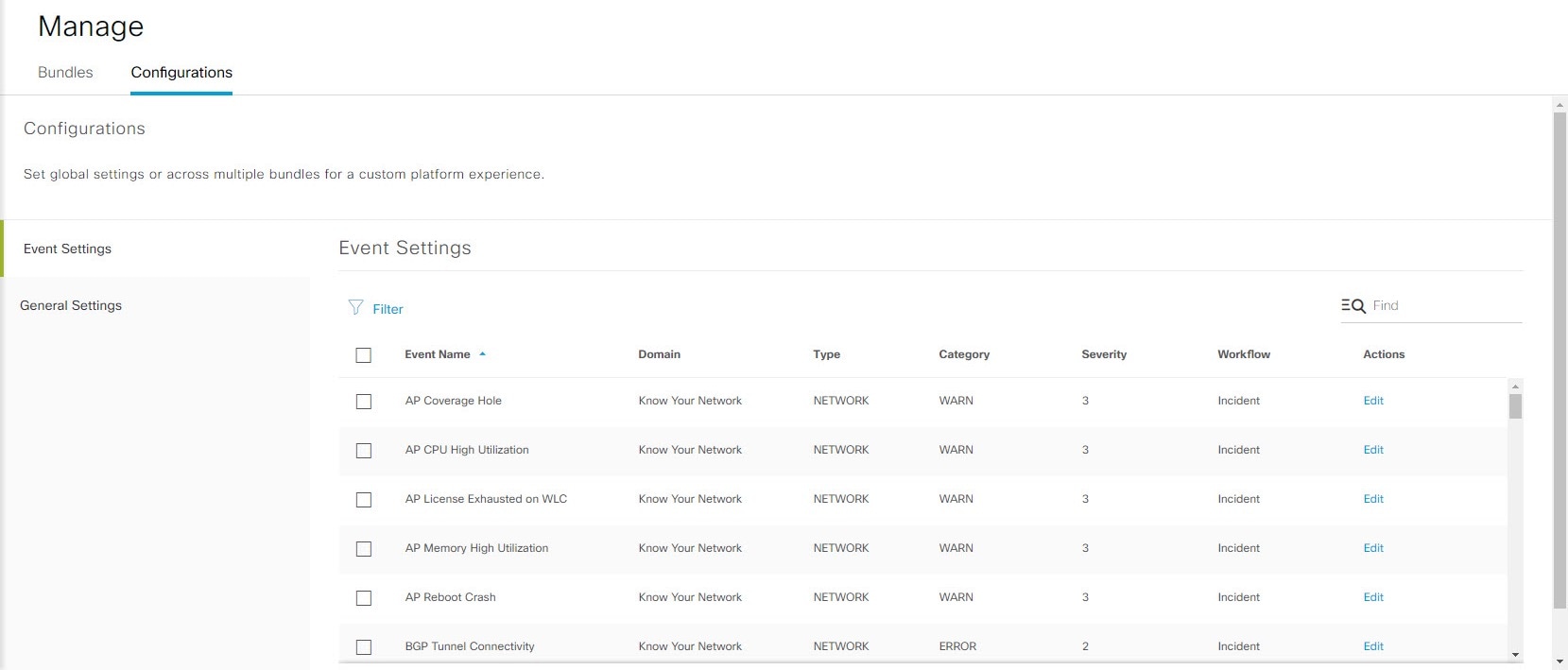
The Catalyst Center platform and ITSM integration allows you to select from a list of possible issues. You can create and modify the severity of events, incidents, or problems in ServiceNow to match your business priorities. You do these tasks in the Events Settings window.
Note
For this release, there are no SWIM events to configure in Event Settings. You can configure only network assurance events.
The Event Settings window and its functionality are only applicable to events for an ITSM (ServiceNow) integration and not for events configured to other destinations. For events configured to a webhook or other destination, click the link at th top of the columns to access the Events window. Use the Events window to configure events for an email, webhook, or SNMP trap.
Figure 9. Events Settings window
Before you begin
You must have the appropriate permissions to complete the tasks as described in this procedure. For information about role-based access control for the Catalyst Center platform, see the Cisco Catalyst Center Platform User Guide.
Procedure
1.
From the main menu, choose Platform > Manage > Configurations.
A Configurations window opens that contains an Events Settings section.
Severity: P1 (Severity 1) through P5 (Severity 5).
Note
Assign Severity 1 to the events with most important or critical priority.
Workflow: Incident, Problem, Event, or RFC (Request for Change).
Actions: Edit.
You can adjust what is displayed in the table by clicking the Filter icon and using the filter, or by typing a keyword in the Find field. For example, to display all access point notifications, type AP in the Find field. To view all network notifications, type Network in the Find field. To view all severity notifications, type 1 in the Find field.
3.
Click Edit in the Actions column to edit an event.
Select a setting by clicking the downward pointing angle and adjust the value. For example, click Network and adjust to App. This changes the event type from a network type to an application type. Click Severity and adjust to 1 from 5. This raises the severity level from 5 to 1.
4.
Click the box next to the event name to enable notifications.
This enables notifications through Catalyst Center when the event occurs.
5.
Click Save.
Configure the Cisco SD-Access integration with ITSM (ServiceNow)
With the Cisco SD-Access integration, you can monitor and publish fabric events that require role updates for security or operational reasons in ITSM (ServiceNow). You can also trigger or schedule synchronization between Catalyst Center devices and the ServiceNow CMDB system.
Before you begin
Ensure that you have ServiceNow running on a system that you plan to integrate with Catalyst Center platform.
Run a successful Discovery job in Catalyst Center. You can check whether a Discovery job is successful in Device Inventory. From the main menu, choose Provision > Inventory to view the results.
You must have the appropriate permissions to complete the steps described in this procedure. For information about role-based access control for the Catalyst Center platform, see the Cisco Catalyst Center Platform User Guide.
Procedure
1.
From the main menu, choose Platform > Manage > Bundles.
Configure access settings to ServiceNow for the Cisco SD-Access-ServiceNow instance. From the main menu, choose System > Settings > External Services.
5.
In the left pane, click Destination and select ITSM to add or edit a ServiceNow instance. For more information, see Configure ITSM Integration in the Cisco Catalyst Center Platform User Guide.
6.
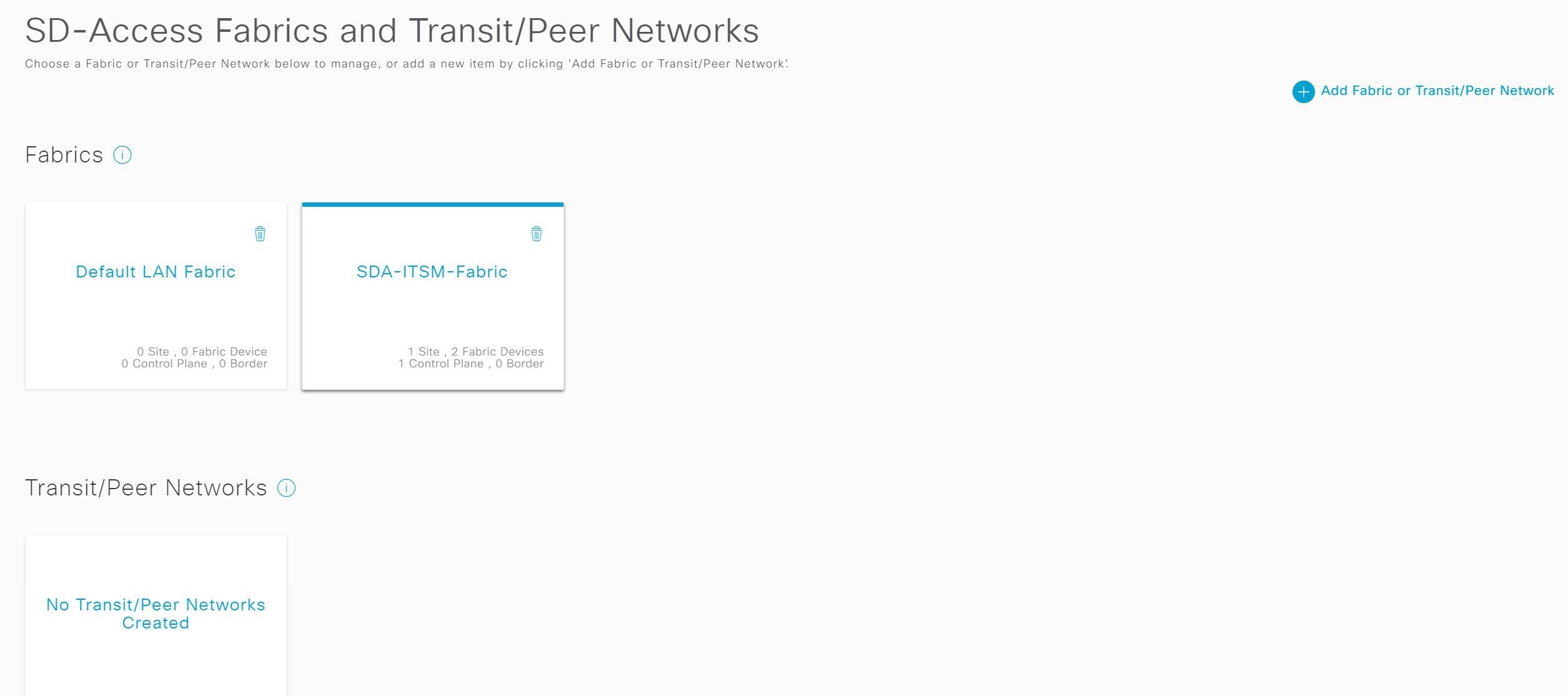
Add a device to the fabric and assign a role to meet your requirements. The role can be control plane, border, or edge. From the main menu, choose Provision > Fabric.
blue
You can view all provisioned fabric domains in the window.
7.
From the list of fabric domains, select SDA-ITSM-Fabric.
Figure 10. Catalyst Center Platform fabrics
The screen displays all the fabric sites in the domain.
8.
Select a fabric site.
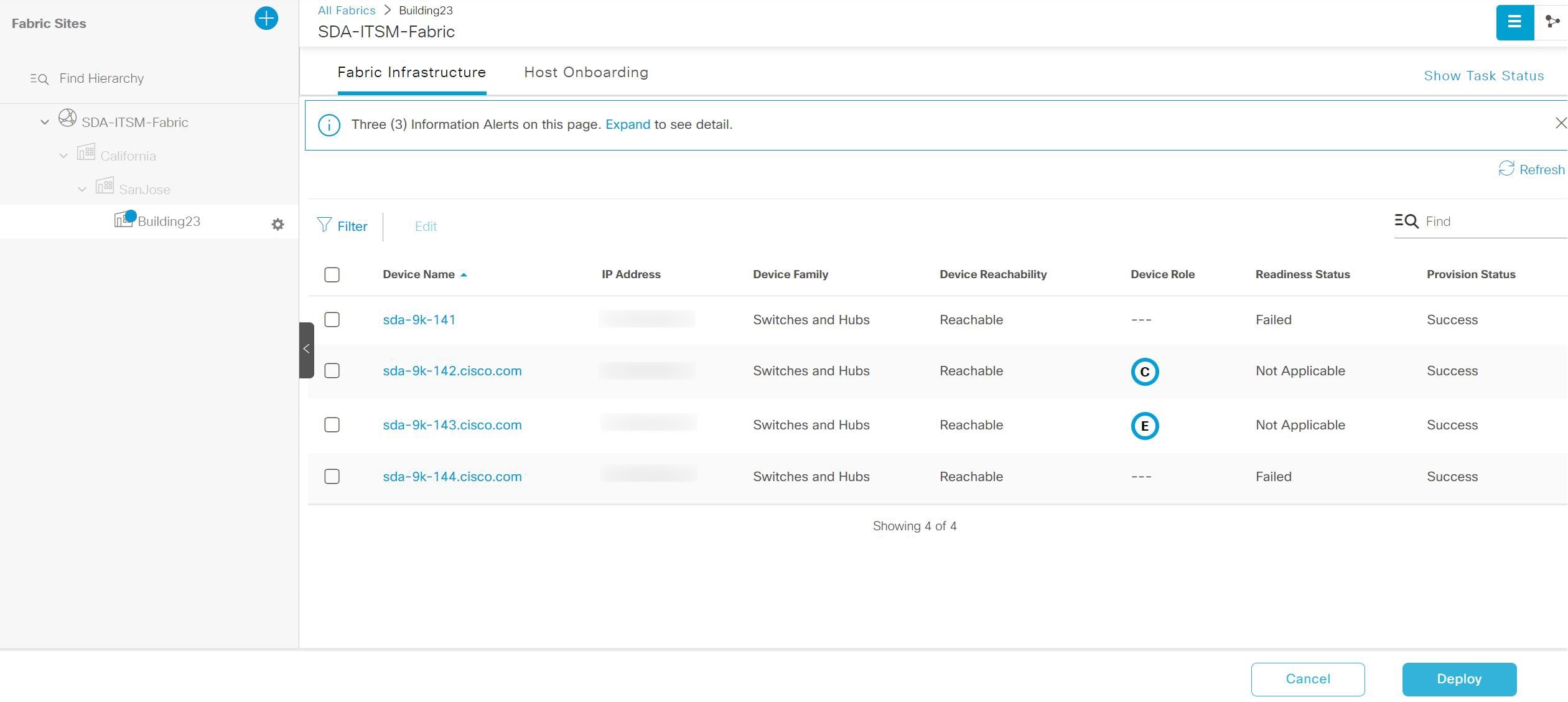
The Fabric Infrastructure table lists all devices in the network that have been inventoried.
Note
A blue circle indicates any device you add to the fabric in the Device Role column.
Figure 11. List of devices in Fabric Infrastructure
9.
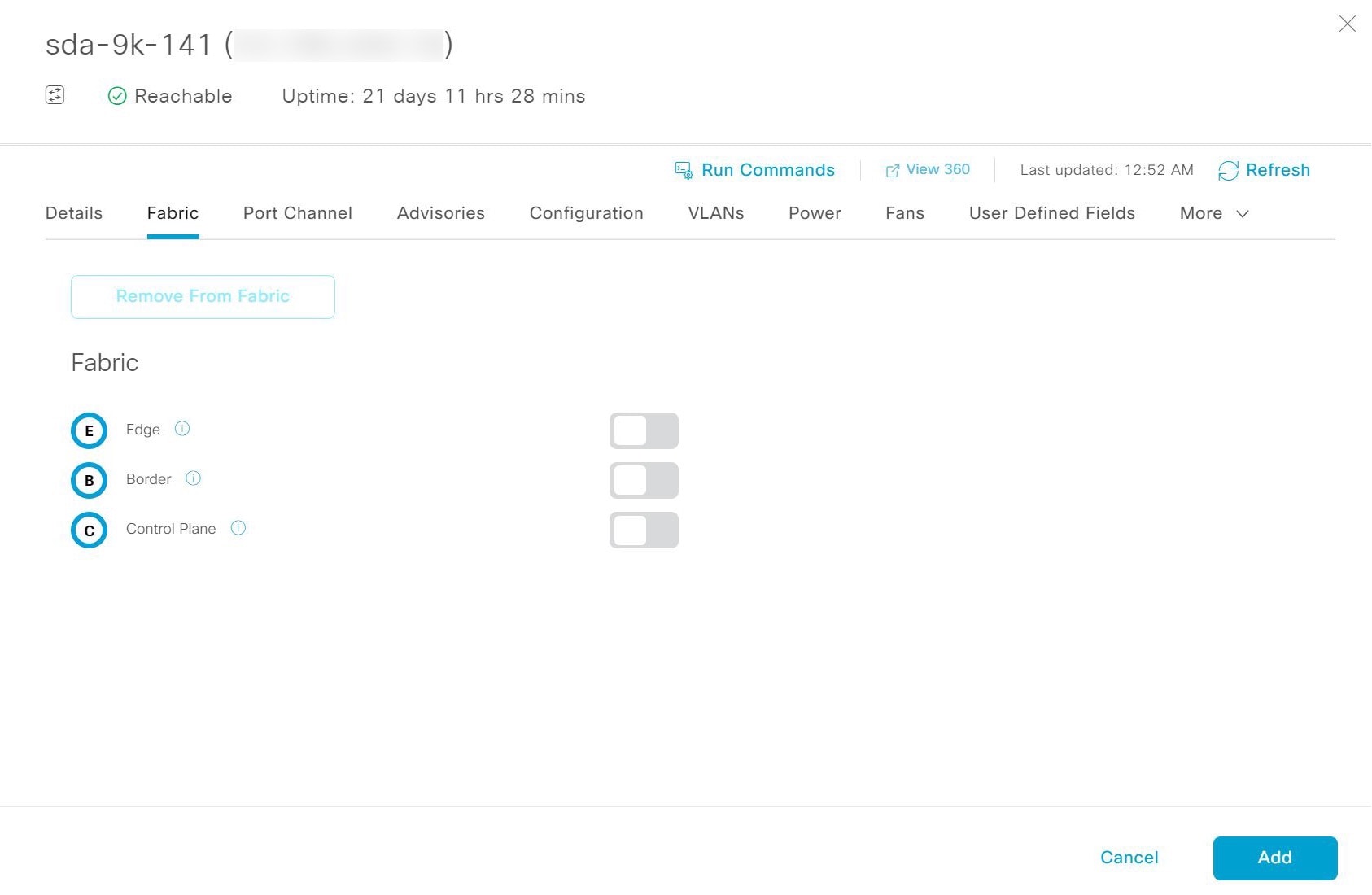
In the list view, click a device. The device details window slides in with these Fabric options:
Option
Description
Edge
Click the toggle button next to this option to enable the selected device as an edge node.
Border
Click the toggle button next to this option to enable the selected device as a border node.
Control Plane
Click the toggle button next to this option to enable the selected device as a control plane node.
Note
To configure a device as a fabric-in-a-box, select the Control Plane, Border, and Edge options.
To configure the device as a control plane and a border node, select both Control Plane and Border.
10.
Click Add.
11.
(Optional) To remove a device from the fabric, select the device and in the device slide-in pane, click Remove From Fabric.
Figure 12. Device Roles of a Fabric
12.
Click Deploy to assign the device role.
13.
In the Modify Fabric Domain window, click Now to create a ticket immediately or click Later to schedule the ticket creation at a specific time.
14.
Click Apply.
Note
If you select Later to schedule a ticket creation at a specific time, the request goes to the Catalyst Center scheduler.
15.
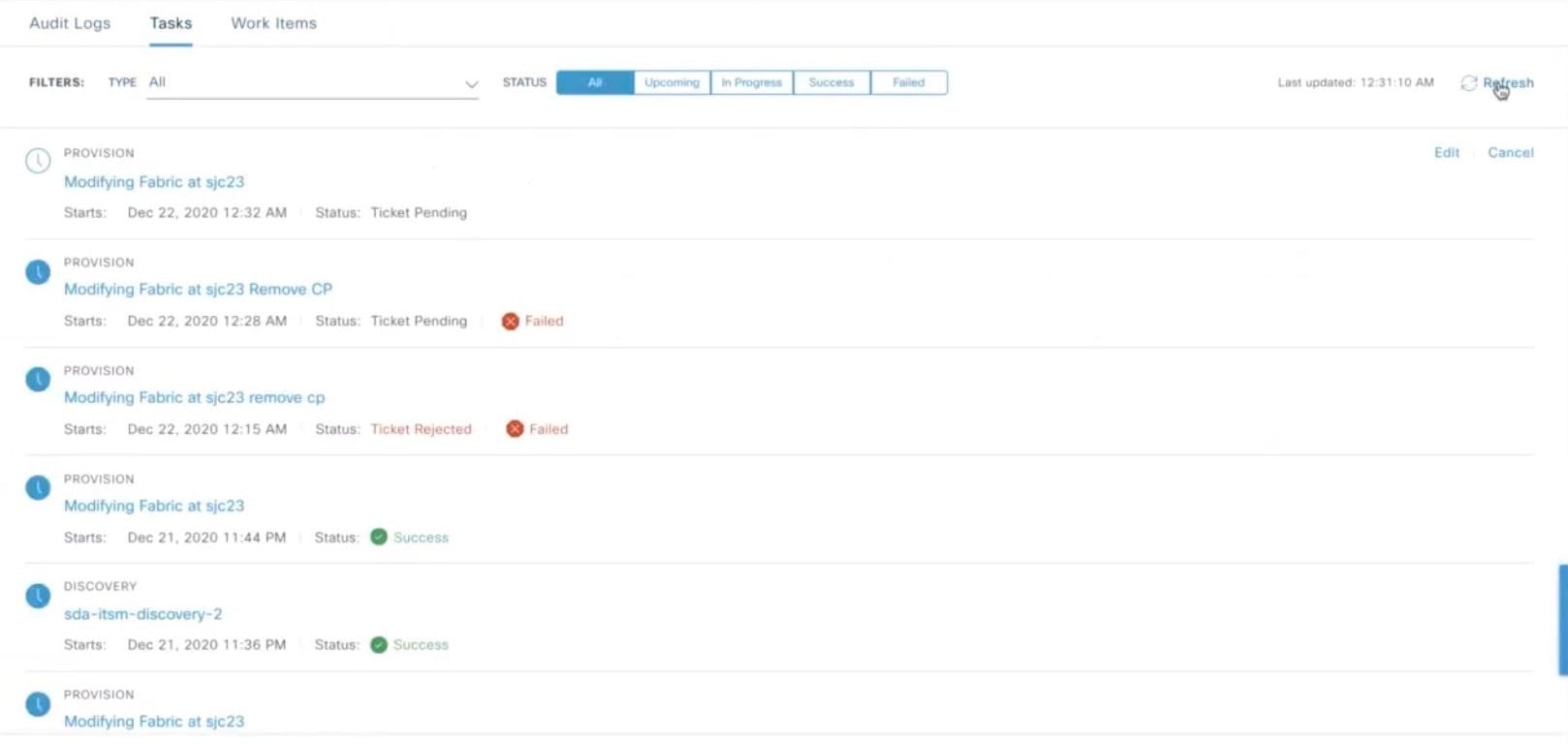
From the main menu, choose Activities > Tasks to view upcoming, in-progress, successful, and failed fabric tasks.
16.
In the Tasks window, the ticket status summary displays this information:
Status of the fabric ticket request: Ticket Approved, Ticket Rejected, or Failed.
Timestamp of the fabric ticket.
Figure 13. Status of fabric ticket requests
17.
To view the event summary of the Cisco SD-Access provision creation request, click the menu icon and choosePlatform > Runtime Dashboard > SDA Provision Creation Request.
The SDA Provision Creation Request slide-in pane displays the Event ID, Source, Destination, ITSM Workflow, ITSM Status, ITSM ID, ITSM Link, ITSM Last Updated Time, ITSM Entity Severity/Priority, and Event Severity of an individual fabric event. For more information, see Review the Event Summary in the Cisco Catalyst Center Platform User Guide.