This section describes the process of configuring Catalyst Center to retrieve endpoint attribute information from ServiceNow using the Cisco Catalyst app, enabling endpoint profiling and custom rule creation.
With this Catalyst Center release, you can configure Catalyst Center endpoint attribute retrieval with ServiceNow using the Cisco Catalyst app (version 2.3.1). You can schedule a synchronization or trigger an update between endpoint inventory and your ITSM (ServiceNow) configuration management database (CMDB) using this app. Use endpoint attribute information from ServiceNow to profile endpoints in your network. ServiceNow appears in the endpoint profiling workspace as an additional probe. Create custom profiling rules using the attributes sent by ServiceNow.
Mapping between the ServiceNow CMDB fields and endpoint attributes occurs at the platform level. This process is accomplished using the Endpoint Attribute Retrieval with ITSM (ServiceNow) bundle. Configure the Scheduler for ServiceNow Asset Sync integration flow to run on a set schedule. This setup invokes an internal Cisco API that retrieves endpoint attribute information from ServiceNow.
This table describes the procedure to configure Catalyst Center endpoint attribute retrieval with ServiceNow.
Note
This procedure does not modify or delete any CIs on the existing ITSM (ServiceNow) tool.
Table 1. Catalyst Center endpoint attribute retrieval with ServiceNow
Step
Description
Step 1
Install or upgrade to the latest Catalyst Center release.
See your ServiceNow documentation for the installation and upgrade procedures.
Note
This procedure must be done by a ServiceNow administrator.
Step 3
Download and install the Cisco Catalyst app (version 2.3.1) into ServiceNow by following the documentation available at the ServiceNow website.
Note
Catalyst Center supports an application (Catalyst Center) that facilitates endpoint attribute retrieval with an ITSM (ServiceNow). This application or app is designed to work with ServiceNow without its Event Management plug-in.
Click this link to access the ServiceNow Store website where the Cisco Catalyst app is located:
Configure the Endpoint Attribute Retrieval Bundle with ITSM (ServiceNow)
Perform this procedure to configure Catalyst Center endpoint attribute retrieval from the ServiceNow CMDB.
Before you begin
Ensure that you have ServiceNow running on a system that you will integrate with Catalyst Center platform.
You must have the appropriate permissions to completed the steps described in this procedure. For information about role-based access control for the Catalyst Center platform, see the Cisco Catalyst Center Platform User Guide.
Ensure that you have installed or upgraded the latest Catalyst Center release with Cisco ISE version 3.1 or later.
Note
When configuring the ISE Configuration in the Cisco AI Endpoint Analytics configuration window, select the Enhanced Authorization Integration check box to avoid duplicate data being sent to Cisco ISE. For more information, see Publish Authorization Attributes to Cisco ISE in the Cisco Catalyst Center User Guide.
Procedure
1.
From the main menu, choose Platform > Manage > Bundles.
Review the displayed bundles and their current status.
2.
Click the Endpoint Attribute Retrieval with ITSM (ServiceNow) bundle link or icon (colored square with initial) for additional information about the bundle.
Additional information may include these details:
General information: Vendor, version, platform, tags displayed under the square icon.
Information: Tab that displays general information (purpose of bundle and how bundle works in the network), sample schemas, configuration notes, and other data about the bundle.
Note
The specific endpoint attribute data that is retrieved is displayed in the Information tab. This endpoint attribute data will be retrieved from ServiceNow (with the display name in Catalyst Center within the parenthesis):
Asset Tag (CMDB asset tag)
Model Category (CMDB model category)
Model (CMDB model)
Managed by (CMDB managed by)
Serial Number (CMDB serial number)
Location (CMDB location)
Department (CMDB department)
MAC address (CMDB MAC address)
Display Name (CMDB display name)
Contents: Tab that accesses the APIs and integration flows that make up the bundle, or provides information about the integration flows that make up the bundle.
Release Notes: Tab that displays the latest release information about the bundle, including its version.
3.
Click the Contents tab.
4.
Click the Integration Flows header.
The integration flows appear underneath the header.
5.
Click the Enable button to activate the integration flow links.
An Information field appears in the window.
6.
In the Information field, click the Enable button to confirm enabling the bundle.
After clicking the Enable button to confirm, a success message appears.
7.
Click Okay in the success message.
8.
Click the link for the individual integration flow to do these tasks.
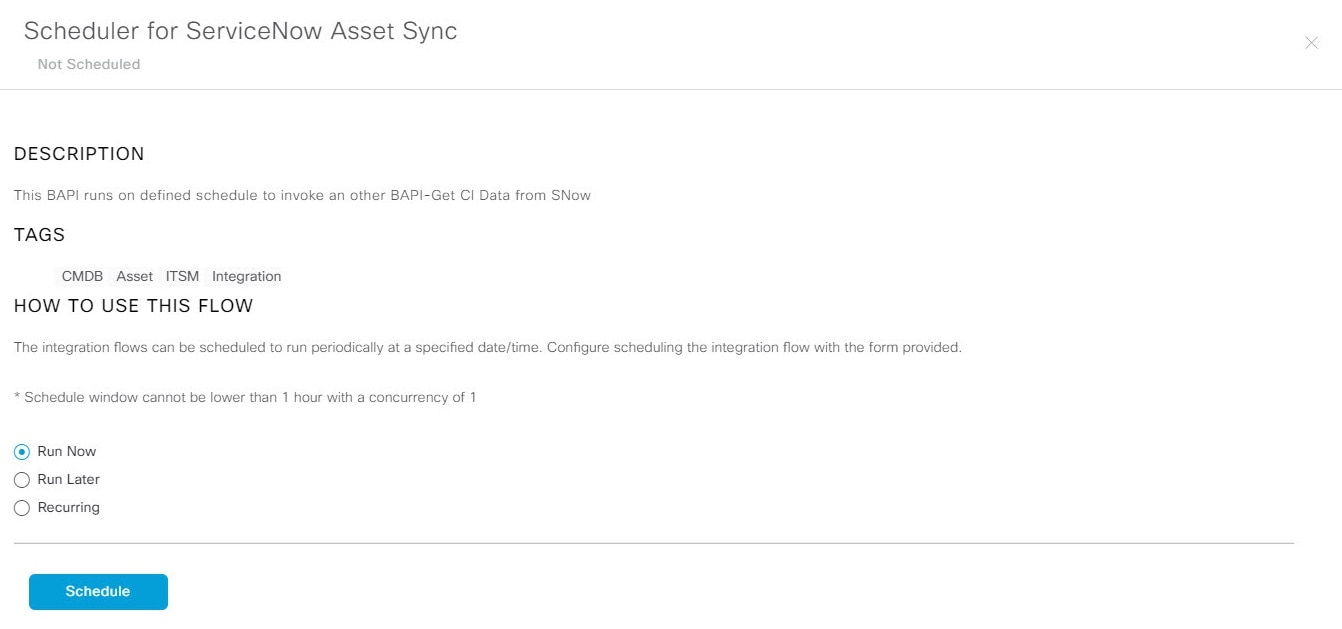
To perform the schedule-based integration flow (Scheduler for ServiceNow Asset Sync), complete these tasks:
Review the Description, Tags, How to Use this Flow, and scheduler.
Click Run Now to run the scheduler immediately. Click Run Later to schedule for a later time. Click Recurring to set up a recurring schedule.
To use Run Later, select a date, time, and time zone. To use Recurring, set a repeating interval (hourly, daily, or weekly), specify the interval duration (minutes or hours), and choose a start and end date.
Click Schedule to enable the scheduler.
After you configure the bundle, set up and enable the integration flow schedule. Return to this view and click Schedule. You can also click View Flows link in the Endpoint Attribute Retrieval with ITSM (ServiceNow)slide-in pane. You may also navigate to click the menu icon and choosePlatform > Developer Toolkit > Integration Flows > Scheduler for ServiceNow Asset Sync.
When you perform the synchronization once, it is always a full sync.
The incremental sync is performed only on the scheduled synchronization.
The Recurring synchronization is scheduled synchronization, while the Run Later synchronization is a one-time sync.
The first occurrence of recurring synchronization is also a full sync. You must configure a minimum of two occurrences for the recurring synchronization.
To complete the first full synchronization, you must configure the synchronization schedule with an hourly difference of at least two hours.
Figure 1. Scheduler for ServiceNow Asset Sync
9.
Click the X icon to return to the previous bundle window.
10.
Click the Configure button to configure at the bundle level.
A configuration slide-in pane appears. Review the Configure Endpoint Attribute Retrieval with ITSM (ServiceNow) information.
11.
Click the Configure button to configure at the bundle level.
A configuration slide-in pane appears.
12.
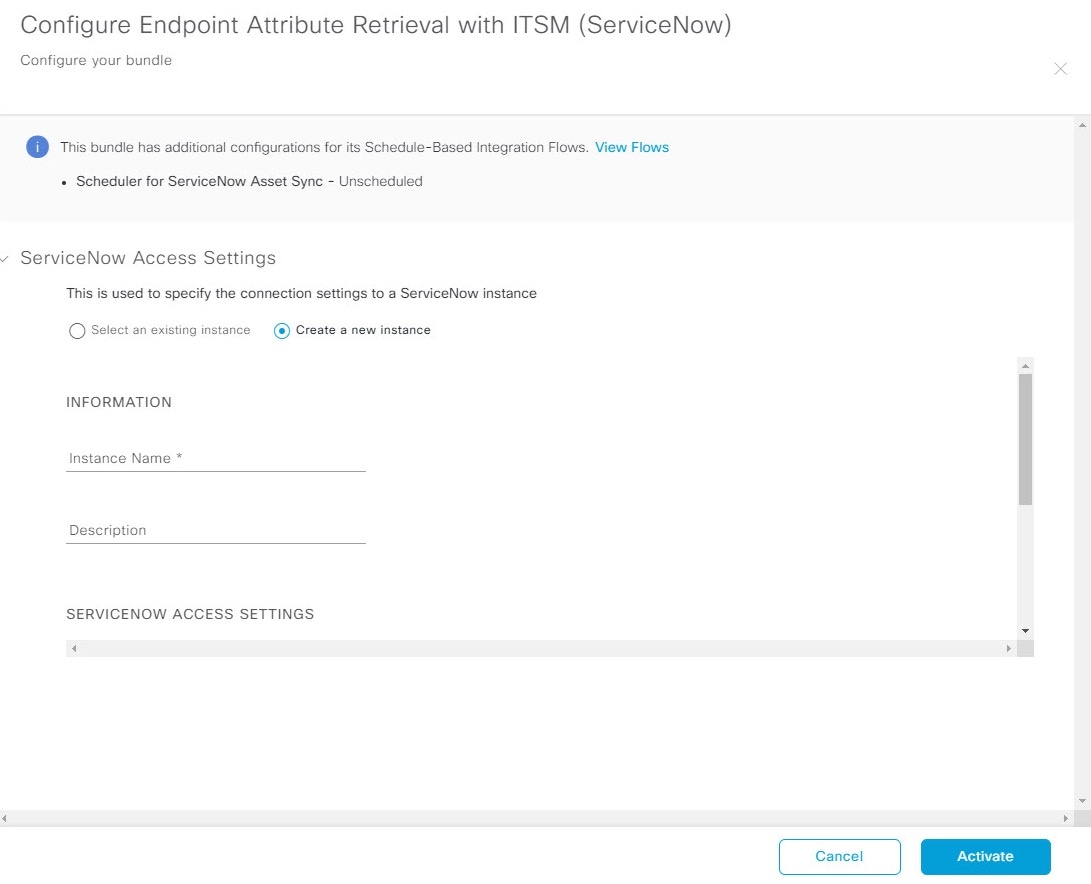
In the configuration slide-in pane, click ServiceNow Access Settings to configure a ServiceNow Connection instance.
13.
Click the radio button to configure an existing ServiceNow Connection instance, or configure a new instance.
Figure 2. Example of ServiceNow Instance Configuration Fields
To configure an existing ServiceNow Connection instance, select it from the drop-down menu in the window and click Activate.
14.
To configure a new ServiceNow Connection instance, you must enter this additional information:
Instance Name: Name of the instance.
Description: Descriptive text of the instance.
Host name: Hostname for the ServiceNow system.
Username: Username required to access the ServiceNow system.
Password: Password required to access the ServiceNow system.
15.
Click Check Connectivity to test whether you can connect to the server where the endpoint is located.
16.
Expand the Synchronization Options to define the incremental sync of endpoints and do these steps:
Click the Create a new instance radio button and configure a new ServiceNow connection instance:
In the INFORMATION area, enter the instance name and description.
In the SYNCHRONIZATION OPTIONS area, check the Incremental Sync check box to select the incremental sync of endpoints and specify the maximum limit for incremental sync records to pull in each cycle.
Use Incremental Sync, which retrieves all the data from ServiceNow and in later interactions, pulls only the modified data.
Note
You can specify a maximum of 100 incremental sync records.
When you set up the synchronization for the first time, it is performed in full sync, even if it is an incremental sync.
When you edit the synchronization settings, it is done in full sync, even if it is an incremental sync.
17.
Click Save to save the bundle.
What to do next
Configure the integration flow (Scheduler for ServiceNow Asset Sync) for this bundle, using one of the available methods.