Overview
This section describes the step-by-step workflow for SWIM closed-loop automation, detailing tasks for both Catalyst Center and ServiceNow administrators from image distribution to change request approval and software update.
This table describes the SWIM closed loop automation workflow between Catalyst Center and ServiceNow.
| Step | Description |
|---|---|
| Step 1 |
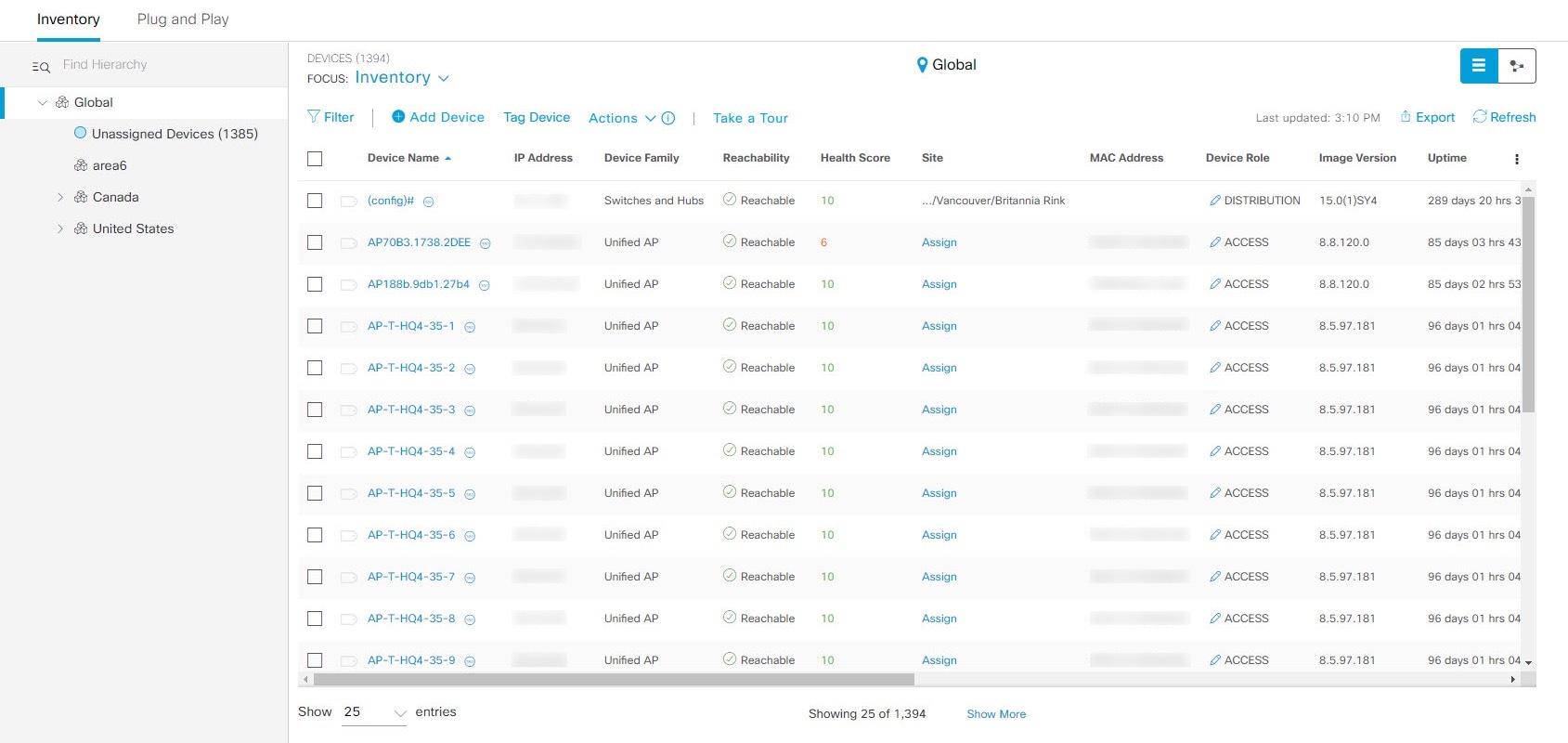
The Catalyst Center admin configures the Image Repository to prepare for the provisioning of devices in the network.
|
| Step 2 |
The Catalyst Center admin distributes the software image to one or more devices at the present time or schedules this activity for a later time.
|
| Step 3 |
After a software image distribution is created in Catalyst Center a SWIM event is generated and sent directly to the ServiceNow ITSM as a change request ticket. This process uses APIs from the Cisco Catalyst app. The initial status of the change request ticket is New. The SWIM event appears in the ServiceNow GUI in the ServiceNow Change Requests table. 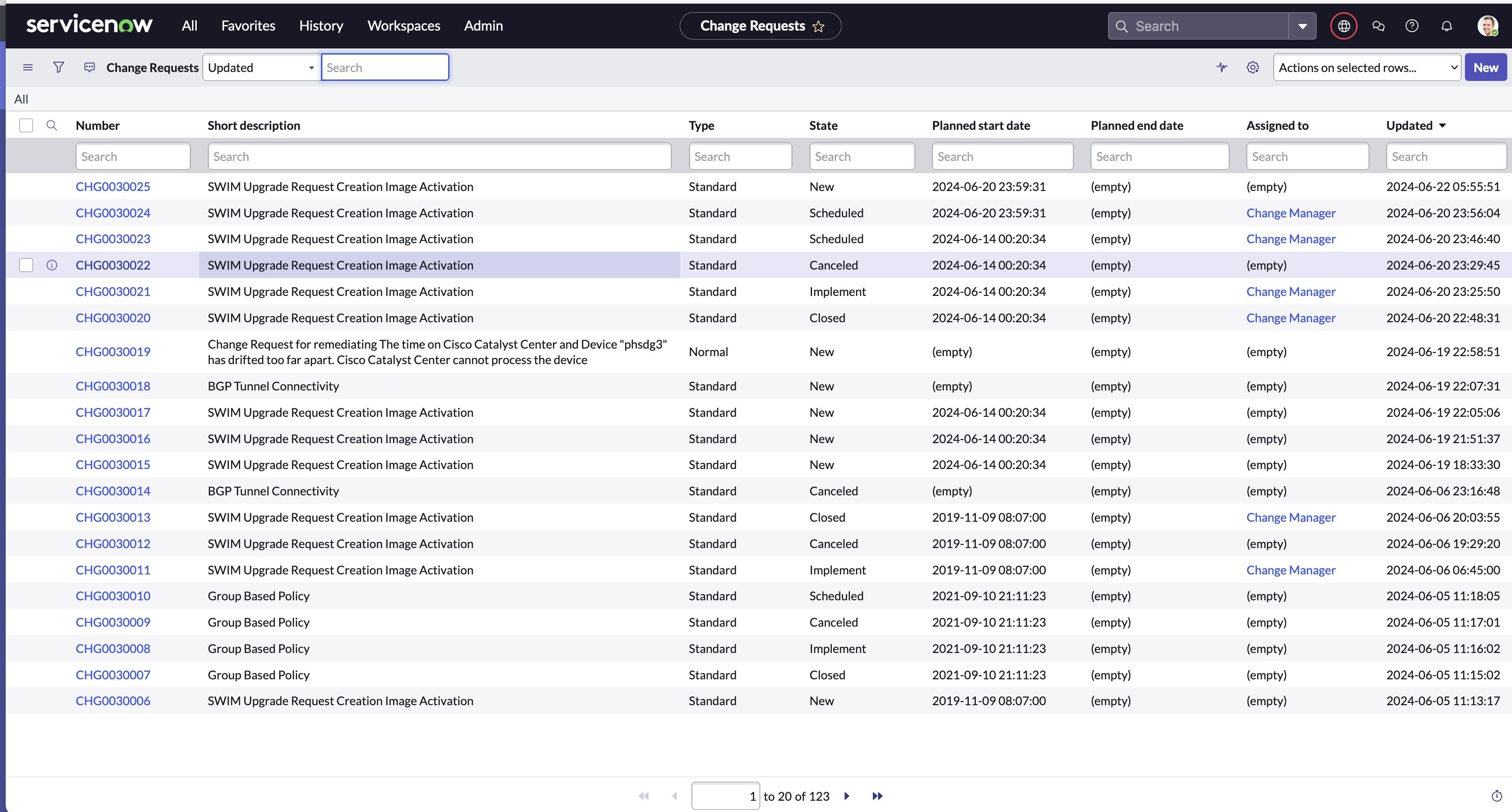
|
| Step 4 |
In the Change Requests table, the ServiceNow admin clicks the change request number (identifier) to open and review its status and data. In the ServiceNow GUI, the admin can edit the change request. For example, the admin can change the State from 'New' to 'Scheduled' and enter 'Change Management' for the Assignment group. The ServiceNow admin can also identify the SWIM change request with information in the Short Description field. 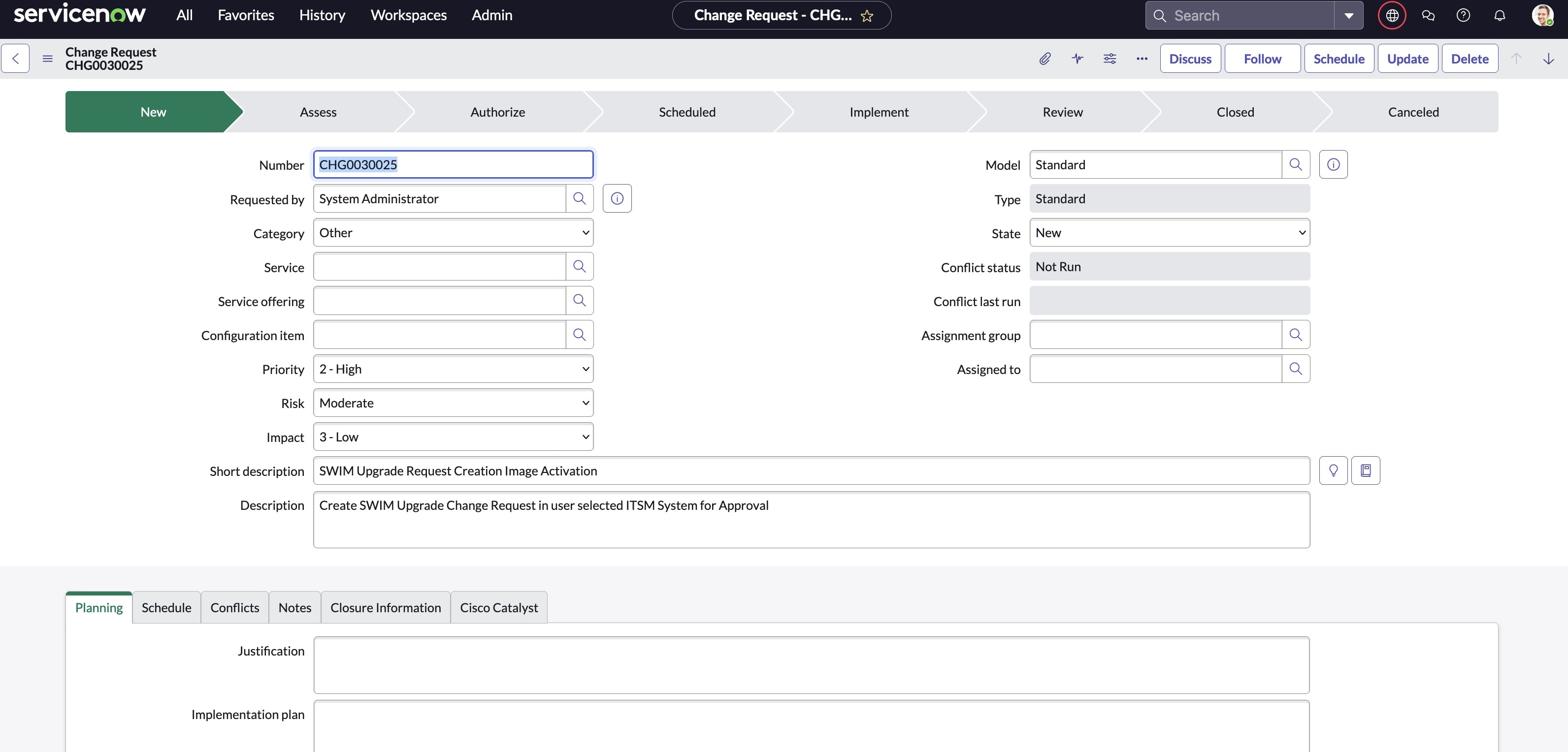
|
| Step 5 |
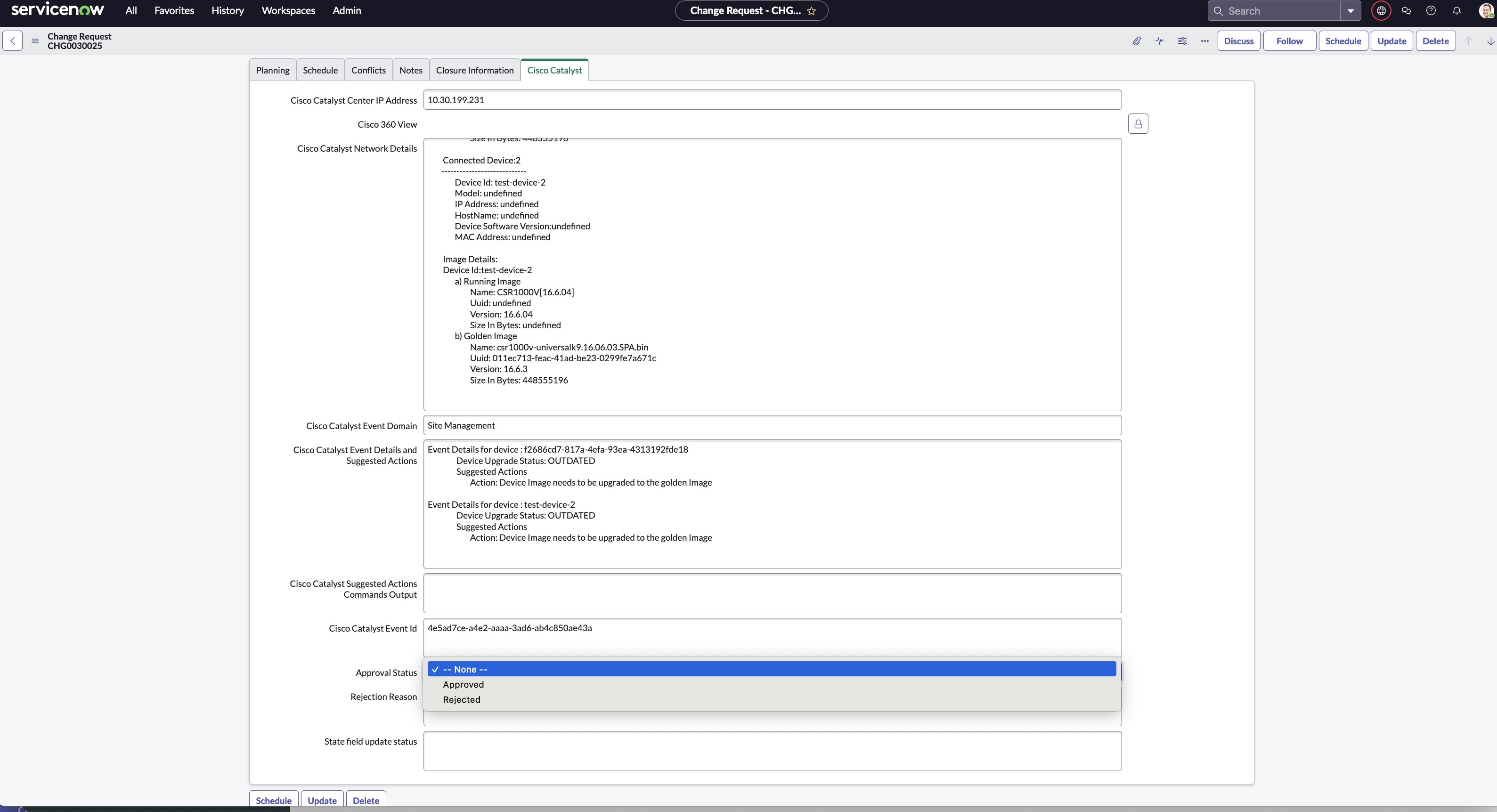
The ServiceNow admin now clicks the Cisco Catalyst tab in the change request. In this tab, you can view important additional data synchronized from Catalyst Center to ServiceNow. 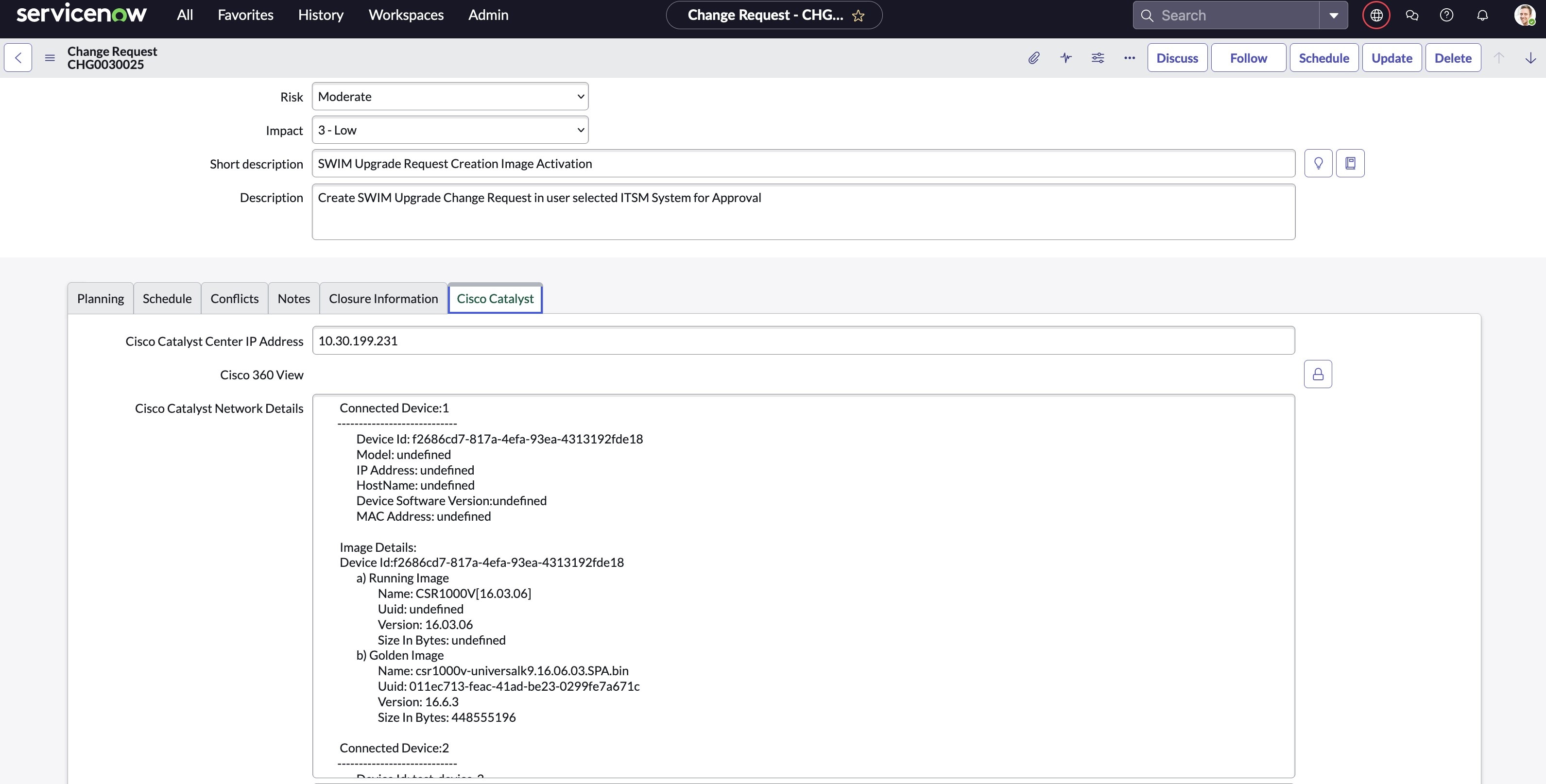
|
| Step 6 |
The ServiceNow admin now either approves or rejects the change request ticket in the ServiceNow GUI. In the Cisco Catalyst tab, the ServiceNow admin clicks the Approval Status field and then clicks either Approved to approve the request or Rejected to reject the request.
|
| Step 7 |
After the ServiceNow admin approves the ticket and the status of the change request is changed to Implement, a notification is sent to Catalyst Center. If the ticket is rejected, the update is sent to Catalyst Center in Scheduled state and the ServiceNow ticket is automatically canceled. |
| Step 8 |
After a successful software image update in Catalyst Center, a notification (task completed) is sent back to ServiceNow. ServiceNow then closes the change request ticket. The change request ticket closure is done through the use of APIs from the Cisco Catalyst app.
|
| Step 9 |
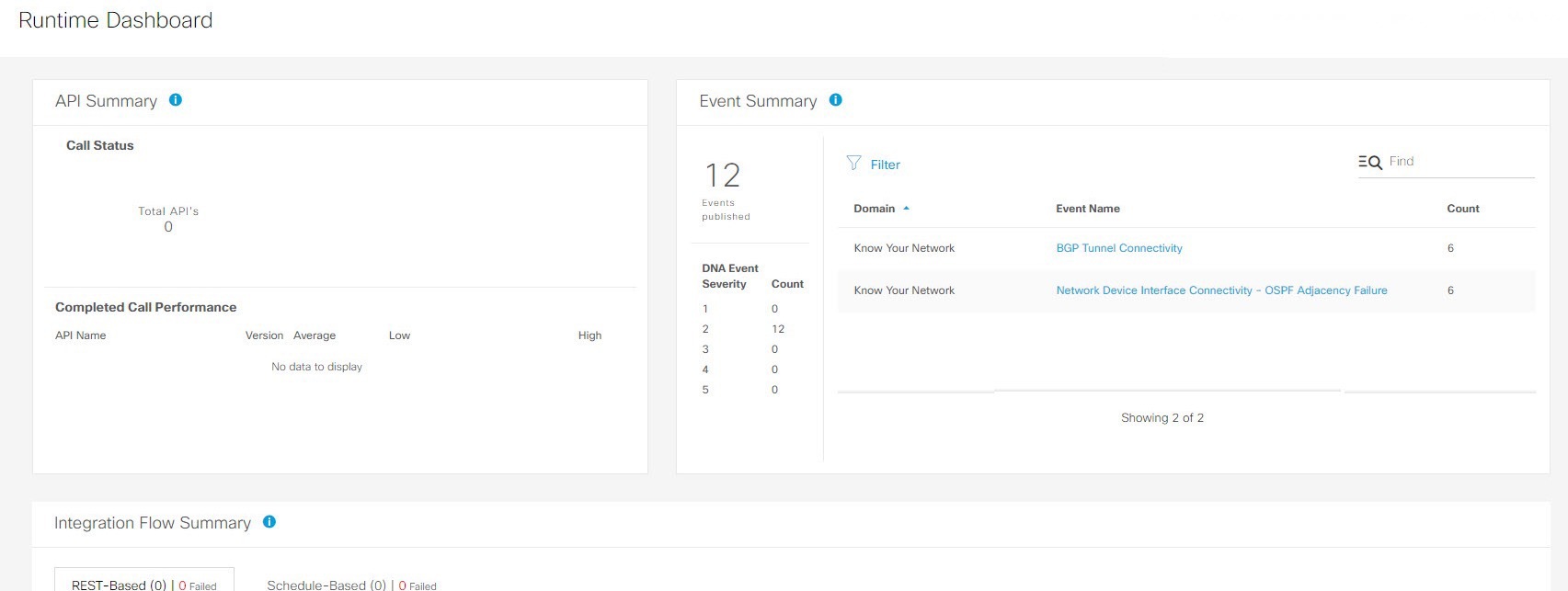
The Catalyst Center admin can review the SWIM event by choosing .
|
| Step 10 |
The Catalyst Center admin clicks an event name (link) to view additional detailed data. 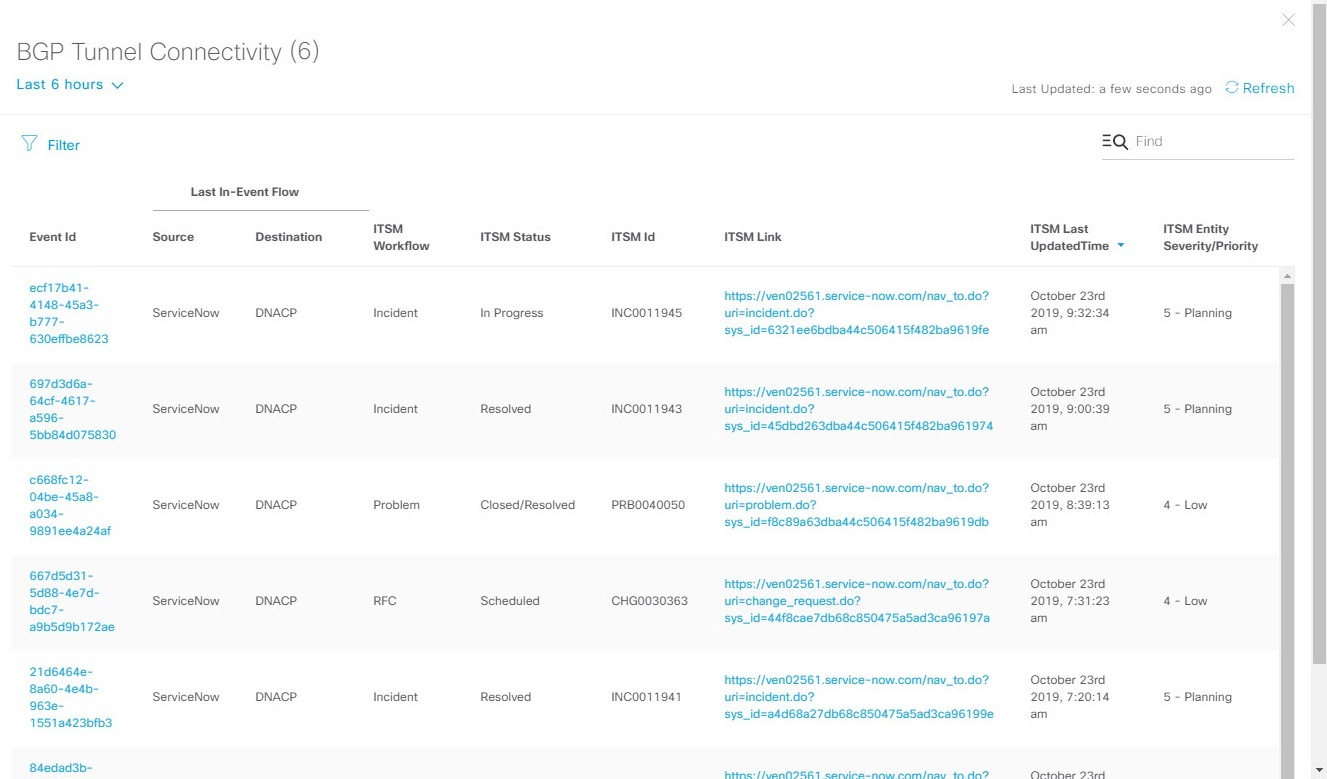
|
| Step 11 |
The Catalyst Center admin clicks an event ID number (link) to view only data associated with that specific event. 
|
| Step 12 |
The Catalyst Center admin clicks the ITSM Link to return to the ServiceNow Service Management GUI and specific incident. 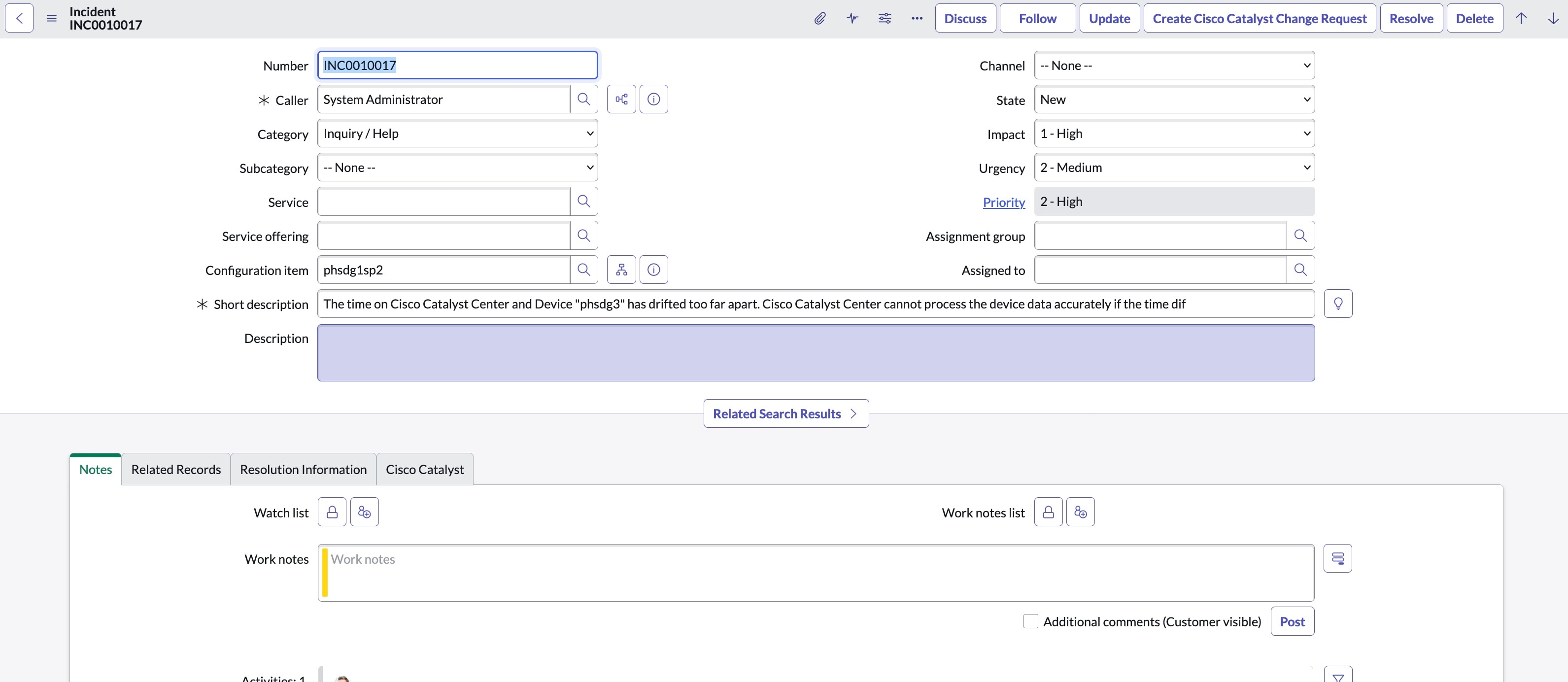
|