Configuring Ethernet OAM

Ethernet Operations, Administration, and Maintenance (OAM) is a protocol for installing, monitoring, and troubleshooting Ethernet networks, to increase management capability within the context of the overall Ethernet infrastructure.

The Cisco ASR 901 router supports:

  • IEEE 802.3ah Ethernet OAM discovery, link monitoring, remote fault detection, and remote loopback.
  • IEEE 802.1ag Connectivity Fault Management (CFM)
  • Ethernet Local Management Interface (E-LMI)
  • IP Service Level Agreements (SLAs) for CFM
  • ITU-T Y.1731 fault management

This chapter provides information about configuring the Ethernet OAM, CFM and E-LMI and also enabling Ethernet Loopback.

For complete command and configuration information for Ethernet OAM see the Cisco IOS Carrier Ethernet Configuration Guide at this URL: http://www.cisco.com/en/US/docs/ios-xml/ios/cether/configuration/12-2sr/ce-12-2sr-book.html


Note


The Cisco ASR 901 router does not necessarily support all of the commands listed in the Cisco IOS Carrier Ethernet documentation.

Note


Cisco ASR 901 does not support CFM pre-draft version.

Understanding Ethernet CFM

Ethernet CFM is an end-to-end per-service-instance (per VLAN) Ethernet layer OAM protocol that includes proactive connectivity monitoring, fault verification, and fault isolation. End-to-end can be provider-edge-to-provider-edge (PE-to-PE) device. Ethernet CFM, as specified by IEEE 802.1ag, is the standard for Layer 2 ping, Layer 2 traceroute, and end-to-end connectivity check of the Ethernet network.

For more information about ethernet CFM, see Ethernet Connectivity Fault Management .

IP SLA Support for CFM

The router supports CFM with IP Service Level Agreements (SLA), which provides the ability to gather Ethernet layer network performance metrics. Available statistical measurements for the IP SLA CFM operation include round-trip time, jitter (interpacket delay variance), and packet loss. You can schedule multiple IP SLA operations and use Simple Network Management Protocol (SNMP) trap notifications and syslog messages for proactive threshold violation monitoring.

IP SLA integration with CFM gathers Ethernet layer statistical measurements by sending and receiving Ethernet data frames between CFM MEPs. Performance is measured between the source MEP and the destination MEP. Unlike other IP SLA operations that provide performance metrics for only the IP layer, IP SLA with CFM provides performance metrics for Layer 2.

You can manually configure individual Ethernet ping or jitter operations. You can also configure an IP SLA automatic Ethernet operation that queries the CFM database for all MEPs in a given maintenance domain and VLAN. The operation then automatically creates individual Ethernet ping or jitter operations based on the discovered MEPs.

Because IP SLA is a Cisco proprietary feature, interoperability between CFM draft 1 and CFM 802.1ag is handled automatically by the router.

For more information about IP SLA operation with CFM, see the IP SLAs for Metro-Ethernet feature module at this URL:

http://www.cisco.com/en/US/docs/ios/12_2sr/12_2srb/feature/guide/sr_meth.html

Configuring Ethernet CFM

Configuring Ethernet CFM requires configuring the CFM domain. You can optionally configure and enable other CFM features such as crosschecking, remote MEP, port MEPs, SNMP traps, and fault alarms. Note that some of the configuration commands and procedures differ from those used in CFM draft 1.

This section contains the following topics:

Default Ethernet CFM Configuration

  • CFM is globally disabled.
  • CFM is enabled on all interfaces when CFM is globally enabled.
  • A port can be configured as a flow point (MIP/MEP), a transparent port, or disabled (CFM disabled). By default, ports are transparent ports until configured as MEP, MIP, or disabled.
  • There are no MEPs or MIPs configured.
  • When configuring a MEP, if you do not configure direction, the default is up (inward facing) which is not supported for CFM hardware offload sessions.
  • For Multi-UNI CFM MEPs (with up direction), port-based model for MAC address assignment is used instead of bridge brain model.

Ethernet CFM Configuration Restrictions and Guidelines

  • You cannot configure CFM on VLAN interfaces.
  • CFM is configurable only under EVC and physical or port channel interfaces.
  • CFM is supported on ports running MSTP.
  • You must configure a port MEP at a lower level than any service (VLAN) MEPs on an interface.

Configuring the CFM Domain

Complete the following steps to configure the Ethernet CFM domain, configure a service to connect the domain to a VLAN, or configure a port to act as a MEP. You can also enter the optional commands to configure other parameters, such as continuity checks.


Note


You do not need to enter the ethernet cfm ieee global configuration command to configure the CFM version as IEEE 802.1ag; the CFM version is always 802.1ag and the command is automatically generated when you enable CFM.

Procedure

  Command or Action Purpose

Step 1

configure terminal

Enter global configuration mode.

Step 2

ethernet cfm global

Globally enable Ethernet CFM on the router.

Step 3

ethernet cfm traceroute cache [size entries | hold-time minutes ]

(Optional) Configure the CFM traceroute cache. You can set a maximum cache size or hold time.

  • (Optional) For size , enter the cache size in number of entry lines. The range is from 1 to 4095; the default is 100 lines.
  • (Optional) For hold-time , enter the maximum cache hold time in minutes. The range is from 1 to 65535; the default is 100 minutes.

Step 4

ethernet cfm mip auto-create level level-id vlan vlan-id

(Optional) Configure the router to automatically create MIPs for VLAN IDS that are not associated with specific maintenance associations at the specified level. The level range is 0 to 7.

Note

 
Configure MIP auto-creation only for VLANs that MIPs should monitor. Configuring for all VLANs can be CPU and memory-intensive.

Step 5

ethernet cfm mip filter

(Optional) Enable MIP filtering, which means that all CFM frames at a lower level are dropped. The default is disabled.

Step 6

ethernet cfm domain domain-name level level-id

Define a CFM domain, set the domain level, and enter ethernet-cfm configuration mode for the domain. The maintenance level number range is 0 to 7.

Step 7

id {mac-address domain_number | dns name | null }

(Optional) Assign a maintenance domain identifier.

  • mac-address domain_number — Enter the MAC address and a domain number. The number can be from 0 to 65535.
  • dns name —Enter a DNS name string. The name can be a maximum of 43 characters.
  • null —Assign no domain name.

Step 8

service {ma-name | ma-number | vpn-id vpn } {vlan vlan-id [direction down ] | port }

Define a customer service maintenance association (MA) name or number or VPN ID to be associated with the domain, a VLAN ID or port MEP, and enter ethernet-cfm-service configuration mode.

  • ma-name —a string of no more than 100 characters that identifies the MAID.
  • ma-number —a value from 0 to 65535.
  • vpn-id vpn —enter a VPN ID as the ma-name .
  • vlan vlan-id —VLAN range is from 1 to 4094. You cannot use the same VLAN ID for more than one domain at the same level.
  • (Optional) direction down —specify the service direction as down.
  • port —Configure port MEP, a down MEP that is untagged and not associated with a VLAN.

Step 9

continuity-check

Enable sending and receiving of continuity check messages.

Step 10

continuity-check interval value

(Optional) Set the interval at which continuity check messages are sent. The available values are 100 ms, 1 second, 10 seconds, 1 minute and 10 minutes. The default is 10 seconds.

Note

 
Because faster CCM rates are more CPU-intensive, we do not recommend configuring a large number of MEPs running at 100 ms intervals.

Step 11

continuity-check loss-threshold threshold-value

(Optional) Set the number of continuity check messages to be missed before declaring that an MEP is down. The range is 2 to 255; the default is 3.

Step 12

maximum meps value

(Optional) Configure the maximum number of MEPs allowed across the network. The range is from 1 to 65535. The default is 100.

Step 13

sender-id chassis none

(Optional) Include the sender ID TLVs, attributes containing type, length, and values for neighbor devices.

  • chassis —Send the chassis ID (host name).
  • none —Do not include information in the sender ID.

Step 14

mip auto-create [lower-mep-only | none ]

(Optional) Configure auto creation of MIPs for the service.

  • lower-mep-only —Create a MIP only if there is a MEP for the service in another domain at the next lower active level.
  • none —No MIP auto-create.

Step 15

exit

Return to ethernet-cfm configuration mode.

Step 16

mip auto-create [lower-mep-only]

(Optional) Configure auto creation of MIPs for the domain.

  • lower-mep-only —Create a MIP only if there is a MEP for the service in another domain at the next lower active level.

Step 17

mep archive-hold-time minutes

(Optional) Set the number of minutes that data from a missing maintenance end point is kept before it is purged. The range is 1 to 65535; the default is 100 minutes.

Step 18

exit

Return to global configuration mode.

Step 19

interface interface-id

Specify an interface to configure, and enter interface configuration mode.

Step 20

service instance number ethernet name

Specify the service instance number and the name of the EVC.

Step 21

cfm mip level level-id

(Optional) Configure a customer level or service-provider level maintenance intermediate point (MIP) for the interface. The MIP level range is 0 to 7.

Note

 
This step is not required if you have entered the ethernet cfm mip auto-create global configuration command or the mip auto-create ethernet-cfm or ethernet-cfm-srv configuration mode.

Step 22

cfm mep domain domain-name mpid identifier

Configure maintenance end points for the domain, and enter Ethernet cfm mep mode.

  • domain domain-name —Specify the name of the created domain.
  • mpid identifier —Enter a maintenance end point identifier. The identifier must be unique for each VLAN (service instance). The range is 1 to 8191.

Step 23

cos value

(Optional) Specify the class of service (CoS) value to be sent with the messages. The range is 0 to 7.

Step 24

end

Return to privileged EXEC mode.

Step 25

show ethernet cfm maintenance-points {local | remote }

Verify the configuration.

Step 26

show ethernet cfm errors [configuration]

(Optional) Display the configuration error list.

Step 27

copy running-config startup-config

(Optional) Save your entries in the configuration file.

What to do next


Note


Use the no form of each command to remove the configuration or return to the default configurations.

Example for Basic CFM configuration


Router(config)# ethernet cfm ieee
Router(config)# ethernet cfm global
Router(config)# ethernet cfm domain abc level 3
Router(config-ecfm)# service test evc EVC1 vlan 5
Router(config-ecfm-srv)# continuity-check
Router(config-ecfm-srv)# exit
Router(config-ecfm)# exit
Router(config)# ethernet evc EVC1
Router(config)# interface gigabitethernet 0/1
Router(config-if)# service instance 1 ethernet EVC1
 
Router(config-if-srv)# encapsulation dot1q 5
Router(config-if-srv)# rewrite ingress tag pop 1 symmetric
Router(config-if-srv)# bridge domain 5
Router(config-if-srv)# cfm mep domain abc mpid 100
Router(config-if-ecfm-mep)# exit

Configuring Multi-UNI CFM MEPs in the Same VPN

Effective with Cisco IOS Release 15.3(2)S, services are configured such that two or more bridge domains (BDs) are used to achieve UNI isolation and backhauling towards provider edge (PE) device. Local MEPs (with up direction) need to be configured on the UNIs (with the associated BDs) to monitor the service backhaul connection. To achieve this, use the alias command to configure a CFM MA, MA2, as an alias to another MA, MA1. As a result, MA1 behaves as though it is configured as MA2 on a different Bridge Domain (BD) associated with it. MA1 and MA2 function as if they are part of the same service, thus associating the same CFM MA to two different BDs and UNI isolation.

The following figure shows the configuring Mutli-NNI CFM in the same VPN.

Figure 1. Configuring Multi-NNI CFM in the Same VPN

Restrictions:

  • Two MAs can be configured such that MA2 connected with different BD will act as a proxy (alias) for MA1 only for the MEPs which have the service direction as Up.
  • Y1731-PM is not supported with Multi-NNI CFM.

Complete these steps to configure Multi-UNI CFM MEPs in the same VPN.

Procedure

  Command or Action Purpose

Step 1

configure terminal

Enter global configuration mode. Enter your password if prompted.

Step 2

ethernet cfm global

Example:

Router(config)# ethernet cfm global

Globally enable Ethernet CFM on the router.

Step 3

ethernet cfm domain domain-name level level-id

Example:

Router(config)# ethernet cfm domain MD6 level 6

Define a CFM domain, set the domain level, and enter ethernet-CFM configuration mode for the domain. The maintenance level number range is 0 to 7.

Step 4

service {ma-name | ma-number | vpn-id vpn } {vlan vlan-id [direction down ] | port }

Example:

Router(config-ecfm)# service MA6 evc evc30 vlan 30

Define a customer service maintenance association (MA) name or number or VPN ID to be associated with the domain, a VLAN ID or port MEP, and enter ethernet-cfm-service configuration mode.

  • ma-name —a string of no more than 100 characters that identifies the MAID.
  • ma-number —a value from 0 to 65535.
  • vpn-id vpn —enter a VPN ID as the ma-name .
  • vlan vlan-id —VLAN range is from 1 to 4094. You cannot use the same VLAN ID for more than one domain at the same level.
  • (Optional) direction down —specify the service direction as down.

Note

 
Two MAs can be configured such that MA2 connected with different BD will act as a proxy (alias) for MA1 only for the MEPs which have the service direction as Up.
  • port —Configure port MEP, a down MEP that is untagged and not associated with a VLAN.

Step 5

continuity-check

Example:

Router(config-ecfm-srv)# continuity-check

Enable sending and receiving of continuity check messages.

Step 6

continuity-check interval value

Example:

Router(config-ecfm-srv)# continuity-check interval 1s

(Optional) Set the interval at which continuity check messages are sent. The available values are 100 ms, 1 second, 10 seconds, 1 minute, and 10 minutes. The default is 10 seconds.

Note

 
Because faster CCM rates are more CPU-intensive, we do not recommend configuring a large number of MEPs running at 100 ms intervals.

Step 7

continuity-check loss-threshold threshold-value

Example:

Router(config-ecfm-srv)# continuity-check loss-threshold 4

(Optional) Set the number of continuity check messages to be missed before declaring that an MEP is down. The range is 2 to 255; the default is 3.

Step 8

alias{ alias-short-ma-name | icc icc-code meg-id | number ma-number | vlan vlan-id | vpn vpn-id}

Example:

Router(config-ecfm-srv)# alias MA6

Define a customer alias maintenance association (MA) name or number or VPN ID to be associated with the domain, a VLAN ID or port MEP, and enter ethernet-cfm-service configuration mode.

  • alias-short-ma-name —a string of no more than 48 characters that identifies the MAID.

    Note


    If the alias-short-ma-name option is not configured, then the MAID is automatically generated as a combination of service ID and CFM domain name. When creating an MEP for an EFP, if the length of the MAID exceeds 48 characters, then CC messages are not sent out. We recommend that you use the alias-short-ma-name option if a long service ID or domain name is configured.

  • icc icc-code meg-id —specify the ITU Carrier Code (ICC) (maximum: 6 characters) and Unique Maintenance Entity Group (MEG) ID Code (UMC). The maximum characters allowed is 12.
  • number ma-number —a value from 0 to 65535.
  • vlan-id —VLAN range is from 1 to 4094. You cannot use the same VLAN ID for more than one domain at the same level.
  • vpn-id —enter a VPN ID as the ma-name .

Step 9

exit

Return to ethernet-CFM configuration mode.

Step 10

exit

Return to global configuration mode.

Step 11

interface interface-id

Example:

Router(config)# interface gigabitethernet 0/4

Specify an interface to configure, and enter interface configuration mode.

Step 12

service instance number ethernet name

Example:

Router(config-if)# service instance 30 ethernet EVC30

Specify the service instance number and the name of the EVC.

Step 13

cfm mep domain domain-name mpid identifier

Example:

Router(config-if-srv)# cfm mep domain MD6 mpid 30

Configure maintenance end points for the domain, and enter Ethernet cfm mep mode.

  • domain domain-name —Specify the name of the created domain.
  • mpid identifier —Enter a maintenance end point identifier. The identifier must be unique for each VLAN (service instance). The range is 1 to 8191.

Step 14

end

Return to privileged EXEC mode.

Step 15

show ethernet cfm maintenance-points {local | remote }

Verify the configuration.

Step 16

show ethernet cfm errors [configuration]

(Optional) Display the configuration error list.

Step 17

copy running-config startup-config

(Optional) Save your entries in the configuration file.

Configuration Examples for Multi-UNI CFM MEPs

Example Configuration for Multi-UNI CFM MEPs in the same VPN

Router(config)# ethernet cfm ieee
Router(config)# ethernet cfm global
Router(config)# ethernet cfm domain MD6 level 6
Router(config-ecfm)# service MA6 evc evc30 vlan 30
Router(config-ecfm-srv)# continuity-check
Router(config-ecfm-srv)# continuity-check interval ls
Router(config-ecfm-srv)# service MA6_alias evc evc40 vlan 40
Router(config-ecfm-srv)# continuity-check
Router(config-ecfm-srv)# continuity-check interval ls
Router(config-ecfm-srv)# alias MA6
Router(config-ecfm-srv)# exit
Router(config-ecfm)# exit
Router(config)# ethernet evc EVC30
Router(config)# interface gigabitethernet 0/4
Router(config-if)# service instance 30 ethernet EVC30
Router(config-if-srv)# encapsulation dot1q 30
Router(config-if-srv)# bridge domain 30
Router(config-if-srv)# cfm mep domain MD6 mpid 30
Router(config-if-srv)# exit
Router(config-if)# exit
Router(config)# ethernet evc EVC40
Router(config)# interface gigabitethernet 0/5
Router(config-if)# service instance 30 ethernet EVC40
Router(config-if-srv)# encapsulation dot1q 30
Router(config-if-srv)# bridge domain 40
Router(config-if-srv)# cfm mep domain MD6 mpid 40
Router(config-if-srv)# exit
Router(config-if)# exit
Router(config)# interface gigabitethernet 0/6
Router(config-if)# service instance 30 ethernet
Router(config-if-srv)# encapsulation dot1q 100 second-dot1q 30
Router(config-if-srv)# rewrite ingress tag pop 1 symmetric
Router(config-if-srv)# bridge domain 30
Router(config-if-srv)# exit
Router(config-if)# exit
Router(config)# interface gigabitethernet 0/7
Router(config-if)# service instance 40 ethernet
Router(config-if-srv)# encapsulation dot1q 200 second-dot1q 30
Router(config-if-srv)# rewrite ingress tag pop 1 symmetric
Router(config-if-srv)# bridge domain 40
Router(config-if-srv)# exit
Router(config-if)# exit

Verification

Use the following commands to verify a configuration:

  • Use the show ethernet cfm maintenance-point local command to verify the Multi-UNI CFMs over EVC configuration. This command shows the basic configuration information for Multi-UNI CFM.

Router# show ethernet cfm maintenance-points local
Local MEPs:
--------------------------------------------------------------------------------
MPID Domain Name                                 Lvl   MacAddress     Type  CC  
Ofld Domain Id                                   Dir   Port           Id        
     MA Name                                           SrvcInst       Source    
     EVC name                                                                   
--------------------------------------------------------------------------------
30   MD6                                         6     4055.3989.7868 BD-V  Y
No   MD6                                         Up    Gi0/4          30   
     MA6                                               30             Static 
     evc30                                                                      
40   MD6                                         6     4055.3989.7869 BD-V  Y
No   MD6                                         Up    Gi0/5          40   
     MA6_alias (MA6)                                   40             Static 
     evc40                                                                      
Total Local MEPs: 2
Local MIPs: None
  • Use the show ethernet cfm maintenance-point remote to verify the MEP configuration:

Router# show ethernet cfm maintenance-points remote
--------------------------------------------------------------------------------
MPID  Domain Name                                 MacAddress          IfSt  PtSt
Lvl  Domain ID                                   Ingress                       
 RDI  MA Name                                     Type Id             SrvcInst  
      EVC Name                                                        Age       
      Local MEP Info                                                            
--------------------------------------------------------------------------------
40    MD6                                         4055.3989.7869      Up    Up  
 6    MD6                                         Gi0/6                         
 -    MA6                                         BD-V 30             30        
      evc30                                                           0s
      MPID: 30 Domain: MD6 MA: MA6
30    MD6                                         4055.3989.7868      Up    Up  
 6    MD6                                         Gi0/7                         
 -    MA6_alias (MA6)                             BD-V 40             40        
      evc40                                                           1s
      MPID: 40 Domain: MD6 MA: MA6_alias (MA6)
Total Remote MEPs: 2

Configuring Ethernet CFM Crosscheck

Complete the following steps to configure Ethernet CFM crosscheck:

Procedure

  Command or Action Purpose

Step 1

configure terminal

Enter global configuration mode.

Step 2

ethernet cfm mep crosscheck start-delay delay

Configure the number of seconds that the device waits for remote MEPs to come up before the crosscheck is started. The range is 1 to 65535; the default is 30 seconds.

Step 3

ethernet cfm domain domain-name level level-id

Define a CFM domain, set the domain level, and enter ethernet-cfm configuration mode for the domain. The maintenance level number range is 0 to 7.

Step 4

service {ma-name | ma-number | vpn-id vpn} {vlan vlan-id }

Define a customer service maintenance association name or number or VPN ID to be associated with the domain, and a VLAN ID, and enter ethernet-cfm-service configuration mode.

  • ma-name —a string of no more than 100 characters that identifies the MAID.
  • ma-number —a value from 0 to 65535.
  • vpn-id vpn —enter a VPN ID as the ma-name .
  • vlan vlan-id —VLAN range is from 1 to 4094. You cannot use the same VLAN ID for more than one domain at the same level.

Step 5

mep mpid identifier

Define the MEP maintenance end point identifier in the domain and service. The range is 1 to 8191

Step 6

end

Return to privileged EXEC mode.

Step 7

ethernet cfm mep crosscheck {enable | disable} domain domain-name {vlan {vlan-id | any} | port}

Enable or disable CFM crosscheck for one or more VLANs or a port MEP in the domain.

  • domain domain-name —Specify the name of the created domain.
  • vlan {vlan-id | any} —Enter the service provider VLAN ID or IDs as a VLAN-ID (1 to 4094), a range of VLAN-IDs separated by a hyphen, or a series of VLAN IDs s}eparated by comma. Enter any for any VLAN.
  • port —Identify a port MEP.

Step 8

show ethernet cfm maintenance-points remote crosscheck

Verify the configuration.

Step 9

show ethernet cfm errors [configuration]

Enter this command after you enable CFM crosscheck to display the results of the crosscheck operation. Enter the configuration keyword to display the configuration error list.

Step 10

copy running-config startup-config

(Optional) Save your entries in the configuration file.


Note


Use the no form of each command to remove a configuration or to return to the default settings.

Configuring Static Remote MEP

Complete the following steps to configure Ethernet CFM static remote MEP:

Procedure

  Command or Action Purpose

Step 1

configure terminal

Enter global configuration mode.

Step 2

ethernet cfm domain domain-name level level-id

Define a CFM domain, set the domain level, and enter ethernet-cfm configuration mode for the domain. The maintenance level number range is 0 to 7.

Step 3

service { short-ma-name | number MA-number | vlan-id primary-vlan-id | vpn-id vpn-id } {vlan vlan-id | port | evc evc-name }

Configure the maintenance association and set a universally unique ID for a customer service instance (CSI) or the maintenance association number value, primary VLAN ID and VPN ID within a maintenance domain in Ethernet connectivity fault management (CFM) configuration mode.

Step 4

continuity-check

Enable sending and receiving of continuity check messages.

Step 5

mep mpid identifier

Define the static remote maintenance end point identifier. The range is 1 to 8191

Step 6

continuity-check static rmep

Enable checking of the incoming continuity check message from a remote MEP that is configured in the MEP list.

Step 7

end

Return to privileged EXEC mode.

Step 8

show ethernet cfm maintenance-points remote static

Verify the configuration.

Step 9

show ethernet cfm errors [configuration ]

Enter this command after you enable CFM crosscheck to display the results of the crosscheck operation. Enter the configuration keyword to display the configuration error list.

Step 10

copy running-config startup-config

(Optional) Save your entries in the configuration file.

What to do next


Note


Use the no form of each command to remove a configuration or to return to the default settings.

Configuring a Port MEP

A port MEP is a down MEP that is not associated with a VLAN and that uses untagged frames to carry CFM messages. You configure port MEPs on two connected interfaces. Port MEPs are always configured at a lower domain level than native VLAN MEPs.

Complete the following steps to configure Ethernet CFM port MEPs:

Procedure

  Command or Action Purpose

Step 1

configure terminal

Enter global configuration mode.

Step 2

ethernet cfm domain domain-name level level-id

Define a CFM domain, set the domain level, and enter ethernet-cfm configuration mode for the domain. The maintenance level number range is 0 to 7.

Step 3

service {ma-name | ma-number | vpn-id} port

Define a customer service maintenance association name or number or VPN ID to be associated with the domain, define a port MEP, and enter ethernet-cfm-service configuration mode.

  • ma-name —a string of no more than 100 characters that identifies the MAID.
  • ma-number —a value from 0 to 65535.
  • vpn-id vpn —enter a VPN ID as the ma-name .

Step 4

mep mpid identifier

Define the static remote maintenance end point identifier in the domain and service. The range is 1 to 8191

Step 5

continuity-check

Enable sending and receiving of continuity check messages.

Step 6

continuity-check interval value

(Optional) Set the interval at which continuity check messages are sent. The available values are 100 ms, 1 second, 10 seconds, 1 minute and 10 minutes. The default is 10 seconds.

Note

 
Because faster CCM rates are more CPU-intensive, we do not recommend configuring a large number of MEPs running at 100 ms intervals.

Step 7

continuity-check loss-threshold threshold-value

(Optional) Set the number of continuity check messages to be missed before declaring that an MEP is down. The range is 2 to 255; the default is 3.

Step 8

continuity-check static rmep

Enable checking of the incoming continuity check message from a remote MEP that is configured in the MEP list.

Step 9

exit

Return to ethernet-cfm configuration mode.

Step 10

exit

Return to global configuration mode.

Step 11

interface interface-id

Identify the port MEP interface and enter interface configuration mode.

Step 12

ethernet cfm mep domain domain-name mpid identifier port

Configure the interface as a port MEP for the domain.

  • domain domain-name —Specify the name of the created domain.
  • mpid identifier —Enter a maintenance end point identifier. The identifier must be unique for each VLAN (service instance). The range is 1 to 8191.

Step 13

end

Return to privileged EXEC mode.

Step 14

show ethernet cfm maintenance-points remote static

Verify the configuration.

Step 15

show ethernet cfm errors [configuration ]

Enter this command after you enable CFM crosscheck to display the results of the crosscheck operation. Enter the configuration keyword to display the configuration error list.

Step 16

copy running-config startup-config

(Optional) Save your entries in the configuration file.

What to do next


Note


Use the no form of each command to remove a configuration or to return to the default settings.

This is a sample configuration for a port MEP:


Router(config)# ethernet cfm domain abc level 3
Router(config-ecfm)# service PORTMEP port
Router(config-ecfm-srv)# mep mpid 222
Router(config-ecfm-srv)# continuity-check
Router(config-ecfm-srv)# continuity-check static rmep
Router(config-ecfm-srv)# exit
Router(config-ecfm)# exit
Router(config)# interface gigabitethernet 0/1
Router(config-if)# ethernet cfm mep domain abc mpid 111 port
Router(config-if)# end

CFM with Hardware Offloading for G.8032

To support ITU-T G.8032 Ethernet Ring Protection Switching, the remote CFM fault detection needs to be faster using CFM continuity check messages (CCM). Earlier to Cisco IOS Release 15.4(3)S , the CFM sessions flap with CCM interval less than 1s. All the CFM operations such as CCM packet forward, drop, and processing are taking place at CPU, and this leads to heavy CPU usage with lower CCM intervals. Effective from Cisco IOS Release 15.4(3)S, the Cisco ASR 901 Router supports CFM hardware offloading. Configuring Ethernet CFM for offload CFM session requires configuring the CFM domain with the supported offload CCM intervals 3.3 ms,10 ms, and 100 ms. You can optionally configure the sampling rate for the offload cfm sessions and the default sampling rate is 20000.


Note


The efd notify g8032 command is optional for offload cfm sessions. This command must be used under CFM configuration to notify G.8032 of failures, if any.


Restrictions

  • CFM offload is not supported on up MEPs.
  • CFM offload is not supported on xconnect EVC.
  • Loopback reply (LBR) and loopback trace (LTR) packets are generated at CPU for offloaded sessions.
  • CFM offload is supported on port-channel EVC and port MEP from Cisco IOS XE Release 3.14 onwards.
  • CFM offload is not supported on following EVC encapsulation types :
    • Dot1Q without rewrite

    • QinQ with Pop1

    • Default EFP

    • Dot1ad-dot1Q with Pop1

    • Untagged EVC

  • Delay Measurement Message (DMM) is supported for CFM offload sessions from Cisco IOS XE Release 3.15 onwards.
  • MIP is not supported for CFM offload sessions.
  • MIP configured for offloaded MEP does not identify remote MEPs. This affects the traceroute and loopback CFM protocols because the CPU does not receive CCM for the offloaded MEP.

Configuring CFM with Hardware Offloading for G.8032

Complete the following steps to configure the CFM with hardware offloading for G.8032.

Procedure
  Command or Action Purpose

Step 1

configure terminal

Enters global configuration mode.

Step 2

ethernet cfm global

Globally enables Ethernet CFM on the router.

Step 3

ethernet cfm domain domain-name level level-id

Defines a CFM domain, set the domain level, and enter ethernet-cfm configuration mode for the domain. The maintenance level number range is 0 to 7.

Step 4

service {ma-name | ma-number | vpn-id vpn } {vlan vlan-id [direction down ] | port }

Defines a customer service maintenance association (MA) name or number or VPN ID to be associated with the domain, a VLAN ID or port MEP, and enter ethernet-cfm-service configuration mode.

  • ma-name —a string of no more than 100 characters that identifies the MAID.
  • ma-number —a value from 0 to 65535.
  • vpn-id vpn —enter a VPN ID as the ma-name .
  • vlan vlan-id —VLAN range is from 1 to 4094. You cannot use the same VLAN ID for more than one domain at the same level.
  • (Optional) direction down —Specifies the service direction as down.
  • port —Configures port MEP, a down MEP that is untagged and not associated with a VLAN.

Step 5

continuity-check

Enables sending and receiving of continuity check messages.

Step 6

continuity-check interval value

(Optional) Sets the interval at which continuity check messages are sent. The available values are 100 ms, 10 ms, 3.3 ms, 1 second, 10 seconds, 1 minute and 10 minutes. The default is 10 seconds.

Note

 
Because faster CCM rates are more CPU-intensive, we do not recommend configuring a large number of MEPs running at 100 ms intervals.

Step 7

continuity-check loss-threshold threshold-value

(Optional) Sets the number of continuity check messages to be missed before declaring that an MEP is down. The range is 2 to 255; the default is 3.

Step 8

offload sampling value

Defines the sampling rate for the offloaded CFM session. The default is 20,000. The range is 5000 to 65535.

Step 9

efd notify g8032

Monitors and notifies G.8032 for failures.

Step 10

exit

Returns to global configuration mode.

Verifying the CFM Configuration with Hardware Offloading for G.8032

To verify the maintenance points configured on a device, use the show ethernet cfm maintenance-points local detail command, as shown in this example:
Router# show ethernet cfm maintenance-points local detail 

Local MEPs:
----------
MPID: 2051
DomainName: d7
MA Name: s7
Level: 7
Direction: Down
EVC: e7
Bridge Domain: 200
Service Instance: 100
Interface: Gi0/6
CC Offload: Yes
CC Offload Status: Succeeded
CC Offload Sampling: 20000 (default)
CC-Status: Enabled
CC Loss Threshold: 3
MAC: c067.afdf.321a
LCK-Status: Enabled
LCK Period: 60000(ms)
LCK Expiry Threshold: 3.5
Level to transmit LCK: Default
Defect Condition: No Defect
presentRDI: FALSE
AIS-Status: Enabled
AIS Period: 60000(ms)
AIS Expiry Threshold: 3.5
Level to transmit AIS: Default
Suppress Alarm configuration: Enabled
Suppressing Alarms: No
Source: Static

MIP Settings:
-------------
Local MIPs: None
To verify the information about a remote maintenance point domains or levels or details in the CFM database, use the show ethernet cfm maintenance-points remote command, as shown in this example:
Router# show ethernet cfm maintenance-points remote 

--------------------------------------------------------------------------------
MPID  Domain Name                                 MacAddress          IfSt  PtSt
Lvl  Domain ID                                   Ingress                       
 RDI  MA Name                                     Type Id             SrvcInst  
      EVC Name                                                        Age       
      Local MEP Info                                                            
--------------------------------------------------------------------------------
2039  d7                                          7cad.749d.9276      Up    Up  
 7    d7                                          Gi0/6                         
 -    s7                                          BD-V 200            100       
      e7                                                              7s
      MPID: 2051 Domain: d7 MA: s7

Total Remote MEPs: 1

Configuration Examples for CFM with Hardware Offloading for G.8032

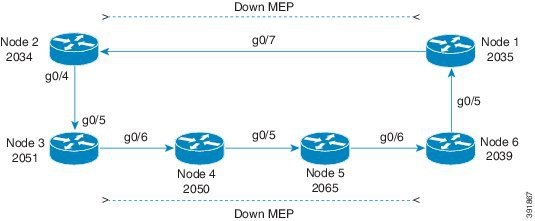
The following is a sample configuration of CFM with hardware offloading for G.8032.

Figure 2. Sample G.8032 Topology with CFM Hardware Offload
Down MEP between Node 3 and Node 6

The following sample configuration shows how to configure CFM with hardware offloading for G.8032.


!
interface GigabitEthernet0/6
no ip address
media-type auto-select
negotiation auto
service instance 2 ethernet
  encapsulation dot1q 50
  rewrite ingress tag pop 1 symmetric
  bridge-domain 50
!
service instance 100 ethernet e7
  encapsulation dot1q 200
  rewrite ingress tag pop 1 symmetric
  bridge-domain 200
  cfm mep domain d7 mpid 2051
!
end

Configuring SNMP Traps

To configure traps for Ethernet CFM, complete the following steps:

Procedure

  Command or Action Purpose

Step 1

configure terminal

Enter global configuration mode.

Step 2

snmp-server enable traps ethernet cfm cc [mep-up ] [mep-down ] [config ] [loop ] [cross-connect ]

(Optional) Enable Ethernet CFM continuity check traps.

Step 3

snmp-server enable traps ethernet cfm crosscheck [mep-unknown ] [mep-missing ] [service-up ]

(Optional) Enable Ethernet CFM crosscheck traps.

Step 4

end

Return to privileged EXEC mode.

Step 5

show running-config

Verify your entries.

Step 6

copy running-config startup-config

(Optional) Save your entries in the configuration file.

What to do next


Note


Use the no form of each command to remove a configuration or to return to the default settings.

Configuring IP SLA CFM Operation

You can manually configure an individual IP SLA ethernet ping, or jitter echo operation, or you can configure IP SLA ethernet operation with endpoint discovery. You can also configure multiple operation scheduling. For accurate one-way delay statistics, the clocks on the endpoint switches must be synchronized. You can configure the endpoint switches with Network Time Protocol (NTP) so that the switches are synchronized to the same clock source.

For more information about configuring IP SLA ethernet operations, see the IP SLAs Configuration Guide, Cisco IOS Release 15.0S. For detailed information about commands for IP SLAs, see the Cisco IOS IP SLAs Command Reference .


Note


The Cisco ASR 901 does not necessarily support all of the commands listed in the Cisco IOS IP SLA documentation.

This section includes these procedures:

Manually Configuring an IP SLA CFM Probe or Jitter Operation

To manually configure an IP SLA ethernet echo (ping) or jitter operation, complete the following steps:

Procedure

  Command or Action Purpose

Step 1

configure terminal

Enters the global configuration mode.

Step 2

ip sla operation-number

Create an IP SLA operation, and enter IP SLA configuration mode.

Step 3

Do one of the following:

  • ethernet echo mpid type number domain type number vlan type number
  • ethernet jittertype number mpid type number domain vlan type number [interval type number ] [num-frames type number ]

Configure the IP SLA operation as an echo (ping) or jitter operation, and enter IP SLA ethernet echo configuration mode.

  • Enter echo for a ping operation or jitter for a jitter operation.
  • For mpid identifier , enter a maintenance endpoint identifier. The identifier must be unique for each VLAN (service instance). The range is 1 to 8191.
  • For domain type number , enter the CFM domain name.
  • For vlan vlan-id , the VLAN range is from 1 to 4095.
  • (Optional—for jitter only) Enter the interval between sending of jitter packets.
  • (Optional—for jitter only) Enter the num-frames and the number of frames to be sent.

Step 4

cos operation-number

(Optional) Set a class of service value for the operation.

Step 5

frequency operation-number

(Optional) Set the rate at which the IP SLA operation repeats. The range is from 1 to 604800 seconds; the default is 60 seconds.

Step 6

history operation-number

(Optional) Specify parameters for gathering statistical history information for the IP SLA operation.

Step 7

owner operation-number

(Optional) Configure the SNMP owner of the IP SLA operation.

Step 8

request-data-size operation-number

(Optional) Specify the protocol data size for an IP SLA request packet. The range is from 0 to the maximum size allowed by the protocol being used; the default is 66 bytes.

Step 9

tag operation-number

(Optional) Create a user-specified identifier for an IP SLA operation.

Step 10

threshold operation-number

(Optional) Specify the upper threshold value in milliseconds (ms0 for calculating network monitoring statistics. The range is 0 to 2147483647; the default is 5000.

Step 11

timeout operation-number

(Optional) Specify the amount of time in ms that the IP SLA operation waits for a response from its request packet. The range is 0 to 604800000; the default value is 5000.

Step 12

exit

Return to the global configuration mode.

Step 13

ip sla schedule operation-number [ageout operation-number ] [life {forever | operation-number }] [recurring ] [start-time {operation-number } [operation-number | operation-number ] | pending | now | after operation-number }]

Schedule the time parameters for the IP SLA operation.

  • operation-number —Enter the IP SLA operation number.
  • (Optional) ageout operation-number —Enter the number of seconds to keep the operation in memory when it is not actively collecting information. The range is 0 to 2073600 seconds. The default is 0 seconds.
  • (Optional) life —Set the operation to run indefinitely (forever ) or for a specific number of seconds . The range is from 0 to 2147483647. The default is 3600 seconds (1 hour)
  • (Optional) recurring —Set the probe to be automatically scheduled every day.
  • (Optional) start-time —Enter the time for the operation to begin collecting information:
    • To start at a specific time, enter the hour, minute, second (in 24-hour notation), and day of the month.
    • Enter pending to select no information collection until a start time is selected.
    • Enter now to start the operation immediately.
    • Enter after operation-number to show that the operation should start after the entered time has elapsed.

Step 14

end

Return to the privileged EXEC mode.

Step 15

show ip sla configuration [operation-number ]

Show the configured IP SLA operation.

Step 16

copy running-config startup-config

(Optional) Save your entries in the configuration file.

What to do next

To remove an IP SLA operation, enter the no ip sla operation-number global configuration command.

Configuring an IP SLA Operation with Endpoint Discovery

To automatically discover the CFM endpoints for a domain and VLAN ID, using IP SLAs, complete the steps given below. You can configure ping or jitter operations to the discovered endpoints.

Procedure
  Command or Action Purpose

Step 1

configure terminal

Enter global configuration mode.

Step 2

ip sla ethernet-monitor operation-number

Begin configuration of an IP SLA automatic ethernet operation, and enter IP SLA ethernet monitor configuration mode.

Step 3

type echo domain domain-name vlan vlan-id [exclude-mpids mp-ids]

Example:
type jitter domain domain-name vlan vlan-id [exclude-mpids mp-ids] [interval interpacket-interval] [num-frames number-of frames transmitted]

Configure the automatic Ethernet operation to create echo (ping) or jitter operation and enter IP SLA ethernet echo configuration mode.

  • Enter type echo for a ping operation or type jitter for a jitter operation.
  • For mpid identifier , enter a maintenance endpoint identifier. The range is 1 to 8191.
  • For domain domain-name , enter the CFM domain name.
  • For vlan vlan-id , the VLAN range is from 1 to 4095.
  • (Optional) Enter exclude-mpids mp-ids to exclude the specified maintenance endpoint identifiers.
  • (Optional—for jitter only) Enter the interval between sending of jitter packets.
  • (Optional—for jitter only) Enter the num-frames and the number of frames to be sent.

Step 4

cos cos-value

(Optional) Set a class of service value for the operation.

Before configuring the cos parameter, you must globally enable QoS by entering the mls qos global configuration command.

Step 5

owner owner-id

(Optional) Configure the SNMP owner of the IP SLA operation.

Step 6

request-data-size bytes

(Optional) Specify the protocol data size for an IP SLA request packet. The range is from 0 to the maximum size allowed by the protocol being used; the default is 66 bytes.

Step 7

tag text

(Optional) Create a user-specified identifier for an IP SLA operation.

Step 8

threshold milliseconds

(Optional) Specify the upper threshold value in milliseconds for calculating network monitoring statistics. The range is 0 to 2147483647; the default is 5000.

Step 9

timeout milliseconds

(Optional) Specify the amount of time in milliseconds that the IP SLA operation waits for a response from its request packet. The range is 0 to 604800000; the default value is 5000.

Step 10

exit

Return to global configuration mode.

Step 11

ip sla schedule operation-number [ageout seconds ] [life {forever | seconds }] [recurring ] [start-time{hh:mm {:ss} [month day | day month] | pending | now | after hh:mm:ss}]

Schedule the time parameters for the IP SLA operation.

  • operation-number —Enter the IP SLA operation number.
  • (Optional) ageout seconds—Enter the number of seconds to keep the operation in memory when it is not actively collecting information. The range is 0 to 2073600 seconds. The default is 0 seconds.
  • (Optional) life —Set the operation to run indefinitely (forever ) or for a specific number of seconds . The range is from 0 to 2147483647. The default is 3600 seconds (1 hour)
  • (Optional) recurring —Set the probe to be automatically scheduled every day.
  • (Optional) start-time —Enter the time for the operation to begin collecting information:
    • To start at a specific time, enter the hour, minute, second (in 24-hour notation), and day of the month.
    • Enter pending to select no information collection until a start time is selected.
    • Enter now to start the operation immediately.
    • Enter after hh:mm:ss to show that the operation should start after the entered time has elapsed.

Step 12

end

Return to privileged EXEC mode.

Step 13

show ip sla configuration [operation-number]

Show the configured IP SLA operation.

Step 14

copy running-config startup-config

(Optional) Save your entries in the configuration file.

What to do next

To remove an IP SLA operation, enter the no ip sla operation-number global configuration command.

Configuring CFM over EFP with Cross Connect

The CFM over EFP Interface with cross connect feature allows you to:

  • Forward continuity check messages (CCM) towards the core over cross connect pseudowires.

To know more about pseudowires, see

  • Receive CFM messages from the core.
  • Forward CFM messages to the access side (after Continuity Check Database [CCDB] based on maintenance point [MP] filtering rules).

This section contains the following topics:

Configuring CFM over EFP Interface with Cross Connect

To configure CFM over EFP Interface with cross connect, complete the following steps.

Procedure

  Command or Action Purpose

Step 1

enable

Example:


Router# enable

Enables privileged EXEC mode.

  • Enter your password if prompted.

Step 2

configure terminal

Example:


Router# configure terminal

Enters global configuration mode.

Step 3

pseudowire-class [pw-class-name]

Example:


Router(config)# pseudowire-class vlan-xconnect

Specifies the name of a Layer 2 pseudowire class and enter pseudowire class configuration mode.

Step 4

encapsulation mpls

Example:


Router(config-if)# encapsulation mpls

Specifies that Multiprotocol Label Switching (MPLS) is used as the data encapsulation method for tunneling Layer 2 traffic over the pseudowire.

Step 5

exit

Example:


Router(config-if-srv)# exit

Exits the pseudowire class configuration mode.

Step 6

interface {gigabitethernet slot/port | tengigabitethernet slot/port}

Example:


Router(config-if-srv)# interface Gi2/0/2

Specifies the Gigabit Ethernet or the Ten Gigabit Ethernet interface to configure.

Step 7

service instance id ethernet [service-name]

Example:


Router(config-if-srv)# service instance 101 ethernet

Creates a service instance (an instantiation of an EVC) on an interface and sets the device into the config-if-srv submode.

Step 8

encapsulation {untagged | dot1q vlan-id | default}

Example:


Router(config-if-srv)# encapsulation dot1q 100

Configures the encapsulation. Defines the matching criteria that maps the ingress dot1q or untagged frames on an interface for the appropriate service instance. Effective with Cisco IOS Release 15.3(2)S, default encapsulation is supported.

Note

 
dot1q range and second-dot1q are not supported for EFP Interface with Cross Connect.

Step 9

xconnect peer-ip-address vc-id {encapsulation {l2tpv3 [manual] | mpls [manual]} | pw-class pw-class-name} [pw-class pw-class-name] [sequencing {transmit | receive | both}]

Example:


Router(config-if-srv)# xconnect 10.0.3.201 123 pw-class vlan-xconnect

Binds an attachment circuit to a pseudowire, and configures an Any Transport over MPLS (AToM) static pseudowire.

Step 10

cfm mep domain domain-name [up | down] mpid mpid-value [cos cos-value]

Example:


Router(config-if-srv)# cfm mep down mpid 100 domain Core

Configures a maintenance endpoint (MEP) for a domain.

Step 11

exit

Example:


Router(config-if-srv)# exit

Exits the interface configuration mode.

Examples

This example shows how to configure CFM over EVC using cross connect.


ASR901(config)#ethernet cfm ieee 
ASR901(config)#ethernet cfm global
ASR901(config)#ethernet cfm domain L5 level 5
ASR901(config-ecfm)# service s1 evc e711
ASR901(config-ecfm-srv)#  continuity-check
ASR901(config-ecfm-srv)#exit
ASR901(config-ecfm)#exit
Example for untagged Encapsulation

ASR901(config)#int g0/1
ASR901(config-if)#service instance 711 ethernet e711
ASR901(config-if-srv)#encapsulation untagged 
ASR901(config-if-srv)# xconnect 3.3.3.3 3 encapsulation mpls
ASR901(cfg-if-ether-vc-xconn)#   mtu 1500
ASR901(cfg-if-ether-vc-xconn)#  cfm mep domain L5 mpid 511
Example for single tag Encapsulation

ASR901(config)#int g0/1
ASR901(config-if)#service instance 711 ethernet e711
ASR901(config-if-srv)#  encapsulation dot1q 711
ASR901(config-if-srv)#  xconnect 3.3.3.3 3 encapsulation mpls
ASR901(cfg-if-ether-vc-xconn)#   mtu 1500
ASR901(cfg-if-ether-vc-xconn)#  cfm mep domain L5 mpid 511

Configuring CFM over EFP Interface with Cross Connect—Port Channel-Based Cross Connect Tunnel

This section describes how to configure CFM over EFP Interface with Port Channel-Based cross connect Tunnel.

Examples

This example shows how to configure CFM over EFP Interface with Port Channel-Based cross connect Tunnel:


ASR901(config)#ethernet cfm ieee 
ASR901(config)#ethernet cfm global
ASR901(config)#ethernet cfm domain L5 level 5
ASR901(config-ecfm)# service s1 evc e711
ASR901(config-ecfm-srv)#  continuity-check
ASR901(config-ecfm-srv)#exit
ASR901(config-ecfm)#exit
ASR901(config)#interface GigabitEthernet0/1
ASR901(config-if)# negotiation auto
ASR901(config-if)# no keepalive
ASR901(config-if)# channel-group 1 mode on
ASR901(config-if)#exit
ASR901(config)#interface GigabitEthernet0/7
ASR901(config-if)# negotiation auto
ASR901(config-if)# channel-group 1 mode on
ASR901(config-if)#exit
ASR901(config)#int port-channel 1
ASR901(config-if)#service instance 711 ethernet e711
ASR901(config-if-srv)#  encapsulation dot1q 711
ASR901(config-if-srv)#  xconnect 3.3.3.3 3 encapsulation mpls
ASR901(cfg-if-ether-vc-xconn)#   mtu 1500
ASR901(cfg-if-ether-vc-xconn)#  cfm mep domain L5 mpid 511

Verification

Use the following commands to verify a configuration:

  • Use the show ethernet cfm maintenance-point local commands to verify the CFM over EVC configuration. This command shows the basic configuration information for CFM.

Router-30-PE1#show ethernet cfm maintenance-point local
Local MEPs:
--------------------------------------------------------------------------------
MPID Domain Name                                 Lvl   MacAddress     Type  CC  
     Domain Id                                   Dir   Port           Id        
     MA Name                                           SrvcInst                 
     EVC name                                                                   
--------------------------------------------------------------------------------
1    L6                                          6     000a.f393.56d0 XCON  Y
     L6                                          Down  Gi0/2 N/A  
     bbb                                               1
     bbb                                                                        
3    L5                                          5     0007.8478.4410 XCON  Y
     L5                                          Up    Gi0/2 N/A  
     bbb                                               1
     bbb                                                                        
Total Local MEPs: 2
Local MIPs:
* = MIP Manually Configured
--------------------------------------------------------------------------------
 Level Port           MacAddress     SrvcInst   Type    Id                      
--------------------------------------------------------------------------------
 7     Gi0/2 0007.8478.4410 1          XCON    N/A
Total Local MIPs: 1
  • Use the show ethernet cfm maintenance-point remote to verify the MEP configuration:

Router-30-PE1#show ethernet cfm maintenance-point remote
--------------------------------------------------------------------------------
MPID  Domain Name                                 MacAddress          IfSt  PtSt
 Lvl  Domain ID                                   Ingress                       
 RDI  MA Name                                     Type Id             SrvcInst  
      EVC Name                                                        Age       
--------------------------------------------------------------------------------
4     L5                                          000a.f393.56d0      Up    Up  
 5    L5                                          Te2/0/0:(2.2.2.2, 1)
 -    bbb                                         XCON N/A            1         
      bbb                                                             9s
2     L6                                          000a.f393.56d0      Up    Up  
 6    L6                                          Te2/0/0:(2.2.2.2, 1)
 -    bbb                                         XCON N/A            1         
      bbb                                                             1s
Total Remote MEPs: 2
  • Use the show ethernet cfm mpdb command to verify the catalouge of CC with MIP in intermediate routers.

PE2#show ethernet cfm mpdb
* = Can Ping/Traceroute to MEP
--------------------------------------------------------------------------------
MPID  Domain Name                                 MacAddress          Version   
Lvl   Domain ID                                   Ingress                       
Expd  MA Name                                     Type Id             SrvcInst  
      EVC Name                                                        Age       
--------------------------------------------------------------------------------
600 * L6                                          0021.d8ca.d7d0      IEEE-CFM 
6     L6                                          Te2/1:(2.2.2.2, 1)
-     s1                                          XCON N/A            1         
      1                                                               2s
700   L7                                          001f.cab7.fd01      IEEE-CFM 
7     L7                                          Te2/1:(2.2.2.2, 1)
-     s1                                          XCON N/A            1         
      1                                                               3s
Total Remote MEPs: 2
  • Use show ethernet cfm error command to view the error report:

PE2#show ethernet cfm error
--------------------------------------------------------------------------------
MPID Domain Id                                   Mac Address     Type   Id  Lvl 
     MAName                                      Reason                 Age     
--------------------------------------------------------------------------------
  -  L3                                          001d.45fe.ca81  BD-V   200  3
     s2                                          Receive AIS            8s
PE2#

Configuring CFM with EVC Default Encapsulation

Complete the following steps to configure CFM with EVC default encapsulation:

Procedure

  Command or Action Purpose

Step 1

enable

Example:


Router> enable

Enables privileged EXEC mode.

  • Enter your password if prompted.

Step 2

configure terminal

Example:


Router# configure terminal

Enters global configuration mode.

Step 3

interface type number

Example:


Router(config)# interface GigabitEthernet0/9

Specifies an interface type and number, and enters interface configuration mode.

Step 4

service instance instance-id ethernet evc-name

Example:


Router(config-if)# service instance 1 ethernet evc100

Creates a service instance on an interface and defines the matching criteria.

  • instance-id—Integer that uniquely identifies a service instance on an interface.
  • evc-name—String that associates an EVC to the service instance. Maximum byte size is 100.

Step 5

encapsulation default

Example:


Router(config-if-srv)# encapsulation default 

Configures the default service instance.

Step 6

bridge-domain bridge-id

Example:


Router(config-if-srv)# bridge-domain 99

Binds the service instance to a bridge domain instance using an identifier.

Step 7

cfm encapsulation {dot1ad vlan-id | dot1q vlan-id } [dot1q vlan-id | second-dot1q vlan-id ]

Example:


Router(config-if-srv)# cfm encapsulation dot1q 75

Configures connectivity fault management (CFM) Ethernet frame encapsulation.

  • dot1ad —Indicates the 802.1ad provider bridges encapsulation type.
  • dot1q —Supports the IEEE 802.1q standard for encapsulation of traffic and specifies the outer dot1q encapsulation tag.
  • second-dot1q —Specifies the inner dot1q encapsulation tag. Valid option only when you first select the outer dot1q encapsulation tag. When the dot1ad encapsulation type is selected first, dot1q is a valid option.
  • vlan-id —Integer from 1 to 4094 that specifies the VLAN on which to send CFM frames.

Step 8

cfm mep domain domain-id mpid mpid-value

Example:


Router(config-if-srv)# cfm mep domain md2 mpid 111

Configures a maintenance endpoint (MEP) for a domain.

  • domain-name —String from 1 to 154 characters that identifies the domain name.
  • mpid —Indicates the maintenance point ID (MPID).
  • mpid-value —Integer from 1 to 8191 that identifies the MPID.

Verifying CFM with EVC Default Encapsulation

To verify the configuration of CFM with EVC default encapsulation, use the show command shown below.


Router# show running-config interface gigabitEthernet 0/9
Building configuration...
Current configuration : 210 bytes
!
interface GigabitEthernet0/9
no ip address
negotiation auto
service instance 1 ethernet evc100
  encapsulation default
  bridge-domain 99
  cfm mep domain md2 mpid 111
  cfm encapsulation dot1q 75
!
end

Example: Configuring CFM with EVC Default Encapsulation


!
interface GigabitEthernet0/9
service instance 1 ethernet evc100
  encapsulation default
  bridge-domain 99
  cfm encapsulation dot1q 75
  cfm mep domain md2 mpid 111
!

Configuring Y.1731 Fault Management

The ITU-T Y.1731 feature provides new CFM functionality for fault and performance management for service providers in large network. The router supports Ethernet Alarm Indication Signal (ETH-AIS) and Ethernet Remote Defect Indication (ETH-RDI) functionality for fault detection, verification, and isolation.

For more information on Y.1731 Fault Management, see http://www.cisco.com/en/US/docs/ios/cether/configuration/guide/ce_cfm-ieee_y1731.html

To configure Y.1731 fault management, you must enable CFM and configure MIPs on the participating interfaces. AIS messages are generated only on interfaces with a configured MIP.

This section contains the following topics:

Default Y.1731 Configuration

  • ETH-AIS is enabled by default when CFM is enabled.
  • When you configure ETH-AIS, you must configure CFM before ETH-AIS is operational.
  • ETH-RDI is set automatically when continuity check messages are enabled.

Configuring ETH-AIS

Complete the following steps to configure ETH- AIS on the router:

Procedure

  Command or Action Purpose

Step 1

configure terminal

Enter global configuration mode.

Step 2

ethernet cfm ais link-status global

Configure AIS-specific SMEP commands by entering config-ais-link-cfm mode.

Step 3

level level-id or disable

Configure the maintenance level for sending AIS frames transmitted by the SMEP. The range is 0 to 7.

or

Disable generation of ETH-AIS frames.

Step 4

period value

Configure the SMEP AIS transmission period interval. Allowable values are 1 second or 60 seconds.

Step 5

exit

Return to global configuration mode.

Step 6

ethernet cfm domain domain-name level level-id

Define a CFM domain, set the domain level, and enter ethernet-cfm configuration mode for the domain. The maintenance level number range is 0 to 7.

Step 7

service {short-ma-name | number MA-number | vlan-id primary-vlan-id | vpn-id vpn-id } {vlan vlan-id | port | evc evc-name}

Configure the maintenance association and set a universally unique ID for a customer service instance (CSI) or the maintenance association number value, primary VLAN ID and VPN ID within a maintenance domain in Ethernet connectivity fault management (CFM) configuration mode.

Step 8

ais level level-id

(Optional) Configure the maintenance level for sending AIS frames transmitted by the MEP. The range is 0 to 7.

Step 9

ais period value

(Optional) Configure the MEP AIS transmission period interval. Allowable values are 1 second or 60 seconds.

Step 10

ais expiry-threshold value

(Optional) Set the expiring threshold for the MA as an integer. The range is 2 to 255. The default is 3.5.

Step 11

no ais suppress-alarms

(Optional) Override the suppression of redundant alarms when the MEP goes into an AIS defect condition after receiving an AIS message.

Step 12

exit

Return to ethernet-cfm configuration mode.

Step 13

exit

Return to global configuration mode.

Step 14

interface interface-id

Specify an interface ID, and enter interface configuration mode.

Step 15

[no] ethernet cfm ais link-status

Enable or disable sending AIS frames from the SMEP on the interface.

Step 16

ethernet cfm ais link-status period value

Configure the ETH-AIS transmission period generated by the SMEP on the interface. Allowable values are 1 second or 60 seconds.

Step 17

ethernet cfm ais link-status level level-id

Configure the maintenance level for sending AIS frames transmitted by the SMEP on the interface. The range is 0 to 7.

Step 18

end

Return to privileged EXEC mode.

Step 19

show ethernet cfm smep [interface interface-id]

Verify the configuration.

Step 20

show ethernet cfm error

Display received ETH-AIS frames and other errors.

Step 21

copy running-config startup-config

(Optional) Save your entries in the configuration file.

What to do next

Use the no form of this commands to return to the default configuration or to remove a configuration. To disable the generation of ETH-AIS frames, enter the disable config-ais-link-cfm mode command.

This is an example of the output from the show ethernet cfm smep command when Ethernet AIS has been enabled:


Router# show ethernet cfm smep
SMEP Settings:
--------------
Interface: GigabitEthernet1/0/3
LCK-Status: Enabled
LCK Period: 60000 (ms)
Level to transmit LCK: Default
AIS-Status: Enabled
AIS Period: 60000 (ms)
Level to transmit AIS: Default
Defect Condition: AIS

Configuring ETH-LCK

Complete the following steps to configure ethernet locked signal on a switch:

Procedure

  Command or Action Purpose

Step 1

configure terminal

Enter global configuration mode.

Step 2

ethernet cfm lck link-status global

Execute SMEP LCK commands by entering config-lck-link-cfm mode.

Step 3

level level-id or disable

Configure the maintenance level for sending ETH-LCK frames transmitted by the SMEP. The range is 0 to 7.

or

Disable the generation of ETH-LCK frames.

Step 4

period value

Configure the SMEP ETH-LCK frame transmission period interval. Allowable values are 1 second or 60 seconds.

Step 5

exit

Return to global configuration mode.

Step 6

ethernet cfm domain domain-name level level-id

Define a CFM domain, set the domain level, and enter ethernet-cfm configuration mode for the domain. The maintenance level number range is 0 to 7.

Step 7

service {ma-name | ma-number | vpn-id vpn} { vlan vlan-id [direction down] | port}

Define a customer service maintenance association name or number to be associated with the domain, or a VLAN ID or VPN-ID, and enter ethernet-cfm-service configuration mode.

  • ma-name —a string of no more than 100 characters that identifies the MAID.
  • ma-number —a value from 0 to 65535.
  • vpn-id —enter a VPN ID as the ma-name .
  • vlan vlan-id —VLAN range is from 1 to 4094. You cannot use the same VLAN ID for more than one domain at the same level.
  • (Optional) direction down —specify the service direction as down.
  • port —Configure port MEP, a down MEP that is untagged and not associated with a VLAN.

Step 8

lck level level-id

(Optional) Configure the maintenance level for sending ETH-LCK frames sent by the MEP. The range is 0 to 7.

Step 9

lck period value

(Optional) Configure the MEP ETH-LCK frame transmission period interval. Allowable values are 1 second or 60 seconds.

Step 10

lck expiry-threshold value

(Optional) Set the expiring threshold for the MA. The range is 2 to 255. The default is 3.5.

Step 11

exit

Return to ethernet-cfm configuration mode.

Step 12

exit

Return to global configuration mode.

Step 13

interface interface-id

Specify an interface ID, and enter interface configuration mode.

Step 14

[no] ethernet cfm lck link-status

Enable or disable sending ETH-LCK frames from the SMEP on the interface.

Step 15

ethernet cfm lck link-status period value

Configure the ETH-LCK transmission period generated by the SMEP on the interface. Allowable values are 1 second or 60 seconds.

Step 16

ethernet cfm lck link-status level level-id

Configure the maintenance level for sending ETH-LCK frames sent by the SMEP on the interface. The range is 0 to 7.

Step 17

end

Return to privileged EXEC mode.

Step 18

ethernet cfm lck start interface interface-id direction {up | down} { drop l2-bpdu]

(Optional) Apply the LCK condition to an interface.

  • interface interface-id —Specify the interface to be put in LCK condition.
  • direction inward —The LCK is in the direction toward the relay; that is, within the switch.
  • direction outward —The LCK is in the direction of the wire.
  • (Optional) drop l2-bpdu specifies that all Layer 2 BPDUs except CFM frames, all data frames, and all Layer 3 control traffic are dropped for that MEP. If not entered, only data frames and Layer 3 control frames are dropped.

Step 19

show ethernet cfm smep [interface interface-id ]

Verify the configuration.

Step 20

show ethernet cfm error

Display received ETH-LCK frames.

Step 21

copy running-config startup-config

(Optional) Save your entries in the configuration file.

To remove the LCK condition from MEP, enter the ethernet cfm lck stop mpid local-mpid domain domain-name vlan vlan-id privileged EXEC command. To put an interface out of LCK condition, enter the ethernet cfm lck start interface interface-id direction {inward | outward } privileged EXEC command.

This is an example of the output from the show ethernet cfm smep command when ethernet LCK has been enabled:


Switch# show ethernet cfm smep
SMEP Settings:
--------------
Interface: GigabitEthernet0/3
LCK-Status: Enabled
LCK Period: 60000 (ms)
Level to transmit LCK: Default
AIS-Status: Enabled
AIS Period: 60000 (ms)
Level to transmit AIS: Default
Defect Condition: AIS

Managing and Displaying Ethernet CFM Information

Use the following commands in the privileged EXEC mode to clear Ethernet CFM information.

Table 1. Clearing CFM Information

Command

Purpose

clear ethernet cfm ais domain domain-name mpid id {vlan vlan-id | port }

Clear MEPs with matching domain and VLAN ID out of AIS defect condition.

clear ethernet cfm ais link-status interface interface-id

Clear a SMEP out of AIS defect condition.

clear ethernet cfm error

Clear all CFM error conditions, including AIS.

Use the commands in Table 2 in the privileged EXEC mode to display Ethernet CFM information.

Table 2. Displaying CFM Information

Command

Purpose

show ethernet cfm domain [brief]

Displays CFM domain information or brief domain information.

show ethernet cfm errors [configuration | domain-id]

Displays CFM continuity check error conditions logged on a device since it was last reset or the log was last cleared. When CFM crosscheck is enabled, displays the results of the CFM crosscheck operation.

show ethernet cfm maintenance-points local [detail | domain | interface | level | mep | mip]

Displays maintenance points configured on a device.

show ethernet cfm maintenance-points remote [crosscheck | detail | domain | static]

Displays information about a remote maintenance point domains or levels or details in the CFM database.

show ethernet cfm mpdb

Displays information about entries in the MIP continuity-check database.

show ethernet cfm smep interface interface-id

Displays Ethernet CFM SMEP information.

show ethernet cfm traceroute-cache

Displays the contents of the traceroute cache.

show platform cfm

Displays platform-independent CFM information.

This is an example of output from the show ethernet cfm domain brief command:


Router# show ethernet cfm domain brief
Domain Name                              Index Level Services Archive(min)
level5                                       1     5        1     100
level3                                       2     3        1     100
test                                         3     3        3     100
name                                         4     3        1     100
test1                                        5     2        1     100
lck                                          6     1        1     100Total Services : 1

This is an example of output from the show ethernet cfm errors command:


Router# show ethernet cfm errors
--------------------------------------------------------------------------------
MPID Domain Id                                   Mac Address     Type   Id  Lvl
     MAName                                      Reason                 Age
--------------------------------------------------------------------------------
6307 level3                                      0021.d7ee.fe80  Vlan   7    3
     vlan7                                       Receive RDI            5s

This is an example of output from the show ethernet cfm maintenance-points local detail command:


Router# show ethernet cfm maintenance-points local detail
Local MEPs:
----------
MPID: 7307
DomainName: level3
Level: 3
Direction: Up
Vlan: 7
Interface: Gi0/3
CC-Status: Enabled
CC Loss Threshold: 3
MAC: 0021.d7ef.0700
LCK-Status: Enabled
LCK Period: 60000(ms)
LCK Expiry Threshold: 3.5
Level to transmit LCK: Default
Defect Condition: No Defect
presentRDI: FALSE
AIS-Status: Enabled
AIS Period: 60000(ms)
AIS Expiry Threshold: 3.5
Level to transmit AIS: Default
Suppress Alarm configuration: Enabled
Suppressing Alarms: No
MIP Settings:
-------------
Local MIPs:
* = MIP Manually Configured
------------------------------------------------------------------------------
 Level Port           MacAddress     SrvcInst   Type    Id
------------------------------------------------------------------------------
*5     Gi0/3          0021.d7ef.0700 N/A        Vlan    2,7

This is an example of output from the show ethernet cfm traceroute command:


Router# show ethernet cfm traceroute
Current Cache-size: 0 Hops
Max Cache-size: 100 Hops
Hold-time: 100 Minutes

Use the commands in Table 3 in the privileged EXEC mode to display IP SLA ethernet CFM information.

Table 3. Displaying IP SLA CFM Information

Command

Purpose

show ip sla configuration entry-number ]

Displays configuration values including all defaults for all IP SLA operations or a specific operation.

show ip sla ethernet-monitor configuration entry-number ]

Displays the configuration of the IP SLA automatic ethernet operation.

show ip sla statistics entry-number | aggregated | details ]

Display current or aggregated operational status and statistics.

Understanding the Ethernet OAM Protocol

The Ethernet OAM protocol for installing, monitoring, and troubleshooting Metro Ethernet networks and Ethernet WANs relies on an optional sublayer in the data link layer of the OSI model. Normal link operation does not require Ethernet OAM. You can implement Ethernet OAM on any full-duplex point-to-point or emulated point-to-point Ethernet link for a network or part of a network (specified interfaces).

OAM frames, called OAM protocol data units (OAM PDUs) use the slow protocol destination MAC address 0180.c200.0002. They are intercepted by the MAC sublayer and cannot propagate beyond a single hop within an Ethernet network. Ethernet OAM is a relatively slow protocol, with a maximum transmission rate of 10 frames per second, resulting in minor impact to normal operations. However, when you enable link monitoring, because the CPU must poll error counters frequently, the number of required CPU cycles is proportional to the number of interfaces that must be polled.

Ethernet OAM has two major components:

  • The OAM client establishes and manages Ethernet OAM on a link and enables and configures the OAM sublayer. During the OAM discovery phase, the OAM client monitors OAM PDUs received from the remote peer and enables OAM functionality. After the discovery phase, it manages the rules of response to OAM PDUs and the OAM remote loopback mode.
  • The OAM sublayer presents two standard IEEE 802.3 MAC service interfaces facing the superior and inferior MAC sublayers. It provides a dedicated interface for the OAM client to pass OAM control information and PDUs to and from the client. It includes these components:
    • The control block provides the interface between the OAM client and other OAM sublayer internal blocks.
    • The multiplexer manages frames from the MAC client, the control block, and the parser and passes OAM PDUs from the control block and loopback frames from the parser to the subordinate layer.
    • The parser classifies frames as OAM PDUs, MAC client frames, or loopback frames and sends them to the appropriate entity: OAM PDUs to the control block, MAC client frames to the superior sublayer, and loopback frames to the multiplexer.

Benefits of Ethernet OAM

Ethernet OAM provides the following benefits:

  • Competitive advantage for service providers
  • Standardized mechanism to monitor the health of a link and perform diagnostics

OAM Features

The following OAM features are defined by IEEE 802.3ah:

Discovery

Discovery is the first phase of Ethernet OAM and it identifies the devices in the network and their OAM capabilities. Discovery uses information OAM PDUs. During the discovery phase, the following information is advertised within periodic information OAM PDUs:

  • OAM mode—Conveyed to the remote OAM entity. The mode can be either active or passive and can be used to determine device functionality.
  • OAM configuration (capabilities)—Advertises the capabilities of the local OAM entity. With this information a peer can determine what functions are supported and accessible; for example, loopback capability.
  • OAM PDU configuration—Includes the maximum OAM PDU size for receipt and delivery. This information along with the rate limiting of 10 frames per second can be used to limit the bandwidth allocated to OAM traffic.
  • Platform identity—A combination of an organization unique identifier (OUI) and 32-bits of vendor-specific information. OUI allocation, controlled by the IEEE, is typically the first three bytes of a MAC address.

Discovery includes an optional phase in which the local station can accept or reject the configuration of the peer OAM entity. For example, a node may require that its partner support loopback capability to be accepted into the management network. These policy decisions may be implemented as vendor-specific extensions.

Link Monitoring

Link monitoring in Ethernet OAM detects and indicates link faults under a variety of conditions. Link monitoring uses the event notification OAM PDU and sends events to the remote OAM entity when there are problems detected on the link. The error events include the following:

  • Error Symbol Period (error symbols per second)—The number of symbol errors that occurred during a specified period exceeded a threshold. These errors are coding symbol errors.
  • Error Frame (error frames per second)—The number of frame errors detected during a specified period exceeded a threshold.
  • Error Frame Period (error frames per n frames)—The number of frame errors within the last n frames has exceeded a threshold.
  • Error Frame Seconds Summary (error seconds per m seconds)—The number of error seconds (1-second intervals with at least one frame error) within the last m seconds has exceeded a threshold.

Since IEEE 802.3ah OAM does not provide a guaranteed delivery of any OAM PDU, the event notification OAM PDU may be sent multiple times to reduce the probability of a lost notification. A sequence number is used to recognize duplicate events.

Remote Failure Indication

Faults in Ethernet connectivity that are caused by slowly deteriorating quality are difficult to detect. Ethernet OAM provides a mechanism for an OAM entity to convey these failure conditions to its peer via specific flags in the OAM PDU. The following failure conditions can be communicated:

  • Link Fault—Loss of signal is detected by the receiver; for instance, the peer's laser is malfunctioning. A link fault is sent once per second in the information OAM PDU. Link fault applies only when the physical sublayer is capable of independently transmitting and receiving signals.
  • Dying Gasp—This notification is sent for power failure, link down, router reload and link administratively down conditions. This type of condition is vendor specific. A notification about the condition may be sent immediately and continuously.
  • Critical Event—An unspecified critical event occurs. This type of event is vendor specific. A critical event may be sent immediately and continuously.

Remote Loopback

An OAM entity can put its remote peer into loopback mode using the loopback control OAM PDU. Loopback mode helps an administrator ensure the quality of links during installation or when troubleshooting. In loopback mode, every frame received is transmitted back on the same port except for OAM PDUs and pause frames. The periodic exchange of OAM PDUs must continue during the loopback state to maintain the OAM session.

The loopback command is acknowledged by responding with an information OAM PDU with the loopback state indicated in the state field. This acknowledgement allows an administrator, for example, to estimate if a network segment can satisfy a service-level agreement. Acknowledgement makes it possible to test delay, jitter, and throughput.

When an interface is set to the remote loopback mode the interface no longer participates in any other Layer 2 or Layer 3 protocols; for example Spanning Tree Protocol (STP) or Open Shortest Path First (OSPF). The reason is that when two connected ports are in a loopback session, no frames other than the OAM PDUs are sent to the CPU for software processing. The non-OAM PDU frames are either looped back at the MAC level or discarded at the MAC level.

From a user's perspective, an interface in loopback mode is in a link-up state.

Cisco Vendor-Specific Extensions

Ethernet OAM allows vendors to extend the protocol by allowing them to create their own type-length-value (TLV) fields.

OAM Messages

Ethernet OAM messages or OAM PDUs are standard length, untagged Ethernet frames within the normal frame length bounds of 64 to 1518 bytes. The maximum OAM PDU frame size exchanged between two peers is negotiated during the discovery phase.

OAM PDUs always have the destination address of slow protocols (0180.c200.0002) and an Ethertype of 8809. OAM PDUs do not go beyond a single hop and have a hard-set maximum transmission rate of 10 OAM PDUs per second. Some OAM PDU types may be transmitted multiple times to increase the likelihood that they will be successfully received on a deteriorating link.

Four types of OAM messages are supported:

  • Information OAM PDU—A variable-length OAM PDU that is used for discovery. This OAM PDU includes local, remote, and organization-specific information.
  • Event notification OAM PDU—A variable-length OAM PDU that is used for link monitoring. This type of OAM PDU may be transmitted multiple times to increase the chance of a successful receipt; for example, in the case of high-bit errors. Event notification OAM PDUs also may include a time stamp when generated.
  • Loopback control OAM PDU—An OAM PDU fixed at 64 bytes in length that is used to enable or disable the remote loopback command.
  • Vendor-specific OAM PDU—A variable-length OAM PDU that allows the addition of vendor-specific extensions to OAM.

For instructions on how to configure Ethernet Link OAM, see Setting Up and Configuring Ethernet OAM.

Setting Up and Configuring Ethernet OAM

This section includes the following topics:

Default Ethernet OAM Configuration

  • Ethernet OAM is disabled on all interfaces.
  • When Ethernet OAM is enabled on an interface, link monitoring is automatically turned on.
  • Remote loopback is disabled.
  • No Ethernet OAM templates are configured.

Restrictions and Guidelines

Follow these guidelines when configuring Ethernet OAM:

  • The router does not support monitoring of egress frames sent with cyclic redundancy code (CDC) errors. The ethernet oam link-monitor transmit crc interface-configuration or template-configuration commands are visible but are not supported on the router. The commands are accepted, but are not applied to an interface.
  • For a remote failure indication, the router does not generate link fault or Critical Event OAM PDUs. However, if these PDUs are received from a link partner, they are processed. The router supports generating and receiving Dying Gasp OAM PDUs when Ethernet OAM is disabled, the interface is shut down, the interface enters the error-disabled state, the router is reloading, or during power failure.
  • Effective with Cisco IOS Release 15.3(2)S, the Cisco ASR 901 router supports sub-second OAM timers.
  • The Cisco ASR 901 router supports up to two Ethernet OAM sessions with sub-second OAM timers.
  • Ethernet OAM sessions with sub-second OAM timers reduce the scalability for Ethernet CFM sessions.

Enabling Ethernet OAM on an Interface

Complete the following steps to enable Ethernet OAM on an interface:

Procedure

  Command or Action Purpose

Step 1

configure terminal

Enters the global configuration mode.

Step 2

interface interface-id

Defines an interface to configure as an Ethernet OAM interface, and enters interface configuration mode.

Step 3

ethernet oam

Enables Ethernet OAM on the interface.

Step 4

ethernet oam [max-rate oampdus | min-rate seconds ms mode {active passive } timeout seconds [ms ] ]

Configures the OAM parameters:

  • max-rate —(Optional) Configures the maximum number of OAM PDUs sent per second.
  • oampdus —The range is from 1 to 10.
  • min-rate — (Optional) Configures the minimum transmission rate when one OAM PDU is sent per second.
  • seconds —The range is as follows:
    • 1 to 10 seconds
    • 100 to 900 milliseconds (multiples of 100)
  • ms —Specifies the minimum transmission rate value in milliseconds.
  • mode active —(Optional) Sets OAM client mode to active.
  • mode passive —(Optional) Sets OAM client mode to passive.

Note

 
When Ethernet OAM mode is enabled on two interfaces passing traffic, at least one must be in the active mode.
  • timeout —(Optional) Sets a time for OAM client timeout.
  • seconds —The range is as follows:
    • 2 to 30 seconds
    • 500 to 1900 milliseconds (multiples of 100)
  • ms —Specifies the timeout value in milliseconds.

Step 5

end

Returns to privileged EXEC mode.

Step 6

show ethernet oam status [interface interface-id

Verifies the configuration.

Step 7

copy running-config startup-config

(Optional) Saves your entries in the configuration file.

What to do next

Use the no ethernet oam interface configuration command to disable Ethernet OAM on the interface.

Configuration Example

The following example shows how to configure an Ethernet OAM session with sub-second OAM timers on an interface:


Router> enable
Router# configure terminal
Router(config)# interface gigabitethernet 0/1
Router(config-if)# ethernet oam
Router(config-if)# ethernet oam min-rate 100 ms
Router(config-if)# ethernet oam timeout 500 ms
Router(config-if)# end

Enabling Ethernet OAM Remote Loopback

Enable Ethernet OAM remote loopback on an interface for the local OAM client to initiate OAM remote loopback operations. Changing this setting causes the local OAM client to exchange configuration information with its remote peer. Remote loopback is disabled by default.

Restrictions

  • Internet Group Management Protocol (IGMP) packets are not looped back.
  • If dynamic ARP inspection is enabled, ARP or reverse ARP packets are not looped or dropped.

Complete the following steps to enable Ethernet OAM remote loopback on an interface:

Procedure

  Command or Action Purpose

Step 1

configure terminal

Enter the global configuration mode.

Step 2

interface type number

Define an interface to configure as an EOM interface, and enter interface configuration mode.

Step 3

ethernet oam remote-loopback {supported | timeout type number }

Enable Ethernet remote loopback on the interface or set a loopback timeout period.

  • Enter supported to enable remote loopback.
  • Enter timeout type number to set a remote loopback timeout period. The range is from 1 to 10 seconds.

Step 4

end

Return to the privileged EXEC mode.

Step 5

ethernet oam remote-loopback {start | stop } {interface type number }

Turn on or turn off Ethernet OAM remote loopback on an interface.

Step 6

show ethernet oam status [interface type number

Verify the configuration.

Step 7

copy running-config startup-config

(Optional) Save your entries in the configuration file.

What to do next

Use the no ethernet oam remote-loopback {supported | timeout } interface configuration command to disable remote loopback support or remove the timeout setting.

Configuring Ethernet OAM Link Monitoring

You can configure high and low thresholds for link-monitoring features. If no high threshold is configured, the default is none —no high threshold is set. If you do not set a low threshold, it defaults to a value lower than the high threshold.

Complete the following steps to configure Ethernet OAM link monitoring on an interface:

Procedure

  Command or Action Purpose

Step 1

configure terminal

Enter global configuration mode.

Step 2

interface interface-id

Define an interface, and enter interface configuration mode.

Step 3

ethernet oam link-monitor supported

Enable the interface to support link monitoring. This is the default.

You need to enter this command only if it has been disabled by previously entering the no ethernet oam link-monitor supported command.

Step 4

ethernet oam link-monitor high-threshold action {error-disable-interface | failover}

Use the ethernet oam link-monitor high-threshold command to configure an error-disable function on the Ethernet OAM interface when a high threshold for an error is exceeded.

Note

 
Release 15.0(1)MR does not support the failover keyword.

Step 5

ethernet oam link-monitor symbol-period {threshold {high {high symbols | none} | low {low-symbols}} | window symbols}

Note

 
Repeat this step to configure both high and low thresholds.

(Optional) Configure high and low thresholds for an error-symbol period that trigger an error-symbol period link event.

  • Enter threshold high high-symbols to set a high threshold in number of symbols. The range is 1 to 65535. The default is none .
  • Enter threshold high none to disable the high threshold if it was set. This is the default.
  • Enter threshold low low-symbols to set a low threshold in number of symbols. The range is 0 to 65535. It must be lower than the high threshold.
  • Enter window symbols to set the window size (in number of symbols) of the polling period. The range is 1 to 65535 symbols.

Step 6

ethernet oam link-monitor frame {threshold {high {high-frames | none} | low {low-frames }} | window milliseconds}

Note

 
Repeat this step to configure both high and low thresholds.

(Optional) Configure high and low thresholds for error frames that trigger an error-frame link event.

  • Enter threshold high high-frames to set a high threshold in number of frames. The range is 1 to 65535. The default is none .
  • Enter threshold high none to disable the high threshold if it was set. This is the default.
  • Enter threshold low low-frames to set a low threshold in number of frames. The range is 0 to 65535. The default is 1.
  • Enter window milliseconds to set the a window and period of time during which error frames are counted. The range is 10 to 600 and represents the number of milliseconds in multiples of 100. The default is 100.

Step 7

ethernet oam link-monitor frame-period {threshold {high {high-frames | none} | low {low-frames}} | window frames}

Note

 
Repeat this step to configure both high and low thresholds.

(Optional) Configure high and low thresholds for the error-frame period that triggers an error-frame-period link event.

  • Enter threshold high high-frames to set a high threshold in number of frames. The range is 1 to 65535. The default is none .
  • Enter threshold high none to disable the high threshold if it was set. This is the default.
  • Enter threshold low low-frames to set a low threshold in number of frames. The range is 0 to 65535. The default is 1.
  • Enter window frames to set the a polling window size in number of frames. The range is 1 to 65535; each value is a multiple of 10000 frames. The default is 1000.

Step 8

ethernet oam link-monitor frame-seconds {threshold {high {high-frames | none} | low {low-frames}} | window milliseconds}

Note

 
Repeat this step to configure both high and low thresholds.

(Optional) Configure high and low thresholds for the frame-seconds error that triggers an error-frame-seconds link event.

  • Enter threshold high high-frames to set a high error frame-seconds threshold in number of seconds. The range is 1 to 900. The default is none.
  • Enter threshold high none to disable the high threshold if it was set. This is the default.
  • Enter threshold low low-frames to set a low threshold in number of frames. The range is 1 to 900. The default is 1.
  • Enter window frames to set the a polling window size in number of milliseconds. The range is 100 to 9000; each value is a multiple of 100 milliseconds. The default is 1000.

Step 9

ethernet oam link-monitor receive-crc {threshold {high {high-frames none} | low { low-frames }} | window milliseconds}

Note

 
Repeat this step to configure both high and low thresholds.

(Optional) Configure thresholds for monitoring ingress frames received with cyclic redundancy code (CRC) errors for a period of time.

  • Enter threshold high high-frames to set a high threshold for the number of frames received with CRC errors. The range is 1 to 65535 frames.
  • Enter threshold high none to disable the high threshold.
  • Enter threshold low low-frames to set a low threshold in number of frames. The range is 0 to 65535. The default is 1.
  • Enter window milliseconds to set the a window and period of time during which frames with CRC errors are counted. The range is 10 to 1800 and represents the number of milliseconds in multiples of 100. The default is 100.

Step 10

ethernet oam link-monitor transmit-crc {threshold {high {highframes | none } | low low-frames} | window milliseconds}}

Use the ethernet oam link-monitor transmit-crc command to configure an Ethernet OAM interface to monitor egress frames with CRC errors for a period of time.

Step 11

[no] ethernet link-monitor on

(Optional) Start or stop (when the no keyword is entered) link-monitoring operations on the interface. Link monitoring operations start automatically when support is enabled.

Step 12

end

Return to privileged EXEC mode.

Step 13

show ethernet oam status [interface interface-id]

Verify the configuration.

Step 14

copy running-config startup-config

(Optional) Save your entries in the configuration file.

The ethernet oam link-monitor transmit-crc threshold high high-frames none } | low low-frames}} | window milliseconds} command is visible on the router and you are allowed to enter it, but it is not supported. Use the no form of this commands to disable the configuration. Use the no form of each command to disable the threshold setting.

Configuring Ethernet OAM Remote Failure Indications

You can configure an error-disable action to occur on an interface if one of the high thresholds is exceeded, if the remote link goes down, if the remote device is rebooted, if the remote device disables Ethernet OAM on the interface, or if the power failure occurs on the remote device .

Complete the following steps to enable Ethernet OAM remote-failure indication actions on an interface:

Procedure

  Command or Action Purpose

Step 1

configure terminal

Enter global configuration mode.

Step 2

interface interface-id

Define an interface, and enter interface configuration mode.

Step 3

ethernet oam remote-failure {critical-event | dying-gasp | link-fault} action error-disable-interface

Configure the Ethernet OAM remote-failure action on the interface. You can configure disabling the interface for one of these conditions:

  • Select critical-event to shut down the interface when an unspecified critical event has occurred.
  • Select dying-gasp to shut down the interface when Ethernet OAM is disabled or the interface enters the error-disabled state.
  • Select link-fault to shut down the interface when the receiver detects a loss of signal.

Step 4

end

Return to privileged EXEC mode.

Step 5

show ethernet oam status [interface interface-id]

Verify the configuration.

Step 6

copy running-config startup-config

(Optional) Save your entries in the configuration file.

The router does not generate Link Fault or Critical Event OAM PDUs. However, if these PDUs are received from a link partner, they are processed. The router supports sending and receiving Dying Gasp OAM PDUs when Ethernet OAM is disabled, the interface is shut down, the interface enters the error-disabled state, or the router is reloading. It can respond to and generate Dying Gasp PDUs based on loss of power. Use the no ethernet remote-failure {critical-event | dying-gasp | link-fault } action command to disable the remote failure indication action.

Configuring Ethernet OAM Templates

You can create a template for configuring a common set of options on multiple Ethernet OAM interfaces. The template can be configured to monitor frame errors, frame-period errors, frame-second errors, received CRS errors, and symbol-period errors and thresholds. You can also set the template to put the interface in error-disabled state if any high thresholds are exceeded. These steps are optional and can be performed in any sequence or repeated to configure different options.

Complete the following steps to configure an Ethernet OAM template and to associate it with an interface:

Procedure

  Command or Action Purpose

Step 1

configure terminal

Enter global configuration mode.

Step 2

template template-name

Create a template, and enter template configuration mode.

Step 3

ethernet oam link-monitor receive-crc {threshold {high high-frames | none} | low {low-frames}} | window milliseconds}

(Optional) Configure thresholds for monitoring ingress frames received with cyclic redundancy code (CRC) errors for a period of time.

  • Enter the threshold high high-frames command to set a high threshold for the number of frames received with CRC errors. The range is 1 to 65535 frames.
  • Enter the threshold high none command to disable the high threshold.
  • Enter the threshold low low-frames command to set a low threshold in number of frames. The range is 0 to 65535. The default is 1.
  • Enter the window milliseconds command to set the a window and period of time during which frames with CRC errors are counted. The range is 10 to 1800 and represents the number of milliseconds in multiples of 100. The default is 100.

Step 4

ethernet oam link-monitor symbol-period {threshold {high {high symbols | none} | low {low-symbols}} | window symbols}

(Optional) Configure high and low thresholds for an error-symbol period that triggers an error-symbol period link event.

  • Enter the threshold high high-symbols command to set a high threshold in number of symbols. The range is 1 to 65535.
  • Enter the threshold high none command to disable the high threshold.
  • Enter the threshold low low-symbols command to set a low threshold in number of symbols. The range is 0 to 65535. It must be lower than the high threshold.
  • Enter the window symbols command to set the window size (in number of symbols) of the polling period. The range is 1 to 65535 symbols.

Step 5

ethernet oam link-monitor frame {threshold {high {high-frames | none} | low {low-frames}} | window milliseconds}

(Optional) Configure high and low thresholds for error frames that trigger an error-frame link event.

  • Enter the threshold high high-frames command to set a high threshold in number of frames. The range is 1 to 65535. You must enter a high threshold.
  • Enter the threshold high none command to disable the high threshold.
  • Enter the threshold low low-frames command to set a low threshold in number of frames. The range is 0 to 65535. The default is 1.
  • Enter the window milliseconds command to set the a window and period of time during which error frames are counted. The range is 10 to 600 and represents the number of milliseconds in a multiple of 100. The default is 100.

Step 6

ethernet oam link-monitor frame-period {threshold {high {high-frames | none } | low {low-frames }} | window frames }

(Optional) Configure high and low thresholds for the error-frame period that triggers an error-frame-period link event.

  • Enter the threshold high high-frames command to set a high threshold in number of frames. The range is 1 to 65535. You must enter a high threshold.
  • Enter the threshold high none command to disable the high threshold.
  • Enter the threshold low low-frames command to set a low threshold in number of frames. The range is 0 to 65535. The default is 1.
  • Enter the window frames command to set the a polling window size in number of frames. The range is 1 to 65535; each value is a multiple of 10000 frames. The default is 1000.

Step 7

ethernet oam link-monitor frame-seconds {threshold {high {high-seconds | none } | low{ low-seconds }} | window milliseconds}

(Optional) Configure frame-seconds high and low thresholds for triggering an error-frame-seconds link event.

  • Enter the threshold high high-seconds command to set a high threshold in number of seconds. The range is 1 to 900. You must enter a high threshold.
  • Enter the threshold high none command to disable the high threshold.
  • Enter the threshold low low-frames command to set a low threshold in number of frames. The range is 1 to 900. The default is 1.
  • Enter the window frames command to set the a polling window size in number of frames. The range is 100 to 9000; each value is a multiple of 100 milliseconds. The default is 1000.

Step 8

ethernet oam link-monitor high threshold action error-disable-interface

(Optional) Configure the router to move an interface to the error disabled state when a high threshold for an error is exceeded.

Step 9

exit

Return to global configuration mode.

Step 10

interface interface-id

Define an Ethernet OAM interface, and enter interface configuration mode.

Step 11

source-template template-name

Associate the template to apply the configured options to the interface.

Step 12

end

Return to privileged EXEC mode.

Step 13

show ethernet oam status [interface interface-id]

Verify the configuration.

Step 14

copy running-config startup-config

(Optional) Save your entries in the configuration file.

The router does not support monitoring egress frames with CRC errors. The ethernet oam link-monitor transmit-crc {threshold {high {high-frames | none} | low low-frames}} | window milliseconds} command is visible on the router and you can enter it, but it is not supported. Use the no form of each command to remove the option from the template. Use the no source-template template-name to remove the source template association.

Configuration Example


Router# configure terminal
 
Enter configuration commands, one per line.  End with CNTL/Z.
 
Router(config)# interface gigabitEthernet 0/8
Router(config-if)# ethernet oam

Router(config-if)# ethernet oam link-monitor symbol-period threshold high 299
Router(config-if)# ethernet oam link-monitor frame window 399
Router(config-if)# ethernet oam link-monitor frame-period threshold high 599
Router(config-if)# ethernet oam link-monitor frame-seconds window 699
Router(config-if)# ethernet oam link-monitor receive-crc window 99
Router(config-if)# ethernet oam link-monitor transmit-crc threshold low 199
Router(config-if)# ethernet oam link-monitor high-threshold action error-disable-interface
Router(config-if)# end
Router# show running-config
interface gigabitEthernet 0/8
Building configuration...
Current configuration : 478 bytes
!
interface GigabitEthernet0/8
no ip address
negotiation auto
ethernet oam link-monitor symbol-period threshold high 299
ethernet oam link-monitor frame window 399
ethernet oam link-monitor frame-period threshold high 599
ethernet oam link-monitor frame-seconds window 699
ethernet oam link-monitor receive-crc window 99
ethernet oam link-monitor transmit-crc threshold low 199
ethernet oam link-monitor high-threshold action error-disable-interface
ethernet oam
end

Displaying Ethernet OAM Protocol Information

Use these commands in the privileged EXEC to display the Ethernet OAM protocol information.

Table 4. Displaying Ethernet OAM Protocol Information

Command

Purpose

show ethernet oam discovery [interface interface-id

Displays discovery information for all Ethernet OAM interfaces or the specified interface.

show ethernet oam statistics [interface interface-id

Displays detailed information about Ethernet OAM packets.

show ethernet oam status [interface interface-id

Displays Ethernet OAM configuration for all interfaces or the specified interface.

show ethernet oam summary

Displays active Ethernet OAM sessions on the router.

Verifying Ethernet OAM Configuration

Verifying an OAM Session

To verify an OAM session, use the show ethernet oam summary command.

In the following example, the local client interface is in session with a remote client with MAC address 442b.0348.bc60 and organizationally unique identifier (OUI) 00000C, which is the OUI for Cisco Systems. The remote client is in active mode, and has established capabilities for link monitoring and remote loopback for the OAM session.


Router# show ethernet oam summary
Symbols:          * - Master Loopback State,  # - Slave Loopback State
                  & - Error Block State
Capability codes: L - Link Monitor,  R - Remote Loopback
                  U - Unidirection,  V - Variable Retrieval
  Local                       Remote
Interface       MAC Address    OUI    Mode    Capability
  Gi0/8         442b.0348.bc60 00000C active   L R

Verifying OAM Discovery Status

To verify OAM Discovery status on the local client and remote peer, use the show ethernet oam discovery command as shown in the following example:


Router# show ethernet oam discovery interface gigabitethernet 0/8
GigabitEthernet0/8
Local client
------------
  Administrative configurations:
    Mode:              active
    Unidirection:      not supported
    Link monitor:      supported (on)
    Remote loopback:   not supported
    MIB retrieval:     not supported
    Mtu size:          1500
  Operational status:
    Port status:       operational
    Loopback status:   no loopback
    PDU revision:      0
Remote client
-------------
  MAC address: 442b.0348.bc60
  Vendor(oui): 00000C(cisco)
  Administrative configurations:
    PDU revision:      0
    Mode:              active
    Unidirection:      not supported
    Link monitor:      supported
    Remote loopback:   not supported
    MIB retrieval:     not supported
    Mtu size:          1500

Verifying Information OAMPDU and Fault Statistics

To verify statistics for information OAMPDUs and local and remote faults, use the show ethernet oam statistics command as shown in the following example:


Router# show ethernet oam statistics interface gigabitethernet  0/8
GigabitEthernet0/8
Counters:
---------
  Information OAMPDU Tx                   : 5549
  Information OAMPDU Rx                   : 5914
  Unique Event Notification OAMPDU Tx     : 0
  Unique Event Notification OAMPDU Rx     : 0
  Duplicate Event Notification OAMPDU TX  : 0
  Duplicate Event Notification OAMPDU RX  : 0
  Loopback Control OAMPDU Tx              : 0
  Loopback Control OAMPDU Rx              : 0
  Variable Request OAMPDU Tx              : 0
  Variable Request OAMPDU Rx              : 0
  Variable Response OAMPDU Tx             : 0
  Variable Response OAMPDU Rx             : 0
  Cisco OAMPDU Tx                         : 1
  Cisco OAMPDU Rx                         : 0
  Unsupported OAMPDU Tx                   : 0
  Unsupported OAMPDU Rx                   : 0
  Frames Lost due to OAM                  : 0
Local Faults:
-------------
  0 Link Fault records
  1 Dying Gasp records
    Total dying gasps       : 1
    Time stamp              : 23:27:13
  0 Critical Event records
Remote Faults:
--------------
  0 Link Fault records
  0 Dying Gasp records
  0 Critical Event records
Local event logs:
-----------------
  0 Errored Symbol Period records
  0 Errored Frame records
  0 Errored Frame Period records
  0 Errored Frame Second records
Remote event logs:
------------------
  0 Errored Symbol Period records
  0 Errored Frame records
  0 Errored Frame Period records
  0 Errored Frame Second records

Verifying Link Monitoring Configuration and Status

To verify link monitoring configuration and status on the local client, use the show ethernet oam status command. The Status field in the following example shows that link monitoring status is supported and enabled (on).


Router# show ethernet oam status interface gigabitethernet  0/8
GigabitEthernet0/8
General
-------
  Admin state:           enabled
  Mode:                  active
  PDU max rate:          10 packets per second
  PDU min rate:          1 packet per 1000 ms
  Link timeout:          5000 ms
  High threshold action: error disable interface
  Link fault action:     no action
  Dying gasp action:     no action
  Critical event action: no action
Link Monitoring
---------------
  Status: supported (on)
  Symbol Period Error
    Window:              100 x 1048576 symbols
    Low threshold:       1 error symbol(s)
    High threshold:      299 error symbol(s)
  Frame Error
    Window:              400 x 100 milliseconds
    Low threshold:       1 error frame(s)
    High threshold:      none
  Frame Period Error
    Window:              1000 x 10000 frames
    Low threshold:       1 error frame(s)
    High threshold:      599 error frame(s)
  Frame Seconds Error
    Window:              700 x 100 milliseconds
    Low threshold:       1 error second(s)
    High threshold:      none

Verifying Status of the Remote OAM Client

To verify the status of a remote OAM client, use the show ethernet oam summary and show ethernet oam status commands.

To verify the remote client mode and capabilities for the OAM session, use the show ethernet oam summary command and observe the values in the Mode and Capability fields. The following example shows that the local client (local interface Gi0/8) is connected to the remote client


Router# show ethernet oam summary
Symbols:          * - Master Loopback State,  # - Slave Loopback State
                  & - Error Block State
Capability codes: L - Link Monitor,  R - Remote Loopback
                  U - Unidirection,  V - Variable Retrieval
  Local                       Remote
Interface       MAC Address    OUI    Mode    Capability
  Gi0/8         442b.0348.bc60 00000C active   L R

Understanding E-LMI

Ethernet Local Management Interface (E-LMI) is a protocol between the customer-edge (CE) device and the provider-edge (PE) device. It runs only on the PE-to-CE UNI link and notifies the CE device of connectivity status and configuration parameters of Ethernet services available on the CE port. E-LMI interoperates with an OAM protocol, such as CFM, that runs within the provider network to collect OAM status. CFM runs at the provider maintenance level (UPE to UPE with inward-facing MEPs at the UNI).

OAM manager, which streamlines interaction between any two OAM protocols, handles the interaction between CFM and E-LMI. This interaction is unidirectional, running only from OAM manager to E-LMI on the UPE side of the router. Information is exchanged either as a result of a request from E-LMI or triggered by OAM when it received notification of a change from the OAM protocol. This type of information is relayed:

  • EVC name and availability status
  • Remote UNI name and status
  • Remote UNI counts

You can configure Ethernet virtual connections (EVCs), service VLANs, UNI ids (for each CE-to-PE link), and UNI count and attributes. You need to configure CFM to notify the OAM manager of any change to the number of active UNIs and or the remote UNI ID for a given S-VLAN domain.

You can configure the router as a provider-edge device.

Restrictions

E-LMI is not supported for the service instances in which the pseudowire cross-connects are configured.

Configuring E-LMI

For E-LMI to work with CFM, you configure EVCs, EFPs, and E-LMI customer VLAN mapping. Most of the configuration occurs on the PE device on the interfaces connected to the CE device. On the CE device, you only need to enable E-LMI on the connecting interface. Note that you must configure some OAM parameters, for example, EVC definitions, on PE devices on both sides of a metro network.

This section contains the following topics:

Default E-LMI Configuration

Ethernet LMI is globally disabled by default. When enabled, the router is in provider-edge (PE) mode by default.

When you globally enable E-LMI by entering the ethernet lmi global global configuration command, it is automatically enabled on all interfaces. You can also enable or disable E-LMI per interface to override the global configuration. The E-LMI command that is given last is the command that has precedence.

There are no EVCs, EFP service instances, or UNIs defined.

UNI bundling service is bundling with multiplexing.

Enabling E-LMI

You can enable E-LMI globally or on an interface and you can configure the router as a PE device. Beginning in privileged EXEC mode, follow these steps to enable for E-LMI on the router or on an interface. Note that the order of the global and interface commands determines the configuration. The command that is entered last has precedence.

Procedure
  Command or Action Purpose

Step 1

configure terminal

Enters the global configuration mode.

Step 2

ethernet lmi global

Globally enable E-LMI on all interfaces. By default, the router is a PE device.

Step 3

interface type number

Define an interface to configure as an E-LMI interface, and enter interface configuration mode.

Step 4

ethernet lmi interface

Configure Ethernet LMI on the interface. If E-LMI is enabled globally, it is enabled on all interfaces unless you disable it on specific interfaces. If E-LMI is disabled globally, you can use this command to enable it on specified interfaces.

Step 5

ethernet lmi {n391 type number | n393 type number | t391 value | t392 type number }

Configure E-LMI parameters for the UNI.

The keywords have these meanings:

  • n391 type number —Set the event counter on the customer equipment. The counter polls the status of the UNI and all Ethernet virtual connections (EVCs). The range is from 1 to 65000; the default is 360.
  • n393 type number —Set the event counter for the metro Ethernet network. The range is from 1 to 10; the default is 4.
  • t391 type number —Set the polling timer on the customer equipment. A polling timer sends status enquiries and when status messages are not received, records errors. The range is from 5 to 30 seconds; the default is 10 seconds.
  • t392 type number —Set the polling verification timer for the metro Ethernet network or the timer to verify received status inquiries. The range is from 5 to 30 seconds, or enter 0 to disable the timer. The default is 15 seconds.

Note

 
The t392 keyword is not supported when the router is in CE mode.

Step 6

end

Return to the privileged EXEC mode.

Step 7

show ethernet lmi evc

Verify the configuration.

Step 8

copy running-config startup-config

(Optional) Save your entries in the configuration file.

What to do next

Use the no ethernet lmi global configuration command to globally disable E-LMI. Use the no form of the ethernet lmi interface configuration command with keywords to disable E-LMI on the interface or to return the timers to the default settings.

Use the show ethernet lmi commands to display information that was sent to the CE from the status request poll. Use the show ethernet service commands to show current status on the device.

Displaying E-LMI Information

Use the following commands in privileged EXEC mode to display E-LMI information.

Table 5. Displaying E-LMI Information

Command

Purpose

show ethernet lmi ev c [detail evc-id [interface interface-id ] | map interface type number ]

Displays details sent to the CE from the status request poll about the E-LMI EVC.

show ethernet lmi parameters interface interface-id

Displays Ethernet LMI interface parameters sent to the CE from the status request poll.

show ethernet lmi statistics interface interface-id

Displays Ethernet LMI interface statistics sent to the CE from the status request poll.

show ethernet lmi uni map interface [interface-id ]

Displays information about the E-LMI UNI VLAN map sent to the CE from the status request poll.

show ethernet service instance detail | id efp-identifier interface interface-id | interface interface-id

Displays information relevant to the specified Ethernet service instances (EFPs).

Understanding Ethernet Loopback

The local aggregated Ethernet, Fast Ethernet, Tri-Rate Ethernet copper, and Gigabit Ethernet interfaces connect to a remote system. The Loopback command is used to place the interface in loopback mode. You can use per-port and per EFP Ethernet loopback to test connectivity at initial startup, to test throughput, and to test quality of service in both directions. The RFC2544 for latency testing specifies that the throughput must be measured by sending frames at increasing rate, representing the percentage of frames received as graphs, and reporting the frames dropping rate. This rate is dependent on the frame size. This throughput measurement at traffic generator requires the ethernet loopback support on the responder.

Ethernet loopback can be achieved with External or Internal loopback. External loopback is the process of looping frames coming from the port on the wire side. Internal loopback is the process of looping frames coming from the port on the relay side.

Configuring Ethernet Loopback

This section contains the following topics:

Restrictions

  • Ethernet loopback is not supported on a routed port.
  • A single terminal session is initiated at a time over a cross connect or bridge domain.
  • The maximum total traffic that can be looped back across all sessions combined, is 1GB.
  • For an internal loopback over bridge domain, the traffic for loopback must have encapsulation that matches the egress encapsulation. If there is a rewrite operation on the egress EFP, the traffic post the operation must match the EFP encapsulation.
  • Dot1q tag-based filtering is not available on the Cisco ASR 901 router.
  • Internal Loopback over bridge domain cannot be initiated if SPAN is already active.
  • Internal Loopback over bridge domain cannot be initiated if Traffic generator is already active.
  • Loopback is not supported on Fast Ethernet interface.
  • External loopback is not supported on EFP with VLAN range.
  • Source and destination address specified in the EXEC command are the MAC fields. These addresses are used for MAC swap. The source and destination MAC addresses cannot be identical or multicast MAC addresses.
  • Source MAC address is mandatory.
  • External loopback is only supported over bridge domain.
  • Internal loopback is not supported over a port-channel interface
  • When Ethernet Loopback is enabled, the L2CP forward and L2CP tunnel protocols are not functional on any ports.
  • Internal loopback over cross connect cannot be initiated if the Traffic Generator is already active.

Enabling Ethernet Loopback

Complete the following steps to configure Ethernet Loopback on the Cisco ASR 901 router:

Procedure
  Command or Action Purpose

Step 1

enable

Example:

Router> enable

Enables the privileged EXEC mode.

  • Enter your password if prompted.

Step 2

configure terminal

Example:

Router# configure terminal

Enters the global configuration mode.

Step 3

interface type number

Example:

Router(config)# interface gigabitEthernet0/1 

Specifies an interface type and number to enter the interface configuration mode.

Step 4

service instance instance-number ethernet

Example:

Router(config-if)# service instance 10 ethernet 

Creates a service instance on an interface and enters service instance configuration mode.

Step 5

encapsulation dotlq-number

Example:

Router(config-if-srv)# encapsulation dot1q 10 

Defines the matching criteria to be used in order to map the ingress dot1q frames on an interface to the appropriate service instance.

Step 6

rewrite ingress tag pop 1 symmetric

Example:

Router(config-if-srv)# rewrite ingress tag pop 1 symmetric 

Specifies the tag manipulation that is to be performed on the frame ingress to the service instance. Go to Step 7 if you want to configure Ethernet loopback for a bridge-domain. Go to Step 8 if you want to configure Ethernet loopback for cross connect.

Step 7

bridge domain-number

Example:

Router(config-if-srv)# bridge domain 10 

Binds the service instance to a bridge domain. Perform this step if you want to configure Ethernet loopback for a bridge-domain.

Step 8

xconnect peer-ip-address vc-id encapsulation mpls

Example:

Router(config-if-srv)# xconnect 1.1.1.1 100 encapsulation mpls 

Binds an attachment circuit to a pseudowire, and to configure an Any Transport over MPLS (AToM) static pseudowire. Perform this step if you want to configure Ethernet loopback for cross connect.

  • peer-ip-address —IP address of the remote provider edge (PE) peer. The remote router ID can be any IP address, as long as it is reachable.
  • vc-id —The 32-bit identifier of the virtual circuit (VC) between the PE routers.
  • encapsulation —Specifies the tunneling method to encapsulate the data in the pseudowire.
  • mpls —Specifies MPLS as the tunneling method.

Step 9

ethernet loopback permit external

Example:

Router(config-if-srv)# ethernet loopback permit external 

Configures Ethernet permit external loopback on an interface. External loopback allows loopback of traffic from the wire side. This command is supported under a service instance and interface.

Step 10

ethernet loopback permit internal

Example:

Router(config-if-srv)# ethernet loopback permit internal 

Configures Ethernet permit internal loopback on an interface. Internal loopback allows loopback of traffic from the relay side. This command is supported under a service instance and interface.

Step 11

end

Example:

Router(config-if-srv)# end 

Returns to the privileged EXEC mode.

Step 12

ethernet loopback start local interface type number service instance instance-number { external | internal } source mac-address source mac-address [destination mac-address destination-mac-address] [timeout {time-in-seconds | none}]

Example:

Router# ethernet loopback start local interface gigabitEthernet 0/1 service instance 10 external source mac-address 0123.4567.89ab destination mac-address 255.255.255 timeout 9000 

Starts Ethernet external or internal loopback process on the service instance. Destination MAC address is an optional field. If destination mac address is not provided, the loopback interface MAC address is assigned to the source MAC address after swapping.

  • (Optional) Use the timeout time-in-seconds command to set a loopback timeout period. The range is from 1 to 90000 seconds (25 hours). The default value is 300 seconds.
  • (Optional) Use the timeout none command to set the loopback to no time out.

Step 13

ethernet loopback stop local interface type number id session id

Example:

Router# ethernet loopback stop local interface gigabitEthernet 0/1 id 3 

Stops Ethernet loopback.

Configuration Example

This example shows how to configure Ethernet External Loopback for a bridge-domain:


!
interface GigabitEthernet0/0
service instance 201 ethernet evc201
encapsulation dot1q 201
rewrite ingress tag pop 1 symmetric
bridge-domain 201
ethernet loopback permit external
ethernet loopback permit internal
!
ethernet loopback  start  local  interface GigabitEthernet0/0 service instance 201  external  source mac-address 5000.10a1.6ab8  destination mac-address 0000.0000.0202 timeout 9000
!
!
ethernet loopback stop local interface gigabitEthernet 0/0 id 1
!

This example shows how to configure Ethernet Internal Loopback for cross connect:


!
interface GigabitEthernet0/0
service instance 201 ethernet evc201
encapsulation dot1q 201
rewrite ingress tag pop 1 symmetric
xconnect 2.2.2.2 10 encapsulation mpls
ethernet loopback permit external
ethernet loopback permit internal
!
ethernet loopback  start  local  interface GigabitEthernet0/0 service instance 201  internal  source mac-address 5000.10a1.6ab8  destination mac-address 0000.0000.0202 timeout 9000
!
!
ethernet loopback stop local interface gigabitEthernet 0/0 id 1
!

This following is the example of the output from the show ethernet loopback command:


Router# show ethernet loopback active interface GigabitEthernet0/0 service instance 201
Loopback Session ID     : 1
Interface               : GigabitEthernet0/0
Service Instance        : 201
Direction               : Internal
Time out(sec)           : 300
Status                  : on
Start time              : 12:06:35.300 IST Mon Sep 23 2013
Time left               : 00:03:28
Dot1q/Dot1ad(s)         : 201
Second-dot1q(s)         : 
Source Mac Address      : 5000.10a1.6ab8
Destination Mac Address : 0000.0000.0202
Ether Type              : Any
Class of service        : Any
Llc-oui                 : Any
Total Active Session(s): 1
Total Internal Session(s): 1
Total External Session(s): 0

Configuring Y.1564 to Generate Ethernet Traffic

Y.1564 is an Ethernet service activation or performance test methodology for turning up, installing, and troubleshooting Ethernet-based services. This test methodology allows for complete validation of Ethernet service-level agreements (SLAs) in a single test. Using traffic generator performance profile, you can create the traffic based on your requirements. The network performance like throughput, loss, and availability are analyzed using Layer 2 traffic with various bandwidth profiles. Availability is inversely proportional to frame loss ratio.

The following figure shows the Traffic Generator topology over bridge domain describing the traffic flow in the external and internal modes. The traffic is generated at the wire-side of network to network interface (NNI) and is transmitted to the responder through the same interface for the external mode. The traffic is generated at the user to network interface (UNI) and transmitted to the responder through NNI respectively for the internal mode. External mode is used to measure the throughput and loss at the NNI port where as internal mode is used to measure the throughput and loss at the UNI port. During traffic generation, traffic at other ports is not impacted by the generated traffic and can continue to switch network traffic.

Figure 3. Traffic Generator Topology over Bridge Domain

Effective with Cisco IOS release 15.4.(01)S, traffic can be generated over cross connect interface. The following figure shows the Traffic Generator topology over cross connect describing the traffic flow in the external and internal modes.

Figure 4. Traffic Generator Topology over cross connect

To generate traffic using Y.1564, complete the following tasks:

  • Configure EVC on the interface path such that the Layer 2/L2VPN path should be complete between transmitter and receiver.

  • Configure Traffic Generator on the transmitter.

  • Configure ethernet loopback on the receiver. For information on Ethernet loopback, see Understanding Ethernet Loopback.

  • Start the IP SLA session.


Note


Using traffic generator, a maximum traffic of 1GB is generated.

Restrictions

  • A single traffic session is generated.

  • Traffic generation will not be supported on VLAN interface.

  • One-way traffic generation and passive measurement features are not supported.

  • Payload signature verification is not supported.

  • The QoS functions like classification and policing are supported on the ingress EVC.

  • Internal mode traffic generation cannot be configured on port channel interfaces.

  • Maximum throughput rate is 1GB.

  • SPAN and Traffic generator cannot be used simultaneously since both uses the mirror mechanism.

  • For Traffic generation over cross connect port-channel will not be supported for both internal and external modes.

  • Ethernet loopback and Traffic generator cannot be used simultaneously.

  • After reload, the Traffic generator over cross connect should be rescheduled (stop and start).

  • After cross connect flaps, the Traffic generator over cross connect should be rescheduled (stop and start).

Configuring IP SLA for Traffic Generation

Complete these steps to configure IP SLA for traffic generation.

Procedure
  Command or Action Purpose

Step 1

configure terminal

Example:

Router# configure terminal

Enters global configuration mode.

Step 2

ip sla sla_id

Example:

Router(config)# ip sla 100p sla 100

Specify the SLA ID to start the IP SLA session.

Step 3

service-performance type ethernet dest-mac-addr destination mac-address interface type number service-instance number

Example:

Router(config-ip-sla)# service-performance type 
ethernet dest-mac-addr 0001.0001.0001 interface gigabitEthernet0/10 service-instance 10

Specifies the service performance type as ethernet and the destination MAC address in H.H.H format.

Specifies an interface type and number which traffic generator uses to send the packets. Also, specifies the service instance number that is required to create a service instance on an interface. The range is 1 to 4096.

Step 4

aggregation | default | description | duration | exit | frequency | measurement-type direction | no | profile | signature

Example:

Router(config-ip-sla-service-performance)# profile traffic direction external

Specify the type of service performance. The following are the options:

  • aggregation —Represents the statistics aggregation.
  • default —Set a command to its defaults.
  • description —Description of the operation.
  • duration —Sets the service performance duration configuration.
  • frequency —Represents the scheduled frequency. The options available are iteration and time. The range is 20 to 65535 seconds.
  • measurement-type direction —Specifies the statistics to measure traffic. The options available are external or internal; the default option is Internal. If you use this option, go to Step 5.
  • profile —Specifies the service performance profile. If you use the packet or traffic option, go to Step 7 or Step 9 respectively.
  • signature —Specifies the payload contents.

Step 5

default | exit | loss | no | throughput

Example:

Router(config-ip-sla-service-performance-measurement)# throughput

Specifies the measurement type based on which the service performance is calculated. The following are the options:

  • default —Set a command to its defaults
  • loss —Specifies the measurement such as frame loss.
  • throughput —Specifies the measurement such as average rate of successful frame delivery.

Step 6

exit

Exits the measurement mode.

Step 7

default | exit | inner-cos | inner-vlan | no | outer-cos | outer-vlan | packet-size | src-mac-addr

Example:

Router(config-ip-sla-service-performance-packet)# src-mac-addr 4055.3989.7b56

Specifies the packet type. The following are the options:

  • default —Set a command to its defaults
  • inner-cos —Specify the class of service (CoS) value for the inner VLAN tag of the interface from which the message will be sent.
  • inner-vlan —Specify the VLAN ID for the inner vlan tag of the interface from which the message will be sent.
  • outer-cos —Specify the CoS value which will be filled in the outer VLAN tag of the packet.
  • outer-vlan —Specify the VLAN ID which will be filled in the outer VLAN tag of the packet.
  • packet-size —Specify the packet size; the default size is 64 bytes. The supported packet size are 64 bytes, 128 bytes, 256 bytes, 512 bytes, 1280 bytes, and 1518 bytes.
  • src-mac-addr —Specifies the source MAC address in H.H.H format.

Step 8

exit

Exits the packet mode.

Step 9

direction {external | internal}

Example:

Router(config-ip-sla-service-performance)# profile traffic direction external

Specifies the direction of the profile traffic. The options are external and internal.

Step 10

Do one of the following:

  • default
  • exit
  • no
  • rate-step
Example:

Router(config-ip-sla-service-performance-traffic)# rate-step kbps 1000

Specifies the traffic type. The following are the options:

  • default —Set a command to its defaults
  • rate-step —Specifies the transmission rate in kbps. The rate-step range is from 1-1000000 (1 Kbps to 1Gbps).

Step 11

exit

Exits the traffic mode.

Configuration Examples

This section shows sample configuration examples for traffic generation on Cisco ASR 901 router:


ip sla 10
 service-performance type ethernet dest-mac-addr 0001.0001.0001 interface TenGigabitEthernet0/0 service instance 30
  measurement-type direction external
   loss
   throughput
  profile packet
   outer-vlan 30
   packet-size 512
   src-mac-addr d48c.b544.93dd
  profile traffic direction external
   rate-step kbps 1000
  frequency time 35
Example: Two-Way Measurement

The following is a sample configuration for two-way measurement to measure throughput, loss, tx, rx, txbytes, and rxbytes.


INTERNAL: (to test UNI scenario)
ip sla 2
service-performance type ethernet dest-mac-addr aaaa.bbbb.cccc interface GigabitEthernet0/0 service instance 2
measurement-type direction internal
loss
throughput
profile packet
outer-vlan 10
packet-size 512
src-mac-addr d48c.b544.9600
profile traffic direction internal
rate-step kbps 1000 2000 3000
frequency time 95
EXTERNAL: (to test NNI scenario)
ip sla 2
service-performance type ethernet dest-mac-addr aaaa.bbbb.cccc interface gigabitEthernet0/7 service instance 2
measurement-type direction external
loss
throughput
profile packet
outer-vlan 10
packet-size 512
src-mac-addr d48c.b544.9600
profile traffic direction external
rate-step kbps 1000 2000 3000
frequency time 95
Example: Traffic Generation Mode

The following is a sample configuration for traffic generation mode to measure tx and txbytes.


INTERNAL: (to test UNI scenario)
ip sla 2
service-performance type ethernet dest-mac-addr aaaa.bbbb.cccc interface GigabitEthernet0/0 service instance 2
measurement-type direction internal
profile packet
outer-vlan 10
packet-size 512
src-mac-addr d48c.b544.9600
profile traffic direction internal
rate-step kbps 1000 2000 3000
frequency time 95
 
EXTERNAL: (to test NNI scenario)
ip sla 2
service-performance type ethernet dest-mac-addr aaaa.bbbb.cccc interface GigabitEthernet0/7 service instance 2
measurement-type direction external
profile packet
outer-vlan 10
packet-size 512
src-mac-addr d48c.b544.9600
profile traffic direction external
rate-step kbps 1000 2000 3000
frequency time 95

The following is an example of the output from the show ip sla statistics command.


show ip sla statistics 10 
IPSLAs Latest Operation Statistics
IPSLA operation id: 10
Type of operation: Ethernet Service Performance
Test mode: Traffic Generator
Steps Tested (kbps): 1000
Test duration: 30 seconds
Latest measurement:  01:34:08.636 IST Wed Sep 25 2013
Latest return code:  OK
Step 1 (1000 kbps):
Stats:
Tx Packets: 1425  Tx Bytes: 729600
Step Duration: 6 seconds

Note


Statistics are cumulative over a period of time and not specific to any particular time instance.