Hardware Installation Guide for Cisco 8400 Series Secure Routers

PDF

Hardware Installation Guide for Cisco 8400 Series Secure Routers

Connect to a console terminal or modem

Want to summarize with AI?

Log in

Explains procedures for connecting the router to a console terminal or modem, including specific instructions for establishing console access from Mac OS X and Linux platforms.


The Cisco 8400 Series Secure Routers have asynchronous serial ports. These ports provide administrative accessto the router either locally (with a console terminal or a PC).To configure the router through the Cisco IOS CLI, you must establish a connection between the router console port and either a terminal or a PC.

Use the following cables and adapters to establish a local or remote connection.
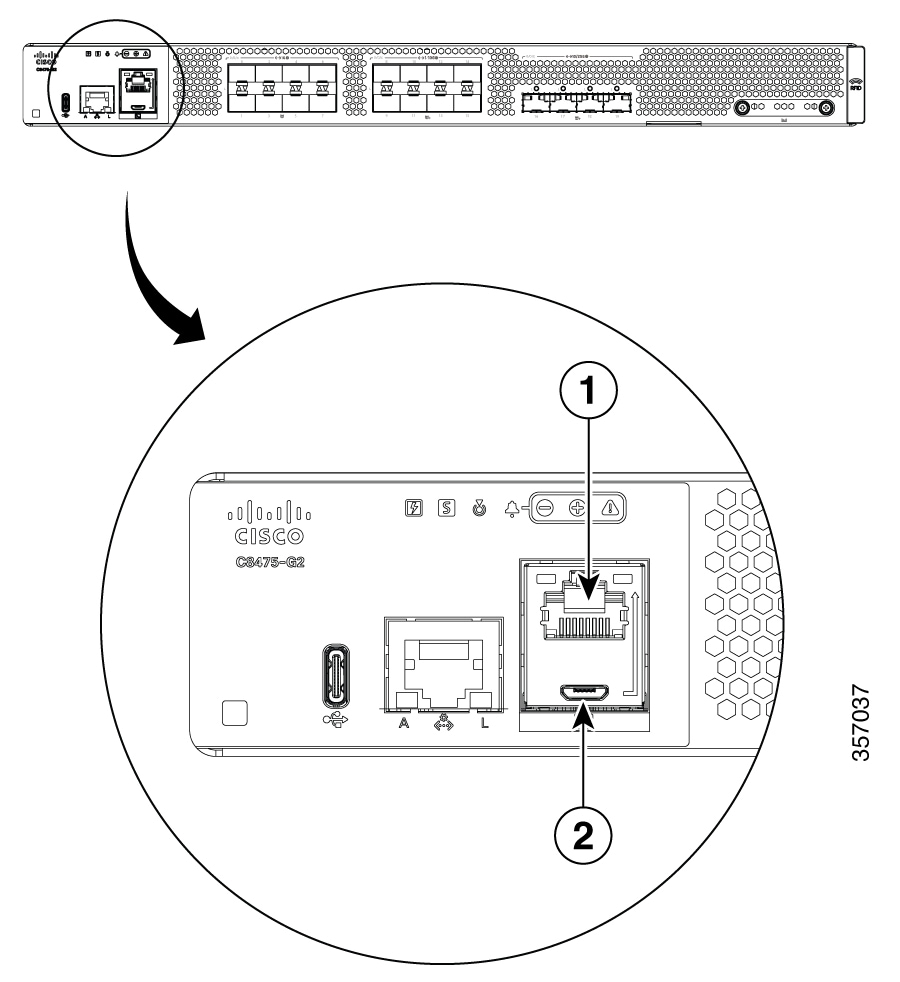
Figure 1. Ports
Table 1. Local and remote connections

Port Type

Cable

1. Serial (RJ-45)

EIA RJ-45

2. Serial (USB)

USB 5-pin micro USB Type-B-to-USB Type-A


Connect to the Console Port with Mac OS X

This procedure describes how to connect a Mac OS X system USB port to the console using the built in OS X Terminal utility.

Procedure

1.

Use the Finder to go to Applications > Utilities > Terminal.

2.

Connect the OS X USB port to the router.

3.

Enter the following commands to find the OS X USB port number

Example:


macbook:user$ cd /dev
macbook:user$ ls -ltr /dev/*usb*
crw-rw-rw-  1 root    wheel       9,  66 Apr  1 16:46 tty.usbmodem1a21 DT-macbook:dev user$
4.

Connect to the USB port with the following command followed by the router USB port speed

Example:


macbook:user$ screen /dev/tty.usbmodem1a21 9600

To disconnect the OS X USB console from the Terminal window

Enter Ctrl-a followed by Ctrl-\


Connect to the Console Port with Linux

This procedure shows how to connect a Linux system USB port to the console using the built in Linux Terminal utility.

Procedure

1.

Open the Linux Terminal window.

2.

Connect the Linux USB port to the router.

3.

Enter the following commands to find the Linux USB port number

Example:


root@usb-suse# cd /dev
root@usb-suse /dev# ls -ltr *ACM*
crw-r--r--    1 root     root     188,   0 Jan 14 18:02 ttyACM0
root@usb-suse /dev#
4.

Connect to the USB port with the following command followed by the router USB port speed

Example:


root@usb-suse /dev# screen /dev/ttyACM0 9600

To disconnect the Linux USB console from the Terminal window

Enter Ctrl-a followed by : then quit