プライベートクラウドでの Threat Defense Virtual のクラスタリングについて
ここでは、クラスタリング アーキテクチャとその動作について説明します。
クラスタをネットワークに適合させる方法
The cluster consists of multiple firewalls acting as a single device. To act as a cluster, the firewalls need the following infrastructure:
-
Isolated network for intra-cluster communication, known as the cluster control link, using VXLAN interfaces. VXLANs, which act as Layer 2 virtual networks over Layer 3 physical networks, let the Firewall Threat Defense Virtual send broadcast/multicast messages over the cluster control link.
-
Management access to each firewall for configuration and monitoring. The Firewall Threat Defense Virtual deployment includes a Management 0/0 interface that you will use to manage the cluster nodes.
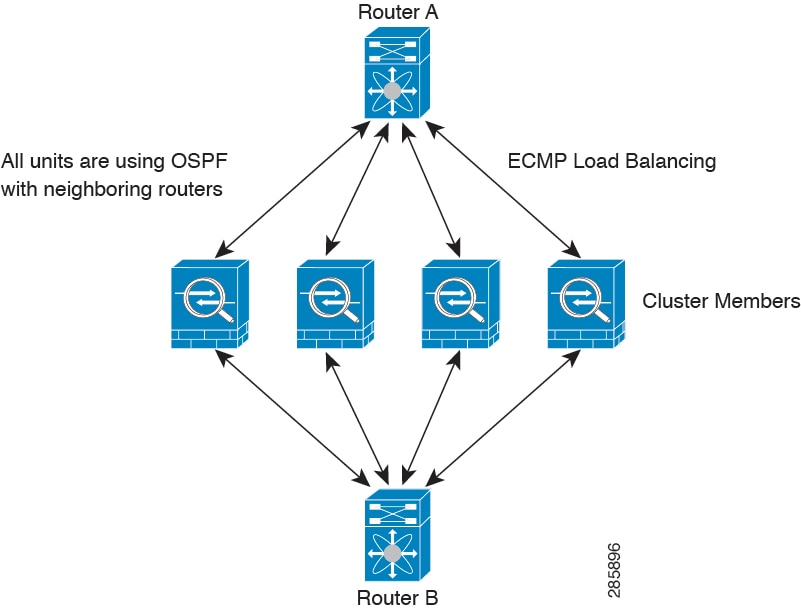
When you place the cluster in your network, the upstream and downstream routers need to be able to load-balance the data coming to and from the cluster using Layer 3 Individual interfaces and one of the following methods:
-
Policy-Based Routing—The upstream and downstream routers perform load balancing between nodes using route maps and ACLs.
-
Equal-Cost Multi-Path Routing—The upstream and downstream routers perform load balancing between nodes using equal cost static or dynamic routes.
 (注) |
Layer 2 Spanned EtherChannels are not supported. |
制御ノードとデータノードの役割
One member of the cluster is the control node. If multiple cluster nodes come online at the same time, the control node is determined by the priority setting; the priority is set between 1 and 100, where 1 is the highest priority. All other members are data nodes. When you first create the cluster, you specify which node you want to be the control node, and it will become the control node simply because it is the first node added to the cluster.
All nodes in the cluster share the same configuration. The node that you initially specify as the control node will overwrite the configuration on the data nodes when they join the cluster, so you only need to perform initial configuration on the control node before you form the cluster.
Some features do not scale in a cluster, and the control node handles all traffic for those features.
個々のインターフェイス
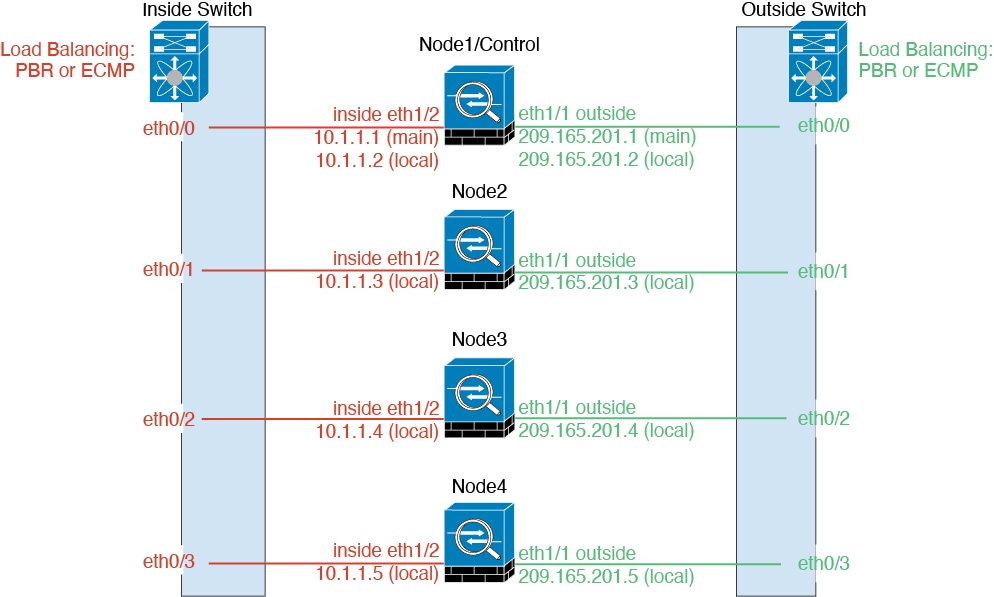
Individual interfaces are normal routed interfaces, each with their own Local IP address used for routing. The Main cluster IP address for each interface is a fixed address that always belongs to the control node. When the control node changes, the Main cluster IP address moves to the new control node, so management of the cluster continues seamlessly.
IPS-only interfaces (inline sets and passive interfaces) are not supported as Individual interfaces.
Because interface configuration must be configured only on the control node, you configure a pool of IP addresses to be used for a given interface on the cluster nodes, including one for the control node.
Load balancing must be configured separately on the upstream switch.
(注) |
Layer 2 Spanned EtherChannels are not supported. |
ポリシーベース ルーティング
When using Individual interfaces, each Firewall Threat Defense interface maintains its own IP address and MAC address. One method of load balancing is Policy-Based Routing (PBR).
We recommend this method if you are already using PBR, and want to take advantage of your existing infrastructure.
PBR makes routing decisions based on a route map and ACL. You must manually divide traffic between all Firewall Threat Defenses in a cluster. Because PBR is static, it may not achieve the optimum load balancing result at all times. To achieve the best performance, we recommend that you configure the PBR policy so that forward and return packets of a connection are directed to the same Firewall Threat Defense. For example, if you have a Cisco router, redundancy can be achieved by using Cisco IOS PBR with Object Tracking. Cisco IOS Object Tracking monitors each Firewall Threat Defense using ICMP ping. PBR can then enable or disable route maps based on reachability of a particular Firewall Threat Defense. See the following URLs for more details:
http://www.cisco.com/en/US/products/ps6599/products_white_paper09186a00800a4409.shtml
等コスト マルチパス ルーティング
When using Individual interfaces, each Firewall Threat Defense interface maintains its own IP address and MAC address. One method of load balancing is Equal-Cost Multi-Path (ECMP) routing.
We recommend this method if you are already using ECMP, and want to take advantage of your existing infrastructure.
ECMP routing can forward packets over multiple “best paths” that tie for top place in the routing metric. Like EtherChannel, a hash of source and destination IP addresses and/or source and destination ports can be used to send a packet to one of the next hops. If you use static routes for ECMP routing, then the Firewall Threat Defense failure can cause problems; the route continues to be used, and traffic to the failed Firewall Threat Defense will be lost. If you use static routes, be sure to use a static route monitoring feature such as Object Tracking. We recommend using dynamic routing protocols to add and remove routes, in which case, you must configure each Firewall Threat Defense to participate in dynamic routing.
クラスタ制御リンク
Each node must dedicate one interface as a VXLAN (VTEP) interface for the cluster control link. For more information about VXLAN, see VXLAN インターフェイスの設定.
VXLAN Tunnel Endpoint
VXLAN tunnel endpoint (VTEP) devices perform VXLAN encapsulation and decapsulation. Each VTEP has two interface types: one or more virtual interfaces called VXLAN Network Identifier (VNI) interfaces, and a regular interface called the VTEP source interface that tunnels the VNI interfaces between VTEPs. The VTEP source interface is attached to the transport IP network for VTEP-to-VTEP communication.
VTEP Source Interface
The VTEP source interface is a regular Firewall Threat Defense Virtual interface with which you plan to associate the VNI interface. You can configure one VTEP source interface to act as the cluster control link. The source interface is reserved for cluster control link use only. Each VTEP source interface has an IP address on the same subnet. This subnet should be isolated from all other traffic, and should include only the cluster control link interfaces.
VNI Interface
A VNI interface is similar to a VLAN interface: it is a virtual interface that keeps network traffic separated on a given physical interface by using tagging. You can only configure one VNI interface. Each VNI interface has an IP address on the same subnet.
Peer VTEPs
Unlike regular VXLAN for data interfaces, which allows a single VTEP peer, The Firewall Threat Defense Virtual clustering allows you to configure multiple peers.
クラスタ制御リンク トラフィックの概要
Cluster control link traffic includes both control and data traffic.
Control traffic includes:
-
Control node election.
-
Configuration replication.
-
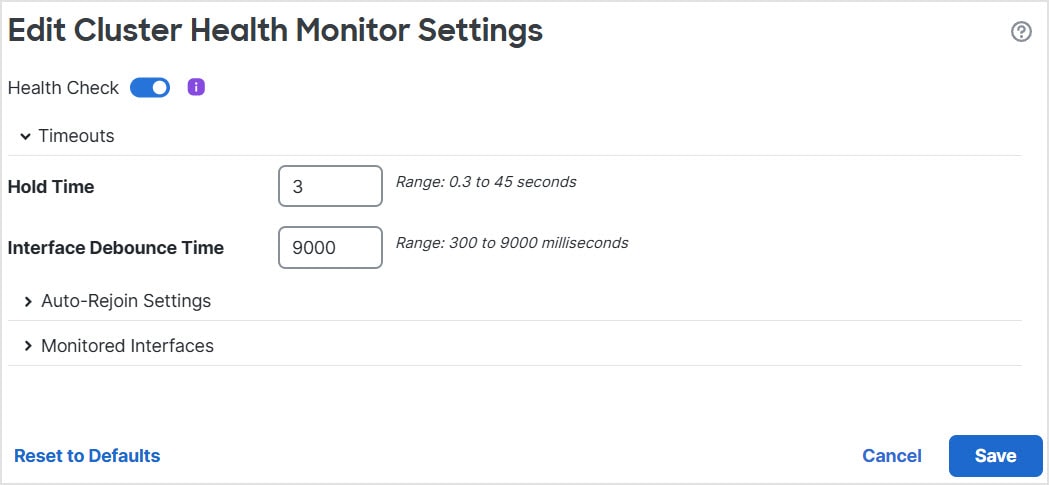
Health monitoring.
Data traffic includes:
-
State replication.
-
Connection ownership queries and data packet forwarding.
コンフィギュレーションの複製
All nodes in the cluster share a single configuration. You can only make configuration changes on the control node (with the exception of the bootstrap configuration), and changes are automatically synced to all other nodes in the cluster.
管理ネットワーク
管理インターフェイスを使用して各ノードを管理する必要があります。クラスタリングでは、データインターフェイスからの管理はサポートされていません。


![[クラスタの追加(Add Cluster)] ウィザード](/c/dam/en/us/td/i/400001-500000/480001-490000/486001-487000/486877.jpg)



![[クラスタの管理(Manage Cluster)] ウィザード](/c/dam/en/us/td/i/400001-500000/480001-490000/487001-488000/487955.jpg)
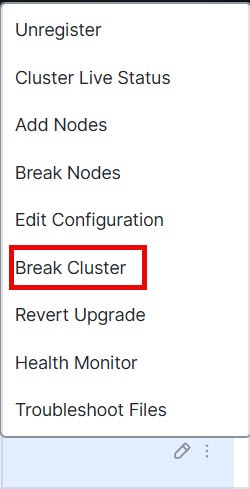
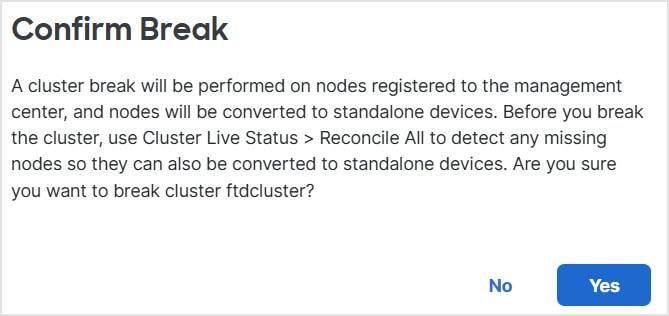
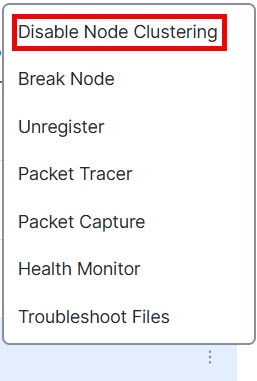

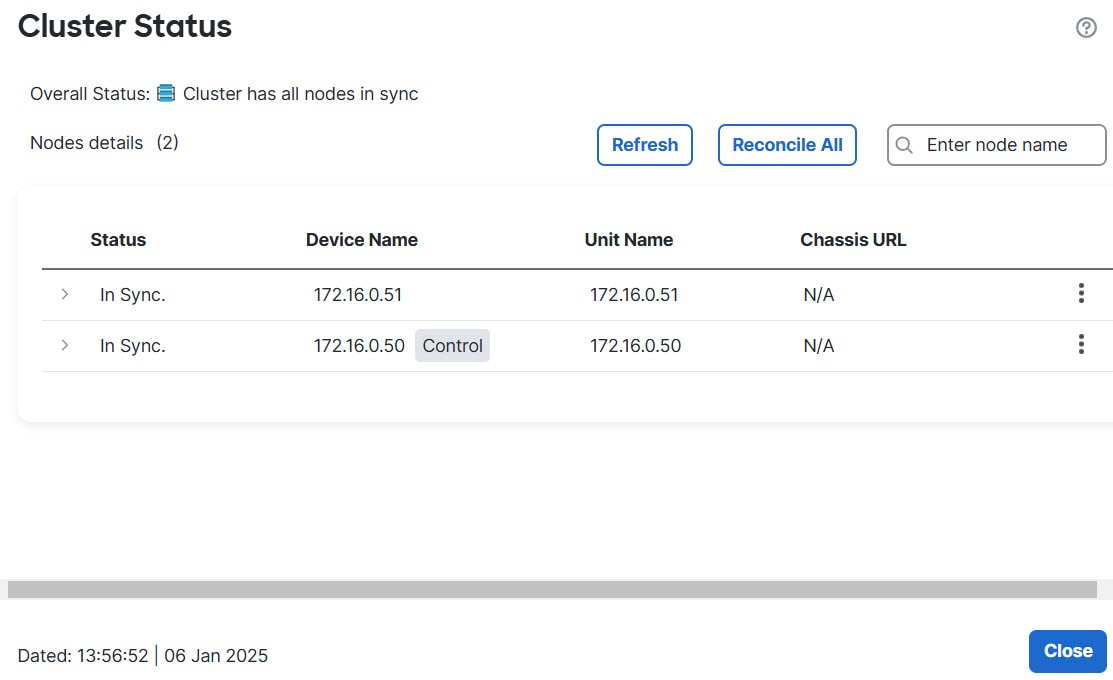
![[クラスタの管理(Manage Cluster)] ウィザード](/c/dam/en/us/td/i/400001-500000/480001-490000/488001-489000/488040.jpg)
![ノードの [概要(Summary)]](/c/dam/en/us/td/i/400001-500000/480001-490000/488001-489000/488046.jpg)
![ノードの [履歴(History)]](/c/dam/en/us/td/i/400001-500000/480001-490000/488001-489000/488047.jpg)


 フィードバック