高可用性

ここでは、アクティブ/スタンバイフェールオーバーを設定して、Firewall Threat Defense システムのハイアベイラビリティを実現する方法について説明します。

Secure Firewall Threat Defense のハイ アベイラビリティについて

フェールオーバーとも呼ばれるハイ アベイラビリティを設定するには、専用フェールオーバー リンク(および任意でステート リンク)を介して相互に接続された 2 台の同じ Firewall Threat Defense デバイスが必要です。Firewall Threat Defense はアクティブ/スタンバイ フェールオーバーをサポートしています。つまり 1 台のユニットがアクティブなユニットとなりトラフィックを渡します。スタンバイ装置は、アクティブにトラフィックを通過させることはありませんが、アクティブ装置の設定やその他の状態情報を同期しています。フェールオーバーが発生すると、アクティブ装置がスタンバイ装置にフェールオーバーし、そのスタンバイ装置がアクティブになります。

アクティブ装置(ハードウェア、インターフェイス、ソフトウェアおよび環境ステータス)の状態は、特定のフェールオーバー条件に一致しているかどうかを確認するためにモニターされます。所定の条件に一致すると、フェールオーバーが行われます。


(注)  


ハイ アベイラビリティは、パブリック クラウドで実行される Firewall Threat Defense Virtual ではサポートされていません。Firewall Threat Defense Virtual デバイスの高可用性設定の詳細については、Secure Firewall Threat Defense Virtual getting started guidesを参照してください。


High availability System Requirements

This section describes the hardware, software, and license requirements for Firewall Threat Defense devices in a High availability configuration.

Hardware Requirements

The two units in a High availability configuration must:

  • Be the same model. In addition, for container instances, they must use the same resource profile attributes.

    For the Firepower 9300, High Availability is only supported between same-type modules; but the two chassis can include mixed modules. For example, each chassis has an SM-56, SM-48, and SM-40. You can create High Availability pairs between the SM-56 modules, between the SM-48 modules, and between the SM-40 modules.

    If you change the resource profile after you add the High Availability pair to the Firewall Management Center, update the inventory for each unit on the Devices > Device Management > Device > System > Inventory dialog box.

    If you assign a different profile to instances in an established high-availability pair, which requires the profile to be the same on both units, you must:

    1. Break high availability.

    2. Assign the new profile to both units.

    3. Re-establish high availability.

  • Have the same number and types of interfaces.

    For the Firepower 4100/9300 chassis, all interfaces must be preconfigured in FXOS identically before you enable High availability. If you change the interfaces after you enable High availability, make the interface changes in FXOS on the Standby unit, and then make the same changes on the Active unit.

If you are using units with different flash memory sizes in your High availability configuration, make sure the unit with the smaller flash memory has enough space to accommodate the software image files and the configuration files. If it does not, configuration synchronization from the unit with the larger flash memory to the unit with the smaller flash memory will fail.

Software Requirements

The two units in a High availability configuration must:

  • Be in the same firewall mode (routed or transparent).

  • Have the same software version.

  • Be in the same domain or group on the Firewall Management Center.

  • Have the same NTP configuration. See Configure NTP Time Synchronization for Threat Defense.

  • Be fully deployed on the Firewall Management Center with no uncommitted changes.

  • Not have DHCP or PPPoE configured in any of their interfaces.

  • (Firepower 4100/9300) Have the same flow offload mode, either both enabled or both disabled.

高可用性ペアでの Firewall Threat Defense デバイスのライセンス要件

高可用性構成の両方の Firewall Threat Defense ユニットは、ライセンスが同じである必要があります。

高可用性構成には 2 つのライセンス資格(ペアの各デバイスに 1 つずつ)が必要です。

高可用性を確立する前に、どのライセンスがセカンダリ/スタンバイデバイスに割り当てられているかどうかは問題にはなりません。高可用性の設定中に、Firewall Management Center はスタンバイユニットに割り当てられている不要なライセンスをすべて削除し、プライマリ/アクティブユニットに割り当てられているのと同じライセンスで置き換えます。たとえば、アクティブユニットに Essentials ライセンスと IPS ライセンスが割り当てられており、スタンバイユニットに Essentials ライセンスのみが割り当てられている場合、Firewall Management Center は Cisco Smart Software Manager と通信して、アカウントからスタンバイユニット用に使用可能な IPS ラインセンスを取得します。ライセンスアカウントで十分な数の資格が購入されていなければ、正しい数のライセンスを購入するまで、アカウントは非準拠の状態になります。

Failover and Stateful Failover Links

The failover link and the optional stateful failover link are dedicated connections between the two units. Cisco recommends to use the same interface between two devices in a failover link or a stateful failover link. For example, in a failover link, if you have used eth0 in device 1, use the same interface (eth0) in device 2 as well.

Failover Link

The two units in a failover pair constantly communicate over a failover link to determine the operating status of each unit.

Failover Link Data

The following information is communicated over the failover link:

  • The unit state (active or standby)

  • Hello messages (keep-alives)

  • Network link status

  • MAC address exchange

  • Configuration replication and synchronization

Interface for the Failover Link

You can use an unused data interface (physical, or EtherChannel) as the failover link; however, you cannot specify an interface that is currently configured with a name. You also cannot use a subinterface with the exception of a subinterface defined on the chassis for multi-instance mode. The failover link interface is not configured as a normal networking interface; it exists for failover communication only. This interface can only be used for the failover link (and also for the state link).

The Firewall Threat Defense does not support sharing interfaces between user data and the failover link. You also cannot use separate subinterfaces on the same parent for the failover link and for data (multi-instance chassis subinterfaces only). If you use a chassis subinterface for the failover link, then all subinterfaces on that parent, and the parent itself, are restricted for use as failover links.


(注)  


When using an EtherChannel as the failover or state link, you must confirm that the same EtherChannel with the same member interfaces exists on both devices before establishing high availability.

See the following guidelines for the failover link:

  • Firepower 4100/9300—You cannot use the management-type interface for the failover link.

  • See the following guidelines for sizing the link.

    表 1. Failover Link Size

    Model

    Interface Size for Combined Failover and State Link

    Firepower 1010

    1 Gbps

    Firepower 1100

    1 Gbps

    Secure Firewall 1200

    1 Gbps

    Secure Firewall 3100

    Secure Firewall 3105—1 Gbps

    Secure Firewall 3110—1 Gbps

    Secure Firewall 3120—1 Gbps

    Secure Firewall 3130—10 Gbps

    Secure Firewall 3140—10 Gbps

    Firepower 4100

    10 Gbps

    Secure Firewall 4200

    10 Gbps

    Firepower 9300

    10 Gbps

The alternation frequency is equal to the unit hold time.


(注)  


If you have a large configuration and a low unit hold time, alternating between the member interfaces can prevent the secondary unit from joining/re-joining. In this case, disable one of the member interfaces until after the secondary unit joins.


For an EtherChannel used as the failover link, to prevent out-of-order packets, only one interface in the EtherChannel is used. If that interface fails, then the next interface in the EtherChannel is used. You cannot alter the EtherChannel configuration while it is in use as a failover link.

Connecting the Failover Link

Connect the failover link in one of the following two ways:

  • Using a switch, with no other device on the same network segment (broadcast domain or VLAN) as the failover interfaces of the Firewall Threat Defense device.

  • Using an Ethernet cable to connect the units directly, without the need for an external switch.

If you do not use a switch between the units, if the interface fails, the link is brought down on both peers. This condition may hamper troubleshooting efforts because you cannot easily determine which unit has the failed interface and caused the link to come down.

Stateful Failover Link

To use Stateful Failover, you must configure a Stateful Failover link (also known as the state link) to pass connection state information.

Shared with the Failover Link

Sharing a failover link is the best way to conserve interfaces. However, you must consider a dedicated interface for the state link and failover link, if you have a large configuration and a high traffic network.

Dedicated Interface for the Stateful Failover Link

You can use a dedicated data interface (physical or EtherChannel) for the state link. See Interface for the Failover Link for requirements for a dedicated state link, and Connecting the Failover Link for information about connecting the state link as well.

For optimum performance when using long distance failover, the latency for the state link should be less than 10 milliseconds and no more than 250 milliseconds. If latency is more than 10 milliseconds, some performance degradation occurs due to retransmission of failover messages.

フェールオーバーの中断の回避とデータ リンク

すべてのインターフェイスで同時に障害が発生する可能性を減らすために、フェールオーバー リンクとデータ インターフェイスは異なるパスを通すことを推奨します。フェールオーバー リンクがダウンしている場合、フェールオーバー動作は、フェールオーバー リンクが正常化するまで停止されます。

耐障害性のあるフェールオーバー ネットワークの設計については、次の接続シナリオを参照してください。

シナリオ 1:非推奨

単一のスイッチまたはスイッチ セットが 2 つの Firewall Threat Defense デバイス間のフェールオーバー インターフェイスとデータ インターフェイスの両方の接続に使用される場合、スイッチまたは Inter-Switch Link(ISL)がダウンすると、両方の Firewall Threat Defense デバイスがアクティブになります。したがって、次の図で示されている 2 つの接続方式は推奨しません

図 1. 単一のスイッチを使用した接続���非推奨

シングル スイッチを使用した接続。推奨しません。

図 2. 2 つのスイッチを使用した接続:非推奨

2 つのスイッチを使用した接続推奨しません。

シナリオ 2:推奨

フェールオーバー リンクには、データ インターフェイスと同じスイッチを使用しないことを推奨します。代わりに、次の図に示すように、異なるスイッチを使用するか直接ケーブルを使用して、フェールオーバー リンクを接続します。
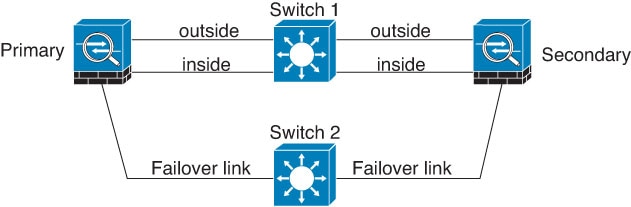
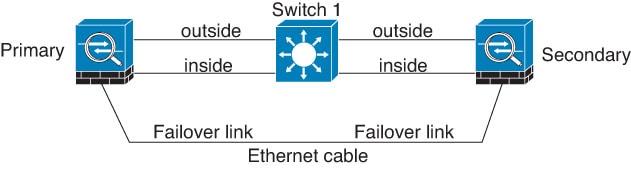
図 3. 異なるスイッチを使用した接続

異なるスイッチを使用した接続

図 4. ケーブルを使用した接続

ケーブルを使用した接続

シナリオ 3:推奨

Firewall Threat Defense データ インターフェイスが複数セットのスイッチに接続されている場合、フェールオーバー リンクはいずれかのスイッチに接続できます。できれば、次の図に示すように、ネットワークのセキュアな側(内側)のスイッチに接続します。
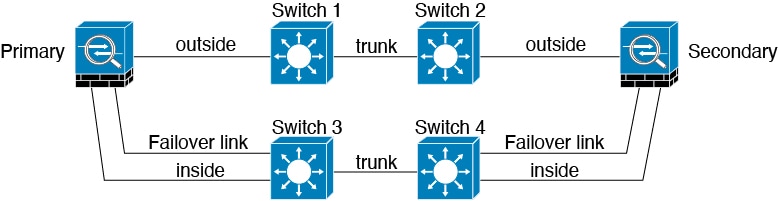
図 5. セキュアなスイッチを使用した接続

セキュア スイッチを使用した接続。

MAC Addresses and IP Addresses in High availability

When you configure your interfaces, you can specify an active IP address and a standby IP address on the same network. Generally, when a failover occurs, the new active unit takes over the active IP addresses and MAC addresses. Because network devices see no change in the MAC to IP address pairing, no ARP entries change or time out anywhere on the network.


(注)  


Although recommended, the standby address is not required. Without a standby IP address, the active unit cannot perform network tests to check the standby interface health; it can only track the link state. You also cannot connect to the standby unit on that interface for management purposes.


The IP address and MAC address for the state link do not change at failover.

Active/Standby IP Addresses and MAC Addresses

For Active/Standby High availability, see the following for IP address and MAC address usage during a failover event:

  1. The active unit always uses the primary unit's IP addresses and MAC addresses.

  2. When the active unit fails over, the standby unit assumes the IP addresses and MAC addresses of the failed unit and begins passing traffic.

  3. When the failed unit comes back online, it is now in a standby state and takes over the standby IP addresses and MAC addresses.

However, if the secondary unit boots without detecting the primary unit, then the secondary unit becomes the active unit and uses its own MAC addresses, because it does not know the primary unit MAC addresses. When the primary unit becomes available, the secondary (active) unit changes the MAC addresses to those of the primary unit, which can cause an interruption in your network traffic. Similarly, if you swap out the primary unit with new hardware, a new MAC address is used.

If you disable high availability and set the failover configurations to a disabled state, you will need to manually resume high availability, or reboot the device. It is recommended to use the command configure high-availability resume and resume the high availability instead of rebooting the device. If you reload the standby unit with the failover configuration disabled, the standby unit boots up as the active unit and uses the primary unit's IP addresses and MAC addresses. This leads to duplicate IP addresses and causes network traffic disruptions. Use the command configure high-availability resume to enable failover and restore the traffic flow.


(注)  


If you enable failover on a standalone device, the data interfaces go down at negotiation state of failover, interrupting traffic.


Virtual MAC addresses guard against this disruption, because the active MAC addresses are known to the secondary unit at startup, and remain the same in the case of new primary unit hardware. We recommend that you configure the virtual MAC address on both the primary and secondary units to ensure that the secondary unit uses the correct MAC addresses when it is the active unit, even if it comes online before the primary unit. If you do not configure virtual MAC addresses, you might need to clear the ARP tables on connected routers to restore traffic flow. The Firewall Threat Defense device does not send gratuitous ARPs for static NAT addresses when the MAC address changes, so connected routers do not learn of the MAC address change for these addresses.

Virtual MAC Addresses

The Firewall Threat Defense device has multiple methods to configure virtual MAC addresses. We recommend using only one method. If you set the MAC address using multiple methods, the MAC address used depends on many variables, and might not be predictable.

For multi-instance capability, the FXOS chassis autogenerates only primary MAC addresses for all interfaces. You can overwrite the generated MAC address with a virtual MAC address with both the primary and secondary MAC addresses, but predefining the secondary MAC address is not essential; setting the secondary MAC address does ensure that to-the-box management traffic is not interrupted in the case of new secondary unit hardware.

MAC Address Table Update in Failover

During failover, the device that is designated as the new active device generates multicast packets for each MAC address entry in the MAC table and sends them to all the bridge group interfaces. This action prompts the upstream switches in the bridge group to update their routing tables with the new active device's interface to ensure accurate traffic forwarding.

The time taken to generate multicast packets and update the routing tables of the upstream switches depends on the number of entries in the MAC address table and the number of bridge group interfaces. Use the show failover statistics state-switch-delay command to display statistics related to the delays encountered during failover events.

Stateful Failover

During Stateful Failover, the active unit continually passes per-connection state information to the standby unit. After a failover occurs, the same connection information is available at the new active unit. Supported end-user applications are not required to reconnect to keep the same communication session.

Supported Features

For Stateful Failover, the following state information is passed to the standby Firewall Threat Defense device:

  • NAT translation table.

  • TCP and UDP connections and states, including HTTP connection states. Other types of IP protocols, and ICMP, are not parsed by the active unit, because they get established on the new active unit when a new packet arrives.

  • Snort connection states, inspection results, and pin hole information, including strict TCP enforcement.

  • The ARP table

  • The Layer 2 bridge table (for bridge groups)

  • The ISAKMP and IPsec SA table

  • GTP PDP connection database

  • SIP signaling sessions and pin holes.

  • Static and dynamic routing tables—Stateful Failover participates in dynamic routing protocols, like OSPF and EIGRP, so routes that are learned through dynamic routing protocols on the active unit are maintained in a Routing Information Base (RIB) table on the standby unit. Upon a failover event, packets travel normally with minimal disruption to traffic because the active secondary unit initially has rules that mirror the primary unit. Immediately after failover, the re-convergence timer starts on the newly active unit. Then the epoch number for the RIB table increments. During re-convergence, OSPF and EIGRP routes become updated with a new epoch number. Once the timer is expired, stale route entries (determined by the epoch number) are removed from the table. The RIB then contains the newest routing protocol forwarding information on the newly active unit.


    (注)  


    Routes are synchronized only for link-up or link-down events on an active unit. If the link goes up or down on the standby unit, dynamic routes sent from the active unit may be lost. This is normal, expected behavior.


  • DHCP Server—DHCP address leases are not replicated. However, a DHCP server configured on an interface will send a ping to make sure an address is not being used before granting the address to a DHCP client, so there is no impact to the service. State information is not relevant for DHCP relay or DDNS.

  • Access control policy decisions—Decisions related to traffic matching (including URL, URL category, geolocation, and so forth), intrusion detection, malware, and file type are preserved during failover. However, for connections being evaluated at the moment of failover, there are the following caveats:

    • AVC—App-ID verdicts are replicated, but not detection states. Proper synchronization occurs as long as the App-ID verdicts are complete and synchronized before failover occurs.

    • Intrusion detection state—Upon failover, once mid-flow pickup occurs, new inspections are completed, but old states are lost.

    • File malware blocking—The file disposition must become available before failover.

    • File type detection and blocking—The file type must be identified before failover. If failover occurs while the original active device is identifying the file, the file type is not synchronized. Even if your file policy blocks that file type, the new active device downloads the file.

  • User identity decisions from the identity policy, including the user-to-IP address mappings gathered passively through ISE Session Directory, and active authentication through captive portal. Users who are actively authenticating at the moment of failover might be prompted to authenticate again.

  • Network AMP—Cloud lookups are independent from each device, so failover does not affect this feature in general. Specifically:

    • Signature Lookup—If failover occurs in the middle of a file transmission, no file event is generated and no detection occurs.

    • File Storage—If failover occurs when the file is being stored, it is stored on the original active device. If the original active device went down while the file was being stored, the file does not get stored.

    • File Pre-classification (Local Analysis)—If failover occurs in the middle of pre-classification, detection fails.

    • File Dynamic Analysis (Connectivity to the cloud)—If failover occurs, the system might submit the file to the cloud.

    • Archive File Support—If failover occurs in the middle of an analysis, the system loses visibility into the file/archive.

    • Custom Blocking—If failover occurs, no events are generated.

  • Security Intelligence decisions. However, DNS-based decisions that are in process at the moment of failover are not completed.

  • RA VPN—Remote access VPN end users do not have to reauthenticate or reconnect the VPN session after a failover. However, applications operating over the VPN connection could lose packets during the failover process and not recover from the packet loss.

  • From all the connections, only established ones will be replicated on the Standby device.

Unsupported Features

For Stateful Failover, the following state information is not passed to the standby Firewall Threat Defense device:

  • Sessions in plaintext tunnels other than GREv0 and IPv4-in-IP. Sessions inside tunnels are not replicated and the new active node will not be able to reuse existing inspection verdicts to match the correct policy rules.

  • Decrypted TLS/SSL connections—The decryption states are not synchronized, and if the active unit fails, then decrypted connections will be reset. New connections will need to be established to the new active unit. Connections that are not decrypted (in other words, those that match a TLS/SSL Do Not Decrypt rule action) are not affected and are replicated correctly.

  • Multicast routing.

ハイ アベイラビリティのためのブリッジ グループの要件

ブリッジ グループを使用する場合は、ハイ アベイラビリティに関して特別な考慮事項があります。

アクティブ装置がスタンバイ装置にフェールオーバーするときに、スパニング ツリー プロトコル(STP)を実行しているスイッチ ポートは、トポロジ変更を検出すると 30 ~ 50 秒間ブロッキング状態に移行できます。ポートがブロッキング状態の間のブリッジ グループ メンバー インターフェイスでのトラフィックの損失を回避するために、次の回避策のいずれかを設定できます。

  • アクセス モードのスイッチ ポート:スイッチで STP PortFast 機能を有効にします。

    
    interface interface_id
      spanning-tree portfast


    PortFast 機能を設定すると、リンクアップと同時にポートが STP フォワーディング モードに遷移します。ポートは STP に参加し続けます。したがって、ポートがループの一部になる場合、最終的には STP ブロッキング モードに遷移します。

  • スイッチ ポートがトランク モードになっている場合、または STP PortFast を有効にできない場合は、フェールオーバー機能または STP の安定性に影響を与える、次のあまり望ましくない回避策のいずれかを使用できます。

    • ブリッジ グループおよびメンバー インターフェイスでインターフェイス モニタリングを無効にします。

    • フェールオーバー基準のインターフェイス保留時間を、ユニットがフェールオーバーする前に STP が収束できる大きな値に増やします。

    • スイッチの STP タイマーを短くして、STP がインターフェイス保留時間よりも早く収束できるようにします。

Failover Health Monitoring

The Firewall Threat Defense device monitors each unit for overall health and for interface health. This section includes information about how the Firewall Threat Defense device performs tests to determine the state of each unit.

Unit Health Monitoring

The Firewall Threat Defense device determines the health of the other unit by monitoring the failover link with hello messages. When a unit does not receive three consecutive hello messages on the failover link, the unit sends LANTEST messages on each data interface, including the failover link, to validate whether or not the peer is responsive. The action that the Firewall Threat Defense device takes depends on the response from the other unit. See the following possible actions:

  • If the Firewall Threat Defense device receives a response on the failover link, then it does not fail over.

  • If the Firewall Threat Defense device does not receive a response on the failover link, but it does receive a response on a data interface, then the unit does not failover. The failover link is marked as failed. You should restore the failover link as soon as possible because the unit cannot fail over to the standby while the failover link is down.

  • If the Firewall Threat Defense device does not receive a response on any interface, then the standby unit switches to active mode and classifies the other unit as failed.


(注)  


During a high-availability failover event, the Firewall Threat Defense device device may briefly appear as Offline in the device's health monitoring dashboard. This happens because health alerts are cleared during the process and are only updated after the process is complete. Wait for the failover operation to finish.


Heartbeat Module Redundancy

Each unit in the HA periodically sends a broadcast keepalive heartbeat packet over the cluster control link. If the control plane is too busy handling traffic, sometimes the heartbeat packets do not reach the peers, or the peers do not process the heartbeat packets due to CPU overloading. When peers cannot communicate the keepalive status within the configurable timeout period, a false failover or split-brain scenario occurs.

The heartbeat module in the data plane helps to avoid the occurrence of false failover or split-brain due to traffic congestion in the control plane.

  • The additional heartbeat module works similarly to the control plane module but sends and receives heartbeat messages using the data plane transport infrastructure.

  • When the peer receives heartbeat packets in the data plane, a counter gets incremented.

  • If the heartbeat transfer in the control plane fails, the node checks the heartbeat counter in the data plane. If the counter is incrementing, then the peer is alive, and the cluster does not perform a failover in this situation.


(注)  


  • The additional heartbeat module is enabled by default whenever HA is enabled. You do not have to set a poll interval for the additional heartbeat module in the data plane. This module uses the same heartbeat interval that you set for the control plane.


Interface Monitoring

When a unit does not receive hello messages on a monitored interface for 15 seconds, it runs interface tests. If one of the interface tests fails for an interface, but this same interface on the other unit continues to successfully pass traffic, then the interface is considered to be failed, and the device stops running tests.

If the threshold you define for the number of failed interfaces is met (see Devices > Device Management, and then High Availability > Failover Trigger Criteria), and the active unit has more failed interfaces than the standby unit, then a failover occurs. If an interface fails on both units, then both interfaces go into the “Unknown” state and do not count towards the failover limit defined by failover interface policy.

An interface becomes operational again if it receives any traffic. A failed device returns to standby mode if the interface failure threshold is no longer met.

If an interface has IPv4 and IPv6 addresses configured on it, the device uses the IPv4 addresses to perform the health monitoring. If an interface has only IPv6 addresses configured on it, then the device uses IPv6 neighbor discovery instead of ARP to perform the health monitoring tests. For the broadcast ping test, the device uses the IPv6 all nodes address (FE02::1).

Interface Tests

The Firewall Threat Defense device uses the following interface tests. The duration of each test is approximately 1.5 seconds.

  1. Link Up/Down test—A test of the interface status. If the Link Up/Down test indicates that the interface is down, then the device considers it failed, and testing stops. If the status is Up, then the device performs the Network Activity test.

  2. Network Activity test—A received network activity test. At the start of the test, each unit clears its received packet count for its interfaces. As soon as a unit receives any eligible packets during the test, then the interface is considered operational. If both units receive traffic, then testing stops. If one unit receives traffic and the other unit does not, then the interface on the unit that does not receive traffic is considered failed, and testing stops. If neither unit receives traffic, then the device starts the ARP test.

  3. ARP test—A test for successful ARP replies. Each unit sends a single ARP request for the IP address in the most recent entry in its ARP table. If the unit receives an ARP reply or other network traffic during the test, then the interface is considered operational. If the unit does not receive an ARP reply, then the device sends a single ARP request for the IP address in the next entry in the ARP table. If the unit receives an ARP reply or other network traffic during the test, then the interface is considered operational. If both units receive traffic, then testing stops. If one unit receives traffic, and the other unit does not, then the interface on the unit that does not receive traffic is considered failed, and testing stops. If neither unit receives traffic, then the device starts the Broadcast Ping test.

  4. Broadcast Ping test—A test for successful ping replies. Each unit sends a broadcast ping, and then counts all received packets. If the unit receives any packets during the test, then the interface is considered operational. If both units receive traffic, then testing stops. If one unit receives traffic, and the other unit does not, then the interface on the unit that does not receive traffic is considered failed, and testing stops. If neither unit receives traffic, then testing starts over again with the ARP test. If both units continue to receive no traffic from the ARP and Broadcast Ping tests, then these tests will continue running in perpetuity.

Interface Status

Monitored interfaces can have the following status:

  • Unknown—Initial status. This status can also mean the status cannot be determined.

  • Normal—The interface is receiving traffic.

  • Normal (Waiting)—The interface is up, but has not yet received a hello packet from the corresponding interface on the peer unit.

  • Normal (Not-Monitored)—The interface is up, but is not monitored by the failover process.

  • Testing—Hello messages are not heard on the interface for five poll times.

  • Link Down—The interface or VLAN is administratively down.

  • Link Down (Waiting)—The interface or VLAN is administratively down and has not yet received a hello packet from the corresponding interface on the peer unit.

  • Link Down (Not-Monitored)—The interface or VLAN is administratively down, but is not monitored by the failover process.

  • No Link—The physical link for the interface is down.

  • No Link (Waiting)—The physical link for the interface is down and has not yet received a hello packet from the corresponding interface on the peer unit.

  • No Link (Not-Monitored)—The physical link for the interface is down, but is not monitored by the failover process.

  • Failed—No traffic is received on the interface, yet traffic is heard on the peer interface.

Failover Triggers and Detection Timing

The following events trigger failover in a Firepower high availability pair:

  • More than 50% of the Snort instances on the active unit are down.

  • Disk space on the active unit is more than 90% full.

  • The no failover active command is run on the active unit or the failover active command is run on the standby unit.

  • The active unit has more failed interfaces than the standby unit.

  • Interface failure on the active device exceeds the threshold configured.

    By default, failure of a single interface causes failover. You can change the default value by configuring a threshold for the number of interfaces or a percentage of monitored interfaces that must fail for the failover to occur. If the threshold breaches on the active device, failover occurs. If the threshold breaches on the standby device, the unit moves to Fail state.

    To change the default failover criteria, enter the following command in global configuration mode:

    表 2.

    Command

    Purpose

    failover interface-policy num [%]

    hostname (config)# failover interface-policy 20%

    Changes the default failover criteria.

    When specifying a specific number of interfaces, the num argument can be from 1 to 250.

    When specifying a percentage of interfaces, the num argument can be from 1 to 100.

The following table shows the failover triggering events and associated failure detection timing. If failover occurs, you can view the reason for the failover in the Message Center, along with various operations pertaining to the high availability pair. You can configure these thresholds to a value within the specified minimum-maximum range.

表 3. Firewall Threat Defense Failover Times

Failover Triggering Event

Minimum

Default

Maximum

Active unit loses power, hardware goes down, or the software reloads or crashes. When any of these occur, the monitored interfaces or failover link do not receives any hello message.

800 milliseconds

15 seconds

45 seconds

Active unit interface physical link down.

500 milliseconds

5 seconds

15 seconds

Active unit interface up, but connection problem causes interface testing.

5 seconds

25 seconds

75 seconds

About Active/Standby Failover

Active/Standby failover lets you use a standby Firewall Threat Defense device to take over the functionality of a failed unit. When the active unit fails, the standby unit becomes the active unit.

Primary/Secondary Roles and Active/Standby Status

When setting up Active/Standby failover, you configure one unit to be primary and the other to be secondary. During configuration, the primary unit's policies are synchronized to the secondary unit. At this point, the two units act as a single device for device and policy configuration. However, for events, dashboards, reports and health monitoring, they continue to display as separate devices.

The main differences between the two units in a failover pair are related to which unit is active and which unit is standby, namely which IP addresses to use and which unit actively passes traffic.

However, a few differences exist between the units based on which unit is primary (as specified in the configuration) and which unit is secondary:

  • The primary unit always becomes the active unit if both units start up at the same time (and are of equal operational health).

  • The primary unit MAC addresses are always coupled with the active IP addresses. The exception to this rule occurs when the secondary unit becomes active and cannot obtain the primary unit MAC addresses over the failover link. In this case, the secondary unit MAC addresses are used.

Active Unit Determination at Startup

The active unit is determined by the following:

  • If a unit boots and detects a peer already running as active, it becomes the standby unit.

  • If a unit boots and does not detect a peer, it becomes the active unit.

  • If both units boot simultaneously, then the primary unit becomes the active unit, and the secondary unit becomes the standby unit.

Failover Events

In Active/Standby failover, failover occurs on a unit basis.

The following table shows the failover action for each failure event. For each failure event, the table shows the failover policy (failover or no failover), the action taken by the active unit, the action taken by the standby unit, and any special notes about the failover condition and actions.

表 4. Failover Events

Failure Event

Policy

Active Unit Action

Standby Unit Action

Notes

Active unit failed (power or hardware)

Failover

n/a

Become active

Mark active as failed

No hello messages are received on any monitored interface or the failover link.

Formerly active unit recovers

No failover

Become standby

No action

None.

Standby unit failed (power or hardware)

No failover

Mark standby as failed

n/a

When the standby unit is marked as failed, then the active unit does not attempt to fail over, even if the interface failure threshold is surpassed.

Failover link failed during operation

No failover

Mark failover link as failed

Mark failover link as failed

You should restore the failover link as soon as possible because the unit cannot fail over to the standby unit while the failover link is down.

Failover link failed at startup

No failover

Become active

Mark failover link as failed

Become active

Mark failover link as failed

If the failover link is down at startup, both units become active.

State link failed

No failover

No action

No action

State information becomes out of date, and sessions are terminated if a failover occurs.

Interface failure on active unit above threshold

Failover

Mark active as failed

Become active

None.

Interface failure on standby unit above threshold

No failover

No action

Mark standby as failed

When the standby unit is marked as failed, then the active unit does not attempt to fail over even if the interface failure threshold is surpassed.

Config-Sync Optimization

When a device reboots or rejoins following a suspend or resume high availability, the joining device clears its running configuration. The active device then sends its entire configuration to the joining device for a full configuration synchronization. If the active device has a large configuration, this process can take several minutes.

The configuration sync optimization functionality enables comparing the configuration of the joining device and the active device by exchanging configuration hash values. If the hash computed on both active and joining devices match, the joining device skips full configuration synchronization and rejoin the high availability configuration. This functionality ensures faster peering and reduces maintenance window and upgrade time.

Guidelines and Limitations of Config-Sync Optimization

  • The configuration sync optimization functionality is enabled by default.

  • Firewall Threat Defense multiple context mode supports configuration sync optimization by sharing the context order during full configuration synchronization, allowing comparison of context order during subsequent node-rejoin.

  • If you configure passphrase and failover IPsec key, then configuration sync optimization is not effective as the hash value computed in the active and standby devices differs.

  • If you configure the device with dynamic ACL or SNMPv3, configuration sync optimization is not effective.

  • Active device synchronizes full configuration with flapping LAN links as default behavior. During failover flaps between active and standby devices, configuration sync optimization is not triggered and devices perform a full configuration synchronization.

  • Configuration sync optimization gets triggered when the high availability configuration recovers from an interruption or loss of network communication between the active and standby devices.

Monitoring Config-Sync Optimization

When configuration sync optimization functionality is enabled, syslog messages are generated displaying whether the hash values computed on the active and joining unit match, does not match, or if the operation timeout expires. The syslog message also displays the time elapsed, from the time of sending the hash request to the time of getting and comparing the hash response.


(注)  


The Configuration State in show failover state command displays the config sync state status during HA joining. This state does not reflect the later config deployments or changes, and replication on device until a resync has been initiated.


ハイアベイラビリティの要件と前提条件

Model support

Secure Firewall Threat Defense

Supported domains

Any

User roles

Admin

Network Admin

Guidelines for High availability

Model Support

  • 1010/1210/ 1220:

    • You should not use the switch port functionality when using High availability. Because the switch ports operate in hardware, they continue to pass traffic on both the active and the standby units. High availability is designed to prevent traffic from passing through the standby unit, but this feature does not extend to switch ports. In a normal High availability network setup, active switch ports on both units will lead to network loops. We suggest that you use external switches for any switching capability. Note that VLAN interfaces can be monitored by failover, while switch ports cannot. Though Firewall Management Center allows you to configure switch ports / VLAN interfaces in HA, it may lead to misconfiguration due to network loops when connecting to external switches.

    • You can only use a firewall interface as the failover link.

  • Firepower 9300—Intra-chassis High Availability is not supported.

  • The Firewall Threat Defense Virtual on public cloud networks such as Microsoft Azure and Amazon Web Services are not supported with High availability because Layer 2 connectivity is required.

Additional Guidelines

  • When the active unit fails over to the standby unit, the connected switch port running Spanning Tree Protocol (STP) can go into a blocking state for 30 to 50 seconds when it senses the topology change. To avoid traffic loss while the port is in a blocking state, you can enable the STP PortFast feature on the switch:

    interface interface_id spanning-tree portfast

    This workaround applies to switches connected to both routed mode and bridge group interfaces. The PortFast feature immediately transitions the port into STP forwarding mode upon linkup. The port still participates in STP. So if the port is to be a part of the loop, the port eventually transitions into STP blocking mode.

  • Configuring port security on the switches connected to the Firewall Threat Defense device failover pair can cause communication problems when a failover event occurs. This problem occurs when a secure MAC address configured or learned on one secure port moves to another secure port, a violation is flagged by the switch port security feature.

  • For Active/Standby High availability and a VPN IPsec tunnel, you cannot monitor both the active and standby units using SNMP over the VPN tunnel. The standby unit does not have an active VPN tunnel, and will drop traffic destined for the NMS. You can instead use SNMPv3 with encryption so the IPsec tunnel is not required.

  • Both the peer devices go into unknown state and high-availability configuration fails if you run clish in any of the peer devices while creating a High Availability pair.

  • Immediately after failover, the source address of syslog messages will be the failover interface address for a few seconds.

  • For better convergence (during a failover), you must shut down the interfaces on a HA pair that are not associated with any configuration or instance.

  • In high availability deployments with a shared failover and state interfaces, if the connectivity over failover interface fails while the standby unit is in sync config state, and eventually when the standby unit switches to active state, it results in a split brain. This is observed even when there is a monitored interface.

    The connectivity over failover interface can fail in the following situations:

    • After the standby unit reboots, the connectivity over failover interface fails while the standby unit is in sync config state.

    • After enabling previously disabled failover on the standby unit, the connectivity over failover interface fails while the standby unit is in sync config state.

    To avoid split brain, use failover and state interfaces. If the connectivity failures over the failover interfaces persist, isolate the new active (previously standby) unit from the network.

  • If you configure failover encryption in evaluation mode, the systems use DES for the encryption. If you then register the devices using an export-compliant account, the devices will use AES after a reboot. Thus, if a system reboots for any reason, including after installing an upgrade, the peers will be unable to communicate and both units will become the active unit. We recommend that you do not configure encryption until after you register the devices. If you do configure this in evaluation mode, we recommend you remove the encryption before registering the devices.

  • When using SNMPv3 with failover, if you replace a failover unit, then SNMPv3 users are not replicated to the new unit. You must remove the users, re-add them, and then redeploy your configuration to force the users to replicate to the new unit.

  • The device does not share SNMP client engine data with its peer.

  • If you have a very large number of access control and NAT rules, the size of the configuration can prevent efficient configuration replication, resulting in the standby unit taking an excessively long time to reach standby ready state. This can also impact your ability to connect to the standby unit during replication through the console or SSH session. To enhance configuration replication performance, enable transactional commit for both access rules and NAT, using the asp rule-engine transactional-commit access-group and asp rule-engine transactional-commit nat commands.

  • A unit in a High availability pair transitioning to the standby role synchronizes its clock with the active unit.

    Example:

    firepower#show clock
    01:00:52 UTC Mar 1 2022
    
    ...
    01:01:18 UTC Mar 1 2022 <======= Incorrect (previous) clock
    Cold Standby               Sync Config                Detected an Active mate
    
    19:38:21 UTC Apr 9 2022 <======= Updated clock
    Sync Config                Sync File System           Detected an Active mate
    ...
    firepower/sec/stby#show clock
    19:38:40 UTC Apr 9 2022
  • The units in High availability do not dynamically synchronize the clock. Here are some examples of events when synchronization takes place:

    • A new High availability pair is created.

    • High availability is broken and re-created.

    • Communication over the failover link was disrupted and reestablished.

    • Failover status was manually changed at the CLI using the no failover/failover or configure high-availability suspend/resume (Firewall Threat Defense) commands.

  • Enabling High availability forces all routes to be deleted and are re-added after the High availability progression changes to the Active state. You could experience connection loss during this phase.

  • If you replace the primary unit, then when you re-create high-availability, you should set the replacement unit as the secondary unit so that the configurations are replicated from the former secondary unit to the replacement unit. If you set the replacement unit as primary, you will accidentally overwrite the configuration that is present on the operational unit.

  • Configure identical strong encryption on both Threat Defense devices before forming the High availability. If they are non-identical, the HA peers may enter a split-brain state.

  • Deploying Firepower 1100 devices in high availability with hundreds of interfaces configured on them can result in increased delay in the failover time (seconds).

  • In the High availability configuration, short-lived connections, usually using port 53, are closed quickly and never transferred or synchronized from Active to Standby, so there might be a difference in the number of connections on both High availability devices. This is expected behavior for short-lived connections. You can try to compare the connections that are long-lived ( for example, more than 30-60 seconds).

  • In the High availability configuration, embryonic connections—connection requests that have not yet completed the three-way handshake process—are closed quickly and not synchronized between the active and standby devices. This design ensures HA system efficiency and security. For this reason, there might be a difference in the number of connections on both High availability devices, which is to be expected.

  • If the failover LAN link is not connected back-to-back and instead connected through one or more switches, a failure within the intermediate path can cause the active unit to lose connectivity with the standby unit, resulting in inconsistent active/standby states. Although this does not impact High availability functionality, it is recommended to check and recover the failover-link path between the active and standby units.

    When the failover LAN link is down, it is not recommended to deploy any configuration, as it may not be replicated to the peer unit.

  • See the Secure Firewall Threat Defense Virtual getting started guides and review your Firewall Threat Defense Virtual device configurations for high availability.

  • In OSPF, after a failover, the OSPF connection with the peer device becomes invalid. Terminate the invalid connection, and then establish a new OSPF connection.

  • In transparent mode, if you have problems with the active unit losing the MAC address of the hot-standby router (HSRP), create a static mapping for the MAC address.

  • UCAPL or CC compliance mode cannot be changed if the threat defense device is in high availability. Modify the compliance mode before forming the high availability pair.

ハイ アベイラビリティ ペアの追加

アクティブ/スタンバイのハイアベイラビリティペアを確立するには、一方のデバイスをプライマリ、他方をセカンダリとして指定します。Firewall Management Center は、マージした設定をペア内のデバイスに展開します。競合がある場合は、プライマリデバイスの設定が使用されます。

マルチドメイン展開では、ハイ アベイラビリティ ペアのデバイスは同じドメインに属している必要があります。


(注)  


フェールオーバーリンクとステートフル フェールオーバー リンクはプライベート IP スペースにあり、ハイアベイラビリティペアのピア間の通信にのみ使用されます。ハイアベイラビリティが確立された後に、選択したインターフェイスリンクと暗号化設定の変更を行うと、ハイアベイラビリティペアが壊れ、再設定が必要になります。


注意    


ハイアベイラビリティペアを作成または破棄すると、プライマリデバイスとセカンダリデバイスで Snort プロセスがただちに再起動され、両方のデバイスのトラフィック インスペクションが一時的に中断されます。 この中断中にトラフィックがドロップされるか、それ以上インスペクションが行われずに受け渡されるかは、割り当てられたデバイスがトラフィックを処理する方法に応じて異なります。詳細はSnort の再起動によるトラフィックの動作を参照してください。ハイアベイラビリティペアの作成を続けると、プライマリデバイスとセカンダリデバイスで Snort プロセスが再起動され、キャンセルすることができるという警告が表示されます。


始める前に

以下の点について両方のデバイスを確認してください。

  • 同じモデルであること。

  • インターフェイスの数とタイプが同じであること。

  • ドメインおよびグループが同じであること。

  • 通常のヘルス ステータスであり、同じソフトウェアを実行していること。

  • ルーティングされているか、またはトランスペアレント モードであること。


    (注)  


    データインターフェイスのマネージャアクセスでは、ルーテッドモードのみがサポートされること。


  • NTP 設定が同じであること。時刻の同期を参照してください。

  • 未確定の変更がない状態で、完全に展開されていること。

  • すべてのインターフェイスで DHCP または PPPoE が設定されていないこと。

  • データインターフェイスのマネージャアクセスの場合:

    • マネージャアクセスには、両方のデバイスで同じデータインターフェイスを使用します。

    • DHCP は使用できません。静的 IP アドレスのみがサポートされています。DDNS や zero-touch provisioning など、DHCP に依存する機能は使用できません。


      (注)  


      zero-touch provisioningを使用してデバイスを登録する場合は、マネージャアクセス用に外部インターフェイスを使用すると、デフォルトで DHCP が使用されます。高可用性を有効にする前に、IP アドレスを静的アドレスに変更する必要があります。 デバイス IP アドレスの変更を参照してください。または、代わりに管理インターフェイスを使用することができます。高可用性を備えた管理で DHCP がサポートされます。


    • 同じサブネット内に異なる静的 IP アドレスがあります。

    • 同じマネージャ設定(configure manager add コマンド)を使用して、接続が同じであることを確認します。

    • データインターフェイスをフェールオーバーリンクまたはステートリンクとして使用することはできません。


(注)  


プライマリデバイスで利用可能な証明書がセカンダリデバイスに存在しない場合は、2 台の Firewall Threat Defense デバイス間でハイアベイラビリティを構成することができます。ハイアベイラビリティが構成されると、証明書がセカンダリデバイス上で同期されます。


手順


ステップ 1

Management Center への登録 に従って、両方のデバイスを Firewall Management Center に追加します。

ステップ 2

Devices > Device Managementを選択します。

ステップ 3

[追加(Add)] ドロップダウンメニューから、[高可用性(High Availability)] を選択します。

ステップ 4

ハイアベイラビリティペアの表示用の [名前(Name)] を入力してください。

ステップ 5

ハイアベイラビリティペアの [プライマリピア(Primary Peer)] デバイスを選択します。

ステップ 6

ハイアベイラビリティペアの [セカンダリピア(Secondary Peer)] デバイスを選択します。

ステップ 7

[続行(Continue)] をクリックします。

ステップ 8

[LANフェールオーバーリンク(LAN Failover Link)] では、フェールオーバーの通信のための十分な帯域幅の [インターフェイス(Interface)] を選択します。

(注)  


論理名がなくセキュリティゾーンに属さないインターフェイスのみが、[ハイアベイラビリティペアの追加(Add High Availability Pair)] ダイアログの [インターフェイス(Interface)] ドロップダウンに一覧表示されます。

ステップ 9

識別するための任意の [論理名(Logical Name)] を入力します。

ステップ 10

アクティブなユニットの、フェールオーバー リンクの [プライマリ IP(Primary IP)] アドレスを指定します。

このアドレスは、未使用のサブネット上になければなりません。このサブネットは IP アドレスが 2 つだけの 31 ビット(255.255.255.254 または /31)にすることができます。

(注)  


169.254.1.0/24 や fd00:0:0:*::/64 は内部で使用されるサブネットです。フェールオーバーやステートリンクには使用できません。

ステップ 11

必要に応じて、[IPv6 アドレスを使用(Use IPv6 Address)] を選択します。

ステップ 12

スタンバイ ユニットのフェールオーバー リンクの [セカンダリ IP(Secondary IP)] アドレスを指定します。この IP アドレスはプライマリ IP アドレスのように、同じサブネット内になければなりません。

ステップ 13

IPv4 アドレスを使用する場合、プライマリとセカンダリの IP アドレス両方に適用されるサブネットマスクを入力します。

ステップ 14

必要に応じて、[ステートフルフェールオーバーリンク(Stateful Failover Link)] では、同じインターフェイスを選択するか、または別のインターフェイスを選択し、ハイアベイラビリティの設定情報を入力します。

このサブネットは IP アドレスが 2 つだけの 31 ビット(255.255.255.254 または /31)にすることができます。

(注)  


169.254.1.0/24 や fd00:0:0:*::/64 は内部で使用されるサブネットです。フェールオーバーやステートリンクには使用できません。

ステップ 15

必要に応じて、フェールオーバー リンク間の IPsec 暗号化について、[有効(Enabled)] を選択し、さらに [キー生成(key generate)] メソッドを選択します。

ステップ 16

[OK] をクリックします。システム データの同期が行われるため、このプロセスが完了するまでに数分かかります。


次のタスク

デバイスをバックアップします。バックアップを使用することで、障害が発生したデバイスを迅速に交換し、Firewall Management Center からリンク解除せずにハイ アベイラビリティ サービスを復旧できます。詳細については、Cisco Secure Firewall Management Center Administration Guideを参照してください。

オプションの高可用性パラメータの設定

最初の高可用性構成を Firewall Management Center で確認できます。高可用性ペアを解除して再設定しないと、これらの設定を編集することはできません。

フェールオーバーの結果を改善するために、フェールオーバー トリガー条件を編集できます。インターフェイス モニタリングでは、どのインタフェースがフェイルオーバーに適しているかを判断できます。

スタンバイ IP アドレスとインターフェイス モニタリングの設定

各インターフェイスにスタンバイ IP アドレスを設定します。推奨されてはいますが、スタンバイアドレスは必須ではありません。スタンバイ IP アドレスがないと、アクティブ装置はスタンバイ インターフェイスの状態を確認するためのネットワーク テストを実行できません。リンク ステートのみ追跡できます。

デフォルトでは、論理名が設定されているすべての物理インターフェイス、Firepower 1010、 Secure Firewall 1210/1220 のすべての VLAN インターフェイスでモニタリングが有効になっています。重要度の低いネットワークに接続されているインターフェイスがフェールオーバー ポリシーに影響を与えないように除外できます。 インターフェイス モニタリングの場合、Firepower 1010 および Secure Firewall 1210/1220 スイッチポートが対象です。

手順


ステップ 1

Devices > Device Managementを選択します。

ステップ 2

編集するデバイス ハイ アベイラビリティ ペアの横にある Edit (edit icon) をクリックします。

ステップ 3

[High Availability] タブをクリックします

ステップ 4

[モニタ対象インターフェイス(Monitored Interfaces)] エリアで、編集するインターフェイスの横にある Edit (edit icon) をクリックします。

ステップ 5

[このインターフェイスの障害をモニタする(Monitor this interface for failures)] チェック ボックスをオンにします。

ステップ 6

[IPv4] タブで、[スタンバイIPアドレス(Standby IP Address)] を入力します。

このアドレスは、アクティブ IP アドレスと同じネットワーク上のフリー アドレスである必要があります。

ステップ 7

IPv6 アドレスを手動で設定した場合、[IPv6] タブでアクティブ IP アドレスの横にある Edit (edit icon) をクリックして、[スタンバイIPアドレス(Standby IP Address)] を入力し、[OK] をクリックします。

このアドレスは、アクティブ IP アドレスと同じネットワーク上のフリー アドレスである必要があります。自動生成 [EUI 64の適用(Enforce EUI 64)] アドレスの場合、スタンバイ アドレスは自動的に生成されます。

ステップ 8

[OK] をクリックします。


ハイ アベイラビリティ フェールオーバー条件の編集

ネットワーク配置に基づいてフェールオーバー条件をカスタマイズできます。

手順


ステップ 1

Devices > Device Managementを選択します。

ステップ 2

編集するデバイス ハイ アベイラビリティ ペアの横にある Edit (edit icon) をクリックします。

ステップ 3

[ハイアベイラビリティ(High Availability)] を選択します。

ステップ 4

[フェールオーバートリガー条件(Failover Trigger Criteria)] の横にある Edit (edit icon) をクリックします。

ステップ 5

[インターフェイス障害しきい値(Interface Failure Threshold)] で、デバイスがフェールオーバーする条件となるインターフェイスの失敗の数または割合を選択します。

ステップ 6

[helloパケット間隔(Hello packet Intervals)] で、フェールオーバー リンクを介して送信される hello パケットの頻度を選択します。

ステップ 7

[OK] をクリックします。


仮想 MAC アドレスを設定します。

フェールオーバーのため、Secure Firewall Management Center で以下の方法を使用して、アクティブ MAC アドレスとスタンバイ MAC アドレスを設定できます。

  • インターフェイスの設定中に、[インターフェイスの編集(Edit Interface)] ページの [詳細(Advanced)] タブ。MAC アドレスの設定 を参照してください。

  • [高可用性(High Availability)] ページからアクセスする [インターフェイスMACアドレスの追加(Add Interface MAC Address)] ダイアログボックス。この手順を参照してください。


    (注)  


    (MAC アドレスが両方の高可用性ユニットへのすべてのサブインターフェイスに転送されるように)プライマリユニットとセカンダリユニットの両方で MAC アドレスを設定する場合に推奨されるアプローチは、[インターフェイス( Interfaces )] タブを使用して、アクティブおよびスタンバイの両方の高可用性ユニットのサブインターフェイスに MAC アドレスを複製することです。


両方の場所でアクティブ MAC アドレスとスタンバイ MAC アドレスを設定した場合、フェイルオーバーではインターフェイス設定で定義されたアドレスが優先されます。

物理インターフェイスにアクティブ MAC アドレスとスタンバイ MAC アドレスを指定することでフェールオーバー中のトラフィック喪失を最低に抑えることができます。この機能は、フェールオーバーのための IP アドレスのマッピングに冗長性を提供します。

手順


ステップ 1

Devices > Device Managementを選択します。

ステップ 2

編集するデバイス ハイ アベイラビリティ ペアの横にある Edit (edit icon) をクリックします。

ステップ 3

[ハイ アベイラビリティ(High Availability)] をクリックします。

ステップ 4

インターフェイス MAC アドレスの横にある Add (add icon) アイコンを選択します。

ステップ 5

[物理インターフェイス(Physical Interface)] を選択します。

ステップ 6

[アクティブインターフェイスMACアドレス(Active Interface Mac Address)] を入力します。

ステップ 7

[スタンバイインターフェイスMACアドレス(Standby Interface Mac Address)] を入力します。

ステップ 8

[OK] をクリックします。

(注)  


詳細については、「Firepower アプライアンスでの FTD 高可用性の設定」の タスク 2、手順 10 ~ 14 を参照してください。


Manage High availability

This section describes how to manage High availability units after you enable High availability, including how to change the High availability setup and how to force failover from one unit to another.

Firewall Threat Defense ハイアベイラビリティペアにおけるアクティブピアの切り替え

Firewall Threat Defense ハイアベイラビリティペアを確立した後、アクティブユニットとスタンバイユニットを手動で切り替えることができます。そうすることで、現在のアクティブユニットにおける持続的な障害やヘルスイベントなどに起因するフェールオーバーを効果的に実施できます。この手順を実行する前に、両方のユニットを完全に展開しておく必要があります。

始める前に

単一の Firewall Threat Defense 高可用性ペアのノードステータスの更新。これにより、Firewall Threat Defense ハイ アベイラビリティ デバイス ペアのステータスと Firewall Management Center のステータスが同期されます。

手順


ステップ 1

Devices > Device Managementを選択します。

ステップ 2

アクティブピアを変更するハイアベイラビリティペアの横にある [アクティブピアの切り替え(Switch Active Peer)] をクリックします。

ステップ 3

次の操作を実行できます。

  • ハイ アベイラビリティ ペアでスタンバイ デバイスをアクティブ デバイスにすぐに切り替える場合は、[はい(Yes)] をクリックします。
  • キャンセルして [デバイス管理(Device Management)] ページに戻る場合は、[いいえ(No)] をクリックします。

単一の Firewall Threat Defense 高可用性ペアのノードステータスの更新

Firewall Threat Defense 高可用性ペアのアクティブデバイスまたはスタンバイデバイスが再起動されると、いずれのデバイスについても、Firewall Management Center に正確な高可用性ステータスが表示されない場合があります。これは、デバイスが再起動すると、高可用性ステータスがデバイス上でただちに更新され、対応するイベントが Firewall Management Center に送信されるためです。ただし、デバイスと Firewall Management Center 間の通信がまだ確立されていないため、ステータスが Firewall Management Center で更新されないことがあります。

Firewall Management Center とデバイスの間で通信障害が発生したり、通信チャネルが不安定になったりすると、データの同期が失われる可能性があります。ハイ アベイラビリティ ペアのアクティブ デバイスとスタンバイ デバイスを切り替えると、かなりの時間が経過しても変更が Firewall Management Center に反映されないことがあります。

これらのシナリオでは、ハイ アベイラビリティ ノードのステータスを更新して、ハイ アベイラビリティ ペアのアクティブ デバイスとスタンバイ デバイスに関する正確な情報を取得できます。

手順


ステップ 1

Devices > Device Managementを選択します。

ステップ 2

ノードステータスを更新するハイアベイラビリティペアの横にある [HA ノードのステータス更新(Refresh HA Node Status)] をクリックします。

ステップ 3

[はい(Yes)] をクリックすると、ノードのステータスが更新されます。


ハイ アベイラビリティの中断と再開

高可用性ペアの 1 つのユニットを中断できます。これは、次の場合に役立ちます。

  • 両方のユニットがアクティブ-アクティブの状況で、フェールオーバーリンクでの通信を修復しても、問題が解決されない場合。

  • アクティブ ユニットまたはスタンバイ ユニットをトラブルシューティングする間、ユニットのフェールオーバーを発生させたくない場合。

高可用性を中断する場合、現在アクティブなデバイスはアクティブなままで、すべてのユーザー接続を処理します。ただし、フェールオーバー基準はモニタされなくなり、システムにより現在の擬似-スタンバイ デバイスにフェールオーバーされることはなくなります。

マネージャアクセスにデータインターフェイスを使用する場合、再開するまで管理接続は切断されます。

高可用性の中断と高可用性の無効化の主な違いは、中断された高可用性デバイスでは高可用性設定が保持されることです。高可用性を無効化すると、設定は消去されます。そのため、中断されたシステムで高可用性を再開するためのオプションがあります。これにより、既存の設定が有効になり、2 台のデバイスがフェールオーバーペアとして再び機能します。

高可用性を中断するには、configure high-availability suspend コマンドを使用します。


> configure high-availability suspend
Please ensure that no deployment operation is in progress before suspending 
high-availability.
Please enter 'YES' to continue if there is no deployment operation in 
progress and 'NO' if you wish to abort: YES
Successfully suspended high-availability.


アクティブ装置から高可用性を中断すると、アクティブ装置とスタンバイ装置の両方で設定が中断されます。スタンバイ装置のインターフェイス設定も消去されます。スタンバイ装置から中断すると、スタンバイ装置でのみ中断されますが、アクティブ装置は中断されたユニットへのフェールオーバーを試みなくなります。

フェールオーバーを再開するには、configure high-availability resume コマンドを使用します。


> configure high-availability resume
Successfully resumed high-availablity.

ユニットが中断状態の場合にのみ、ユニットを再開できます。ユニットは、ピア ユニットとアクティブ/スタンバイ ステータスをネゴシエートします。


(注)  


ハイ アベイラビリティの中断は一時的な状態です。ユニットをリロードすると、ハイ アベイラビリティ設定が自動的に再開され、ピアとアクティブ/スタンバイ ステータスがネゴシエートされます。


Firewall Threat Defense ハイアベイラビリティペアでのユニット交換

バックアップファイルを使用して Firewall Threat Defense 高可用性ペアの障害が発生したユニットを交換するには、Cisco Secure Firewall Management Center Administration Guideの「Restoring Firewall Management Centers and Managed Devices」を参照してください。

障害が発生したデバイスのバックアップがない場合は、ハイアベイラビリティを解除する必要があります。その後に、交換用デバイスを Secure Firewall Management Center に登録し、ハイアベイラビリティを再確立します。このプロセスは、デバイスがプライマリかセカンダリかによって異なります。

バックアップなしでのプライマリ Firewall Threat Defense HA ユニットの交換

次に示す手順に従って、Firewall Threat Defense の高可用性ペアで障害が発生したプライマリユニットを交換します。ここに示した手順に従わないと、既存の高可用性設定を上書きする可能性があります。


注意    


Firewall Threat Defense の高可用性ペアを作成または分断すると、プライマリおよびセカンダリデバイスの Snort プロセスがすぐに再起動され、両方のデバイスのトラフィック インスペクションが一時的に中断されます。 この中断中にトラフィックがドロップされるか、それ以上インスペクションが行われずに受け渡されるかは、割り当てられたデバイスがトラフィックを処理する方法に応じて異なります。詳細はSnort の再起動によるトラフィックの動作を参照してください。ハイ アベイラビリティ ペアの作成を続けると、プライマリ デバイスとセカンダリ デバイスで Snort プロセスが再起動され、キャンセルすることができるという警告が表示されます。


注意    


ディスクのイメージを再作成せずに、センサーまたは Firewall Management Center から別のデバイスにディスクを移動しないでください。これはサポートされていない構成であり、機能が損なわれる可能性があります。


手順

ステップ 1

[強制切断(Force Break)] を選択して、高可用性ペアを分離します。高可用性ペアの解除を参照してください。

(注)  


切断操作により、Firewall Threat DefenseFirewall Management Center から HA に関連するすべての設定を削除し、後で手動で再作成する必要があります。同じ HA ペアを正常に設定するには、HA 切断操作を実行する前に、すべてのインターフェイス/サブインターフェイスの IP、MAC アドレス、およびモニタリング設定を保存してください。

ステップ 2

障害が発生したプライマリ Firewall Threat Defense デバイスの登録を Firewall Management Center から解除します。「Firewall Management Center からのデバイスの登録解除」を参照してください

ステップ 3

交換用の Firewall Threat DefenseFirewall Management Center に登録します。「登録キーを使用したデバイスの追加(従来の画面):基本設定」を参照してください。

ステップ 4

登録時には、既存のセカンダリ/アクティブ ユニットをプライマリ デバイスとして使用し、交換したデバイスをセカンダリ/スタンバイ デバイスとして使用して、高可用性を設定します。ハイ アベイラビリティ ペアの追加を参照してください。


バックアップなしでのセカンダリ Firewall Threat Defense HA ユニットの交換

次に示す手順に従って、Firewall Threat Defense の高可用性ペアで障害が発生したセカンダリユニットを交換します。


注意    


Firewall Threat Defense の高可用性ペアを作成または分断すると、プライマリおよびセカンダリデバイスの Snort プロセスがすぐに再起動され、両方のデバイスのトラフィック インスペクションが一時的に中断されます。 この中断中にトラフィックがドロップされるか、それ以上インスペクションが行われずに受け渡されるかは、割り当てられたデバイスがトラフィックを処理する方法に応じて異なります。詳細はSnort の再起動によるトラフィックの動作を参照してください。ハイ アベイラビリティ ペアの作成を続けると、プライマリ デバイスとセカンダリ デバイスで Snort プロセスが再起動され、キャンセルすることができるという警告が表示されます。


手順

ステップ 1

[強制切断(Force Break)] を選択して、高可用性ペアを分離します。高可用性ペアの解除を参照してください。

(注)  


切断操作により、Firewall Threat DefenseFirewall Management Center から HA に関連するすべての設定を削除し、後で手動で再作成する必要があります。同じ HA ペアを正常に設定するには、HA 切断操作を実行する前に、すべてのインターフェイス/サブインターフェイスの IP、MAC アドレス、およびモニタリング設定を保存してください。

ステップ 2

セカンダリ Firewall Threat Defense デバイスの登録を Firewall Management Center から解除します。「Firewall Management Center からのデバイスの登録解除」を参照してください

ステップ 3

交換用の Firewall Threat DefenseFirewall Management Center に登録します。「登録キーを使用したデバイスの追加(従来の画面):基本設定」を参照してください

ステップ 4

登録時には、既存のプライマリ/アクティブ ユニットをプライマリ デバイスとして使用し、交換したデバイスをセカンダリ/スタンバイ デバイスとして使用して、高可用性を設定します。ハイ アベイラビリティ ペアの追加を参照してください。


高可用性ペアの解除

高可用性ペアを解除すると、高可用性設定が両方のユニットから削除されます。

マネージャアクセスに管理インターフェイスを使用する場合:アクティブユニットは稼働状態を維持し、トラフィックを転送します。スタンバイユニットのインターフェイス設定は消去されます。

マネージャアクセスにデータインターフェイスを使用する場合:次の詳細を確認してください。

  • アクティブユニットは稼働状態を維持し、トラフィックを転送します。

  • スタンバイユニットのデータインターフェイスは、マネージャ アクセス インターフェイスを除いてシャットダウンされます。マネージャ アクセス インターフェイスは、スタンバイ IP アドレスを使用して稼働状態を維持するため、管理接続を維持できます。

  • リモートブランチ展開のセットアップでは、論理的な名前が割り当てられているすべてのスタンバイユニットのデータインターフェイスがシャットダウンされます。ただし、管理接続を維持するためにマネージャ アクセス インターフェイスはシャットダウンされません。

  • プライマリユニットがスタンバイ状態の場合:

    • マネージャアクセス用の IP アドレスは、Firewall Management Center 設定では永続的に交換されます(プライマリユニットはスタンバイ IP アドレスを使用し、セカンダリユニットはアクティブ IP アドレスを使用します)。

    • Firewall Management Center が管理接続を開始したとき、デバイスのホスト名が指定されている場合は、交換された IP アドレスが正しいホスト名に関連付けられるように DNS サーバーを更新する必要があります。

    • 高可用性を解除すると、スタンバイユニットへの展開が行われます。IP アドレスが交換されたために管理接続がまだ再確立されていない場合、展開が失敗する可能性があります。この場合は、後で(管理接続が確立された後に)展開を手動でトリガーする必要があります。アクティブユニットに変更を展開する前に、必ずスタンバイユニットへの展開を完了してください。

解除操作の前にアクティブユニットに展開されていなかったポリシーは、解除操作が完了しても引き続き展開されないままになります。解除操作が完了した後に、スタンドアロンデバイスにポリシーを展開してください。


(注)  


  • Firewall Threat Defense デバイスの高可用性インターフェイスで IPsec が有効になっている場合、デバイスは、暗号化されたパケットを優先順位の高い受信キューに入れることができません。その結果、大量のデータトラフィックのシナリオでは、デバイスが多数の暗号化された接続を効率的に管理および優先順位付けできないため、高可用性を解除しようとしても失敗する可能性があります。デバイスのリソース使用率と最大スループットを表示するには、show resource usage コマンドを使用します。

  • Firewall Management Center を使用して高可用性ペアに到達できない場合、手動で高可用性を解除するには、各デバイスの CLI に接続し、configure high-availability disable を入力します。登録解除高可用性ペアのと新しい Firewall Management Center への登録も参照してください。


注意    


Firewall Threat Defense の高可用性ペアを解除すると、プライマリユニットとセカンダリユニットの Snort プロセスが直ちに再起動され、両方のデバイスのトラフィック インスペクションが一時的に中断されます。 この中断中にトラフィックがドロップされるか、それ以上インスペクションが行われずに受け渡されるかは、割り当てられたデバイスがトラフィックを処理する方法に応じて異なります。詳細はSnort の再起動によるトラフィックの動作を参照してください。


始める前に

手順


ステップ 1

Devices > Device Managementを選択します。

ステップ 2

解除する高可用性ペアの横にある More (more icon) をクリックし、[解除(Break)] を選択します。

ステップ 3

スタンバイピアが応答しない場合は、[強制解除(Force Break)] をオンにします。

ステップ 4

[はい(Yes)] をクリックします。

解除操作によって、アクティブおよびスタンバイユニットから高可用性設定が削除されます。

アクティブユニットに展開されている FlexConfig ポリシーでは、高可用性解除操作後に展開の失敗が表示される場合があります。FlexConfig ポリシーを変更してアクティブユニット上に再展開する必要があります。


次のタスク

アクティブユニット上で FlexConfig ポリシーを使用している場合は、FlexConfig ポリシーを変更して再展開して展開エラーを解消します。


(注)  


高可用性を解除した後も、アクティブユニットとして動作していた Firewall Threat Defense デバイスには、スタンバイユニットの IPアドレスが設定されたままになります。これを解決するには、以前アクティブであった Firewall Threat Defense デバイスで追加の展開を実行し、スタンバイユニットの IPアドレスを設定から削除します。


登録解除高可用性ペアのと新しい Firewall Management Center への登録

Firewall Management Center からペアを登録解除できます。その場合、高可用性ペアはそのまま維持されます。ペアを新しい Firewall Management Center に登録する場合または Firewall Management Center がペアに到達できなくなった場合は、ペアを登録解除できます。

高可用性ペアを登録解除すると、次のようになります。

  • Firewall Management Center とペアとの間のすべての通信が切断されます。

  • [デバイス管理(Device Management)] ページからペアが削除されます。

  • ペアのプラットフォーム設定ポリシーで、NTP を使用して Firewall Management Center から時間を受信するように設定されている場合は、ペアがローカル時間管理に戻されます。

  • 設定はそのままになるため、ペアはトラフィックの処理を続行します。

    NAT や VPN などのポリシー、ACL、およびインターフェイス構成は維持されます。

同じまたは別の Firewall Management Center にペアを再登録すると、設定が削除されるため、ペアはその時点でトラフィックの処理を停止します。高可用性設定はそのまま維持されるため、ペア全体を追加できます。登録時にアクセス コントロール ポリシーを選択できますが、トラフィックを再度処理する前に、登録後に他のポリシーを再適用してから設定を展開する必要があります。

始める前に

  • この手順では、プライマリユニットへの CLI アクセスが必要です。

手順


ステップ 1

Devices > Device Managementを選択します。

ステップ 2

登録解除する高可用性ペアの横にあるを More (more icon) クリックし、[登録解除(Unregister)] を選択します。

ステップ 3

[はい(Yes)] をクリックします。デバイス高可用性ペアが登録解除されます。

ステップ 4

プライマリユニットを新しいデバイスとして追加することで、新しい(または同じ)Firewall Management Center にペアを登録できます。

  1. 一方のユニットの CLI に接続して、show failover コマンドを入力することにより、プライマリユニットを確認します。

    出力の最初の行に、このユニットがプライマリかセカンダリかが示されます。

    
    > show failover
    Failover unit Primary
    Failover LAN Interface: failover GigabitEthernet0/2 (up)
    Reconnect timeout 0:00:00
    Unit Poll frequency 1 seconds, holdtime 15 seconds
    Failover On
    
    [...]
  2. プライマリユニットの CLI で、configure manager add コマンドを使用して新しい Firewall Management Center を特定します。Firewall Threat Defense 管理インターフェイスの CLI での変更を参照してください。

  3. [デバイス(Devices)] > [デバイス管理(Device Management)] を選択し、[追加(Add)] > [デバイス(Device)] をクリックします。

    プライマリユニットをデバイスとして追加するだけで、Firewall Management Center がセカンダリユニットを検出します。


Monitoring High availability

This section lets you monitor the High availability status.

フェールオーバー履歴の表示

ハイ アベイラビリティの両方のデバイスに関するフェールオーバーの履歴を 1 つのビューに表示できます。履歴は古いものから順番に表示され、すべてのフェールオーバーの理由が示されます。

手順


ステップ 1

Devices > Device Managementを選択します。

ステップ 2

編集するデバイス ハイ アベイラビリティ ペアの横にある Edit (edit icon) をクリックします。

ステップ 3

[サマリー(Summary)] を選択します。

ステップ 4

[一般(General)] で、View (View button)をクリックします。


ステートフル フェールオーバーの統計情報の表示

ハイ アベイラビリティ ペアのプライマリとセカンダリ デバイス両方のステートフル フェールオーバー リンク統計情報を表示できます。

手順


ステップ 1

Devices > Device Managementを選択します。

ステップ 2

編集するデバイス ハイ アベイラビリティ ペアの横にある Edit (edit icon) をクリックします。

ステップ 3

[高可用性(High Availability)] を選択します。

ステップ 4

ステートフル フェールオーバー リンクの下にあるView (View button)をクリックします。

ステップ 5

統計情報を表示するデバイスを選択します。


設定の同期失敗のトラブルシューティング

フェールオーバーペアを形成すると、参加ユニットは実行コンフィギュレーションをクリアし、アクティブユニットから設定全体を複製します。設定全体の同期が完了すると、参加ユニットはスタンバイ準備完了の役割を担い、フェールオーバーペアを確立します。ユニットがフェールオーバーペアに参加すると、アクティブユニットの設定変更はスタンバイユニットにも複製され、両方のユニットの同期が維持されます。

スタンバイユニットが設定変更コマンドの複製に失敗した場合、設定の同期失敗を報告し、フェールオーバーを無効にして高可用性を終了します。ここでは、スタンバイユニットによって報告された設定の同期失敗エラーを特定し、トラブルシューティングする手順について説明します。

設定の同期エラーまたは統計情報を表示するには、SSH セッションまたは Threat Defense CLI を介して以下の CLI コマンドを使用します。

  • show failover config-sync errors all :フェールオーバーに関連するすべての設定同期エラーを表示します。

  • show failover config-sync stats all :フェールオーバーの設定の同期に関する統計情報を表示します。

高可用性を再度有効にするには、以下を実行します。

  • アクティブユニットで failover reset コマンドを実行して、フェールオーバーを再度有効にします。

  • フェールオーバーを再度有効にできない場合は、スタンバイユニットが複製に失敗した設定変更を削除または更新してから、フェールオーバーを再度有効にします。

高可用性の履歴

機能

Minimum Firewall Management Center

Minimum Firewall Threat Defense

詳細

フェールオーバー中のロールスイッチ時間の短縮

7.7

7.7

フェールオーバーが発生すると、新しいアクティブデバイスが MAC アドレスエントリごとにマルチキャストパケットを生成して、すべてのブリッジ グループ インターフェイスに送信し、アップストリームスイッチにルーティングテーブルを更新させます。マルチキャストパケットを生成してブリッジインターフェイスに送信するこのタスクは、データプレーンで非同期に実行されるようになっため、コントロールプレーンでの重要なフェールオーバータスクを遅延なく続行できます。この機能拡張により、フェールオーバー中のロールスイッチ時間が短縮され、ダウンタイムが短縮されます。

マネージャ アクセス データ インターフェイスでの高可用性のサポート

7.4

7.4

Firewall Threat Defense の高可用性を備えたマネージャアクセス用のデータインターフェイスを使用できるようになりました。

高可用性ペアの登録解除により、ペアを解除せずに再登録できるようになりました。

7.3

任意(Any)

高可用性ペアを削除(登録解除)する場合、CLI でペアを手動で解除し、スタンドアロンデバイスを再登録する必要がなくなりました。プライマリユニットを新しい Firewall Management Center に追加できるようになり、スタンバイユニットが自動的に検出されます。ペアを再登録すると設定が消去されるため、ポリシーを再適用する必要があります。

ポリシーのロールバックは高可用性でサポートされています

7.2

任意(Any)

configure policy rollback コマンドは高可用性でサポートされています。

HA ピアリングを高速化する設定同期最適化機能

7.2

任意(Any)

設定同期最適化機能により、config-hash 値を交換して参加ユニットとアクティブユニットの設定を比較できます。アクティブユニットと参加ユニットの両方で計算されたハッシュが一致する場合、参加ユニットは完全な設定同期をスキップして HA に再参加します。この機能により、さらに迅速な HA ピアリングが可能になり、メンテナンスウィンドウとアップグレード時間が短縮されます。

クラスタ化された高可用性デバイスのアップグレードワークフローの改善。

7.1

任意(Any)

クラスタ化された高可用性デバイスのアップグレードワークフローが次のように改善されました。

  • アップグレードウィザードは、個々のデバイスとしてではなく、グループとして、クラスタ化された高可用性ユニットを正しく表示するようになりました。システムは、発生する可能性のあるグループ関連の問題を特定し、報告し、事前に修正を要求できます。たとえば、Firepower Chassis Manager で非同期の変更を行った場合は、Firepower 4100/9300 のクラスタをアップグレードできません。

  • アップグレードパッケージをクラスタおよび高可用性ペアにコピーする速度と効率が向上しました。以前は、FMC はパッケージを各グループメンバーに順番にコピーしていました。これで、グループメンバーは通常の同期プロセスの一部として、相互にパッケージを取得できるようになりました。

  • クラスタ内のデータユニットのアップグレード順序を指定できるようになりました。コントロールユニットは常に最後にアップグレードされます。

高可用性グループまたはクラスタ内のルートをクリアします。

7.1

任意(Any)

以前のリリースでは、clear route コマンドはユニットのルーティングテーブルのみをクリアしました。現在は、高可用性グループまたはクラスタで動作している場合、このコマンドはアクティブユニットまたはコントロールユニットでのみ使用でき、グループやクラスタ内のすべてのユニットのルーティングテーブルをクリアします。

FTD のハイアベイラビリティのハードニング

6.2.3

いずれか

バージョン 6.2.3 では、ハイアベイラビリティの FTD デバイスに関する次の機能が導入されています。

  • 高可用性ペアのアクティブまたはスタンバイ FTD デバイスが再起動されると、いずれの管理対象デバイスについても正確な高可用性ステータスが FMC に表示されない可能性があります。ただし、デバイスと FMC の間の通信がまだ確立されていないため、ステータスが FMC でアップグレードされないことがあります。[デバイス(Devices)] > [デバイス管理(Device Management)] ページの [ノードステータスの更新(Refresh Node Status)] オプションを使用すると、高可用性ユニットのステータスを更新して、高可用性ペアのアクティブデバイスとスタンバイデバイスに関する正確な情報を取得できます。

  • FMC UI の [デバイス(Devices)] > [デバイス管理(Device Management)] ページには、新しい [アクティブピアの切り替え(Switch Active Peer)] アイコンがあります。

  • バージョン 6.2.3 には、新しい REST API オブジェクト Device High Availability Pair Services が含まれており、次の 4 つの機能を備えています。

    • DELETE ftddevicehapairs

    • PUT ftddevicehapairs

    • POST ftddevicehapairs

    • GET ftddevicehapairs

