The documentation set for this product strives to use bias-free language. For the purposes of this documentation set, bias-free is defined as language that does not imply discrimination based on age, disability, gender, racial identity, ethnic identity, sexual orientation, socioeconomic status, and intersectionality. Exceptions may be present in the documentation due to language that is hardcoded in the user interfaces of the product software, language used based on RFP documentation, or language that is used by a referenced third-party product. Learn more about how Cisco is using Inclusive Language.
These new features are introduced in Cisco Spaces.
Cisco Spaces: Dashboard
Role-Based Access for Partner Organizations
The Cisco Spaces Dashboard now supports application role-based access for users from external partner organizations. Roles are created in Cisco Spaces, and the partner organization uses the role names in its identity provider (IdP). These apps support application role-based
access.
Open Roaming
Captive Portal
Engagements
Personas
IoT Explorer
Space Manager
Space Experience
Space Utilization
Asset Tracker
Note
The Role Edit option is disabled for external partner organization users in both User Management and Admin Management.
Theme
The Cisco Spaces Dashboard supports the Light, Dark, and System themes. The Light theme is applied by default when a user signs in for the first time. If the user selects another theme, Cisco Spaces retains the selection after sign-out and applies the previously selected theme when the user signs in again.
What's Changed in this Release
These enhancements are included in Cisco Spaces dashboard.
Cisco Spaces: Space Utilization
Space utilization reports now include an additional Sensor Category column that shows the sensor type associated with each
space. This helps identify the type of sensor associated with each space, such as Webex, Portal Beam, PIR, or other supported
sensor categories.
When PIR sensors are used, Peak People Count displays -1 instead of 0, because these sensors detect presence but do not provide
people count data.
Cisco Spaces: Smart Workspaces
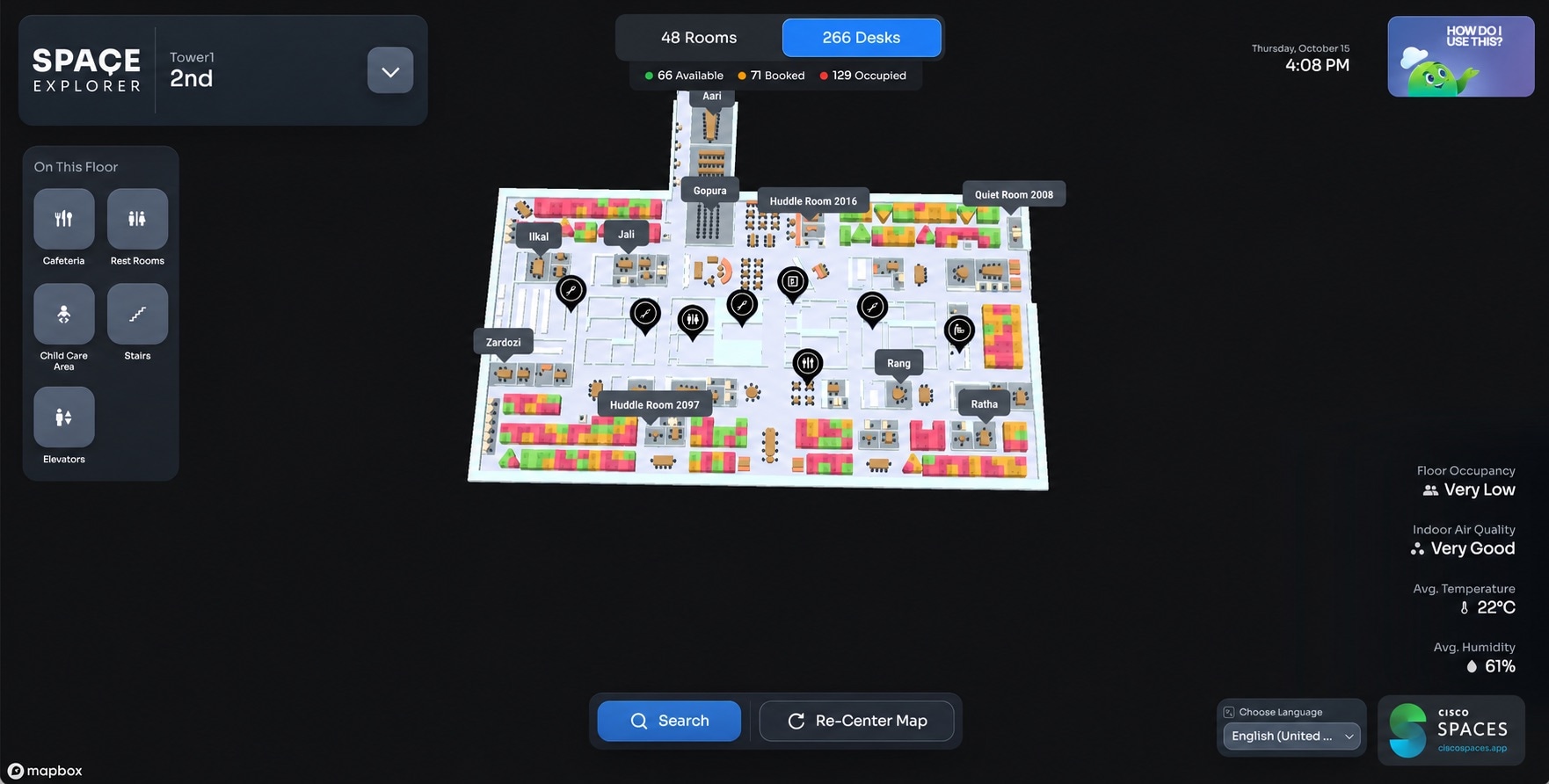
Signage 2.1 introduces new features, including desk availability, unified search, multi-floor wayfinding, and support for
34 languages.
Key interface include:
Points of interest on the left.
Occupancy and environmental information on the right.
Room and desk availability at the top.
Signage 2.1 now uses configured floor short names instead of full floor names throughout the interface.
Desk availability and booking
Signage 2.1 introduces a desk availability feature similar to the existing room availability feature. Users can switch between
Rooms and Desks to view spaces that are available, booked, or occupied. They can also select a desk on the map to check its
availability and details.
Users can book desks through ciscospaces.app, and the booking status is displayed on the signage.
Note
Desk availability is displayed only after desk booking is enabled and desks are configured under Space Manager > Manage Desks. Contact Cisco Spaces Support to enable desk booking.
Figure 1.
Unified search
Room Finder is now integrated into Search, providing one place to find meeting rooms and desks across available floors. Improved
fuzzy-search logic returns relevant results even when search terms are incomplete or do not exactly match a room or desk name.
Users can filter results by Rooms, Desks, or All Spaces. They can also start directions to a room or desk directly from the results.
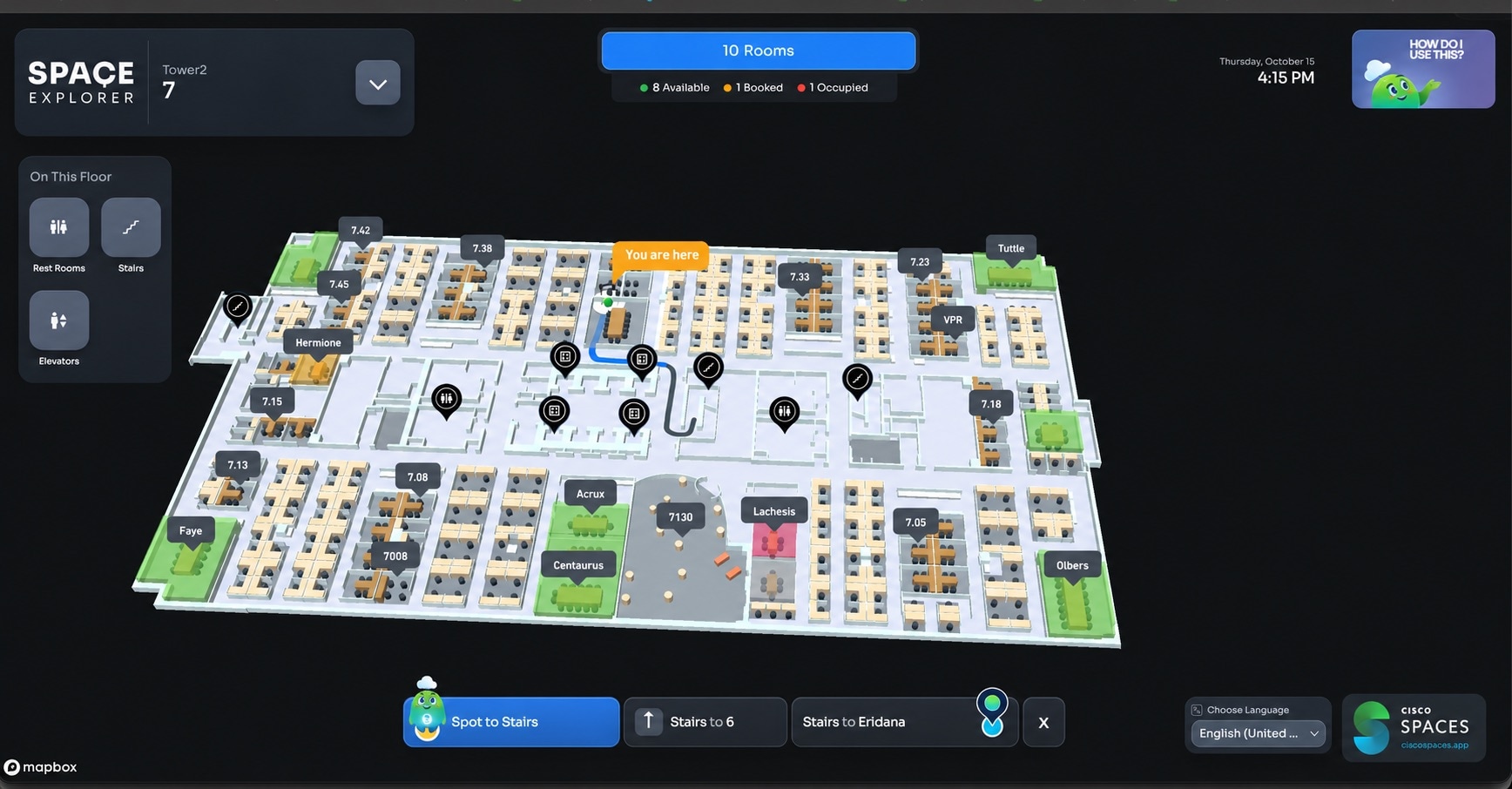
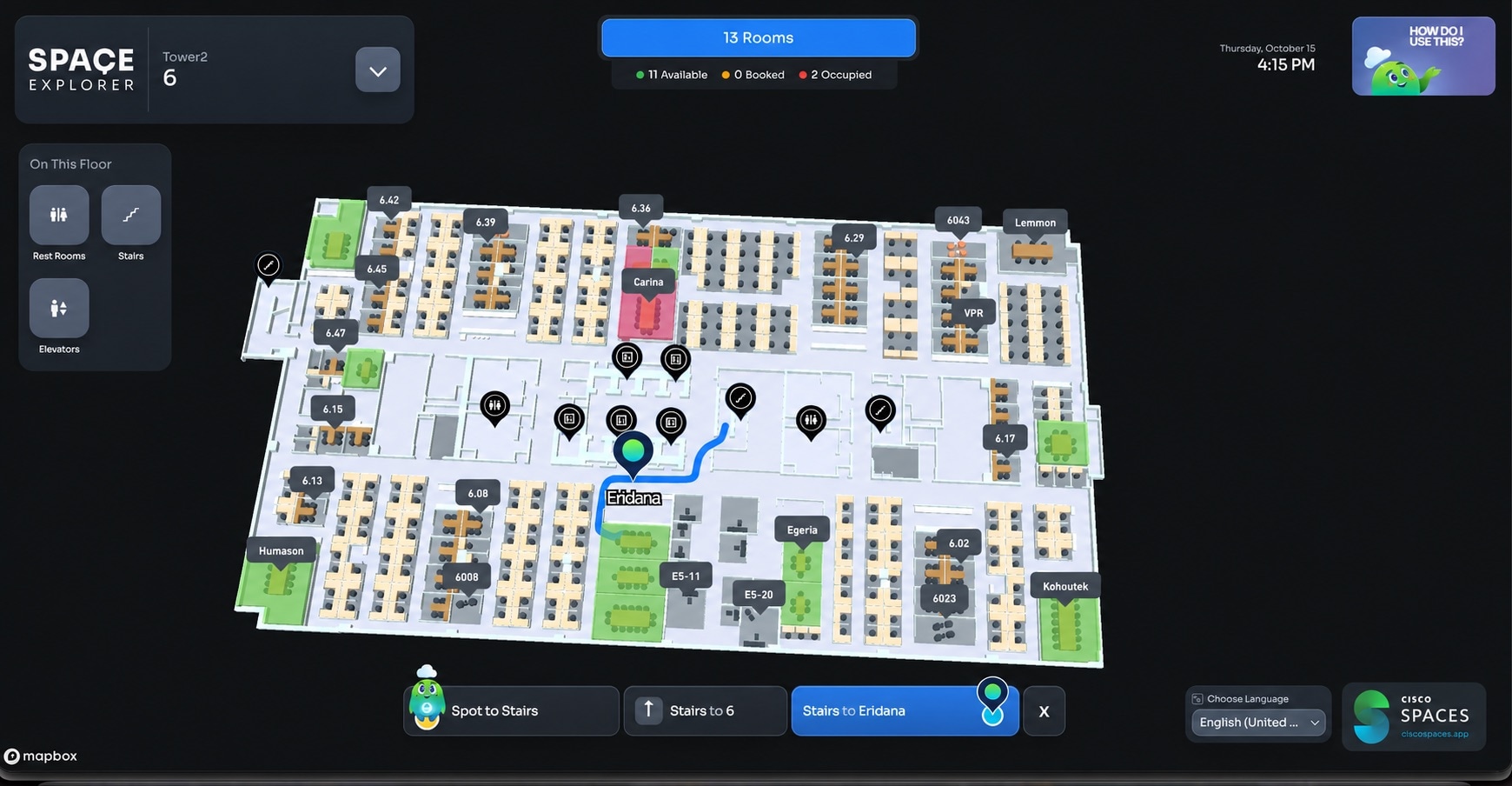
Multi-floor wayfinding
Wayfinding now supports destinations on other floors, providing step-by-step directions through configured floor-transition
points, such as elevators or stairs, and onward to the destination.
Figure 2. Figure 3.
Language support
Signage 2.1 supports 34 languages. The initial language follows the browser locale when a supported match is available; otherwise,
English (United States) is used. Users can change the language directly from the signage.
Cisco Spaces: Environmental Analytics
What is New in this Release
Live Map Support for Environmental Analytics
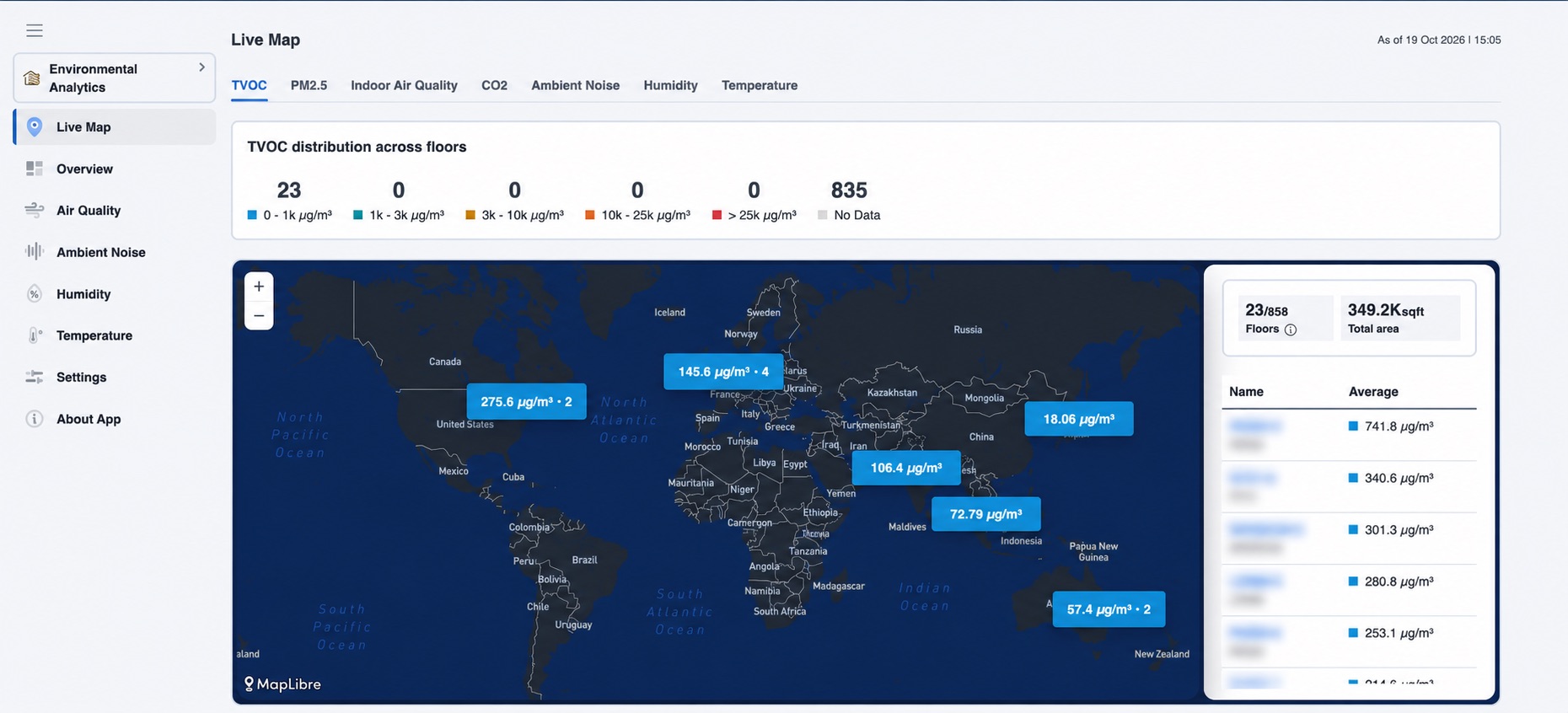
Environmental Analytics is enhanced to support digital maps. Live Map provides real-time environmental data from all locations in an interactive view, helping workplace and facilities teams compare
conditions across buildings, floors, and workspaces.
Environmental Analytics opens to the Live Map by default. You can access the Overview screen using the left navigation to view existing analytics.
Key capabilities include:
View TVOC, PM2.5, Indoor Air Quality, CO₂, Ambient Noise, Humidity, and Temperature readings directly on the map.
View telemetry averages and distributions across locations, floors, rooms, and sensors to identify areas that need attention.
Select a location to view its environmental telemetry on the corresponding digital map and switch between floors as needed.
View historical data for the selected floor and telemetry.
Figure 4.
Note
To display environmental data in Live Map, Digital Maps must be configured and Cisco Spaces must be receiving the required telemetry.

 Feedback
