Learn more about the guidelines and limitations when upgrading from Cisco Umbrella SIG to Cisco Secure Access.
Secure Access Packages and Feature Availability Not all of the features described here are available to all Secure Access packages. Information about your current package is listed when you login to Secure Access dashboard > Admin > Licensing page. For more information, see Determine Current Package. If you encounter a feature here that you do not have access to, contact your sales representative for more information about your current package. For more information, click Cisco Secure Access Packages.
Table of Contents
- Umbrella Application Settings and Secure Access Application Lists
- Umbrella Policy and Rule Upgrade Behavior
- Umbrella Rulesets and Policy Components in Secure Access as Security Profiles and Internet and SaaS Resources
- Internet and SaaS Resources
- Block Page Bypass
- Content Categories
- Custom User Roles
- Destination Lists
- Domain Management
- Identities as Sources
- PAC Files
- Schedule Settings
- Security Profiles
- Selective Decryption Lists
- Static Keys
- Umbrella Legacy API Keys
Umbrella Application Settings and Secure Access Application Lists
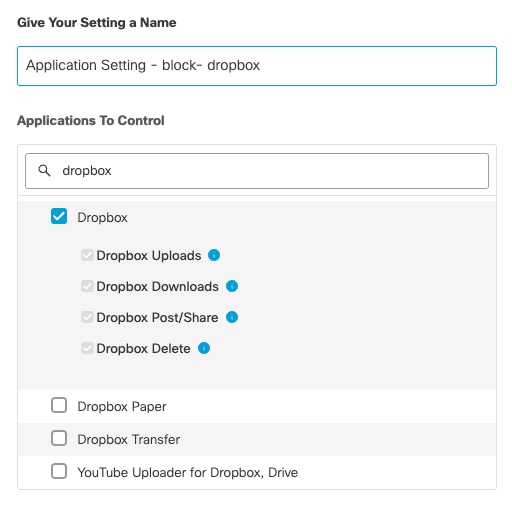
(DNS) Application settings: and Application lists are managed separately in Umbrella and Secure Access. Changes made in one product are not reflected in the other. In Umbrella, a single DNS application setting may include both block and allow actions. In Secure Access, these actions are separated into distinct application lists, each supporting either block or allow for streamlined policy management.
(Firewall) Application settings: in Umbrella might not map directly to Secure Access. Even when category names are the same in both products, the applications assigned to those categories can differ.
For example, the Ad Publishing category in Umbrella includes 296 applications, while the same category in Secure Access includes 340 applications. As a result, the behavior of category-based firewall rules can change after upgrade. Review your internet access rules after upgrade and update them as needed to maintain the intended policy behavior.
Secure Access does not include all Layer 7 applications available in Umbrella’s Firewall policy because some applications are deprecated or discontinued.
Examples include Cisco Jabber, Google Hangouts, and AOL Messenger. For a list of applications that are not in Secure Access, see View Umbrella’s Legacy Applications.
If you require access to a specific application, file a request through Cisco New Application Detector Request and contact Cisco Secure Access Support to let them know that you filed a New Application Detector Request. Both requests are required to enable review of the application and its classification in Secure Access.
(Web) Application settings: are synchronized between Umbrella and Secure Access. Changes made in one product will appear in the other.
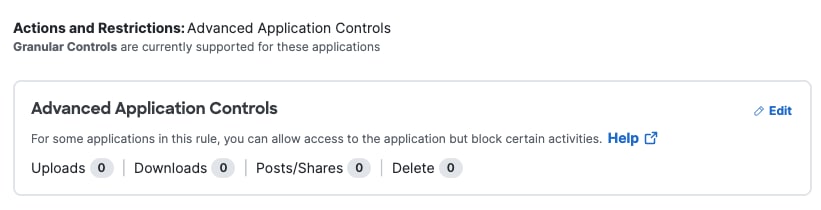
In Secure Access, Advanced Application Control is located in the Access Policy page. Navigate to . This section only appears if selected rule includes applications that allow granular controls on activities. See, Advanced Application Controls for more information.
Application Categories, Others: In Umbrella Firewall Policy, the categories description, Others may include a certain set of applications. In Secure Access, the category, Others contains a different set of applications. This means the grouping and categorization of applications have changed between the two products.
Review your applications carefully in Secure Access. Instead of relying on the category, Others as before—select the individual applications you want to control. This ensures your rules are precise and effective.
Some applications you used to find in the category, Others in Umbrella may now be listed under different categories in Secure Access. To add or manage applications: Navigate to: and click + Add Here, you can search for and add specific applications to your lists.
For more information on Application Lists in Secure Access, see Manage Application Lists and for category descriptions, see Application Categories.
Important Step Before Closing Umbrella Account: After moving your Umbrella traffic to Secure Access and just before completing the final step to close your Umbrella account in the Upgrade Manager, we recommend deselecting all Advanced Application Controls in your Umbrella dashboard. This ensures there is no overlap in enforcement policies between the two products.
Umbrella Policy and Rule Upgrade Behavior
- Umbrella DNS, Web, and Firewall policies that do not include identities are not copied to Secure Access.
- Umbrella DNS, Web, and Firewall policies that are disabled are copied over to Secure Access and remain disabled.
- Secure Access does not support Intelligent Proxy. To replicate this level of DNS security we recommend downgrading your Secure Access subscription to Secure Access DNS Defense, which is a comparable level of DNS-layer protection, or upgrade to Secure Access and implement the Secure Access Secure Web Gateway (SWG) , where you can configure full web proxy capabilities that offer a more comprehensive security posture.
Umbrella Rulesets and Policy Components in Secure Access as Security Profiles and Internet and SaaS Resources
- Rulesets Become Security Profiles: After you complete the Start Upgrade step, your existing Umbrella Rulesets will automatically become Security Profiles in Secure Access.
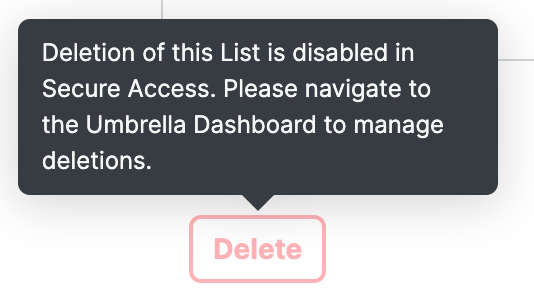
- Policy Component Restrictions: While the Upgrade Manager is active, any Umbrella policy components shown in Security Profiles and Internet & SaaS Resources cannot be deleted in Secure Access.
Internet and SaaS Resources
Resources listed on the Internet and SaaS Resources page are reusable components (sometimes known as "objects") that can be used as destinations when configuring internet access rules. Internet and SaaS resources include:
Block Page Bypass
Block Page Bypass Users and Codes are not copied over. For more information on the Secure Access feature, see Notification Pages.
Content Categories
Legacy Umbrella Content Categories will be upgraded to their equivalents in Secure Access. For more information see Available Content Categories.
After the upgrade, Umbrella content category name's in Secure Access will display a (Web) or (DNS) prefix. You can edit this prefix after the upgrade is complete and the Umbrella account is closed.
During the upgrade, the Delete button is disabled for DNS Content Categories; however, you can delete web content categories.
In Secure Access there is a category called, Uncategorized that is available in the web content categories, but not available for DNS content categories.
Custom User Roles
Custom user roles are not copied over. Secure Access has three roles:
-
Full Admin
-
Read-Only
-
Security Administrator
For more information see, Manage Accounts.
Destination Lists
In Umbrella, if you have more than 250,000 destinations, you will not be able to upgrade to Secure Access until you reduce the number of destinations below this limit.
In Secure Access, destination lists are searchable by Destination List Name only, not by comments.
During the upgrade, the Delete button is disabled for DNS destination lists; however, you can delete web destination lists.
Secure Access allows you to add IPv6 addresses to destination lists. This feature is not supported in the Umbrella dashboard. If your traffic continues to route through Umbrella, IPv6 addresses may appear in Umbrella destination lists, but these destinations will not be evaluated.
After the upgrade, Umbrella destination lists in Secure Access will display a (Web) or (DNS) prefix. You can edit this prefix after the upgrade is complete and the Umbrella account is closed.
Domain Management
Find the internal domain allow list by navigating to Connect > End User Connectivity > Internet Security > Traffic Steering.
Identities as Sources
When upgrading Umbrella DNS policies, web rules, or firewall rules to Secure Access, any policy or rule with more than 250 identities will cause the upgrade to fail. Secure Access supports a maximum of 250 sources per rule.
In Secure Access, the 250 source limit applies to the number of source entries in a rule, not to the total number of users within those entries. Each internet access rule can include up to 250 sources, counting both preconfigured source objects and sources entered directly in the rule.
For example:
- One user counts as one identity/source.
- One group counts as one identity/source.
- One network, tunnel group, or other source object counts as one identity/source.
This means that if you add a group to a rule, the group counts as a single source entry even if it contains multiple users.
Before the Upgrade:
Review your Umbrella policy or rule with more than 250 identities. If needed, you can:
- Remove any identities that are no longer required.
- Duplicate the policy or rule and remove some identities from each copy, effectively splitting the original rule into multiple smaller ones, each adhering to the 250 source limit.
PAC Files
Secure Access utilizes its own PAC (Proxy auto-configuration) files and does not support PAC files hosted by Umbrella.
To successfully upgrade to Secure Access, update your Secure Web Gateway (SWG) traffic:
- Update PAC File References: Ensure your networks are configured to use the Secure Access PAC files instead of Umbrella-hosted PAC files.
- Download the Default PAC File: You can download the default Secure Access PAC file by navigating to Manage PAC Files.
- Custom PAC Files Update Process:
- If you use custom Umbrella PAC files, first download them from the Umbrella Web Policy interface.
- Update the proxy Fully Qualified Domain Name (FQDN) in each file to point to the Secure Access proxy FQDN.
- Upload your modified PAC files to Secure Access by following the steps here, Upload Custom PAC Files to Secure Access.
Secure Access, has a different PAC file compared to the Umbrella-hosted PAC file and should be updated to include your network. To reuse custom Umbrella PAC files, download these files from Umbrella and then upload them to Secure Access. You also need to update the proxy FQDN in the custom PAC files before uploading to Secure Access.
In Secure Access navigate to Connect > End User Connectivity > Internet Security > Deployment Options > Windows and macOS > View custom PAC files > Add custom PAC file. For more information, see Manage PAC Files in Cisco Secure Access Help.
Schedule Settings
If you created a time schedule directly inside an Umbrella policy (not as a reusable schedule in Schedule Settings), that schedule remains embedded in the Umbrella policy and does not appear under Umbrella’s Schedule Settings. However, once the upgrade begins, these unique schedules will appear in Secure Access as reusable schedules in Enablement Schedule. The schedule name will include the original Umbrella policy name (example, Inline Schedule For Rule 2) so you can identify its origin. These schedules will not appear in Umbrella’s Schedule Settings for reuse.
Schedules Created Post-Upgrade:
Any schedule created in Umbrella’s Schedule Settings after the upgrade will also appear in Secure Access Enablement Schedule. If a custom schedule is created directly in an Umbrella policy after the upgrade, it will not appear in the Enablement Schedule.
Secure Access Enablement Schedule have Start and End dates. When Umbrella schedules are transfer over, they will have a Start date but no End date. We recommend to review these schedules by navigating to Resources > Settings > Enablement Schedule.
Security Profiles
A Cisco Secure Access Security profile is a reusable component that you can use in the rules for the Access policy. A Security profile for internet access includes security controls and other settings such as acceptable use controls that you configure as a set.
While the Upgrade Manager is in progress, some security profiles are shared between the two platforms. To avoid any unintended changes to your policies, do not edit or delete any existing security profiles until the upgrade is finished. You can still create and manage new security profiles during this time—only existing ones are temporarily restricted.
Security Profiles include:
- Do Not Decrypt List
- SSO Authentication
- Security and Acceptable Use Controls
- End-User Notifications
For more information, see Security Profiles for Internet Access.
Selective Decryption Lists
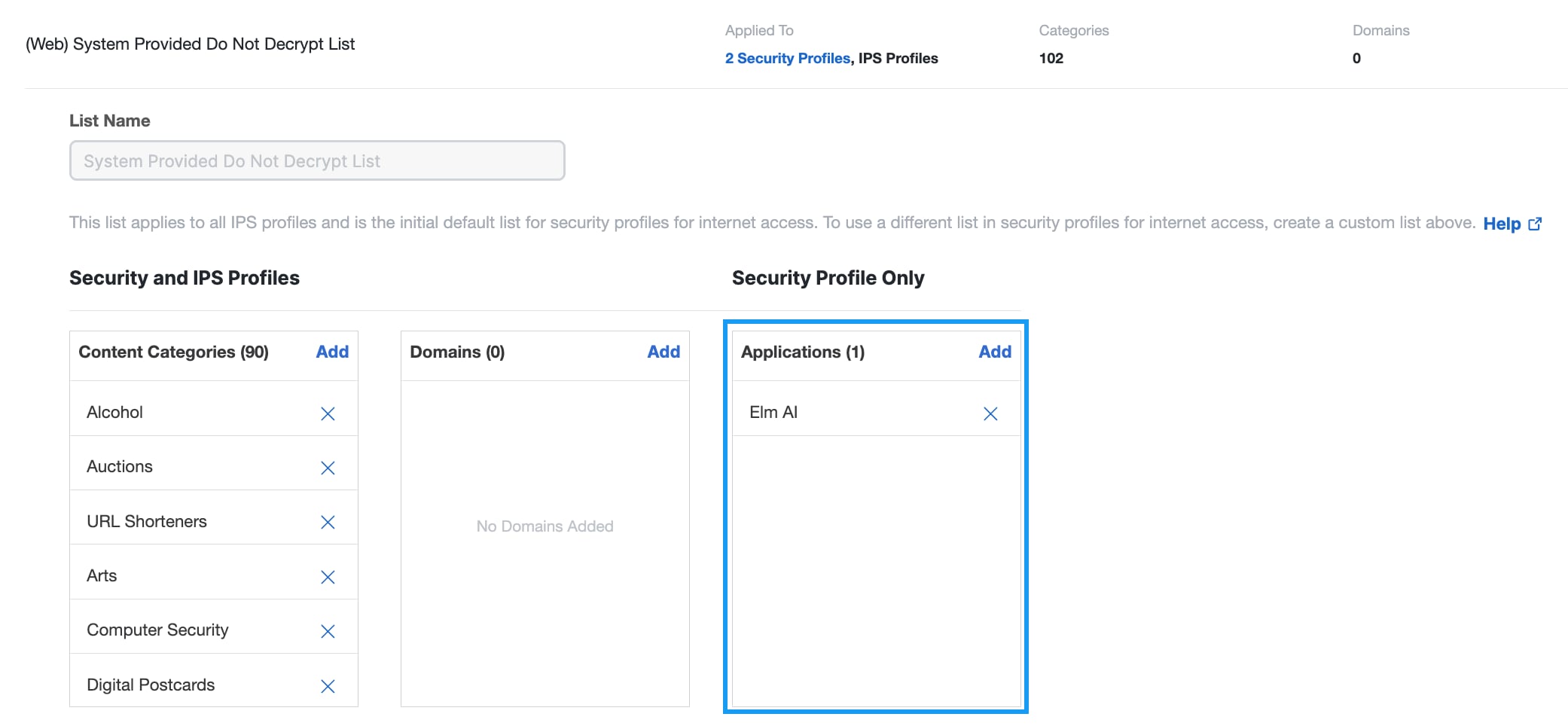
What’s Changing in Name:Umbrella’s Selective Decryption Lists are now called Do Not Decrypt Lists in Secure Access.
List Prefixes After Upgrade:After upgrading, your existing Umbrella lists will appear in Secure Access with a (Web) or (DNS) prefix. You can edit these prefixes once the upgrade is complete and your Umbrella account is closed.
Editing Restrictions During Upgrade:While the Upgrade Manager is running, you cannot make changes to Do Not Decrypt Lists linked to policies created in Umbrella. This restriction is lifted after you close your Umbrella account.
Content Categories Expansion:Umbrella has 102 content categories in its Selective Decryption Lists. Secure Access expands this to 144 categories. If you had all 102 categories selected in Umbrella, you will see all 144 categories selected after upgrade. For more information, see Available Content Categories in our Cisco Secure Access Help.
Application Visibility Behavior:
- For Customers Upgrading from Umbrella:You will continue to see the Applications List in the System Provided Default Do Not Decrypt List, just like in Umbrella. This means your existing behavior of adding applications to the default list remains unchanged. You can find this list in Secure Access under:.
- For Customers Directly Purchasing Secure Access:The System Provided Default Do Not Decrypt List does not display an Applications List. This is the default behavior for new Secure Access customers who did not upgrade from Umbrella.
To learn more, see Important Information About Do Not Decrypt Lists in Secure Access Help.
Static Keys
In Secure Access, Static Key is found by navigating to Connect > Users, Groups, and Endpoint Devices > Users > Configuration Management > Integrate Directories > IdP. For more information, see Configure Identity Providers.
Umbrella Legacy API Keys
Legacy API keys will not transfer to Secure Access since Umbrella API was released in 2022. In Secure Access you continue to use API Keys, KeyAdmin Keys, and Static Keys. For more information see, Manage API Keys and Secure Access API Authentication.