Cisco Optical Automation Solution for NCS 2000 Networks, Release 26.1.1

PDF

Cisco Optical Automation Solution for NCS 2000 Networks, Release 26.1.1

Upgrade Cisco Optical Site Manager

Want to summarize with AI?

Log in

Upgrade Cisco Optical Site Manager components by distributing and activating the required images through Software Image Management and Upgrade and the web UI.


Use this topic to upgrade Cisco Optical Site Manager from 25.x to 26.x. Choose the Software Image Management and Upgrade workflow or the Cisco Optical Site Manager web UI workflow, then distribute and activate the required software images.

Cisco Optical Site Manager upgrade workflow

This section describes the procedure to upgrade Cisco Optical Site Manager from 25.x to 26.x.

The upgrade can be performed using two alternative methods:

  • SWIMU (Software Image Management and Upgrade), using Cisco Optical Network Controller for centralized orchestration (preferred method)

  • Cisco Optical Site Manager web UI, using the Software Manager for manual execution (alternative method)

Regardless of the selected method, the upgrade follows the same workflow:

  • Software image distribution

  • Admin Plane software activation

  • Card Controller software activation

  • Cisco Optical Site Manager instance software activation

These topics describe the prerequisites and detailed procedures for both execution methods.

Cisco Optical Site Manager upgrade using SWIMU

SWIMU upgrade functions

The Cisco Optical Site Manager software upgrade can be centrally orchestrated through Cisco Optical Network Controller using the Software Image Management and Upgrade (SWIMU) application.

SWIMU provides a unified interface to manage both software image distribution and activation across multiple Cisco Optical Site Manager instances and associated devices. This centralized approach enables consistent and scalable upgrade operations in large network deployments.

The upgrade workspace is accessible from the Cisco Optical Network Controller web UI by selecting the SWIMU application and navigating to the Upgrade Orchestrator.

The upgrade workflow in SWIMU is based on two main phases:

  • Image Distribution: Cisco Optical Site Manager software images (*.iso) are transferred from the configured SFTP server to the selected Cisco Optical Site Manager instances and, optionally, to the underlying devices

  • Software Activation: the distributed images are activated on the target Cisco Optical Site Manager nodes and related components

SWIMU uses grouping mechanisms to manage operations at scale:

  • Software Image Distribution Groups, used to define the set of nodes involved in the image transfer

  • Software activation groups, used to define the scope of activation operations (not useful for NCS 2000 network)

These groups are automatically created for NCS 2000 nodes and can be used to execute bulk upgrade operations.

SWIMU also provides scheduling capabilities, allowing upgrade jobs to be executed immediately or during predefined maintenance windows.

These topics describe the configuration and execution of the upgrade workflow using SWIMU.
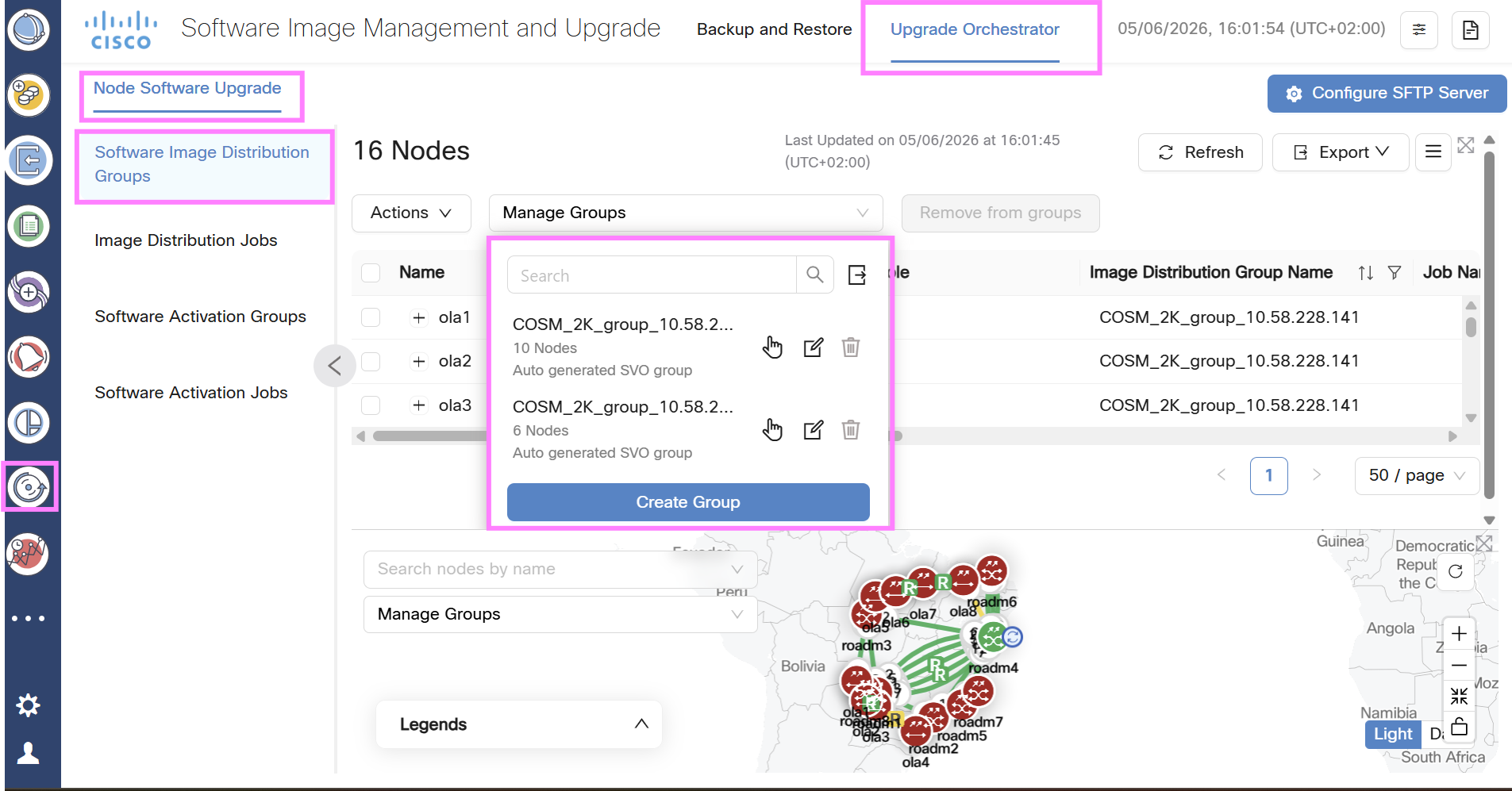
Figure 1. Cisco Optical Network Controller software upgrade orchestrator (image distribution group)

Cisco Optical Site Manager upgrade using the Cisco Optical Site Manager web UI

Cisco Optical Site Manager Software Manager web UI workflow

This section describes how to perform the Cisco Optical Site Manager and device software upgrade directly from the Cisco Optical Site Manager web UI using the Software Manager.

This method is typically used as an alternative to Cisco Optical Network Controller SWIMU when centralized orchestration through Cisco Optical Network Controller is not available, or for troubleshooting and recovery scenarios.

Unlike SWIMU, which provides centralized control, the web UI-based upgrade is executed locally on each Cisco Optical Site Manager instance and requires manual coordination of the upgrade steps.

The upgrade follows the same logical workflow used in SWIMU:

Execute these steps sequentially to ensure a consistent and successful upgrade.

If multiple Cisco Optical Site Manager instances or SVO card pairs are present, repeat the procedure for each pair.

These topics describe the detailed execution of each step using the Cisco Optical Site Manager web UI.
Configure an SFTP server in SWIMU

Configure an external SFTP server in Cisco Optical Network Controller to store and provide access to Cisco Optical Site Manager software images required for the upgrade process.

Before you begin

  • The Cisco Optical Site Manager software image (*.iso) is available on the SFTP server.

  • The SFTP server is reachable from Cisco Optical Network Controller.

Follow these steps to configure an SFTP server in SWIMU.

Procedure

  1. In Cisco Optical Network Controller, open the SWIMU application.

  2. Open Upgrade Orchestrator.

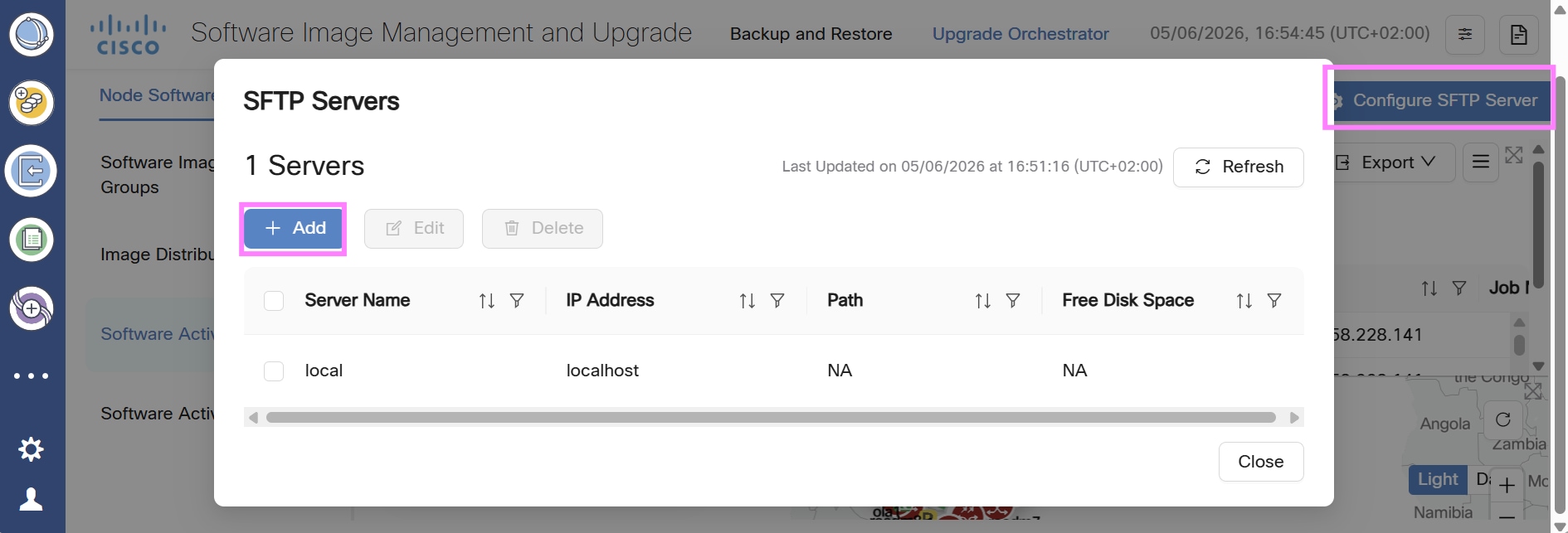
  3. Click Configure SFTP Server.

  4. Click Add to create a new SFTP server entry.

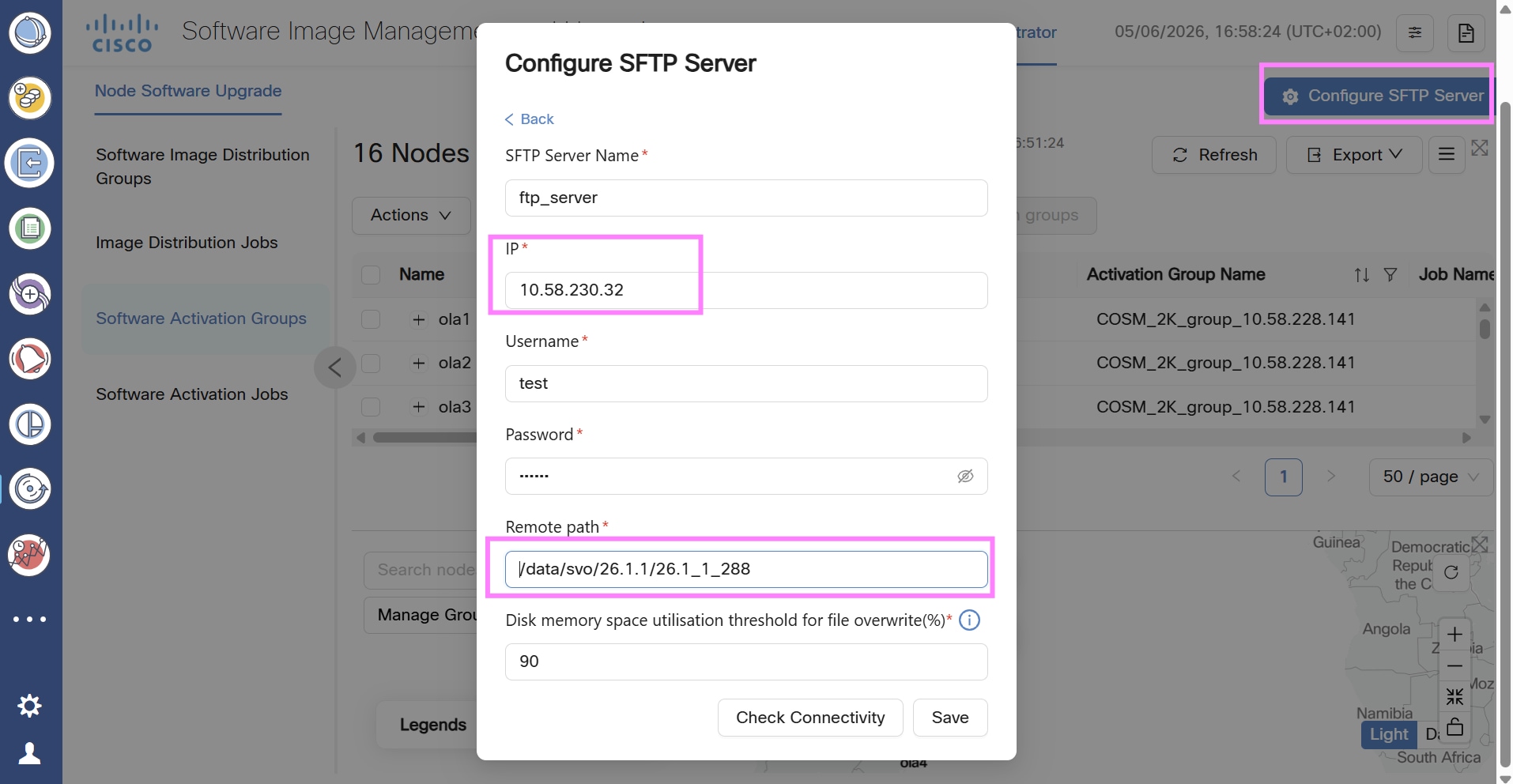
    Figure 2. Cisco Optical Network Controller SFTP server configuration: start
  5. Enter these parameters:

    For the complete SFTP server configuration workflow, see Configure an SFTP server.

    • SFTP Server Name: logical name of the server

    • IP Address / FQDN: SFTP server address

    • Username / Password: credentials for authentication

    • Remote Path: directory where software images are stored

  6. Disk Utilization Threshold (%): threshold for automatic cleanup.

  7. Click Check Connectivity Status.

  8. Verify that the connection is successfully established.

  9. Save the configuration.

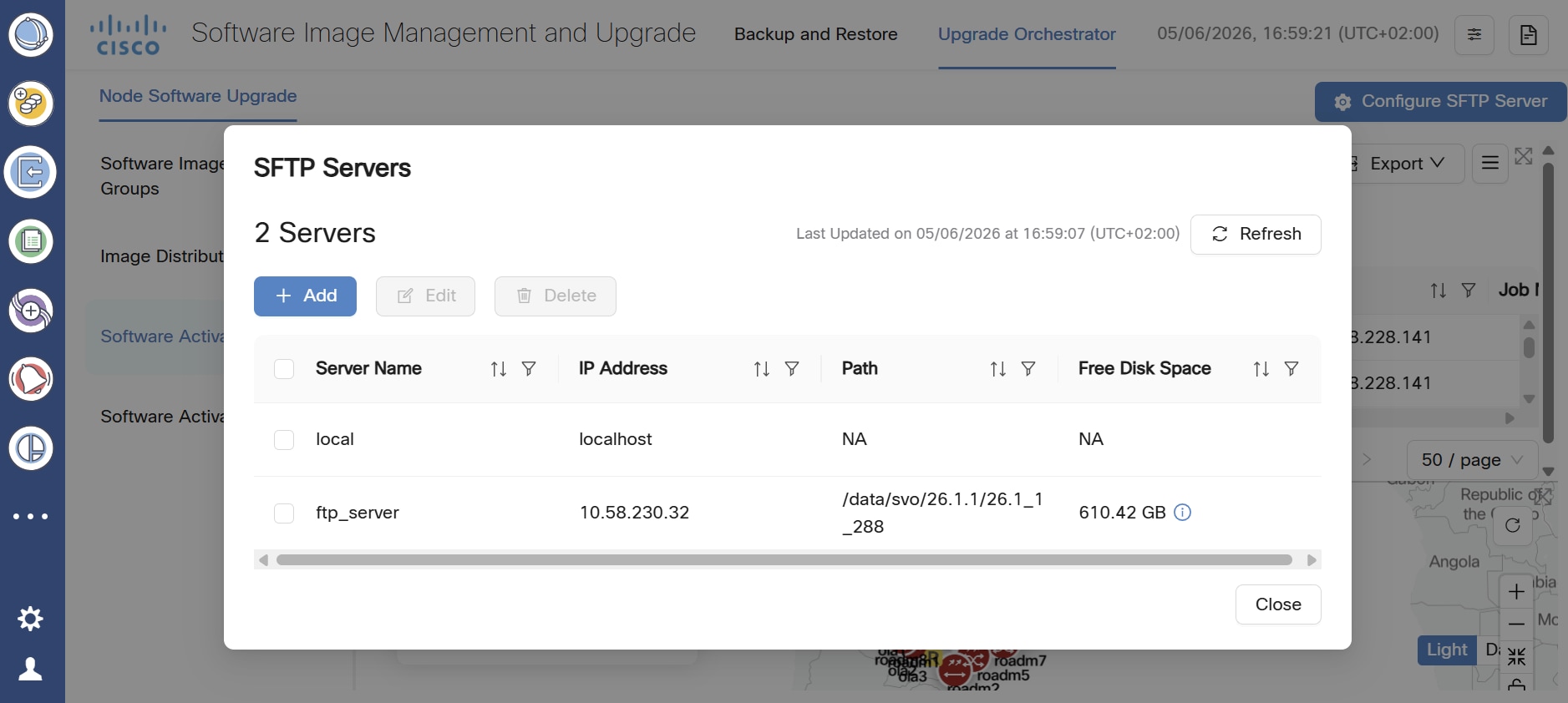
    Figure 3. Cisco Optical Network Controller SFTP server: parameters

The SFTP server is successfully configured and available for software image distribution.

Figure 4. Cisco Optical Network Controller SFTP server: parameters

Create a Cisco Optical Site Manager image distribution job in SWIMU

Distribute the Cisco Optical Site Manager software image (*.iso) from the configured SFTP server to the target Cisco Optical Site Manager instances and associated devices.

Before you begin

  • The SFTP server is configured in Cisco Optical Network Controller.

  • The Cisco Optical Site Manager software image is available on the SFTP server.

  • Target Cisco Optical Site Manager nodes are correctly grouped in the distribution group.

  • For NCS 2000, distribution groups cannot be modified or created by design.

  • Network connectivity between Cisco Optical Network Controller, Cisco Optical Site Manager, and nodes is verified.

  • Sufficient disk space is available on target systems before starting the job.

Follow these steps to create a Cisco Optical Site Manager image distribution job in SWIMU.

Procedure

  1. In Cisco Optical Network Controller, open the SWIMU application.

  2. Open Upgrade Orchestrator.

  3. Choose Node Software Upgrade > Image Distribution Jobs.

  4. Click Distribute Image.

  5. Choose whether to copy the image to Cisco Optical Site Manager only or to both Cisco Optical Site Manager and the devices.

  6. Select the target distribution group.

  7. Select the configured SFTP server.

  8. Select the required software image (*.iso).

  9. Configure the job scheduling:

  10. Confirm and start the job.

    For image distribution and scheduling details, see Orchestrate software upgrades.

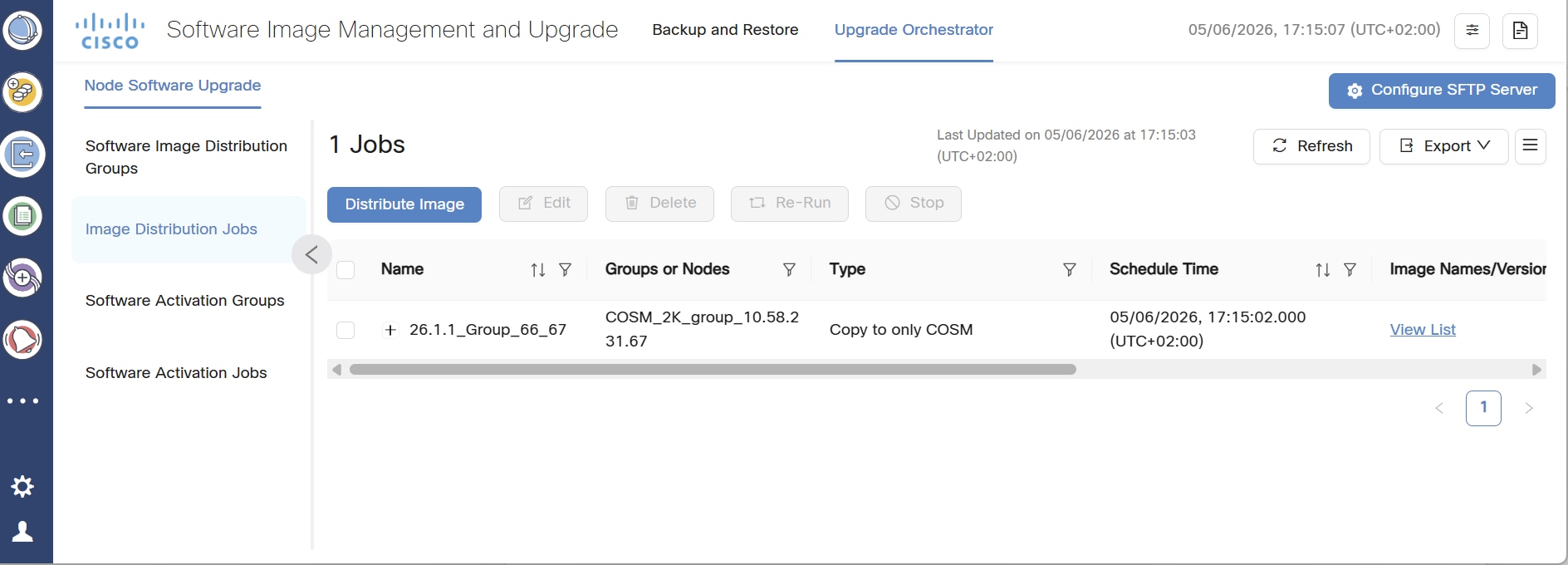
The job appears in the Image Distribution Jobs panel.

Figure 5. Cisco Optical Network Controller software image distribution: Job status

Monitor Cisco Optical Site Manager image distribution jobs in SWIMU

Monitor the progress and status of the software image distribution to Cisco Optical Site Manager instances within the selected group.

Follow these steps to monitor Cisco Optical Site Manager image distribution jobs in SWIMU.

Procedure

  1. Access the SWIMU application in Cisco Optical Network Controller.

  2. Choose Upgrade Orchestrator > Image Distribution Jobs.

  3. Locate the running job in the job list.

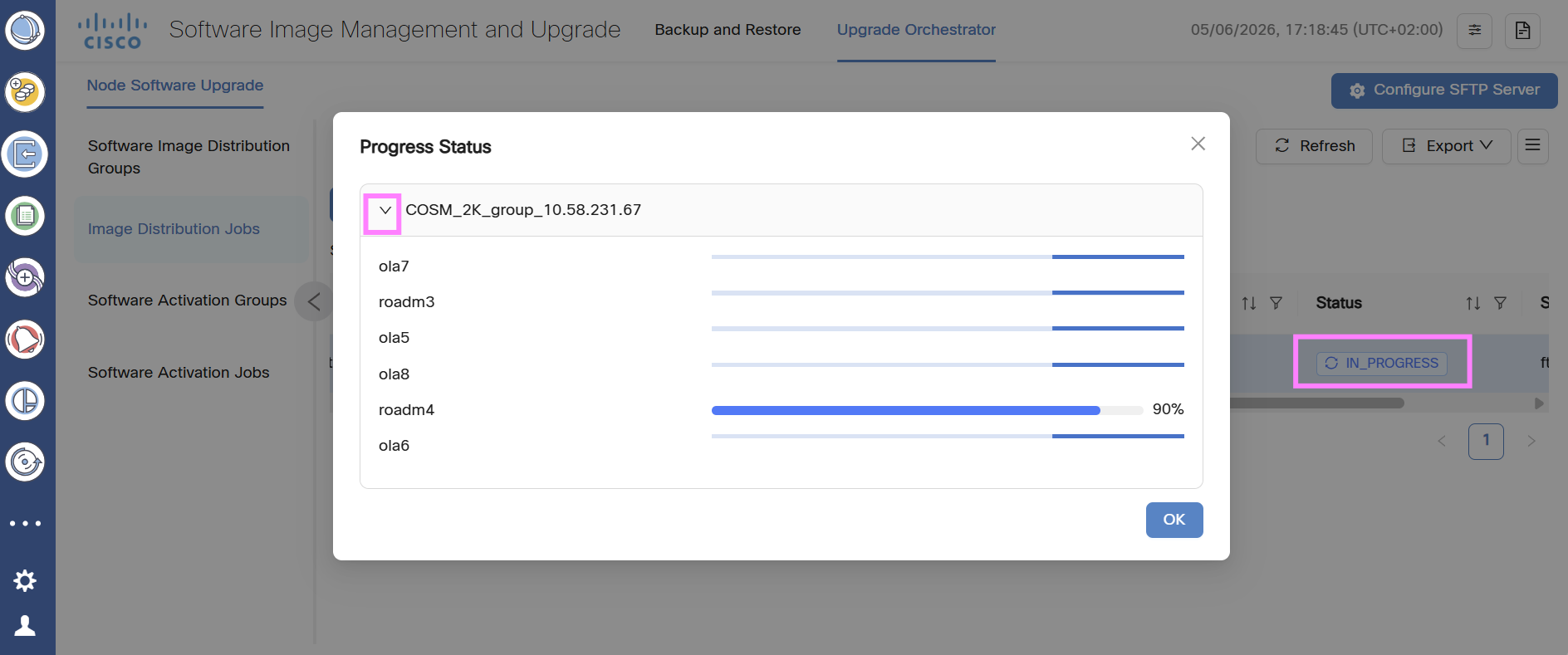
  4. Double click IN_PROGRESS in the Status Column.

  5. Monitor the job status and progress indicators.

    For image distribution job status and recovery actions, see Orchestrate software upgrades.

    Figure 6. Cisco Optical Network Controller software image distribution job progress
  6. Within an NCS 2000 distribution group:

  7. The software download is initiated on one node, where the progress percentage is displayed.

  8. The progress is automatically propagated and reflected across the other nodes in the same group.

  9. (Optional) Access the individual Cisco Optical Site Manager web UI instances to verify the download status at node level.

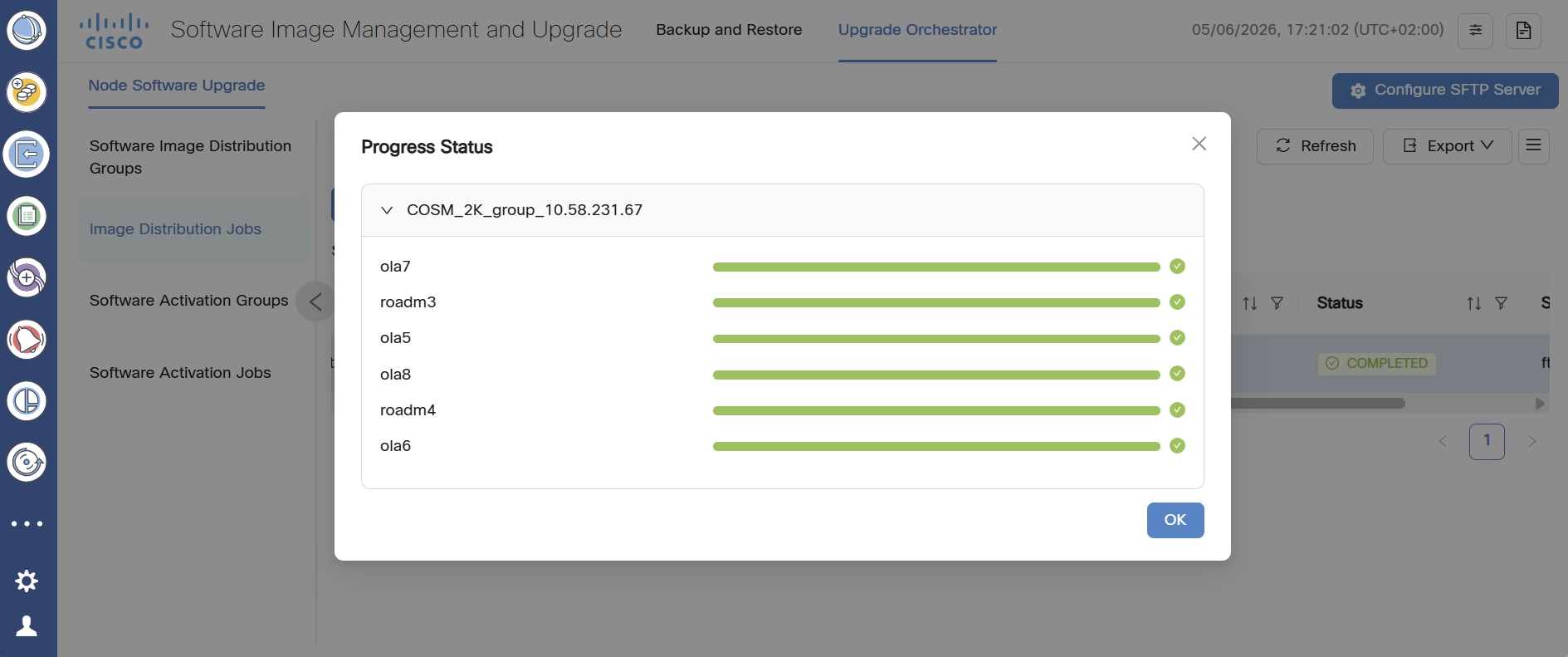
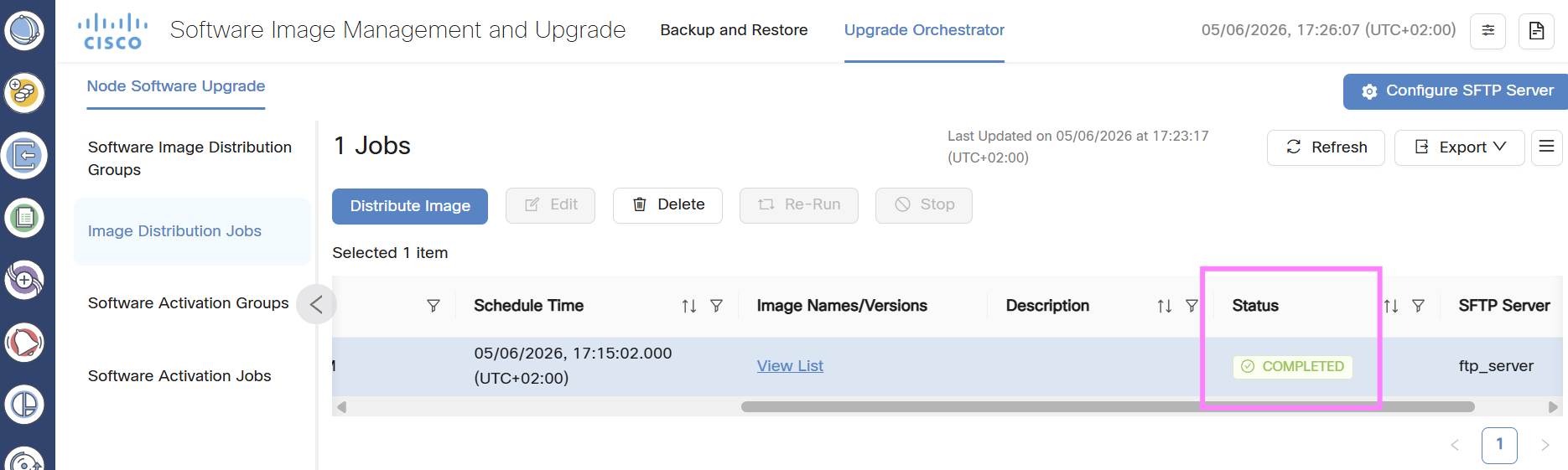
The image distribution is completed successfully on all nodes in the group, and the job status is updated accordingly.

Note

A PARTIAL status indicates that the job succeeded on some nodes and failed on others.

Figure 7. Cisco Optical Network Controller software image distribution final progress
Figure 8. Cisco Optical Network Controller software image distribution final job status

What to do next

  • Resolve the issue and use the Re-Run option if the job fails.

  • Monitor distribution progress from Cisco Optical Network Controller and from the Cisco Optical Site Manager web UI.
  • Verify network connectivity and SFTP availability if the download does not progress.


Create Cisco Optical Site Manager image activation jobs in SWIMU

Activate the previously distributed software image on the target Cisco Optical Site Manager instances and associated components, completing the upgrade process.
Note

Activation can temporarily impact system manageability and services. The activation process is executed at group level.

Before you begin

  • The software image is distributed to all target nodes.

  • No critical alarms are present on Cisco Optical Site Manager instances.

  • Target nodes are operationally stable.

  • A maintenance window is defined, if required.

Follow these steps to create Cisco Optical Site Manager image activation jobs in SWIMU.

Procedure

  1. In Cisco Optical Network Controller, open the SWIMU application.

  2. Choose Upgrade Orchestrator > Software Activation Jobs.

  3. Click Create Activation Job (or equivalent action).

  4. Although the image can be activated on Cisco Optical Site Manager only, on the device(s) only, or on both, selecting Activate Cisco Optical Site Manager only is strongly recommended.

  5. Select the target Cisco Optical Site Manager node or activation group.

    For software activation group and job details, see Orchestrate software upgrades.

  6. Select the previously distributed software image.

  7. Configure job scheduling:

  8. Run immediately.

  9. Schedule for a maintenance window.

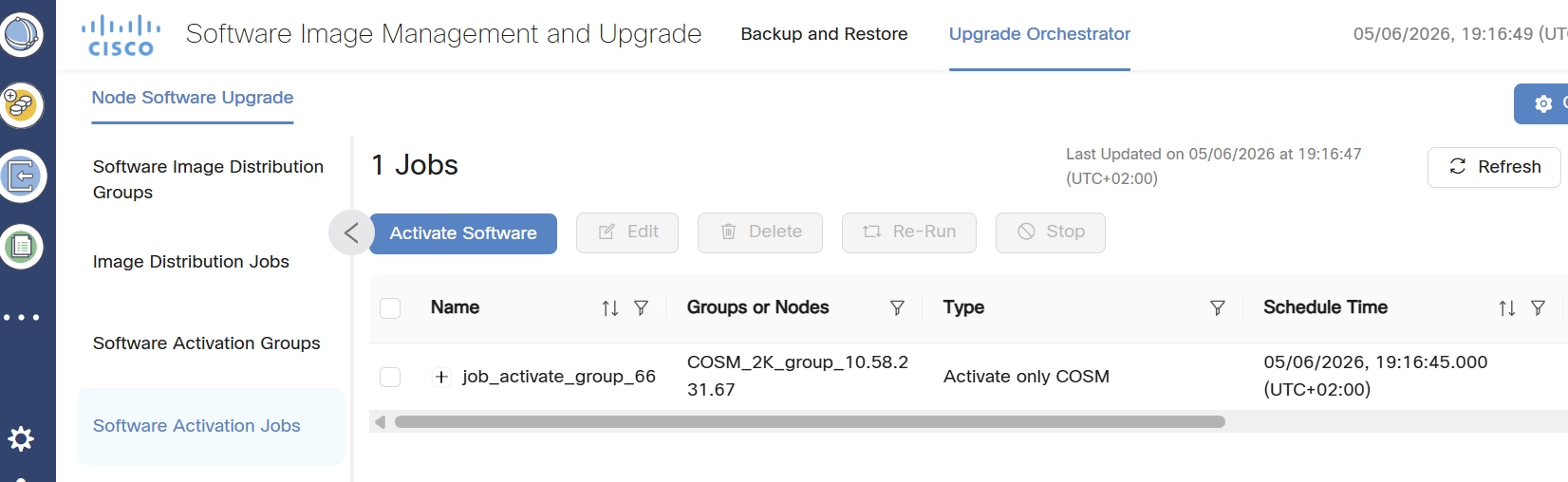
The software activation process is successfully initiated on all target Cisco Optical Site Manager instances.

Figure 9. Cisco Optical Network Controller software activation: Active job

What to do next

  • Monitor the activation job continuously until completion.

  • Resolve the issue and rerun the job if activation fails.


Monitor Cisco Optical Site Manager software activation jobs in SWIMU

Monitor the execution and progress of the software activation process across Cisco Optical Site Manager instances within the selected group.

Follow these steps to monitor Cisco Optical Site Manager software activation jobs in SWIMU.

Procedure

  1. Access the SWIMU application in Cisco Optical Network Controller.

  2. Choose Upgrade Orchestrator > Software Activation Jobs.

  3. Locate the running activation job.

  4. Monitor the job status and progress indicators.

    For software activation job status and recovery actions, see Orchestrate software upgrades.

  5. (Optional) Access the Cisco Optical Site Manager web UI to verify activation status at the instance level.

    Note

    If you upgrade all Cisco Optical Site Manager instances simultaneously, the process attempts to update the Admin Plane on all nodes, including nodes without SVO cards. This action can show a misleading status Activation of software to version XXX has failed for nodes that do not host SVO cards.

  6. Within an NCS 2000 activation group, SWIMU executes the upgrade workflow in a controlled sequence:

  7. Admin Plane Activation.

  8. Card Controller Activation (if present).

  9. Cisco Optical Site Manager Instance Upgrade.

  10. The Cisco Optical Site Manager instances are upgraded sequentially, one instance at a time, to ensure controlled execution and system stability.

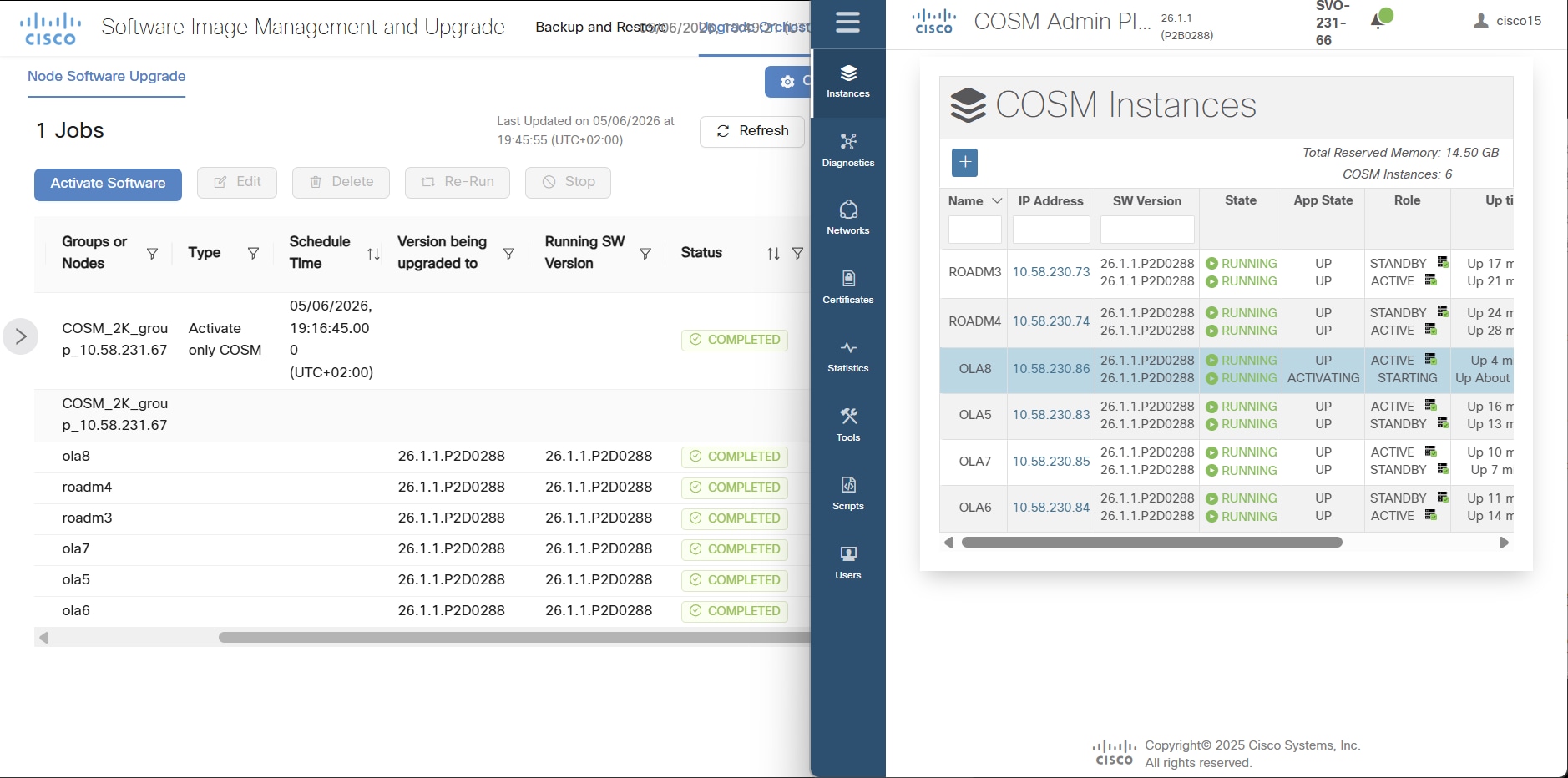
The activation process progresses through all phases and completes successfully for all Cisco Optical Site Manager instances in the group.

Note

Activation is executed at group level, not per individual node. Temporary loss of manageability can occur during Admin Plane or Cisco Optical Site Manager activation. A PARTIAL status indicates that the job succeeded on some nodes and failed on others.

Note

Known failure: The card controller might be updated on only one SVO card.

Figure 10. SWIMU activation job monitoring with Cisco Optical Site Manager activation completed

What to do next

  • Resolve the issue and use the Re-Run option if the job fails.

  • Monitor progress from Cisco Optical Network Controller and from the Cisco Optical Site Manager web UI.
  • Rerun the job to complete the update on the peer SVO card if the card controller is updated on only one SVO card.

  • Update the card controller directly from Cisco Optical Site Manager if rerunning the job does not complete the peer-card update.


Download the ISO software package to Cisco Optical Site Manager

Download the Cisco Optical Site Manager software package (*.iso) from the SFTP server to the Cisco Optical Site Manager Software Manager repository.

Before you begin

  • The SFTP server is reachable from Cisco Optical Site Manager.

  • The Cisco Optical Site Manager 2000 software image (*.iso) is available on the SFTP server.

  • The Cisco Optical Site Manager health check is complete.

Follow these steps to download the ISO software package to Cisco Optical Site Manager.

Procedure

  1. Access the Cisco Optical Site Manager web UI.
  2. Choose Software Manager > Download.

  3. Choose SFTP as the protocol.

  4. Enter the software package path in the Remote File Path field.

  5. Select the authentication method:

    Use this Cisco procedure for the complete workflow: Download GISO image.

    • Username/Password, or

    • Auth Group (if previously configured)

  6. Click Download.

  7. Monitor the download progress in the Status column until the package reaches 100 percent.

The download of package is completed and package appears in the Software Packages tab with status Available.

Note

Multiple software packages can coexist in the repository. Download time depends on image size and network bandwidth, and typically takes 1 to 10 minutes.

Figure 11. ISO image download success

Activate Admin Plane in Cisco Optical Site Manager web UI

Activate the software on the Admin Plane and SVO card system components.
Note

Temporary loss of Admin Plane web UI access and manageability is expected during the upgrade. Activate the Admin Plane before you activate other components.

Before you begin

  • The Cisco Optical Site Manager software package is downloaded.

  • The Cisco Optical Site Manager health check is complete.

  • No critical alarms are present.

  • A maintenance window is available.

Follow these steps to activate the Admin Plane in Cisco Optical Site Manager web UI.
Procedure

  1. Open https://<COSM_IP> in a browser to access the Cisco Optical Site Manager web UI.
  2. Choose Software Manager > Admin Plane Software.

  3. Select the Admin Plane component.

  4. Click Activate.

  5. Select the target software image.

  6. Confirm the activation.

  7. Monitor the activation progress from the Software Manager.

The Admin Plane software is successfully upgraded, and the system returns to operational state.

Figure 12. Admin Plane software activation post-check

What to do next

  • Log in again after Admin Plane web UI access is restored.

  • Verify that both SVO cards are updated in HA configurations.


Activate card controller software in Cisco Optical Site Manager web UI

Activate the Card Controller software on the SVO cards.
Note

Temporary loss of manageability can occur during activation.

Before you begin

  • The Cisco Optical Site Manager software package is downloaded.

  • The Admin Plane upgrade is complete.

  • SVO cards are reachable and operational.

  • No critical alarms are present.

Follow these steps to activate card controller software in Cisco Optical Site Manager web UI.
Procedure

  1. Open https://<COSM_IP> in a browser to access the Cisco Optical Site Manager web UI.
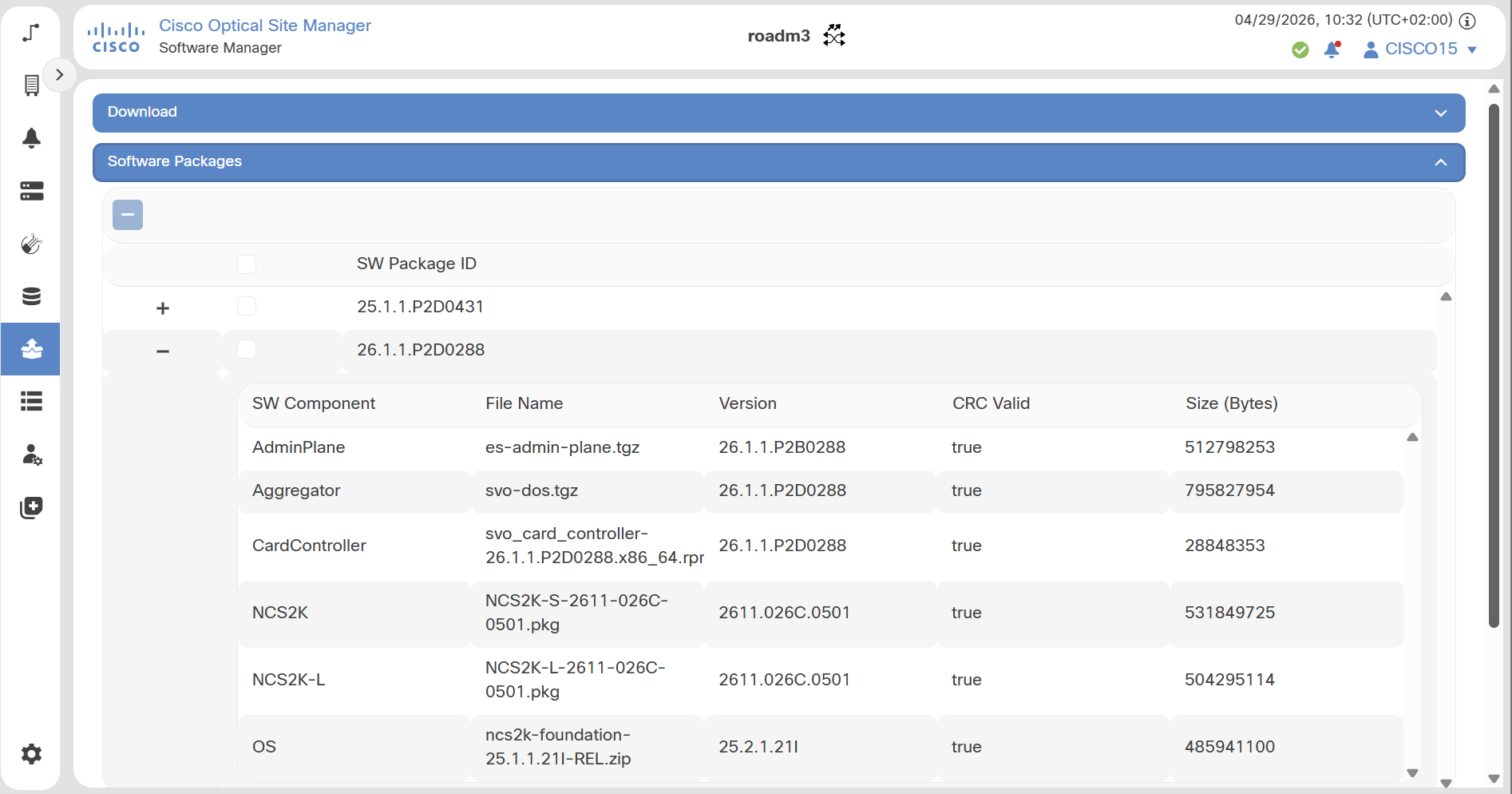
  2. Choose Software Manager > Device Software.

  3. Select the Card Controller component.

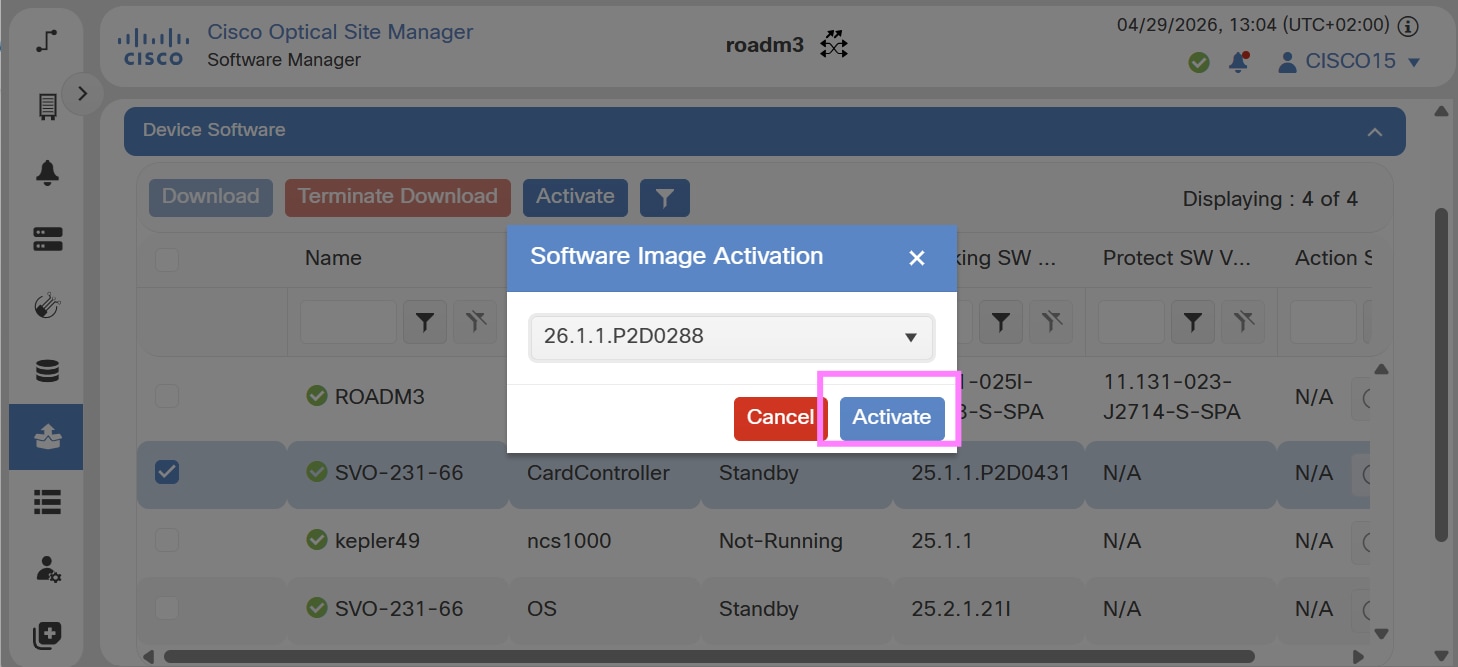
  4. Click Activate.

  5. Select the target software image.

  6. Confirm the activation.

  7. Monitor the activation progress.

  8. Repeat the procedure for the second SVO card (if HA is deployed).

    Figure 13. Activate card controller preliminary

The Card Controller software is successfully updated on all SVO cards.

What to do next

  • Verify that both SVO cards are updated in HA deployments.

  • Proceed with Cisco Optical Site Manager instance activation after the upgrade is complete on both cards.


Activate Cisco Optical Site Manager software

Activate the software on Cisco Optical Site Manager instances and verify successful completion of the upgrade.

Before you begin

  • Admin Plane and card controller software are upgraded.

  • The Cisco Optical Site Manager software package is available in Software Manager.

  • Cisco Optical Site Manager instances are stable and no critical alarms are present.

Follow these steps to activate Cisco Optical Site Manager software.

Procedure

  1. Open https://<COSM_IP> in a browser to access the Cisco Optical Site Manager web UI.

  2. Choose Software Manager > Cisco Optical Site Manager Software.

  3. Select the target Cisco Optical Site Manager instance.

  4. Click Activate.

  5. Select the required software version.

  6. Confirm the activation.

  7. Monitor the instance status during the upgrade.

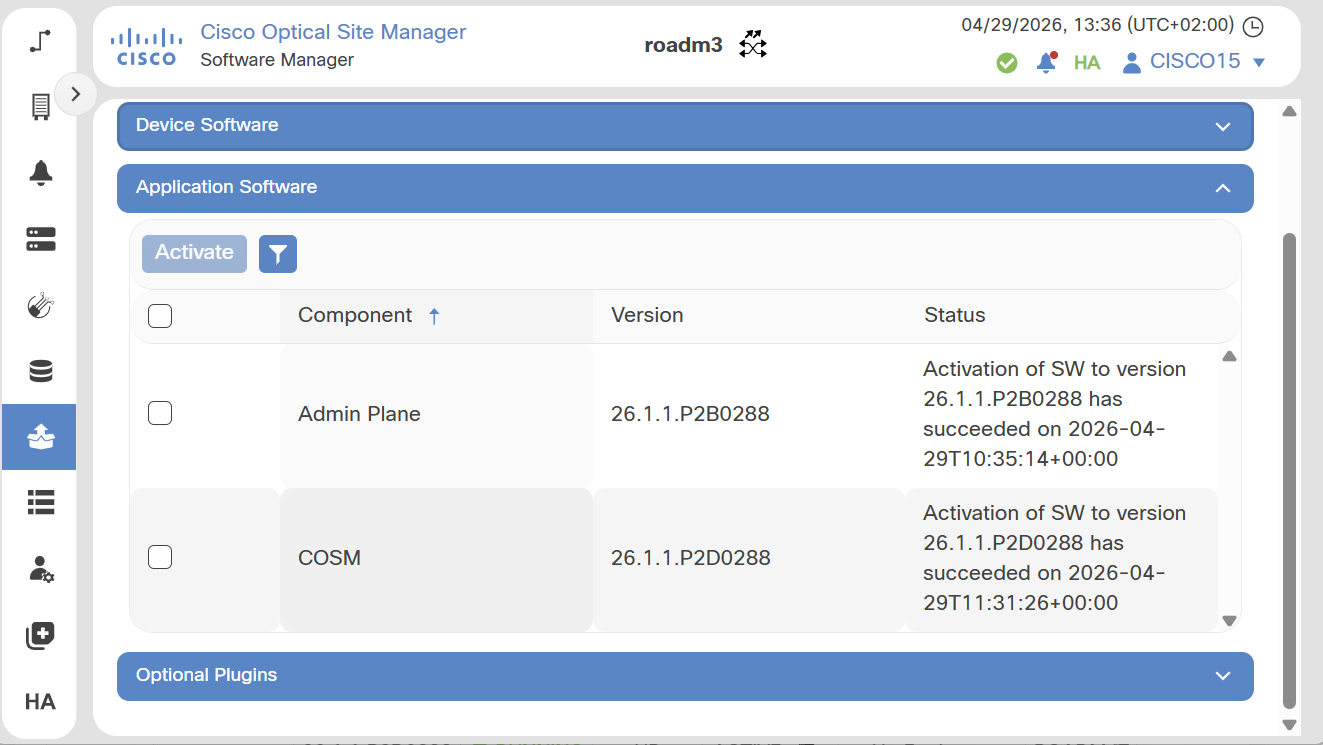
The Cisco Optical Site Manager instance upgrade completes successfully, and each instance returns to the RUNNING state with the application state UP.

The software version is updated, and the devices are in the sync-completed state.

No critical alarms are present.

Figure 14. Activate Cisco Optical Site Manager instance success