Cisco Optical Automation Solution for NCS 2000 Networks, Release 26.1.1

PDF

Cisco Optical Automation Solution for NCS 2000 Networks, Release 26.1.1

Upgrade NCS 2000 ROADM nodes that host SVO cards

Want to summarize with AI?

Log in

Upgrade and prepare the NCS 2000 ROADM nodes that host SVO cards so they can support Cisco Optical Site Manager deployment and connectivity.


Use this topic to upgrade and prepare the NCS 2000 ROADM nodes that will host SVO cards. Complete the required software upgrade, configure connectivity for SVO communication, and apply optional Geo HA settings before you install the SVO cards and deploy Cisco Optical Site Manager.

ROADM upgrade requirements

This workflow includes the upgrade and configuration of NCS 2000 ROADM nodes that will host the SVO cards. The objective is to prepare these nodes to support SVO card installation and Cisco Optical Site Manager deployment. These activities are performed:

  • Upgrade of NCS 2000 software to release 26.x

  • Optional UDC configuration for Geo HA deployments

  • OSPF on LAN configuration for SVO connectivity
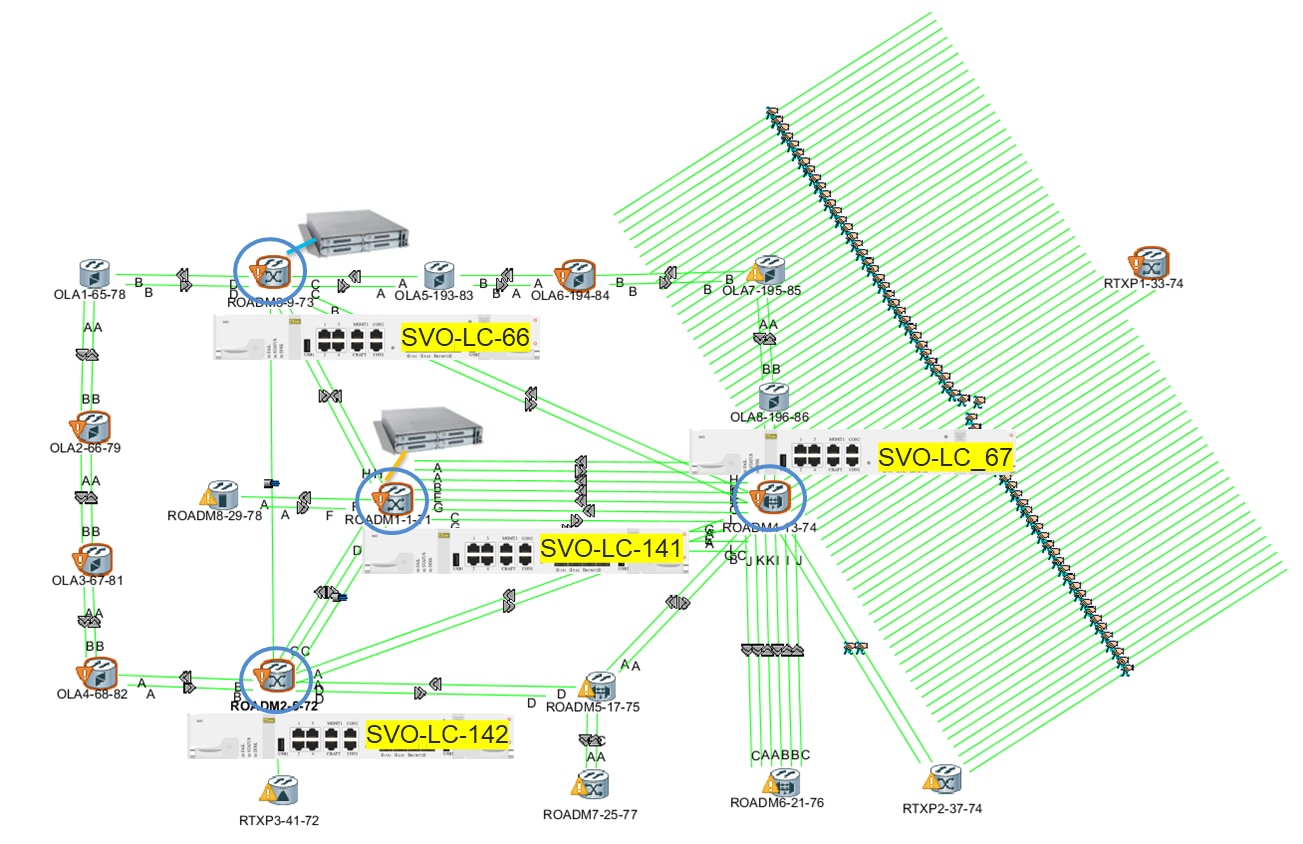
Figure 1. NCS 2000 ROADM node upgrade that hosts an SVO card

Upgrade NCS 2000 software

Upgrade the NCS 2000 ROADM nodes that host SVO cards to release 26.x before you install SVO cards and create Cisco Optical Site Manager instances.

Use CTC or EPNM to download and activate the NCS 2000 software package, and then reopen CTC with a cleared local cache before continuing with the transition workflow.

Note

In a mixed-release network that contains both 11.1.4/11.1.4.1 and 26.1.1 nodes, CTC Release 26.1.1 cannot discover nodes that continue to run release 11.1.4 or 11.1.4.1.

Follow these steps to upgrade NCS 2000 software.

Procedure

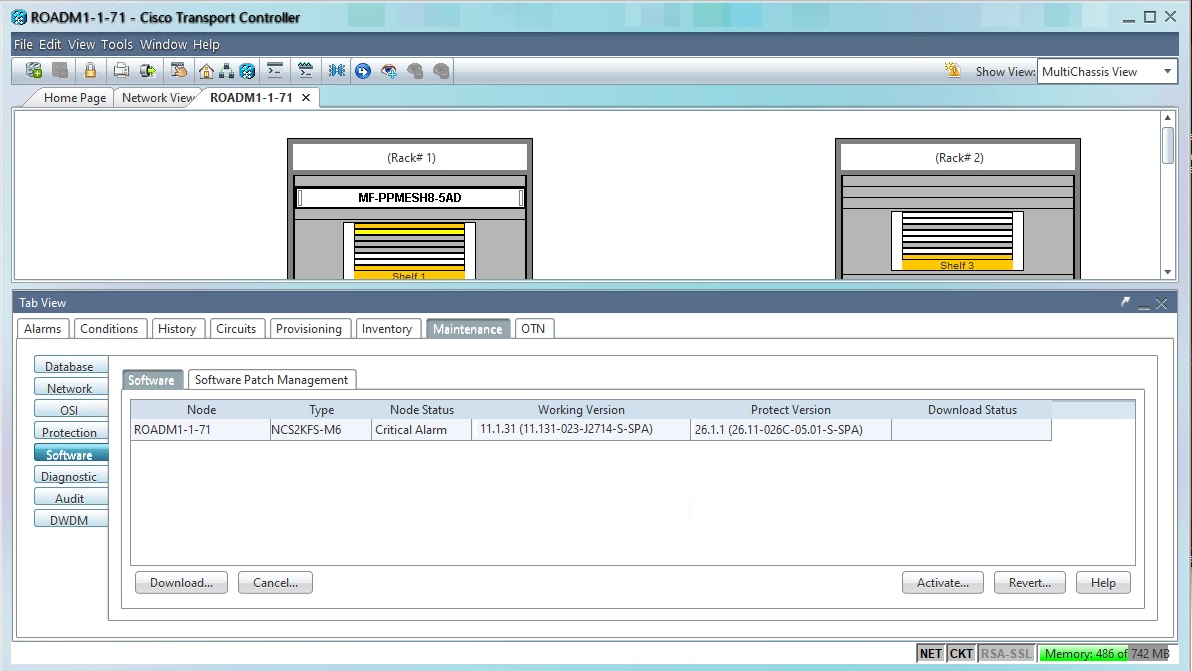
  1. Download the NCS 2000 software package (26.1.1) using CTC (or EPNM).

    Use this Cisco procedure for the complete workflow: Upgrade the Cisco NCS software.

  2. Activate the software using CTC (or EPNM).

    Refer to the product procedure: Upgrade the Cisco NCS software.

  3. After upgrade, re-open CTC.

  4. Select the Delete Cache option at login.

Figure 2. CTC 11.x software download workflow

Configure UDC

Enable UDC for Geo HA deployments.

This procedure is required only when Geo HA via UDC is used.

Follow these steps to configure UDC.

Procedure

  1. Access CTC on both nodes hosting SVO cards.

  2. Open the controller card (TNC).

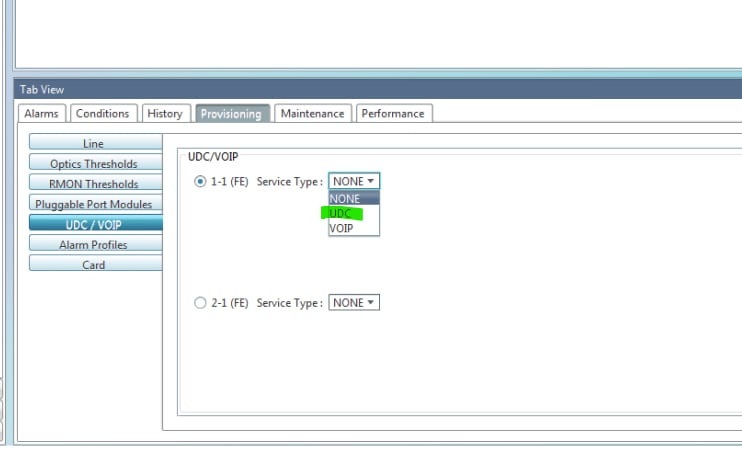
  3. Enable UDC on the controller connected to the peer node.

  4. Repeat on the adjacent node.

    Figure 3. CTC - UDC setting

What to do next

Verify that UDC is enabled on both nodes participating in the Geo HA configuration.


Configure OSPF on LAN

Configure OSPF on LAN for nodes hosting SVO cards.

This procedure is mandatory for nodes that host SVO cards.

Note

In CTC Release 25.x and Release 26.x, configure OSPF before you set the OSPF on LAN port ID to 0.0.0.0.

Follow these steps to configure OSPF on LAN.

Procedure

  1. Open CTC.

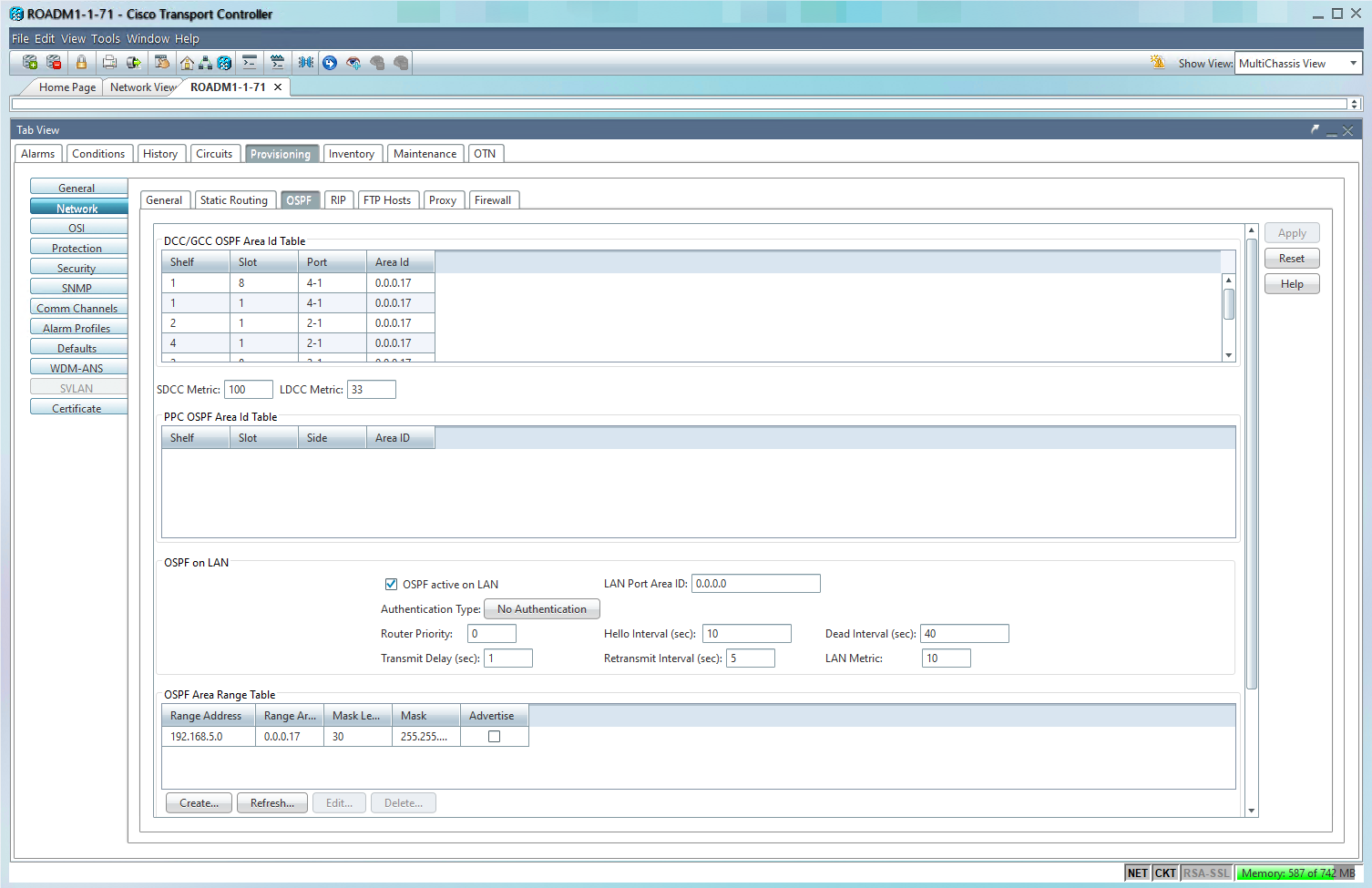
  2. Choose Node View > Provisioning > Network > OSPF.

  3. Configure the LAN Port Area ID.

  4. Set the value equal to the ospf-area-id defined in the SVO card YAML file.

  5. Apply the configuration.

    Figure 4. ROADM OSPF on LAN configuration

What to do next

Enable OSPF on LAN on OLA and ROADM nodes that do not host SVO cards only when the network design requires additional routing resiliency, such as protection against a fiber cut that can isolate a node.


Verify ROADM upgrade

Before proceeding to the next workflow, verify the ROADM upgrade status.

Follow these steps to verify ROADM upgrade.

Procedure

  1. All target ROADM nodes are running release 26.x.

  2. Nodes in 26.x are accessible via CTC after upgrade.

  3. OSPF on LAN is correctly configured on all SVO hosting nodes.

  4. UDC is correctly configured (if applicable).

  5. No critical alarms are present after upgrade.