System Setup and Software Installation Guide for Cisco NCS 1010, IOS XR Releases

PDF

Software upgrade methods

Want to summarize with AI?

Log in

This section provides details about upgrading the software for Cisco NCS 1010. Use it to review the processes involved in IOS XR software upgrade operations.


Use this reference to review upgrade the software.

The Cisco IOS XR software can be upgraded using one of these methods:

  • Upgrade NCS 1010 Using CLI Commands

  • Upgrade NCS 1010 Using YANG Data Models

Note

The NCS 1010 platform supports In-Service Software Upgrade (ISSU), and the software upgrade process is designed to be a non-impactful operation on network traffic.
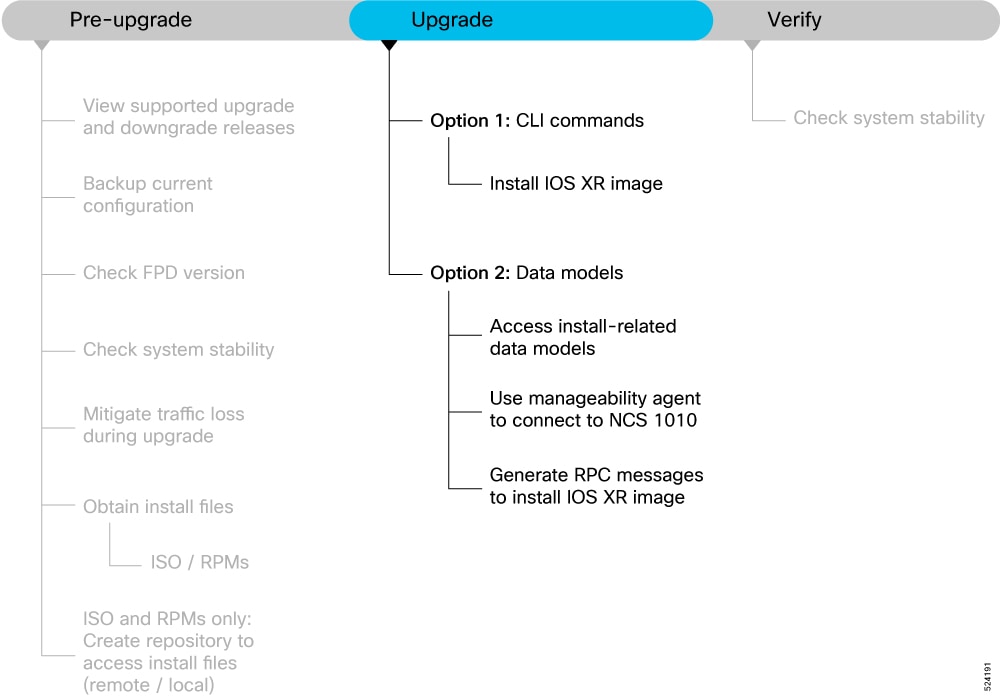
Figure 1. NCS 1010 Upgrade workflow

Supported upgrade and downgrade releases

Use this reference to review view supported upgrade and downgrade releases.

This section provides the supported upgrade and downgrade paths for NCS 1010. Consider the following guidelines when performing an upgrade or downgrade:

  • Note

    Downgrading from software release 7.11.1 or later to any earlier version is traffic-affecting and may result in a CMA process traceback.

    • When downgrading the software image from release 24.4.x to an earlier version, we recommend to manually downgrade the line card firmware as well to prevent any impact on various functionalities.

    • It is recommended to perform the upgrade with FPD auto-upgrade enabled to ensure the FPD versions are up to date and to prevent potential upgrade-related issues.

  • The following table lists the upgrade and downgrade paths supported for Cisco NCS 1010.

Source Release

Destination Release

Bridge SMU

Source Release

Destination Release

Target SMU

2531

2541

NA

2541

2531

NA

2511

2541

CSCwn69606​

2541

2511

NA

2431

2541

CSCwm77418

2541

2431

CSCwm77418

7112

2541

CSCwm77418,CSCwk75706

2541

7112

CSCwm77418

2541

2611

NA

2611

2541

NA

2531

2611

NA

2611

2531

NA

2511

2611

CSCwn69606​

2611

2511

NA

2431

2611

CSCwm77418

2611

2431

CSCwm77418

7112

2611

CSCwm77418, CSCwk75706

2611

7112

CSCwm77418


CLI software upgrade method for Cisco NCS 1010

Use this reference to review upgrade NCS 1010 using CLI commands.

There are two options to upgrade your Cisco IOS XR software using the Command Line Interface (CLI):

  • Base ISO and optional RPMs

  • Golden ISO (GISO)


Install ISO and RPMs

Use this task to install ISO and RPMs.

Use this procedure to install the base ISO and optional RPMs.

Before you begin

Follow these steps to install ISO and RPMs.

Procedure

1.

Copy the ISO image to be installed either on the NCS 1010 hard disk or on a network server to which NCS 1010 has access.

Example:

RP/0/RP0/CPU0:ios#scp root@<ip-address>:/<dir>/1010-x64-release.iso harddisk:
          
2.

To verify data integrity, verify the md5 checksum of the copied file with the original MD5 values on CCO.

Example:

RP/0/RP0/CPU0:ios#show md5 file /harddisk:/1010-x64-release.iso
          
3.

Install the base image to upgrade the system.

Example:

RP/0/RP0/CPU0:ios#install replace /harddisk:/1010-x64-release.iso
          

The image is installed, the changes are applied through a reload or a restart of the system, and commits the changes. However, you do not have control over the timing of the reload or restart —these occur as soon as the package operation completes and the system is ready.

RP/0/RP0/CPU0:ios#install package replace /harddisk:/1010-x64-release.iso
          
RP/0/RP0/CPU0:ios#install apply [reload | restart]
          
RP/0/RP0/CPU0:ios#install commit
          
  • Option 1: Install ISO without control over reload timing.

    If you want to control when your system reloads (management of a network outage), we recommend that you schedule an upgrade window and perform an install replace , letting the system reload without intervention.

  • Option 2: Install ISO with control over reload timing.
    Note

    Starting with upgrades to R2531 and later, this option is supported only if the ISO release is same as the running software release. This command is no longer supported for XR release upgrades. You may use the install package replace command to install optional RPMs or bug fixes.

    1. Install the image.

    2. Apply the changes.

      You can use either the reload or restart options based on the file that is installed. To determine whether a reload or restart is required, check the output of show install request command. The output indicates the required actions.

    3. Commit the operation.

    Warning

    If you perform a manual or automatic system reload without completing the transaction with the install commit command, the action will revert the system to the point before the install transaction commenced, including any configuration changes. Only the log is preserved for debugging.

    Note

    The install commit command must be executed immediately after software upgrades or SMU installations and before applying any new configuration changes or powering off the device to prevent loss of changes upon reboot.

4.

(Optional) After the base image is upgraded, install the additional packages. For more information, see Install additional RPMs and bug fixes.

If a system fails to boot successfully, or reboots unexpectedly when the package is undergoing a version change, the system is automatically recovered to its old software state.


Install golden ISO

Use this task to install golden ISO.

Use this procedure to install the Golden ISO (GISO) that contains the base ISO and a customized list of optional RPMs.

Golden ISO (GISO) upgrades NCS 1010 to a version that has a predefined list of bug fixes (sometimes also called software maintenance updates) with a single operation.

To update the system to the same release version with a different set of bug fixes:

  • Create a GISO with the base version and all the bug fixes you require

  • Use the install replace or install package replace commands to install the GISO.

The GISO can include bridging bug fixes for multiple source releases, and installs only the specific bridging bug fixes required for the target release.

The bridging bug fix RPMs can be used in the following scenarios:

  • To resolve a bug that might stop upgrade.

  • To meet the prerequisite requirements of a new release version that were not met by the earlier version.

Note

The install replace command is supported only with GISO, but not with .rpm packages directly.

Before you begin

Follow these steps to install golden ISO.

Procedure

1.

Copy the GISO image file to the /harddisk: of NCS 1010.

Example:

RP/0/RP0/CPU0:ios#scp root@<ip-address>:/auto/tftp-test/1010-x64-release.iso harddisk:
          
2.

Install the GISO.

Example:

RP/0/RP0/CPU0:ios#install replace source-location/giso-name.iso


The

RP/0/RP0/CPU0:ios#install package replace source-location/giso-name.iso
            
          
RP/0/RP0/CPU0:ios#install apply [reload | restart]
          
RP/0/RP0/CPU0:ios#show install active summary

...

RP/0/RP0/CPU0:ios#install package remove xr-cdp

Install remove operation 39.1.1 has started
Install operation will continue in the background
...
Packaging operation 39.1.1: 'install package remove xr-cdp' completed without error
RP/0/RP0/CPU0:ios#install apply
Thu Feb 02 11:13:09.015
Once the packaging dependencies have been determined, the install operation may have to reload the system.
If you want more control of the operation, then explicitly use 'install apply restart' or 'install apply reload' as 
reported by 'show install request'.
Continue? [yes/no]:[yes] yes
RP/0/RP0/CPU0:Feb 02 11:13:12.771 : instorch[404]: %INSTALL-6-ACTION_BEGIN : Apply by restart 39.1 started
Install apply operation 39.1 has started
Install operation will continue in the background
RP/0/RP0/CPU0:ios#show version
          
  • Option 1: Install GISO without control over reload timing.
    1. Install GISO to upgrade to a new release, add or remove bugfixes or optional packages.

      source-locationcan be in the following location.

    2. Local path to the GISO—files located in or under /var/xr/disk1/, /harddisk:/ or /misc/disk1/

      This command runs the replace operation and applies the new version via NCS 1010 restart or reload, whichever is least impactful, given the change. For example, if you have a GISO that is the same as your base image except one bugfix, and that bugfix can be applied by process restart, the command will install the bugfix and apply by restart, no NCS 1010 reload occurs. However, you do not have control over the timing of the reload or restart—these operations occur as soon as the packaging is complete and the system is ready. If you want to control the timing of system reloads, we recommend that you schedule an upgrade window and run the install replace command, allowing the system to reload without manual intervention or network impact.

    3. [Optional] Specify reload keyword to force reload for all operations. This may be useful if you want a reliable flow.

    4. [Optional] Specify commit keyword for the install, apply and commit operations to be performed without user intervention.

  • Option 2: Install GISO with control over reload timing.

    Note

    Starting with upgrades to R2531 and later, this option is supported only if the ISO release is same as the running software release. This command is no longer supported for XR release upgrades. You may use the install package replace command to install optional RPMs or bug fixes.

    1. Install GISO to upgrade to a new release, add or remove bugfixes or optional packages. The functionality is similar to install replace command, except that the staging of packaging changes is performed using this command.

      The install package replace command does not apply the changes.

    2. Apply the changes.

      You can use either the reload or restart options based on the change that is installed. You can only apply the changes by restarting the software if the difference between the GISO being installed and the running image is minimal such as bugfixes or package updates.

      To determine whether a reload or restart is required, check the output of show install request command. The output indicates the required actions.

Note

A GISO label is a string that identifies a GISO. Any install operation, such as adding or removing a package or modifying the software image (replace or package replace) will change the custom label to a system-generated default label. For example:

In this example, the software image is modified to remove the CDP package.

Apply the changes.

View the software version.

The

GISO1

custom label is replaced with the label

24.3.1

generated by the system.