Provides pre-setup requirements for Cisco NCS 1010, including console access, management interface preparation, and required setup tasks before boot verification.
Complete these prerequisite tasks to prepare the NCS 1010 for seamless setup.
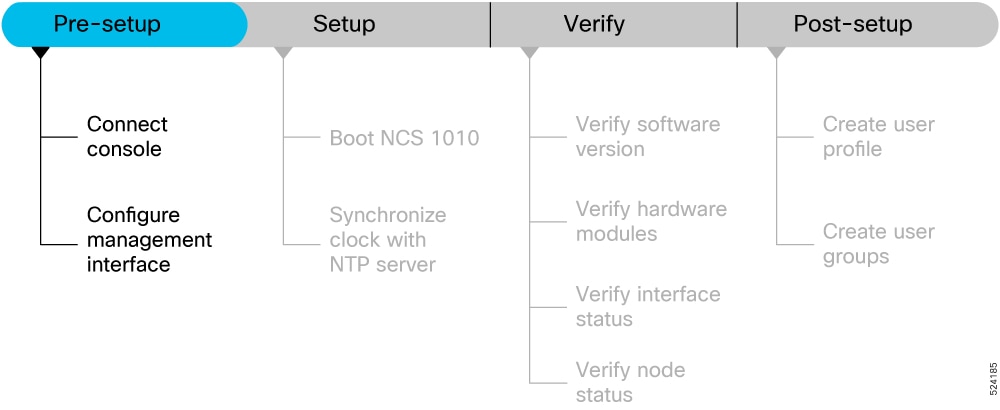
System Setup and Software Installation Guide for Cisco NCS 1010, IOS XR Releases
System Setup and Software Installation Guide for Cisco NCS 1010, IOS XR Releases
Provides pre-setup requirements for Cisco NCS 1010, including console access, management interface preparation, and required setup tasks before boot verification.
Complete these prerequisite tasks to prepare the NCS 1010 for seamless setup.
Connect your terminal or PC to the Cisco NCS 1010 console port and configure terminal settings for direct device access.
The console port allows you to log into the NCS 1010 without a network connection, using an emulation program such as HyperTerminal.
The terminal or PC is connected to the console port, and the terminal session is ready for initial access.
Use this procedure to configure the management interface.
The management interface can be used for system management and remote communication. To use the management interface for system management, you must configure an IP address and subnet mask. To use the management interface for remote communication, you must configure a static route. Use this procedure when NCS 1010 chassis is not booted using ZTP.
Consult your network administrator to procure IP addresses and a subnet mask for the management interface.
Ensure that the management interface is connected to the management network.
The configure the management interface task is complete.
Connect the management interface to the Ethernet network. Establish a Configure SSH or Configure Telnet connection to the management interface using its IP address.
The Link Layer Discovery Protocol (LLDP) support on management interface feature requires a system to form LLDP neighbor relationship over the system management interface, through which it advertises and learns LLDP neighbor information. This information about neighbors used to learn about the neighbors and in turn the topology of the devices for Operations, Administration, and Maintenance (OAM) purposes.
Advantages of LLDP
Provides support on non-Cisco devices.
Enables neighbor discovery between non-Cisco devices.
Limitation
When you disable LLDP globally, the LLDP gets disabled on all the interfaces.
By default, LLDP is enabled for NCS 1010. But when you enable and disable LLDP in the global configuration mode, LLDP gets disabled on all the interfaces.
Workaround: You must enable LLDP globally or reload the NCS1010.
Cisco Discovery Protocol (CDP) vs LLDP
The CDP is a device discovery protocol that runs over Layer 2. Layer 2 is also known as the data link layer that runs on all Cisco devices, such as routers, bridges, access servers, and switches. This protocol allows the network management applications to automatically discover and learn about other Cisco devices that connect to the network.
The LLDP is also a device discovery protocol that runs over Layer 2. This protocol allows the network management applications to automatically discover and learn about other non-Cisco devices that connect to the network.
Interoperability between non-Cisco devices using LLDP
LLDP is also a neighbor discovery protocol that is used by network devices to advertise information about themselves to other devices on the network. This protocol runs over the data link layer, which allows two systems running different network layer protocols to learn about each other.
With LLDP, you can also access the information about a particular physical network connection. If you use a non-Cisco monitoring tool (through SNMP), LLDP helps you identify the Object Identifiers (OIDs) that the system supports. These OIDs are supported:
1.0.8802.1.1.2.1.4.1.1.4
1.0.8802.1.1.2.1.4.1.1.5
1.0.8802.1.1.2.1.4.1.1.6
1.0.8802.1.1.2.1.4.1.1.7
1.0.8802.1.1.2.1.4.1.1.8
1.0.8802.1.1.2.1.4.1.1.9
1.0.8802.1.1.2.1.4.1.1.10
1.0.8802.1.1.2.1.4.1.1.11
1.0.8802.1.1.2.1.4.1.1.12
Neighbor Discovery
System advertises the LLDP TLV (Type Length Value) details over the management network using which other devices in the management network can learn about this device.
Configuring LLDP
LLDP full stack functionality is supported on all three management interfaces that are supported in NCS 1010.
You can selectively enable or disable LLDP on any of the management interfaces on demand.
You can selectively enable or disable LLDP transmit or receive functionality at the management interface level.
Information gathered using LLDP can be stored in the device Management Information Database (MIB) and queried with the Simple Network Management protocol (SNMP).
LLDP operational data is available in both CLI and netconf-yang interface.
Enabling LLDP Globally
When you enable LLDP globally, all interfaces that support LLDP are automatically enabled for both transmit and receive operations.
You can override this default operation at the interface to disable receive or transmit operations.
This table describes the global LLDP attributes that you can configure:
|
Attribute |
Default |
Range |
Description |
|---|---|---|---|
|
Holdtime |
120 |
0-65535 |
Specifies the holdtime (in sec). Holdtime refers to the time or duration that an LLDP device maintains the neighbor information before discarding. |
|
Reinit |
2 |
2-5 |
Delay (in sec) for LLDP initialization on any interface |
|
Timer |
30 |
5-65534 |
Specifies the rate at which LLDP packets are sent (in sec) |
Enable LLDP globally on all three management interfaces.
When you enable LLDP globally, all interfaces that support LLDP are automatically enabled for both transmit and receive operations.
You can override this default operation at the interface to disable receive or transmit operations.
The global LLDP configuration enables LLDP on all the three management interfaces.
Verify the LLDP configuration and operational data.
The LLDP running configuration, interface data, and neighbor data are verified.
Enable LLDP at the management interface level.
LLDP is configured at the management interface level.
Disable LLDP transmit operations, receive operations, or both at a specified management interface.
LLDP transmit or receive operations are disabled at the specified management interface.
Use these commands for debugging issues in the LLDP functionality.
|
Command |
Description |
|---|---|
|
show lldp traffic |
Displays statistics for LLDP traffic. |
|
debug lldp all |
Enables all LLDP debugging information. |
|
debug lldp errors |
Enables debugging information for LLDP errors. |
|
debug lldp events |
Enables debugging information for LLDP events. |
|
debug lldp packets |
Enables debugging information for LLDP packets. |
|
debug lldp tlvs |
Enables debugging information for LLDP TLVs. |
|
debug lldp trace |
Enables LLDP trace debugging information. |
|
debug lldp verbose |
Enables verbose LLDP debugging information. |
Use this procedure to configure Telnet.
This procedure allows you to establish a telnet session to the management interface using its IP address. Use this procedure when NCS 1010 chassis is not booted using ZTP.
Ensure that two xr-telnet-* rpms are installed. .
The configure Telnet task is complete.
Use this procedure to configure SSH.
This procedure allows you to establish an SSH session to the management interface using its IP address. Use this procedure when NCS 1010 chassis is not booted using ZTP.
Generate the crypto key for SSH using the crypto key generate dsa command.
The configure SSH task is complete.