Cisco C9610 Series Smart Switches Hardware Installation Guide

PDF

Install a fan tray

Want to summarize with AI?

Log in

Overview

Guidelines for removing and reinstalling a fan tray on Cisco C9610 switch.

The Cisco C9610 series smart switches ship with preinstalled fan trays. Before removing or installing a fan tray ensure that you follow the guidelines and safety warnings.

Caution
When removing a fan tray, keep your hands and fingers away from the spinning fan blades. Let the fan blades completely stop before you remove the fan tray.
Online insertion and removal

While the fan tray is designed to be removed and installed while the system is operational (powered on) without presenting an electrical hazard or damage to the system, there is a time constraint when you remove and replace the fan tray in a system that is powered on.

Caution

The system can safely run without a fan tray only for a few minutes, until the critical temperature threshold is exceeded. Watch for any alarms triggered in the software. After the critical temperature threshold exceeds without sufficient cooling, the system shuts down if the alarm is not cleared.

You can remove and replace the fan tray only from the rear of the chassis.

When you remove and replace a fan tray in a non-operating system, there is no time constraint.

When you order a spare, a fan tray that contains six fans and a connector are shipped. Even if one of the fans is not functioning and you need to replace the fan, you must order a fan tray; individual fans cannot be ordered.


Remove a fan tray

Fan trays are hot-swappable. You do not need to power down the system to remove fan trays.

Before you begin

  • Read the safety instructions in the Install a fan tray section.

  • Ensure that you have these tools and accessories available

    • Phillips-head screwdriver, and an

    • anti-static mat.

Procedure

1.

Keep the replacement fan tray ready by removing it from the shipping packaging. Place it on an anti-static mat and within arm's reach. Do not detach the connector module.

Note

When you remove and replace the fan tray in a system that is powered on, there is a time constraint. The system can safely run without a fan tray only for 2 minutes. So it is important to complete this first step before you remove the fan tray from the rear of the chassis.

2.

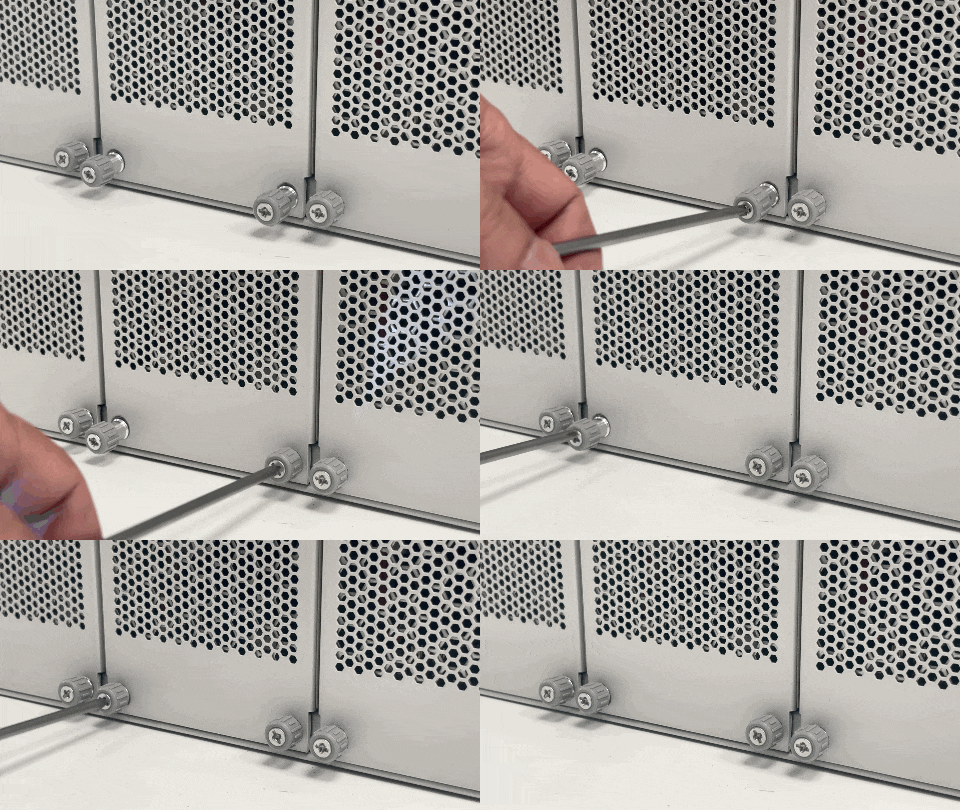
Proceed with removing the fan tray from the chassis. Loosen the four captive installation screws on the fan tray until the screws are free of the chassis.

Figure 1. Removing the captive installation screws on the fan tray

In PDF, to view the animation, click this link.

3.

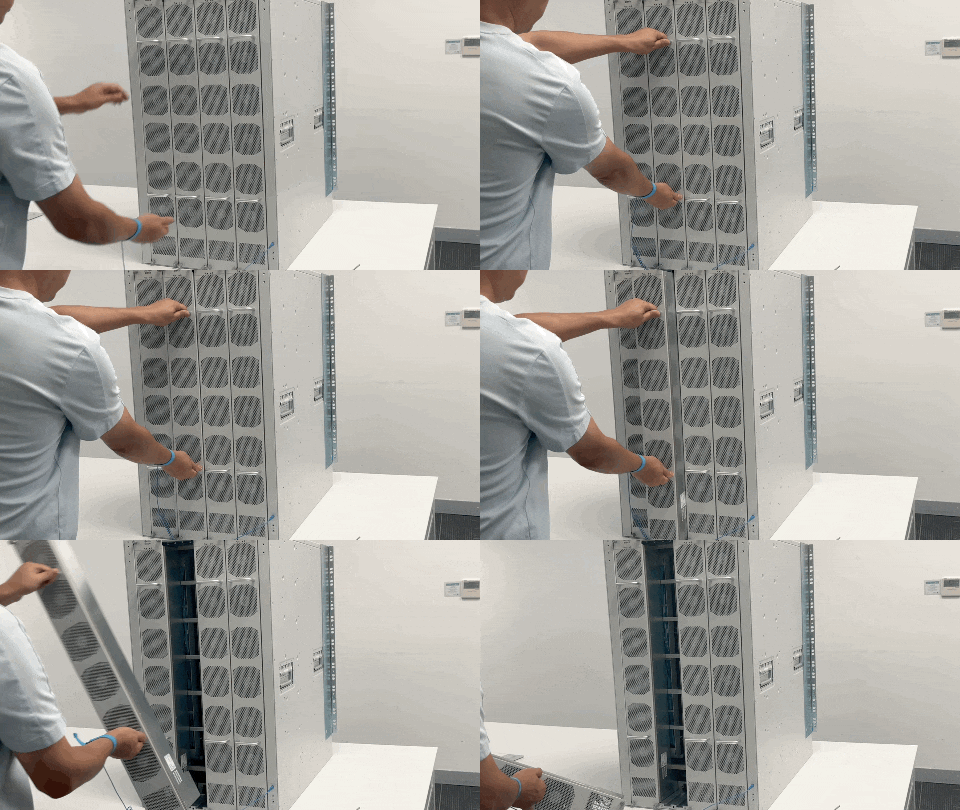
Hold both the handles of the fan tray and remove the fan tray assembly completely out of the bay.

Figure 2. Removing the fan tray assembly

In PDF, to view the animation, click this link.

What to do next

Set the removed fan tray on an anti-static mat and proceed with installing the replacement or spare fan tray.


Install a fan tray

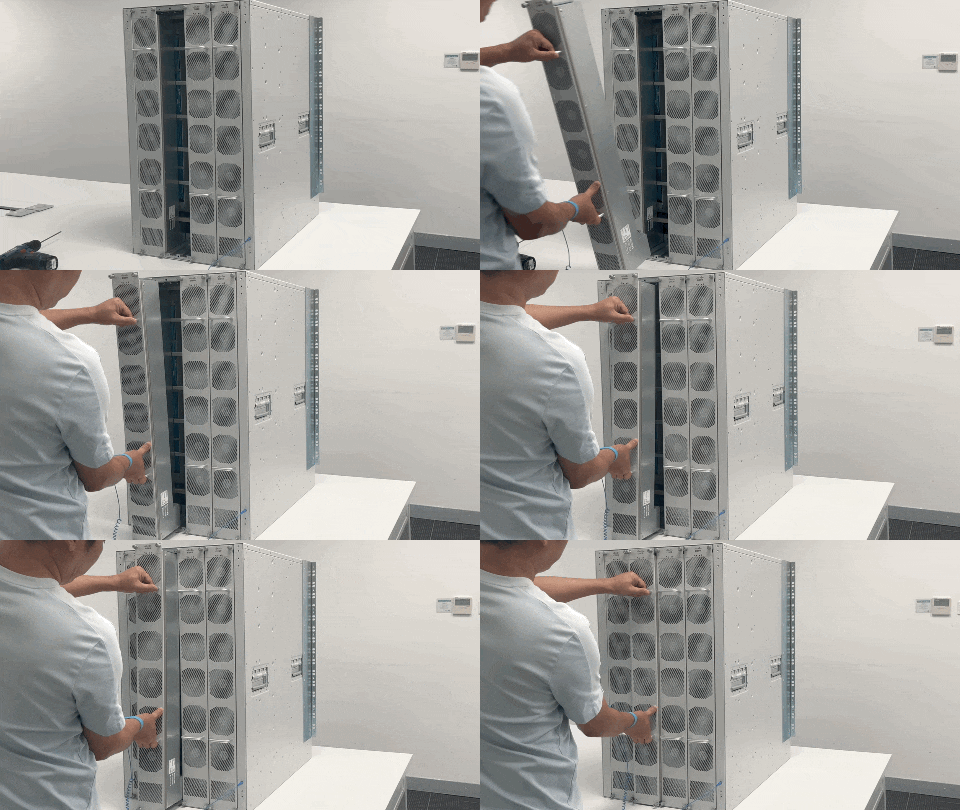
When inserting the fan tray, make sure that the Cisco logo on the fan tray must be on the top.

Before you begin

  • Read the safety warnings.

  • Ensure that you have the following tools and accessories available:

    • Phillips-head screwdriver

    • Anti-static mat

Procedure

1.

On the replacement fan tray assembly, ensure that the four screws securing the fan tray to the connector are tight. Be careful not to overtighten the screws.

2.

Hold both the fan tray assembly handles.

3.

Position the fan tray with its rear (the side with the electrical connectors) at the opening of the fan tray slot in the chassis.​

4.

Align the two tracks on the top of the fan tray with the two sets of rails at the top of the fan tray slot in the chassis.​

Note

If you try to insert the fan tray in inverse, you will not be able to insert it into the bay. Ensure that the top and bottom of the fan tray is aligned to the top and bottom of the bay.

Figure 1. Inserting the fan tray

In PDF, to view the animation, click this link.

5.

Slide the fan tray slowly into the chassis with both your hands, until the four captive installation screws make contact with the chassis.

Do not slam in the fan tray into the slot. Plug in the fan tray slowly

6.

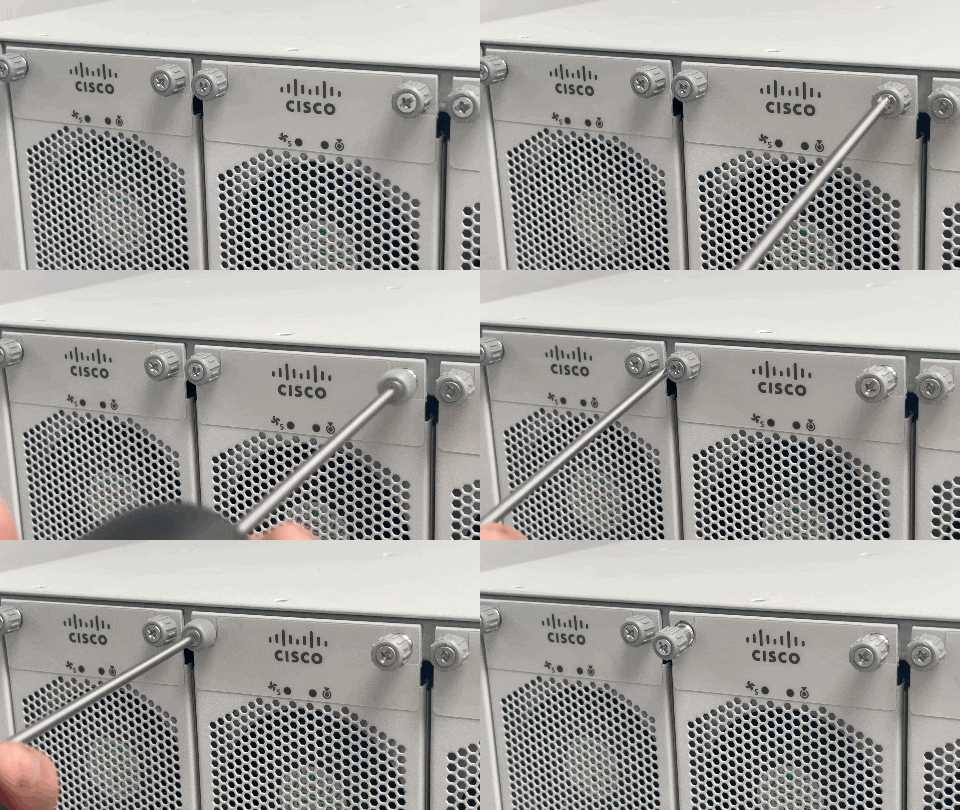
Tighten the four (two at the top and two at the bottom of the fan tray) captive installation screws and secure the fan tray assembly in the chassis.

Figure 2. Tightening the captive screws on the fan tray

In PDF, to view the animation, click this link.

What to do next

Verify that the fan tray status LED turns green within 20 seconds after the installation.


Verify the fan tray installation

Follow these steps to verify that the new fan tray is installed correctly and is operating properly.

Before you begin

To check the operation of the fans, you have to power up the chassis.

Procedure

1.

Listen to the sound of the fans; you should immediately hear them operating. If you do not hear the sound, ensure that the

  1. fan tray is inserted completely in the chassis,

  2. faceplate is flush with the chassis panel, and

  3. captive installation screws are sufficiently tightened.

If the fan tray is not installed correctly, the fans may not run at all, or they may run at full speed. When the fan tray operates at full speed, increased noise levels may be expected.

2.

Check if the fan tray LED is lit and is green.

3.

Even after several attempts if the fans do not operate, or if you experience trouble with the installation (for instance, if the captive installation screws do not align with the chassis holes), contact the Cisco TAC for assistance.