How to connect StackWise cable to create a data stack.
Procedure
| 1. | Remove the dust covers from the StackWise cables and store them for future use. |
|
| 2. | Align the stack cable connector with the StackWise port on the switch rear panel. |
|
| 3. | Gently push the stack cable connector into the stack port. Continue to push the cable connector until it is fully seated into the port. 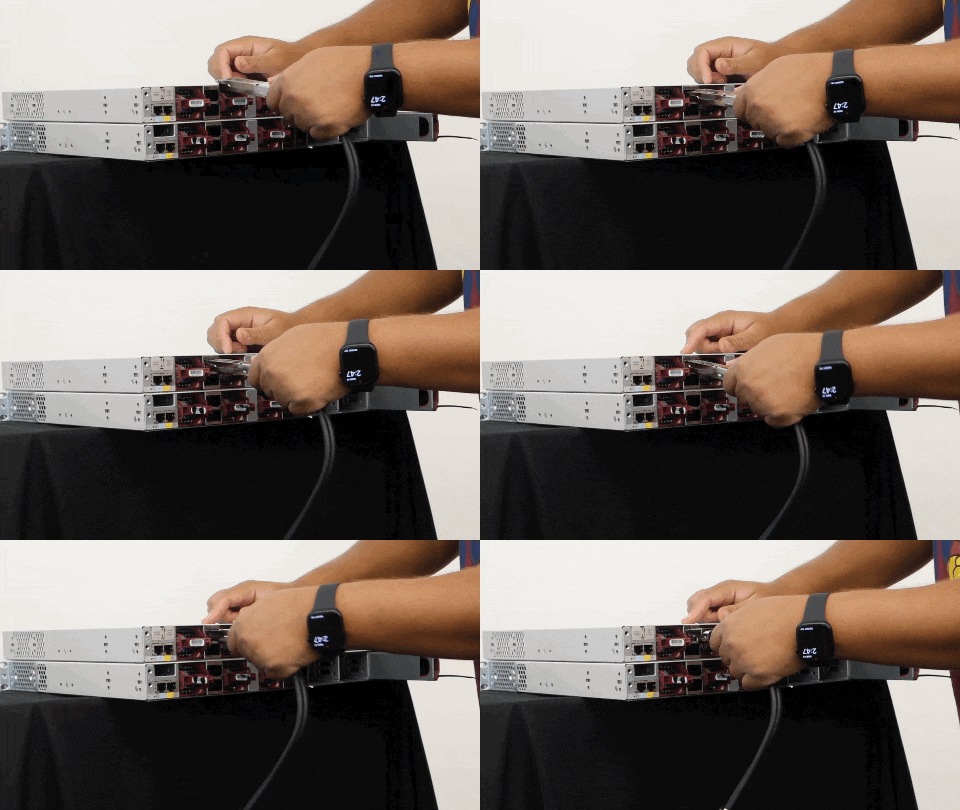
To view the animation in PDF, click this link. When you insert the cable completely, listen for a click sound that confirms that the cable is correctly inserted and locked into the port. |
|
| 4. | Connect the other end of the cable to the port on the other switch. Listen for a click sound that confirms that the cable is locked into the port. 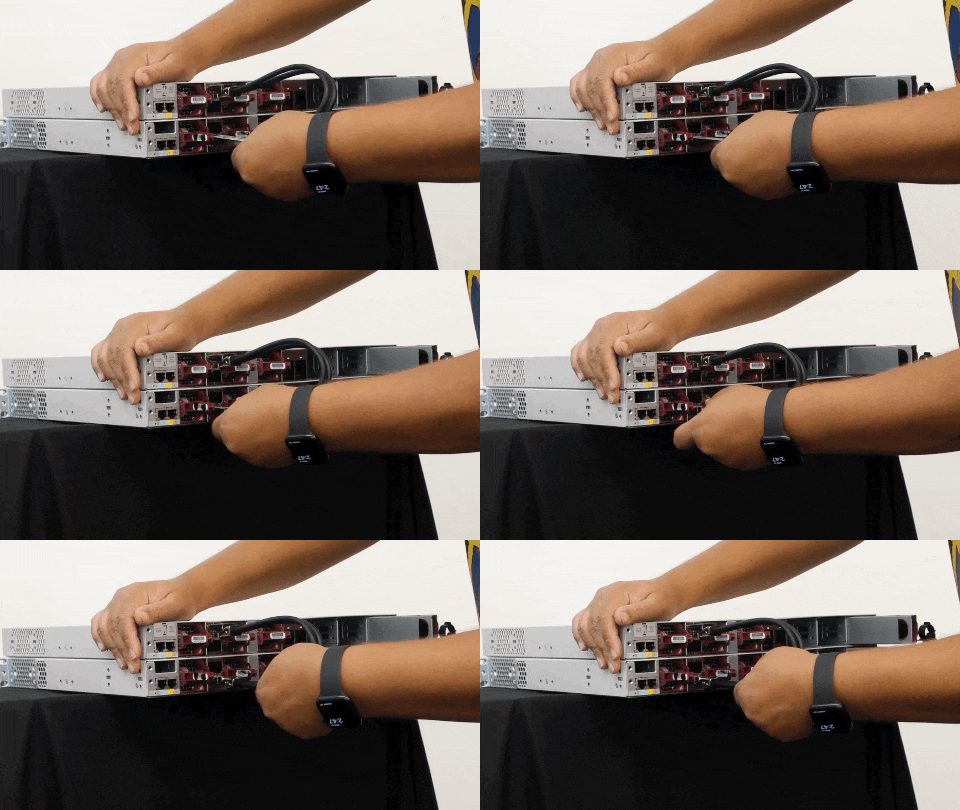
To view the animation in PDF, click this link. |
|
| 5. | Gently pull on the cable to ensure that it is locked and does not come loose. If the cable moves or does not click, remove it and try reinserting until the click sound is heard.
|